







An author archive page shows all the articles that a specific writer has published on a WordPress site. When someone clicks the author’s name on a blog post, they land on this page. It gives a clean list of posts written by that author. It also helps visitors explore more content from writers they like.
This page can include the author’s bio, profile picture, social links, and other details that help readers learn more about the person behind the content. Creating a well-structured author archive page is important for both user experience and SEO.
It helps readers follow a single author’s journey and discover related posts with ease. For multi-author blogs, it helps highlight each writer’s voice and authority, making the site feel richer and more trustworthy. Let’s explore how to create an author archive page in WordPress for free in this post.
Importance of Creating an Author Archive Page
An author archive page is more than a simple directory of posts. It gives structure to your content and helps both readers and search engines understand who is contributing to your site. This small feature can make a big difference in user experience, content performance, and brand authority.
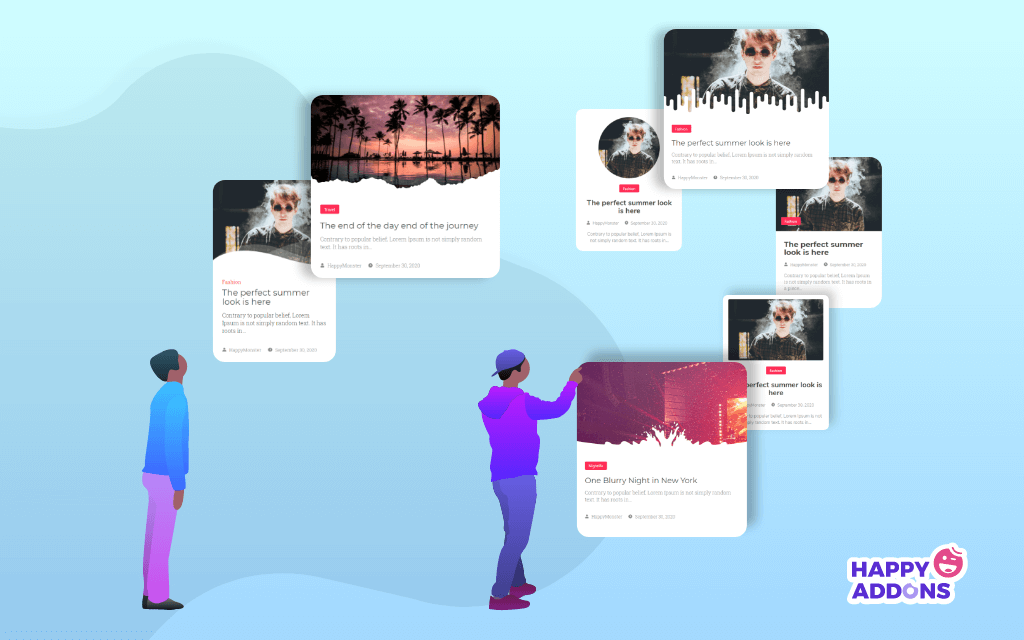
a. Helps Readers Discover More Content
When a visitor finishes reading a post and enjoys it, they often want more from the same writer. An author archive page gives them a direct place to explore. It shows the full list of content from that author, which increases page views and keeps users on your site longer.
b. Improves Content Organization
Blogs can get messy as more articles are published. Author archive pages group content by the person who wrote it. This creates a logical content structure that is easier to browse. It also makes your website look more well-managed. Take a look at the best WordPress content management plugins.
c. Strengthens Personal Branding and Authority
Writers need a space where their voice and style stand out. An author archive page gives each writer a small brand presence on the website. With a short bio, profile photo, and social links, authors can build trust and authority with readers over time.
d. Boosts SEO and Ranking Signals
Search engines can index author pages and connect related posts. This helps with content clustering and internal linking, supporting SEO efforts. Strong author profiles may signal expertise and improve credibility for topics where authority matters. Check common SEO mistakes you should avoid.
e. Supports Multi-Author Websites and Collaboration
If a site has multiple writers, author archive pages help highlight everyone’s contributions. This encourages diverse voices and promotes teamwork. It also helps readers follow specific authors they like, which is useful for media websites, online magazines, and editorial blogs.
How to Create an Author Archive Page in WordPress with Elementor
Elementor is one of the best drag-and-drop page builder tools online. Using this plugin, you can create almost any type of landing page easily on your website. However, to build an author page, you have to depend on the Elementor theme builder, which is a premium feature.
Prerequisites
We’ll show you how to create the author archive page with free tools. Get the following plugins installed and activated on your website.
Once they are ready on your site, start following the tutorial as explained below.
Note: HappyAddons itself has a powerful theme builder, which is completely free to use. With this, you can do lots of things that usually require Elementor Pro.
Step 01: Create an Archive Page from HappyAddons Theme Builder
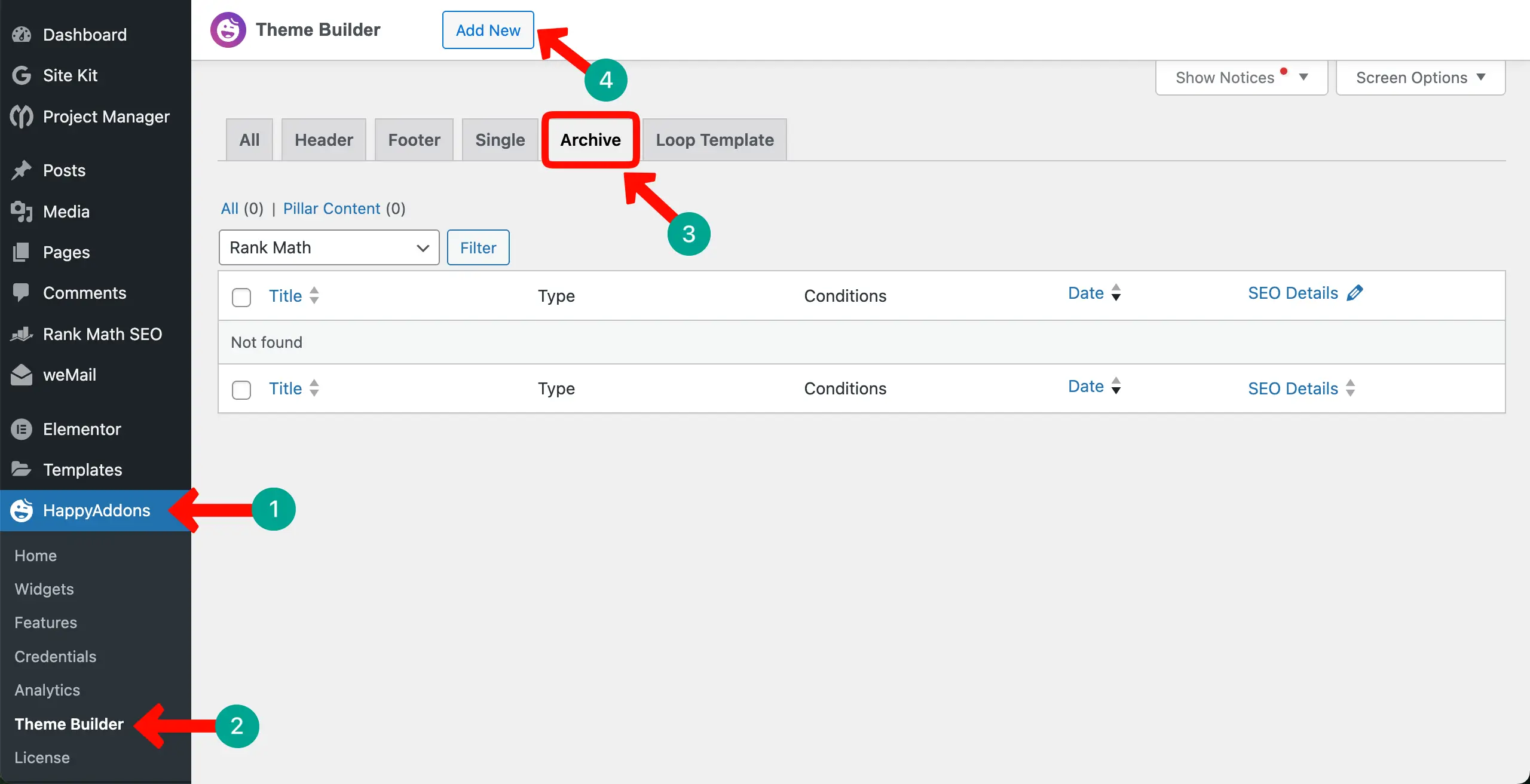
Navigate to HappyAddons > Theme Builder > Archive > Add New.
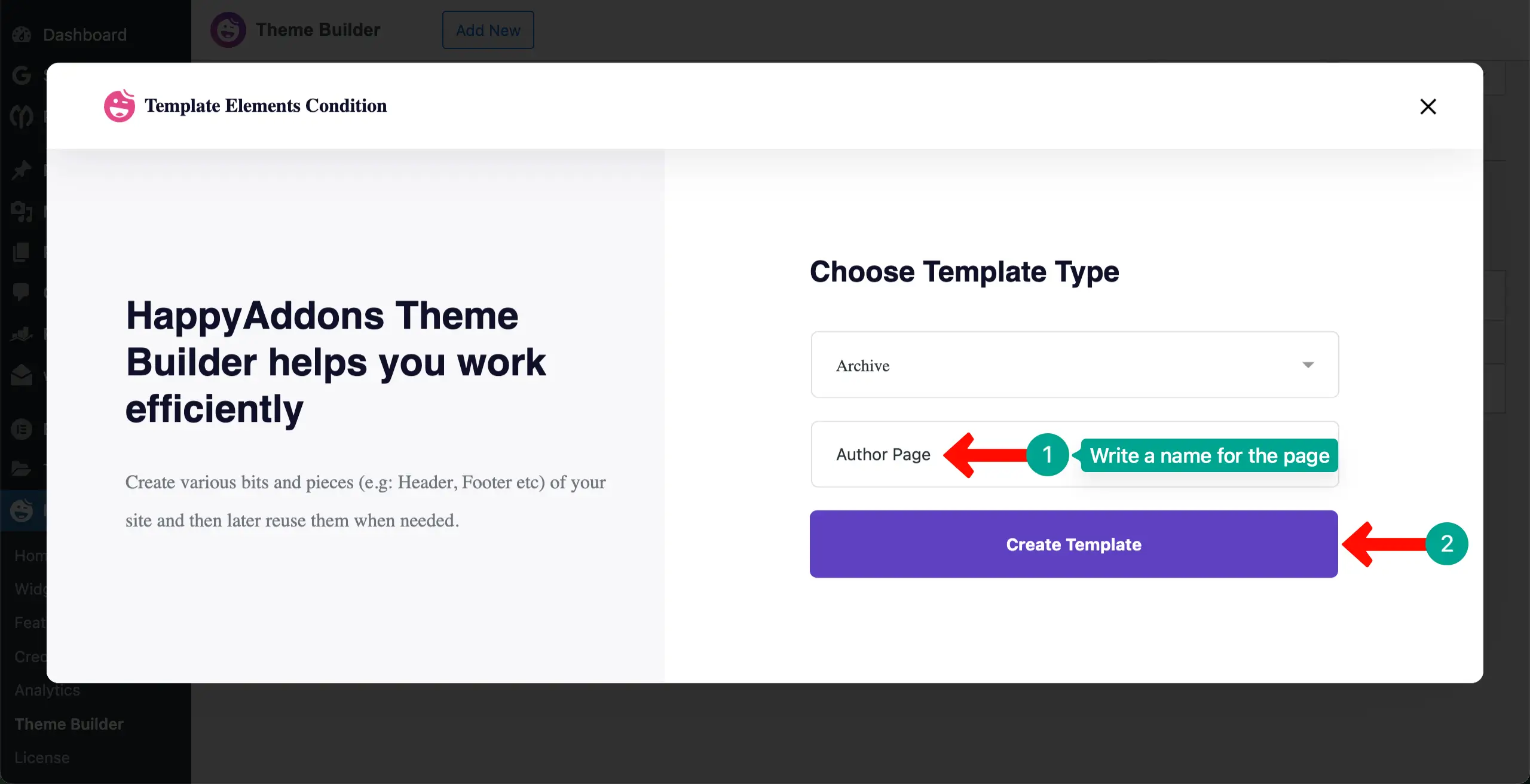
Give a name to the page. Then, click the Create Template button.
You can see that the Elementor canvas has been opened. Here, you can drag-and-drop necessary widgets to design your desired author archive page.
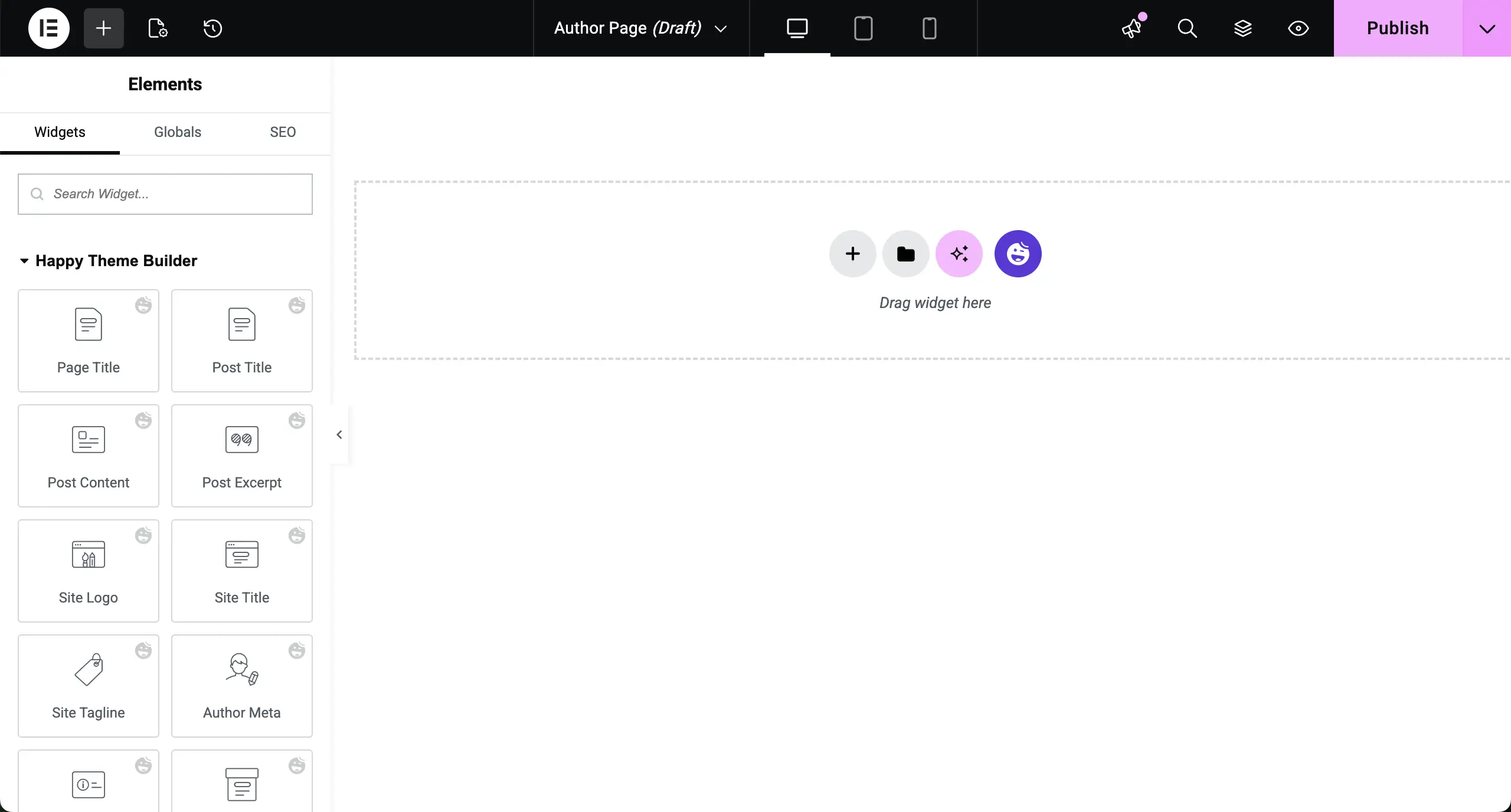
Step 02: Display Author Meta
Find the Author Meta widget and place it on top of the canvas.
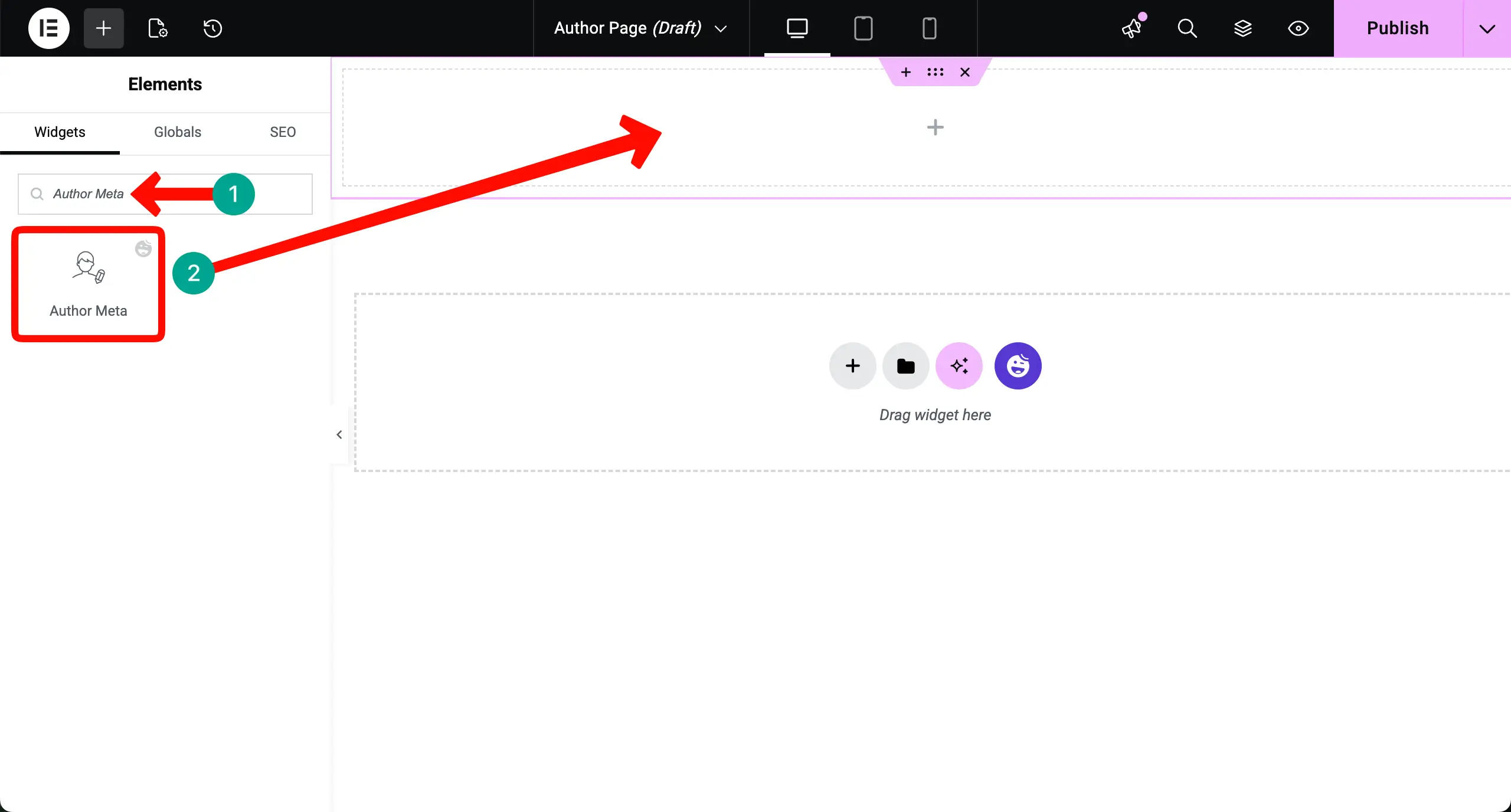
The name of an author will instantly be displayed on the archive page. You can now configure its settings and stylizations from the Elementor panel.
Note: If your website has multiple authors, it’s necessary to show the name of the respective author on the archive page. Otherwise, visitors might get confused, thinking which page they have landed on.
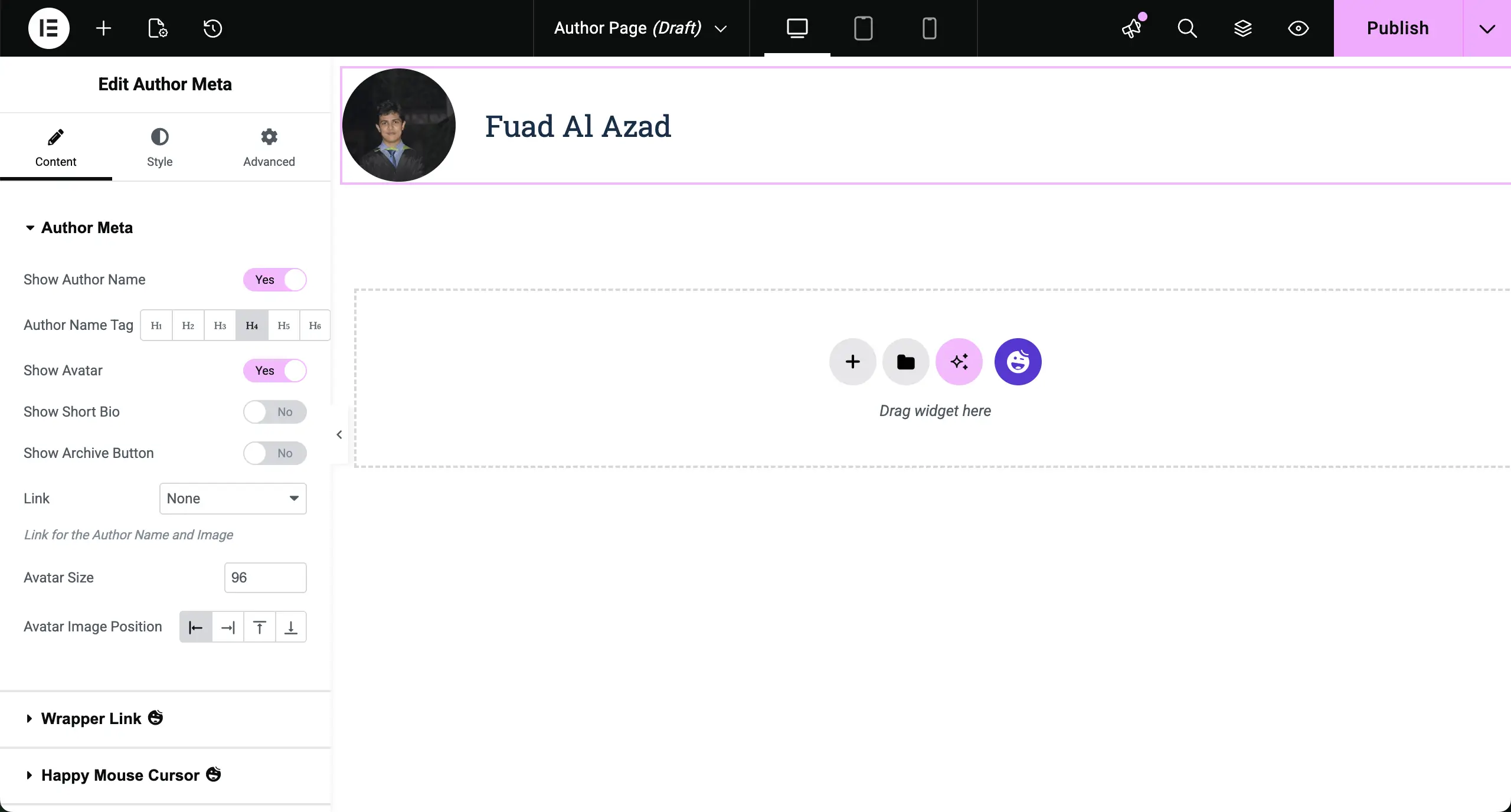
From the Content and Style tabs, you can customize the author meta widget as you want.
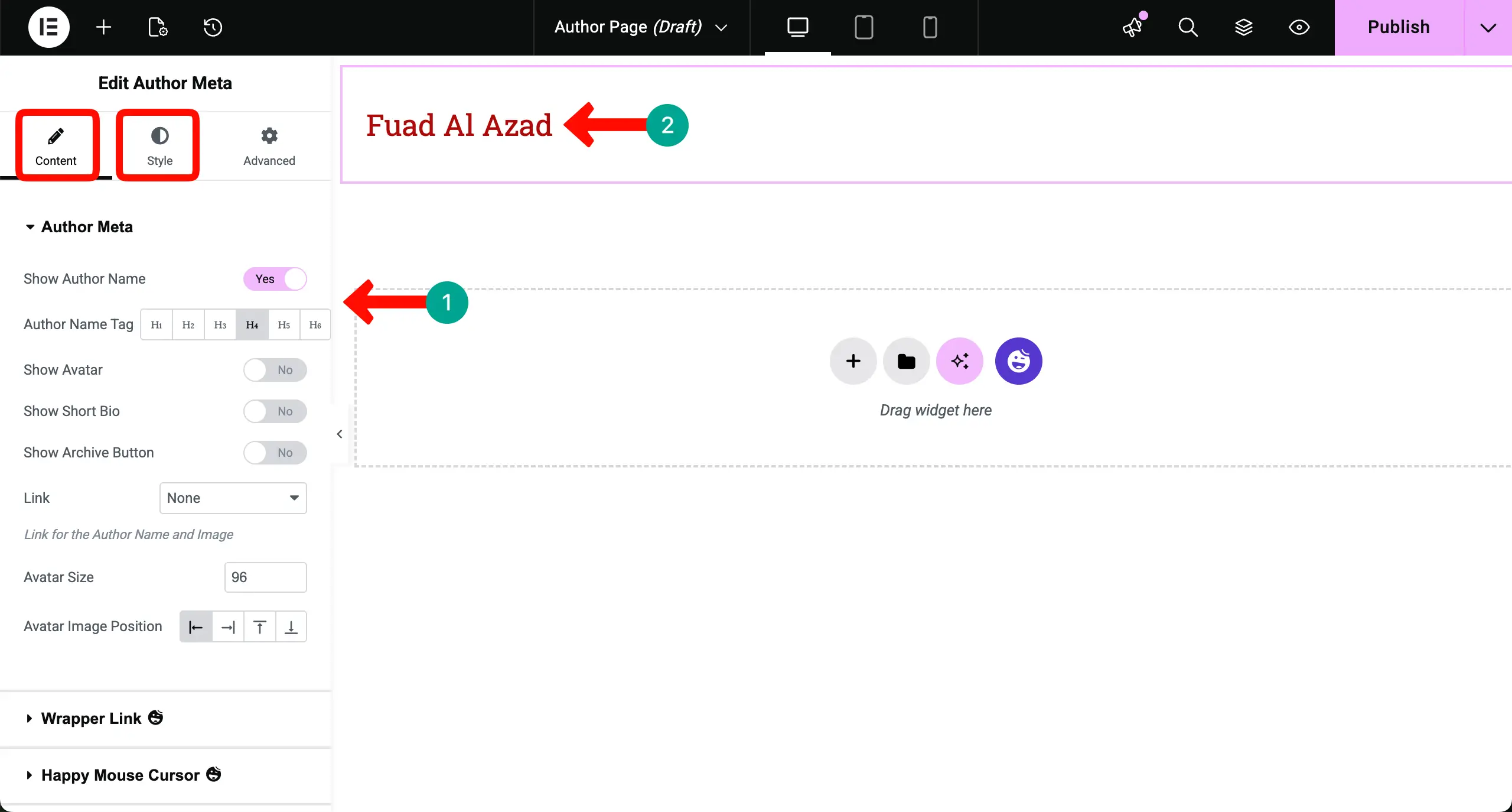
Step 03: Add Post Grid to the Canvas
The Post Grid widget lets you display blog posts in a clean grid layout so readers can browse multiple articles at a glance.
Now, place the Post Grid widget on the canvas under the author meta.
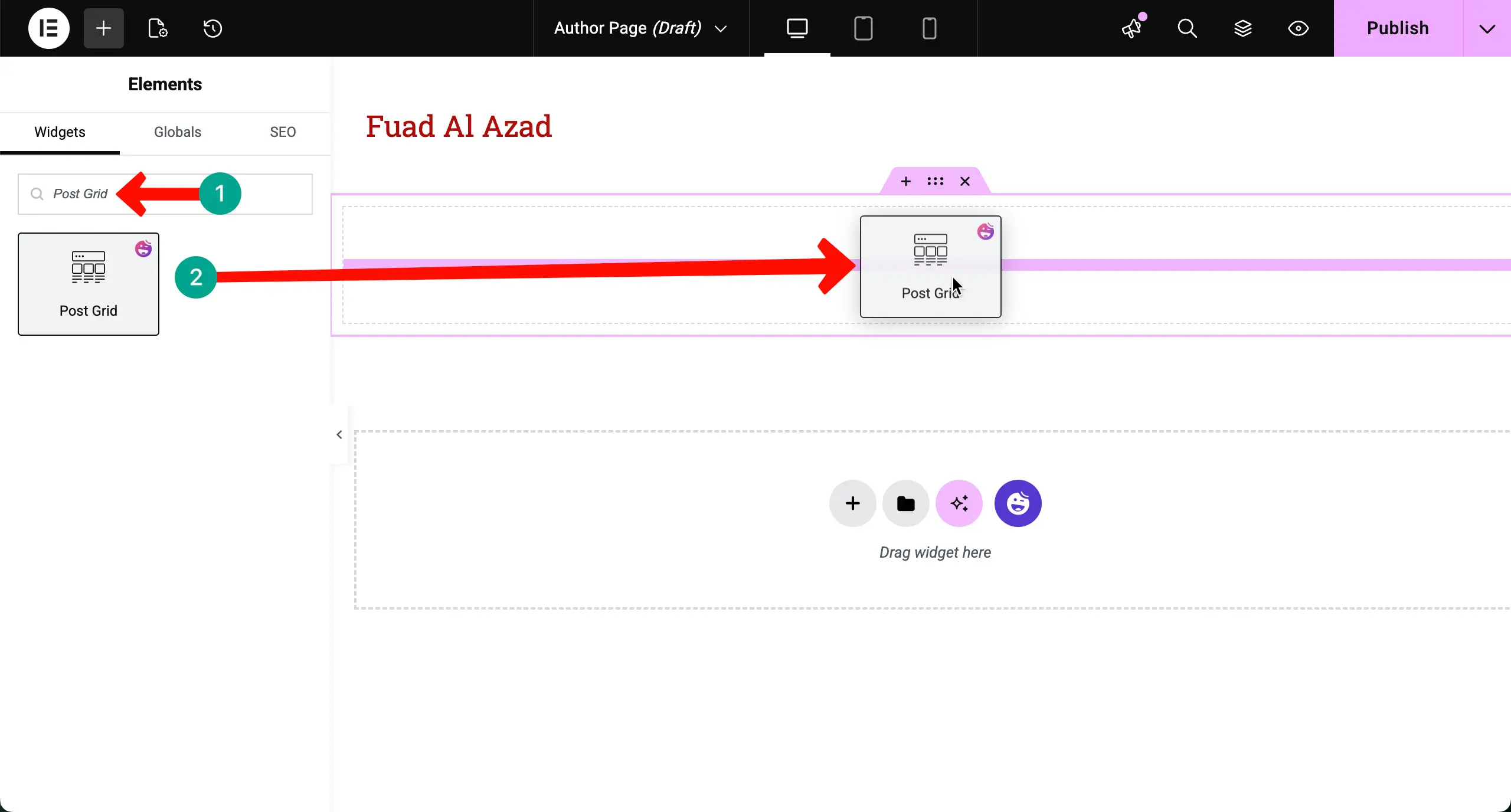
Your written posts will instantly be displayed on the canvas in the grid format.
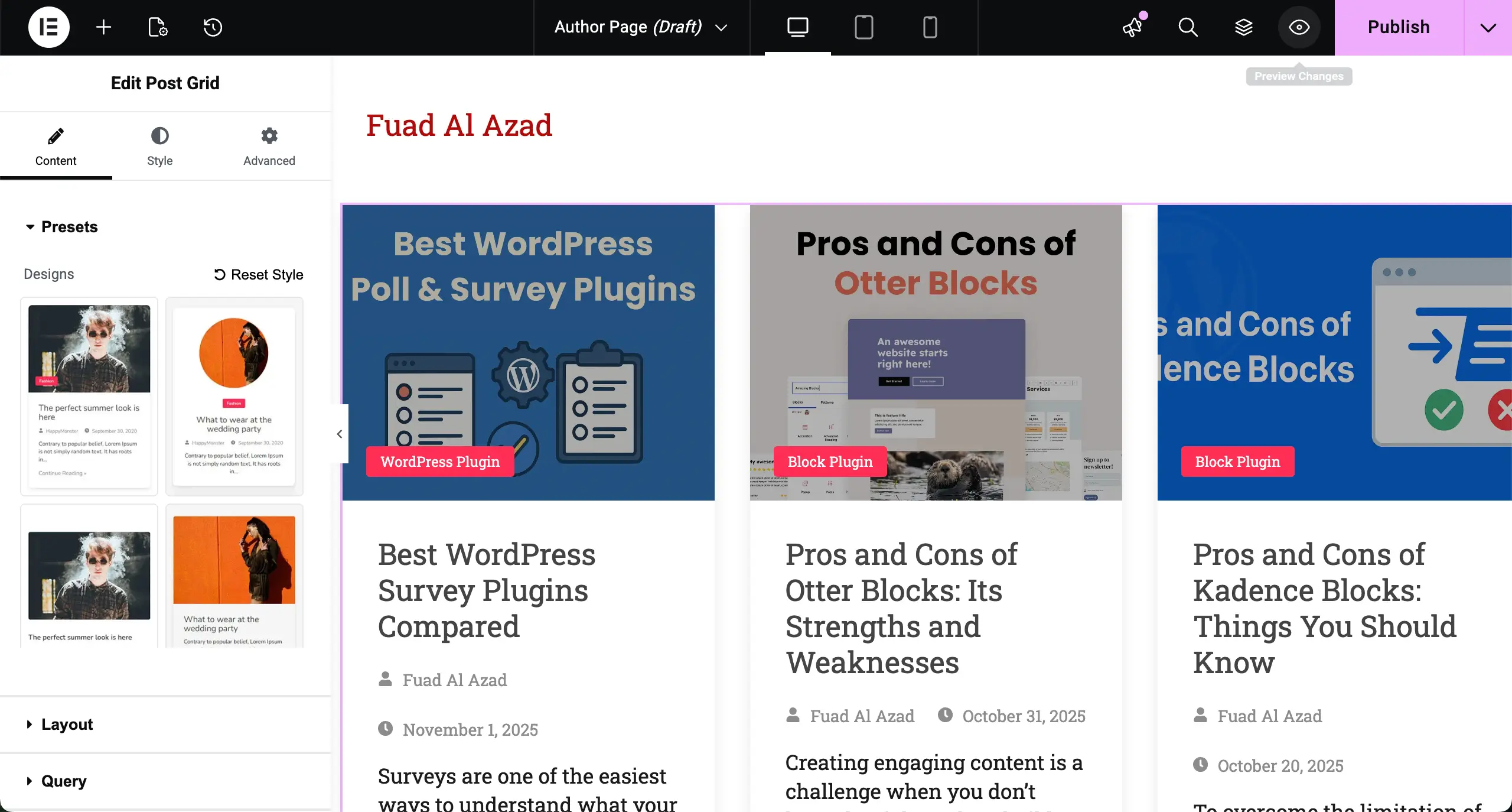
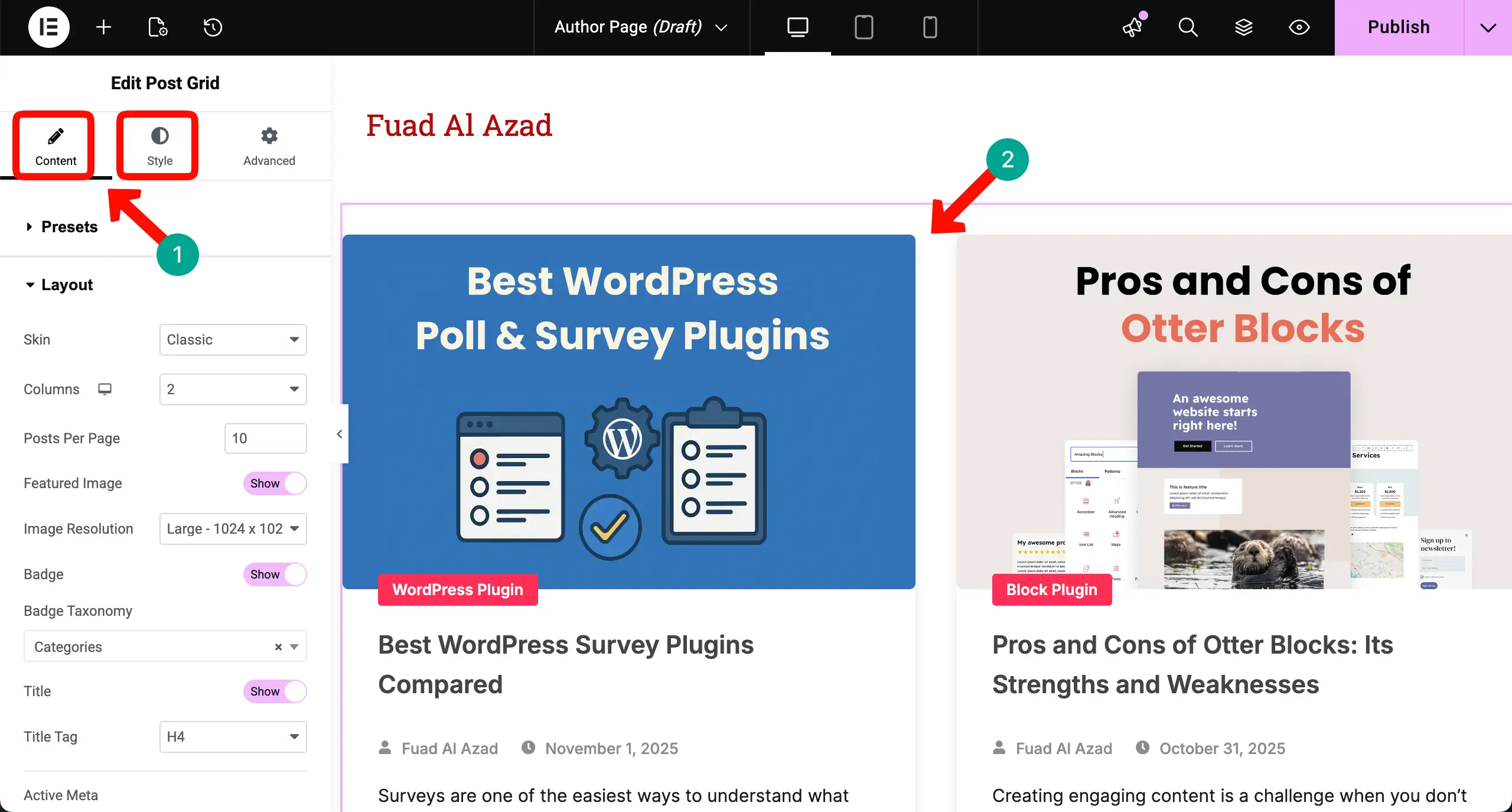
In order to beautify the presentation of the post grid widget, you can adjust settings from the Content and Style tabs, as we usually do in any Elementor widget.
You can see that we have done some customizations to the widget.
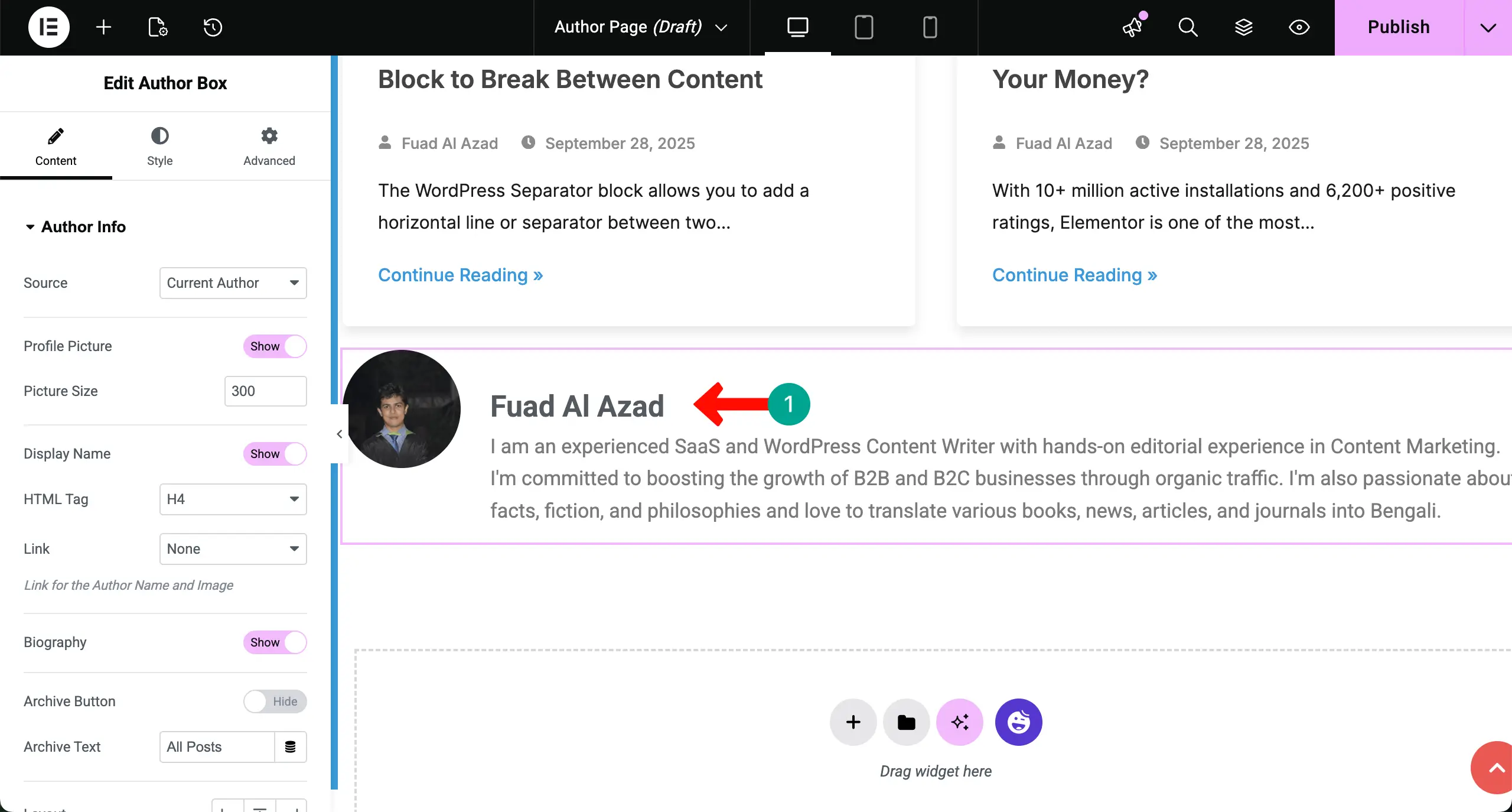
Step 04: Add the Author Box Widget
The Author Box widget shows the author’s photo, name, bio, and other profile details to introduce the writer of the content. If you want to show this information about the respective author on this archive page, drag and drop the Author Box widget.
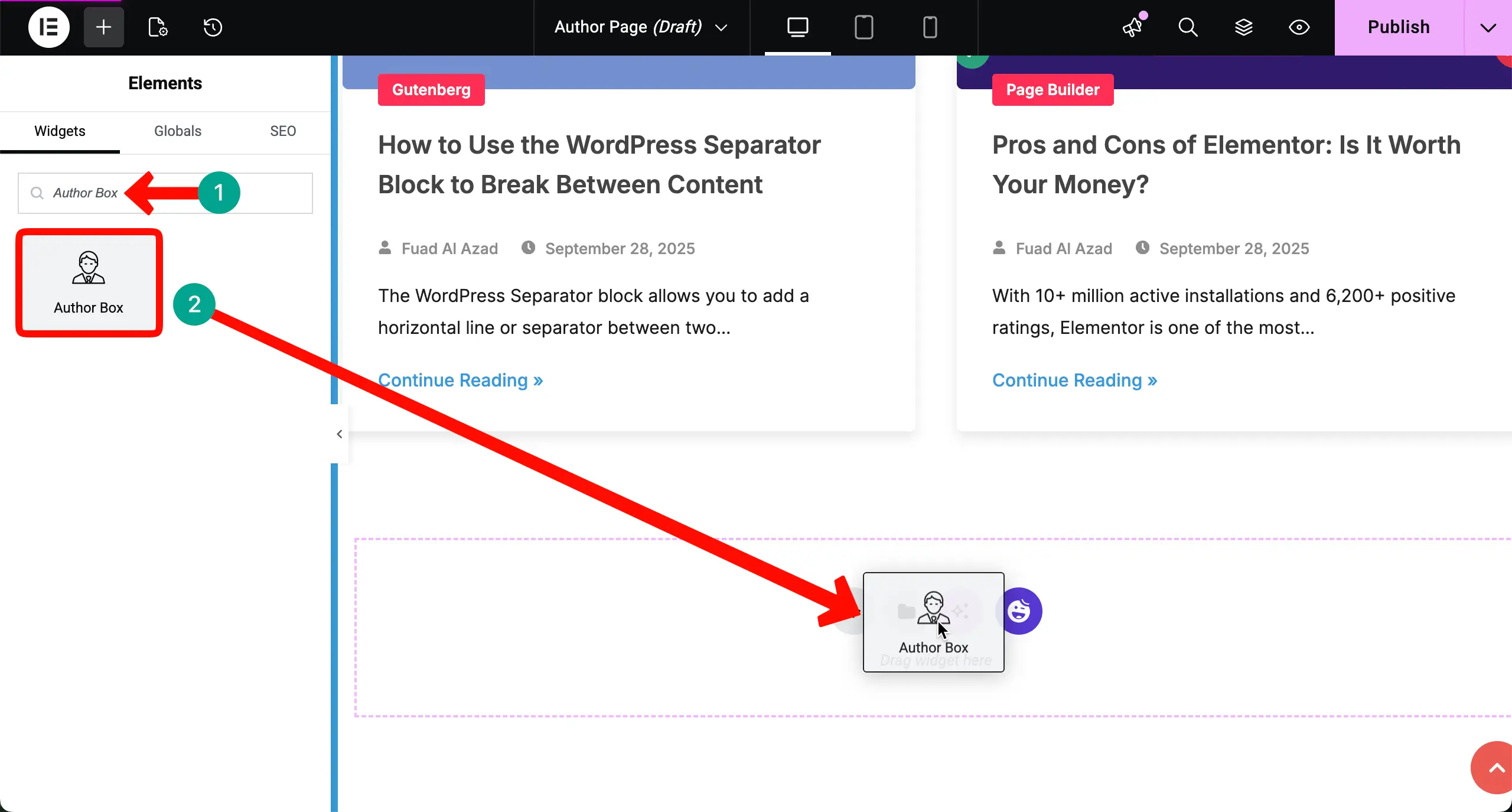
The Author Box will instantly be displayed, showcasing a biography about the author. This bio is pulled from the user account from the backend dashboard.
Step 05: Add Condition to the Author Archive Page
This is the most crucial part of this tutorial. Unless you can select and set the proper conditions, the page will not work as an author archive page.
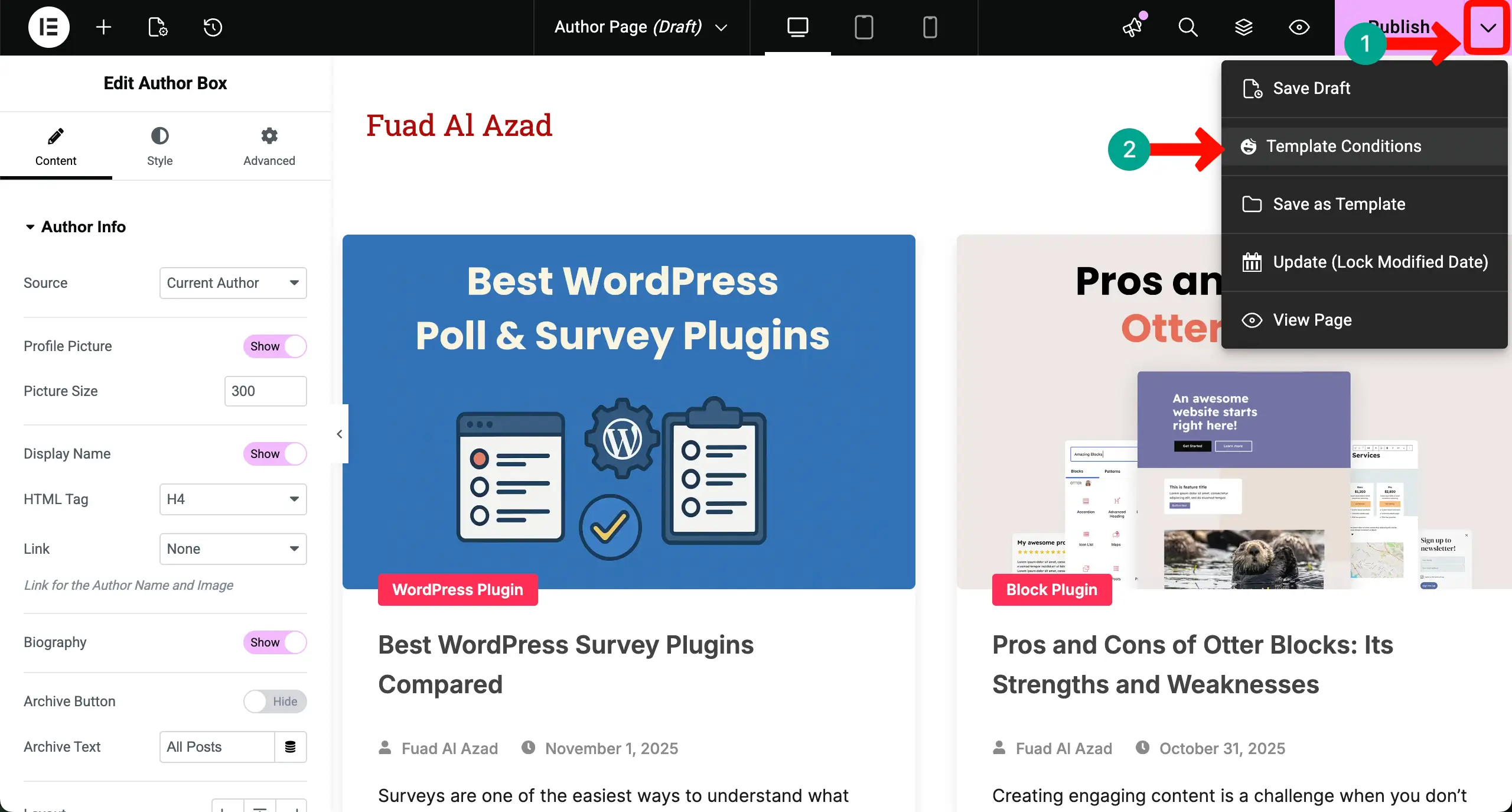
Click the dropdown icon next to the Publish button. After that, hit the Template Condition option.
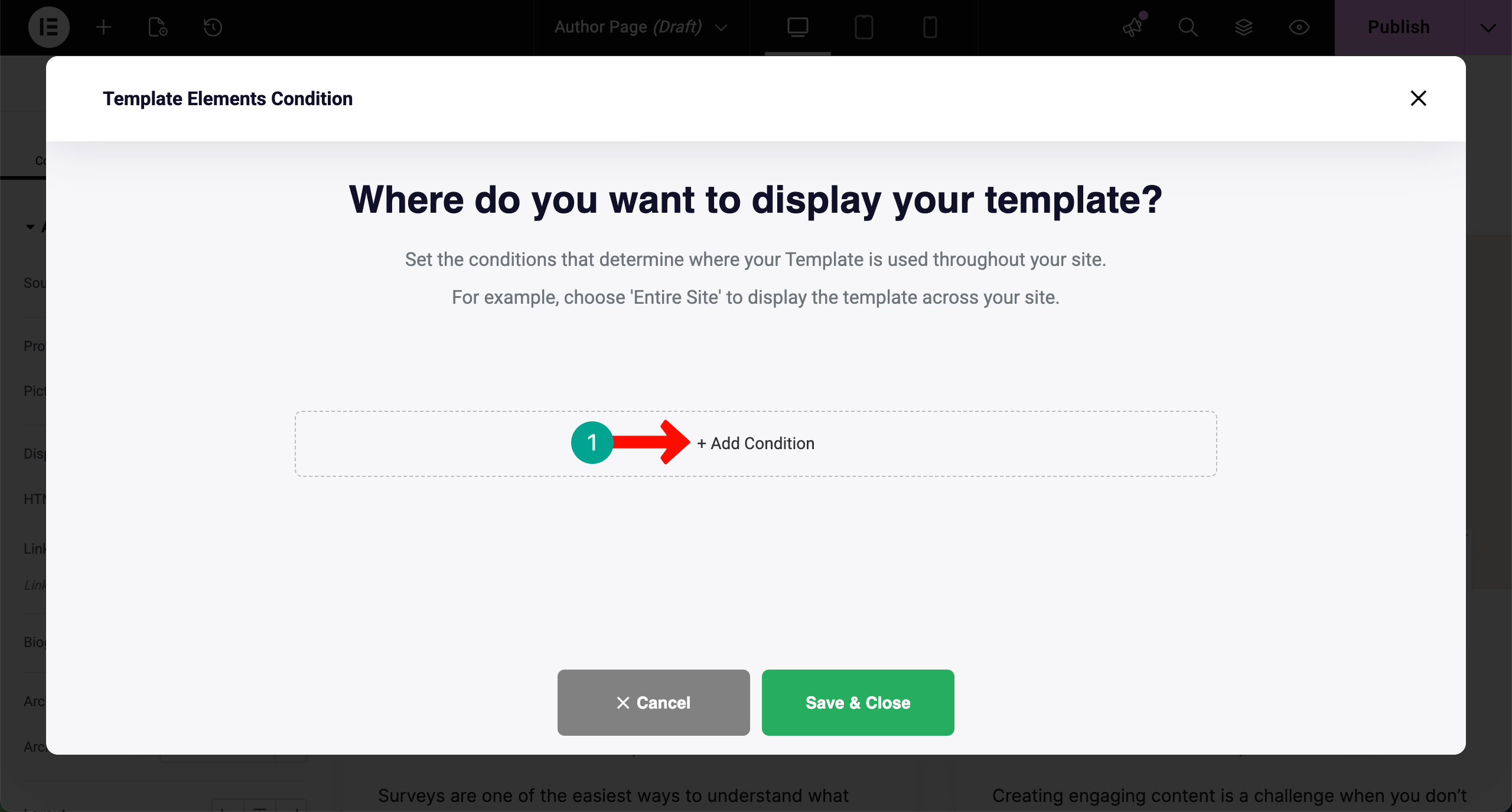
Click the + Add Condition button.
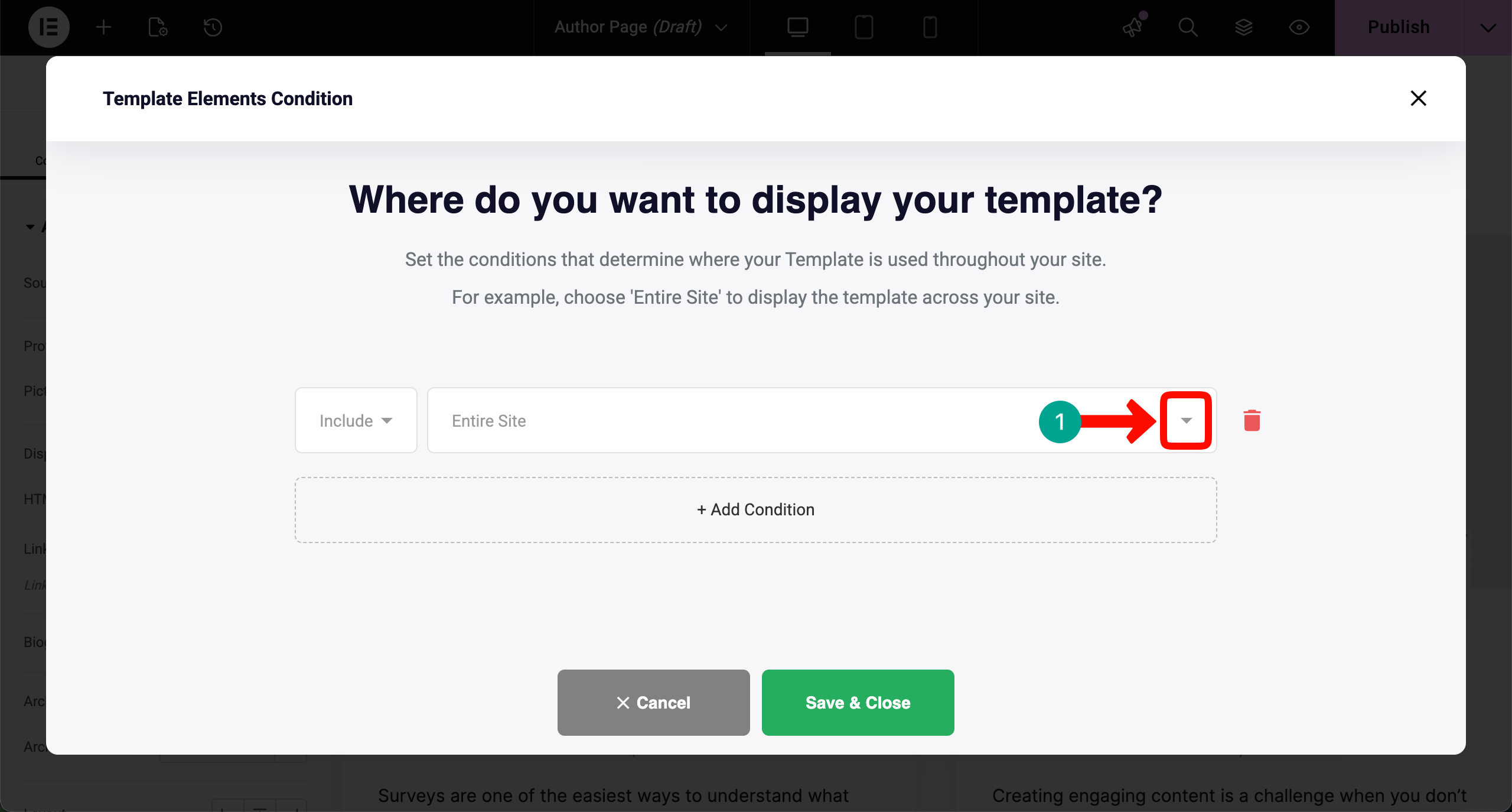
Click the dropdown icon at the end of the box for the Entire Site.
A dropdown list will open up. From there, choose the Archives option.

The interface will change, as you can see in the image below. Click the dropdown icon at the end of the box of All Archives.
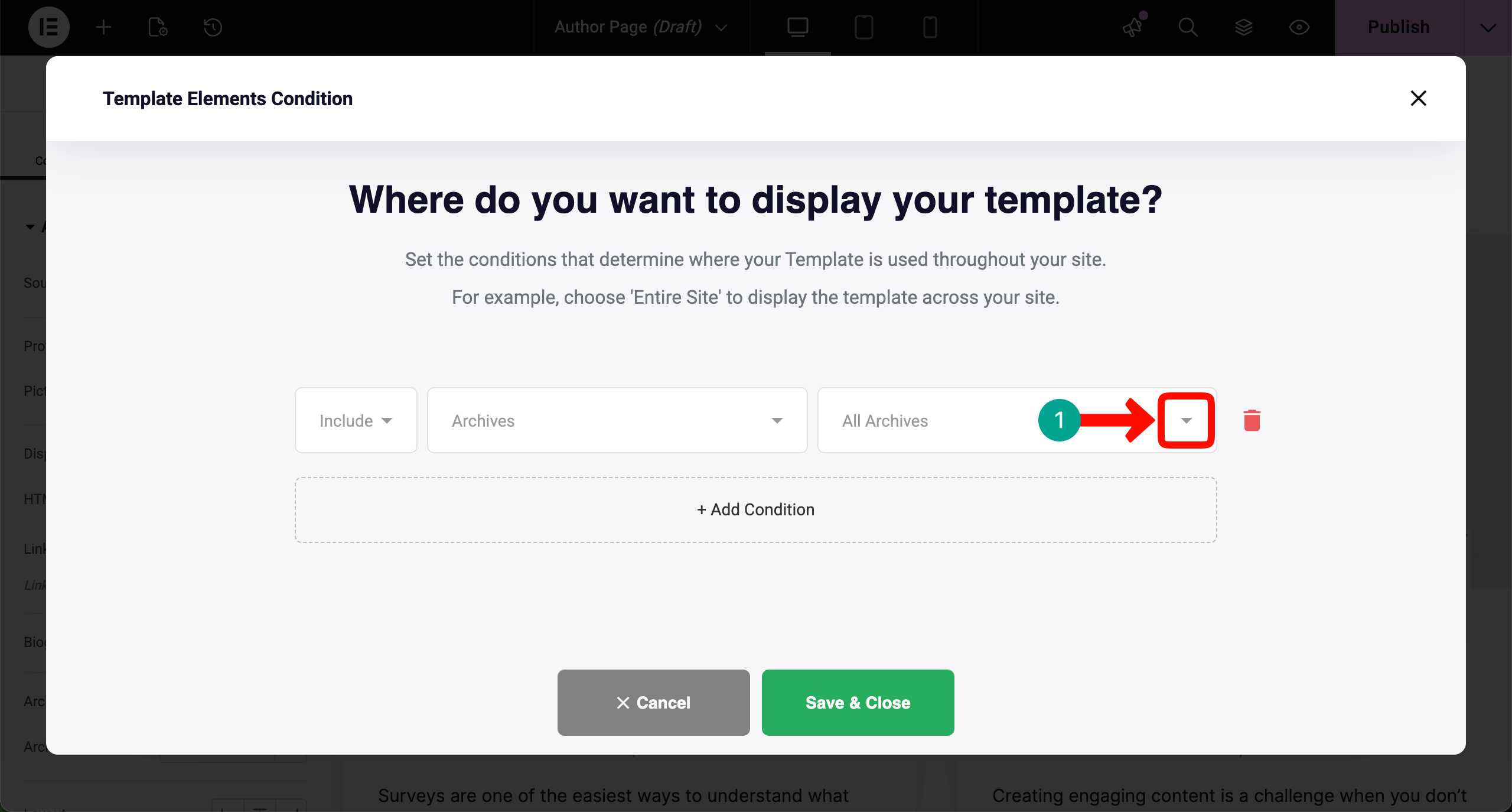
Again, a list of options will show up. Choose the Author Archive option as the condition.
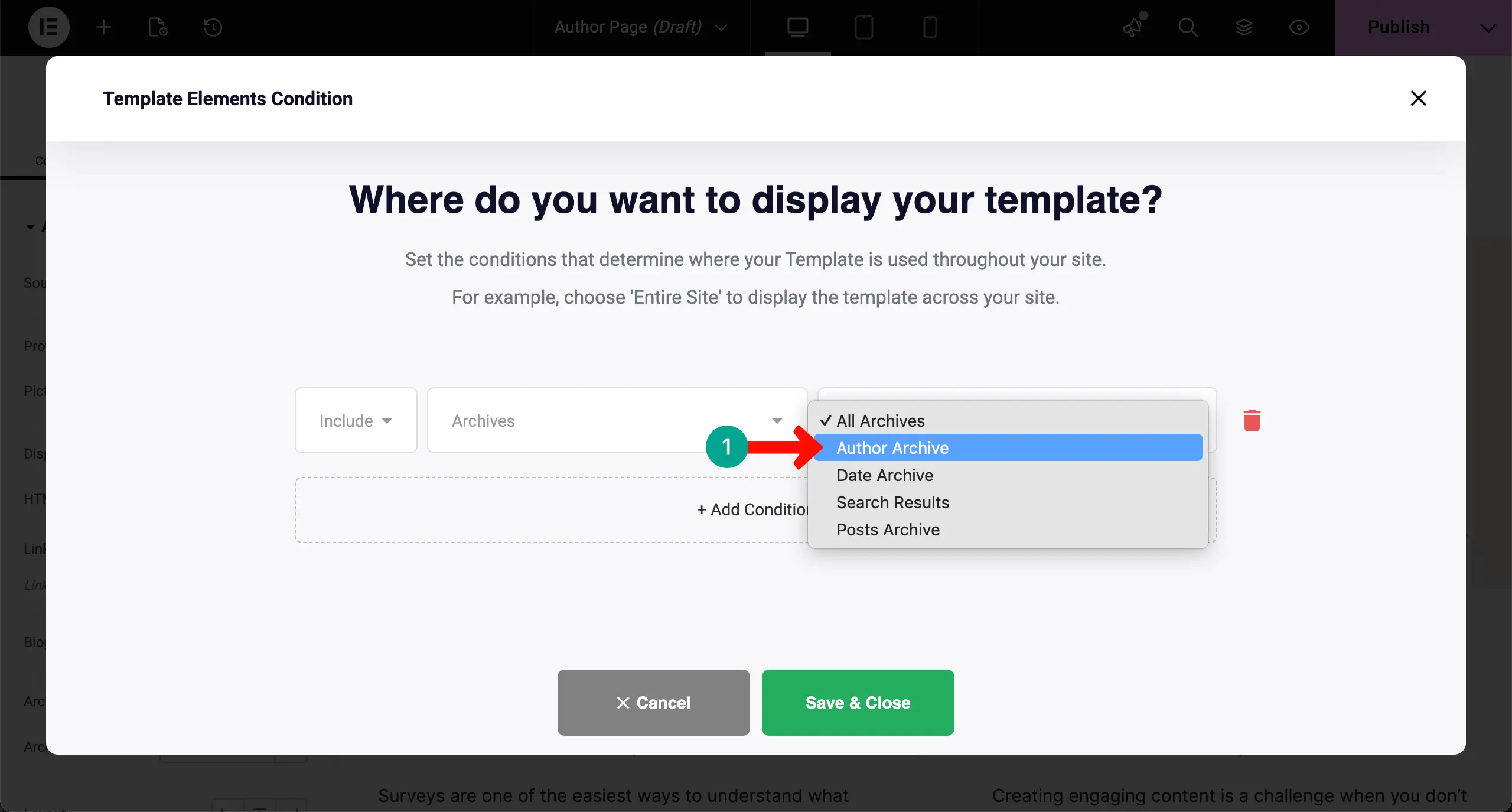
When the Author Archive condition has been selected, hit the Save & Close button.
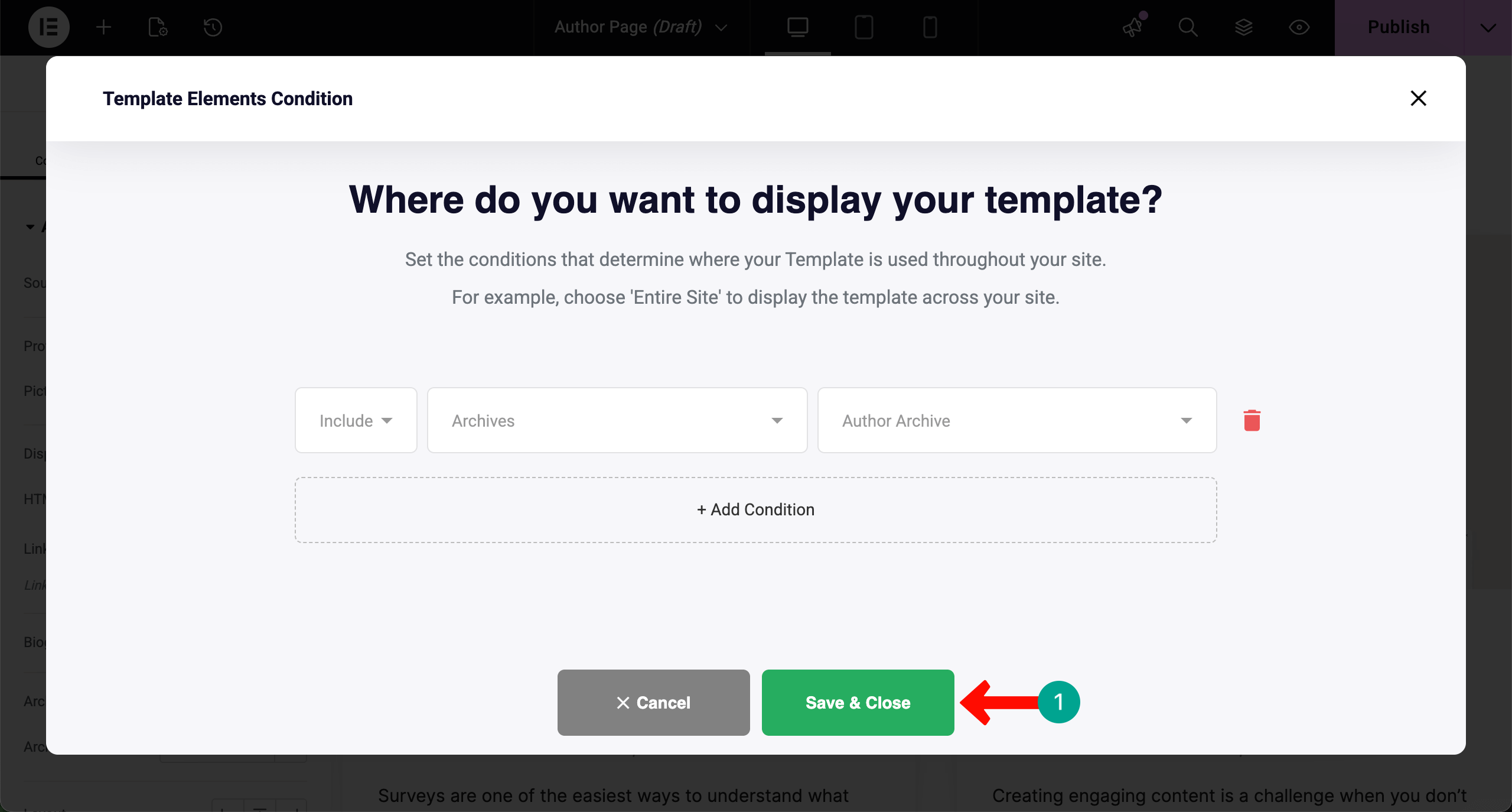
Thus, you can configure conditions for the author archive page. Now, if you click the respective author’s name on your website, their archive page will be opened, where you can see all the posts written by them. Learn how to display blog posts by categories.
Conclusion
Creating an author archive page in WordPress with Elementor gives your site a more organized and human touch. It highlights the people behind the writing and lets readers explore more content with ease. This simple page can change how visitors interact with your blog and how they see your authors.
It is also a strong step toward better SEO and a more trusted website. Hope you enjoyed this tutorial, and from now on, you can create your archive page. Besides, you can follow the same guide to create any other type of archive page with Elementor by setting conditions.
However, to get the best results, keep the design clean, use readable typography, and include short bios that tell something real about each writer. Add profile photos and social links to make the page feel alive and personal. With these small details, your author archive becomes more than a directory.
It becomes a doorway for loyal readers who want to follow voices they enjoy. If you apply these practices, even a free setup in Elementor can deliver a meaningful and lasting experience. If you have any queries regarding Elementor or HappyAddons, mention them in the comment box below.
Before moving away, have a few more minutes to explore the post on how to create a dynamic web page with Elementor in WordPress.
![Black Friday and Cyber Monday are around the corner, and people are waiting for these festivals to grab the best product deals. That is why giving an attractive look to your website during this festive season is very necessary. But, creating a whole new landing page might be difficult in a short period of time. Don't worry. By using Happy Elementor Addons Black Friday and Cyber Monday Landing Page templates, you can easily develop a whole new landing page in a few minutes. In this today's blog, we are going to show how to boost your website design using HappyAddons templates during this festival season. Before that, we'll talk a bit about these two festivals and why they are important to online business communities. What are Black Friday and Cyber Monday? Black Friday is the immediate following of the famous Thanksgiving day. This is when people start shopping to celebrate the Christmas festival. Since the late 1980s, retail sales on this day have constantly been suppressing the past volumes. See the graph below. Source: Salecycle.com The first Monday following Thanksgiving day each year is called Cyber Monday. It was first introduced in 2005 by the USA National Retail Federation to encourage people to buy online. Though this festival originated in the USA, it is celebrated globally today. See the stats below. Source: Salecycle.com It indicates customers' buying behavior around this day is growing up over time. Many customers today keep a budget to buy products on these two days. So, why won’t you prepare a Cyber Monday landing page if you have an online store? Importance of Designing Landing Pages for Black Friday and Cyber Monday Festival Having a well-design website is one of the major checklists if you are running an online business. Most importantly, you have to make sure that your website remains up-to-date to boost your sales. That is why you need to redesign your website or make a new landing page during the Black Friday and Cyber Monday festivals. Because most online product & service-based businesses promote special deals during these two festivals. Here are some remarkable ways dedicated landing pages during these festivals can positively impact the performance of your online business. Boosts your product salesIncreases conversion rateOpportunity to collect potential email leadsGrabs users' attention toward your siteReduces bounce rateIncreases website visitors. Elementor Black Friday New Seasonal Kit is Already Here! Source: Elementor To make this Black Friday more enjoyable, Elementor has launched a New Seasonal Kit that includes landing pages, sections, pop-ups, and vector assets. All these design elements are made by the Elementor team so that one can easily use them on their website to ensure more sales and conversions. New Elementor Black Friday Seasonal Kit offers: 3 Landing pages6 Sections 6 Popups A collection of stickers & animations You can only get these ready-made Black Friday landing pages and sections if you have Installed Elementor Pro on your site. However, if you are looking for templates that are outside of the box, you can go with Happy Addons, the fastest Elementor Addons on the market. It's very easy to use, flexible and has tons of advanced features and widgets that can ease your website design journey. Also, you'll get several festival landing page templates & blocks. Moreover, you can use free Black Friday and Cyber Monday design blocks and templates to decorate your site. Most importantly, these templates and blocks are easy to customize and can be used for multiple purposes. Now let's see how you can use the Happy Addons templates to design your website according to the Black Friday theme. Pre-Requisites to Use HappyAddons Templates to Design Black Friday and Cyber Monday Landing Pages You must have the following plugins installed on your site to get access to the HappyAddons Template library. Make sure you’ve installed and activated the Happy Addons Free & Premium version of your website. Elementor (Free)Happy Addons (Free)Happy Addons Pro If you are new to Elementor, check this Step By Step Guide For Beginners. If you want to explore the readymade templates of HappyAddons before installing these plugins, you may visit by clicking on the button below. Check out Happy Addons Templates How to Design Black Friday Landing Page on Your Website Once you have the plugins (mentioned above) installed, your website is ready to follow the tutorial guide explained in this section. Get ready now! Step 1: Open a New Page with Elementor Create a new page or open the existing page with Elementor. Next, you have to select the Elementor Canvas option.Unless you select Elementor Canvas, you may watch the header, footer, and unnecessary other texts on the page. These might be irritating to you.Once you open the page with Elementor Canvas, your page will be completely clean. Watch the video below on how to do it. Step 02: Go to HappyAddons Library Click on the HappyAddons Library Icon. It will open up a modal popup. Here you'll find numerous stunning premade Blocks and Pages created by the Happy Addons team. Kindly explore them to create a list of your favorite items. Step 03: Import a HappyAddons Black Friday Template Go to the Page tab on the modal popup.Select Black Friday from the left-side filter option.You will several good-looking templates on your screen.Take your cursor on the one you like and hit on the INSERT button. Wait for a while to finish the installation process. You will get the template on your screen with editable sections and options. Step 04: Set the Black Friday Campaign Deadline A deadline creates a sense of urgency in customers' minds. So, better if you add a deadline section on the page to show your Black Friday deals. The good thing is that if you select the template as we did, you will automatically get a deadline or countdown option. You have to customize it as you want. Step 05: Show Image Carousel Slider on Your Black Friday Landing Page Using the Image Carousel, you can slide show demonstrating discounts on your product categories. Drag and drop the Image Carousel widget on any landing page section. Next, from the Elementor panel, you can add photos and text to the widget. Do it accordingly. Thus, you can add more sections and options on the landing page. Hope you can do it yourself. Step 06: Make the Black Friday Landing Page Mobile Responsive Making a web page mobile responsive with Elementor is super easy. You'll get the mobile responsive option on the Elementor footer section. Clicking on it will open up the option to view your landing page on different device screens. We have explained the process in the video below. Note: Don't delete any widget or section while customizing your landing page for any particular device. Because if you delete a widget or section on any device screen, it will also be applied on other devices. However, you may change their position or alignment or hide them. It won't make any impact on other devices. Step 07: Final Preview of Our Landing Page Here is the final interface of our Elementor Black Friday landing page that we've designed using the Happy Addons' ready-made Template. Get Happy Addons to Add a Black Friday Theme Landing Page on Your Website How to Design Cyber Monday Landing Page on Your Website You will require the same prerequisites (Elementor and HappyAddons Plugins) to design the Cyber Monday landing page on your website. Hope you have them ready on your website. Now, let's get into the tutorial part. Step 01: Import a Cyber Monday Readymade Landing Page Template Go to the HappyAddons Template library.Choose the Cyber Monday template you like.Click on the INSERT button. Wait for a while to finish the installation process. You'll get a page design like the following image below. Step 02: Edit Different Sections of the Page In the first tutorial, you saw the deadline/countdown option was already embedded in the template. But this template doesn't have it. So, you can bring it to your page? Very simple. Create a new section by clicking on the plus icon.Type Countdown on the Elementor search bar.Drag and drop the widget on the section. Customize the Countdown section from the Content and Style tabs of the Elementor panel. Using the Heading widget, we have added the FLASH DEALS text next to the countdown to make it more meaningful. Thus, you can use other exciting widgets on the template to make your landing page super gorgeous. Step 03: Promote Products on the Landing Page Promotional landing pages usually include a section to showcase some hot-selling products to generate instant sales. Using the Image and Button widgets, we have created this section under the FLASH DEALS.You may customize it more as you wish. Step 04: Make it Mobile Responsive We already showed you the process in the first tutorial on making a mobile web landing page responsive. Hope you can do it here as well, following the same guideline. Click on the Responsive Mode icon and do the rest yourself. Bonus: Black Friday and Cyber Monday Landing Page Design Key Considerations Whenever you design a landing page, you need to consider why you need to design this page and what elements they should keep on the page. Because if you are not adding all the necessary features to your page, it will not serve its purpose. This is why you need to focus on a few things before designing your Black Friday landing page. Here are some points you must consider in designing Black Friday and Cyber Monday landing pages. Add Black Friday textSet deals deadlineShow your best-discounted productsAdd coupon code Focus on responsive page designMake your page visually appealingImprove your page user experience or page structureSet a proper website navigation FAQ on Black Friday and Cyber Monday Landing Page Design Now, we'll answer some common questions on Black Friday and Cyber Monday Landing page designs commonly found online. How much does it cost to design a landing page?The cost of designing a landing page varies depending on the complexity of the design, the level of customization required, and whom to hire for the page. A simple landing page can be designed for as little as $25, while a more complex design with multiple customizations can cost upwards of $2,00.However, if you have Elementor and HappyAddons installed, you can design unlimited landing pages at a minimal cost. But like any other tool, you must have a kind of enterprise on them. As they are drag-and-drop builders and their numerous tutorials and documentation are available, they won't take you more than a month to be used to. Check out some wonderful YouTube tutorials on these two plugins. Hope you will enjoy them.How many hours does it take to design a landing page?It mainly depends on the level of design complexity and your web design skill. However, both in Elementor and HappyAddons, you will get countless readymade templates and block sections. You can design a beautiful landing page in 3-5 hours by making a proper combination of them.Can I design Black Friday and Cyber Monday Landing pages with Elementor and HappyAddons free versions?Surely, you can design Black Friday and Cyber Monday Landing pages with Elementor and HappyAddons free versions. But only with the pro versions, you can't add too many exciting features to your pages. For example, free versions will give you access to only a limited number of readymade templates.If you are just a beginner-level designer, free versions are enough. But if you are a professional designer or have a web designing agency, pro versions are a must. Are You Ready To Design Your Black Friday and Cyber Monday Landing Page? Customers look forward to this kind of occasion to buy their favorite products at a minimum price. Naturally, they are drawn to websites that look good and give a festive vibe. That is why adding a Black Friday and Cyber Monday landing page during the festival season will give you an extra edge over the competitors. The above guide shows how to design your Elementor Black Friday Landing page using the Happy Addons' Black Friday Templates and how it can help boost your holiday sales. So if you have any queries regarding this blog, you can comment on us in the below box. If you like this post, then share it on your social channel. Don't forget to subscribe to our newsletter. Also, follow our Facebook and Twitter channels for regular updates. Subscribe to our newsletter Get latest news & updates on Elementor [yikes-mailchimp form="1"] ":36560} /--](https://happyaddons.com/wp-content/uploads/2021/11/How-to-Design-Black-Friday-and-Cyber-Monday-Landing-Page-300x188.png)