




Elementor makes it easy to build beautiful websites, but creating advanced animations has always been a challenge. Most users rely on basic effects like fade, slide, or zoom, which are useful but often not enough to create the smooth, interactive experiences seen on modern websites.
That is about to change. The HappyAddons GSAP Pack brings the power of GSAP directly into Elementor through a completely no-code interface. Instead of writing JavaScript or installing multiple animation plugins, you can create professional-grade animations using simple controls inside the Elementor editor.
In this guide, we’ll explore every animation effect included in the HappyAddons GSAP Pack. From powerful extensions like scroll-triggered animations, motion paths, and parallax effects to dedicated widgets for text animations, SVG effects, liquid glass, and more.
You’ll discover everything the pack offers and how each feature can help you build more engaging Elementor websites.
What Is the HappyAddons GSAP Pack?
The HappyAddons GSAP Pack is a collection of powerful animation widgets and extensions for Elementor. From smooth scroll effects and text animations to SVG drawing, motion paths, and physics-based interactions, you can build modern websites directly inside the Elementor editor.
The pack is powered by GSAP (GreenSock Animation Platform), one of the world’s most trusted web animation libraries. GSAP is used by creative agencies, large companies, and award-winning websites because it delivers smooth, high-performance animations across modern browsers.
In the past, using GSAP with Elementor was difficult. You needed to write custom JavaScript, hire a developer, and maintain the code whenever your website or plugins were updated. The HappyAddons GSAP Pack removes all those challenges.
Every animation is controlled through Elementor’s familiar interface using sliders, dropdowns, and toggle switches, making advanced animations accessible to everyone.
Explore if it is possible to build interactive websites like Webflow in Elementor.
Complete List of Every Animation Effect in the HappyAddons GSAP Pack
The HappyAddons GSAP Pack includes a big collection of powerful animation features. Together, they give Elementor users everything they need to create modern, interactive websites without writing code. Let’s take a quick look at what each category offers.
1. Animation Global
Animation Global is a key feature of the HappyAddons plugin. It can animate any widget and element in the Elementor plugin. So, instead of separate animation widgets, it extends every Elementor section, container, column, and widget with powerful GSAP controls through the Advanced tab.
You can create entrance animations, exit animations, scroll-based effects, and page-load animations using simple controls.
It also includes advanced options such as animation direction, custom triggers, easing functions, stagger effects, scrub mode, and more than 27 animatable properties, giving you complete control over how every element behaves.
In addition to the animation global feature, there are many other GSAP-powered features and widgets to give you more design freedom.
2. Scroll-Driven Layout Animations
This category helps you create the immersive scrolling experiences commonly seen on premium websites. It includes:
- Horizontal Scroll – Convert vertical scrolling into a horizontal content experience.
- Stacked Cards – Display cards that stack and peel away as visitors scroll.
- Sticky / Pin Element – Keep important content fixed while the rest of the page scrolls.
- Motion Path Waypoints – Move elements along custom paths during scrolling.
These effects are perfect for storytelling, product showcases, portfolios, feature sections, and interactive landing pages.
3. Text & Typography Animations
Create eye-catching headings with character-by-character, word-by-word, or line-by-line animations. The Heading Text Animation extension includes multiple animation styles, including:
- Fade
- Slide
- Text Flip
- Invert
- 3D Spin
You can also control stagger timing, animation duration, highlight colors, trigger modes, and more. Best of all, this feature is also available in the free version of HappyAddons.
Learn how to add Lottie animation in WordPress with Elementor.
4. SVG Animations
Bring SVG graphics to life with two powerful animation tools.
- SVG Draw Animation gradually draws SVG paths, making logos, icons, and illustrations appear as if they are being sketched on the screen.
- SVG Morphing smoothly transforms one SVG shape into another, creating beautiful transitions for logos, illustrations, and creative graphics.
These two features allow you to create animations that are almost impossible with standard Elementor effects.
5. Physics and Interactive Effects
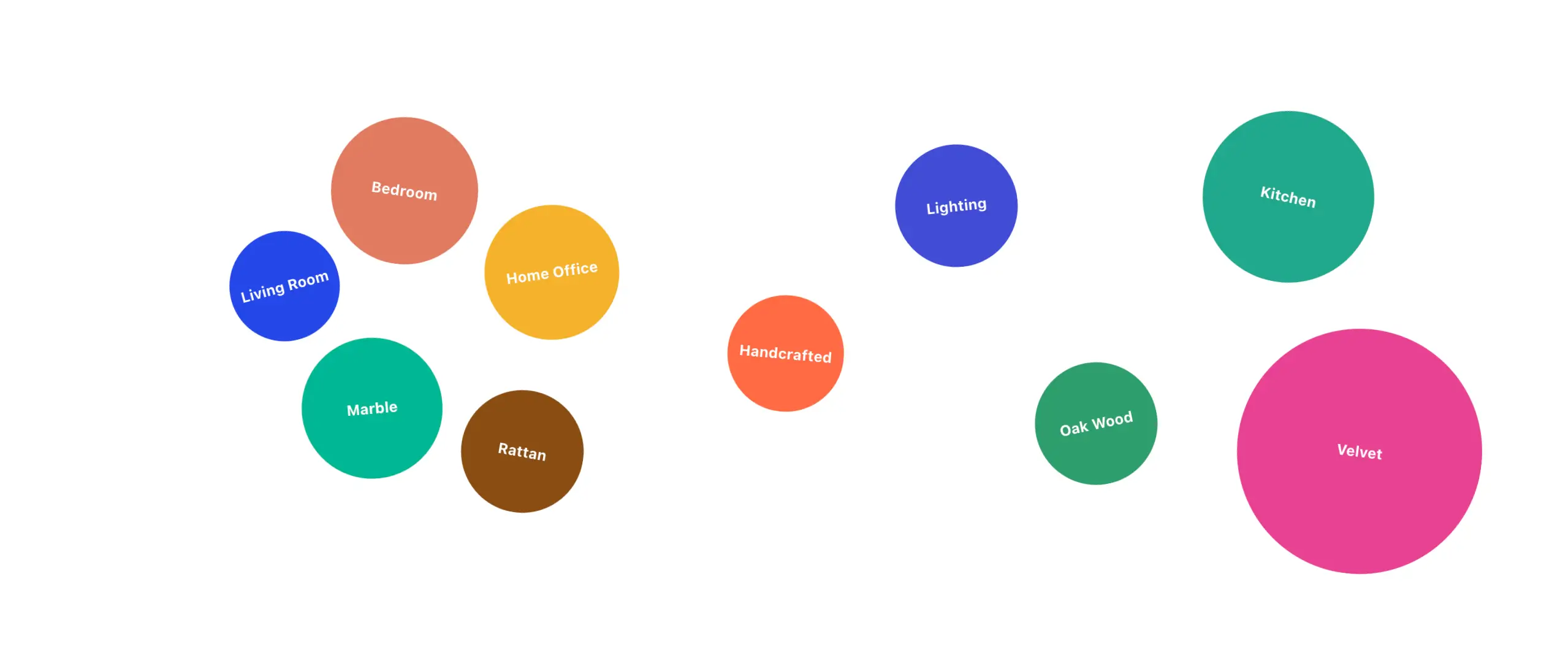
Add realistic movement to your website with the Dropping Elements widget. Elements fall naturally with gravity, bounce when they land, and even respond to the visitor’s mouse movement.
With customizable physics controls, you can create playful and highly interactive experiences for tags, feature labels, testimonials, product categories, and more.
6. Continuous Motion
The Infinite Marquee widget creates a perfectly smooth, continuously looping animation. Unlike traditional CSS marquees, it has no visible reset point or stuttering. You can adjust its direction, speed, and pause-on-hover behavior, making it ideal for:
- Client logos
- Testimonials
- Feature highlights
- Announcement bars
- Partner logos
- Product categories
Explore this guide on how to create a cloathing website on WordPress with Elementor.
Complete List of Every Animation Effect in the HappyAddons GSAP Pack
The HappyAddons GSAP Pack brings a wide range of GSAP-powered animations to Elementor. It includes 10+ items with 60+ animation effects and controls. You can create many different types of interactive experiences without writing code. Take a look at them:
1. Animation Global Feature
The Global Animation Engine is one of the most powerful features in the pack. It is an extension, not a separate widget. It adds GSAP animation controls to the Advanced tab of Elementor sections, containers, columns, and widgets. This means you can animate almost any element on your page from the same interface.
Animation Direction
You can choose how an element should move:
- From – The element starts from your custom values and moves to its normal position. This is useful for entrance animations.
- To – The element starts in its normal state and moves toward your custom values. This works well for exit or emphasis animations.
Trigger Modes
You can decide when the animation should run:
- On Appearing – The animation plays when the element enters the viewport.
- On Scroll – The animation follows the user’s scroll position. Scroll down and it moves forward. Scroll back and it reverses.
- On Page Load – The animation starts when the page finishes loading. This is useful for hero sections and first-screen animations.
27+ Animatable Properties
The Global Animation Engine gives you control over a wide range of properties. You can add multiple properties to the same element and combine them to create more advanced effects.
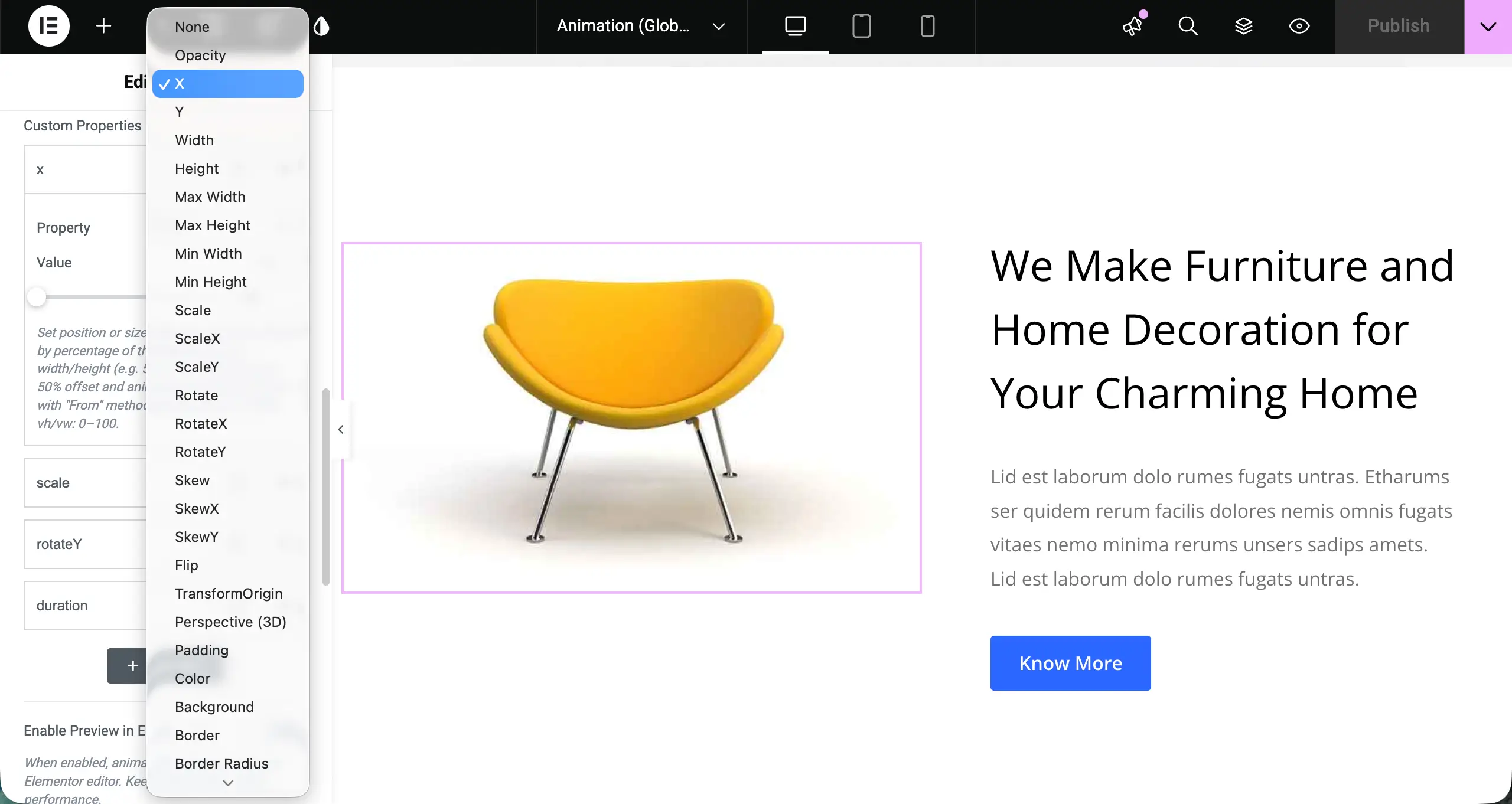
Transform
- X – Move an element horizontally.
- Y – Move an element vertically.
- Scale – Increase or decrease the overall size.
- ScaleX – Stretch or compress the width.
- ScaleY – Stretch or compress the height.
- Rotate – Rotate an element in 2D.
- RotateX – Create a 3D forward or backward tilt.
- RotateY – Create a 3D left or right turn.
- Transform Origin – Set the point from which an element rotates or scales.
Appearance
- Opacity – Control how visible an element is.
- Color – Animate text color changes.
- Background – Animate background colors.
- Border – Animate border properties.
- Border Radius – Animate rounded corners.
- Box Shadow – Animate shadow size, color, and depth.
- Mix Blend Mode – Switch between 14 CSS blend modes.
Layout
- Width
- Height
- Max Width
- Min Width
- Max Height
- Min Height
- Padding
These properties let you animate the size and spacing of an element, not just its position.
Timing
- Duration – Set how long an animation takes, from 0 to 10 seconds.
- Delay – Add a waiting time before an animation starts, from 0 to 10 seconds.
- Repeat – Set how many times the animation should replay.
- Repeat Delay – Add a pause between repeats.
Advanced
There is also a custom GSAP property field. It lets advanced users enter GSAP properties that are not included in the standard controls.
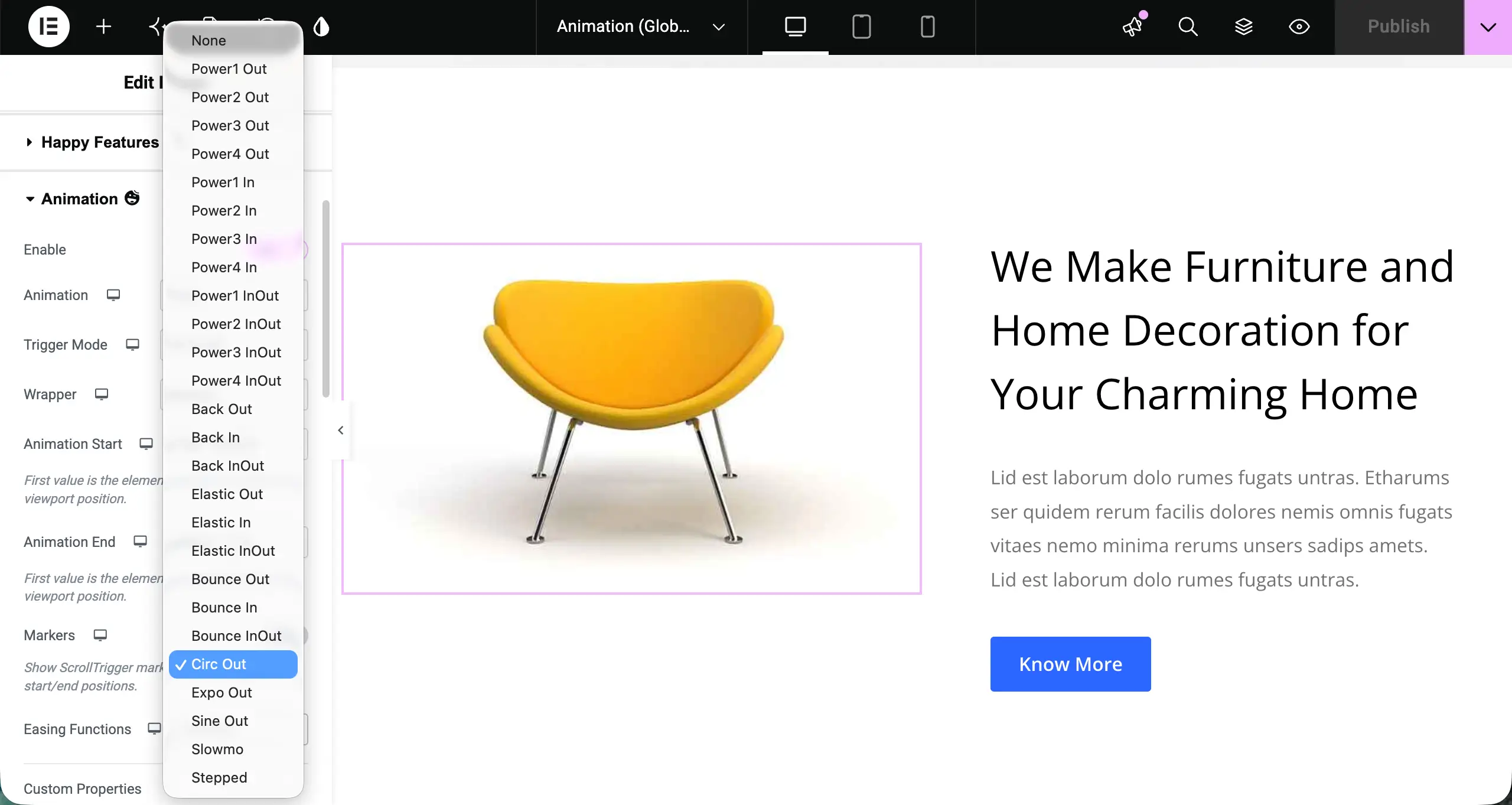
Easing Functions
Easing controls how an animation speeds up and slows down. The pack includes several GSAP easing options:
- Power1–Power4 – Smooth acceleration and deceleration. Higher numbers create stronger movement.
- Back – Moves slightly past the target before settling back.
- Elastic – Creates a strong spring-like bounce.
- Bounce – Creates a realistic bouncing effect.
- Circ Out – Starts quickly and slows down sharply.
- Expo Out – Creates fast, snappy movement with a sharp slowdown.
- Sine Out – Creates gentle and natural movement.
- Slowmo – Slows the animation around the middle for a dramatic effect.
- Stepped – Creates a frame-by-frame, mechanical effect.
Stagger Effects
Stagger lets you animate multiple elements one after another instead of at the same time. For example, you can make the first card appear, followed by the second card, then the third. The same technique can be used for headings, icons, buttons, or other groups of elements.
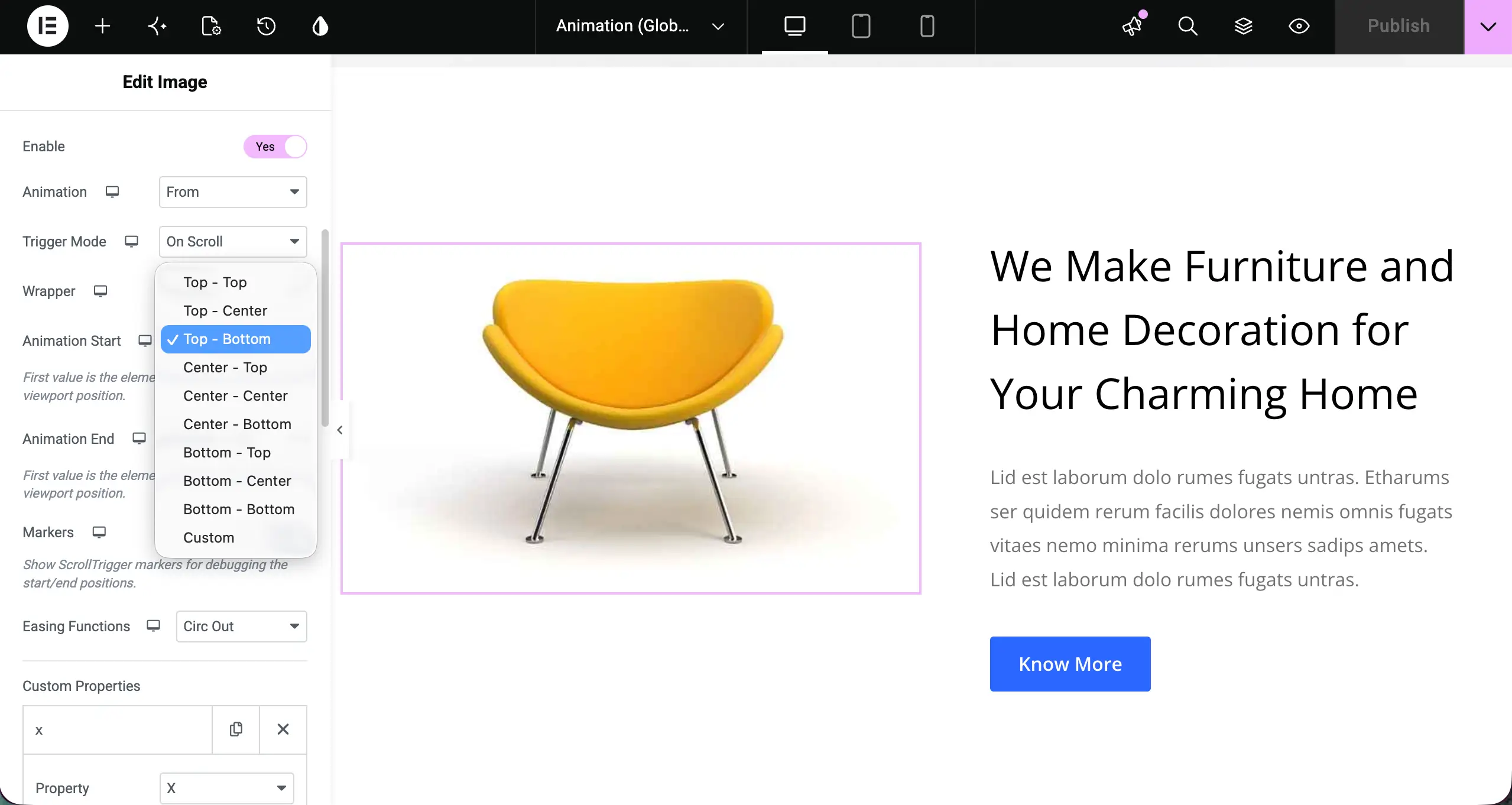
Custom ScrollTrigger Positions
You can control exactly where an animation starts and ends during scrolling. The system uses the position of the element and the viewport. Both are divided into three points:
- Top
- Center
- Bottom
So, custom position for scroll triggers could be like :
- Top – Bottom – Starts when the top of the element reaches the bottom of the screen.
- Top – Center – Starts when the top of the element reaches the center of the screen.
- Bottom – Top – Starts when the bottom of the element reaches the top of the screen.
For On Scroll animations, you can set both a start and an end position to control the complete scroll range. Advanced users can also enter custom ScrollTrigger values.
Scrub Mode
Scrub connects an animation directly to the scrollbar. With scrub disabled, an animation starts when triggered and then plays on its own. With scrub enabled, the animation progress follows the user’s scroll position.
Scroll slowly, and the animation moves slowly. Scroll faster, and it moves faster. Scroll back up, and the animation reverses. You can use a simple True value for a direct connection or add a custom value to create a smoother catch-up effect.
2. Scroll-Driven Layout Animations
This category focuses on the type of scroll interactions that make modern websites feel more dynamic.
Horizontal Scroll
Horizontal Scroll turns a normal vertical scrolling section into a horizontal experience. The visitor still scrolls down as usual, but the content moves from side to side. This works well for:
- Portfolio showcases
- Product walkthroughs
- Team sections
- Client logo sections
- Feature presentations
- Timeline sections
It is useful when showing content horizontally makes more sense than placing everything in a long vertical stack.
Stacked Cards
Stacked Cards creates a deck-like card effect. Cards stack on top of each other and move away one by one as the visitor scrolls. Each card can stay pinned while the next card enters from below. The outgoing card can also tilt backwards in 3D, creating a more physical feel. Key controls include:
- Stack Offset – Controls how much of each card remains visible.
- Rotation Value – Controls the 3D tilt of the cards.
- Custom Trigger – Lets advanced users define their own ScrollTrigger settings.
Sticky / Pin Element
Sticky / Pin Element keeps any Elementor element fixed in the viewport for a selected part of the page. Once the defined scroll range ends, the element moves again with the page. For example, you can keep a product image visible while its features scroll beside it. You can also pin a heading or CTA while supporting content moves around it.
The feature includes nine preset start and end positions, along with a custom trigger field for more advanced control. For a longer pin effect, a common setup is Top – Bottom as the start and Bottom – Top as the end. This creates a large scroll range for the pinned element.
Motion Path Waypoints
Motion Path Waypoints lets an element follow a custom curved path as the visitor scrolls. You can place waypoint markers across a section and adjust the curve between them. The selected element then travels from the first point to the last as the user scrolls.
It can work especially well for:
- Product images
- Logos
- Icons
- Characters
- Illustrations
- Storytelling sections
For example, a product image can follow a curved path through a feature section while the visitor scrolls.
3. Text and Typography Animations
Heading Text Animation brings GSAP-powered text effects to Elementor Heading widgets. Instead of showing the entire heading at once, you can animate individual characters or words in sequence.
It includes five animation modes:
- Fade – Characters fade into view one by one.
- Slide – Characters slide into their positions.
- Text Flip – Characters flip into place like turning pages.
- Invert – Characters transition from an inverted state to their normal appearance.
- 3D Spin – Characters rotate into place with a 3D effect.
You can control the stagger delay, duration, and starting delay. You can also highlight specific words by placing them inside curly braces. For example:
Beautiful {Animations.} Now in Elementor.
The word Animations. can use a different highlight color.
The feature also includes Transform Origin controls for flip effects and supports four trigger options:
- On Scroll
- On Appearing
- On Hover
- On Page Load
4. SVG Animations
SVG Draw Animation makes an SVG path look like it is being drawn on the screen with a pen. It uses DrawSVGPlugin to control which part of an SVG stroke is visible and then reveals the stroke over time.
Your SVG must contain a stroke. The path should use fill="none" with a defined stroke color and width. A shape that only uses a solid fill will not produce the draw effect. You can control:
- Method – From, To, or FromTo
- From Value – Where the visible stroke starts
- To Value – Where the visible stroke ends
- Duration
- Delay
- Yoyo
- Repeat
- Repeat Delay
- Scrub
This is useful for logo reveals, diagrams, decorative borders, icons, and illustrated graphics.
5. SVG Morphing
SVG Morphing does something completely different. Instead of drawing an SVG, it changes one shape into another using MorphSVGPlugin. You can add multiple SVG shapes and create a sequence where one shape smoothly changes into the next. It works well for:
- Logo transitions
- Abstract background shapes
- Illustration sequences
- Creative visual effects
- Data visualization
For the cleanest result, the SVG shapes should have similar structures and anchor points. Very different shapes can sometimes create unexpected stretching or extra movement during the morph.
6. Physics and Interactive Effects
Dropping Elements adds a physics-based effect to your Elementor website. Elements fall into the page, bounce when they land, and then respond to the visitor’s mouse movement.
The effect has two parts. First, the elements drop from above and land with a configurable bounce. Then, once they settle, they can move slightly toward the cursor.
You can control the physics with options such as:
- Bounce Delay – Controls when each element starts falling.
- Drop Duration – Controls how long the fall takes.
- Duration Variance – Adds small differences to each element’s fall time.
- Scale Bounce – Controls the squash and stretch when an element lands.
- Scale Variance – Adds different bounce strengths to different elements.
The mouse interaction includes:
- Follow Strength – Controls how strongly elements move toward the cursor.
- Strength Variance – Gives different elements different follow strengths.
- Follow Damping – Controls how quickly elements respond to the cursor.
- Damping Variance – Adds different response speeds to different elements.
- Nearest Count – Sets how many elements respond to the cursor.
- Max Distance – Defines how close the cursor must be for an element to react.
This effect is great for skill tags, product labels, category bubbles, feature names, and other groups of visual elements.
7. Continuous Motion
Infinite Marquee creates a smooth, continuously moving content loop. Unlike simple CSS marquee effects that can show a visible reset or jump, the GSAP-powered marquee keeps the movement continuous. You can add:
- Logos
- Client names
- Testimonials
- Feature labels
- Tags
- Announcements
- Other repeating content
You can also control the direction, speed, and pause-on-hover behavior. This makes Infinite Marquee useful for client logo sections, social proof banners, feature tickers, announcement bars, and other areas where you want content to keep moving without interruption.
How Many Animation Effects Does the HappyAddons GSAP Pack Include?
Over time, HappyAddons will continue to bring more improvements and enhancements to the GSAP Pack. So far, it has 50+ animation effects and controls. Take a quick look at them below.
| Category | Feature | Effects and Controls |
|---|---|---|
| Global Animation Engine | Animation Global | 27+ animatable properties, multiple easing options, 3 trigger modes, scrub, stagger, custom ScrollTrigger positions |
| Scroll-Driven | Horizontal Scroll | Vertical-to-horizontal scrolling effect |
| Scroll-Driven | Stacked Cards | Stacked card effect with 3D tilt |
| Scroll-Driven | Sticky / Pin Element | 9 preset positions + custom trigger |
| Scroll-Driven | Multi-Layer Parallax | Individual scroll speed control for elements |
| Scroll-Driven | Motion Path Waypoints | Custom curved paths with curviness control |
| Text Animation | Heading Text Animation | 5 animation modes, stagger, highlight color, multiple triggers |
| SVG | SVG Draw | 3 animation methods, scrub, yoyo, repeat |
| SVG | SVG Morphing | Multi-shape morphing sequences |
| Physics | Dropping Elements | 5 physics controls + 6 mouse-follow controls |
| Continuous Motion | Infinite Marquee | Direction, speed, and pause-on-hover |
Frequently Asked Questions on Today’s Topic
The HappyAddons GSAP Pack introduces many new animation options to Elementor, so it is natural to have questions about how it works, what is included, and what you need to use it. Below are the most common questions and simple answers to help you understand the pack before getting started.

What is the HappyAddons GSAP Pack?
The HappyAddons GSAP Pack is a collection of 10+ GSAP-powered features and widgets for Elementor. It includes animation extensions that work on Elementor elements and dedicated widgets for scroll effects, text reveals, SVG animations, physics-based interactions, and visual effects. No coding is required.
What is GSAP and why does it matter for Elementor?
GSAP (GreenSock Animation Platform) is a professional JavaScript animation library used for high-quality web animations. It gives Elementor users more control over scroll-triggered animations, timelines, SVG effects, and interactive motion than standard CSS animation tools.
How many animation effects does the HappyAddons GSAP Pack include?
As said above, HappyAddons continues to improve itself. So far, it has 50+ animation effects and controls across seven categories: global animation, scroll-driven effects, text animations, SVG animations, physics and interactive effects, continuous motion, and visual effects.
Does GSAP slow down my WordPress site?
GSAP is built for high-performance web animation. It can animate properties such as transform and opacity efficiently and gives developers better control over how animations run. As with any animation system, using too many complex effects can still affect performance, so animations should be used carefully.
Do I need coding skills to use the HappyAddons GSAP Pack?
No. The pack is designed as a no-code animation system for Elementor. You can configure animations using controls such as sliders, dropdowns, toggles, and text fields. The GSAP engine handles the animation work in the background.
What is the difference between SVG Draw and SVG Morphing?
SVG Draw makes the stroke of an SVG appear as if it is being drawn by a pen. The shape itself stays the same. SVG Morphing changes one complete SVG shape into another shape. The two effects use different GSAP plugins and create different types of animations.
Can I apply Animation Global to any element in Elementor?
Yes. Animation Global appears in the Advanced tab of Elementor elements. You can use it with sections, containers, columns, and widgets to create GSAP animations without adding a separate animation widget.
Will the GSAP Pack work with my existing Elementor theme?
Yes. The pack is designed to work with Elementor-based WordPress websites and can be added to an existing site. You do not need to rebuild your website to start using the GSAP animation features.
Final Takeaways!
The HappyAddons GSAP Pack brings a new level of animation freedom to Elementor. With 50+ effects and controls, you can create scroll-driven layouts, animated headings, SVG effects, physics-based interactions, infinite marquees, liquid glass effects, and much more. You do not need to write JavaScript or leave the Elementor editor.
You can build these effects using simple controls while GSAP handles the animation work behind the scenes. And this is only the beginning. HappyAddons will continue to improve the GSAP Pack with more features, updates, and animation possibilities over time. Whether you are a freelancer, agency, store owner, or Elementor enthusiast, the pack gives you more ways to make your websites feel interactive and memorable.
![Black Friday and Cyber Monday are around the corner, and people are waiting for these festivals to grab the best product deals. That is why giving an attractive look to your website during this festive season is very necessary. But, creating a whole new landing page might be difficult in a short period of time. Don't worry. By using Happy Elementor Addons Black Friday and Cyber Monday Landing Page templates, you can easily develop a whole new landing page in a few minutes. In this today's blog, we are going to show how to boost your website design using HappyAddons templates during this festival season. Before that, we'll talk a bit about these two festivals and why they are important to online business communities. What are Black Friday and Cyber Monday? Black Friday is the immediate following of the famous Thanksgiving day. This is when people start shopping to celebrate the Christmas festival. Since the late 1980s, retail sales on this day have constantly been suppressing the past volumes. See the graph below. Source: Salecycle.com The first Monday following Thanksgiving day each year is called Cyber Monday. It was first introduced in 2005 by the USA National Retail Federation to encourage people to buy online. Though this festival originated in the USA, it is celebrated globally today. See the stats below. Source: Salecycle.com It indicates customers' buying behavior around this day is growing up over time. Many customers today keep a budget to buy products on these two days. So, why won’t you prepare a Cyber Monday landing page if you have an online store? Importance of Designing Landing Pages for Black Friday and Cyber Monday Festival Having a well-design website is one of the major checklists if you are running an online business. Most importantly, you have to make sure that your website remains up-to-date to boost your sales. That is why you need to redesign your website or make a new landing page during the Black Friday and Cyber Monday festivals. Because most online product & service-based businesses promote special deals during these two festivals. Here are some remarkable ways dedicated landing pages during these festivals can positively impact the performance of your online business. Boosts your product salesIncreases conversion rateOpportunity to collect potential email leadsGrabs users' attention toward your siteReduces bounce rateIncreases website visitors. Elementor Black Friday New Seasonal Kit is Already Here! Source: Elementor To make this Black Friday more enjoyable, Elementor has launched a New Seasonal Kit that includes landing pages, sections, pop-ups, and vector assets. All these design elements are made by the Elementor team so that one can easily use them on their website to ensure more sales and conversions. New Elementor Black Friday Seasonal Kit offers: 3 Landing pages6 Sections 6 Popups A collection of stickers & animations You can only get these ready-made Black Friday landing pages and sections if you have Installed Elementor Pro on your site. However, if you are looking for templates that are outside of the box, you can go with Happy Addons, the fastest Elementor Addons on the market. It's very easy to use, flexible and has tons of advanced features and widgets that can ease your website design journey. Also, you'll get several festival landing page templates & blocks. Moreover, you can use free Black Friday and Cyber Monday design blocks and templates to decorate your site. Most importantly, these templates and blocks are easy to customize and can be used for multiple purposes. Now let's see how you can use the Happy Addons templates to design your website according to the Black Friday theme. Pre-Requisites to Use HappyAddons Templates to Design Black Friday and Cyber Monday Landing Pages You must have the following plugins installed on your site to get access to the HappyAddons Template library. Make sure you’ve installed and activated the Happy Addons Free & Premium version of your website. Elementor (Free)Happy Addons (Free)Happy Addons Pro If you are new to Elementor, check this Step By Step Guide For Beginners. If you want to explore the readymade templates of HappyAddons before installing these plugins, you may visit by clicking on the button below. Check out Happy Addons Templates How to Design Black Friday Landing Page on Your Website Once you have the plugins (mentioned above) installed, your website is ready to follow the tutorial guide explained in this section. Get ready now! Step 1: Open a New Page with Elementor Create a new page or open the existing page with Elementor. Next, you have to select the Elementor Canvas option.Unless you select Elementor Canvas, you may watch the header, footer, and unnecessary other texts on the page. These might be irritating to you.Once you open the page with Elementor Canvas, your page will be completely clean. Watch the video below on how to do it. Step 02: Go to HappyAddons Library Click on the HappyAddons Library Icon. It will open up a modal popup. Here you'll find numerous stunning premade Blocks and Pages created by the Happy Addons team. Kindly explore them to create a list of your favorite items. Step 03: Import a HappyAddons Black Friday Template Go to the Page tab on the modal popup.Select Black Friday from the left-side filter option.You will several good-looking templates on your screen.Take your cursor on the one you like and hit on the INSERT button. Wait for a while to finish the installation process. You will get the template on your screen with editable sections and options. Step 04: Set the Black Friday Campaign Deadline A deadline creates a sense of urgency in customers' minds. So, better if you add a deadline section on the page to show your Black Friday deals. The good thing is that if you select the template as we did, you will automatically get a deadline or countdown option. You have to customize it as you want. Step 05: Show Image Carousel Slider on Your Black Friday Landing Page Using the Image Carousel, you can slide show demonstrating discounts on your product categories. Drag and drop the Image Carousel widget on any landing page section. Next, from the Elementor panel, you can add photos and text to the widget. Do it accordingly. Thus, you can add more sections and options on the landing page. Hope you can do it yourself. Step 06: Make the Black Friday Landing Page Mobile Responsive Making a web page mobile responsive with Elementor is super easy. You'll get the mobile responsive option on the Elementor footer section. Clicking on it will open up the option to view your landing page on different device screens. We have explained the process in the video below. Note: Don't delete any widget or section while customizing your landing page for any particular device. Because if you delete a widget or section on any device screen, it will also be applied on other devices. However, you may change their position or alignment or hide them. It won't make any impact on other devices. Step 07: Final Preview of Our Landing Page Here is the final interface of our Elementor Black Friday landing page that we've designed using the Happy Addons' ready-made Template. Get Happy Addons to Add a Black Friday Theme Landing Page on Your Website How to Design Cyber Monday Landing Page on Your Website You will require the same prerequisites (Elementor and HappyAddons Plugins) to design the Cyber Monday landing page on your website. Hope you have them ready on your website. Now, let's get into the tutorial part. Step 01: Import a Cyber Monday Readymade Landing Page Template Go to the HappyAddons Template library.Choose the Cyber Monday template you like.Click on the INSERT button. Wait for a while to finish the installation process. You'll get a page design like the following image below. Step 02: Edit Different Sections of the Page In the first tutorial, you saw the deadline/countdown option was already embedded in the template. But this template doesn't have it. So, you can bring it to your page? Very simple. Create a new section by clicking on the plus icon.Type Countdown on the Elementor search bar.Drag and drop the widget on the section. Customize the Countdown section from the Content and Style tabs of the Elementor panel. Using the Heading widget, we have added the FLASH DEALS text next to the countdown to make it more meaningful. Thus, you can use other exciting widgets on the template to make your landing page super gorgeous. Step 03: Promote Products on the Landing Page Promotional landing pages usually include a section to showcase some hot-selling products to generate instant sales. Using the Image and Button widgets, we have created this section under the FLASH DEALS.You may customize it more as you wish. Step 04: Make it Mobile Responsive We already showed you the process in the first tutorial on making a mobile web landing page responsive. Hope you can do it here as well, following the same guideline. Click on the Responsive Mode icon and do the rest yourself. Bonus: Black Friday and Cyber Monday Landing Page Design Key Considerations Whenever you design a landing page, you need to consider why you need to design this page and what elements they should keep on the page. Because if you are not adding all the necessary features to your page, it will not serve its purpose. This is why you need to focus on a few things before designing your Black Friday landing page. Here are some points you must consider in designing Black Friday and Cyber Monday landing pages. Add Black Friday textSet deals deadlineShow your best-discounted productsAdd coupon code Focus on responsive page designMake your page visually appealingImprove your page user experience or page structureSet a proper website navigation FAQ on Black Friday and Cyber Monday Landing Page Design Now, we'll answer some common questions on Black Friday and Cyber Monday Landing page designs commonly found online. How much does it cost to design a landing page?The cost of designing a landing page varies depending on the complexity of the design, the level of customization required, and whom to hire for the page. A simple landing page can be designed for as little as $25, while a more complex design with multiple customizations can cost upwards of $2,00.However, if you have Elementor and HappyAddons installed, you can design unlimited landing pages at a minimal cost. But like any other tool, you must have a kind of enterprise on them. As they are drag-and-drop builders and their numerous tutorials and documentation are available, they won't take you more than a month to be used to. Check out some wonderful YouTube tutorials on these two plugins. Hope you will enjoy them.How many hours does it take to design a landing page?It mainly depends on the level of design complexity and your web design skill. However, both in Elementor and HappyAddons, you will get countless readymade templates and block sections. You can design a beautiful landing page in 3-5 hours by making a proper combination of them.Can I design Black Friday and Cyber Monday Landing pages with Elementor and HappyAddons free versions?Surely, you can design Black Friday and Cyber Monday Landing pages with Elementor and HappyAddons free versions. But only with the pro versions, you can't add too many exciting features to your pages. For example, free versions will give you access to only a limited number of readymade templates.If you are just a beginner-level designer, free versions are enough. But if you are a professional designer or have a web designing agency, pro versions are a must. Are You Ready To Design Your Black Friday and Cyber Monday Landing Page? Customers look forward to this kind of occasion to buy their favorite products at a minimum price. Naturally, they are drawn to websites that look good and give a festive vibe. That is why adding a Black Friday and Cyber Monday landing page during the festival season will give you an extra edge over the competitors. The above guide shows how to design your Elementor Black Friday Landing page using the Happy Addons' Black Friday Templates and how it can help boost your holiday sales. So if you have any queries regarding this blog, you can comment on us in the below box. If you like this post, then share it on your social channel. Don't forget to subscribe to our newsletter. Also, follow our Facebook and Twitter channels for regular updates. Subscribe to our newsletter Get latest news & updates on Elementor [yikes-mailchimp form="1"] ":36560} /--](https://happyaddons.com/wp-content/uploads/2021/11/How-to-Design-Black-Friday-and-Cyber-Monday-Landing-Page-300x188.png)