





Have you ever dreamed of selling your own clothes online and reaching customers from your city, your country, or even the whole world? Whether you already have a small clothing brand, having a website is the most important first step if you want to sell products to wider audiences.
Once your website is ready, you can create lots of landing pages targeting different seasons and occasions to run campaigns on various platforms, like Facebook, Instagram, LinkedIn, and more. Customers usually trust those online businesses a lot that maintain professional websites.
The great news is that you don’t have to be a professional coder anymore to build a clothing website. Because there are now a number of no-code web design and development tools by which you can do it even as a beginner. In this post, we’ll explain such a method to you in detail.
So, let’s get into the post how to make a clothing website on WordPress with Elementor. Be with us till the end.
What Do You Need to Make a Clothing Website?
Before we jump into the tutorial, let us go over everything you will need to get started. Having all of them in one place before you begin will save you significant time and make the whole process much smoother, easier, and less stressful. Otherwise, you may feel at a loss in the middle.
You’ll definitely need the following things to make a clothing business website:
- Domain Name
- Web Hosting Plan
- WordPress
- WooCommerce Plugin (Free)
- Elementor Free
- HappyAddons Free
- HappyAddons Pro
They are the core plugins you need at the beginning to build and design the website. Once it’s ready, you may add more plugins one by one based on the needs of your website. Explore the most reliable domain and hosting platforms.
How to Make a Clothing Website: Step-by-Step
Now, we are in the main part of this article. In this section, we’ll show you the technical steps you should cover to make a clothing website from scratch. Keep reading!
Step 01: Install WordPress
Once you have connected your domain to the hosting account, it is time to install WordPress. Most hosting providers offer a one-click WordPress installer right inside their control panel.
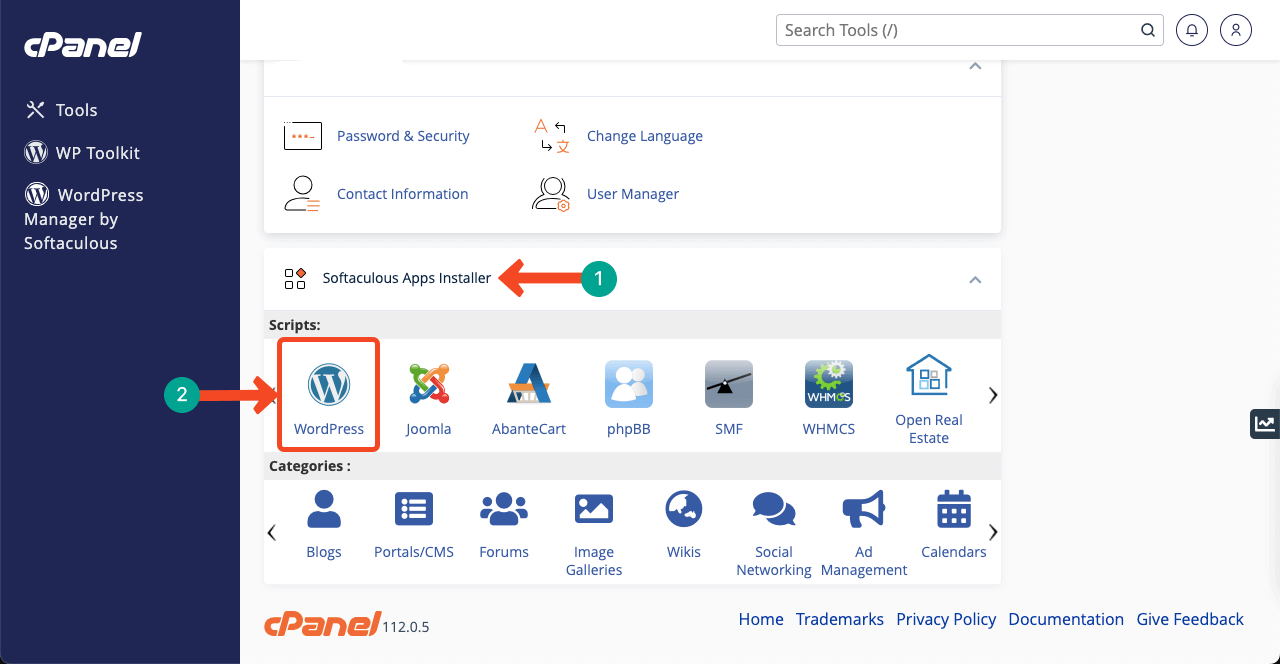
Note: Based on the cPanel you use, this interface may very.
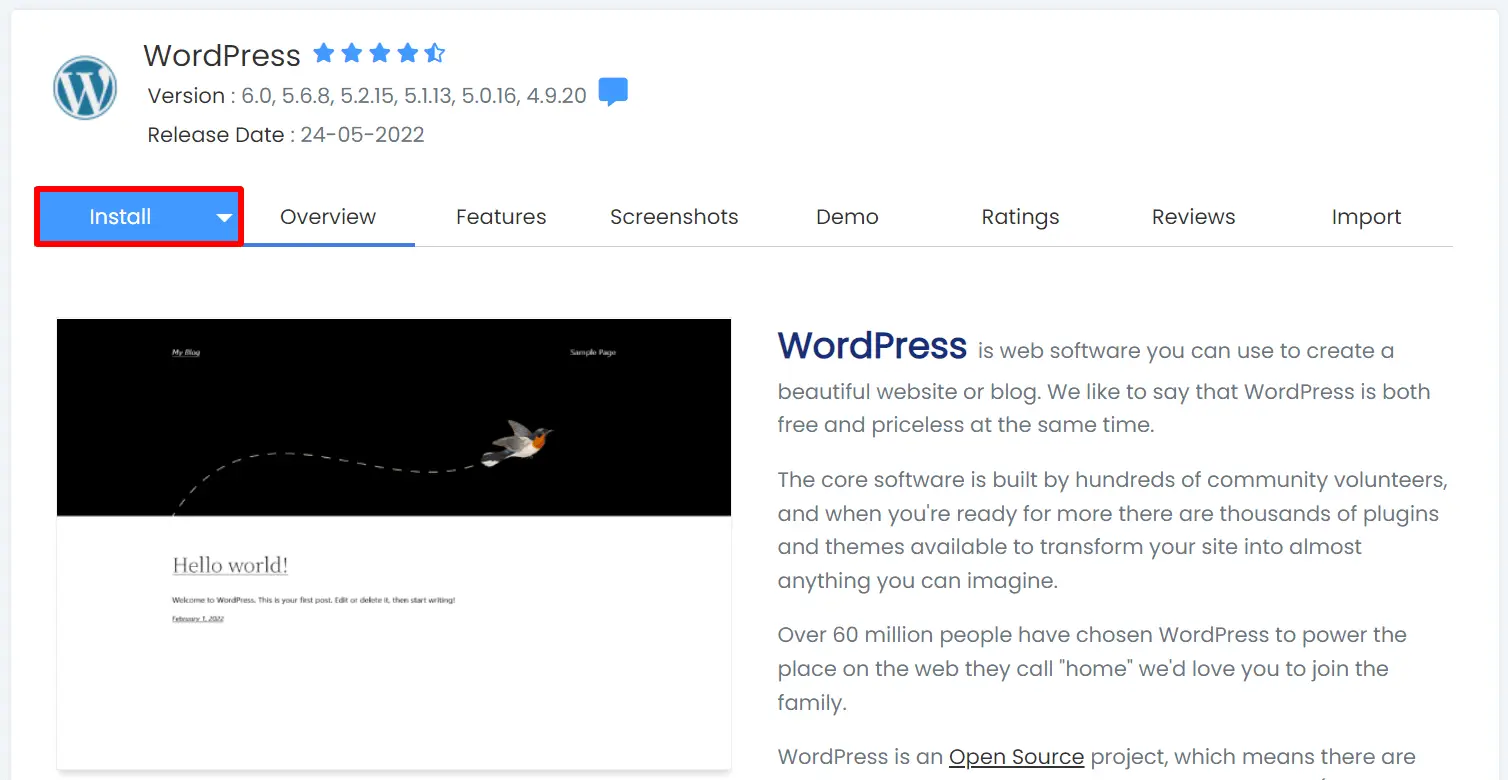
Find WordPress and click on it. This will take you to a new page where you need to enter your site’s name and login details. Finally, begin the installation process. It may take a maximum of two minutes.
After the installation is complete, you can log in to your WordPress dashboard. Go to yoursite.com/wp-admin in your browser and enter your username and password. This dashboard is the full control center of your website, and it is where you will manage and update absolutely everything.
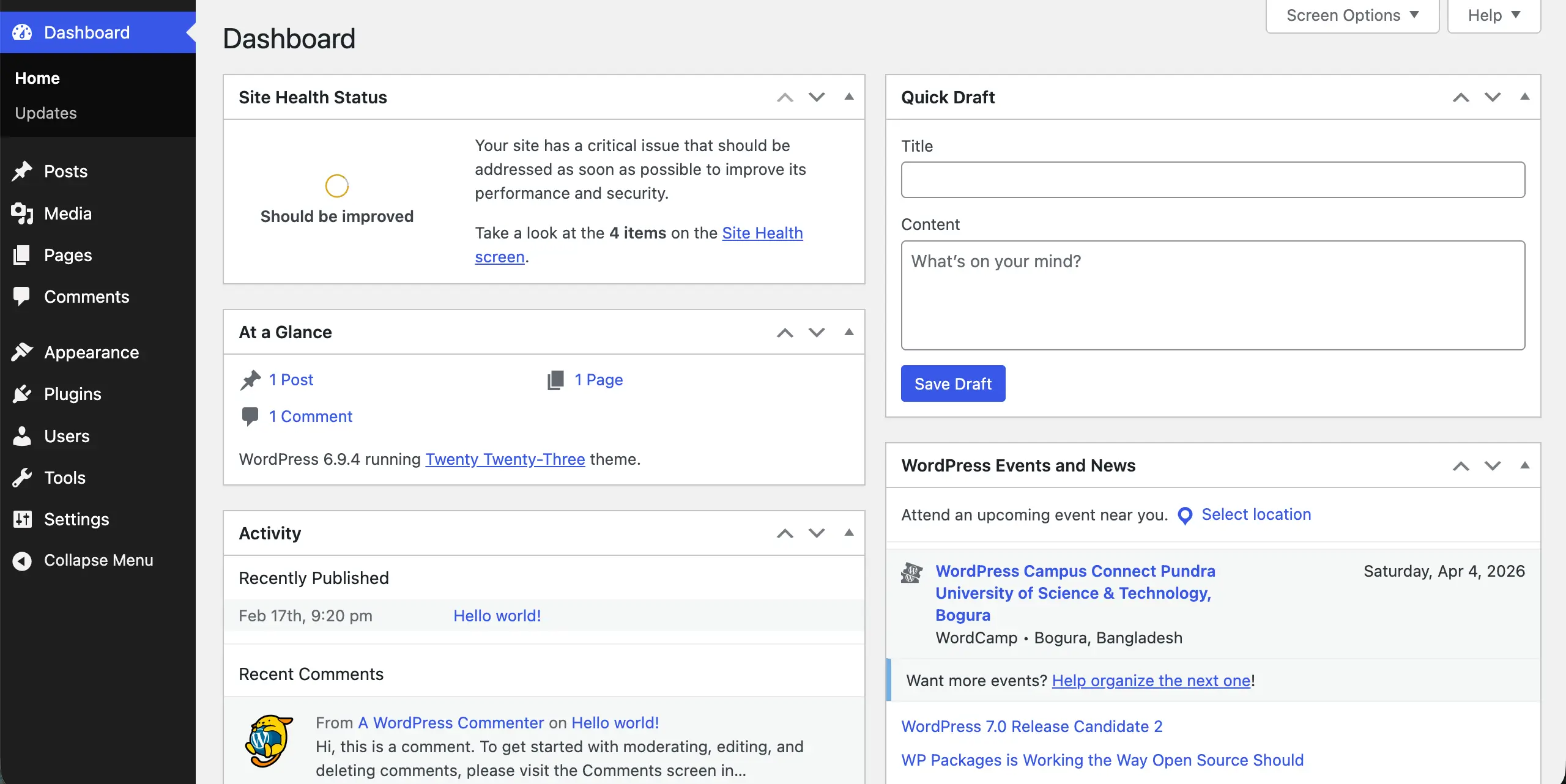
Take a few minutes to explore the WordPress dashboard before moving to the next step. Look at the left sidebar and notice sections like Pages, Posts, Plugins, and Appearance. You do not need to change anything just yet.
Step 02: Install and Set Up WooCommerce
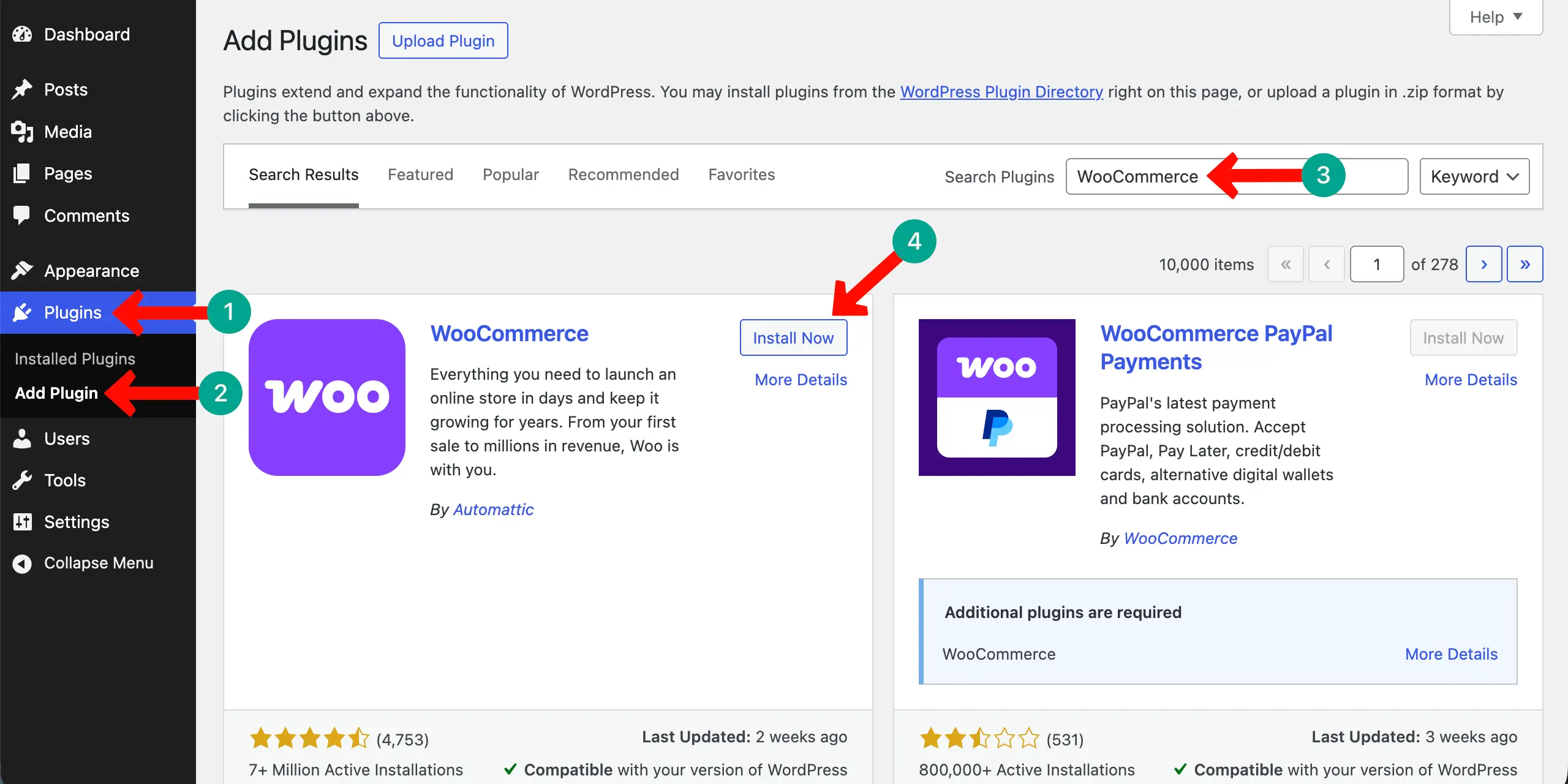
WooCommerce is the plugin that transforms your WordPress site into a fully functioning online store. Then, you can turn that online store into a clothing store. Go to Plugins > Add New.
Type WooCommerce in the search box. Once the plugin appears, install and activate it.
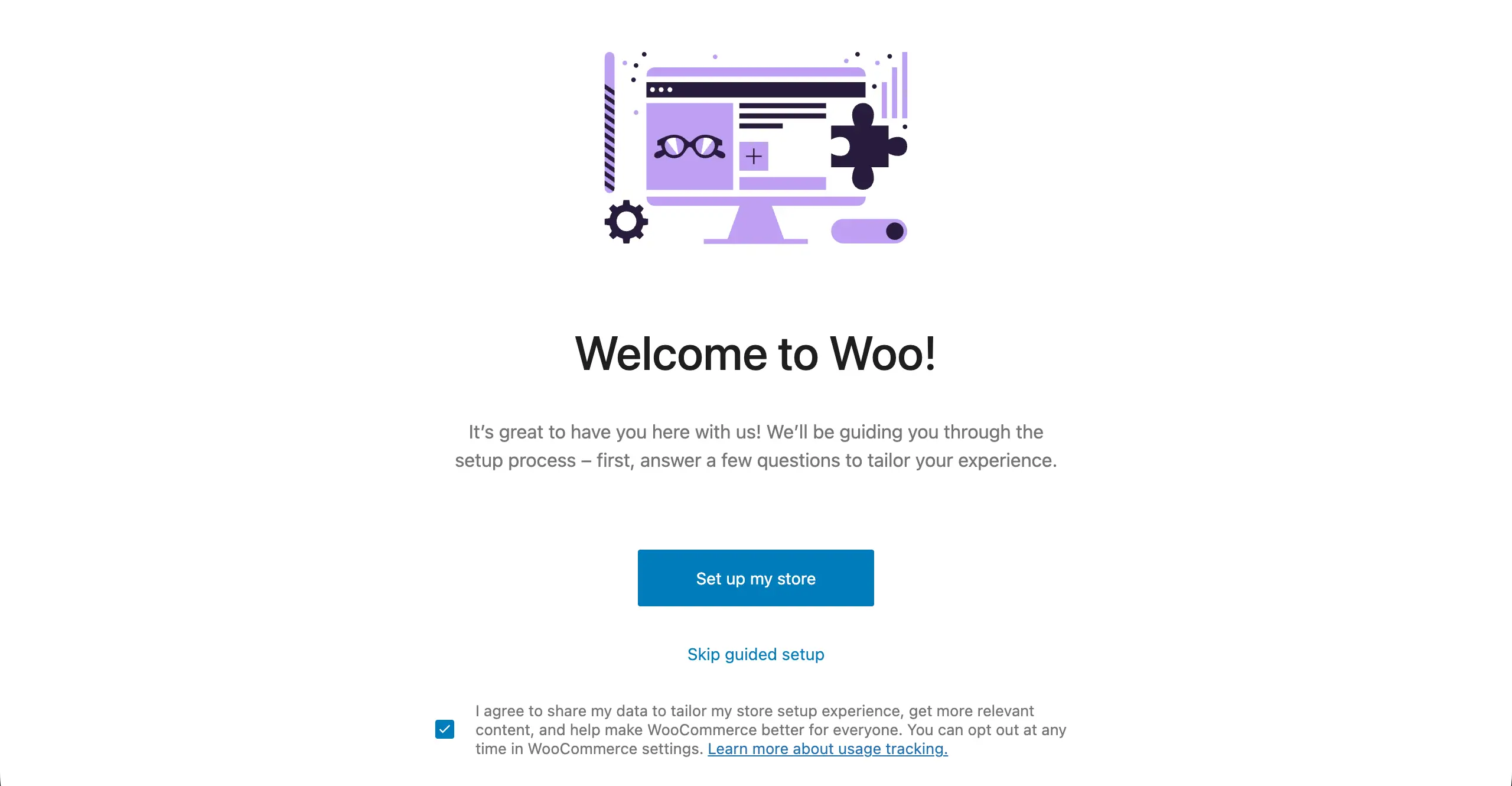
After activating WooCommerce, a setup wizard will appear to guide you through the essential initial settings. You will enter your store’s name, currency, country, and industry. Follow the on-screen instructions carefully and fill in all requested details as accurately and completely as possible.
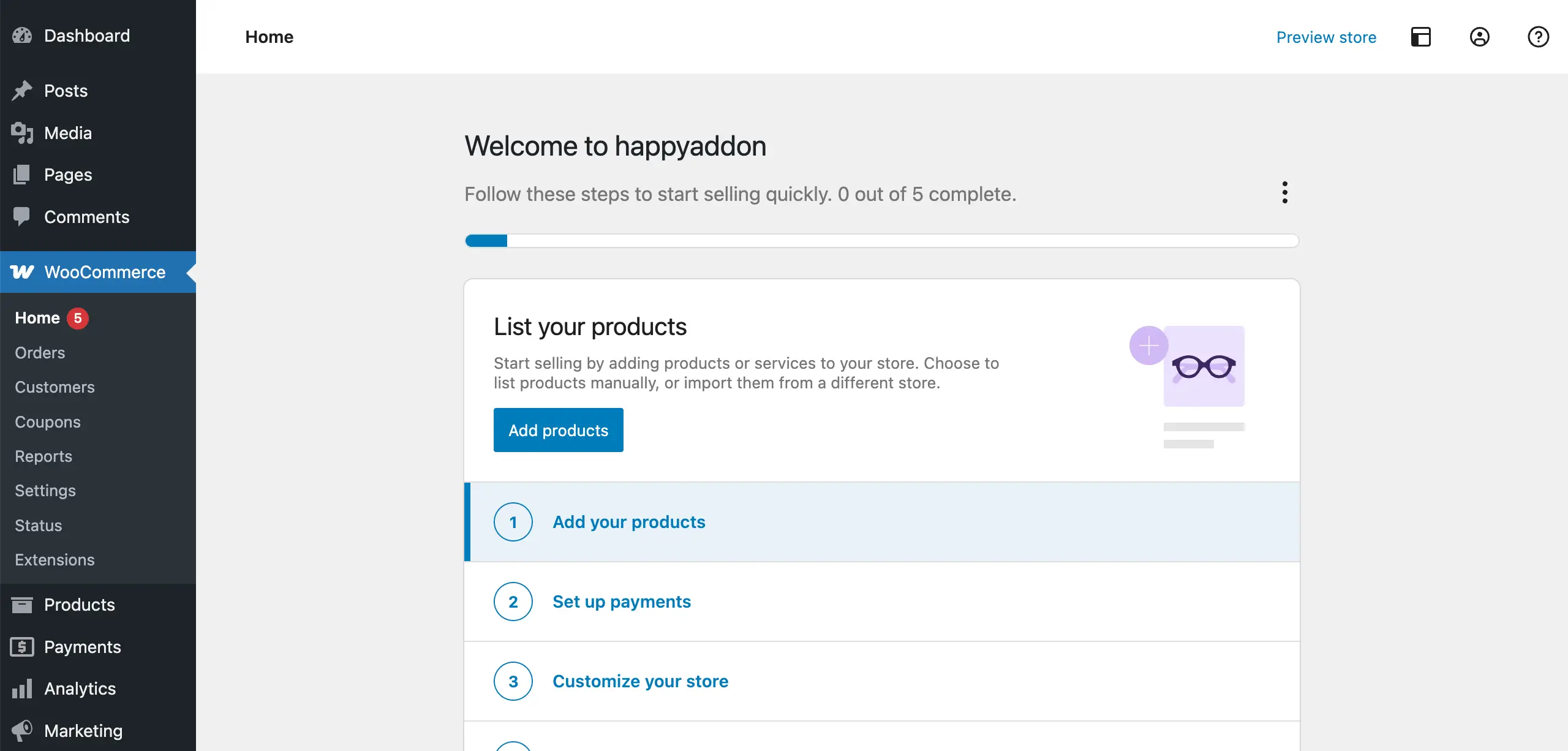
During the WooCommerce setup, you will also be asked about what you sell and how you plan to handle shipping. Fill in as much as you can for now and simply skip anything you are unsure about. You can always return to these settings and fine-tune every detail as your clothing business grows.
Explore how to build an agency website 3x faster with HappyAddons.
Step 3: Install Elementor (Free Version)
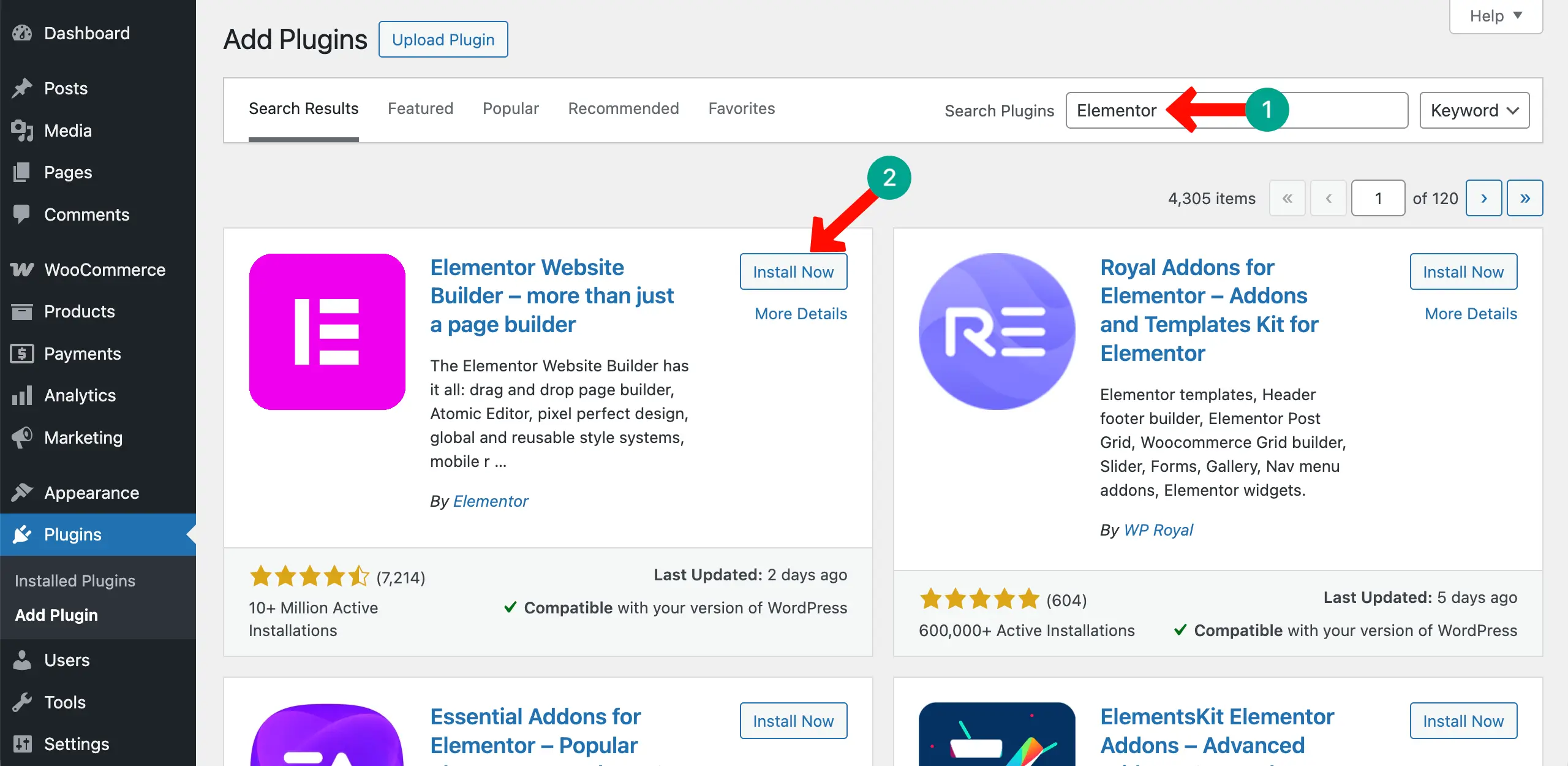
Elementor is a visual drag-and-drop page builder for WordPress that lets you design beautiful pages without writing any code at all. Go to Plugins → Add New, search for Elementor Website Builder. After that, click the Install Now button and then Activate.
Elementor replaces the default WordPress page editor with a powerful live visual builder. You can drag elements like text blocks, images, buttons, and galleries onto your pages and arrange them exactly how you want.
Step 5: Install HappyAddons Free and HappyAddons Pro
Now comes the most exciting part of this entire tutorial — installing HappyAddons. This is the plugin that transforms your Elementor-powered clothing website into something professional, polished, and truly powerful.
To install HappyAddons Free, go to Plugins → Add New. Search for HappyAddons. Then, Install and Activate.
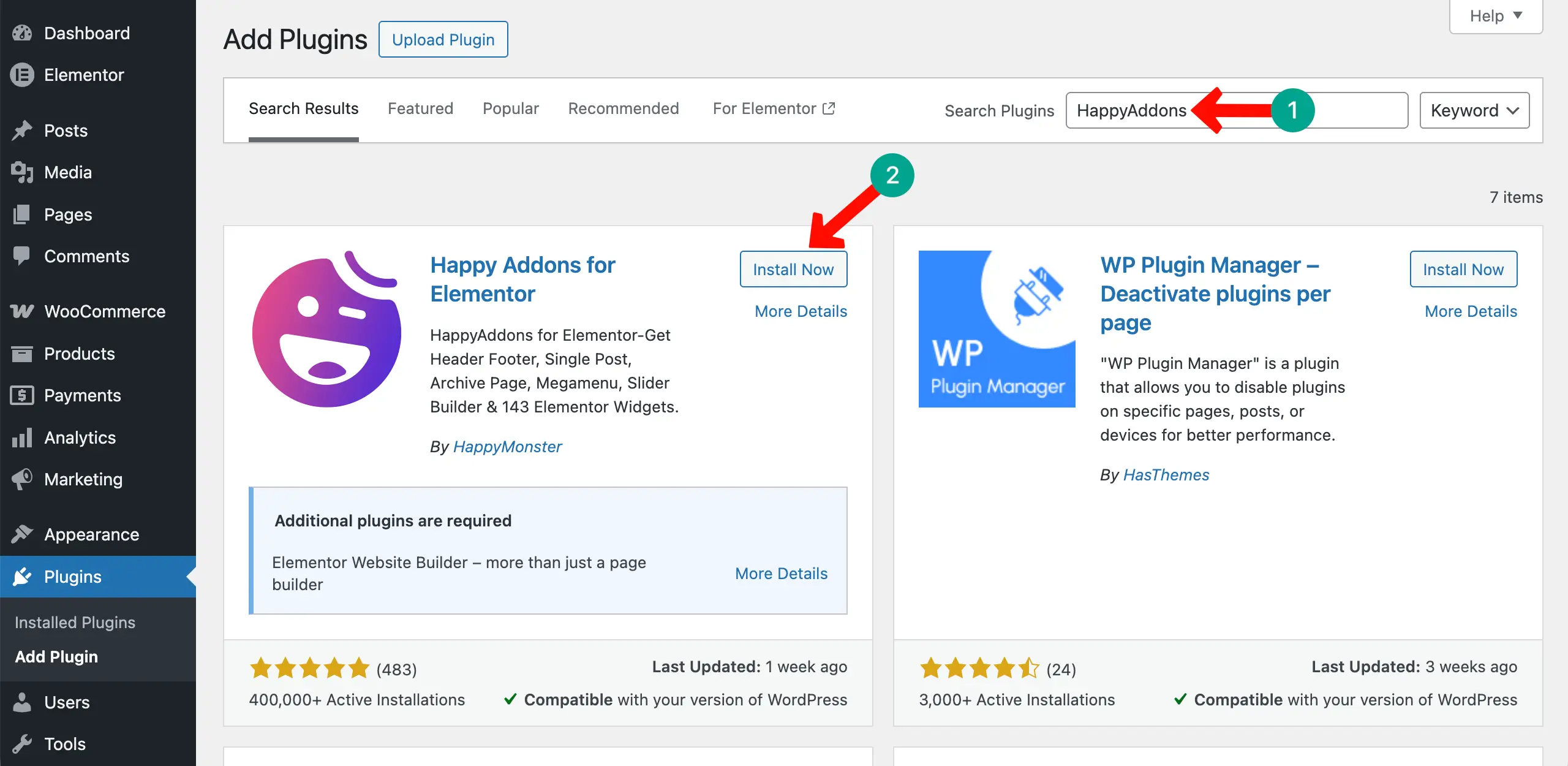
To unlock the full and complete power of this toolkit, you need HappyAddons Pro as well. Visit the official HappyAddons website, or click the button below to visit the pricing page.
Choose a plan that fits your budget, purchase it, and download the plugin file. Go to Plugins → Add New → Upload Plugin. Then, upload the file, and activate it right away.
Step 6: Choose and Install a Theme
Your theme sets the overall visual framework of your website. Go to Appearance → Themes → Add New in your WordPress dashboard. Search for Hello Elementor. Install and activate the theme. This theme is maintained by Elementor itself. Besides, it’s a lightweight theme that never slows down your site.
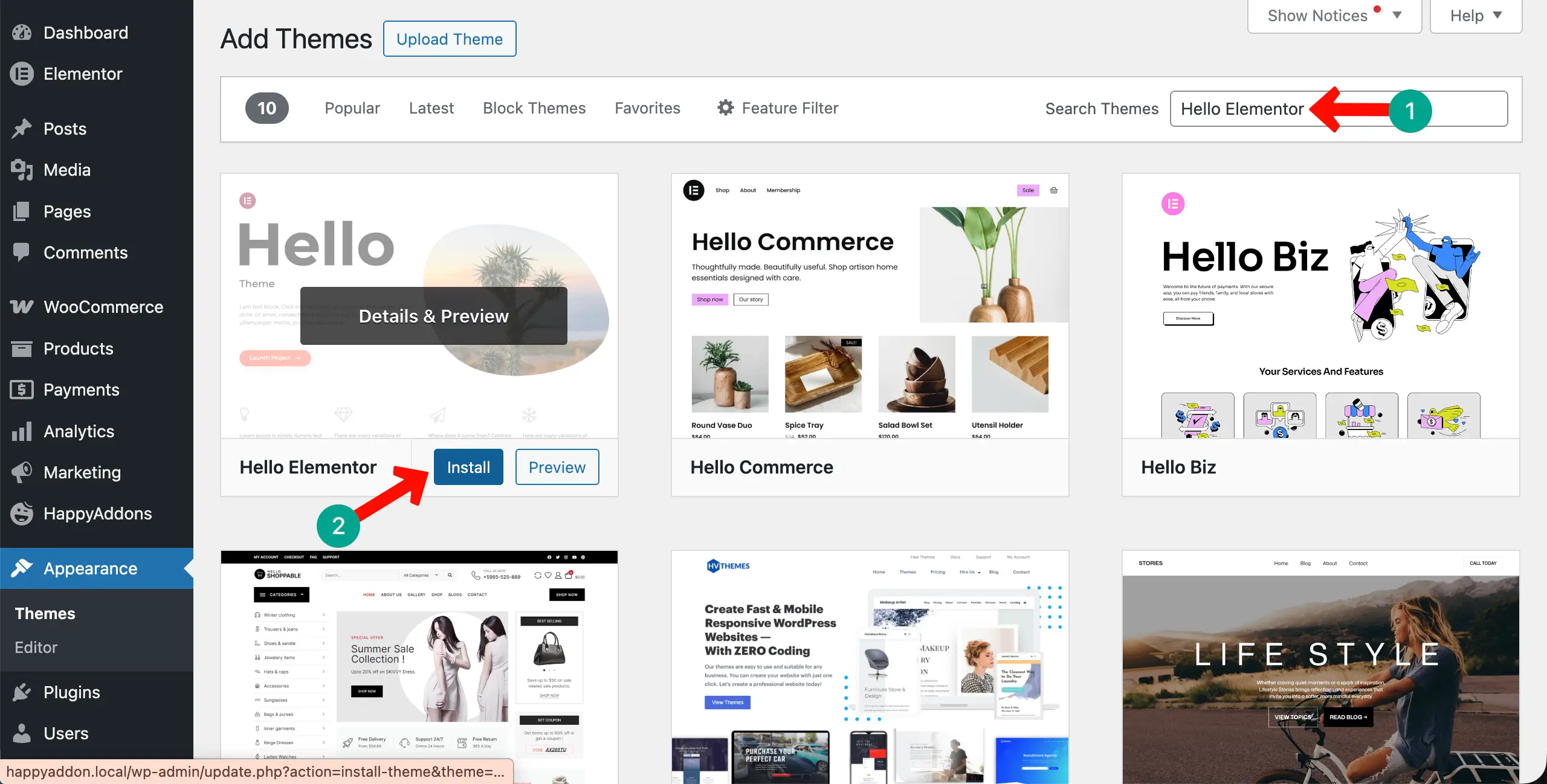
The Hello Elementor theme is intentionally minimal by design. It does not come with pre-styled sections because Elementor and HappyAddons handle all of the visual styling and design for you. This blank-canvas approach gives you total freedom and ensures there are no theme conflicts that could affect your beautifully custom layouts.
Check the best WordPress themes for Elementor.
Step 7: Design Your Homepage
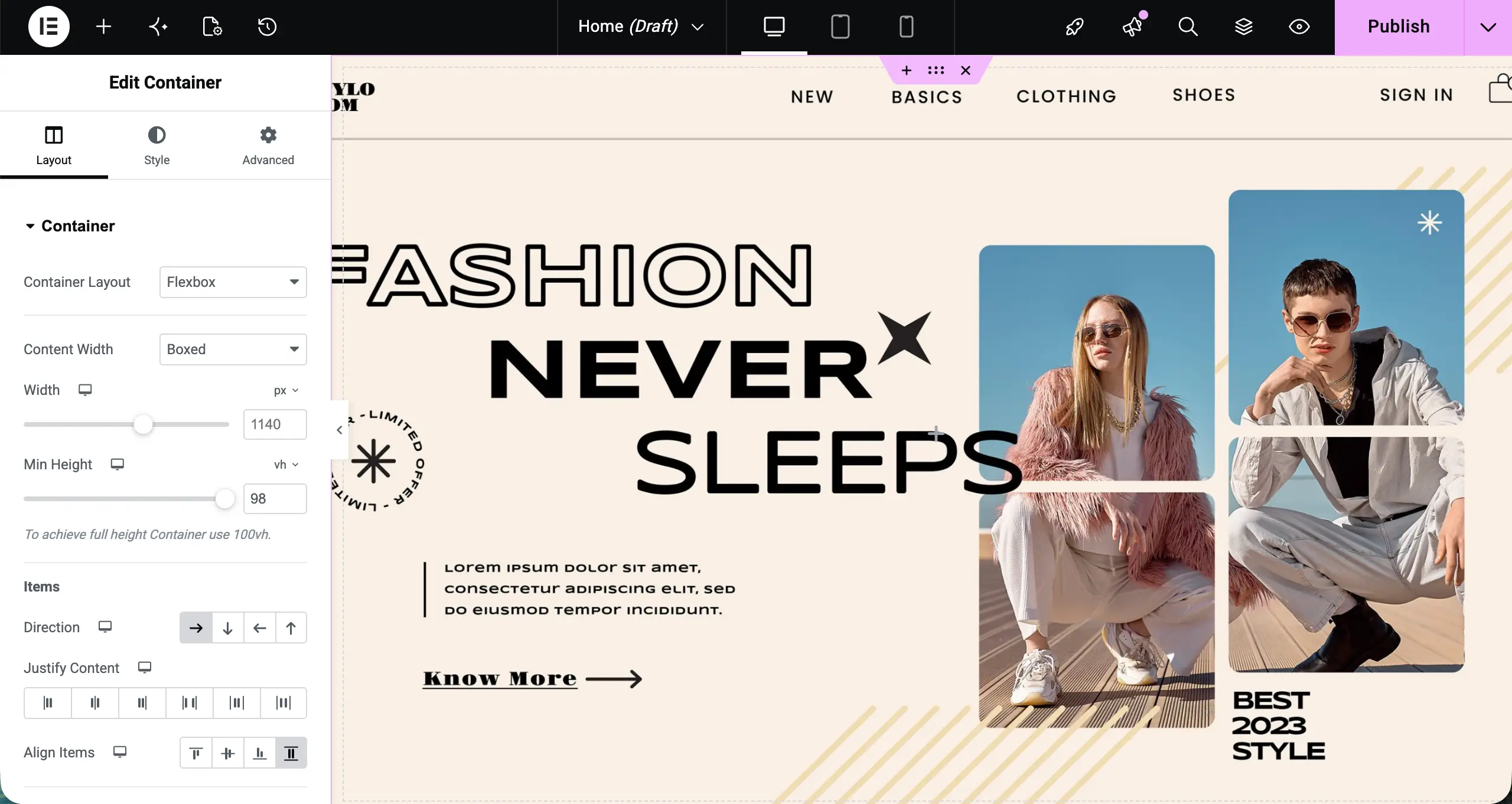
Your homepage is the first thing every visitor sees, so it absolutely needs to make a strong and lasting impression. A great clothing website homepage has a bold hero banner, featured products, a category showcase, a promotional strip, and a customer reviews section.
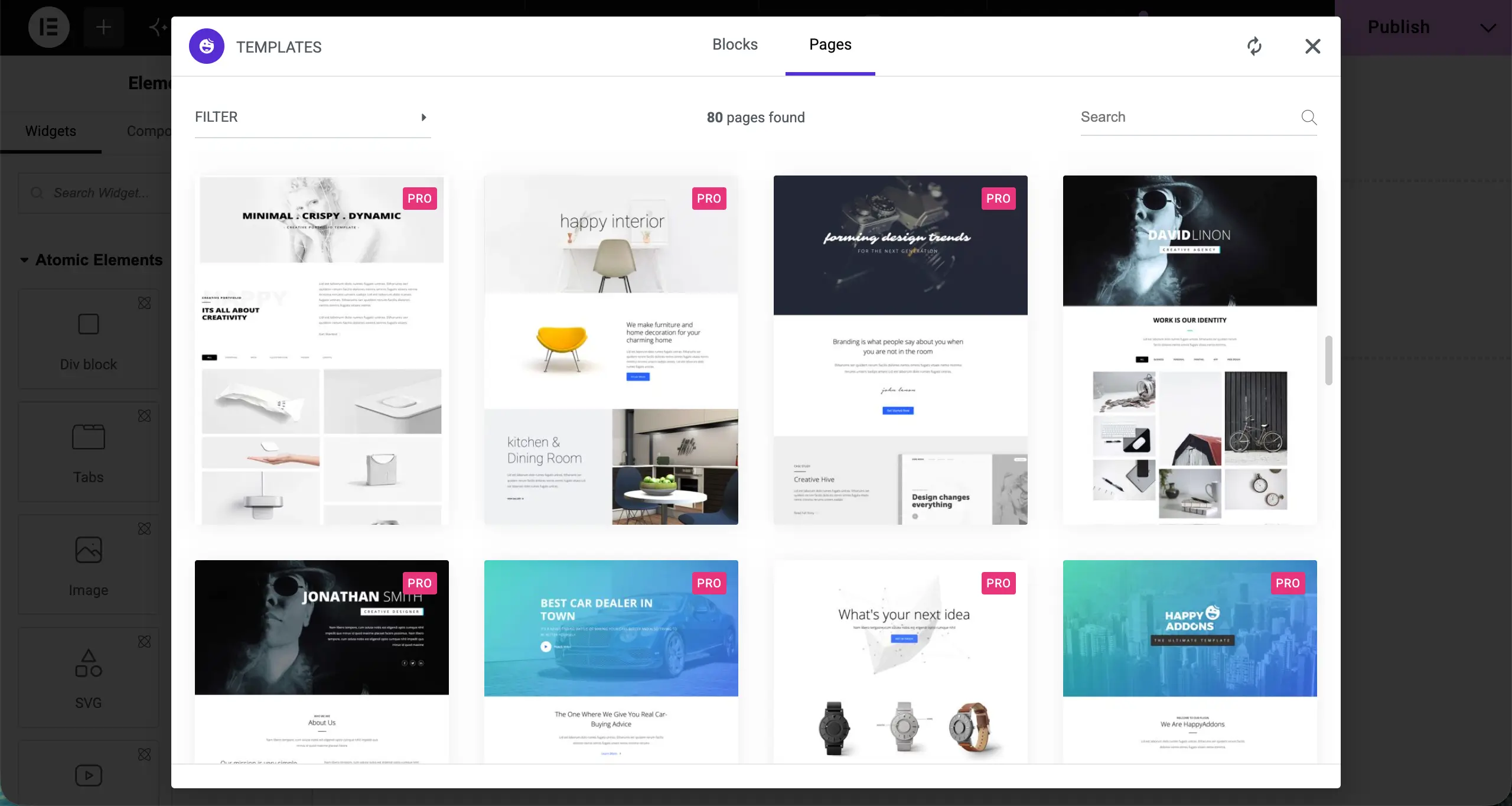
# Use Happy Templates to Save Your Time
With HappyAddons Pro, you can browse and import a stunning pre-built homepage template and then customize it to perfectly match your clothing brand’s identity. Click the HappyAddons template library icon to browse hundreds of beautiful, professionally designed layout options available to you. Pick a layout that suits your brand’s style and feel.
After importing the template or building it from scratch, add the necessary sections needed to present your home page in the most valuable and eye-catching way.
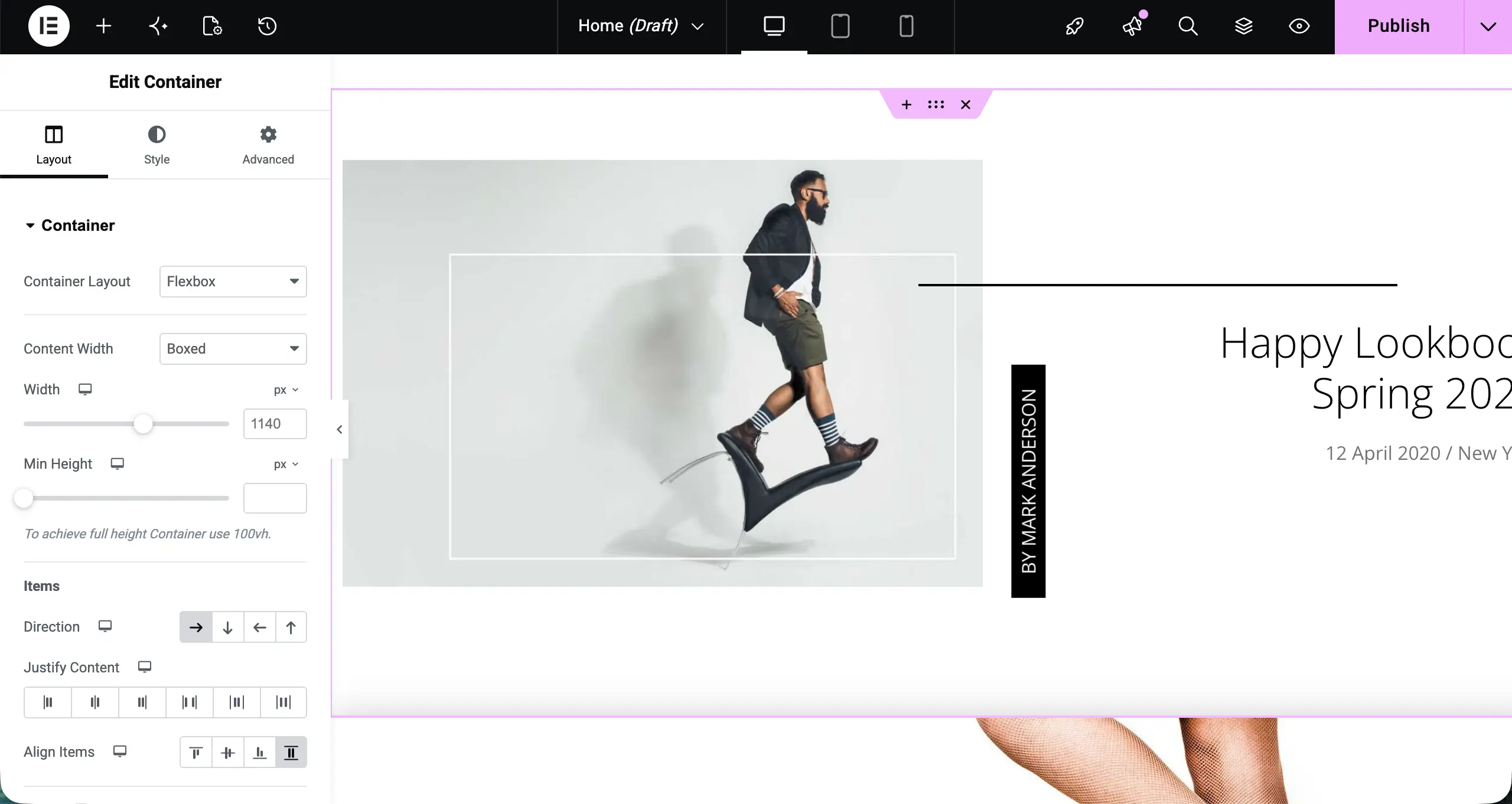
Step 8: Design Your Shop Page
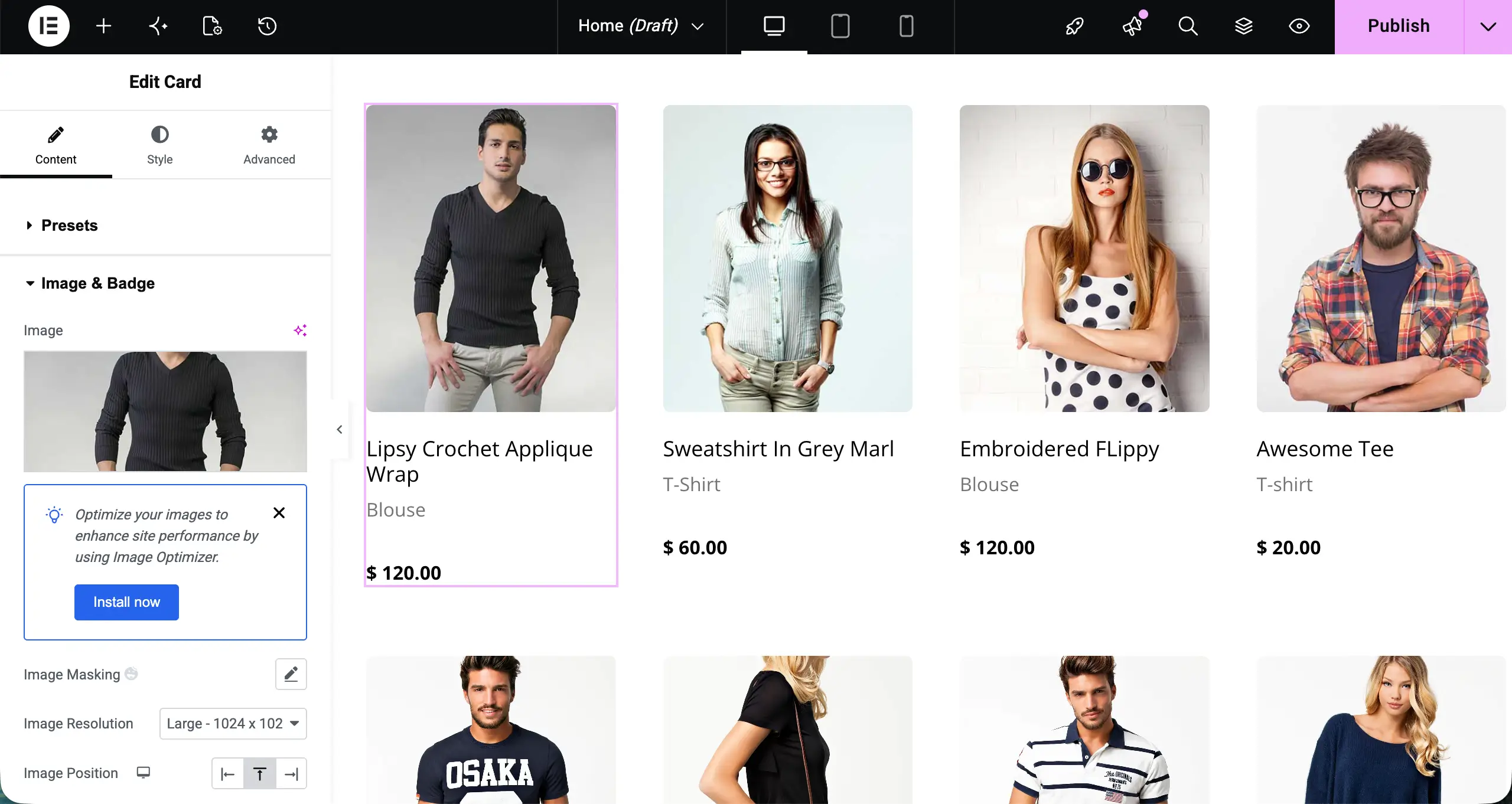
The shop page is where all your clothing products are listed together for customers to explore and browse. WooCommerce creates this page automatically after you install it. However, the default design looks very plain and unattractive. HappyAddons Pro lets you redesign it completely to look professional, modern, and visually compelling.
Here’s a detailed guide on how to design a shop page with Elementor and HappyAddons.
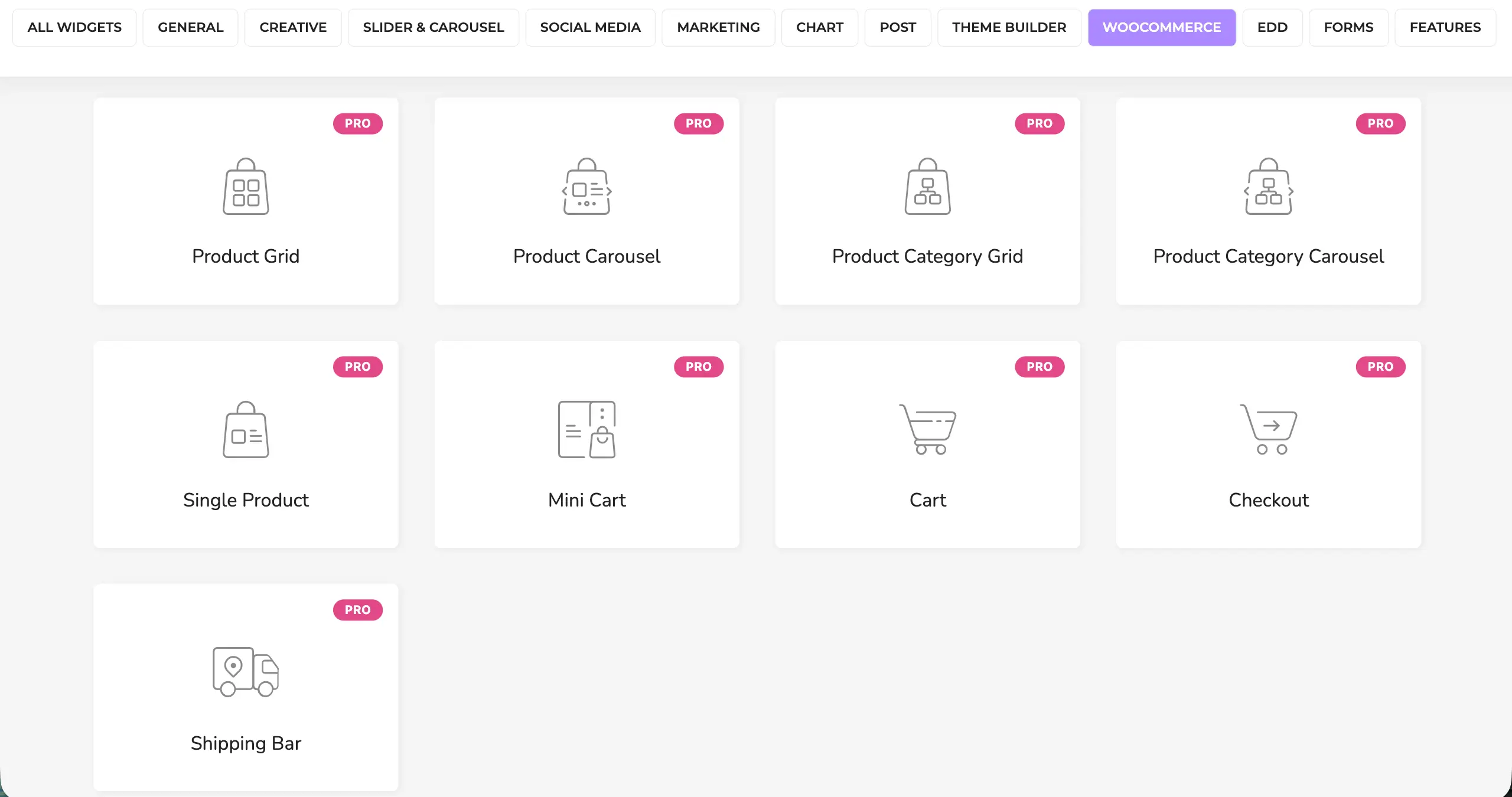
HappyAddons Pro includes dedicated WooCommerce widgets that give you full control over how products appear on your shop page. Using the suitable ones, you can customize your shop page well. We will add more WooCommerce widgets in the coming days, but soon.
Step 9: Design Your Product Pages
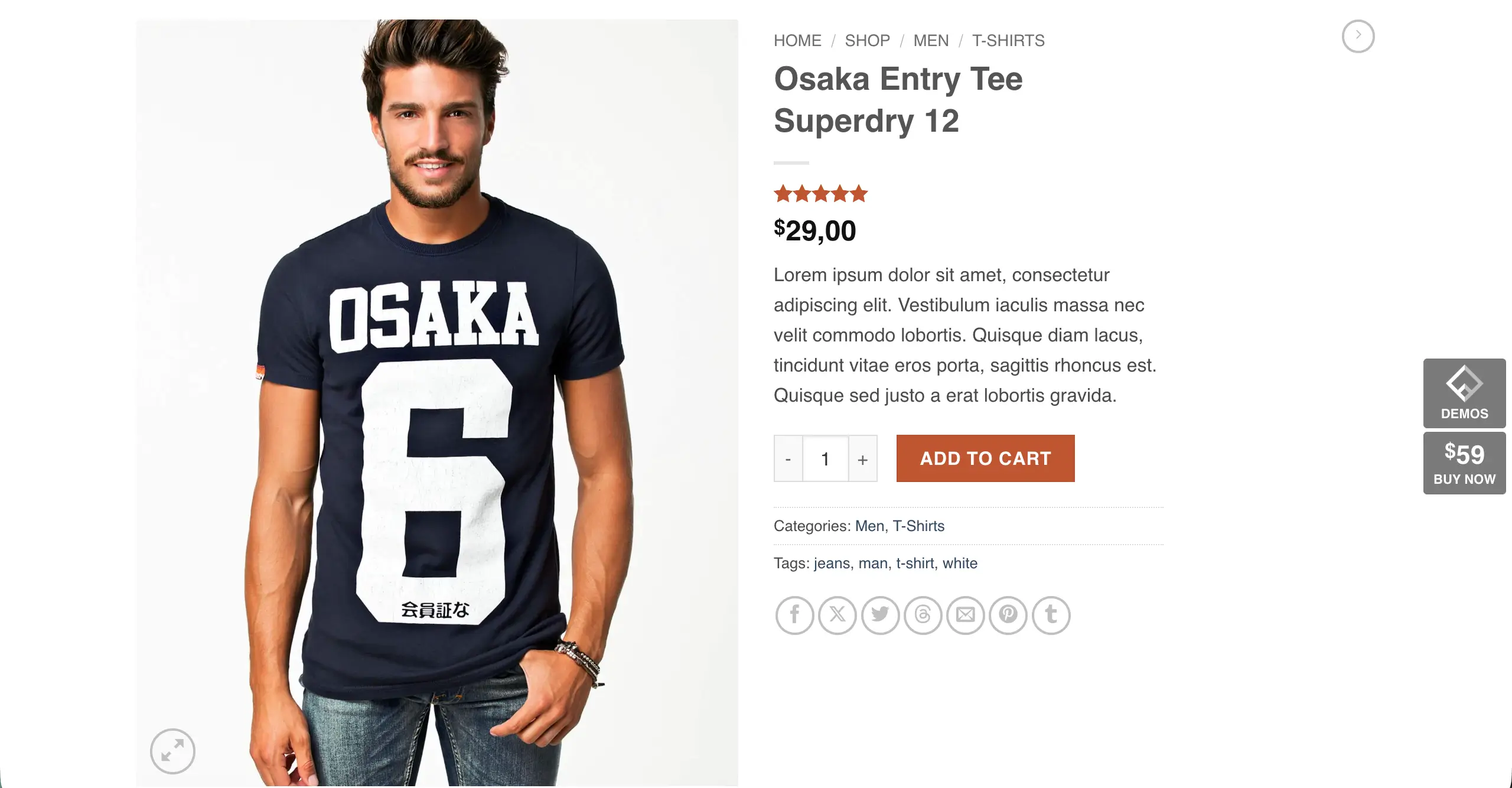
Each clothing product will have its own dedicated product page, automatically generated by WooCommerce. This page shows the product image gallery, title, price, size, and color variations, a description, and the “Add to Cart” button.
You can fully redesign your product page using HappyAddons Single Product widgets inside the Visual Elementor editor. A well-designed product page builds trust and helps customers make buying decisions faster and with much greater confidence.
Make sure your page has large, high-quality product images on the left side and the complete product details — title, price, variations, and Add to Cart button — clearly visible and well-organized on the right side.
Step 10: Add Your Clothing Products
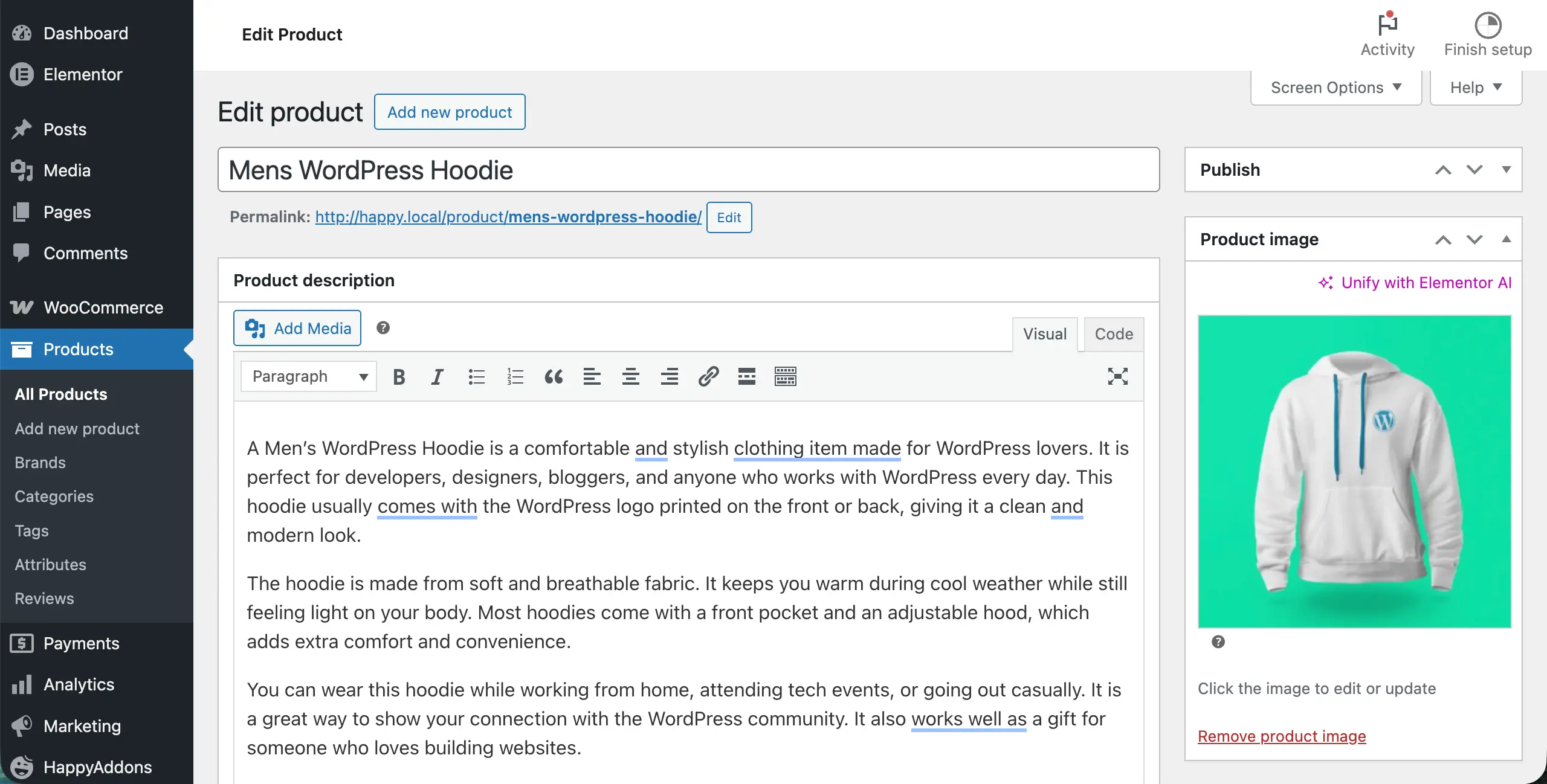
Now it is time to actually add your clothing products to the store. Go to your WordPress dashboard. Navigate to Products > Add New. Enter the product name, write a detailed description, add a short description, set the regular price, and include a sale price if you are offering any current discounts or promotions.
On the right side of the product editor, assign the product to a relevant category — like Men, Women, Kids, Tops, Bottoms, or Dresses — and add helpful tags. Categories and tags make navigation easy for shoppers and also help search engines understand exactly what each individual product page on your clothing website is about.
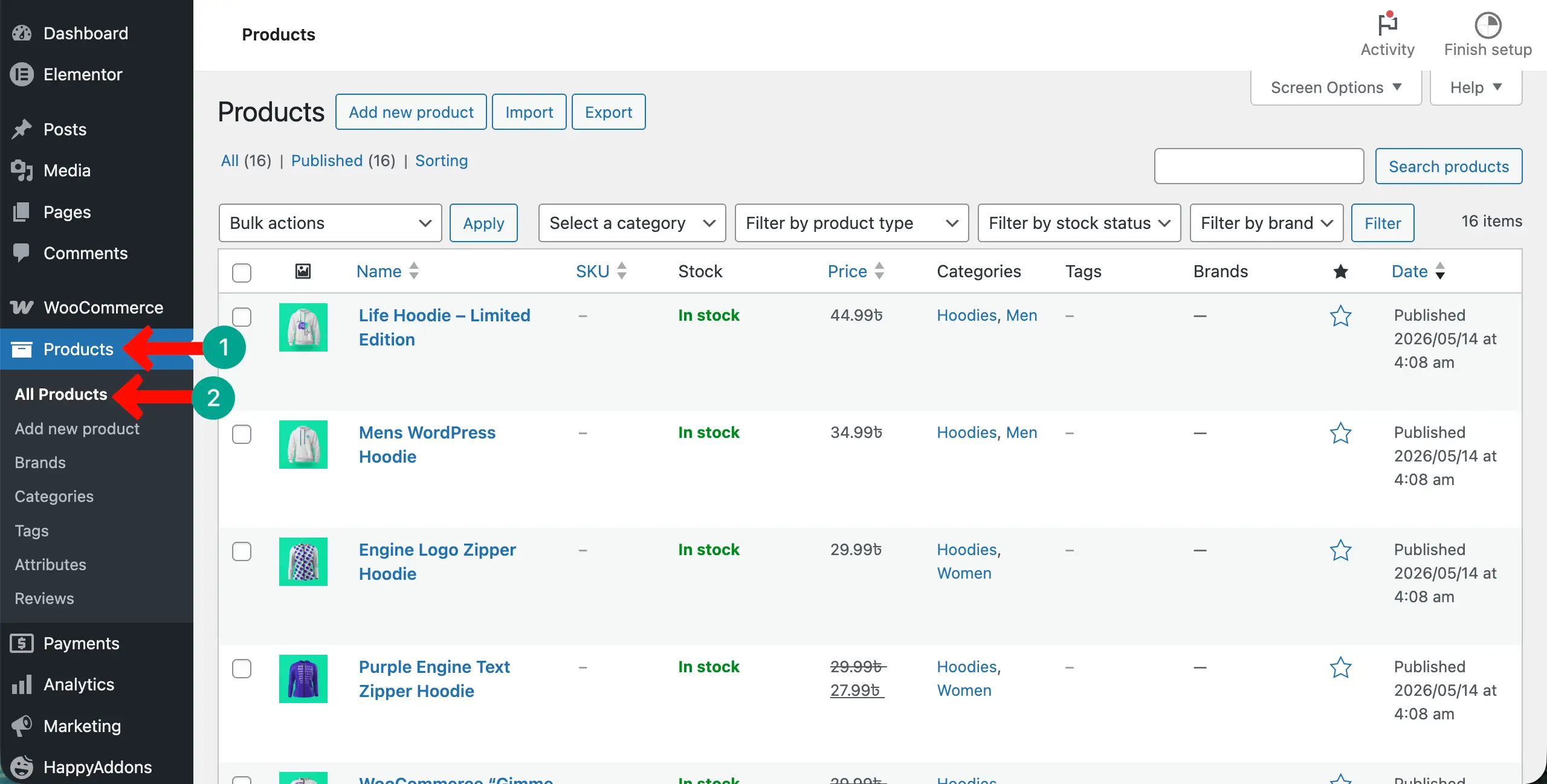
Once you have added the products you want, come to the All Products tab. You’ll see the list of the products you have added so far. From there, you can quickly edit them if any minor changes are needed to adjust.
Step 11: Set Up Payment Methods
Your clothing website needs to accept payments from customers securely and conveniently. Go to WooCommerce > Settings > Payments in your WordPress dashboard to see all available payment options. WooCommerce natively supports a wide range of trusted payment gateways that you can enable with just a few clicks.
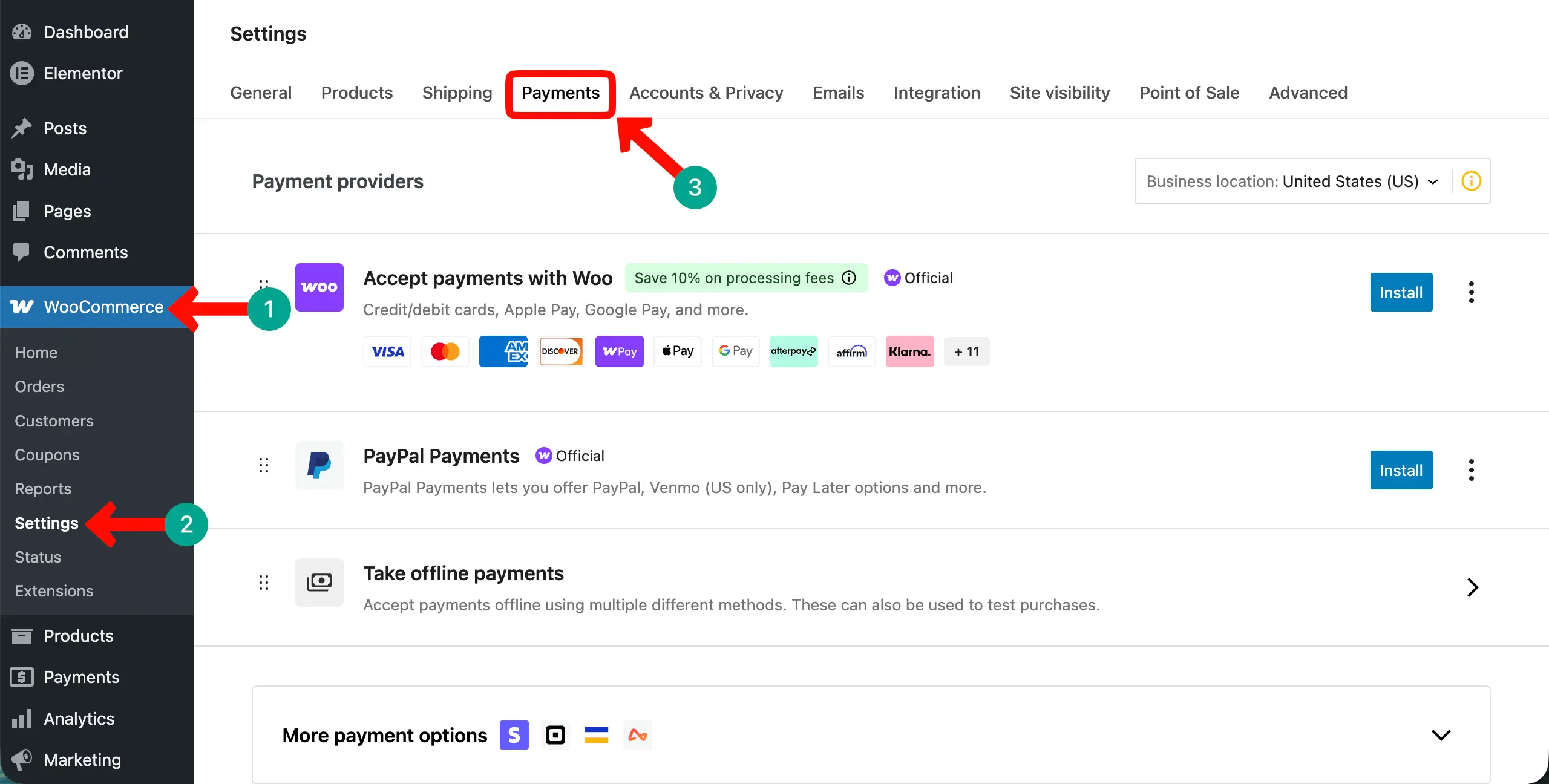
Choose payment gateways that are widely recognized and trusted by shoppers in your target market and that are easy to set up and manage from your store’s backend. It is a great idea to offer more than one payment method, as different customers have different preferences and comfort levels when paying online.
For each gateway you enable, follow its specific setup instructions carefully. Most payment gateways will ask you to create an account with the payment provider, connect it to your WooCommerce store, and run a test transaction to confirm that everything is processing correctly and securely before real customers begin placing orders.
Check the best WooCommerce payment gateways.
Step 12: Set Up Shipping Options
After configuring your payment methods, it is time to set up shipping. Go to WooCommerce > Settings > Shipping in your WordPress dashboard. Here you can create shipping zones — geographic areas like your home country or region — and assign specific shipping methods and rates to each zone you define.
WooCommerce provides three core shipping method types: free shipping, flat rate, and local pickup. You can offer free shipping on orders above a certain total amount, which is a proven strategy that encourages customers to add more items to their cart. You can also set a flat rate charged per order or per item.
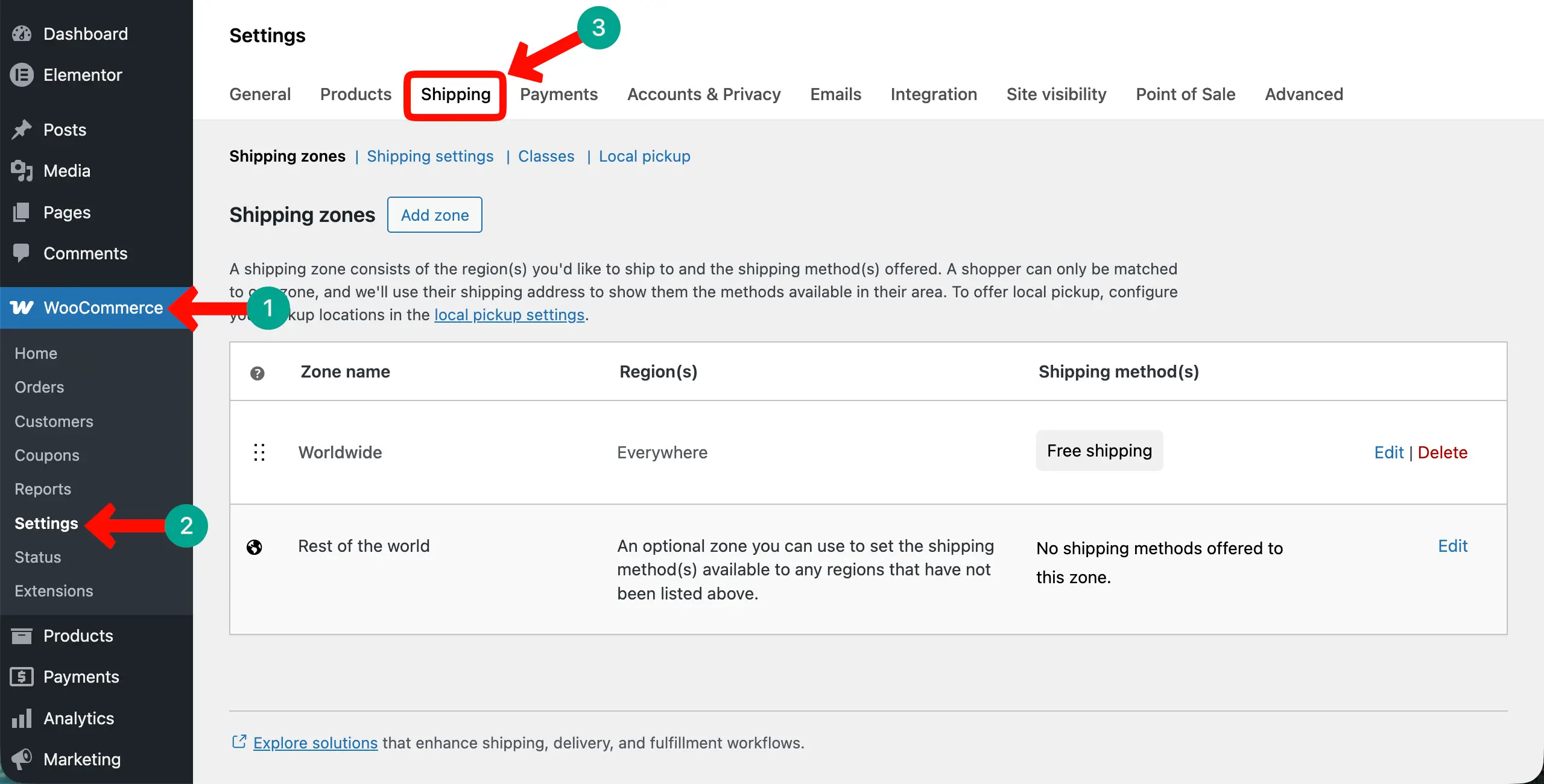
If you plan to ship internationally, create separate shipping zones for each major region with their own distinct rates. Always make sure that shipping costs are clearly visible before the final checkout screen. Hidden or unexpected fees appearing only at checkout are one of the leading causes of cart abandonment on online clothing stores.
Step 13: Make Your Clothing Website Mobile-Friendly
More than 60% of online shoppers use their smartphones to browse and buy clothing. This means your website must look great and function smoothly on smaller screens. The good news is that Elementor is fully responsive by default, so all your designs automatically adjust to fit different screen sizes without any extra effort from you.
Inside the Elementor editor, switch to mobile preview mode to check exactly how each page looks on a phone. If anything appears too large, too small, or misaligned on mobile, you can make precise adjustments for the mobile view only — without affecting the desktop version of that same page in any way.
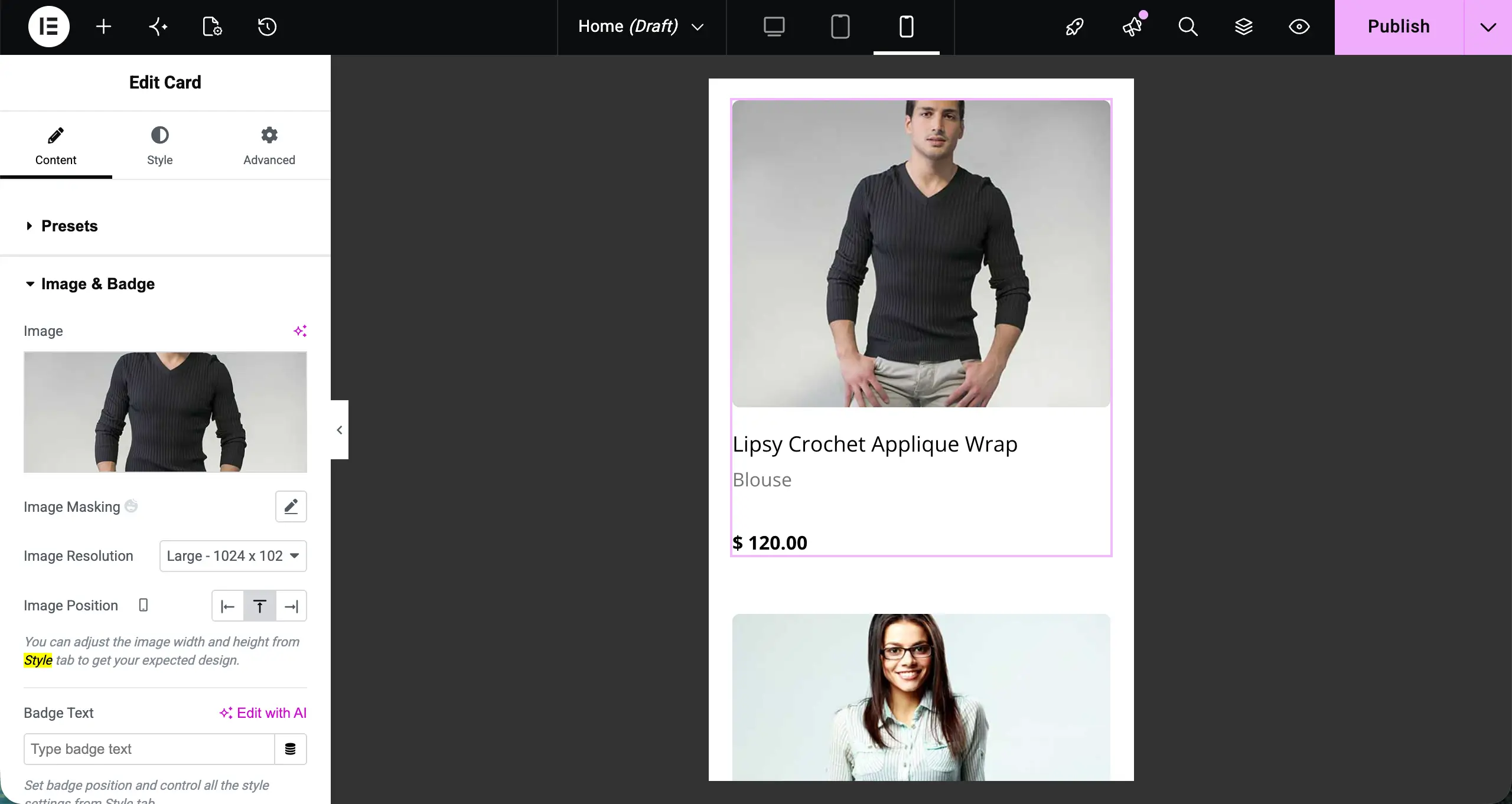
All HappyAddons widgets are fully responsive and mobile-optimized right out of the box. With HappyAddons Pro, you also get granular control over font sizes, spacing, padding, and element visibility separately for desktop, tablet, and mobile.
This ensures your clothing website looks completely polished and professional on every single device your customers use.
Step 14: Test Your Website Before Going Live
Before launching your clothing website, test everything carefully. Place a test order using WooCommerce sandbox mode. Check cart, checkout, and payment flow. Make sure the full process works smoothly. Go through every page and click all links. Fix any broken or wrong links.
Check product pages. Ensure images load properly. Test variations like size and color to see if they update correctly. Finally, review all content. Fix spelling mistakes and wrong information. A clean and error-free site builds trust and helps you start strong.
How Much Does It Cost to Build a Clothing Website?
This is one of the most common questions beginners ask, and the honest answer is that it depends on your specific choices and needs. The great news is that you can build a genuinely professional-looking clothing website for a very small, manageable budget using the tools recommended throughout this tutorial.
Here is a realistic cost breakdown for everything you will need to get your clothing website live:
| Item | Estimated Cost |
|---|---|
| Domain Name | ~$10–$15/year |
| Web Hosting | ~$3–$10/month |
| WordPress | Free |
| WooCommerce | Free |
| Elementor (Free Version) | Free |
| HappyAddons Free | Free |
| HappyAddons Pro | From ~$39/year |
| Rank Math SEO | Free |
| WordFence | Free |
In total, you can launch a fully functional and beautifully designed clothing website for roughly $50 to $80 in your very first year. That is a remarkably small investment considering the revenue potential a well-built, well-marketed online clothing store can generate for your brand over time.
Note: This cost is suitable only if you are a beginner and just kicking off your eCommerce store. Once you start growing big, you’ll definitely need a better hosting solution, more addons, and security systems. In that situation, you may consider buying premium plugins.
Frequently Asked Questions (FAQs) on How to Make a Clothing Website
Let’s now take a look at some of the most frequently asked questions on how to make a clothing website and our answers to them.
Do I need coding skills to make a clothing website?
No, you do not need any coding skills at all. With WordPress, Elementor Free, and HappyAddons, everything is built using a visual drag-and-drop editor. You click, drag, type, and customize everything right on screen — no code, no developer, and no technical background required.
Do I need Elementor Pro to build a clothing website?
No. If you have Elementor Free, HappyAddons Free, and HappyAddons Pro, you absolutely do not need Elementor Pro. HappyAddons Pro provides all the advanced widgets, pre-built templates, Theme Builder, and design controls you need — while saving you the cost of Elementor Pro and actually giving you more powerful capabilities overall.
Is WordPress good for a clothing store?
Yes, WordPress with WooCommerce is one of the best platforms available for building an online clothing store of any size. It is free, flexible, supported by a massive global community, and works beautifully with Elementor and HappyAddons. Millions of successful eCommerce stores around the world run entirely on WordPress and WooCommerce today.
Can I sell clothing online on a low budget?
Absolutely. WordPress, WooCommerce, Elementor Free, and HappyAddons Free are all completely free to use. Your main costs are a domain name and web hosting, which can start at just three to five dollars per month with an affordable provider. HappyAddons Pro starts from around $39 per year, making the total investment very manageable.
How long does it take to build a clothing website?
If you follow this tutorial step by step and have your product images and written content ready in advance, you can build a solid clothing website in one to two days. The more products you have to add and the more customized your design needs to be, the longer the full build process will naturally take to complete.
Can I add more products after launching my clothing website?
Yes, absolutely. You can add new products, update prices, revise descriptions, upload new photography, and manage your inventory at any time directly from your WordPress dashboard. There is no limit to the number of products you can list on your WooCommerce clothing store — it grows and scales alongside your business.
Conclusion
Congratulations — you now know exactly how to make a clothing website from scratch, one clear and actionable step at a time. By following this tutorial carefully, you can build a beautiful and fully functional online clothing store without any coding knowledge and without spending large sums on designers or developers.
The combination of WordPress, Elementor Free, HappyAddons Free, and HappyAddons Pro is genuinely powerful and remarkably beginner-friendly. You get 150+ exclusive widgets, 700+ professional templates, a full Theme Builder, advanced animations, and premium design controls — all working together to help you create a store that stands out.
Now it is your turn to take action. Get your domain name and hosting, install WordPress and WooCommerce, and start designing your store with Elementor and HappyAddons Pro. Take it one step at a time. Your clothing website will be live, polished, and ready for customers.

![Black Friday and Cyber Monday are around the corner, and people are waiting for these festivals to grab the best product deals. That is why giving an attractive look to your website during this festive season is very necessary. But, creating a whole new landing page might be difficult in a short period of time. Don't worry. By using Happy Elementor Addons Black Friday and Cyber Monday Landing Page templates, you can easily develop a whole new landing page in a few minutes. In this today's blog, we are going to show how to boost your website design using HappyAddons templates during this festival season. Before that, we'll talk a bit about these two festivals and why they are important to online business communities. What are Black Friday and Cyber Monday? Black Friday is the immediate following of the famous Thanksgiving day. This is when people start shopping to celebrate the Christmas festival. Since the late 1980s, retail sales on this day have constantly been suppressing the past volumes. See the graph below. Source: Salecycle.com The first Monday following Thanksgiving day each year is called Cyber Monday. It was first introduced in 2005 by the USA National Retail Federation to encourage people to buy online. Though this festival originated in the USA, it is celebrated globally today. See the stats below. Source: Salecycle.com It indicates customers' buying behavior around this day is growing up over time. Many customers today keep a budget to buy products on these two days. So, why won’t you prepare a Cyber Monday landing page if you have an online store? Importance of Designing Landing Pages for Black Friday and Cyber Monday Festival Having a well-design website is one of the major checklists if you are running an online business. Most importantly, you have to make sure that your website remains up-to-date to boost your sales. That is why you need to redesign your website or make a new landing page during the Black Friday and Cyber Monday festivals. Because most online product & service-based businesses promote special deals during these two festivals. Here are some remarkable ways dedicated landing pages during these festivals can positively impact the performance of your online business. Boosts your product salesIncreases conversion rateOpportunity to collect potential email leadsGrabs users' attention toward your siteReduces bounce rateIncreases website visitors. Elementor Black Friday New Seasonal Kit is Already Here! Source: Elementor To make this Black Friday more enjoyable, Elementor has launched a New Seasonal Kit that includes landing pages, sections, pop-ups, and vector assets. All these design elements are made by the Elementor team so that one can easily use them on their website to ensure more sales and conversions. New Elementor Black Friday Seasonal Kit offers: 3 Landing pages6 Sections 6 Popups A collection of stickers & animations You can only get these ready-made Black Friday landing pages and sections if you have Installed Elementor Pro on your site. However, if you are looking for templates that are outside of the box, you can go with Happy Addons, the fastest Elementor Addons on the market. It's very easy to use, flexible and has tons of advanced features and widgets that can ease your website design journey. Also, you'll get several festival landing page templates & blocks. Moreover, you can use free Black Friday and Cyber Monday design blocks and templates to decorate your site. Most importantly, these templates and blocks are easy to customize and can be used for multiple purposes. Now let's see how you can use the Happy Addons templates to design your website according to the Black Friday theme. Pre-Requisites to Use HappyAddons Templates to Design Black Friday and Cyber Monday Landing Pages You must have the following plugins installed on your site to get access to the HappyAddons Template library. Make sure you’ve installed and activated the Happy Addons Free & Premium version of your website. Elementor (Free)Happy Addons (Free)Happy Addons Pro If you are new to Elementor, check this Step By Step Guide For Beginners. If you want to explore the readymade templates of HappyAddons before installing these plugins, you may visit by clicking on the button below. Check out Happy Addons Templates How to Design Black Friday Landing Page on Your Website Once you have the plugins (mentioned above) installed, your website is ready to follow the tutorial guide explained in this section. Get ready now! Step 1: Open a New Page with Elementor Create a new page or open the existing page with Elementor. Next, you have to select the Elementor Canvas option.Unless you select Elementor Canvas, you may watch the header, footer, and unnecessary other texts on the page. These might be irritating to you.Once you open the page with Elementor Canvas, your page will be completely clean. Watch the video below on how to do it. Step 02: Go to HappyAddons Library Click on the HappyAddons Library Icon. It will open up a modal popup. Here you'll find numerous stunning premade Blocks and Pages created by the Happy Addons team. Kindly explore them to create a list of your favorite items. Step 03: Import a HappyAddons Black Friday Template Go to the Page tab on the modal popup.Select Black Friday from the left-side filter option.You will several good-looking templates on your screen.Take your cursor on the one you like and hit on the INSERT button. Wait for a while to finish the installation process. You will get the template on your screen with editable sections and options. Step 04: Set the Black Friday Campaign Deadline A deadline creates a sense of urgency in customers' minds. So, better if you add a deadline section on the page to show your Black Friday deals. The good thing is that if you select the template as we did, you will automatically get a deadline or countdown option. You have to customize it as you want. Step 05: Show Image Carousel Slider on Your Black Friday Landing Page Using the Image Carousel, you can slide show demonstrating discounts on your product categories. Drag and drop the Image Carousel widget on any landing page section. Next, from the Elementor panel, you can add photos and text to the widget. Do it accordingly. Thus, you can add more sections and options on the landing page. Hope you can do it yourself. Step 06: Make the Black Friday Landing Page Mobile Responsive Making a web page mobile responsive with Elementor is super easy. You'll get the mobile responsive option on the Elementor footer section. Clicking on it will open up the option to view your landing page on different device screens. We have explained the process in the video below. Note: Don't delete any widget or section while customizing your landing page for any particular device. Because if you delete a widget or section on any device screen, it will also be applied on other devices. However, you may change their position or alignment or hide them. It won't make any impact on other devices. Step 07: Final Preview of Our Landing Page Here is the final interface of our Elementor Black Friday landing page that we've designed using the Happy Addons' ready-made Template. Get Happy Addons to Add a Black Friday Theme Landing Page on Your Website How to Design Cyber Monday Landing Page on Your Website You will require the same prerequisites (Elementor and HappyAddons Plugins) to design the Cyber Monday landing page on your website. Hope you have them ready on your website. Now, let's get into the tutorial part. Step 01: Import a Cyber Monday Readymade Landing Page Template Go to the HappyAddons Template library.Choose the Cyber Monday template you like.Click on the INSERT button. Wait for a while to finish the installation process. You'll get a page design like the following image below. Step 02: Edit Different Sections of the Page In the first tutorial, you saw the deadline/countdown option was already embedded in the template. But this template doesn't have it. So, you can bring it to your page? Very simple. Create a new section by clicking on the plus icon.Type Countdown on the Elementor search bar.Drag and drop the widget on the section. Customize the Countdown section from the Content and Style tabs of the Elementor panel. Using the Heading widget, we have added the FLASH DEALS text next to the countdown to make it more meaningful. Thus, you can use other exciting widgets on the template to make your landing page super gorgeous. Step 03: Promote Products on the Landing Page Promotional landing pages usually include a section to showcase some hot-selling products to generate instant sales. Using the Image and Button widgets, we have created this section under the FLASH DEALS.You may customize it more as you wish. Step 04: Make it Mobile Responsive We already showed you the process in the first tutorial on making a mobile web landing page responsive. Hope you can do it here as well, following the same guideline. Click on the Responsive Mode icon and do the rest yourself. Bonus: Black Friday and Cyber Monday Landing Page Design Key Considerations Whenever you design a landing page, you need to consider why you need to design this page and what elements they should keep on the page. Because if you are not adding all the necessary features to your page, it will not serve its purpose. This is why you need to focus on a few things before designing your Black Friday landing page. Here are some points you must consider in designing Black Friday and Cyber Monday landing pages. Add Black Friday textSet deals deadlineShow your best-discounted productsAdd coupon code Focus on responsive page designMake your page visually appealingImprove your page user experience or page structureSet a proper website navigation FAQ on Black Friday and Cyber Monday Landing Page Design Now, we'll answer some common questions on Black Friday and Cyber Monday Landing page designs commonly found online. How much does it cost to design a landing page?The cost of designing a landing page varies depending on the complexity of the design, the level of customization required, and whom to hire for the page. A simple landing page can be designed for as little as $25, while a more complex design with multiple customizations can cost upwards of $2,00.However, if you have Elementor and HappyAddons installed, you can design unlimited landing pages at a minimal cost. But like any other tool, you must have a kind of enterprise on them. As they are drag-and-drop builders and their numerous tutorials and documentation are available, they won't take you more than a month to be used to. Check out some wonderful YouTube tutorials on these two plugins. Hope you will enjoy them.How many hours does it take to design a landing page?It mainly depends on the level of design complexity and your web design skill. However, both in Elementor and HappyAddons, you will get countless readymade templates and block sections. You can design a beautiful landing page in 3-5 hours by making a proper combination of them.Can I design Black Friday and Cyber Monday Landing pages with Elementor and HappyAddons free versions?Surely, you can design Black Friday and Cyber Monday Landing pages with Elementor and HappyAddons free versions. But only with the pro versions, you can't add too many exciting features to your pages. For example, free versions will give you access to only a limited number of readymade templates.If you are just a beginner-level designer, free versions are enough. But if you are a professional designer or have a web designing agency, pro versions are a must. Are You Ready To Design Your Black Friday and Cyber Monday Landing Page? Customers look forward to this kind of occasion to buy their favorite products at a minimum price. Naturally, they are drawn to websites that look good and give a festive vibe. That is why adding a Black Friday and Cyber Monday landing page during the festival season will give you an extra edge over the competitors. The above guide shows how to design your Elementor Black Friday Landing page using the Happy Addons' Black Friday Templates and how it can help boost your holiday sales. So if you have any queries regarding this blog, you can comment on us in the below box. If you like this post, then share it on your social channel. Don't forget to subscribe to our newsletter. Also, follow our Facebook and Twitter channels for regular updates. Subscribe to our newsletter Get latest news & updates on Elementor [yikes-mailchimp form="1"] ":36560} /--](https://happyaddons.com/wp-content/uploads/2021/11/How-to-Design-Black-Friday-and-Cyber-Monday-Landing-Page-300x188.png)