




A little movement can make an Elementor page more engaging. A card can fade into view, a panel can grow as visitors scroll, and a headline can reveal itself one character at a time.
GSAP powers these effects, but you do not need to write JavaScript to use them. HappyAddons brings animation controls into the Elementor editor.
In this tutorial, we’ll build three practical examples: an entrance animation, a scroll-linked scale effect, and a text reveal. You’ll learn the settings, when to use each effect, and how to check the finished result.
What Is GSAP Animation in Elementor?
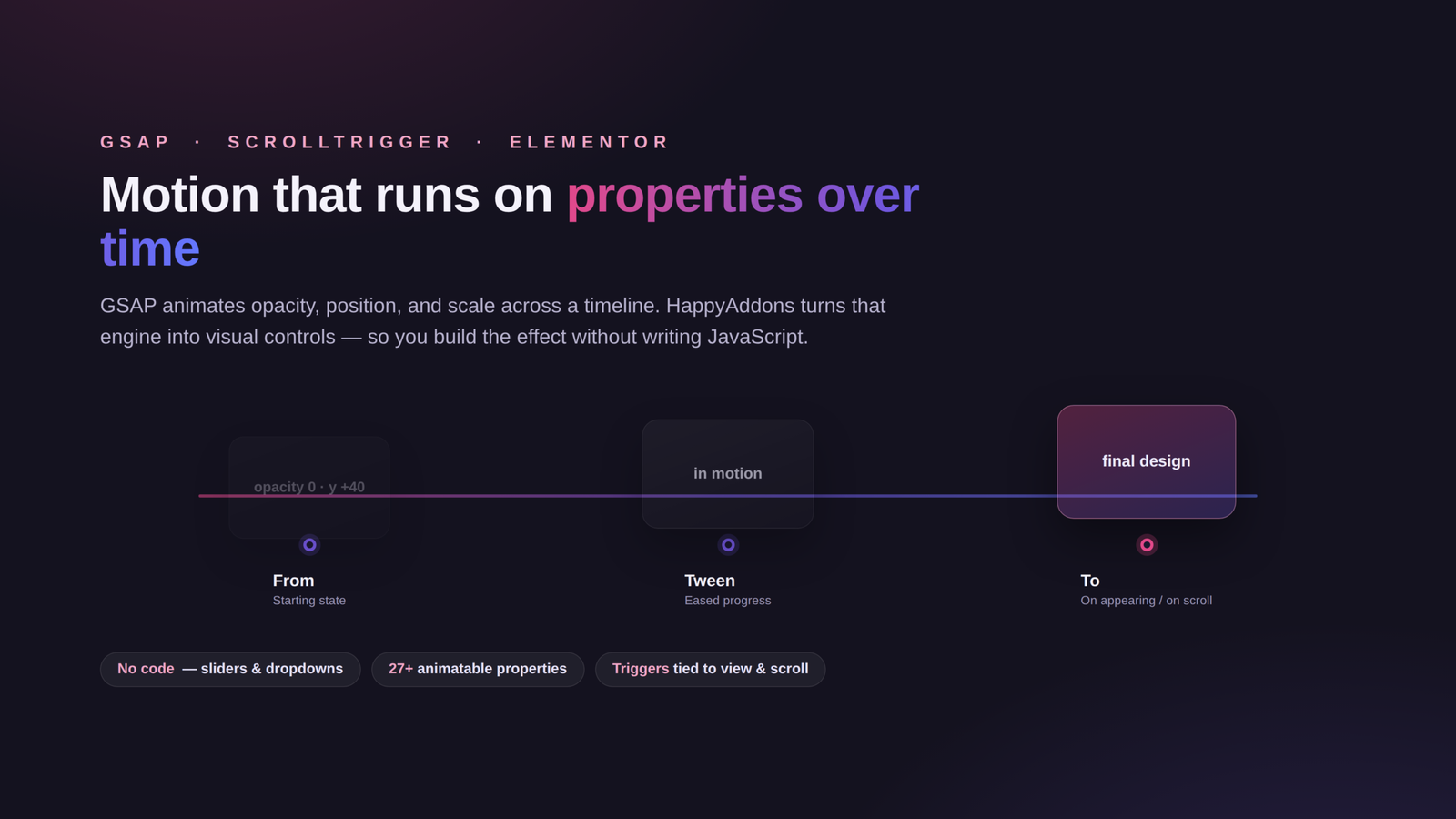
GSAP is a JavaScript animation library. It changes properties such as position, scale, and opacity over time. Its ScrollTrigger plugin can start an animation when an element enters the viewport or connect animation progress to scrolling.
In Elementor, a compatible addon provides the visual controls. HappyAddons handles the animation code behind those controls, so you can create the effects without adding scripts or custom CSS.
Quick answer: For a general GSAP animation, select a supported Elementor widget or container, open Advanced → Animation, and enable HappyAddons Global Animation. Choose From, select a trigger, and add the properties you want to animate. Global Animation requires HappyAddons Pro. The Heading widget’s Text Animation feature provides a free starting point.
What You Need Before You Start
Make sure you have the following plugins installed and activated on your WordPress site to add GSAP animations.
You do not need Elementor Pro for the classic Heading and Container examples shown here. You do need HappyAddons Pro for the first two effects. These are separate products and licenses.
How to Add GSAP Animations in Elementor Without Coding
Create a page from Pages → Add New, give it a title, and click Edit with Elementor. You can also open a draft copy of an existing page. For a standalone demo, choose Elementor Canvas in the page settings to remove the theme header and footer.
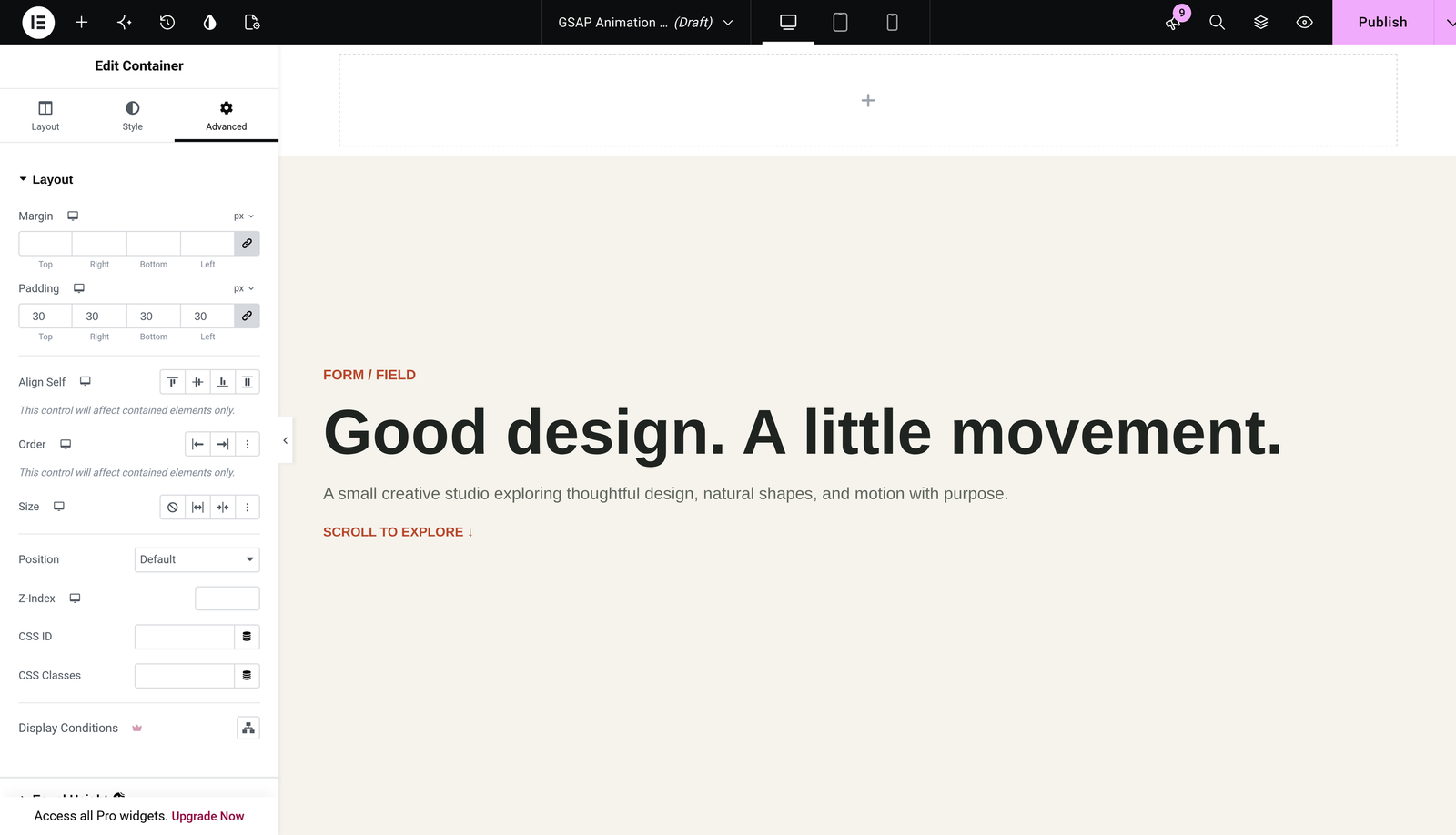
Build the layout before adding motion. Add an outer container, then place three smaller containers inside it for the service cards. Each card needs a heading and a short description. Give the cards padding, a background color, and enough space between them. Stack them vertically on mobile.
Select a card by its container handle. This matters: selecting the heading animates only the heading, while selecting the card container moves its heading, description, and background together. The Structure panel can help you select the correct parent.
Method 1: Create a Fade-Up Entrance Animation
This first method keeps the content exactly where you designed it and simply eases it into view. Here is what the effect does and how to configure it step by step.
What It Does and When to Use It
A fade-up entrance makes the selected card begin slightly below its normal position and gradually become visible. Use it for service cards, feature summaries, or a short testimonial section. It is a useful first effect because the content remains in its original layout.
Configure the Animation
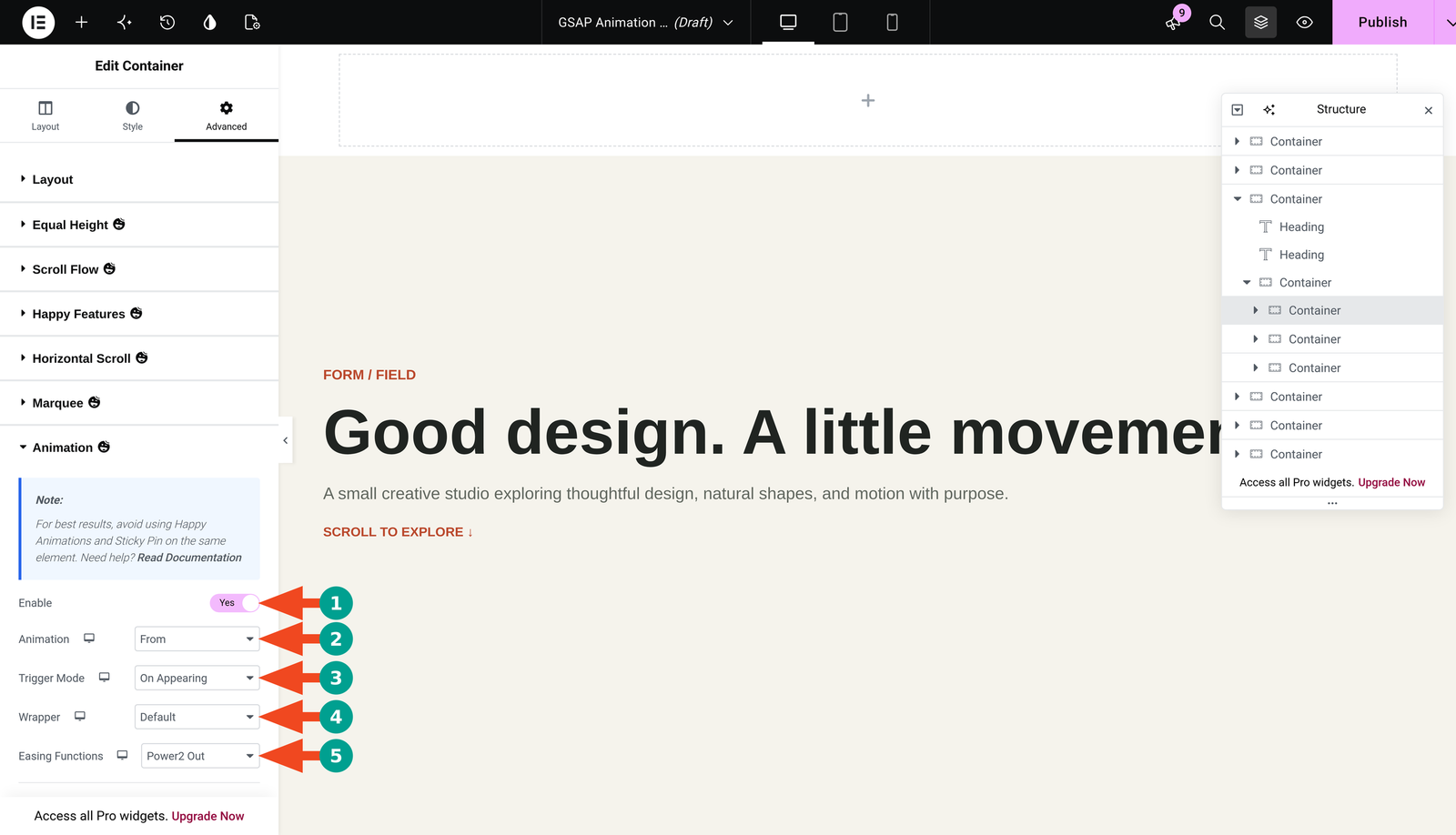
Select the first card container. Open Advanced → Animation, then set Enable to Yes. This is the HappyAddons panel, identified by its icon. Do not confuse it with Elementor’s separate Motion Effects panel.
Set Animation to From. With this option, the values you enter describe the starting state. The element then returns to the normal appearance you designed in Elementor.
Choose Trigger Mode → On Appearing. Leave Wrapper at Default, and choose Power2 Out under Easing Functions. This produces a movement that slows gently as the card reaches its final position.
Under Custom Properties, click Add Item. Expand the item, choose Opacity in the Property dropdown, and set its value to 0. Add another item for Y, then enter 40 with the unit set to px. Finally, add Duration and set its value to 0.8 seconds.
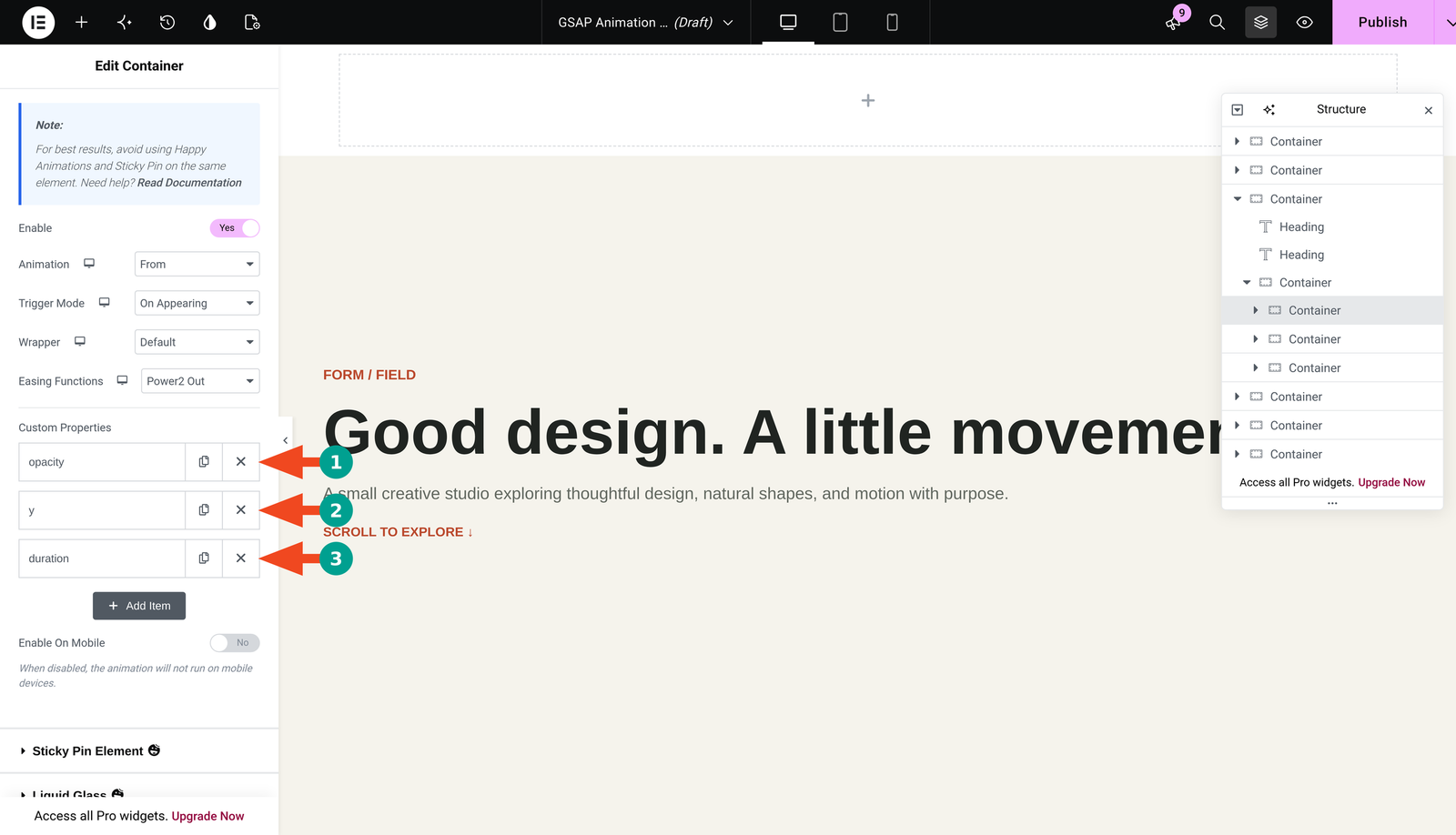
Opacity 0 makes the starting state transparent. A positive Y value places the starting state below the normal position. Because we chose From, the card moves upward to its original position while fading in.
Settings Cheat Sheet
| Setting | What it does | Value for this example |
|---|---|---|
| Animation | Defines whether values describe the start or destination | From |
| Trigger Mode | Starts the effect when the element appears | On Appearing |
| Wrapper | Uses the standard trigger positioning | Default |
| Opacity | Sets initial visibility | 0 |
| Y | Sets initial vertical offset | 40px |
| Duration | Controls the time-based animation length | 0.8 seconds |
| Easing Functions | Softens the end of the movement | Power2 Out |
| Enable On Mobile | Allows the effect on small screens | No initially; enable only after testing |
Apply the same setup to the other two card containers. Keep the initial test simple by giving each card the same timing. If you later add Delay, use a small difference between cards rather than making visitors wait through a long sequence.
Preview the Result
Open the arrow beside the save/publish control and choose Save Draft. Click Preview Changes, then scroll down to the cards. Check that the background, heading, and paragraph move together and finish fully visible. Refresh the preview when you want to test the entrance again.
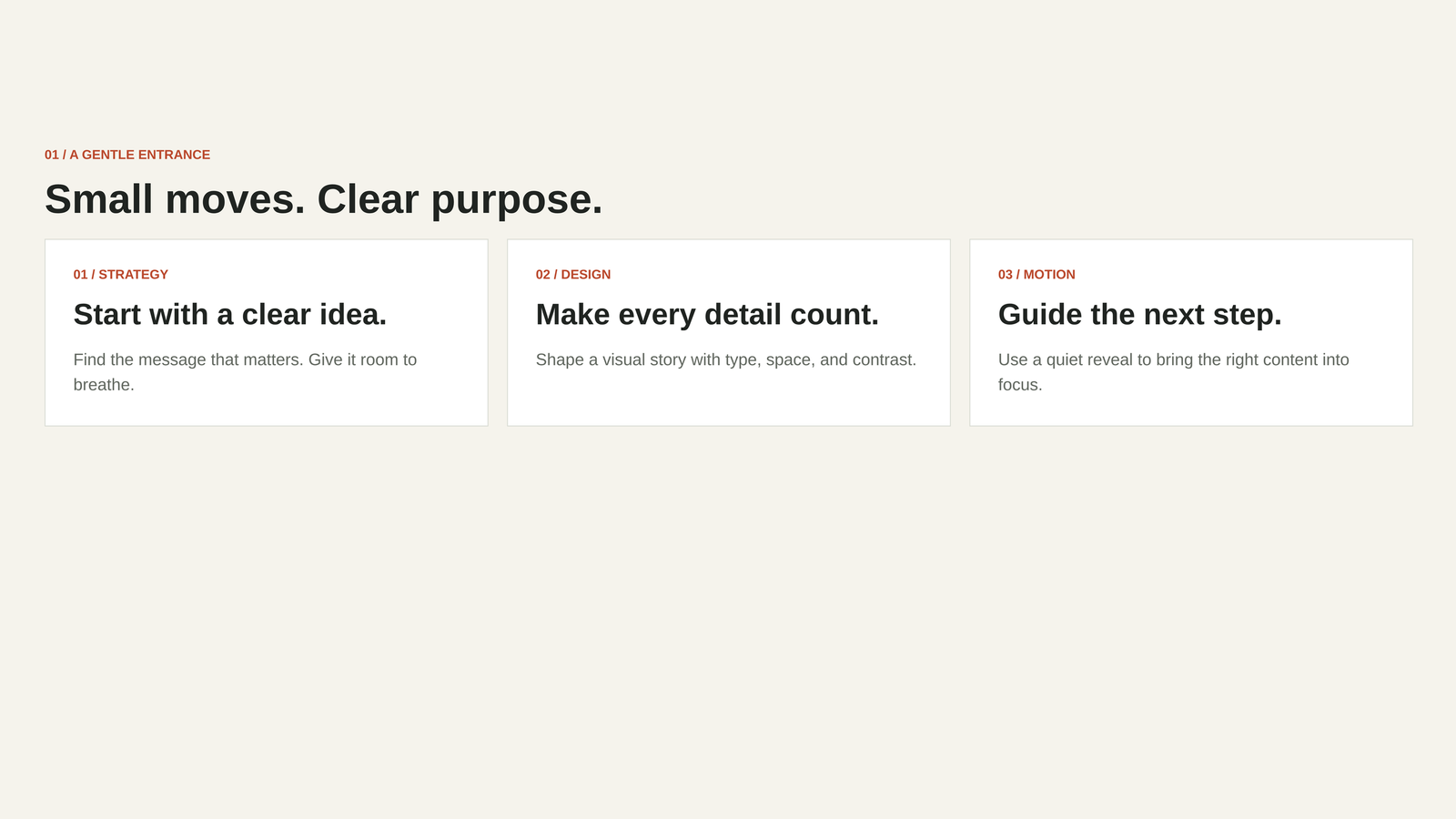
Pro tip: Animate the card container once instead of adding separate competing effects to every child. It keeps the motion coherent and makes later adjustments easier.
Method 2: Make a Panel Scale as Visitors Scroll
The second method ties motion to the scroll itself, so the panel grows as the visitor moves down the page. The sections below explain the effect and walk through its scroll range.
What It Does and When to Use It
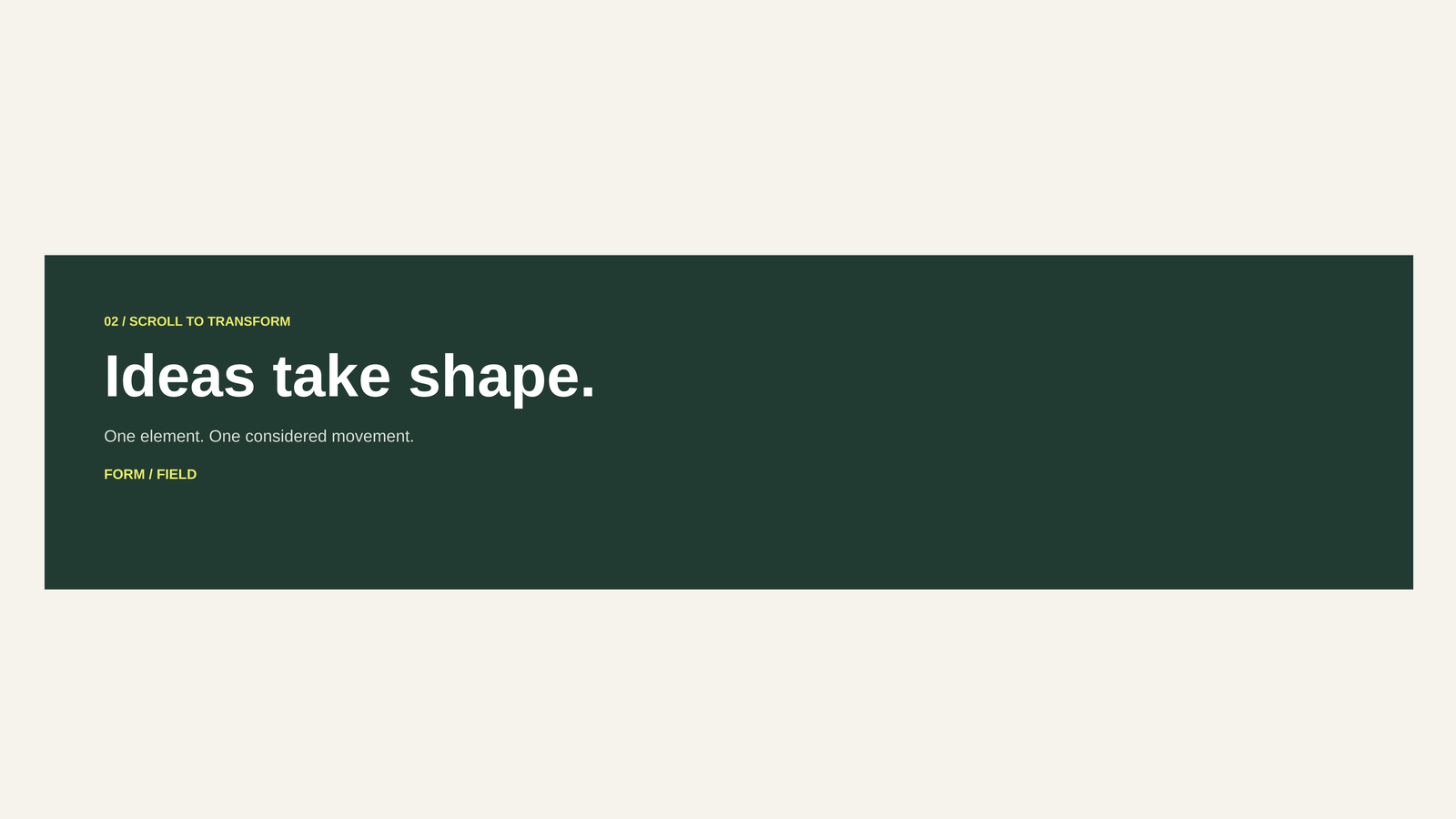
This effect connects the panel’s size to the visitor’s scroll position. It begins slightly smaller and reaches its normal size as it moves farther into view. Use it for a portfolio highlight, a product feature, or a single important statement.
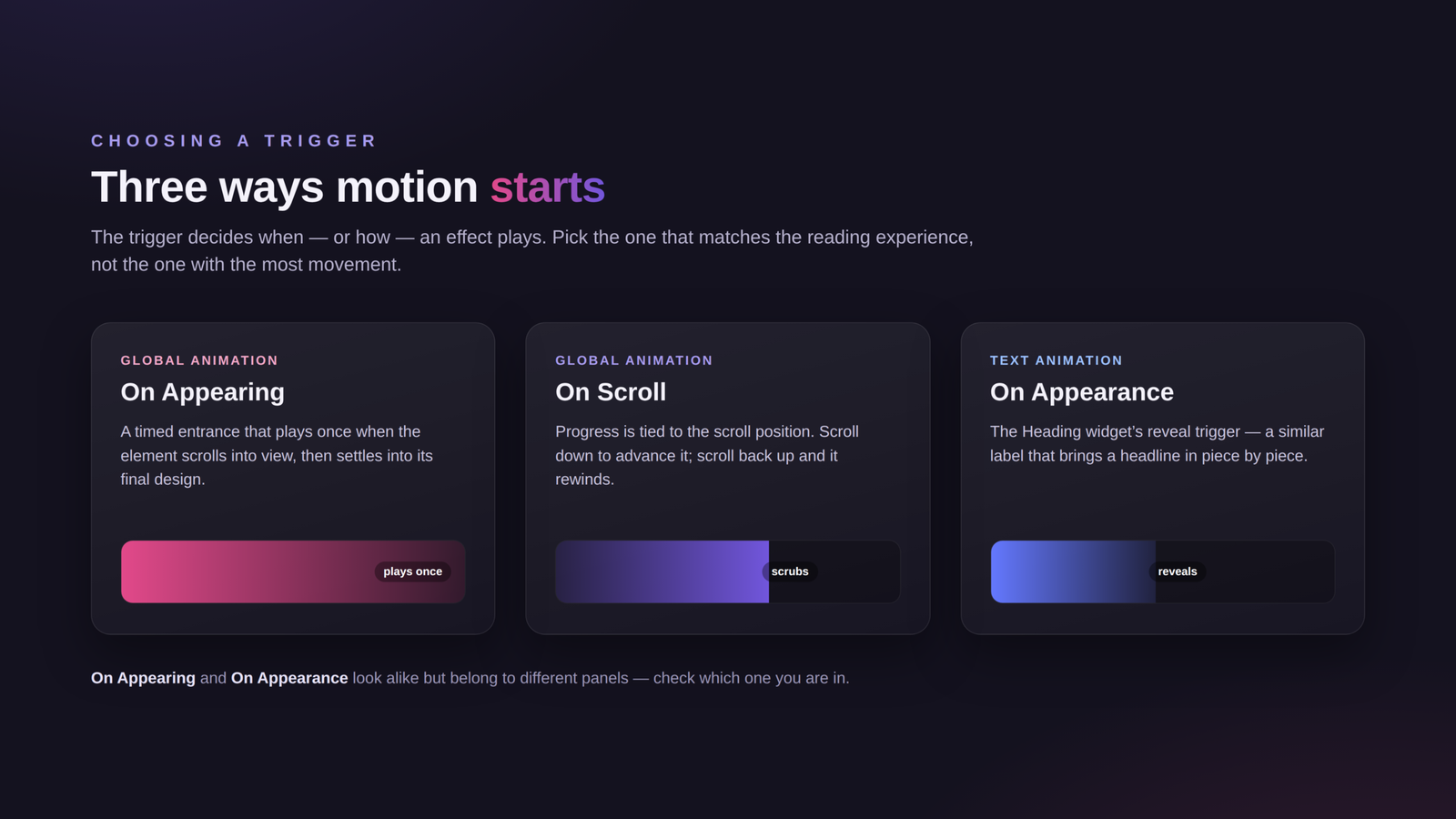
Unlike On Appearing, On Scroll does not simply start a timed entrance and let it finish. The scroll position controls the animation’s progress. Scrolling backward can move the effect back toward its starting state.
Configure the Scroll Range
Create a new outer container below the cards. Add an inner container with a contrasting background, a heading, and a short sentence. Give the surrounding section enough spacing to make the transition visible. Select the inner panel container.
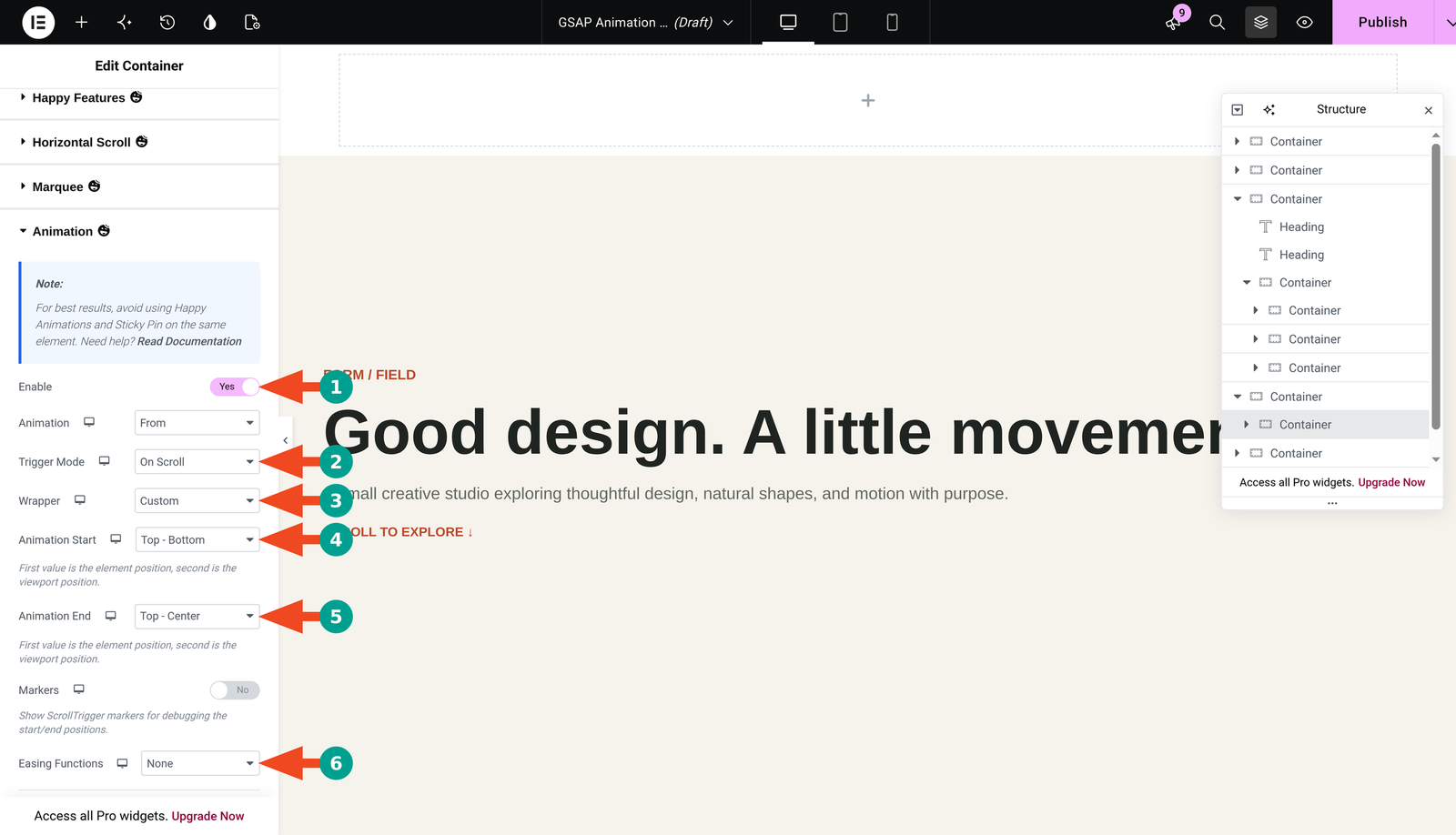
Open Advanced → Animation and enable the feature. Choose Animation → From, then Trigger Mode → On Scroll. Change Wrapper from Default to Custom to reveal the start and end controls.
Set Animation Start → Top – Bottom and Animation End → Top – Center. The first part refers to the element; the second refers to the viewport. This starts the transition when the panel’s top reaches the bottom of the viewport and finishes it when that top reaches the viewport’s center.
Set Easing Functions → None. Under Custom Properties, add Scale and set its value to 0.85. With From selected, the panel starts at 85% of its normal size and grows to its designed size. You do not need to change its layout width to create this effect.
Settings Cheat Sheet
| Setting | What it does | Value for this example |
|---|---|---|
| Animation | Starts from the supplied scale | From |
| Trigger Mode | Connects progress to scrolling | On Scroll |
| Wrapper | Exposes custom trigger positions | Custom |
| Animation Start | Begins when the panel enters from below | Top – Bottom |
| Animation End | Finishes when the panel reaches the viewport center | Top – Center |
| Scale | Sets the initial size multiplier | 0.85 |
| Easing Functions | Keeps progression linear | None |
| Markers | Displays debugging guides | No for the finished page |
Save the draft and preview it. Scroll slowly downward, stop partway through the transition, and then scroll back up. The panel should respond to position rather than continuing as an independent entrance animation.
Pro tip: Start with one property. Once scale works smoothly, decide whether any extra movement actually helps the content. A subtle scale effect usually needs no blur, rotation, or large sideways travel.
Method 3: Add a GSAP Text Reveal to a Heading
The final method animates a headline instead of a container, revealing it a few pieces at a time. Below is when the effect works well and how to set it up on the Heading widget.
What It Does and When to Use It
Text Reveal introduces a headline in a short sequence instead of displaying all of it at once. Use it for a brief section title or campaign statement. Avoid applying a character-by-character effect to long paragraphs, navigation, or information visitors need immediately.
Configure the Heading
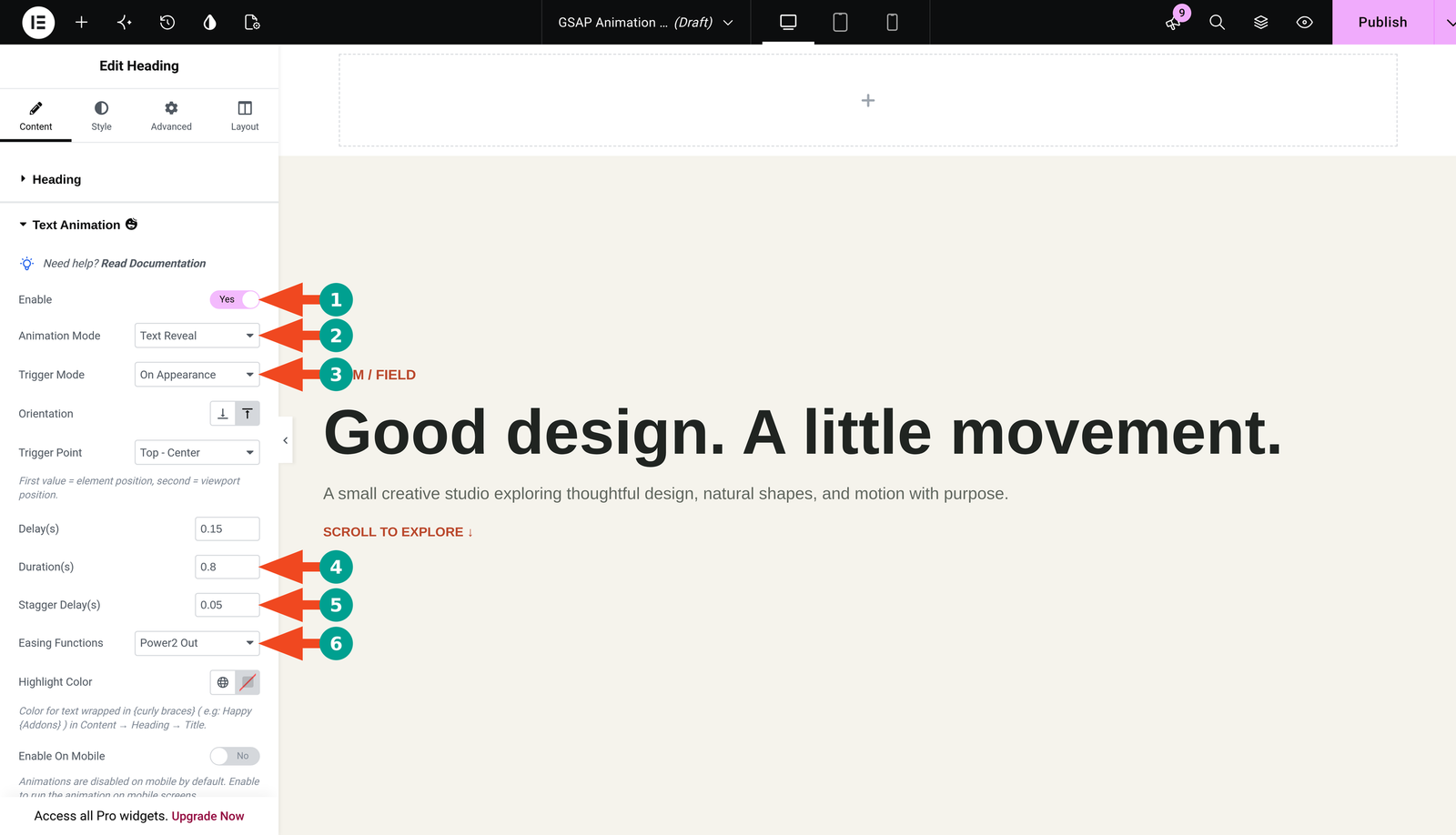
Add a classic Heading widget and enter a short title. We used “Make room for what matters.” Adjust its typography and responsive sizes first, then open Content → Text Animation and set Enable → Yes.
Choose Animation Mode → Text Reveal and Trigger Mode → On Appearance. Notice that this panel uses “On Appearance,” while Global Animation uses “On Appearing.” Select the From Bottom orientation and set Trigger Point → Top – Center.
Set Delay(s) to 0.15, Duration(s) to 0.8, and Stagger Delay(s) to 0.05. Choose Power2 Out for easing. Leave Enable On Mobile off for the first test.
Settings Cheat Sheet
| Setting | What it does | Value for this example |
|---|---|---|
| Animation Mode | Chooses the text treatment | Text Reveal |
| Trigger Mode | Plays when the trigger point is reached | On Appearance |
| Orientation | Sets the direction of the reveal | From Bottom |
| Trigger Point | Determines when the reveal begins | Top – Center |
| Delay(s) | Waits before starting | 0.15 |
| Duration(s) | Sets the animation duration for the animated pieces | 0.8 |
| Stagger Delay(s) | Spaces the starts of successive pieces | 0.05 |
| Easing Functions | Softens the movement | Power2 Out |
Save and preview the page. Check the headline from a fresh page load, then test it at tablet and mobile widths. A longer headline takes more time to finish when its animated pieces are staggered. Reduce the stagger or shorten the text if the reveal feels slow.
Pro tip: Keep the headline’s HTML tag appropriate to the page structure. Animation is a visual treatment; it is not a reason to turn every heading into an H1.
Key GSAP Animation Settings Explained
You do not need to memorize animation terminology. Use this table when a control’s name is unfamiliar. Some terms describe how GSAP works internally rather than a separate setting exposed in every HappyAddons panel.
| Term | Plain-English meaning | Practical guidance |
|---|---|---|
| From / To | From starts at your values and returns to the designed state. To starts normally and moves toward your values. | Use From for the entrances shown here. |
| Trigger | The event or scroll position that starts or controls an effect. | Choose appearance for a timed entrance; scroll for position-linked progress. |
| Start / End | The positions that define an animation’s scroll range. | The first position belongs to the element; the second belongs to the viewport. |
| Scrub | Links animation progress to the scrollbar. | Global Animation’s On Scroll mode handles this. Do not look for a numeric Scrub control in the panel shown here. |
| Duration | How long a time-based animation takes. | Try 0.8 seconds for the entrance example. Scroll range is the main pacing control for scroll-linked motion. |
| Easing | How movement speeds up or slows down. | Power2 Out suits an entrance; None suits linear scroll-linked progress. |
| Delay | A pause before an animation begins. | Keep it short so content becomes available promptly. |
| Stagger | A gap between the starting times of animated pieces. | Use a small value for text; more characters extend the total sequence. |
| Repeat | Extra cycles of a tween. | It is not automatically the same as replaying whenever an element re-enters the viewport. |
| Markers | Visible guides for debugging trigger positions. | Use during testing and turn off before the page goes live. |
Practical Ways to Use GSAP Animations on Your Website
| Use case | Simple recipe |
|---|---|
| Service or feature cards | Global Animation → From → On Appearing; opacity 0, Y 40px, duration 0.8 seconds. |
| Portfolio highlight | Global Animation → From → On Scroll; scale 0.85, linear easing, a short and visible scroll range. |
| Campaign headline | Heading → Text Animation → Text Reveal; short text and a modest stagger. |
| Process section | Use the same understated entrance on each step container; preserve the reading order. |
| Product storytelling | Alternate readable static descriptions with one scroll-linked feature panel; keep buying controls immediately usable. |
For another visual reference, explore the official Global Animation demo. It shows possibilities beyond this starter page. Choose an effect because it helps visitors follow the content, rather than trying to include every available animation.
Best Practices for Smooth and Accessible GSAP Animations
A working animation is only the start; a few habits keep motion fast, focused, and friendly to every visitor. The guidelines below cover attention, performance, accessibility, and mobile.
Keep One Main Animation in View
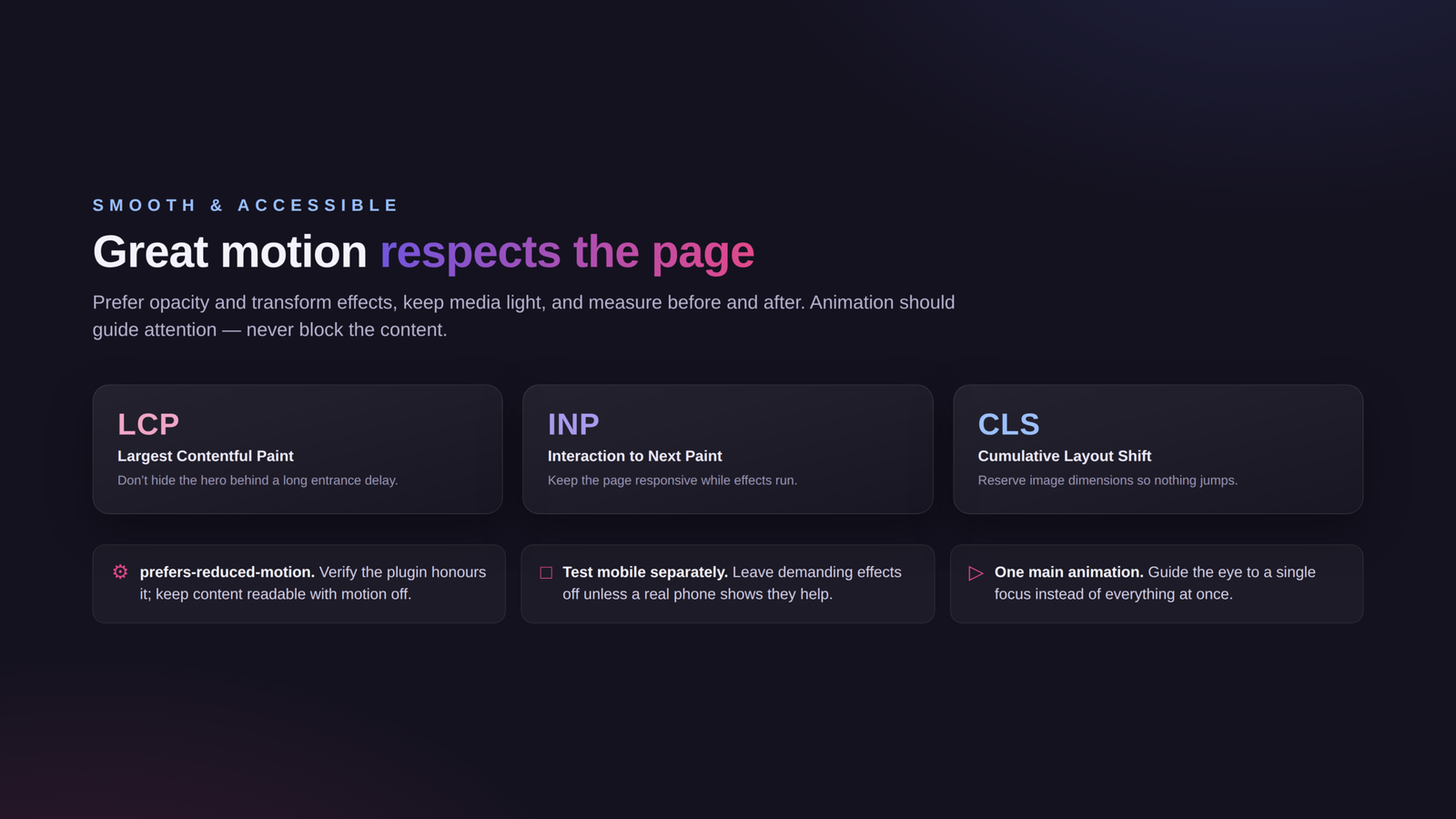
Use motion to direct attention. If the heading, cards, background, and button all move differently at the same time, visitors have to work harder to find the important information. Keep key navigation and primary actions predictable.
Protect Page Performance
Prefer modest opacity and transform effects over repeatedly animating layout dimensions or large blur effects. Compress images, reserve their dimensions, and avoid adding oversized media simply to demonstrate animation. GSAP cannot compensate for an unnecessarily heavy page.
Check the page before and after adding effects. Watch Largest Contentful Paint (LCP), Interaction to Next Paint (INP), and Cumulative Layout Shift (CLS). Do not hide the page’s main hero content behind a long entrance delay. Test scrolling and interactions on a real midrange phone, not only in a desktop preview.
Provide a Reduced-Motion Experience
Some visitors ask their operating system to reduce motion. Websites can detect this through prefers-reduced-motion. Do not assume that enabling a GSAP feature automatically respects that preference: verify the behavior of the installed plugin version and your site’s accessibility setup.
If your setup cannot provide a reliable reduced-motion alternative without custom development, keep nonessential effects disabled. Content must remain readable when animation is disabled. Also check keyboard navigation and screen-reader output, particularly when a text effect splits a heading into separate pieces.
Test Mobile Separately
The examples include an Enable On Mobile switch. Leave demanding effects off on mobile unless testing shows they improve the experience. A desktop trigger range may not suit a tall mobile card stack, and a large headline may wrap into several lines.
Use consistent timing and easing across similar sections. Test the frontend after changes; a responsive editor preview is useful for layout but does not replace testing the actual page.
Troubleshooting Common GSAP Animation Problems
Most problems come down to where an animation is tested or which panel a setting lives in. Use the table below to match a symptom to its likely cause and fix.
| Problem | Likely cause | Fix |
|---|---|---|
| The effect does not play in the editor | Global Animation playback is not the same in the editing canvas. | Save and use Preview Changes. Reload the frontend and scroll from above the element. |
| The Animation panel is missing | Unsupported element type, inactive Pro plugin, or unavailable feature. | Use a classic element and confirm the required HappyAddons plugins and feature are active. |
| The wrong part of the card moves | A child heading was selected instead of the card container. | Select the parent card through its handle or Structure, then configure the animation there. |
| The scroll effect finishes too early | Start and end positions define too short a range. | Use Custom wrapper, inspect the positions with Markers, then disable Markers after testing. |
| Scrolling feels jerky | Too many effects, heavy assets, or competing animation systems. | Remove effects one at a time, optimize media, and retest the simplest version on a phone. |
| A sticky element jumps or overlaps | Pinning and transforms affect the same element or compete with a header. | Follow the panel warning: avoid Happy Animations and Sticky Pin on the same element. Test the sticky behavior separately. |
| The animation is absent on mobile | Enable On Mobile is off, or responsive settings differ. | Check the feature switch and mobile values. Leave the effect off if the static layout works better. |
| Content briefly flashes before animating | Animation initialization may be delayed by script optimization or loading order. | Compare with optimization temporarily disabled on staging. Adjust only the responsible exclusion after confirming the cause. Avoid hiding essential content as a blanket fix. |
HappyAddons Free vs. Pro: What Do You Need?
For the three workflows in this article, the difference is straightforward. GSAP is the animation engine; access to a visual plugin control is a separate question.
| Tutorial feature | HappyAddons Free | HappyAddons Pro |
|---|---|---|
| Heading Text Animation / Text Reveal | Available | Available with the free base plugin active |
| Global Animation for the card fade-up | Not included | Required |
| Global Animation for the scroll-linked scale panel | Not included | Required |
| Elementor Pro for these examples | Not required | Not required; HappyAddons Pro is the relevant upgrade |
Start with Free if your goal is a short animated heading. Choose Pro if you need the general Animation controls used to combine opacity, position, scale, and scroll triggers on supported elements. Do not buy Elementor Pro solely because this tutorial uses HappyAddons Pro.
Frequently Asked Questions About GSAP Animations in Elementor
The answers below cover the questions that come up most often when adding GSAP animations in Elementor. Each one is short and practical.

Can I use GSAP in Elementor without coding?
Yes. A compatible visual addon such as HappyAddons exposes GSAP-powered controls inside Elementor. The workflows above use plugin settings rather than custom JavaScript or CSS.
Is GSAP built into every Elementor animation?
Do not assume that every Elementor entrance or motion effect uses GSAP. This tutorial specifically uses HappyAddons GSAP features. Elementor’s own animation controls are a separate workflow.
Can I create GSAP animations for free?
You can start with HappyAddons Free’s Heading Text Animation feature. The Global Animation examples in this guide require HappyAddons Pro.
Do I need Elementor Pro?
No, not for the classic Heading and Container layouts shown here. The first two methods require HappyAddons Pro alongside Elementor and HappyAddons Free.
What is the difference between On Appearing and On Scroll?
On Appearing starts a time-based animation when its trigger is reached. On Scroll connects progress to the visitor’s scroll position. Text Animation uses a similar label, On Appearance, for its appearance trigger.
Why is my GSAP animation not visible in the Elementor editor?
The editing canvas is not a reliable playback test for Global Animation. Save the draft, open Preview Changes, and test the frontend from a fresh page load.
Can I animate text when someone scrolls?
Yes. In a supported Heading widget, open Content → Text Animation. Use On Appearance for a reveal at a trigger point, or explore On Scroll when you want progress tied to scrolling. Test the chosen mode on the frontend.
How do I disable an effect on mobile?
Set Enable On Mobile to No in the relevant HappyAddons animation panel. Check the mobile frontend afterward to confirm that the static content is visible and correctly laid out.
Will GSAP slow down my website?
Performance depends on the number and type of effects, the surrounding page, and the device. Small opacity and transform animations can be lightweight; large media, heavy visual effects, and competing scripts still need careful testing.
Which Elementor plugin should I use for GSAP animations?
HappyAddons is a practical choice for these workflows because it combines a free text-animation entry point with Pro Global Animation controls. Choose based on the specific effects, compatibility, accessibility behavior, and performance your site needs.
Final Thoughts
Adding GSAP animations in Elementor does not have to start with code or a complicated timeline. Begin with one fade-up card, test it on the frontend, and reuse a consistent setup where movement helps the content.
Once that works, try a scroll-linked panel or a short text reveal. Keep the page readable, check mobile and reduced-motion behavior, and remove effects that distract from the message. A few carefully chosen animations are enough to give a well-designed page a more engaging experience.