


An author archive page shows all the articles that a specific writer has published on a WordPress site. When someone clicks the author’s name on a blog post, they land on this page. It gives a clean list of posts written by that author. It also helps visitors explore more content from writers they like.
This page can include the author’s bio, profile picture, social links, and other details that help readers learn more about the person behind the content. Creating a well-structured author archive page is important for both user experience and SEO.
It helps readers follow a single author’s journey and discover related posts with ease. For multi-author blogs, it helps highlight each writer’s voice and authority, making the site feel richer and more trustworthy. Let’s explore how to create an author archive page in WordPress for free in this post.
Importance of Creating an Author Archive Page
An author archive page is more than a simple directory of posts. It gives structure to your content and helps both readers and search engines understand who is contributing to your site. This small feature can make a big difference in user experience, content performance, and brand authority.

a. Helps Readers Discover More Content
When a visitor finishes reading a post and enjoys it, they often want more from the same writer. An author archive page gives them a direct place to explore. It shows the full list of content from that author, which increases page views and keeps users on your site longer.
b. Improves Content Organization
Blogs can get messy as more articles are published. Author archive pages group content by the person who wrote it. This creates a logical content structure that is easier to browse. It also makes your website look more well-managed. Take a look at the best WordPress content management plugins.
c. Strengthens Personal Branding and Authority
Writers need a space where their voice and style stand out. An author archive page gives each writer a small brand presence on the website. With a short bio, profile photo, and social links, authors can build trust and authority with readers over time.
d. Boosts SEO and Ranking Signals
Search engines can index author pages and connect related posts. This helps with content clustering and internal linking, supporting SEO efforts. Strong author profiles may signal expertise and improve credibility for topics where authority matters. Check common SEO mistakes you should avoid.
e. Supports Multi-Author Websites and Collaboration
If a site has multiple writers, author archive pages help highlight everyone’s contributions. This encourages diverse voices and promotes teamwork. It also helps readers follow specific authors they like, which is useful for media websites, online magazines, and editorial blogs.
How to Create an Author Archive Page in WordPress with Elementor
Elementor is one of the best drag-and-drop page builder tools online. Using this plugin, you can create almost any type of landing page easily on your website. However, to build an author page, you have to depend on the Elementor theme builder, which is a premium feature.
Prerequisites
We’ll show you how to create the author archive page with free tools. Get the following plugins installed and activated on your website.
Once they are ready on your site, start following the tutorial as explained below.
Note: HappyAddons itself has a powerful theme builder, which is completely free to use. With this, you can do lots of things that usually require Elementor Pro.
Step 01: Create an Archive Page from HappyAddons Theme Builder
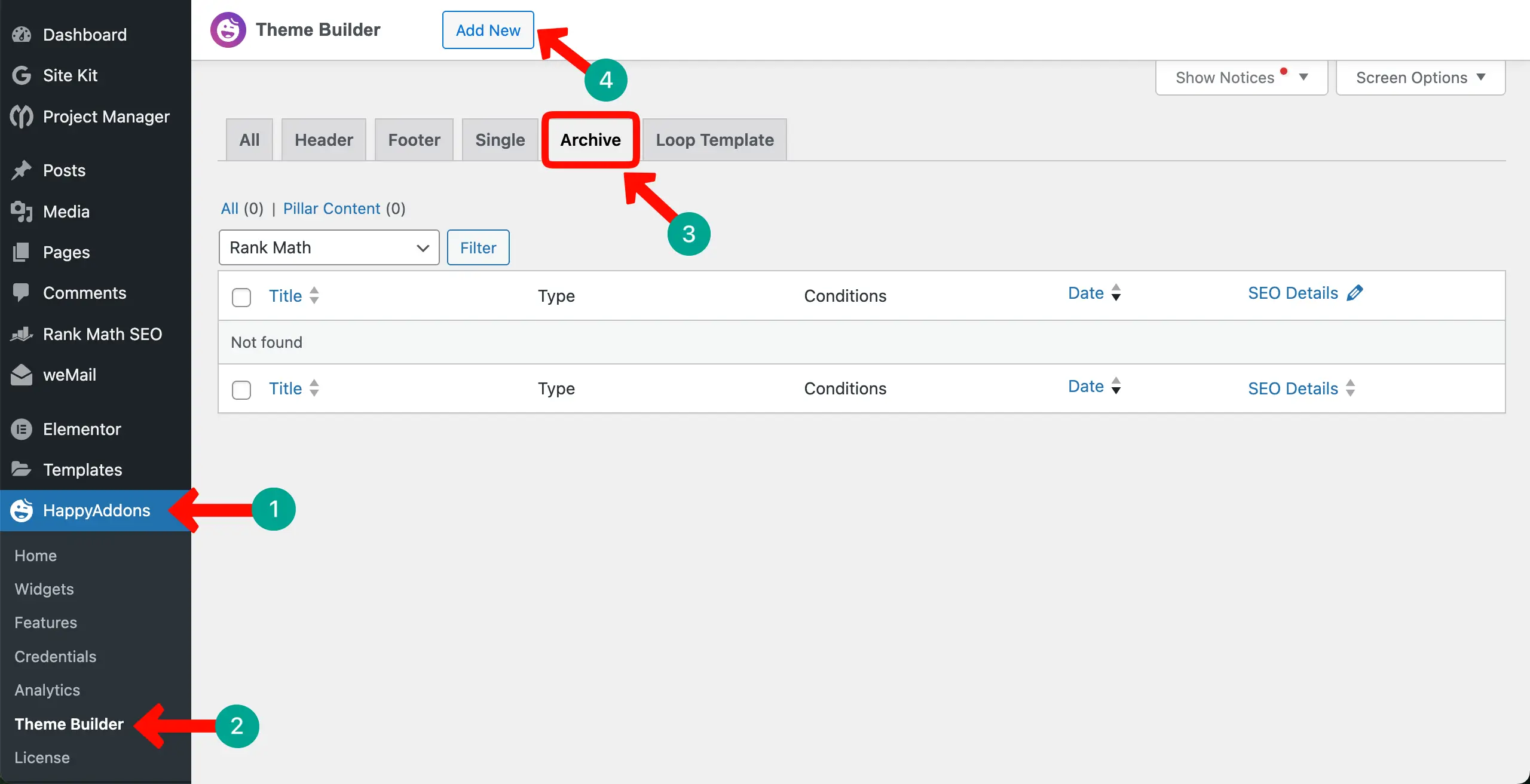
Navigate to HappyAddons > Theme Builder > Archive > Add New.
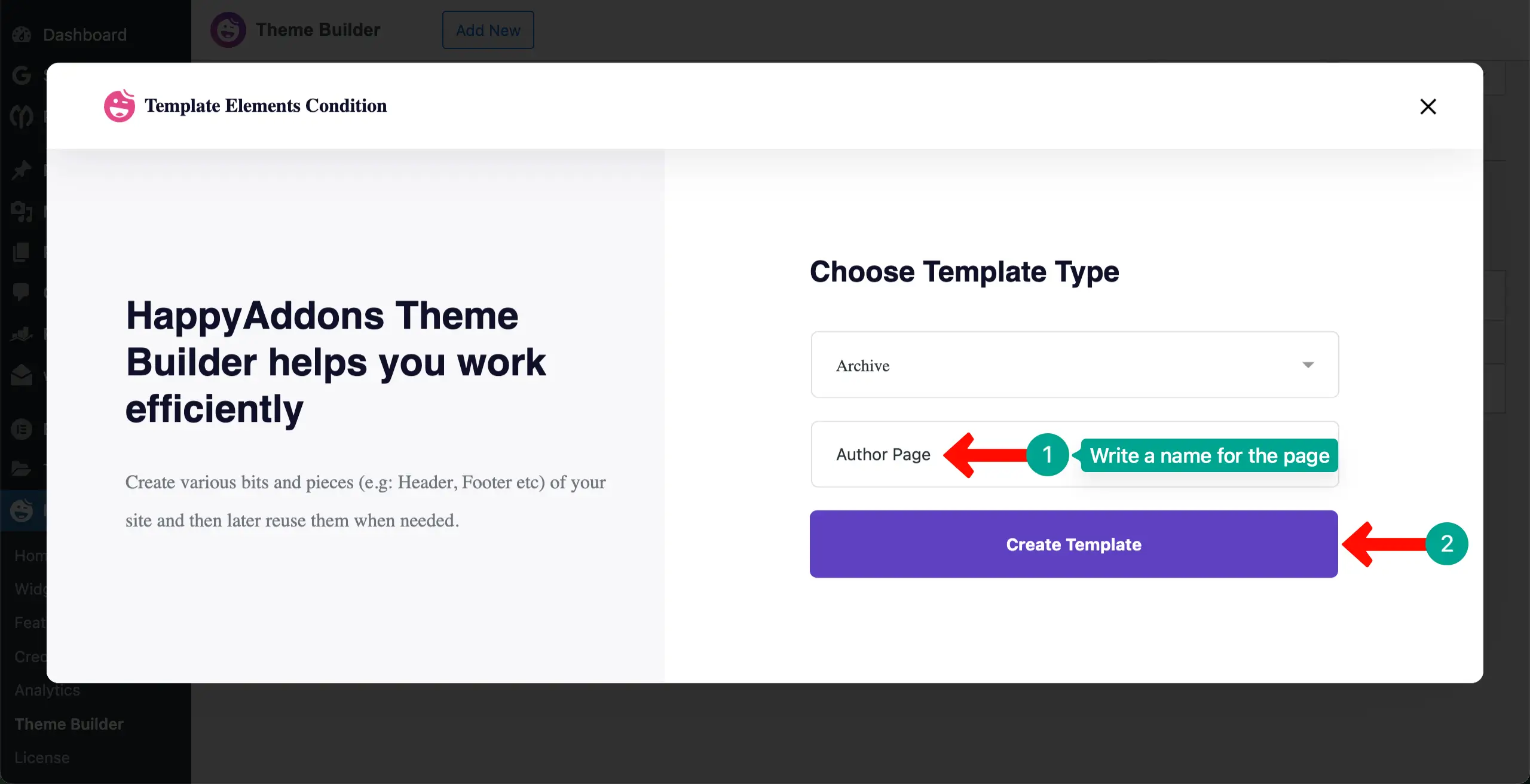
Give a name to the page. Then, click the Create Template button.
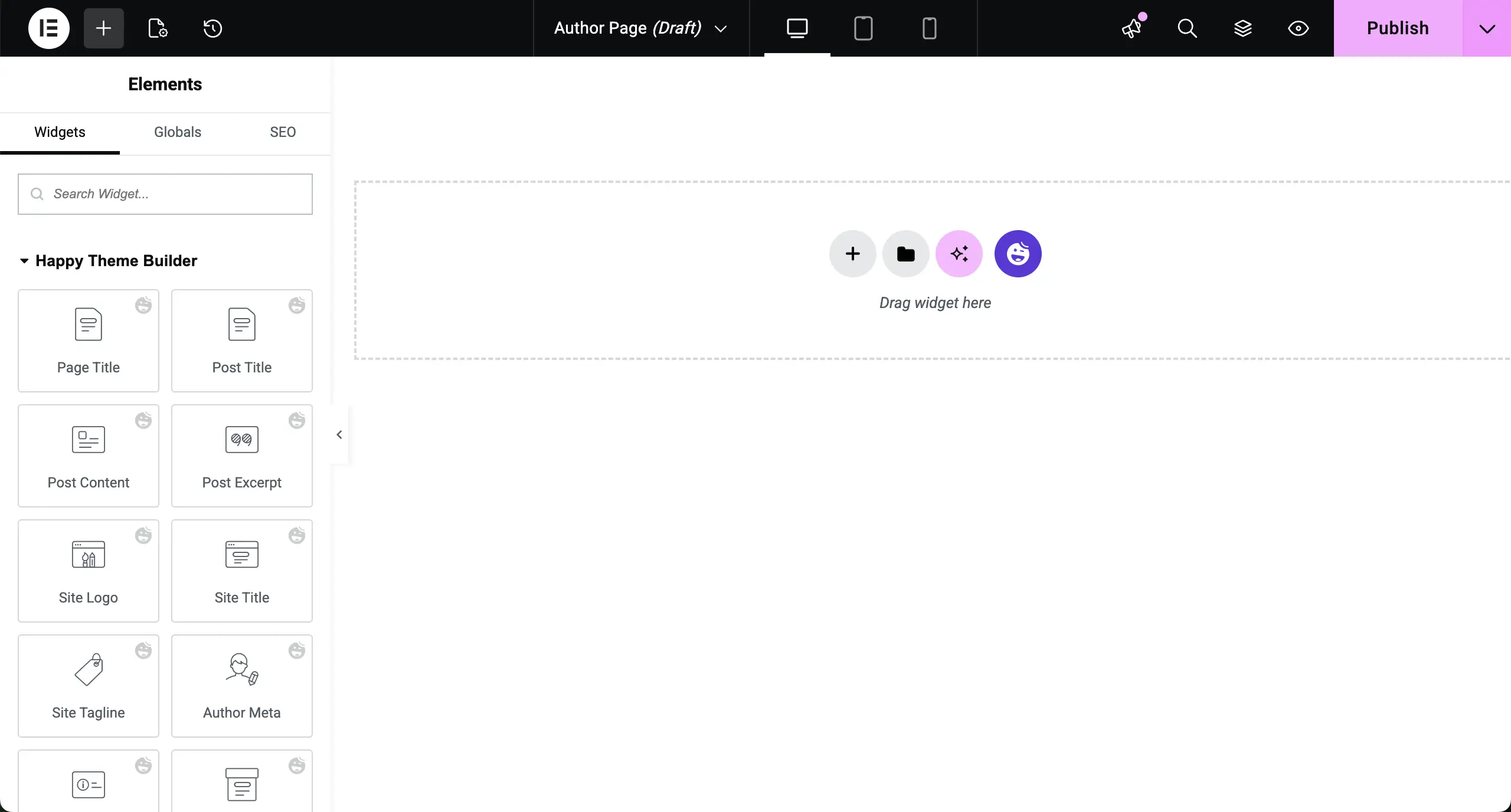
You can see that the Elementor canvas has been opened. Here, you can drag-and-drop necessary widgets to design your desired author archive page.
Step 02: Display Author Meta
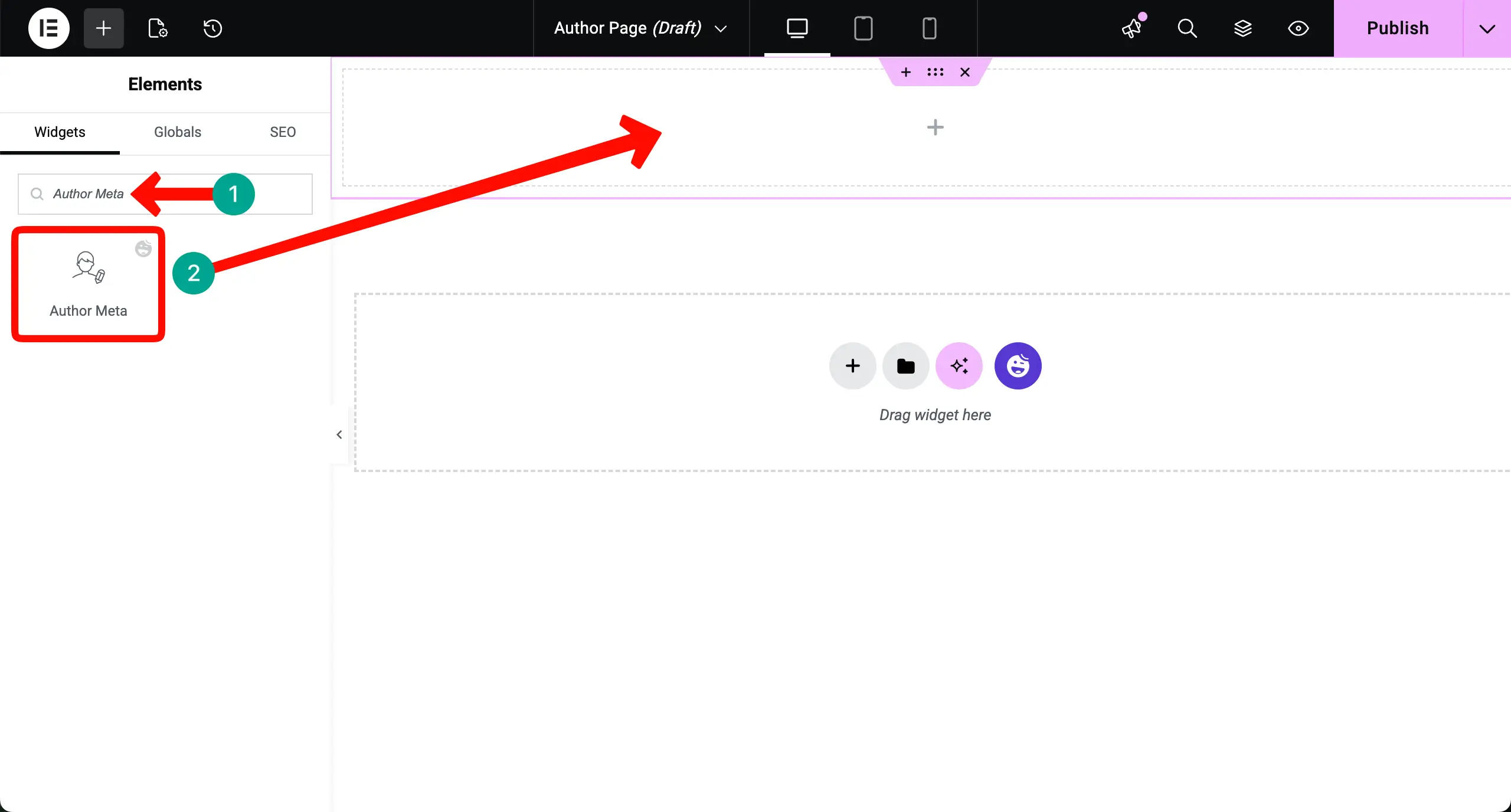
Find the Author Meta widget and place it on top of the canvas.
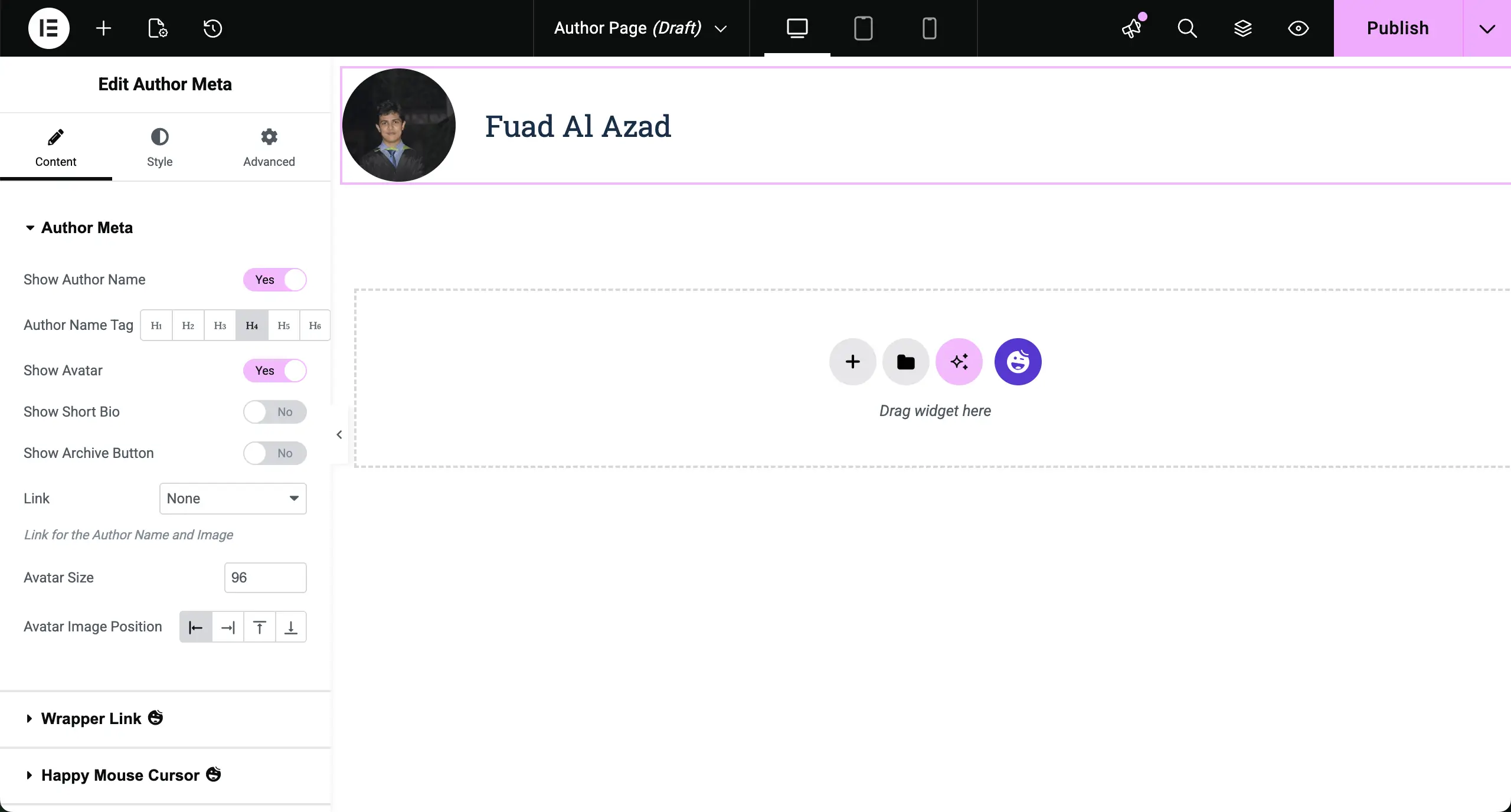
The name of an author will instantly be displayed on the archive page. You can now configure its settings and stylizations from the Elementor panel.
Note: If your website has multiple authors, it’s necessary to show the name of the respective author on the archive page. Otherwise, visitors might get confused, thinking which page they have landed on.
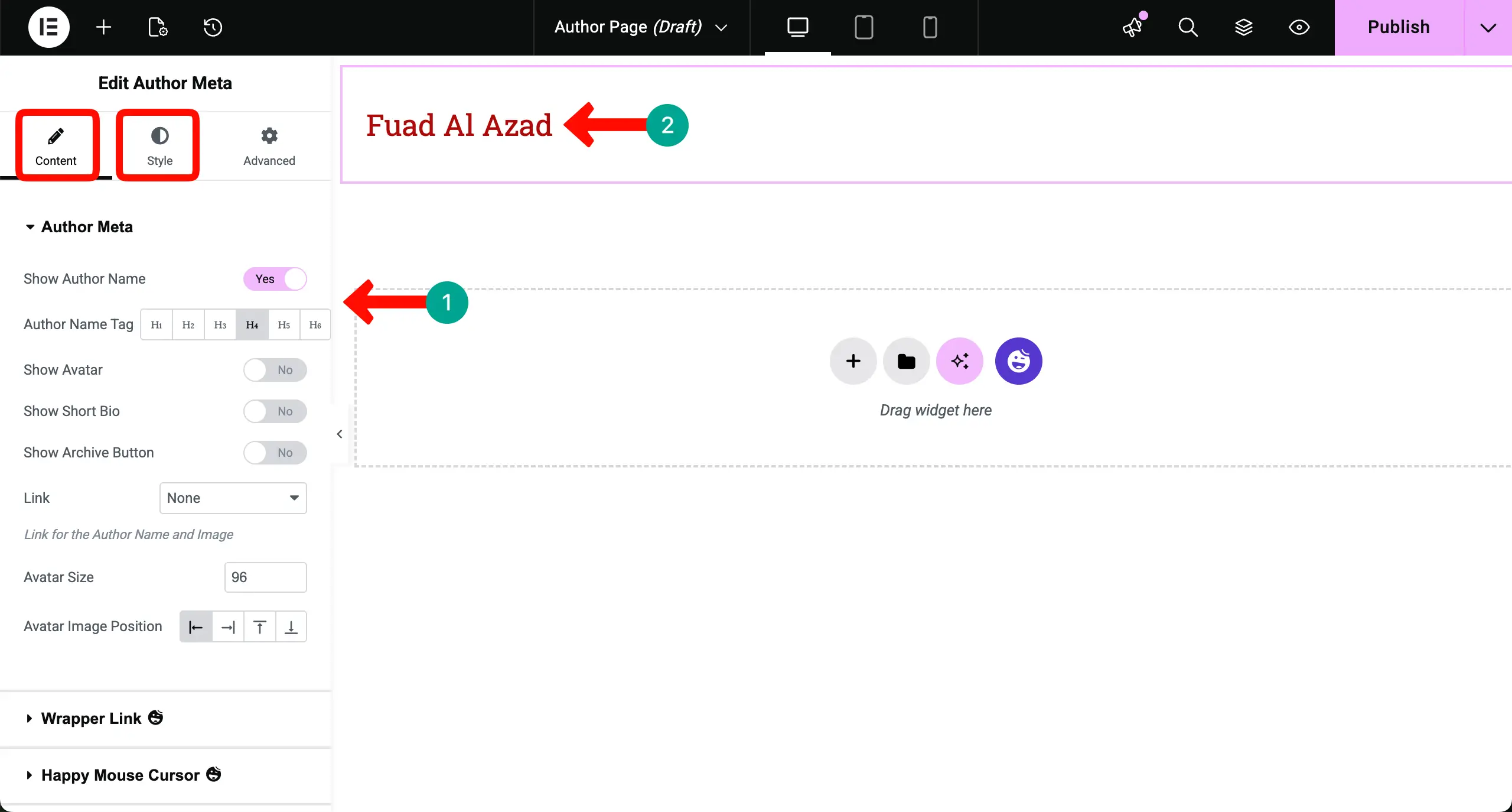
From the Content and Style tabs, you can customize the author meta widget as you want.
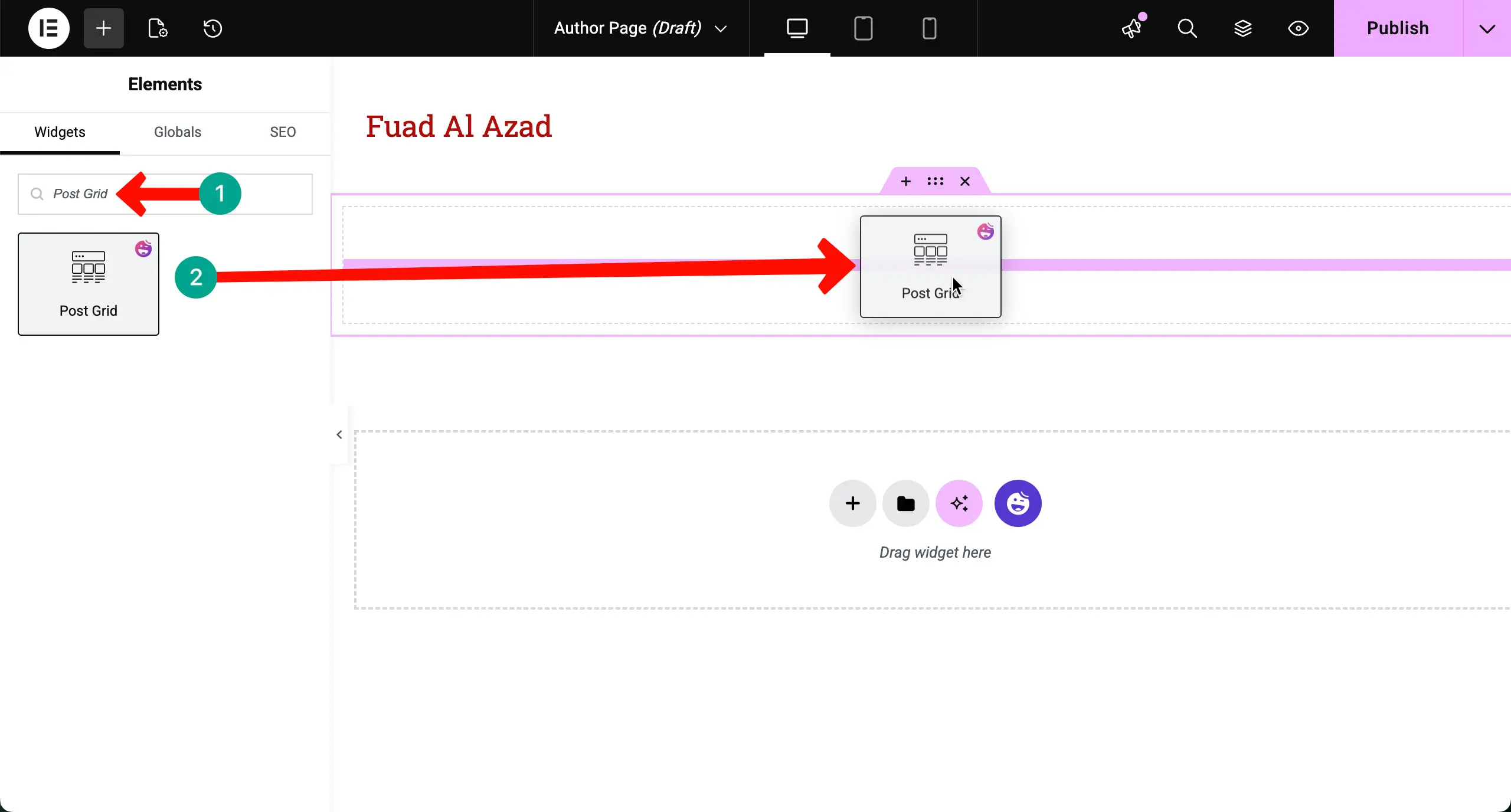
Step 03: Add Post Grid to the Canvas
The Post Grid widget lets you display blog posts in a clean grid layout so readers can browse multiple articles at a glance.
Now, place the Post Grid widget on the canvas under the author meta.
Your written posts will instantly be displayed on the canvas in the grid format.
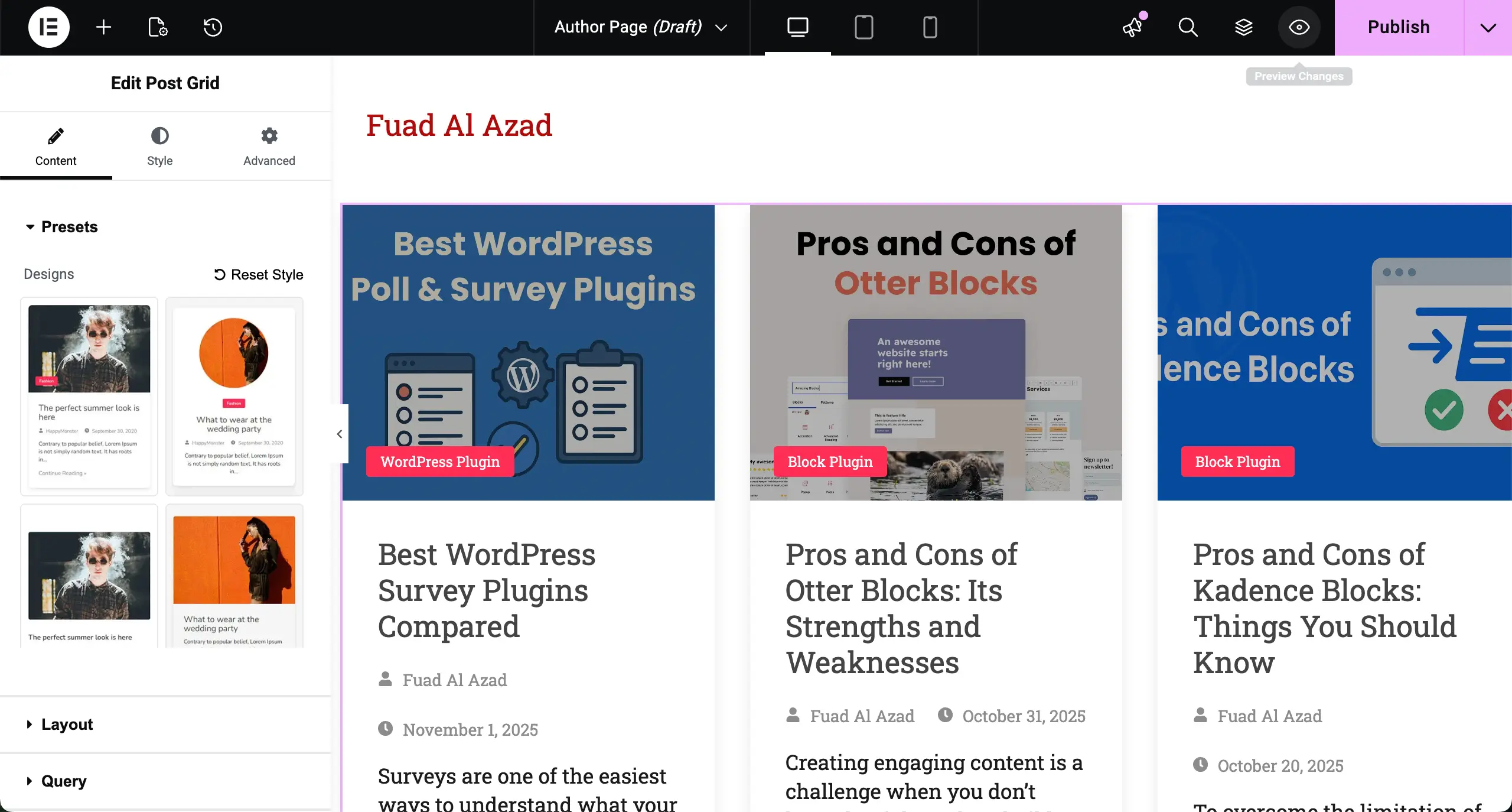
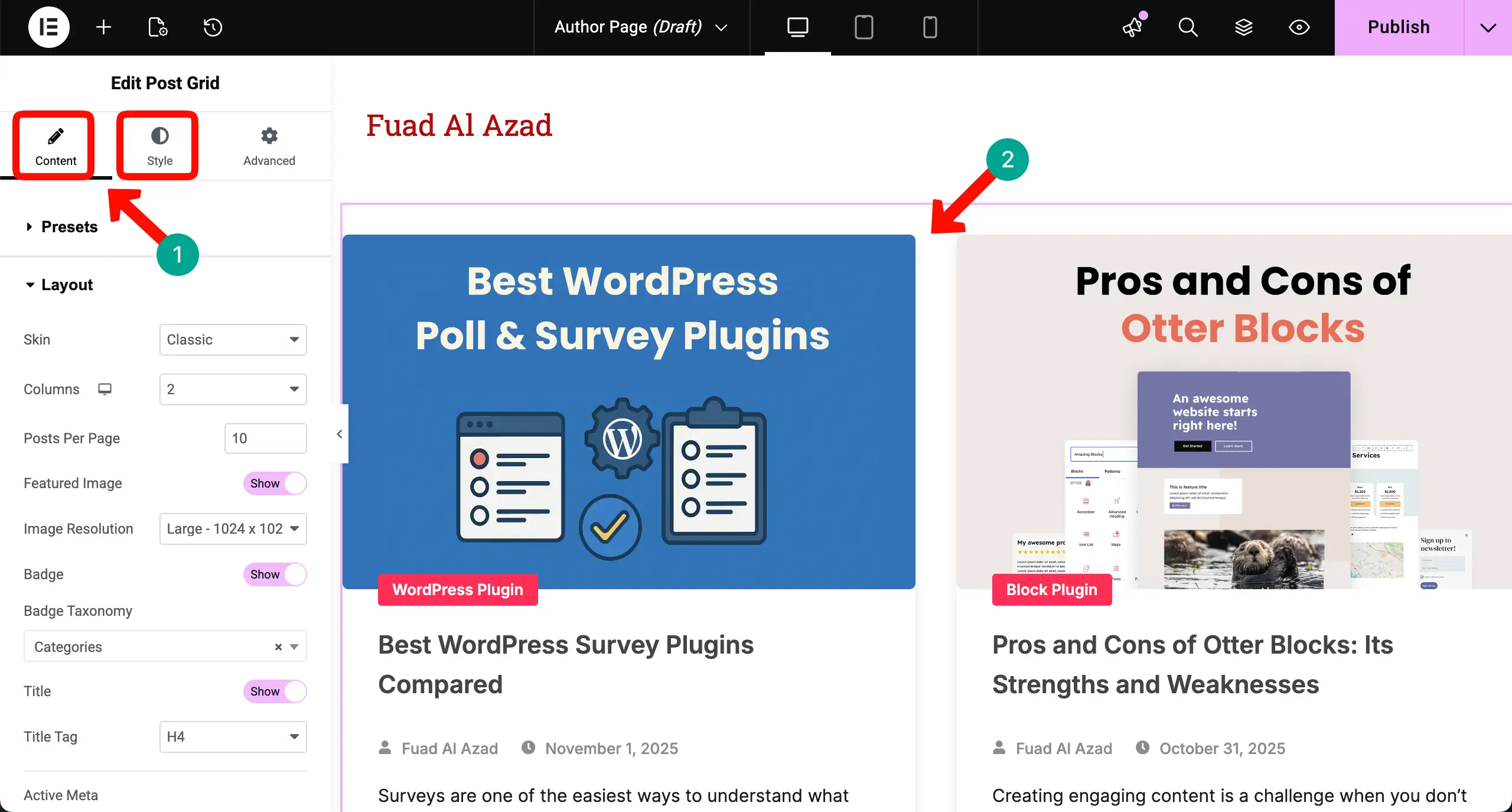
In order to beautify the presentation of the post grid widget, you can adjust settings from the Content and Style tabs, as we usually do in any Elementor widget.
You can see that we have done some customizations to the widget.
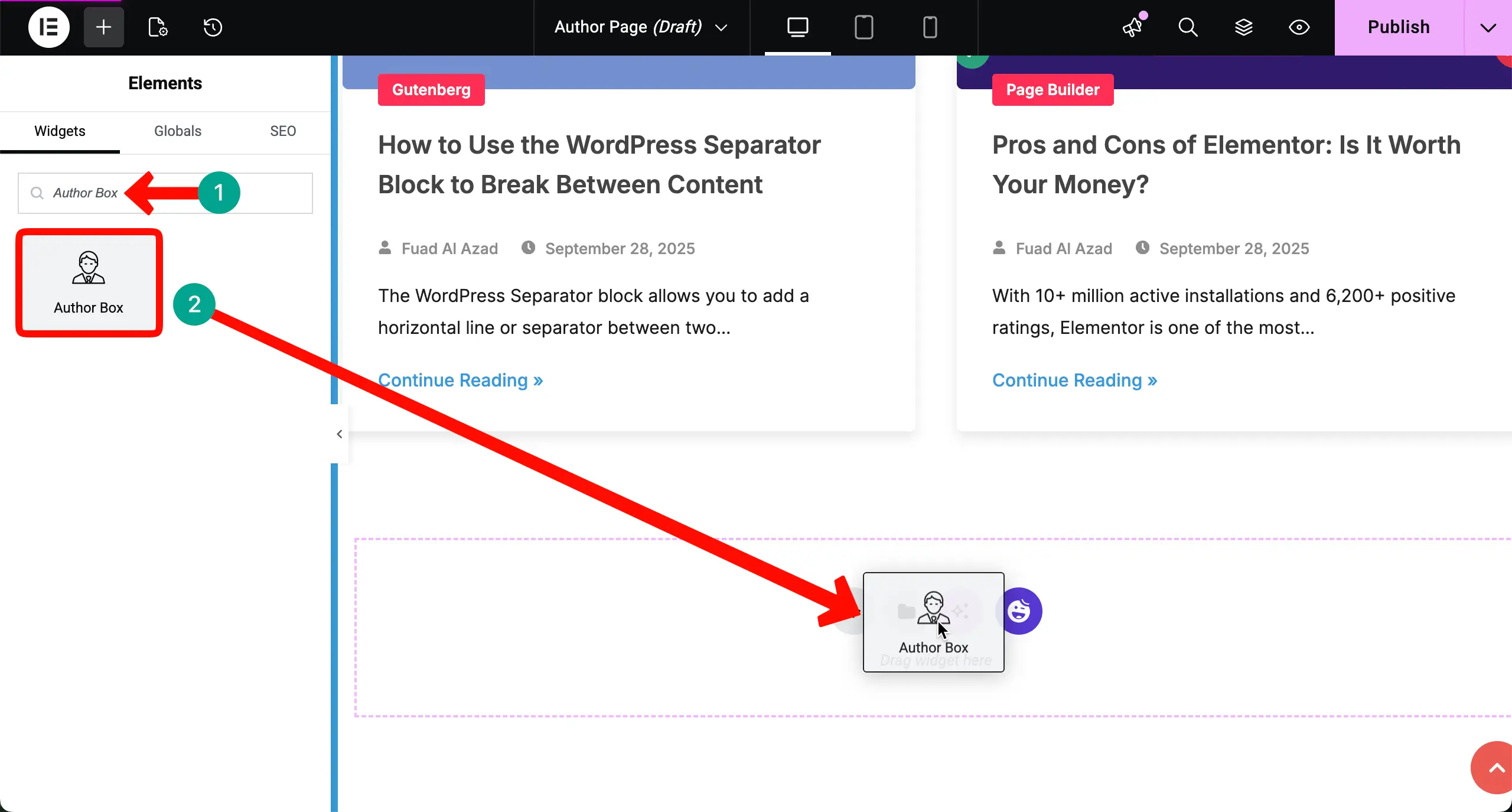
Step 04: Add the Author Box Widget
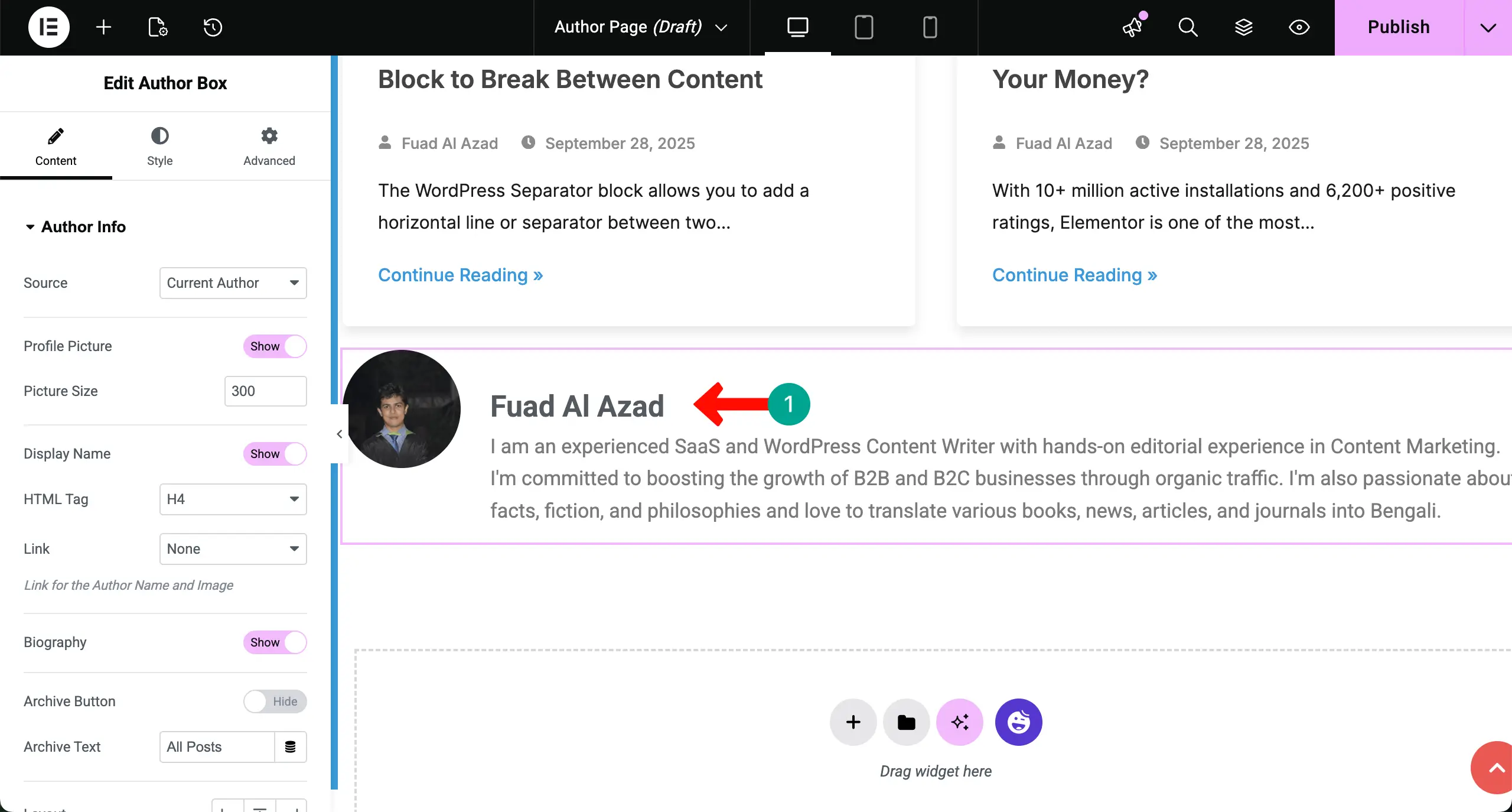
The Author Box widget shows the author’s photo, name, bio, and other profile details to introduce the writer of the content. If you want to show this information about the respective author on this archive page, drag and drop the Author Box widget.
The Author Box will instantly be displayed, showcasing a biography about the author. This bio is pulled from the user account from the backend dashboard.
Step 05: Add Condition to the Author Archive Page
This is the most crucial part of this tutorial. Unless you can select and set the proper conditions, the page will not work as an author archive page.
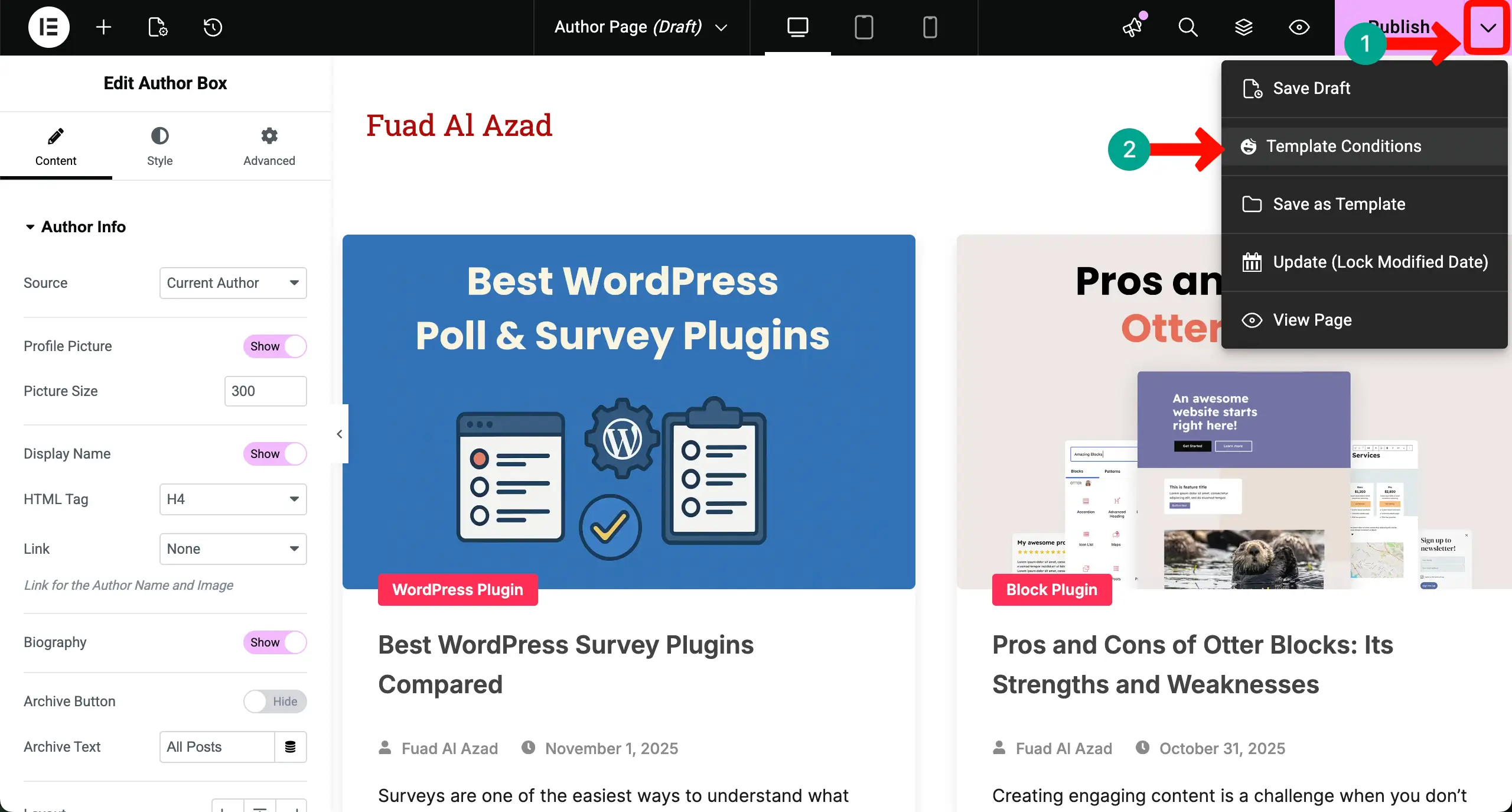
Click the dropdown icon next to the Publish button. After that, hit the Template Condition option.
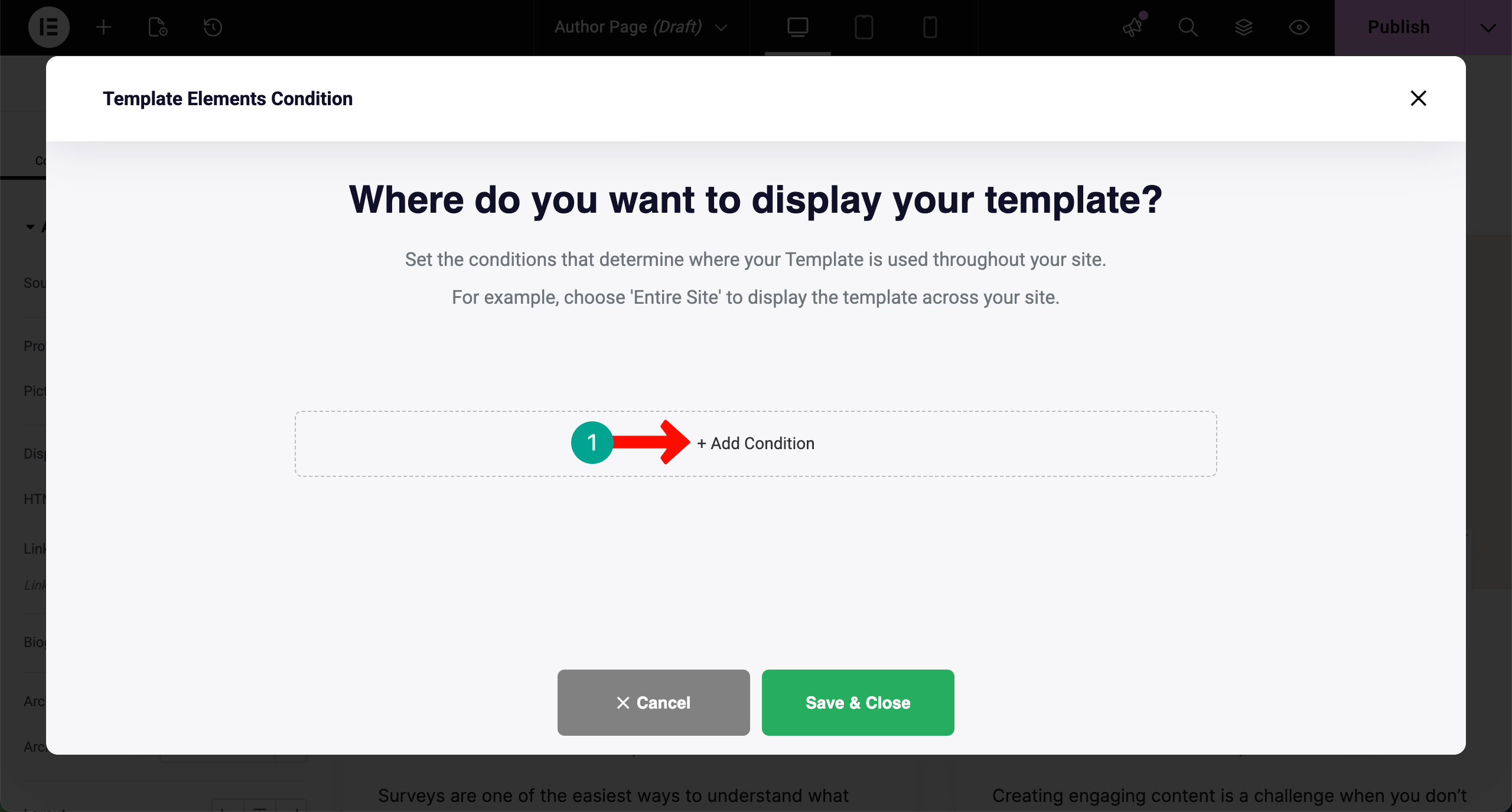
Click the + Add Condition button.
Click the dropdown icon at the end of the box for the Entire Site.
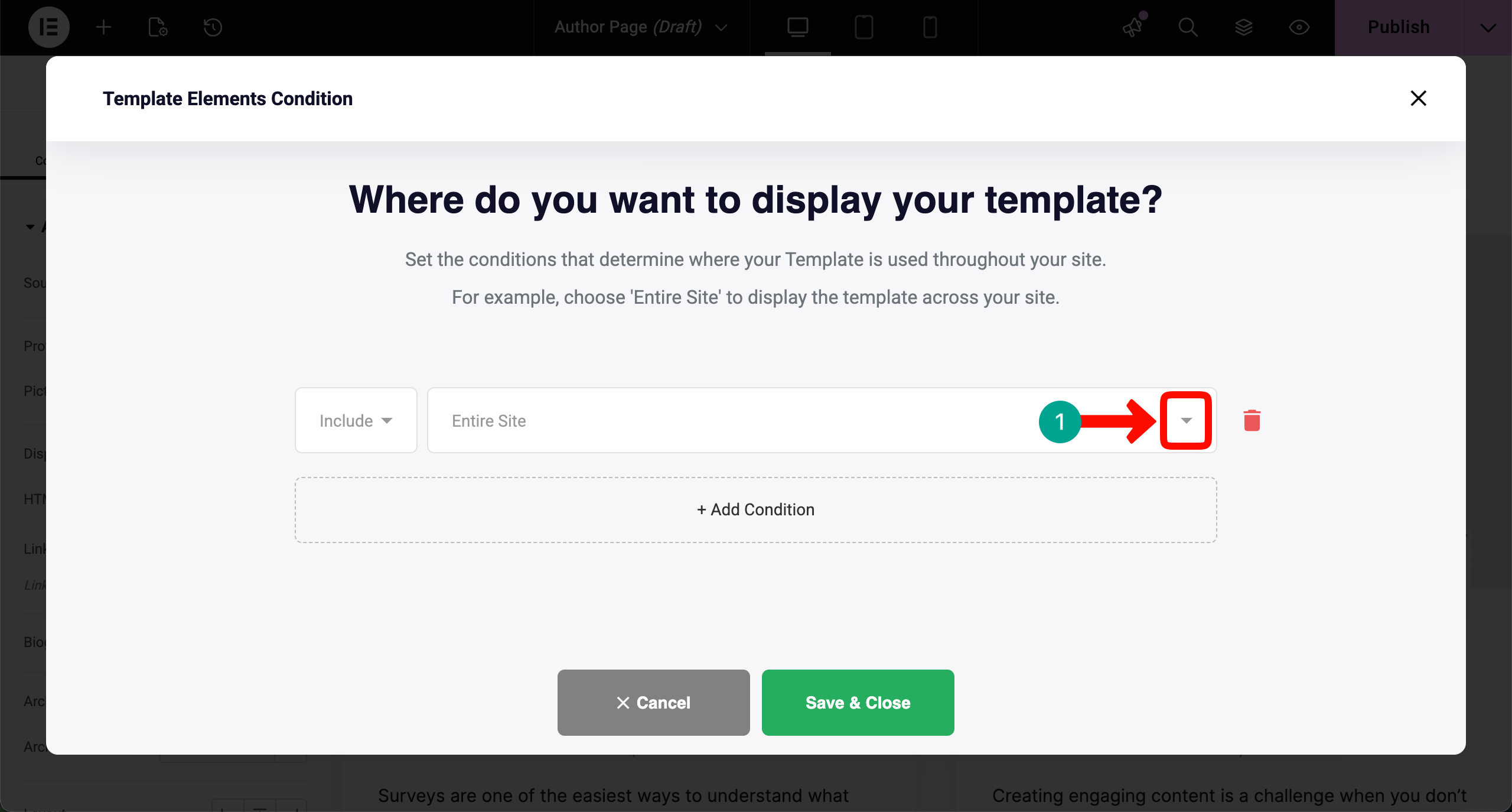
A dropdown list will open up. From there, choose the Archives option.

The interface will change, as you can see in the image below. Click the dropdown icon at the end of the box of All Archives.
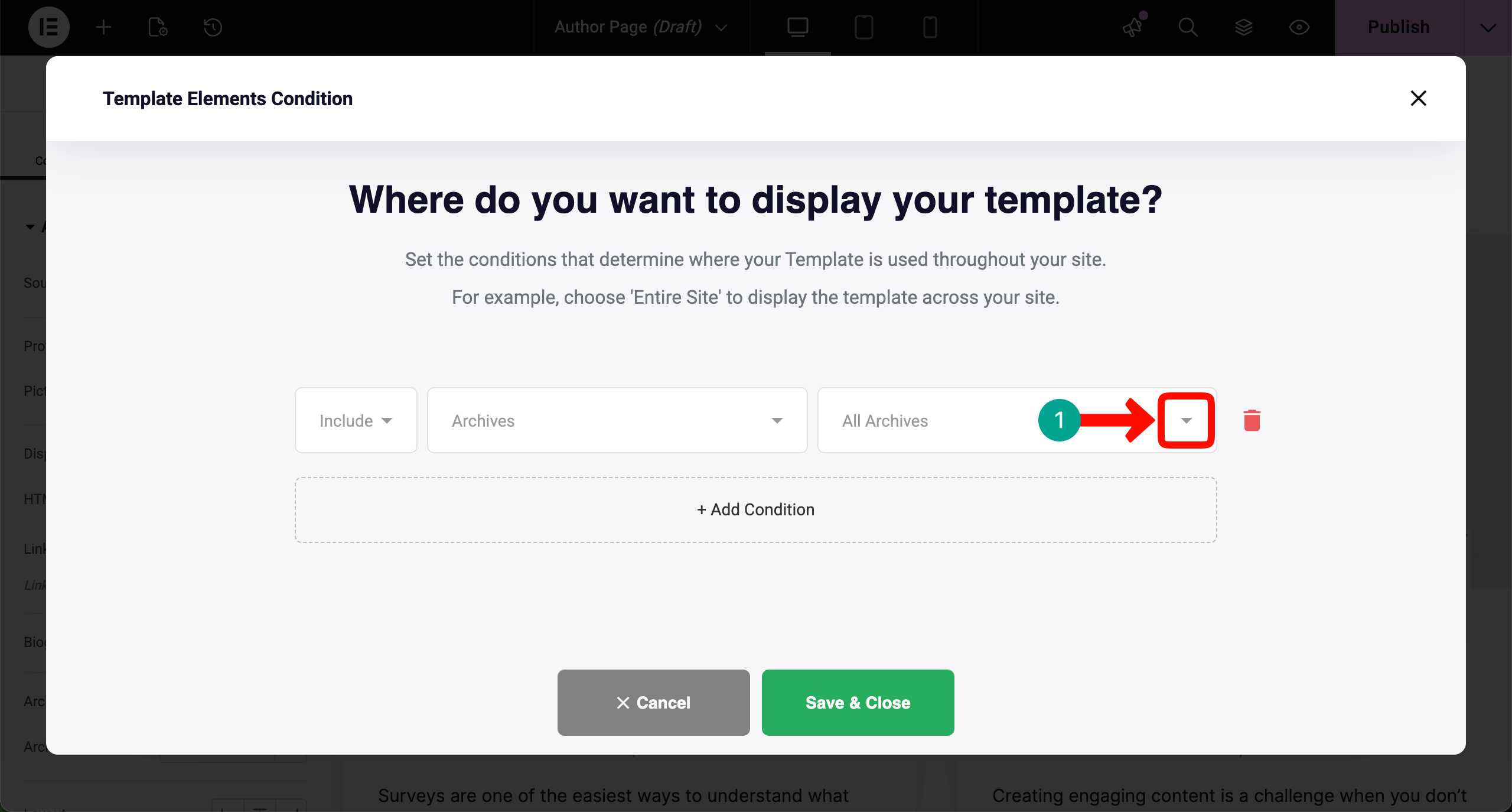
Again, a list of options will show up. Choose the Author Archive option as the condition.
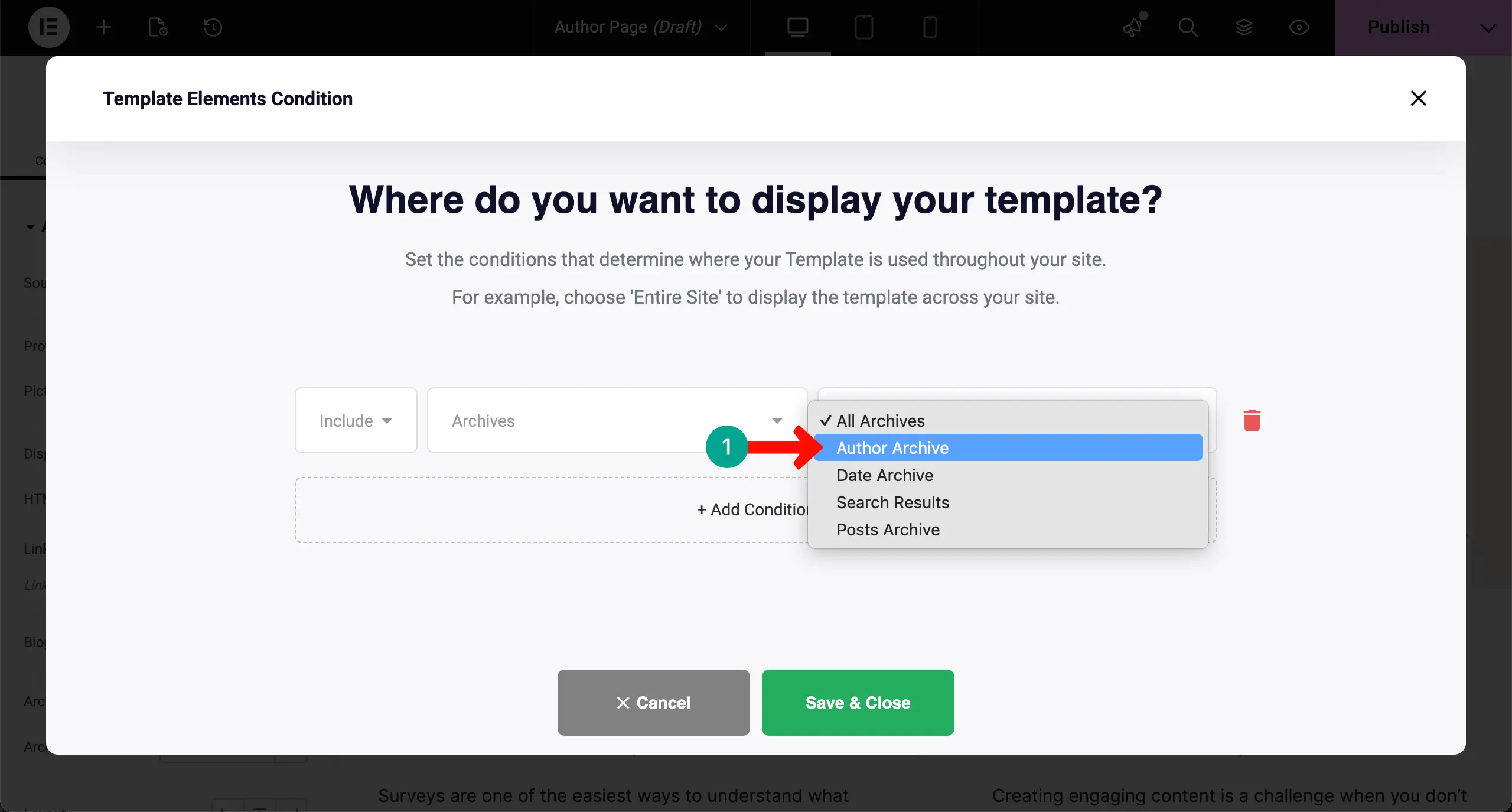
When the Author Archive condition has been selected, hit the Save & Close button.
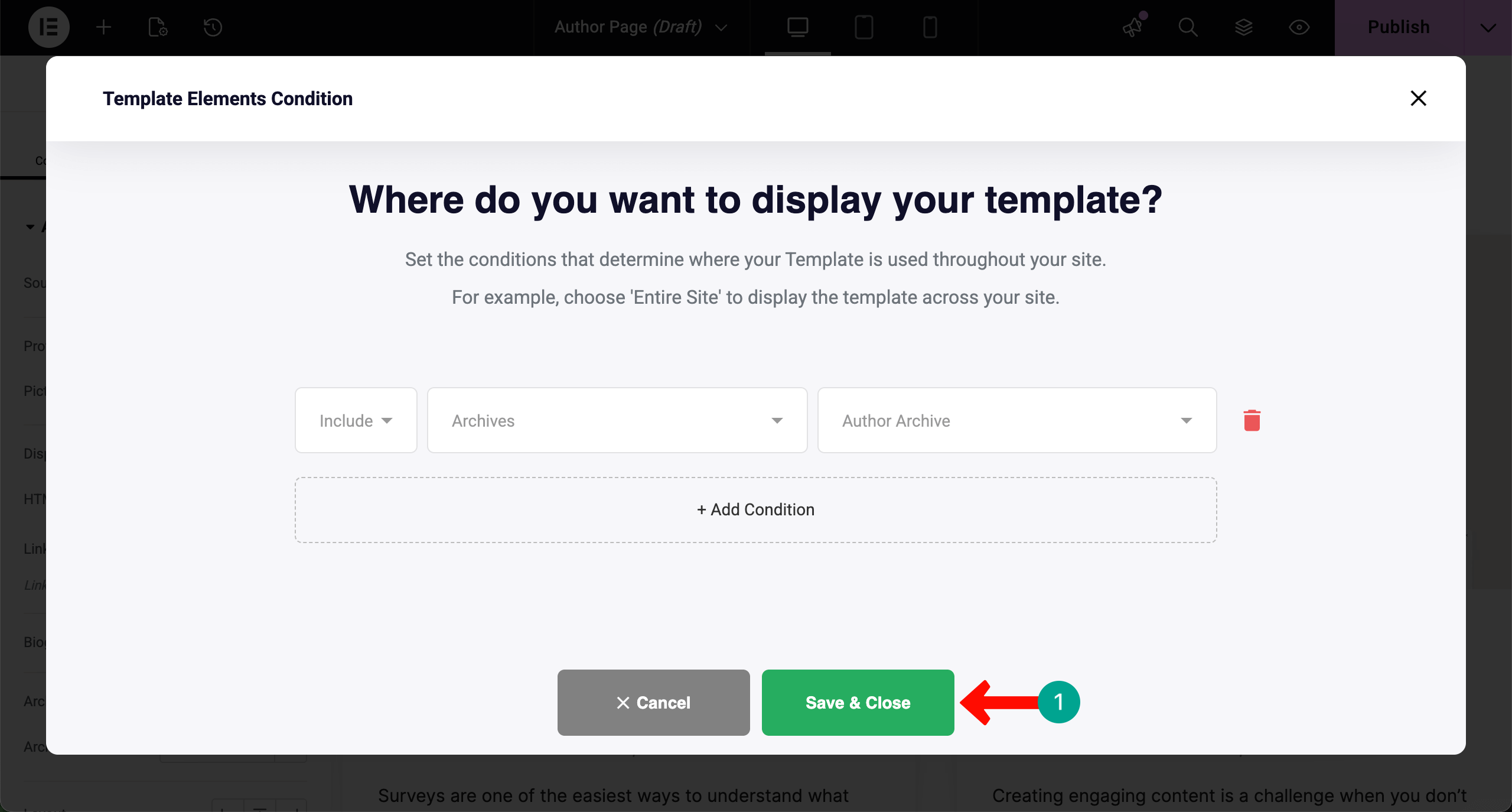
Thus, you can configure conditions for the author archive page. Now, if you click the respective author’s name on your website, their archive page will be opened, where you can see all the posts written by them. Learn how to display blog posts by categories.
Conclusion
Creating an author archive page in WordPress with Elementor gives your site a more organized and human touch. It highlights the people behind the writing and lets readers explore more content with ease. This simple page can change how visitors interact with your blog and how they see your authors.
It is also a strong step toward better SEO and a more trusted website. Hope you enjoyed this tutorial, and from now on, you can create your archive page. Besides, you can follow the same guide to create any other type of archive page with Elementor by setting conditions.
However, to get the best results, keep the design clean, use readable typography, and include short bios that tell something real about each writer. Add profile photos and social links to make the page feel alive and personal. With these small details, your author archive becomes more than a directory.
It becomes a doorway for loyal readers who want to follow voices they enjoy. If you apply these practices, even a free setup in Elementor can deliver a meaningful and lasting experience. If you have any queries regarding Elementor or HappyAddons, mention them in the comment box below.
Before moving away, have a few more minutes to explore the post on how to create a dynamic web page with Elementor in WordPress.