

When you build websites with WordPress, you depend on plugins to add new features and design elements. HappyAddons is one of those plugins that many Elementor users trust because it gives extra widgets, unique styling options, motion effects, presets, display rules, and more.
All these come with extra flexibility to make site building easier. But sometimes, users face bugs or conflicts and need to reinstall the plugin. This is when panic starts. Many people think reinstalling a plugin will delete everything, causing all presets and design breaks to disappear.
The truth is, most of the time, your settings remain safe. But you still need a clear idea of how HappyAddons stores its data and what happens during reinstallation. This blog post will explain everything in simple words. Let’s get started!
Common Reasons Why Users Reinstall HappyAddons
Reinstalling a plugin is not something users enjoy doing, but there are several situations where this becomes necessary. Let’s look at the most common reasons in detail.
a. Conflicts with Other Plugins
Sometimes, a newly installed plugin may conflict with HappyAddons. Maybe both plugins try to load the same scripts, or one plugin blocks the other. In some cases, only one widget stops working. In other cases, your whole layout looks broken. Reinstalling HappyAddons can help reset the plugin files and remove any corrupted code fragments.
Check this post to learn how to identify plugin conflicts.
b. Problems After Updating WordPress, Elementor, or Themes
If you update WordPress, your theme, or Elementor, some HappyAddons features may temporarily stop working. A widget might behave strangely, or stylization might not load correctly. Reinstalling the plugin sometimes fixes these problems by refreshing plugin files.
c. Incomplete or Failed Updates
Sometimes updates fail due to slow internet or server timeout. A failed update can break the plugin files, causing errors. This can leave some plugin files missing or corrupted. Reinstalling HappyAddons replaces the broken files and restores the plugin’s normal operation.
d. Website Migration
Website migration can sometimes break plugin files or disconnect stored settings. When you move a site to new hosting, some files may not transfer correctly, especially if the migration tool skips certain folders. This can cause missing widgets or broken layouts.
e. Corrupted Plugin Files
Although rare, plugin files can get corrupted due to accidental edits, malware issues, or server problems. Reinstalling the plugin ensures fresh, clean files. These are some crucial situations when reinstalling HappyAddons becomes necessary.
What Happens to HappyAddons Settings When You Delete the Plugin
Many users think deleting a plugin means losing everything. But this is not always true. WordPress handles plugin data differently depending on what the plugin chooses to delete. When you remove a plugin, WordPress deletes only the plugin files.
The plugin’s settings in the database usually stay untouched unless the plugin has a function that tells WordPress to remove everything. HappyAddons does not delete your important settings when you click the Delete button. Instead, it keeps your core settings stored safely in the database.
This includes your presets, display rules, and feature controls. This means:
- Design choices are stored in the database
- Widget configurations remain safe
- Feature control preferences do not get removed
- Only plugin files get deleted
When you reinstall HappyAddons, the plugin reads these saved database entries and loads your previous settings automatically. Most users do not even notice that anything has changed. Their layouts work normally again once they reactivate the plugin.
Explore how to design a multivendor marketplace with Dokan and Elementor.
Types of HappyAddons Settings That Are Safely Stored in the Database
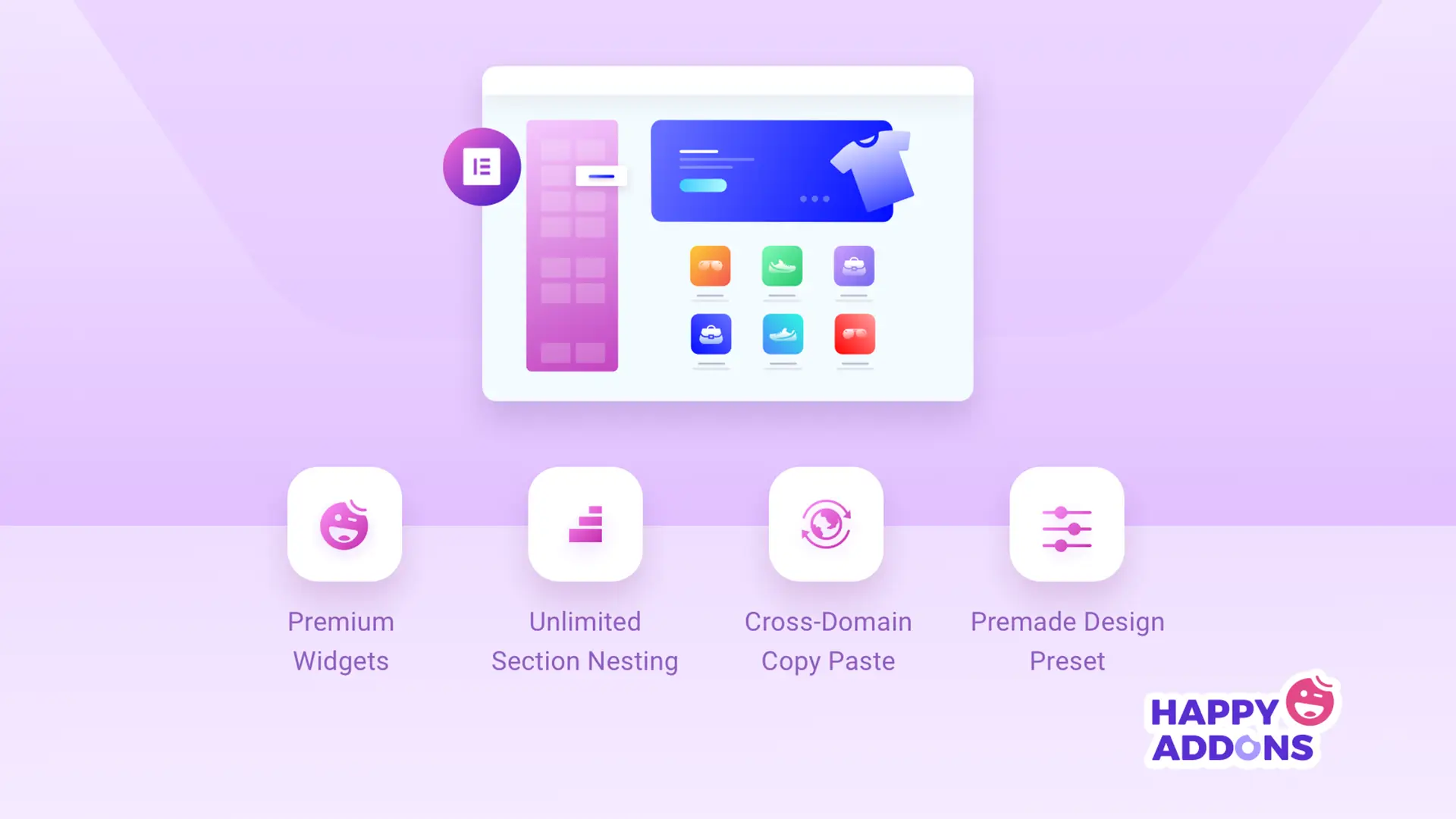
HappyAddons saves several types of user settings in your WordPress database. These settings usually return automatically after reinstalling the plugin.
1. Global Presets
HappyAddons allows you to create global presets for widget styles so you can reuse them. These presets help you reuse color patterns, typography, spacing, and other stylistic elements. These presets stay saved in your database even if you delete the plugin.
2. Display Conditions
Display Conditions help you show or hide elements based on user roles, device type, date, or other rules. All these rules are stored in your database. When you reinstall HappyAddons, the plugin reloads them.
Note: HappyAddons offers a free Theme Builder to design header, footer, archive, and single blog post templates.
3. Feature Control Settings
HappyAddons lets you enable or disable specific widgets and features. These settings are important because they decide what tools are available in Elementor. They remain in the database and return after reinstallation.
4. Advanced Options and Speed Optimization Settings
Settings like On-demand Asset Loading, Cross-domain Copy & Paste, and other similar advanced options are saved. You don’t have to worry about them. They come back automatically after reactivation. Check this guide on how to speed up an Elementor website.
5. Pro License Activation
If you use HappyAddons Pro, your license activation is managed through Appsero. Even if you delete the plugin, your license data stays safe in the Appsero system. After reinstalling the plugin, you only need to reconnect your license.
What You Should Do Before Reinstalling HappyAddons
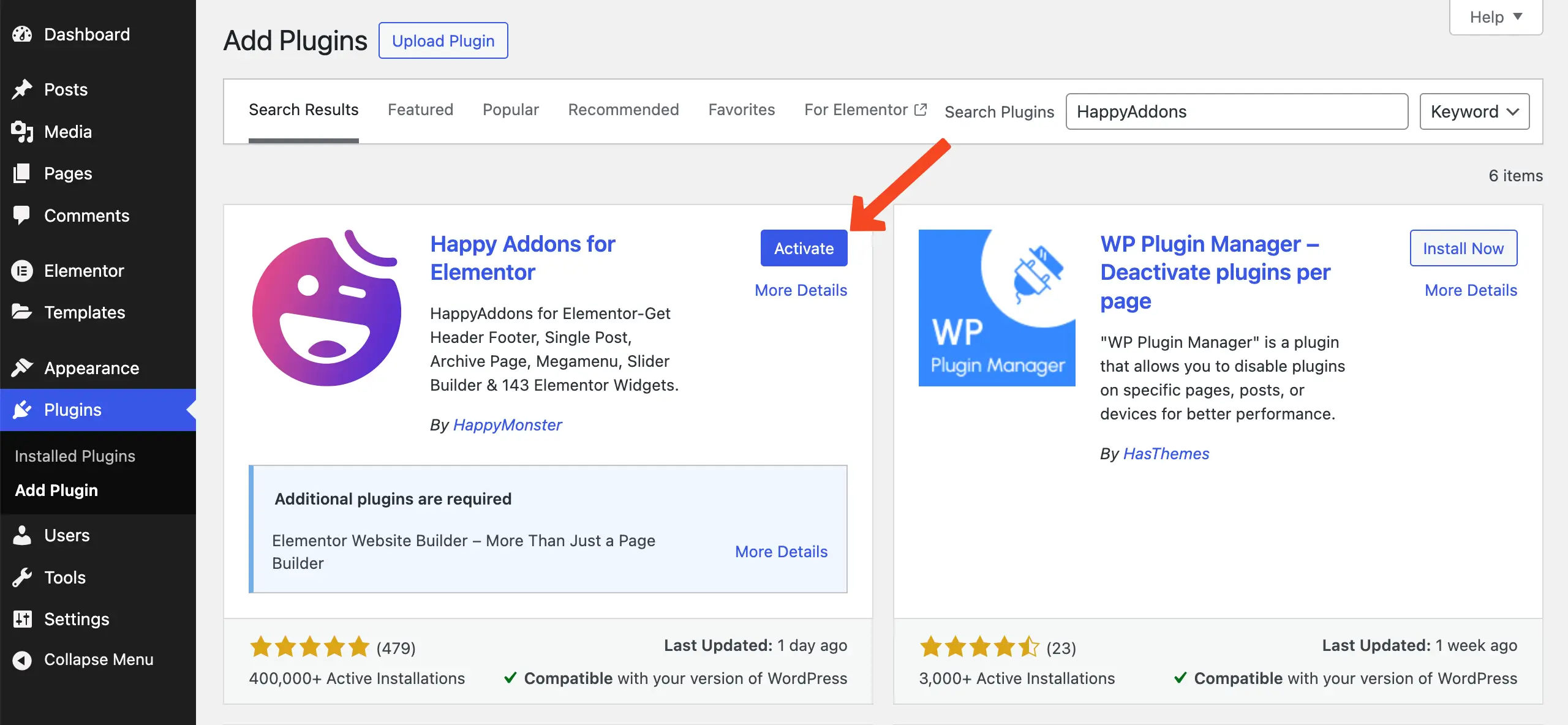
Even though most settings will return automatically, it is still smart to prepare your website before reinstalling HappyAddons. These preparation steps protect your site in case anything goes wrong.
a. Take a Full Backup
Always take a full backup using tools like UpdraftPlus, Duplicator, or your hosting provider’s backup system. A backup protects you from mistakes like accidental data deletion.
b. Export Important Elementor Templates
If your website depends heavily on Elementor templates that include HappyAddons widgets, exporting them is helpful. You can import them again later if anything breaks.
c. Save Custom CSS or Global Styles
If you added any CSS manually, copy it somewhere safe. Reinstallation does not remove your theme CSS or Elementor CSS, but it is still wise to keep a copy.
d. Check Your Pro License Status
Make sure your HappyAddons Pro license is active inside your Appsero dashboard. This ensures smooth reactivation after reinstall. These steps protect your work even if something unexpected happens.
How to Restore HappyAddons Settings After Reinstallation
Hope you already know how to reinstall a plugin after deleting it. Suppose you have reinstalled the HappyAddons plugin. Next, it’s time to restore everything. There are two ways to restore the previous settings. Check them below:
Method 01: Automatic Restoration
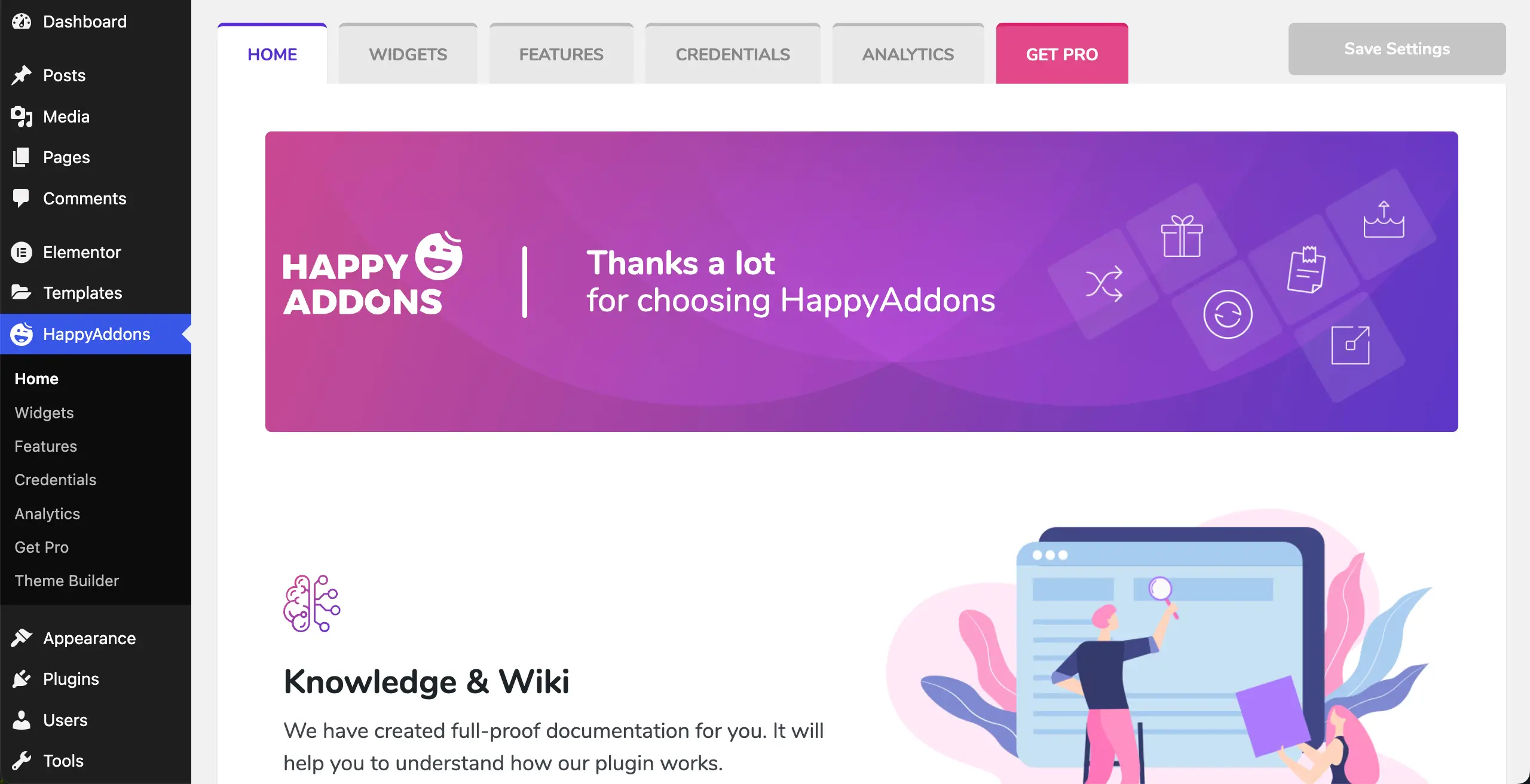
In most cases, HappyAddons loads all saved settings the moment you activate the plugin again. This includes your presets, display rules, feature controls, and speed settings.
Your design should look the same as before you deleted the plugin.
However, sometimes your browser or Elementor cache blocks the restored settings from appearing. This can make you think your settings are lost even when they are actually not.
Method 02: Manual Restoration Steps
If the automatic restoration doesn’t work and something looks missing, you can fix it manually with simple steps. Take a look at the steps below.
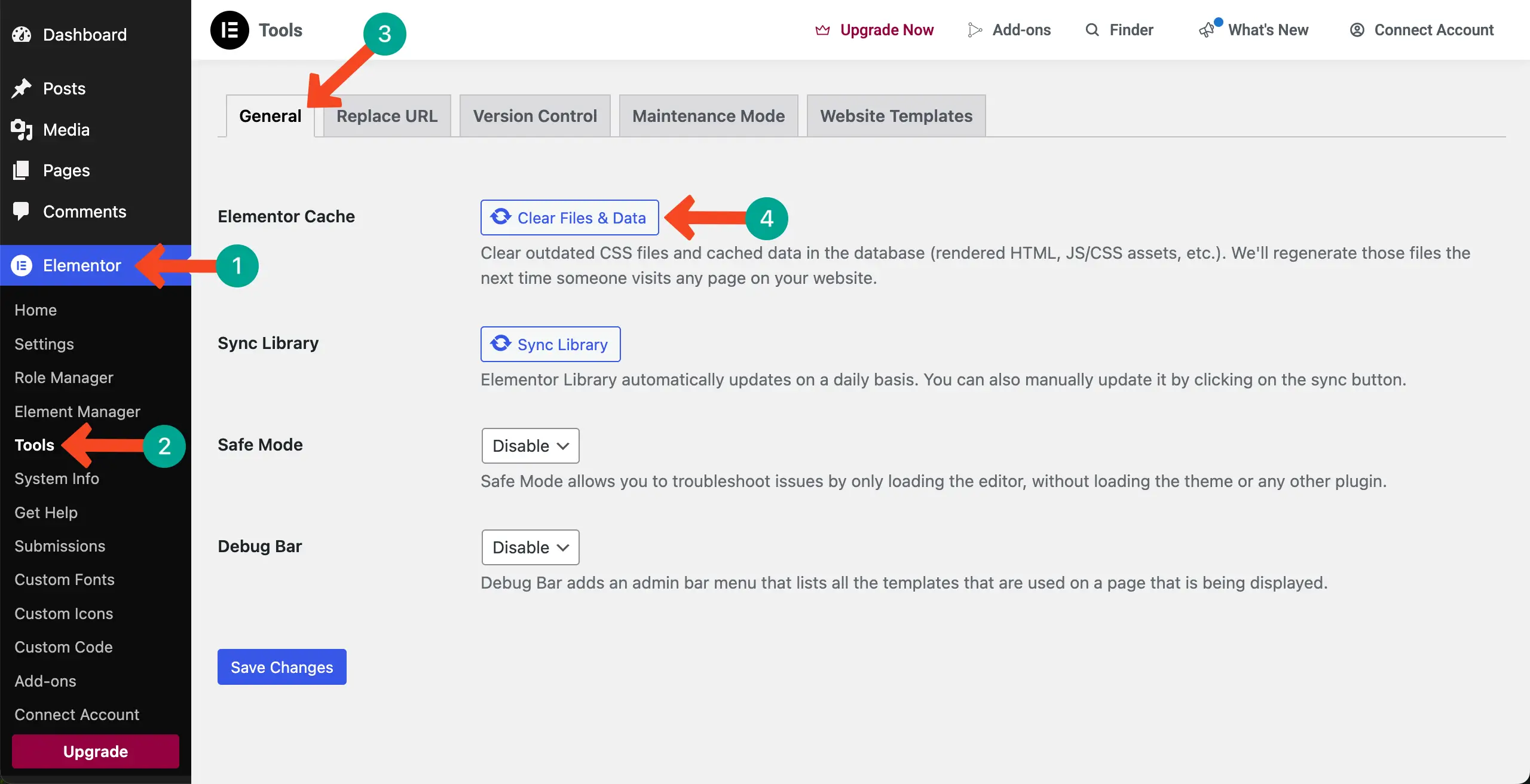
Step 1: Clear Elementor Cache
Go to Elementor > Tools > Elementor Cache > Clear Files & Data. This regenerates all styles and fixes most layout issues.
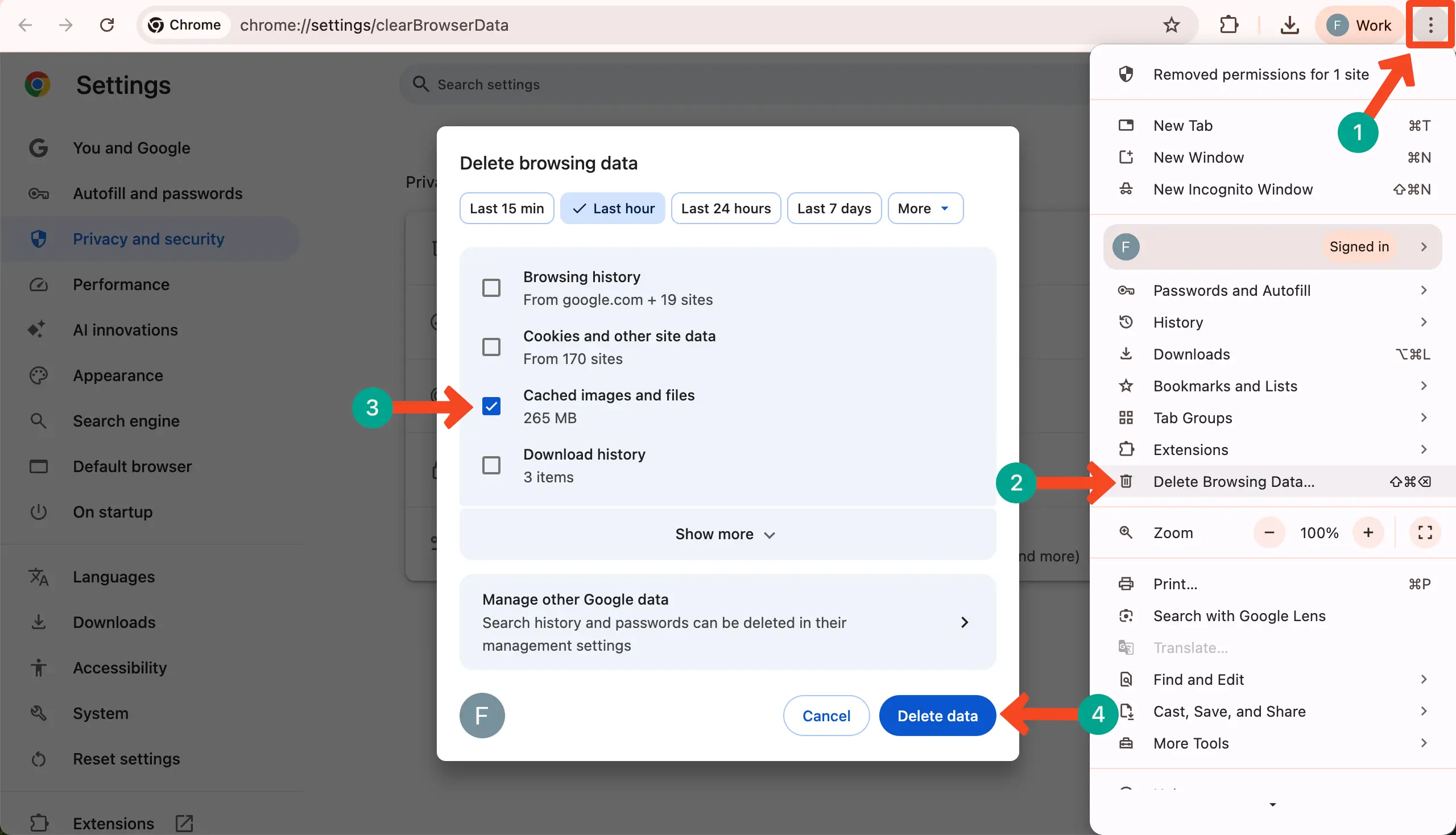
Step 2: Clear Browser Cache
Old files stored in your browser may hide new settings. Clearing your browser cache solves this issue.
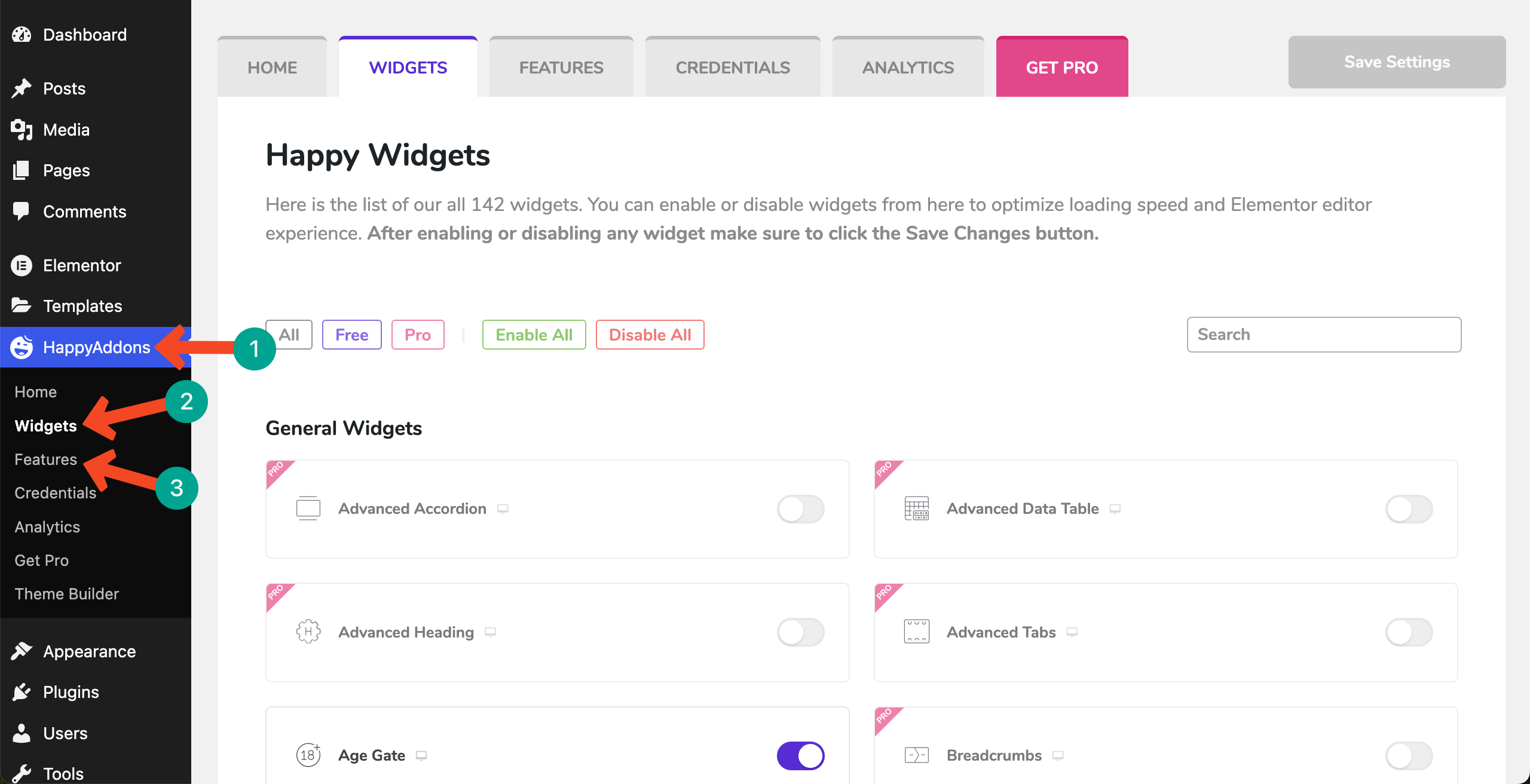
Step 3: Re-enable Missing Widgets and Features
Open HappyAddons > Widgets / Features and turn on any widgets or features that appear disabled.
Step 4: Reconnect Your Pro License
If you use HappyAddons Pro, reconnect your license from the HappyAddons dashboard.
Step 5: Re-save Display Conditions
If your Display Conditions look broken or incomplete, open each condition and re-save it.
Step 6: Import Elementor Templates (If Needed)
If you exported templates earlier, import them back if any layout looks broken. These simple steps ensure that your settings return fully after reinstall.
Final Thoughts
Reinstalling HappyAddons does not have to be a scary step. Most users wrongly believe they will lose their entire design work and settings. But in reality, HappyAddons stores its data safely inside the WordPress database. When you delete the plugin, only the plugin files are removed.
Your presets, display conditions, feature controls, and advanced settings remain safe. With a proper reinstall and some simple cache-clearing steps, you can fully restore your settings without losing anything. Hope you have found this post helpful.
Don’t hesitate to mention if you have further queries in the comment box below. You can also knock on our live chat channel for quick support. Take a look at how to design a landing page with Elementor and HappyAddons before you move away.