




A static icon can support your design. An icon that smoothly changes into another shape can make the same section more memorable. This effect is called SVG morphing, and you can create it inside Elementor.
With the SVG Morphing widget from HappyAddons Pro, you can choose shapes, apply colors or gradients, and adjust the animation through visual controls. You do not need to write JavaScript.
In this tutorial, we’ll turn a six-point star into a soft diamond, style it with a gradient, and preview the result. We’ll also explain the settings and common problems you may encounter.
What Is SVG Morphing Animation?
SVG morphing changes the outline of one vector shape into another over time. For example, a star can gradually become a diamond rather than simply disappearing and being replaced.
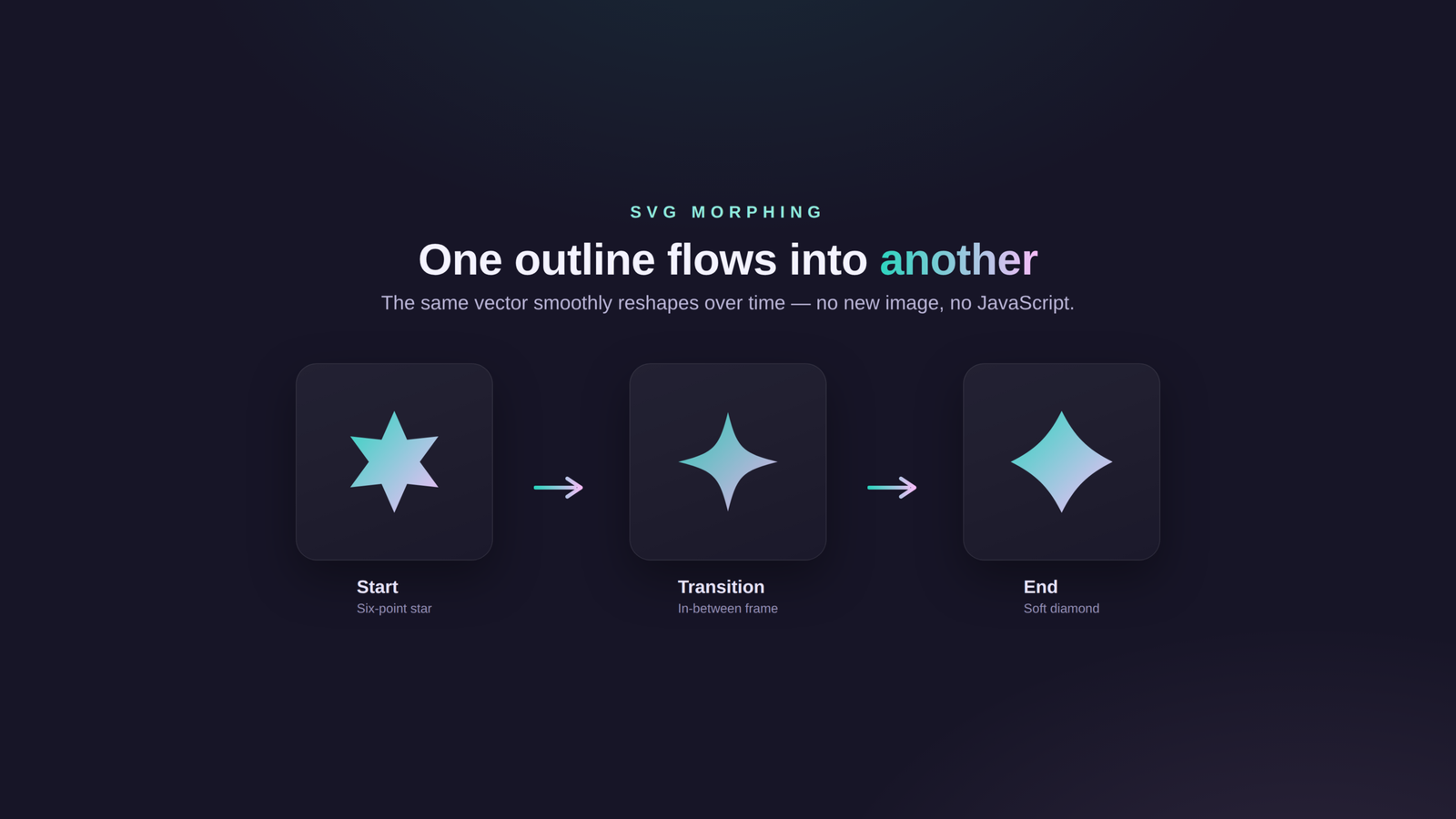
SVG stands for Scalable Vector Graphics. Its shapes are described with coordinates and paths, allowing the artwork to remain sharp at different sizes. A morphing tool animates the transition between those paths.
What You Need to Create SVG Morphing Animations in WordPress
For the method shown here, make sure the following tools are available on your WordPress site.
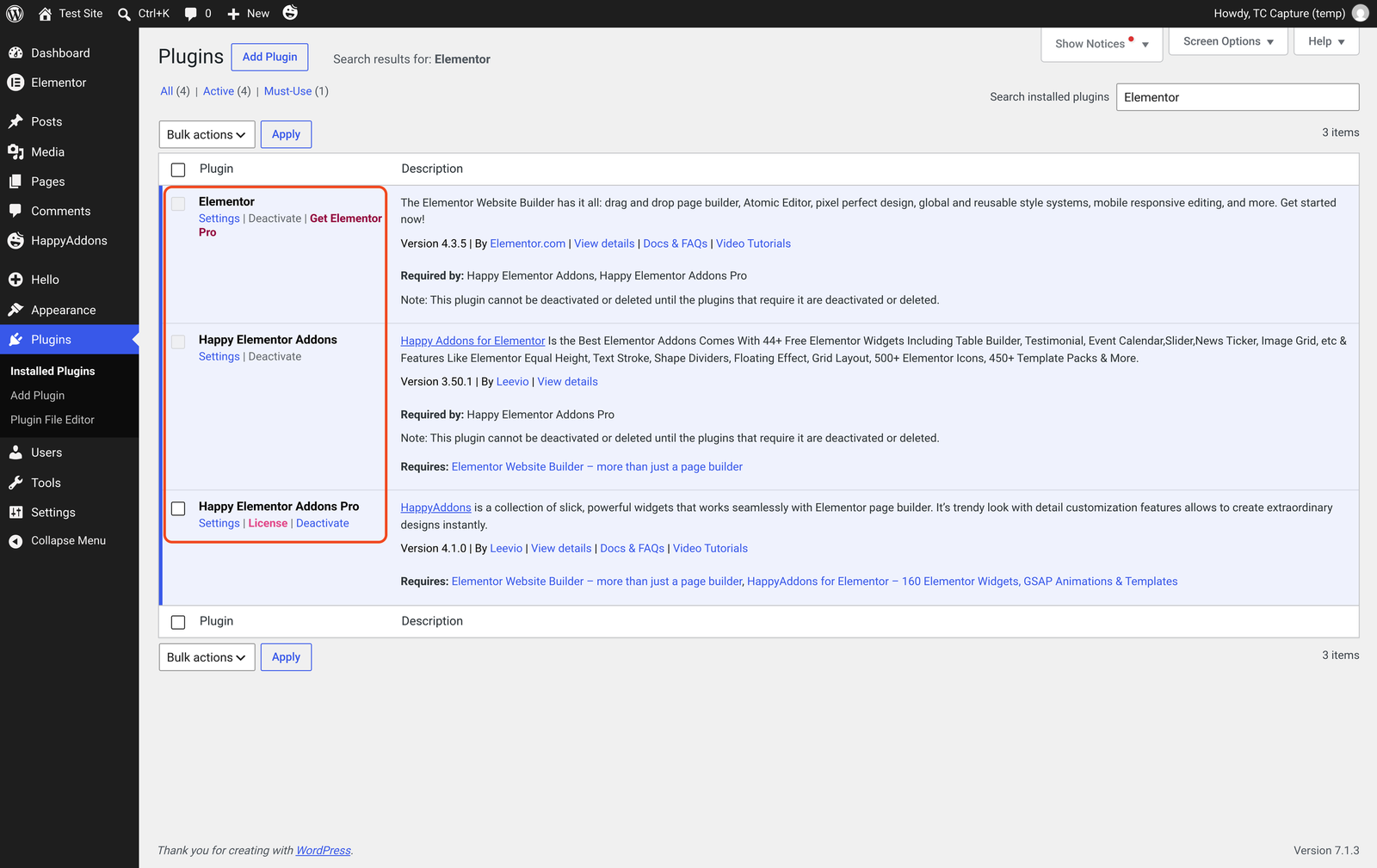
Once they are installed and activated on your site, let’s start following the step-by-step tutorial as explained below.
How to Create SVG Morphing Animations in Elementor: Step by Step
The walkthrough below will show you how to build a star-to-diamond SVG shape from start to finish. Follow the steps in order, because each one adds to the widget you set up in the previous step.
Step 01: Enable the SVG Morphing Widget
First, you have to enable the SVG morphing widget. Otherwise, you will fail to use this on the Elementor canvas. To enable this, go to HappyAddons → Widgets in the WordPress dashboard. Find SVG Morphing, enable it if necessary, and save the widget settings. Then reopen the Elementor editor.
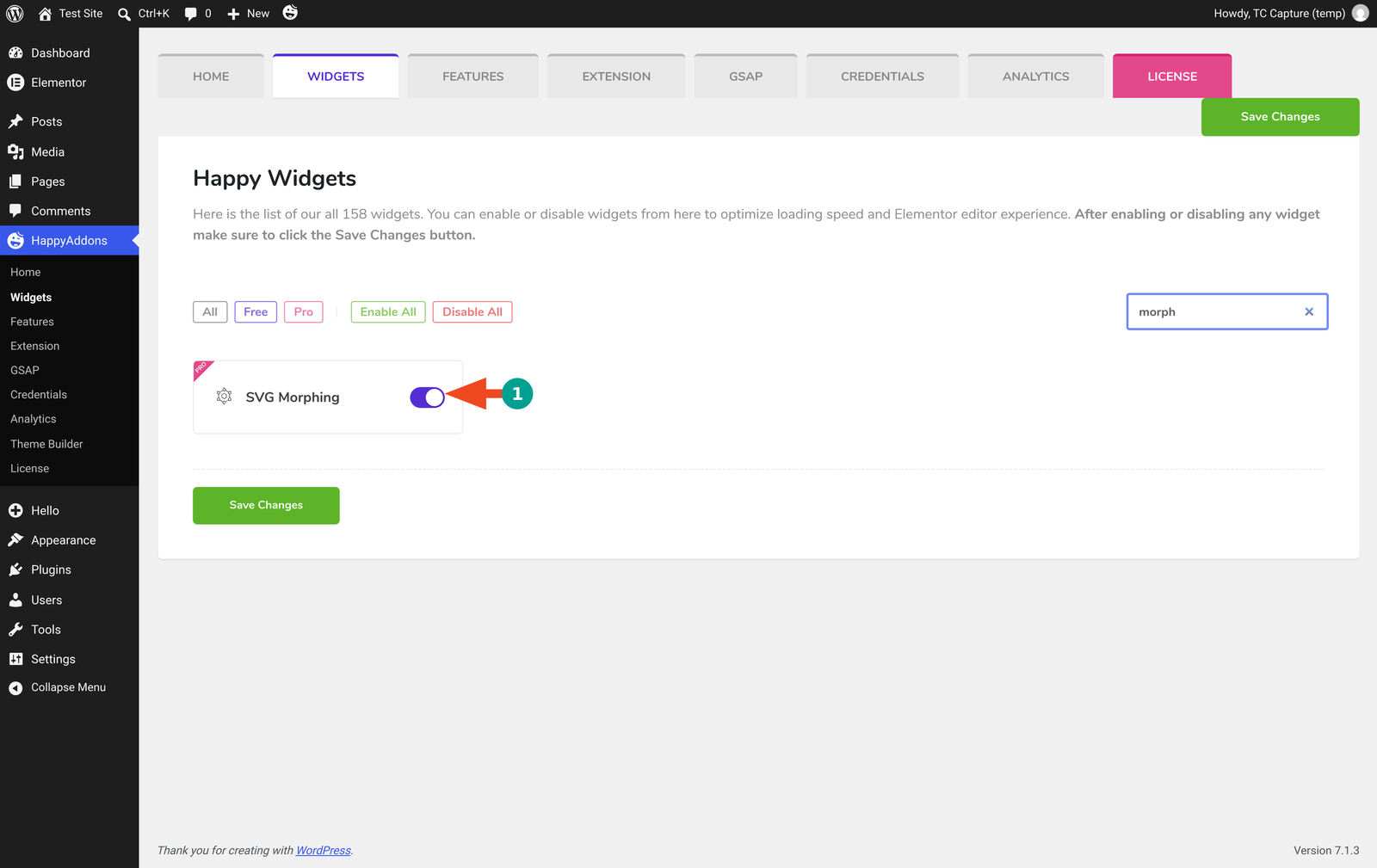
Then, open the page you want to edit with Elementor.
Step 02: Add the SVG Morphing Widget to Your Page
Add a container for the animation. Search for morph in Elementor’s widget panel, then drag Svg Morphing into the container. Make sure you choose the morphing widget rather than an SVG drawing widget; they create different effects.
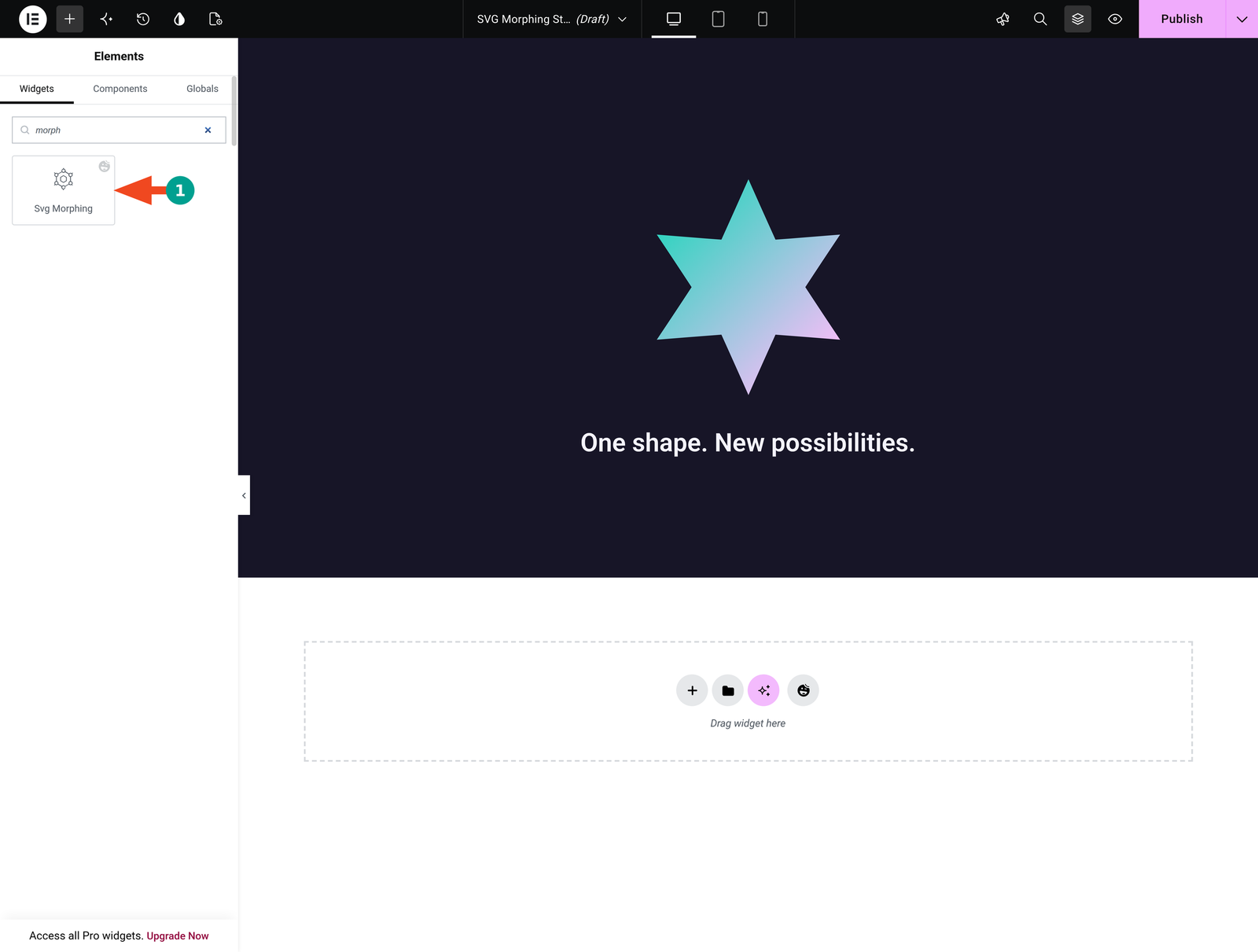
The widget includes sample shapes, so you can begin with the supplied artwork. Open Content → Morph SVG Shapes. In the interface used here, the three entries are labeled Item #1, Item #2, and Item #3. Expand an entry to inspect its SVG Name and source.
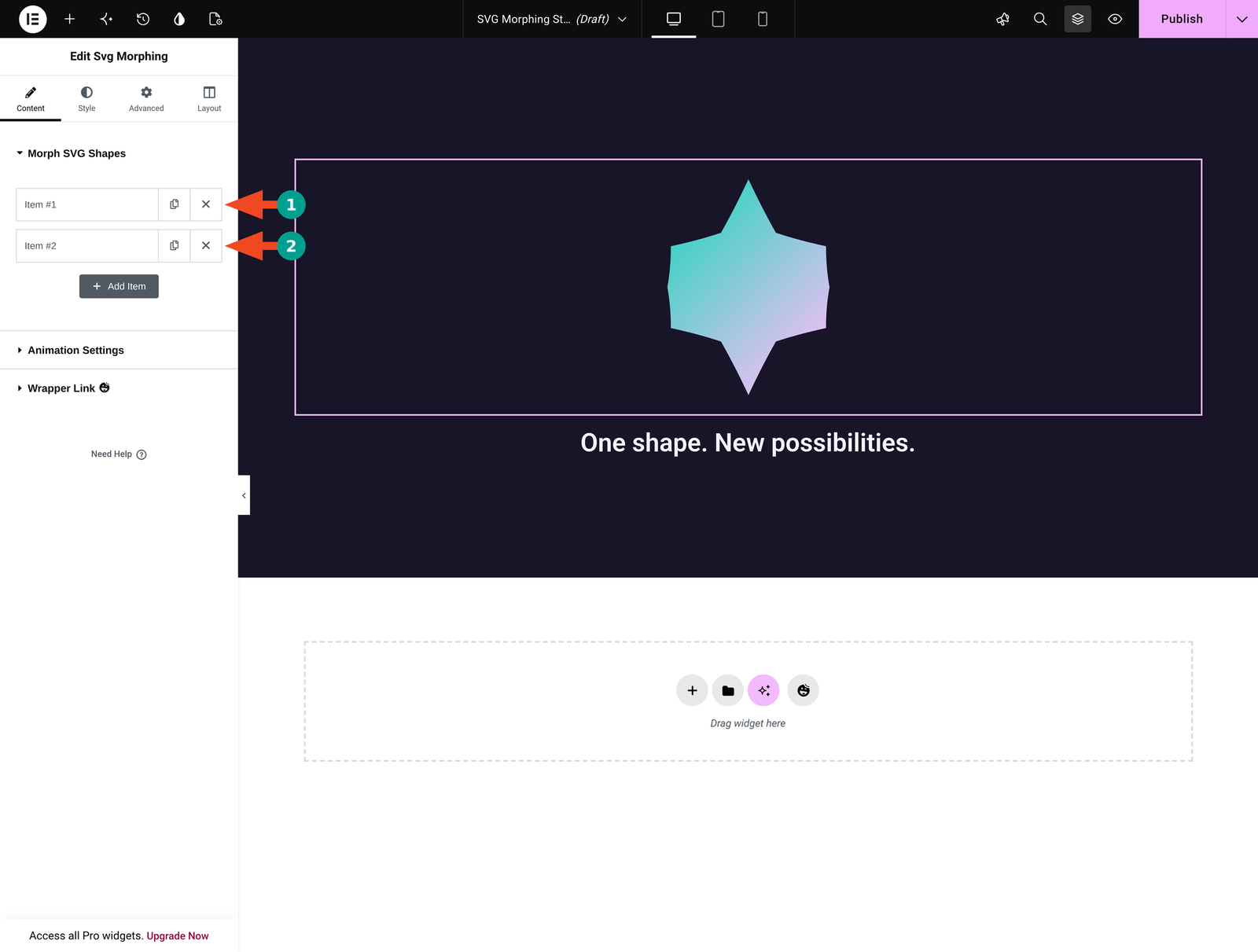
For this example, keep the first two entries and remove the third using its remove icon. The first entry is a six-point star. We’ll replace the second entry with a soft diamond.
Important: Keep at least two valid shapes. Giving two entries different names does not create different outlines. The actual SVG path data must differ for a visible shape transformation.
Step 03: Set the Starting SVG Shape
Start by defining the shape the animation begins from. Item #1 holds that starting outline, and its SVG Source setting decides where the artwork comes from.
Choose the SVG Source
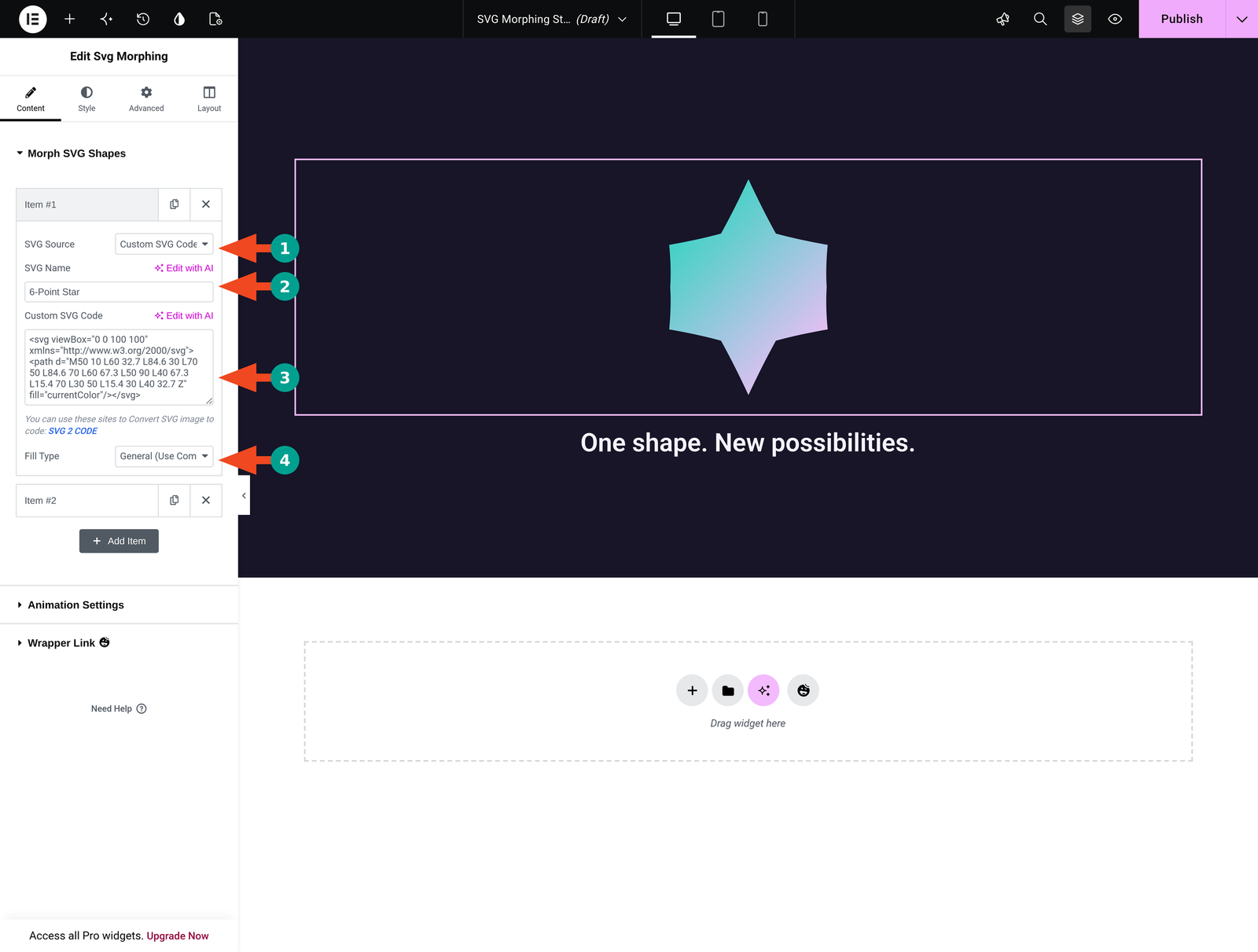
Expand Item #1. The SVG Source dropdown offers Upload SVG and Custom SVG Code. Choose Custom SVG Code for the reproducible example below.
Enter 6-Point Star in SVG Name. The name helps you recognize the artwork; it does not control the shape. Paste the following complete SVG markup into Custom SVG Code, replacing any existing contents:
<svg viewBox="0 0 100 100" xmlns="http://www.w3.org/2000/svg"><path d="M50 10 L60 32.7 L84.6 30 L70 50 L84.6 70 L60 67.3 L50 90 L40 67.3 L15.4 70 L30 50 L15.4 30 L40 32.7 Z" fill="currentColor"/></svg>
Leave Fill Type at General (Use Common Style). This lets the common styling controls determine the colors instead of creating a separate color override for this entry.
When to Use an Uploaded SVG Instead
Choose Upload SVG if you already have an appropriate SVG file in your Media Library. Select the file using the media control, then configure the next shape separately.
Use trusted, sanitized SVG artwork. WordPress may restrict SVG uploads, and moving to a different upload screen does not remove that restriction. Follow your site’s approved SVG upload workflow; do not enable unrestricted uploads simply to complete this example. The supplied markup provides a small, inspectable alternative.
Step 04: Add the Destination Shape
Collapse the first entry and expand Item #2. Keep SVG Source → Custom SVG Code, set SVG Name to Soft Diamond, and replace the existing SVG markup with this example:
<svg viewBox=”0 0 100 100″ xmlns=”http://www.w3.org/2000/svg”><path d=”M50 10 C60 30 70 40 90 50 C70 60 60 70 50 90 C40 70 30 60 10 50 C30 40 40 30 50 10 Z” fill=”currentColor”/></svg>
Leave this entry’s Fill Type at General (Use Common Style) too. Both shapes will use the same gradient, making it easier to focus on the changing outline.
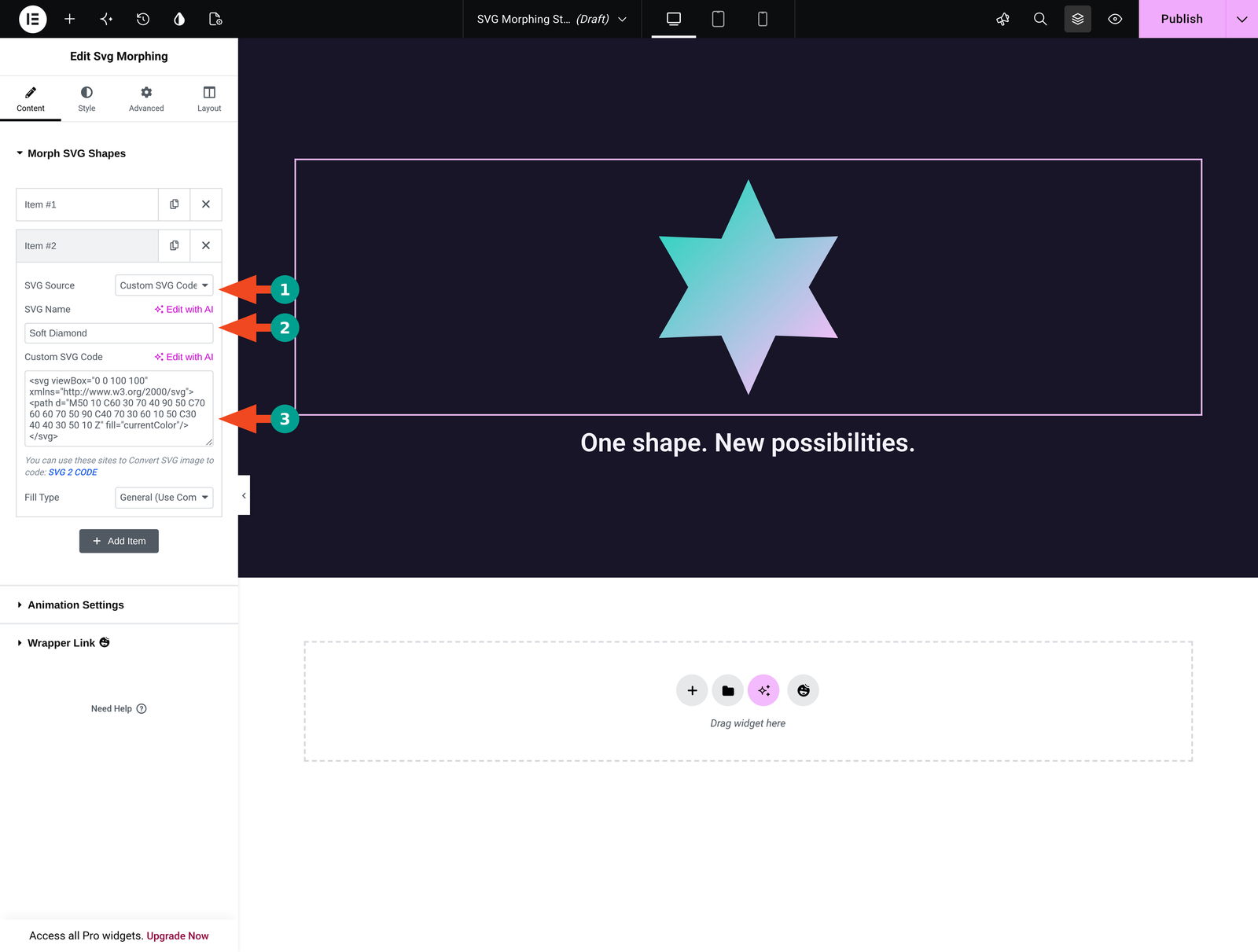
The star and diamond use the same 0 0 100 100 coordinate area and are centered around the same point. Keeping the artwork similarly sized and positioned helps avoid an unexpected visual jump during the transition.
Tip: Start with one simple, closed path per shape. Complex logos with masks, embedded images, filters, or many separate parts need more preparation and should not be assumed to behave like these simple silhouettes.
Step 05: Customize the Animation Settings
Collapse Morph SVG Shapes and expand Animation Settings. First, set Duration (s) to 2. This gives the transition time to be seen clearly at the normal speed setting.
Set Repeat Delay (s) to 0.5 and Stagger (s) to 0. Keep Speed → 1x. These are starting values for this two-shape example, not mandatory values for every animation.
Choose Auto Play → True so the animation runs automatically. Set Yoyo → True to reverse the sequence, then select Ease → power1.inOut for a gradual acceleration and slowdown.
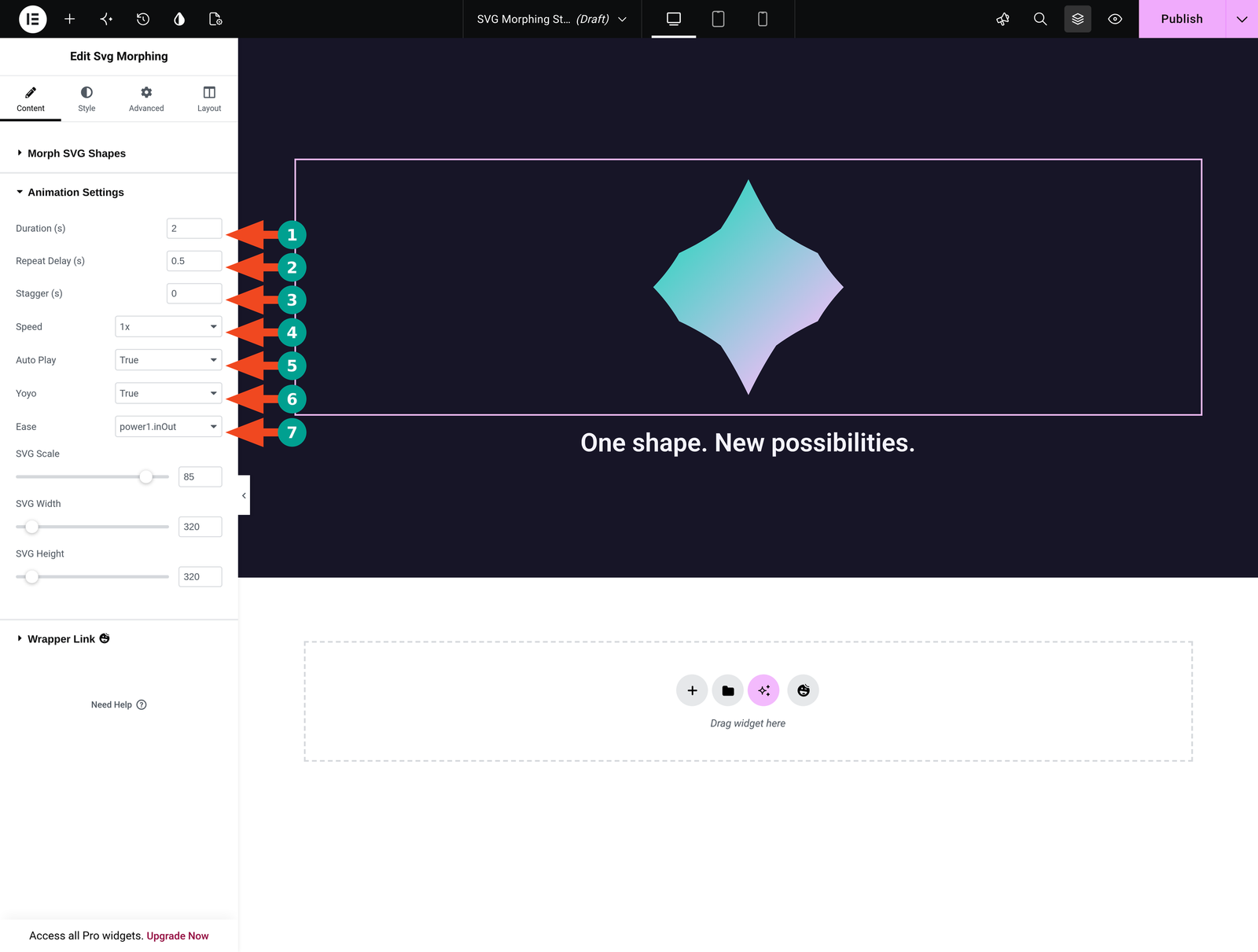
Animation Settings Cheat Sheet
| Setting | What it controls | Example value |
|---|---|---|
| Duration (s) | The base duration of a morph transition. | 2 |
| Repeat Delay (s) | The pause associated with repeating the animation. | 0.5 |
| Stagger (s) | Additional sequencing timing; leave it at zero for this simple example. | 0 |
| Speed | A playback-speed multiplier. | 1x |
| Auto Play | Whether playback begins automatically. | True |
| Yoyo | Whether the animation reverses on alternate cycles. | True |
| Ease | How the transition accelerates and slows. | power1.inOut |
Change one timing setting at a time. If the result is too fast, first increase Duration while leaving Speed at 1x. A higher speed multiplier can counteract a longer duration, making it difficult to understand which change caused the result.
Compare Yoyo True and False in a preview if you are exploring different loop styles. True is the better starting point for the back-and-forth star-to-diamond effect demonstrated here.
Auto Play is not a visitor-facing play button. Setting it to False stops automatic playback, but it does not add an accessible play/pause control to your page. Plan a static alternative or a suitable playback control before using continuous motion in a public design.
Step 06: Adjust the SVG Size
In the same panel, set SVG Width and SVG Height to 320. Then set SVG Scale to 85. The square display area keeps the example balanced, while the scale value leaves some breathing room around the shape.
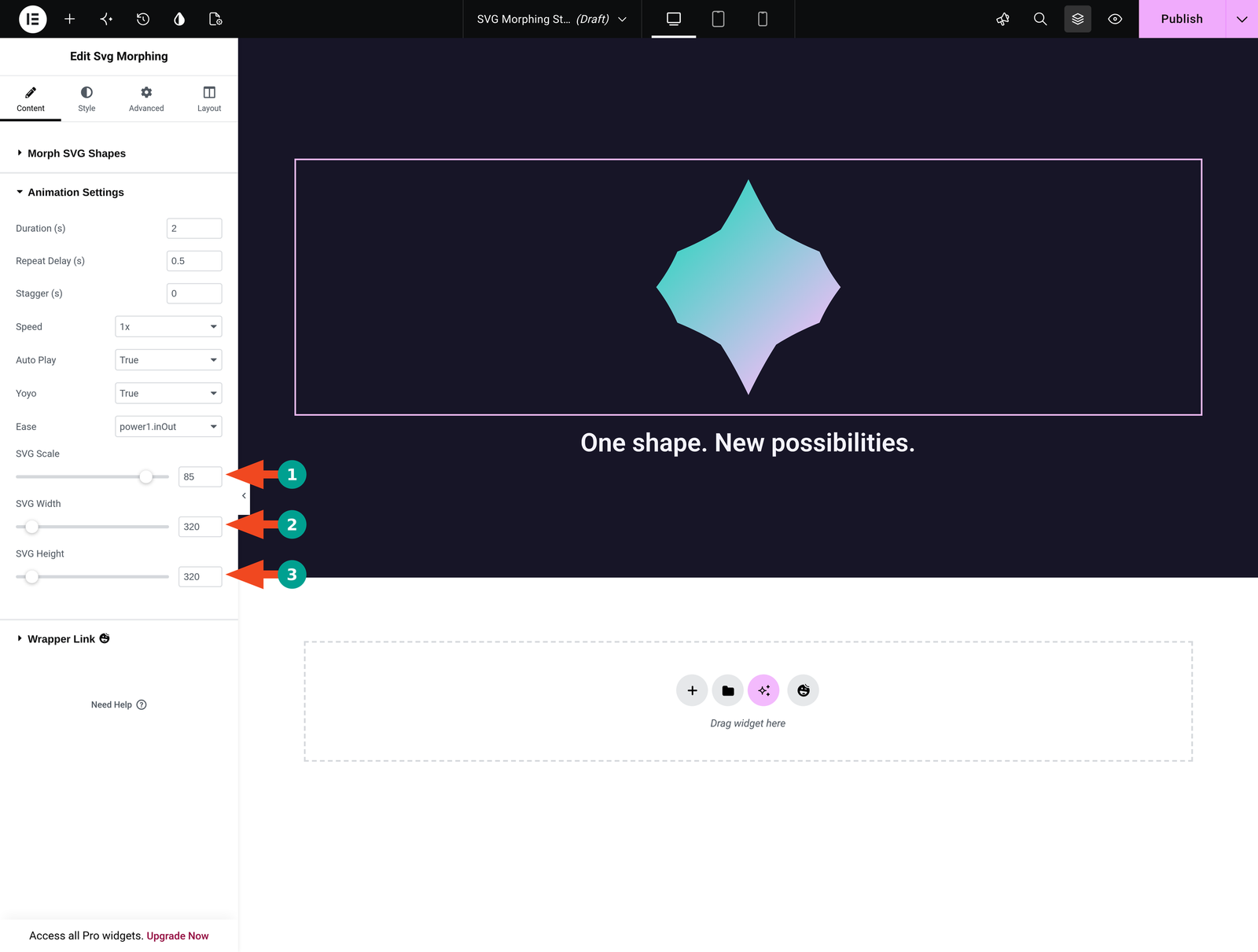
Width and height control the displayed SVG area. Scale changes how much space the artwork occupies within that area. If the graphic looks too large, check both kinds of controls rather than changing the path data immediately.
Treat 320px as the example’s desktop size. Check the smallest screen you support and reduce the dimensions if the animation overflows. The size controls shown here are not a substitute for checking the actual mobile layout.
Step 07: Apply a Gradient and Style the Section
With both shapes in place, the next job is to color them. A single common gradient keeps the focus on the changing outline rather than a shifting fill.
Set the Common Gradient
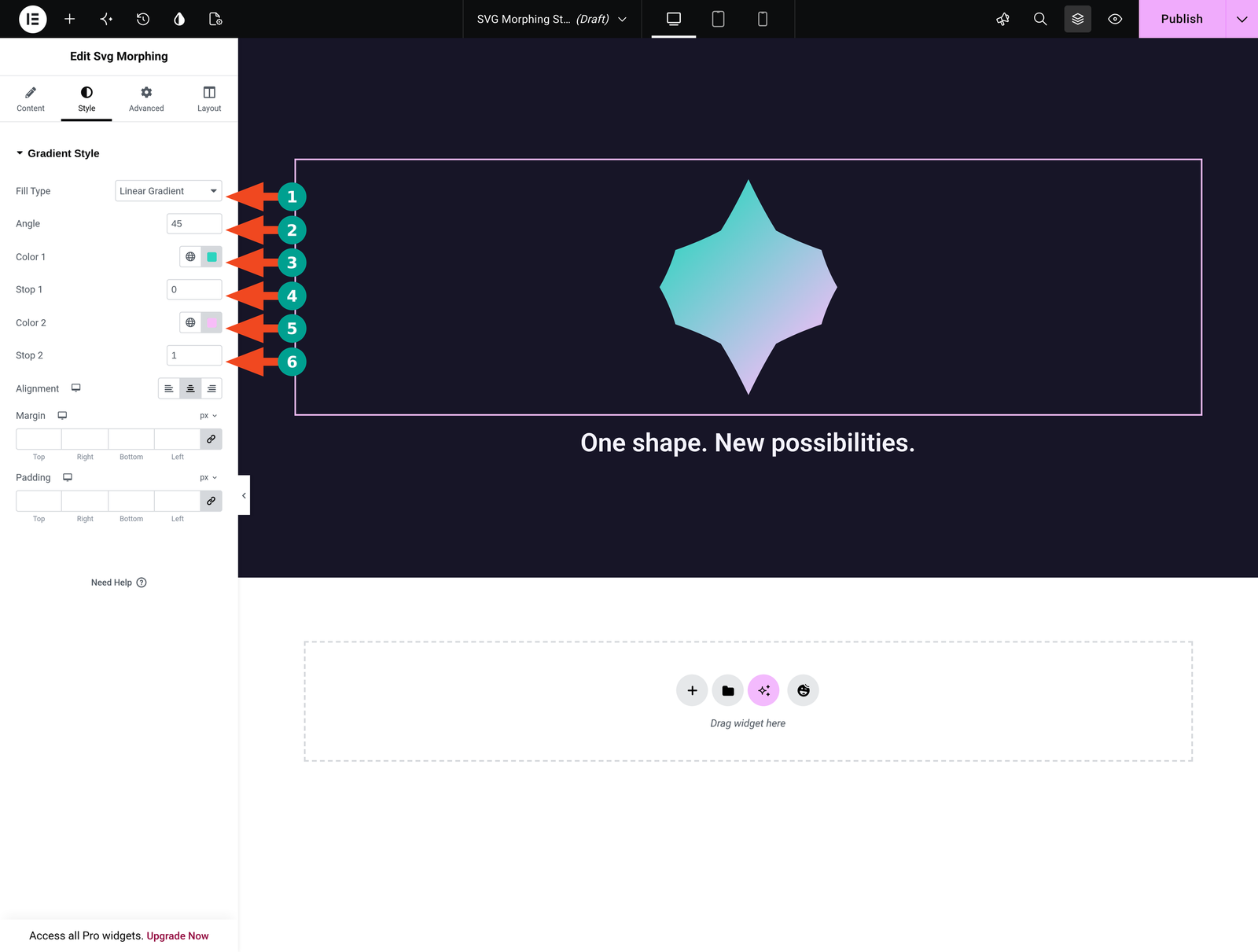
Open Style → Gradient Style. Choose Fill Type → Linear Gradient. Click each color swatch, enter the desired hex value, and close the picker before moving to the next control.
For the demo, use Color 1: #2DD4BF and Color 2: #F7BDF8. Set Angle to 45, Stop 1 to 0, and Stop 2 to 1. This distributes the two colors across the gradient range.
| Fill option | Result | When to use it |
|---|---|---|
| Solid Color | One fill color. | A simple brand mark or restrained decorative shape. |
| Linear Gradient | A color transition across a direction. | The teal-to-pink example in this tutorial. |
| Radial Gradient | A color transition spreading outward from a central area. | A softer, glowing appearance. |
| General (Use Common Style) | An individual shape inherits the common style. | Consistent styling across all entries. |
If an individual shape has its own Solid Color or gradient selected under Content, that setting can override the common Style settings. When a color change seems to have no effect, check the shape entry before changing the common gradient again.
Create a Simple Background
Select the parent container and open Style → Background. Choose the classic background type and use #171527. Under Layout, give the section a minimum height of 680px and center its contents vertically.
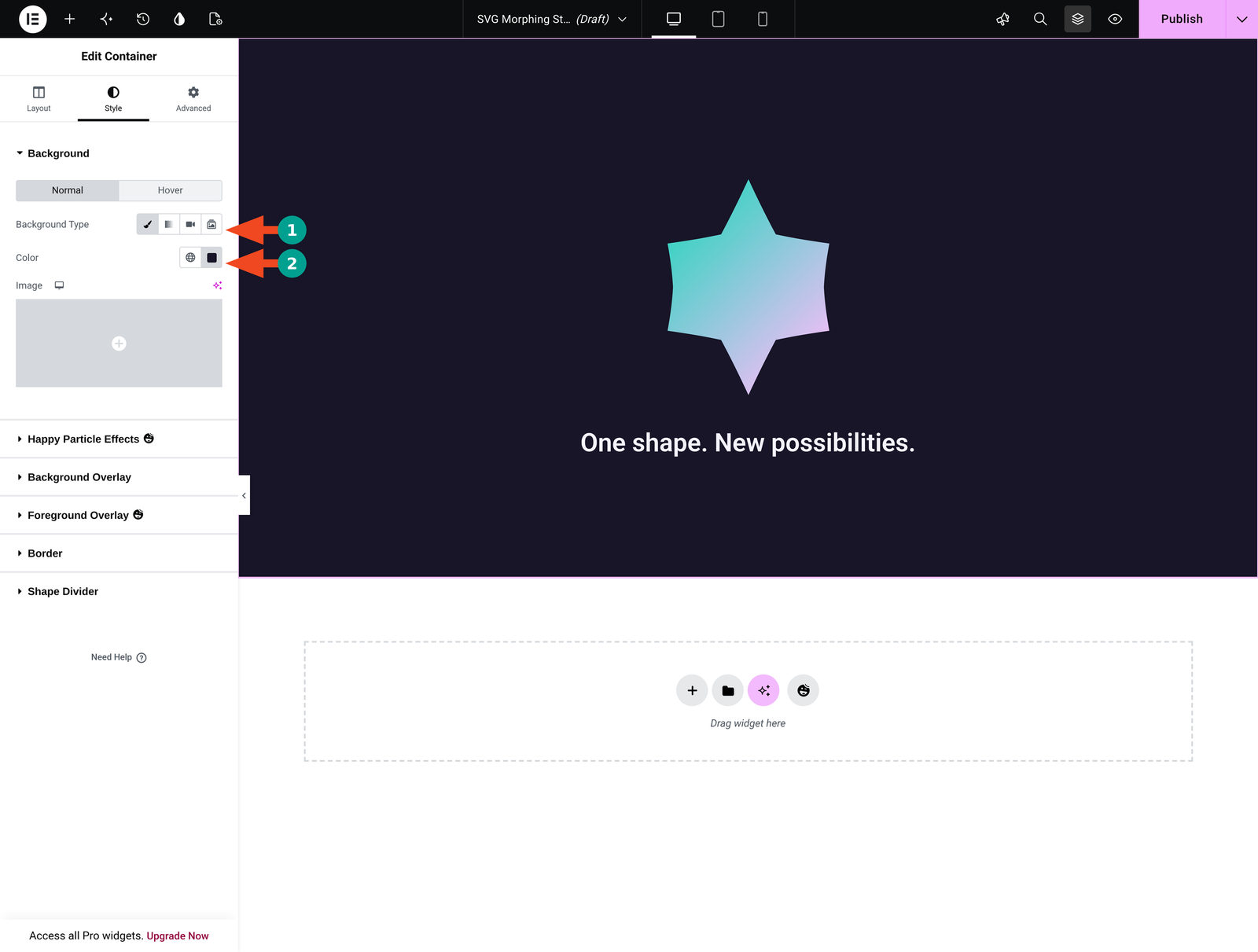
Add a Heading widget below the animation with the text “One shape. New possibilities.” Center the text and use a light color such as #F4F3FF. You can adapt the typography to your site; the background and heading are presentation choices, not requirements for SVG morphing.
Step 08: Save and Preview the Animation
Open Save Options beside Elementor’s Publish control and choose Save Draft while testing. Click Preview Changes to view the page outside the editor. On an existing published page, use your usual update workflow after reviewing the changes.
Watch a complete cycle. The star should gradually become the soft diamond, then reverse because Yoyo is True. The gradient should remain consistent, and the surrounding heading should stay still.

Check the following before using the design on a live page:
- Both intended outlines appear during the cycle.
- The shape remains centered and does not clip at the edges.
- The title and other essential content remain readable.
- The animation fits tablet and mobile widths without horizontal scrolling.
- The page offers a suitable reduced-motion or static experience.
Tips for Better SVG Morphing Results
A working animation is only the beginning; a few habits keep the effect tasteful and usable. The tips below cover shape choice, restraint, and accessibility.

1. Choose Shapes That Work Well Together
Start with uncomplicated silhouettes that share a similar center and overall size. Use the same coordinate area for both files, and remove unnecessary artwork before export. Different shapes can morph, but similar visual proportions make the intermediate states easier to control.
Converting vector artwork to paths in your design tool can help simplify the input. Do not assume a PNG becomes editable vector artwork because it is placed inside an SVG file. The visible outline needs usable vector geometry.
2. Keep the Motion Supportive
Use a morphing shape beside a short message, in a portfolio introduction, or as a decorative feature. Avoid making important instructions depend on catching a particular frame. Keep navigation, forms, and primary calls to action stable.
3. Plan for Accessibility and Performance
Continuous animation can distract some visitors or cause discomfort. Test your site’s response to the operating system’s reduced-motion preference. The controls shown in this walkthrough do not establish that the widget automatically honors that preference.
If you cannot provide an appropriate reduced-motion experience or a pause mechanism, use a static graphic instead. A slower loop is still motion. Keep any meaningful label as ordinary readable text outside the animation.
Limit the number of morphing widgets and avoid unnecessarily complex path data. Test on a real phone as well as a desktop browser. A small SVG file can still require work to animate; file size alone does not measure runtime performance.
Troubleshooting SVG Morphing in Elementor
| Problem | Likely cause | What to check |
|---|---|---|
| The widget is missing | The Pro plugin or widget is inactive. | Confirm HappyAddons Free and Pro are active, enable SVG Morphing in the widget settings, and reopen Elementor. |
| The shape is blank | Empty or unsuitable SVG data. | Test with the complete star and diamond examples above. Check the SVG source and path data in both entries. |
| The color changes, but the outline does not | Both entries contain the same shape data. | Use different path data for the start and destination. Renaming an entry does not change its geometry. |
| The animation does not start | Auto Play is False, or scripts have not initialized correctly. | Check Auto Play, then test a saved frontend preview. If necessary, isolate optimization conflicts on staging. |
| The loop snaps back | Yoyo is disabled or the sequence has a discontinuity. | Try Yoyo True with the two supplied shapes before adding more entries. |
| The graphic shifts or clips | Artwork is differently positioned or the display area is too small. | Compare coordinate areas and centers, then adjust SVG Scale, Width, and Height. |
| The Style tab does not change a shape’s fill | The shape has an individual fill override. | Set its Content-tab Fill Type to General (Use Common Style). |
| SVG upload is rejected | Your site restricts SVG files. | Use your approved sanitizing upload workflow, or use the trusted sample markup. Do not disable security protections as a shortcut. |
Frequently Asked Questions About SVG Morphing Animations
The answers below cover the questions that come up most often once you start building morphing animations. Each one is short and practical.

Can I create SVG morphing in Elementor without JavaScript?
Yes. HappyAddons Pro’s Svg Morphing widget provides visual animation controls. You can use the default shapes, select suitable SVG files, or paste prepared SVG markup. Pasting markup is different from writing an animation script.
Is the SVG Morphing widget free?
This tutorial uses the HappyAddons Pro widget. Keep HappyAddons Free installed as the base plugin. Elementor Pro is not required for this example.
How many SVG shapes do I need?
Use at least two valid shapes. Two distinct outlines are enough for the first morphing effect. Add more entries only after the basic sequence works.
Can I use the same SVG in both entries?
You can, but identical path data will not produce a different outline. You may see styling changes if the fills differ. Use distinct geometry for a shape-to-shape morph.
What is the difference between SVG drawing and SVG morphing?
A drawing animation reveals a stroke or outline progressively. Morphing changes the geometry of one shape into another. Choose the widget that matches the result you want.
Why does my custom logo look distorted?
A complex logo may contain multiple paths, transforms, clipping, masks, or embedded images that do not behave like a simple silhouette. Simplify the artwork and test two centered path-based shapes first.
What does Yoyo do?
Yoyo reverses the animation on alternate cycles. In this two-shape example, it produces a star-to-diamond transition followed by the return toward the star.
Can I trigger this widget on scroll?
The Animation Settings panel tested here provides Auto Play, timing, speed, and easing controls; it does not provide a scroll-trigger selector. Do not assume it uses the same controls as HappyAddons Global Animation.
Are SVG morphing animations mobile-friendly?
They can fit a mobile design, but you must check dimensions, performance, and motion preferences. If the animation adds little value on a small screen, use a static alternative.
Why is the common gradient not applying?
An individual shape may have a fill override under Content → Morph SVG Shapes. Select General (Use Common Style) for that shape to inherit the common styling.
Final Thoughts
You now have a complete starting point for SVG morphing in Elementor: two distinct shapes, a shared gradient, controlled timing, and a frontend preview. Once the basic star-to-diamond transition works, replace the sample artwork with shapes that match your design.
Keep the movement purposeful and the surrounding content readable. Test the full loop, smaller screens, and a static or reduced-motion alternative before making the page public.
For related ideas, explore our tutorials on using line icons in Elementor.