







If you run a WordPress site, chances are you publish different types of blog posts. Some may be tutorials, others news updates, product reviews, or personal stories. But when everything is mixed together, it can be hard for your readers to find what they are looking for on the archive page.
That’s where categories come in. Categories in WordPress let you organize your blog posts into different sections. For example, a travel blog can have categories like ‘Asia,’ ‘Europe,’ and ‘Tips.’ An online store blog may use categories such as ‘Product Guides,’ ‘Customer Stories,’ and ‘Updates.’
By grouping your content, you make it easier for visitors to browse through your site and read only the posts that interest them. In this blog post, we’ll cover a detailed guide on how to display blog posts by categories in WordPress using the Elementor plugin.
Why Elementor?
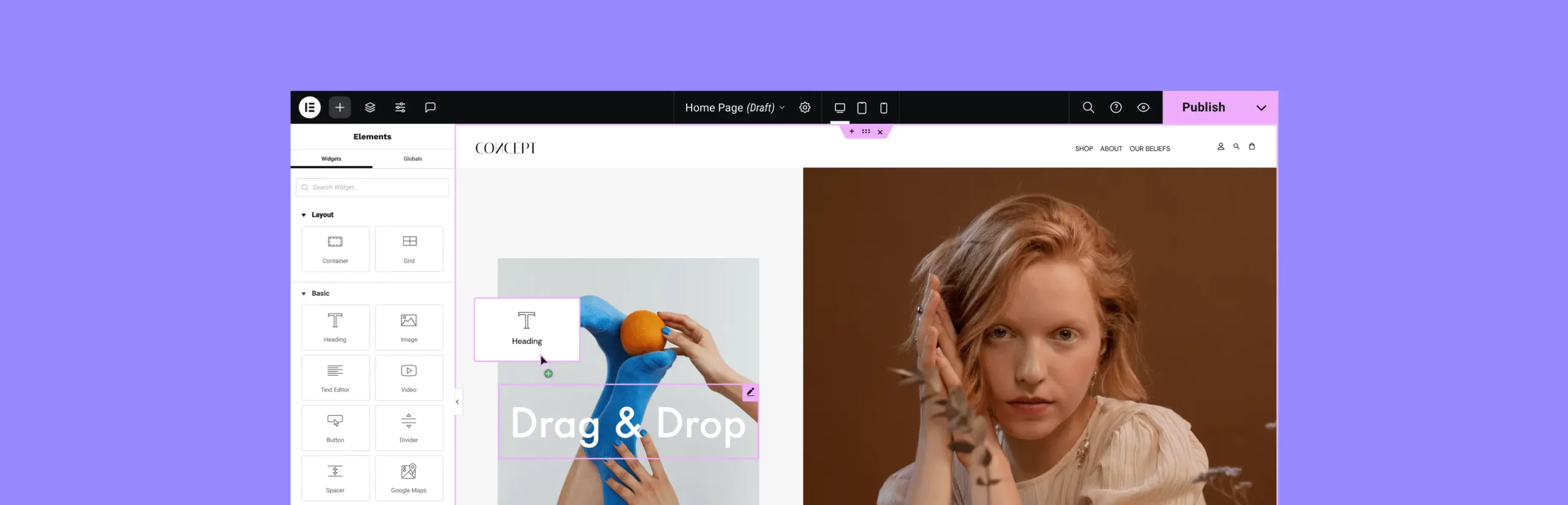
Elementor is one of the most popular page builders for WordPress, with 10+ million active installations. Because it gives you full design freedom without writing a single line of code. With its drag-and-drop editor, you can easily create custom layouts and place your blog posts exactly where you want.
So, if you are a no-code user looking for the easiest solution to create complex web layouts, Elementor should be at the top of your list. Another big reason to use Elementor is its wide range of widgets and flexibility. You can use widgets like Post Grid, Post List, or Archive Posts to display blog posts by categories in different styles.
This flexibility means you can highlight specific categories on your homepage, create category-based landing pages, or design a fully custom blog archive, all without touching code. This is why we’ll use the Elementor plugin to explain the process in this tutorial.
How to Display Blog Posts by Categories in WordPress: Step-by-Step Guide
People usually display blog posts by categories on the archive page. There are multiple ways you can do this. But for this, you need the following plugins on your site:
Once these plugins are ready on your site, let’s explore the process below.
Method One: Creating Category Menus
We’ll need the following widgets for this method. With the Posts widget, we will create the post grid. After that, with the Nav Menu, we’ll create the category menu. This will enable users to explore posts by switching categories.
- Posts
- WordPress Menu
Step 01: Open an Archive Page from the Theme Builder
As mentioned earlier, people typically enjoy displaying their blog posts by category on the archive page. And you need the theme builder to create the archive page.
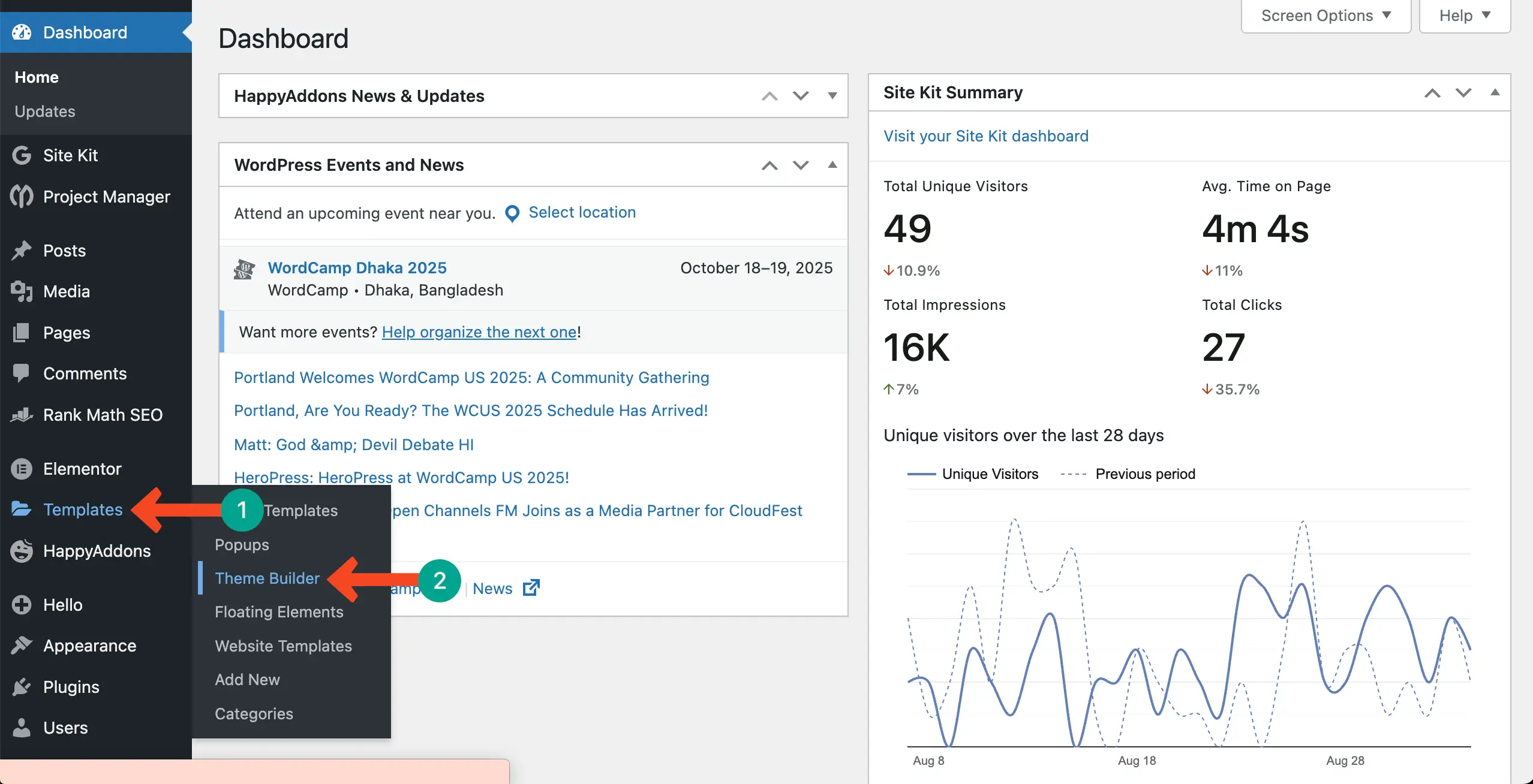
Hope you already know how to open the theme builder. Navigate to Templates > Theme Builder.
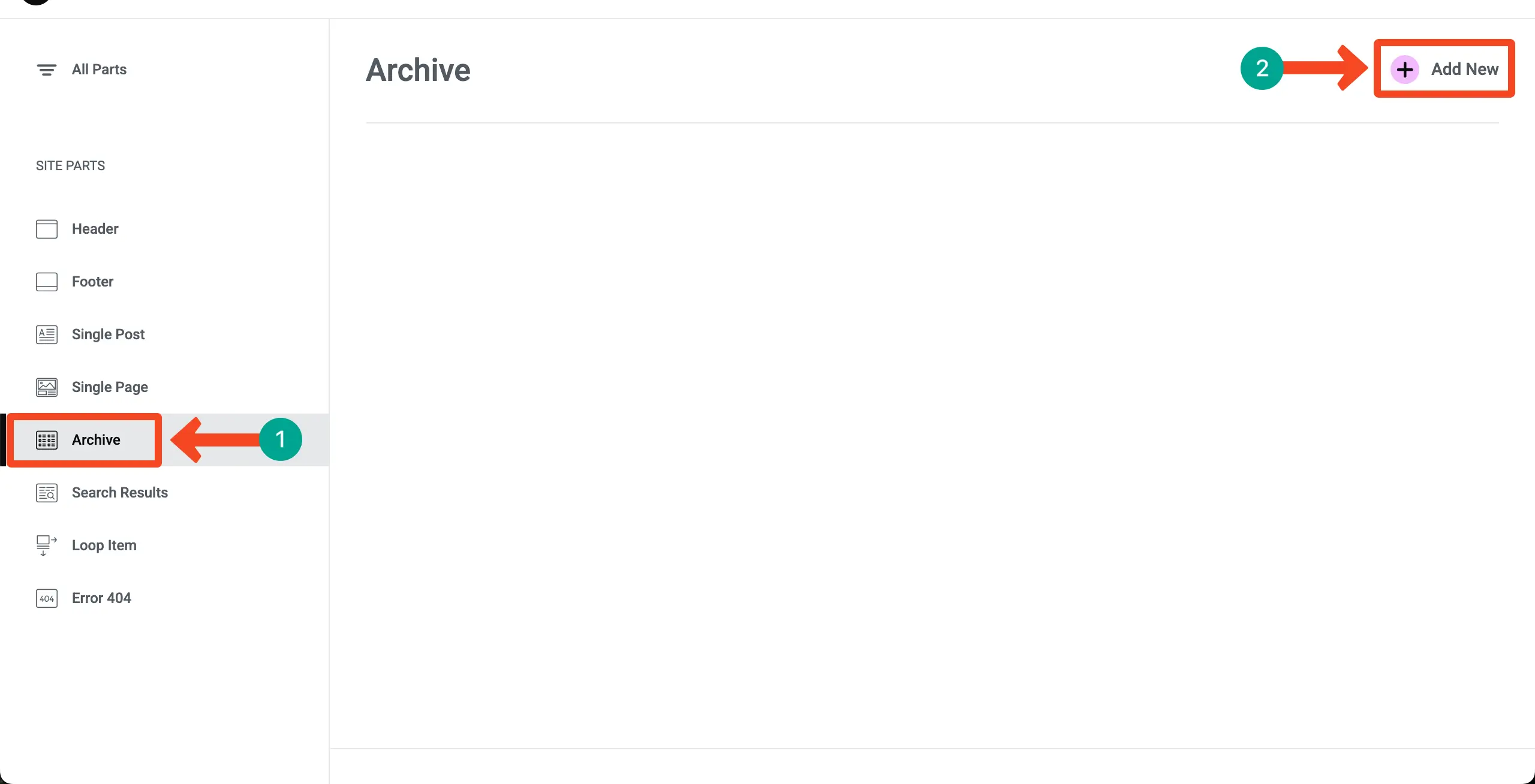
Come to the Archive option. Click the + Add New button to create an archive page.
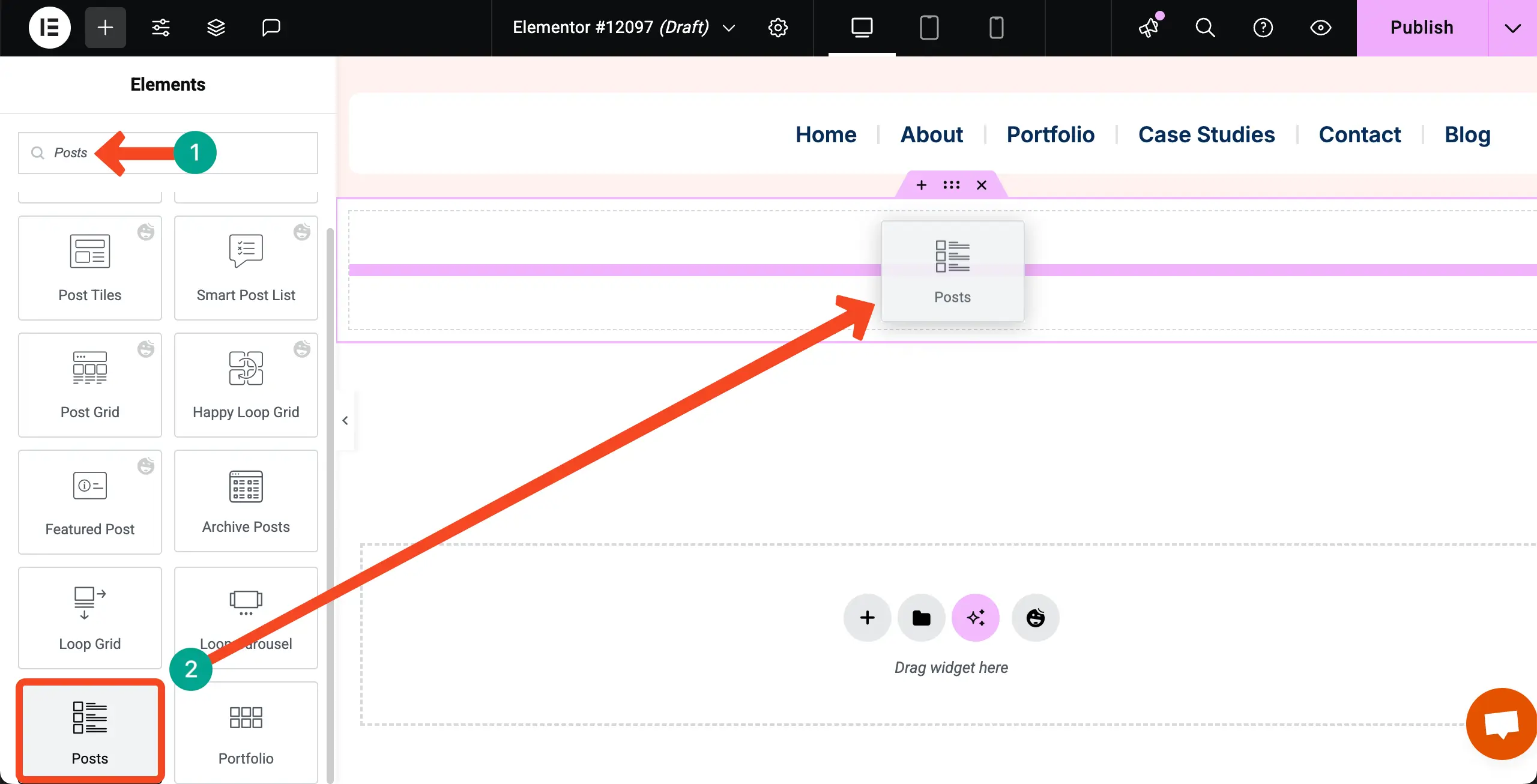
Step 02: Drag and Drop the Posts Widget to Your Container
Find the Posts widget. Drag and drop it on your desired container on the Elementor canvas.
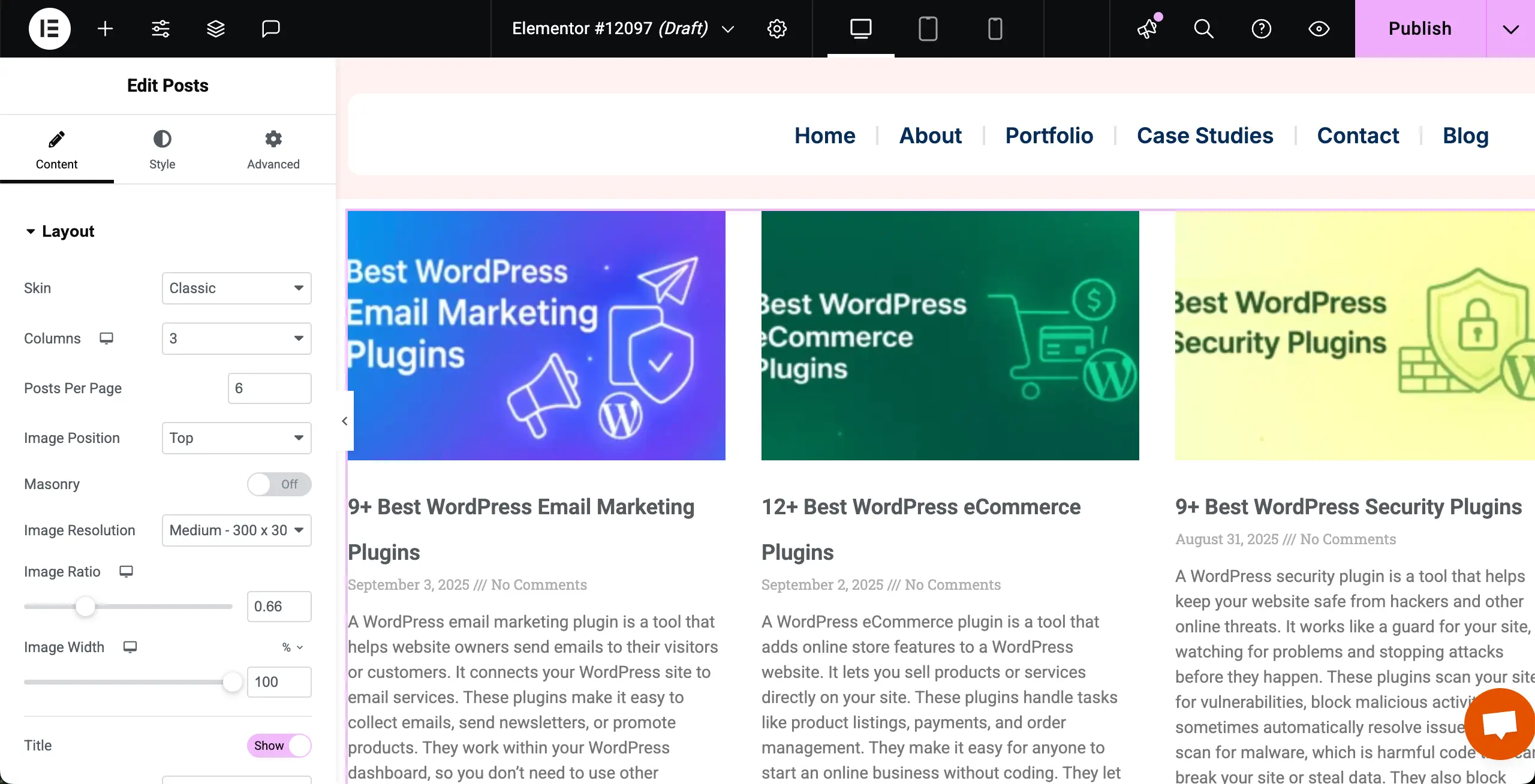
Once the Posts widget is added, the blog posts will be displayed with default layouts.
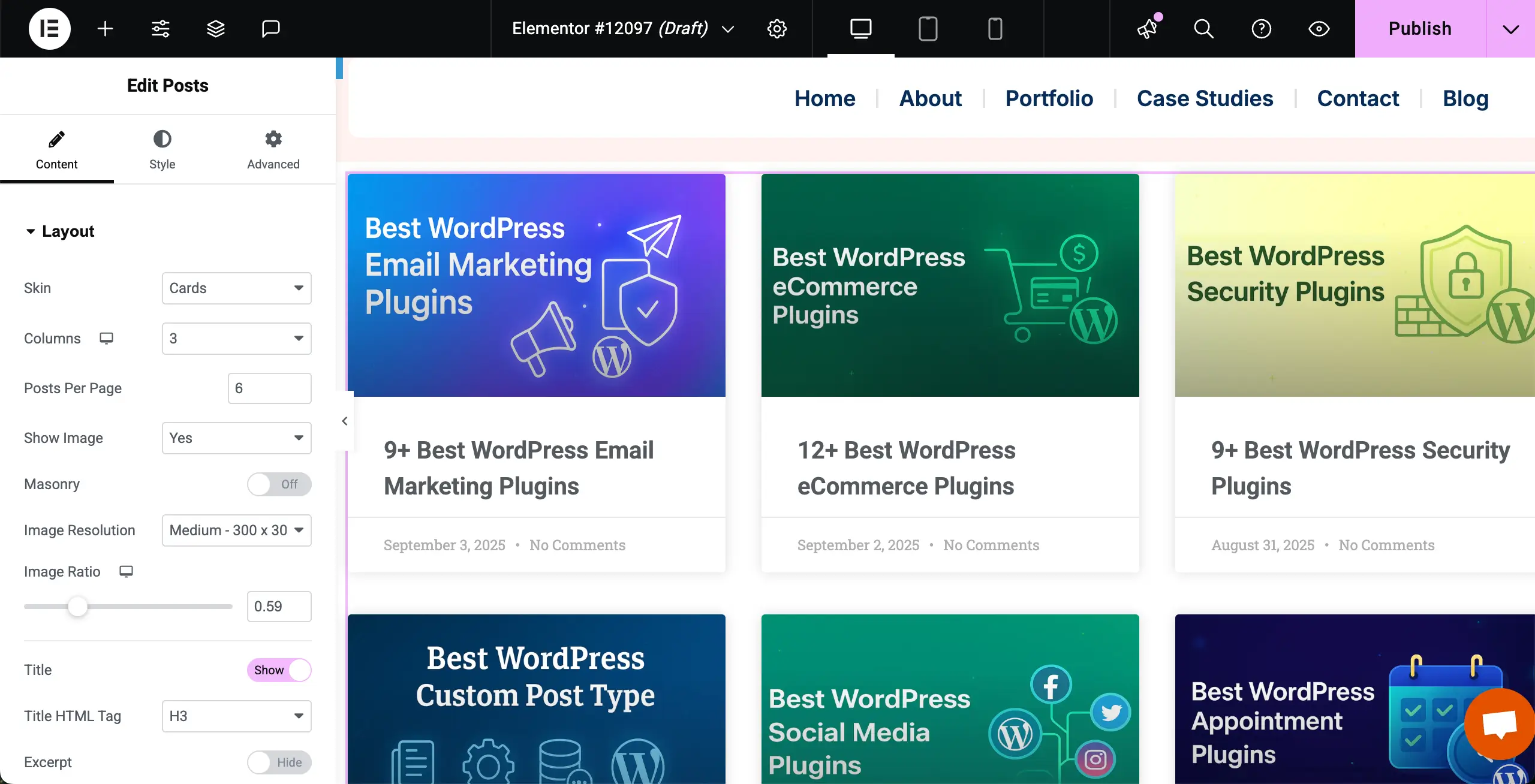
Step 03: Stylize the Posts Widget
Now, customize and stylize the Posts layout so it looks good as you want. We have changed its skin, typography, spacing, and many other options.
Step 04: Create a Category Menu
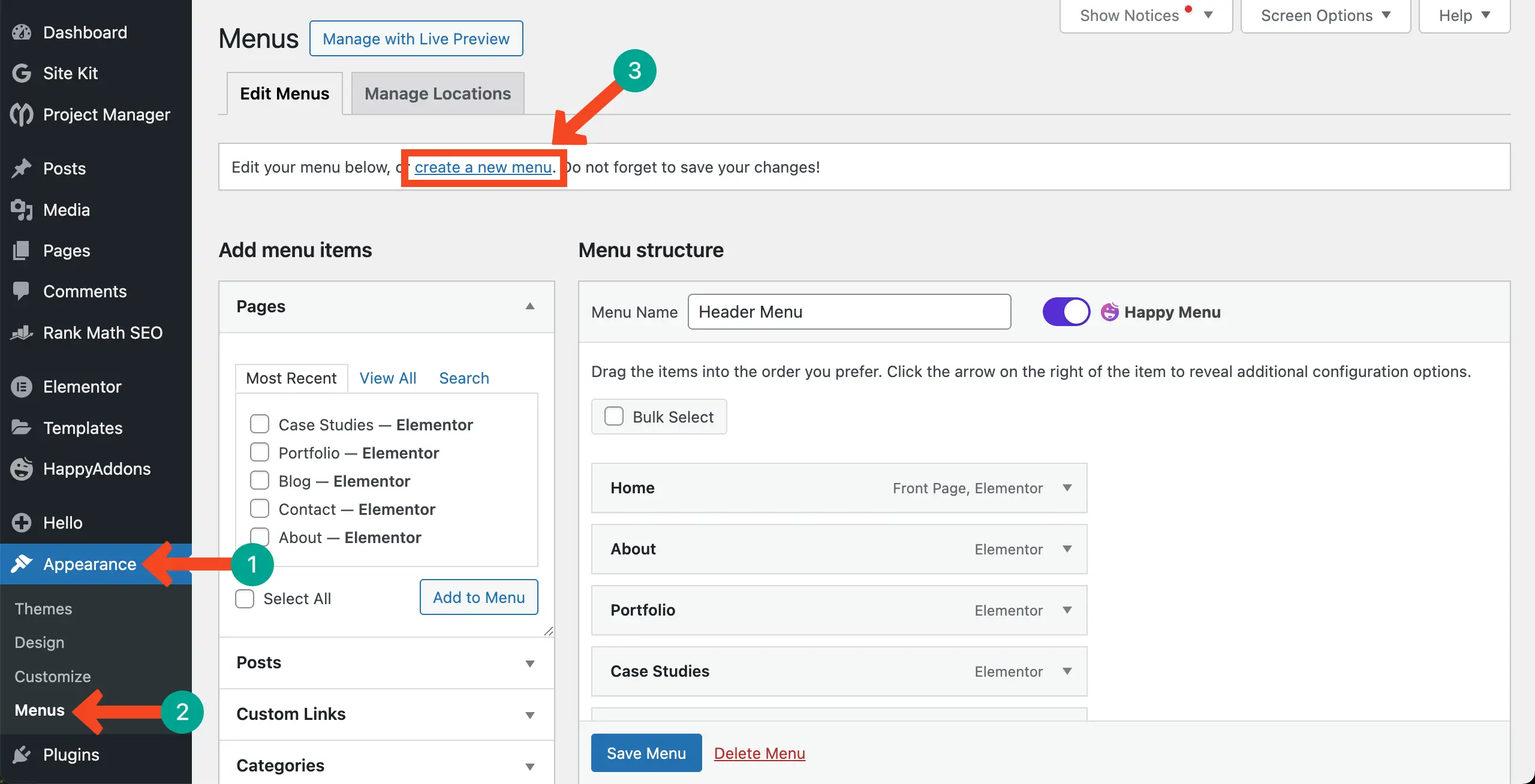
Go to your WordPress dashboard. Navigate to Appearance > Menus. No worries if you already have a menu there.
In this case, you have to create a new menu. Click the create a new menu option.
Write a name for the menu. Then, hit the Create Menu button.
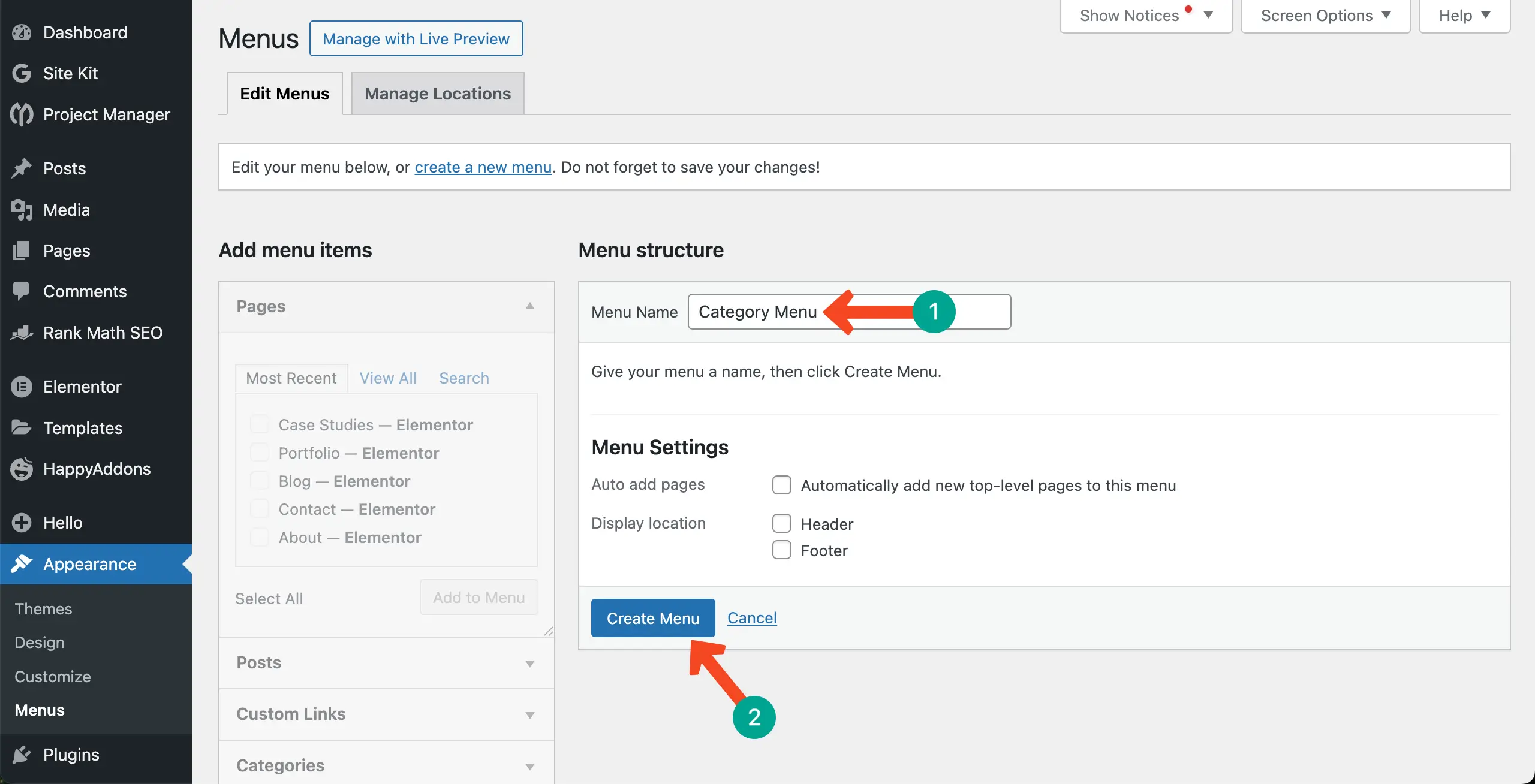
Select the categories you want to display on the menu. After that, hit the Add to Menu button.
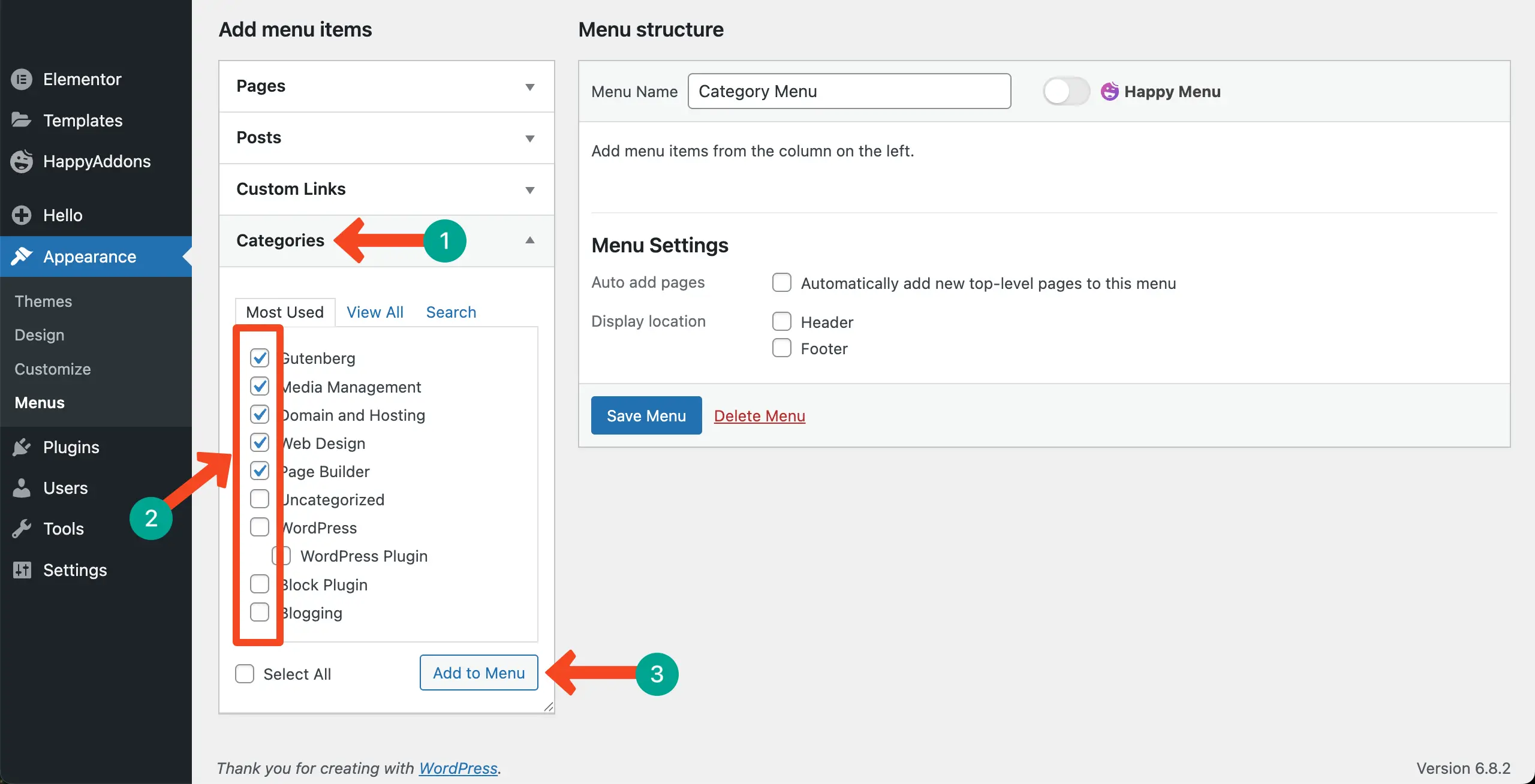
You’ll see the categories have moved to the right side. You may rearrange their position/hierarchy by dragging. Once done, click the Save Menu button to preserve all the changes.
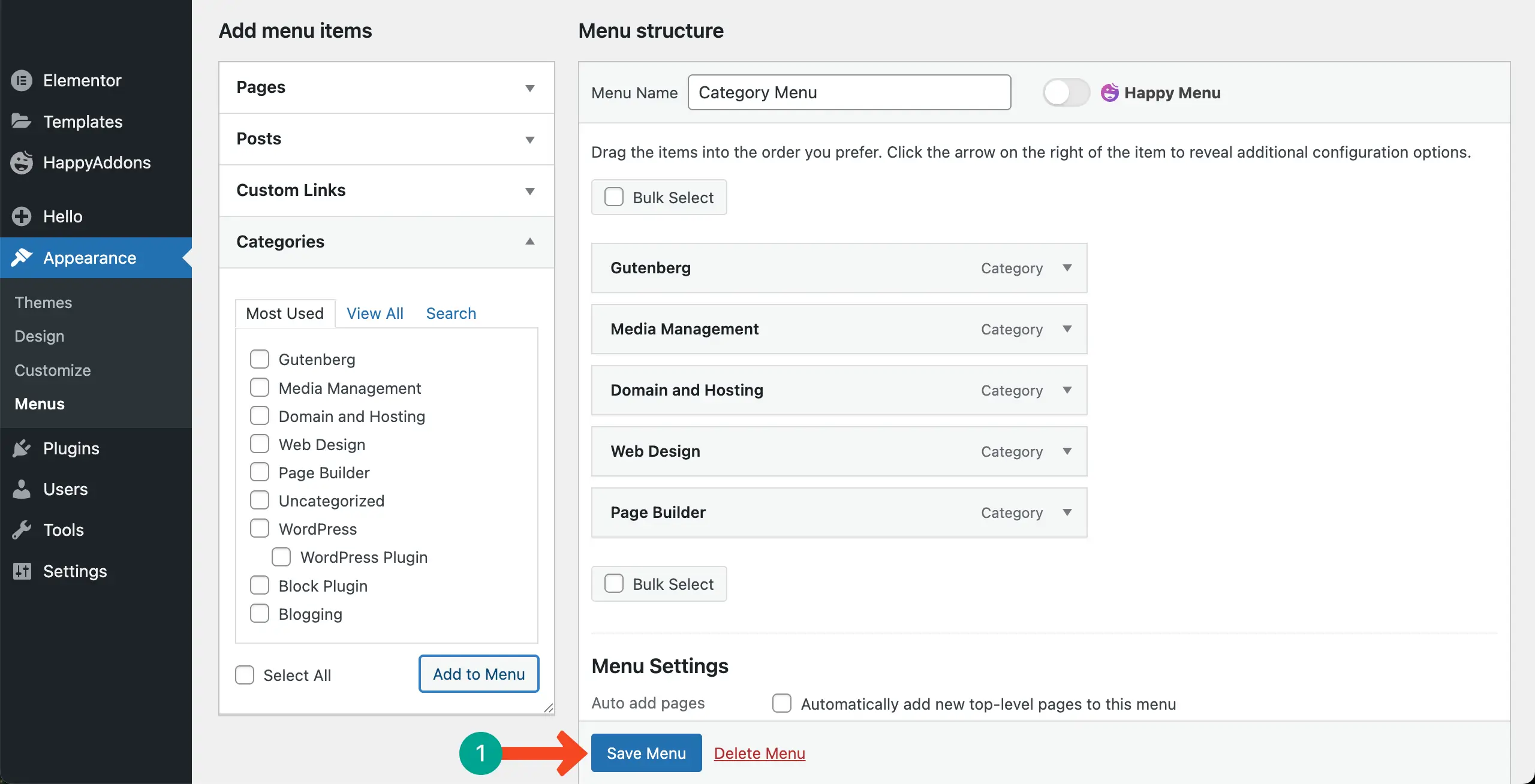
Step 05: Display the Category Menu Over the Posts Widget
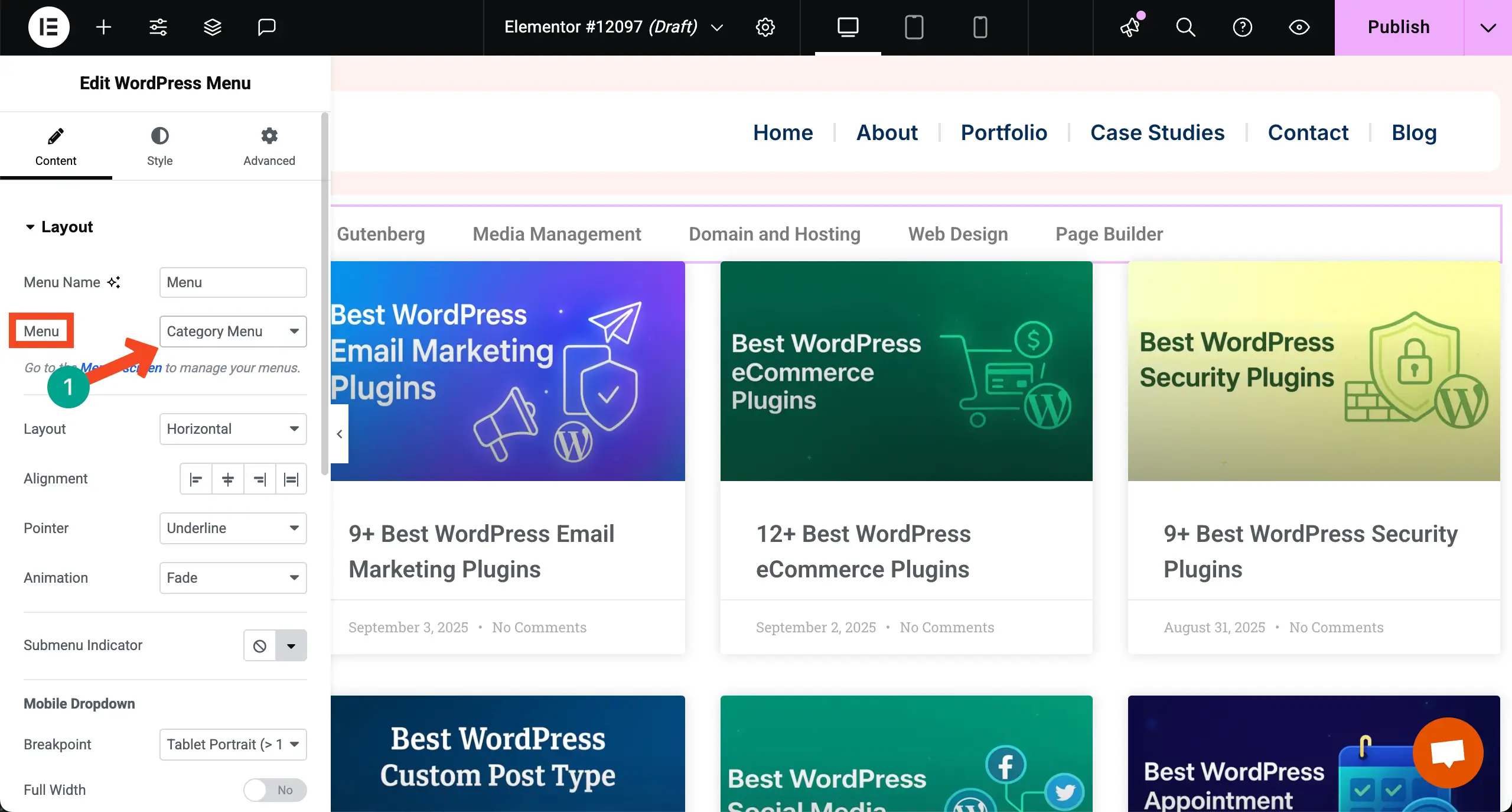
Come to the page you are editing with Elementor. Find the WordPress Menu widget. Drag-and-drop it over the Posts widget.
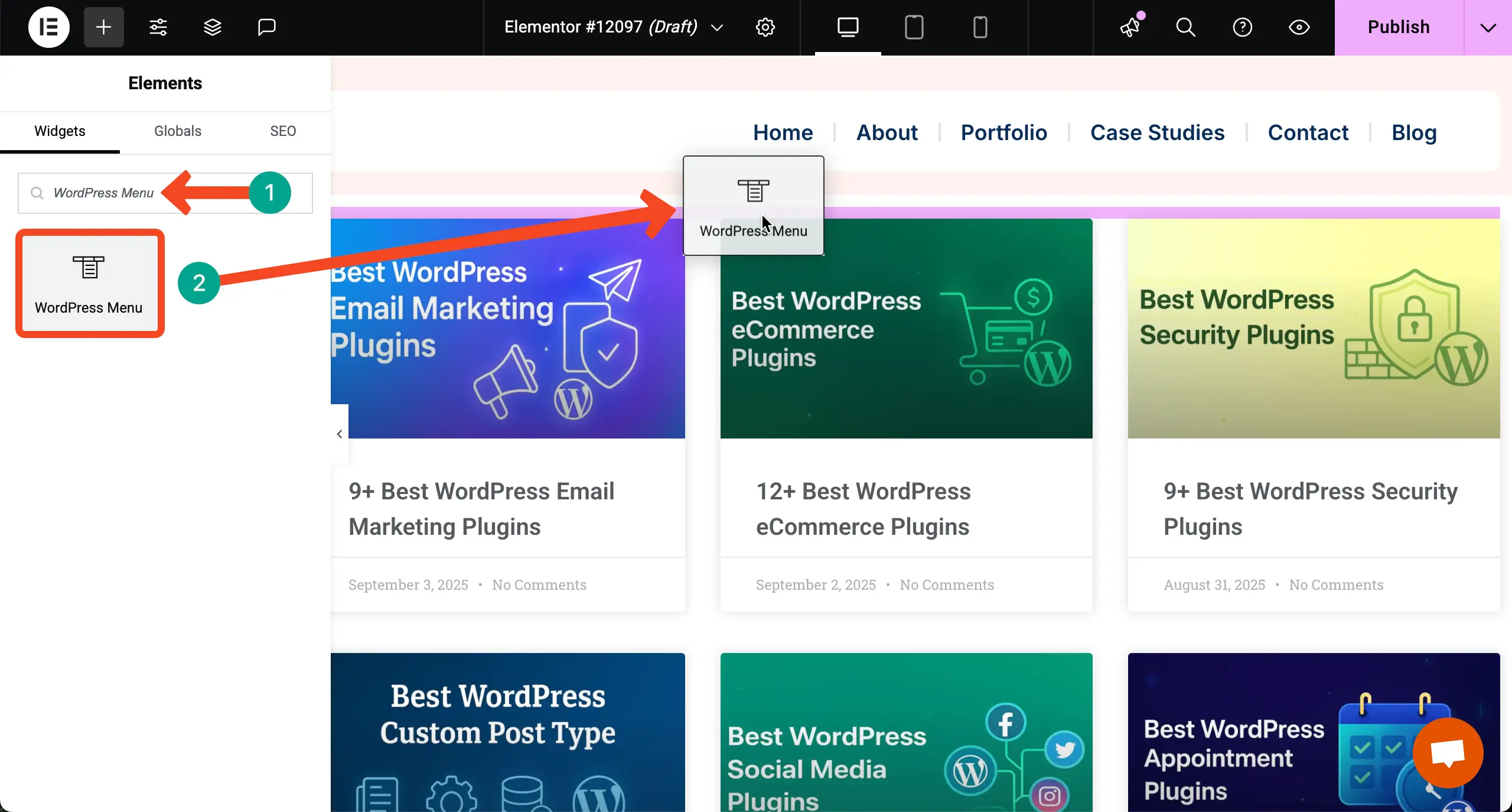
Next to the Menu option, choose the category menu you created on the backend just a while ago. Just select the name you used to save the menu.
The category menu will appear on top of the Posts widget right away.
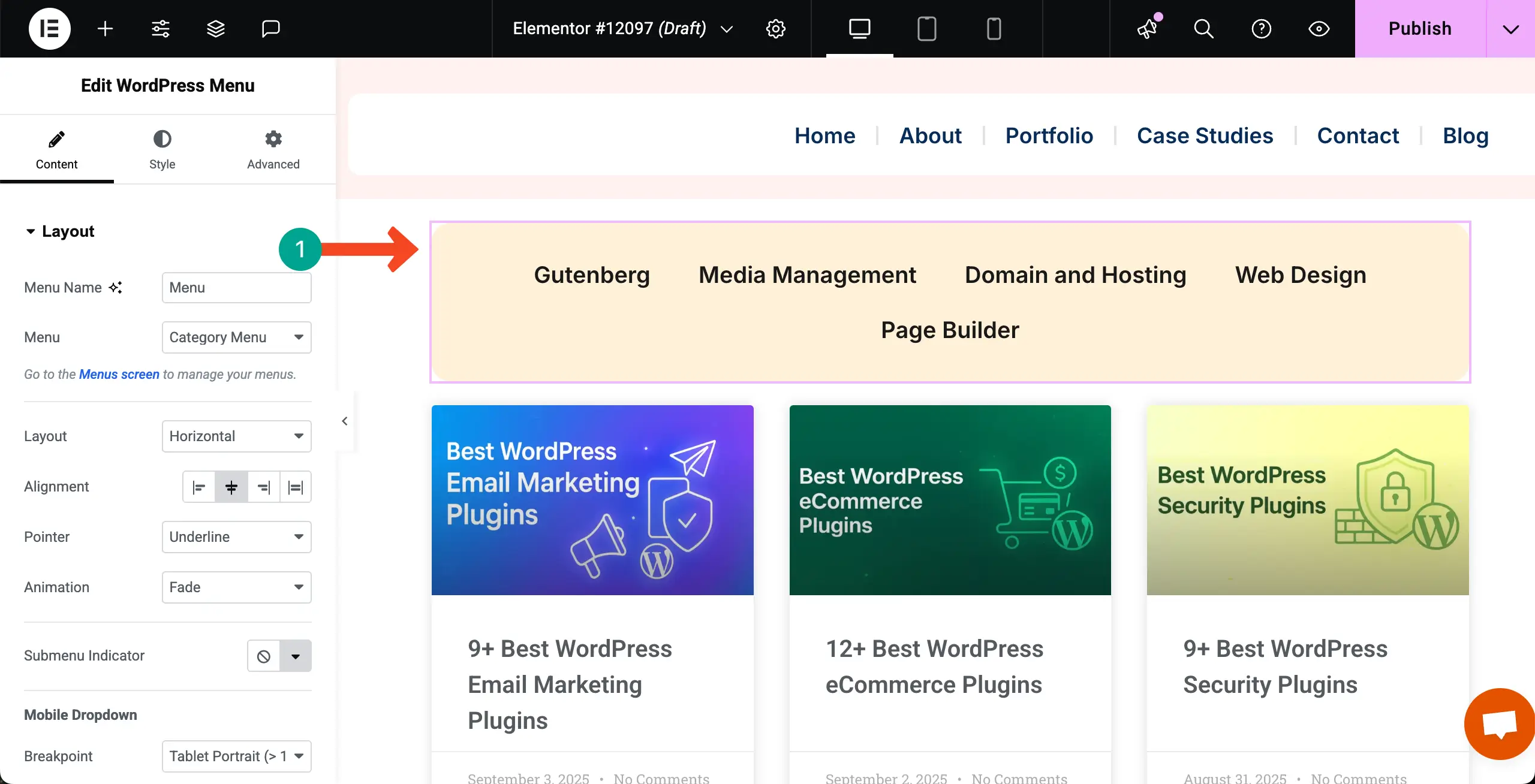
Step 06: Stylize the Category Menu
From the Content and Style tabs, design the category menu that looks good and is aligned with the brand appeal of your site.
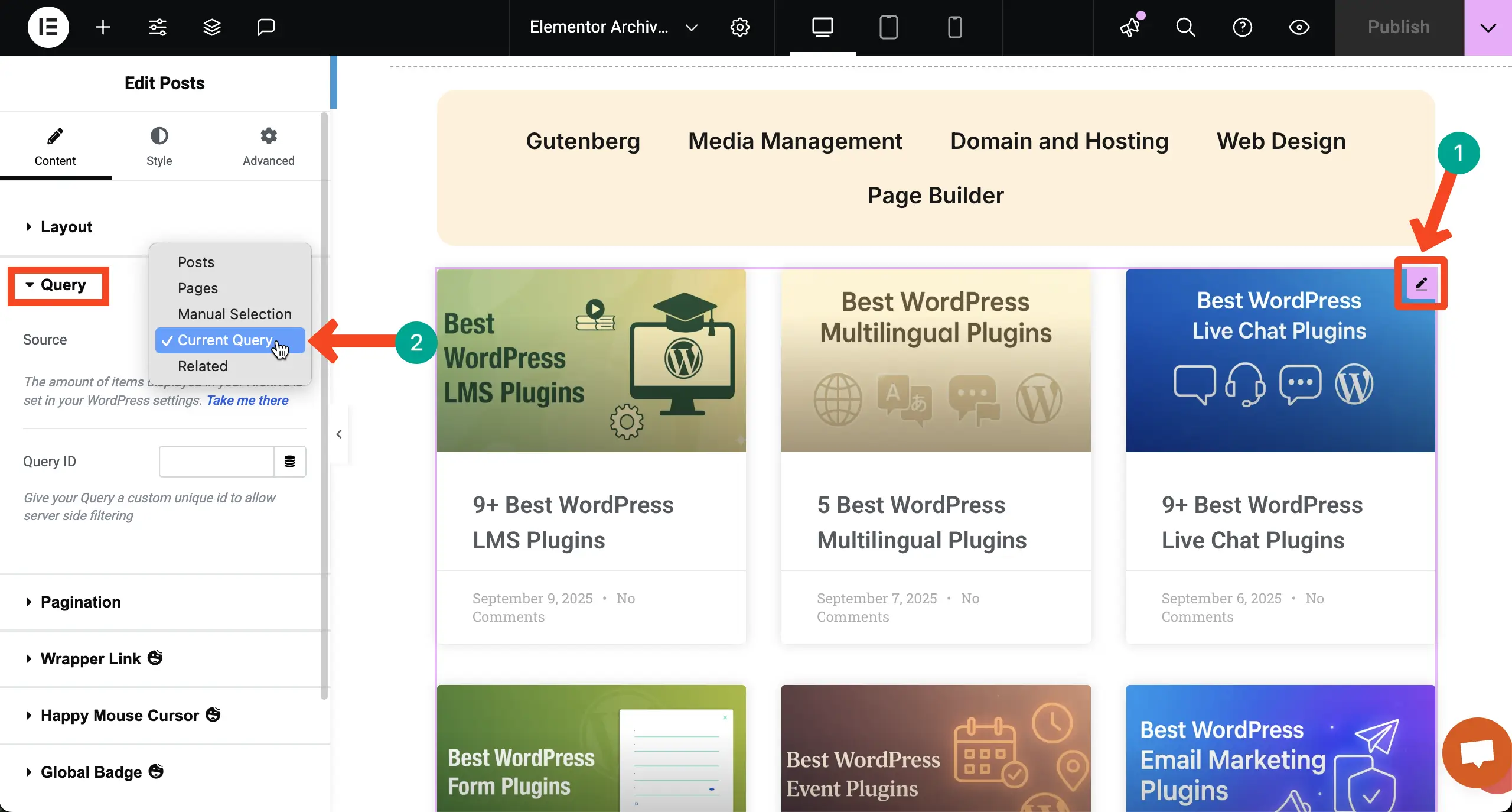
Step 07: Set Query Settings
It’s time to link the Posts widget to the category menu. To do this, select the Posts widget, expand the Query section, and choose the Current Query option.
Now, if you click the category options, the blog posts will change accordingly.
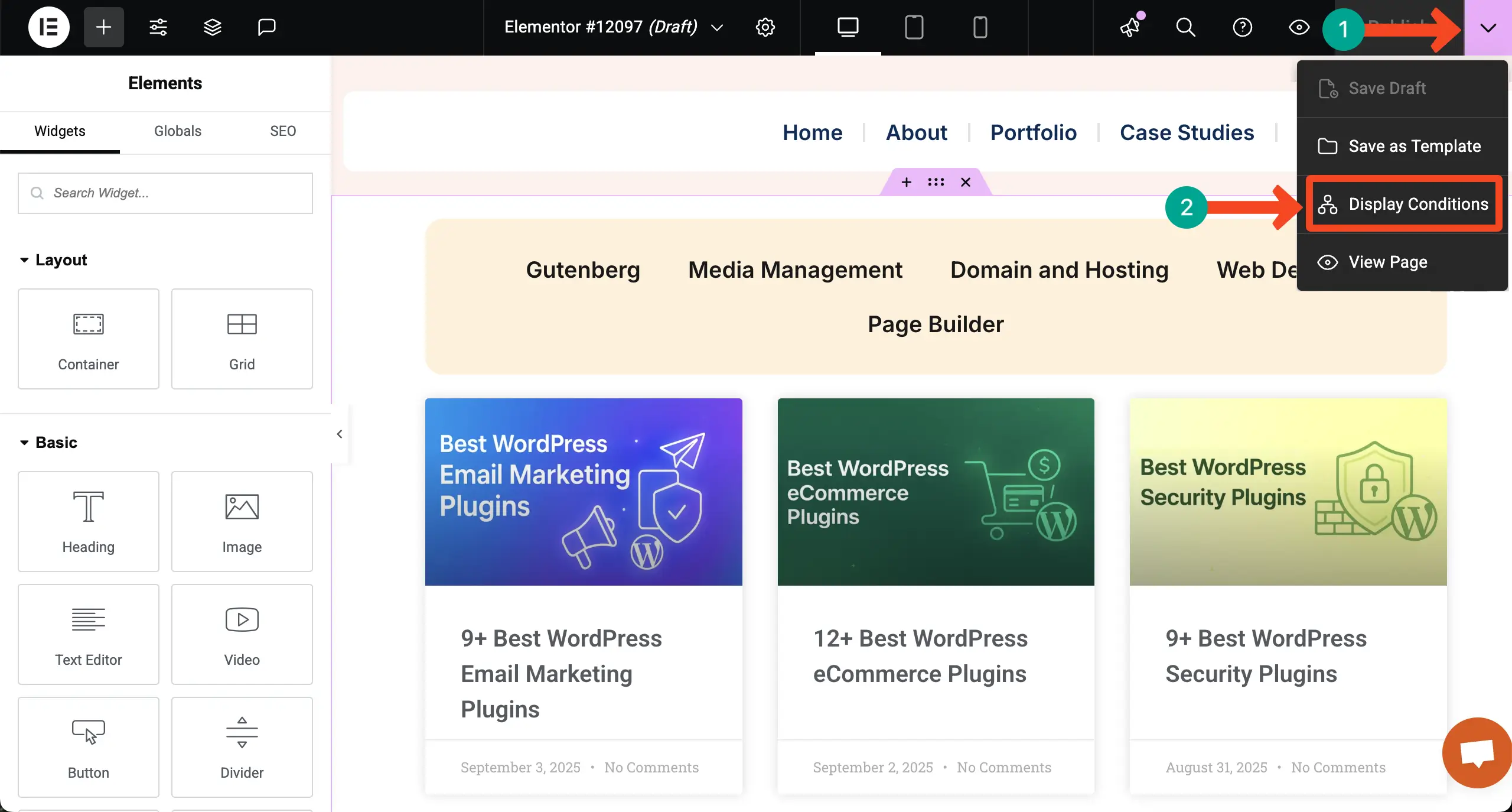
Step 08: Set Conditions
Click the dropdown arrow icon next to the Publish button. Hit the Display Conditions option from the list.
Select Categories as the search results condition.
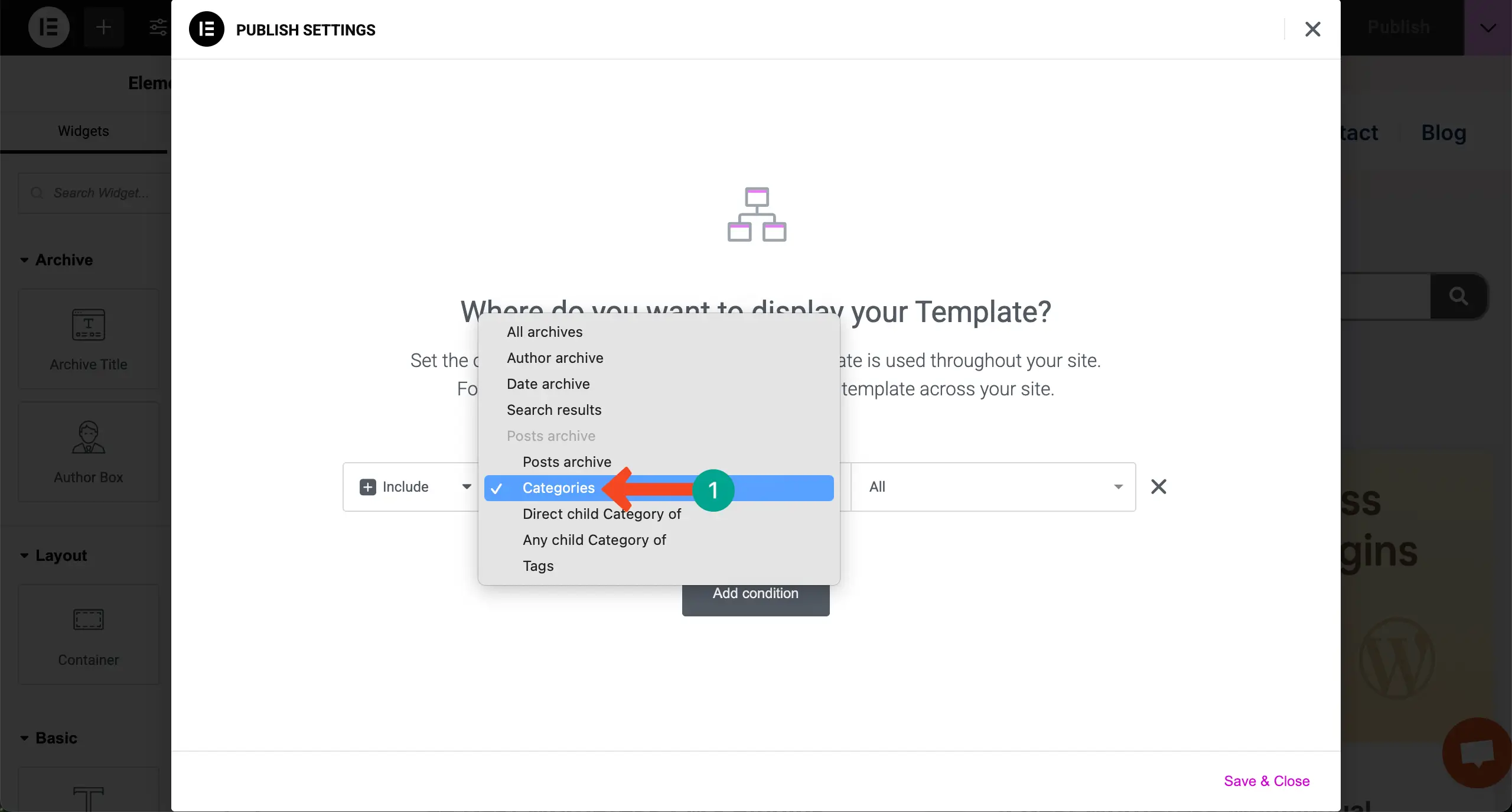
Save the condition.
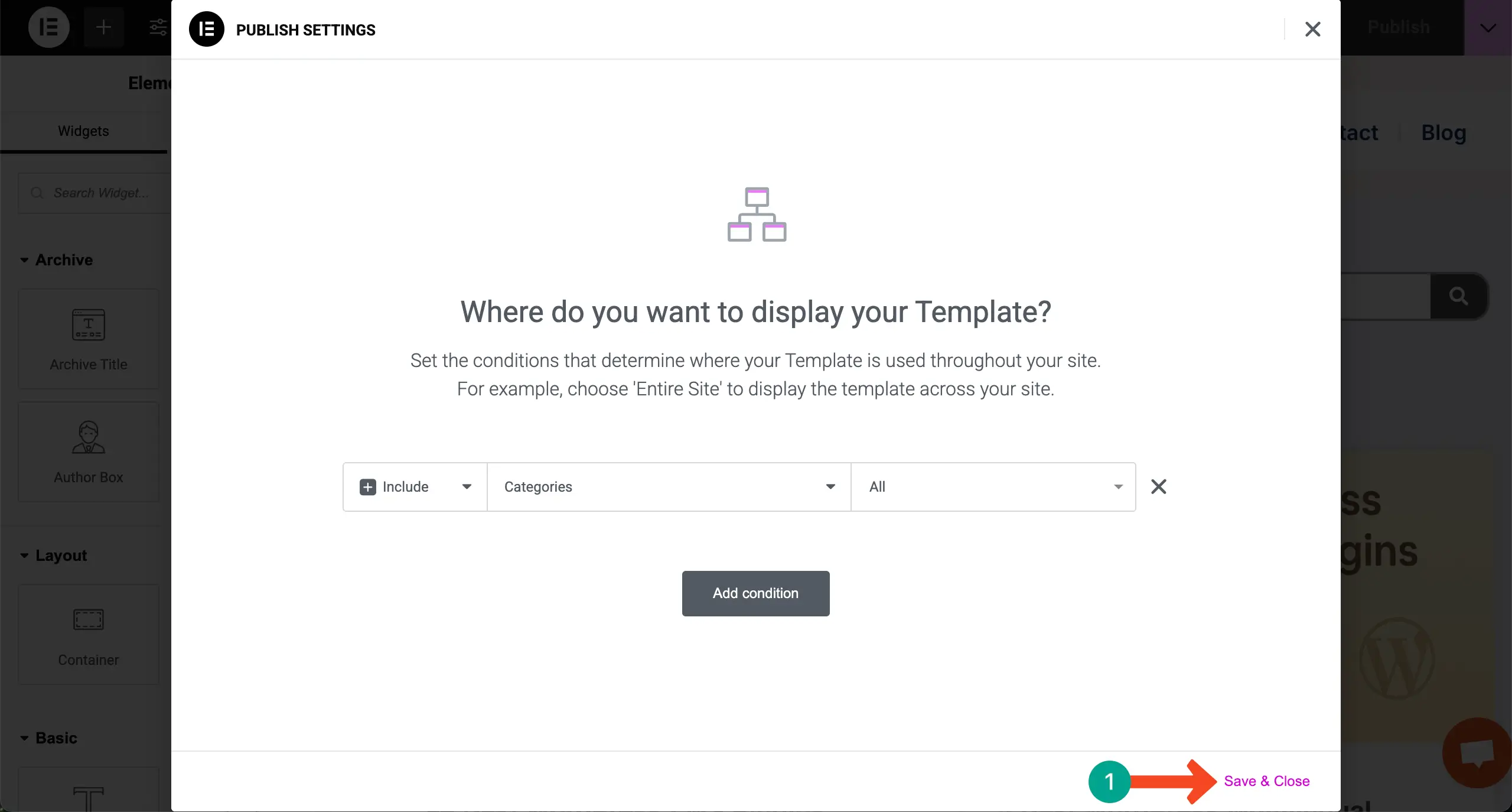
Step 09: Preview Posts by Categories
Come to the preview page. Click on the category menu items one by one. You’ll see the posts are changing accordingly.
Thus, you can create and display blog posts by categories on WordPress using the Elementor plugin.
Method Two: Using the Taxonomy List
Elementor has the Taxonomy List widget, by which you can add categories on top of your post archive, and let users explore posts by categories. Check the process below.
Step 01: Open an Archive Page from the Theme Builder
Hope you already know the process, as we have shown it just a while ago. Log in to your WordPress Dashboard. Then, navigate to Templates > Theme Builder.
Go to the Archive option and open a page by clicking the + Add New button.
Step 02: Drag and Drop the Archive Posts Widget
Find the Archive Posts widget. Drag and drop it on your Elementor Canvas.
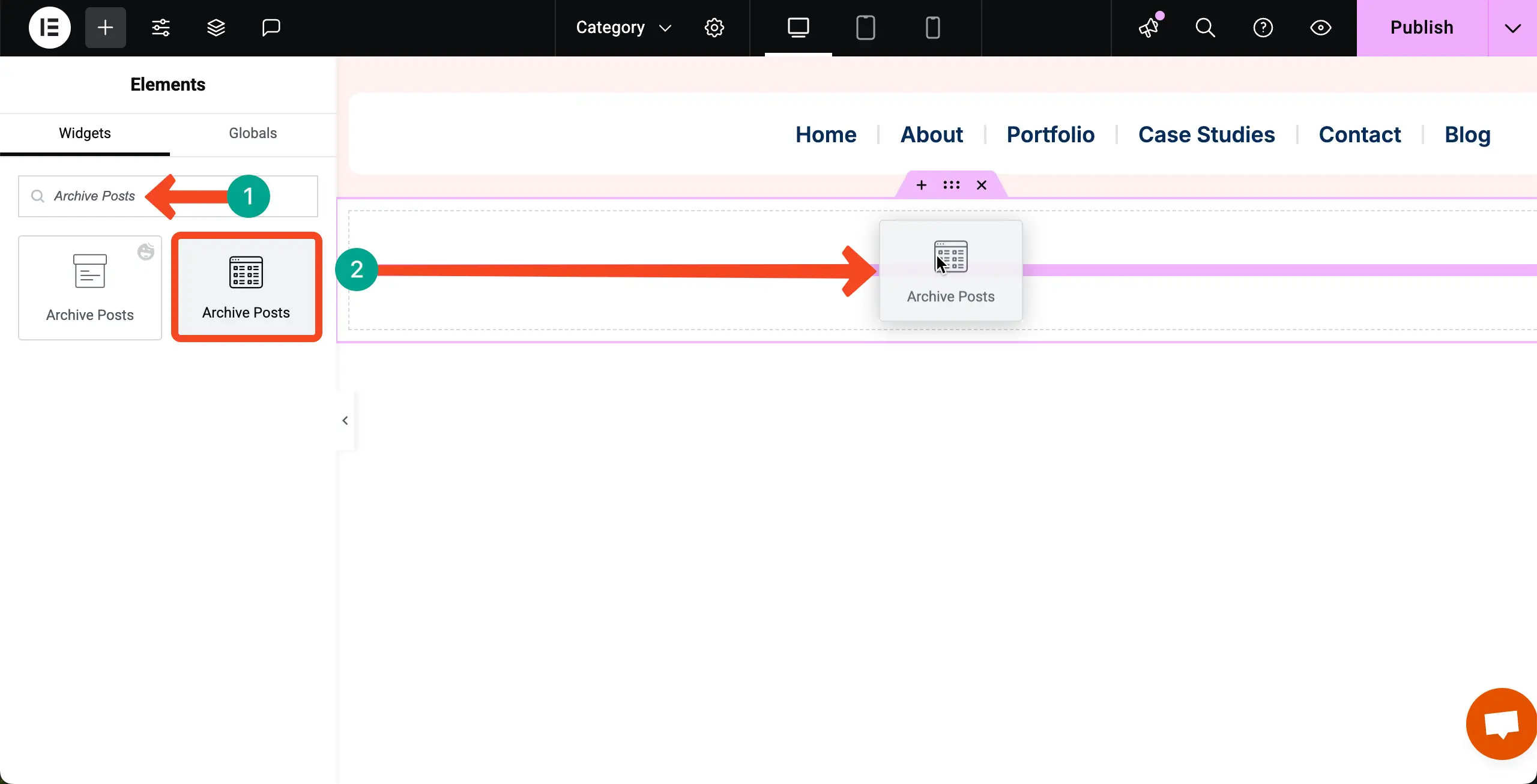
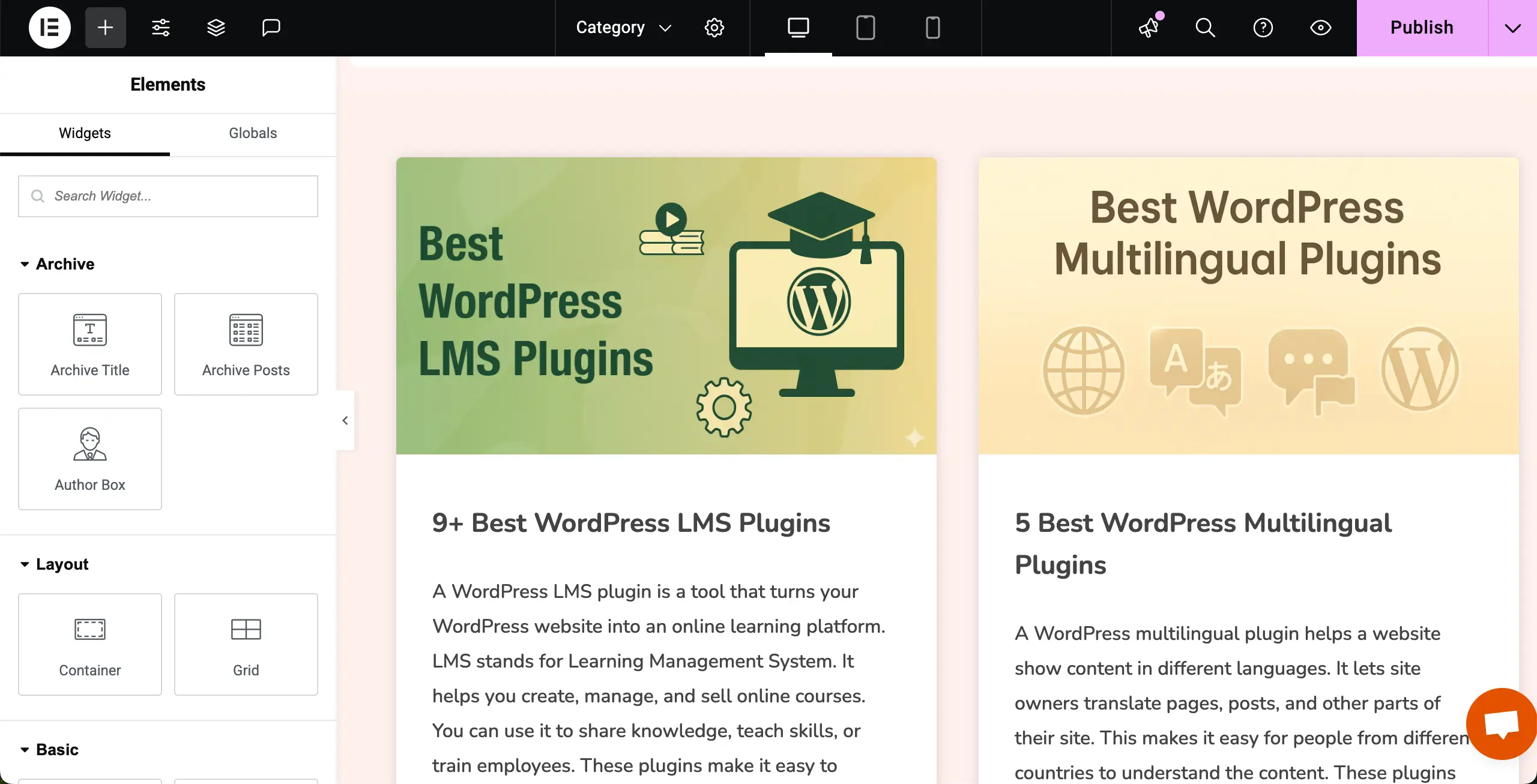
You’ll see that all your posts have been displayed on the canvas.
Now, stylize the Archive Posts widget in such a way that looks good to you. We have created a two-column archive post section.
Step 03: Add the Taxonomy List Widget
Before placing the Taxonomy List widget, place a Container on top of the Archive Posts. Because the Container will make it easy to manage and stylize the Taxonomy List widget.
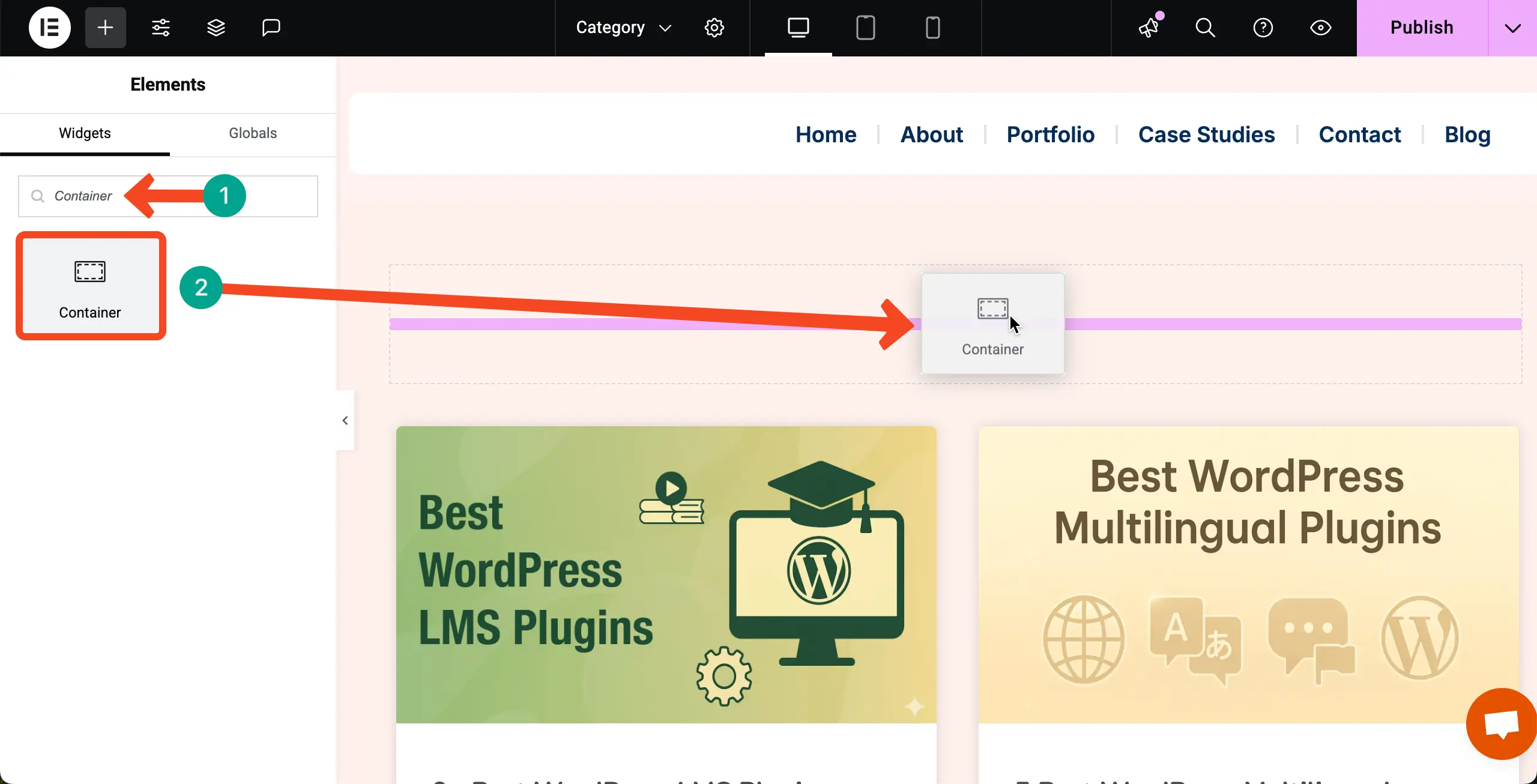
Once the container is added, find the Taxonomy List widget and place it over the container.
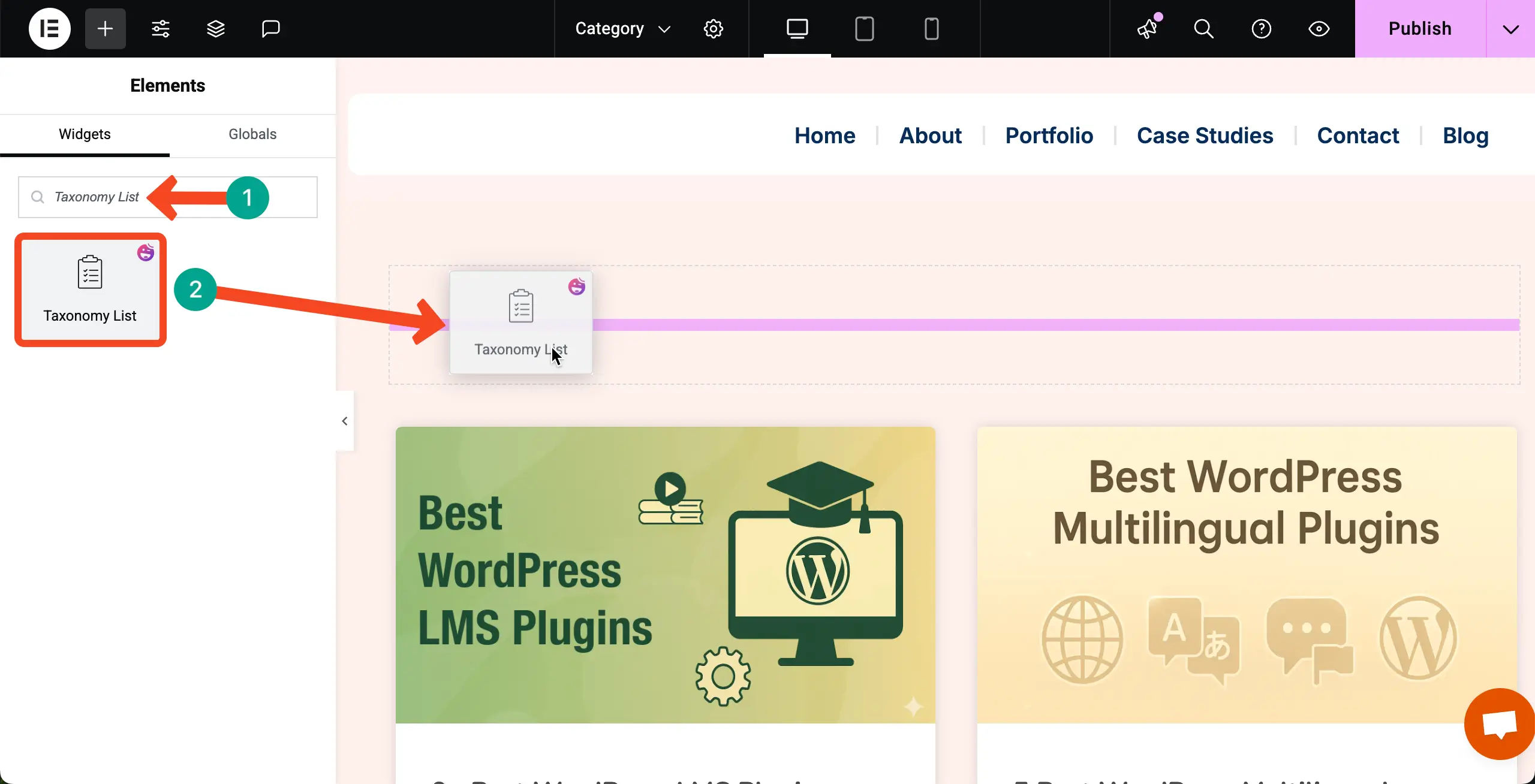
After the Taxonomy List widget is added, you’ll see the section like this. Now, you have to add categories.
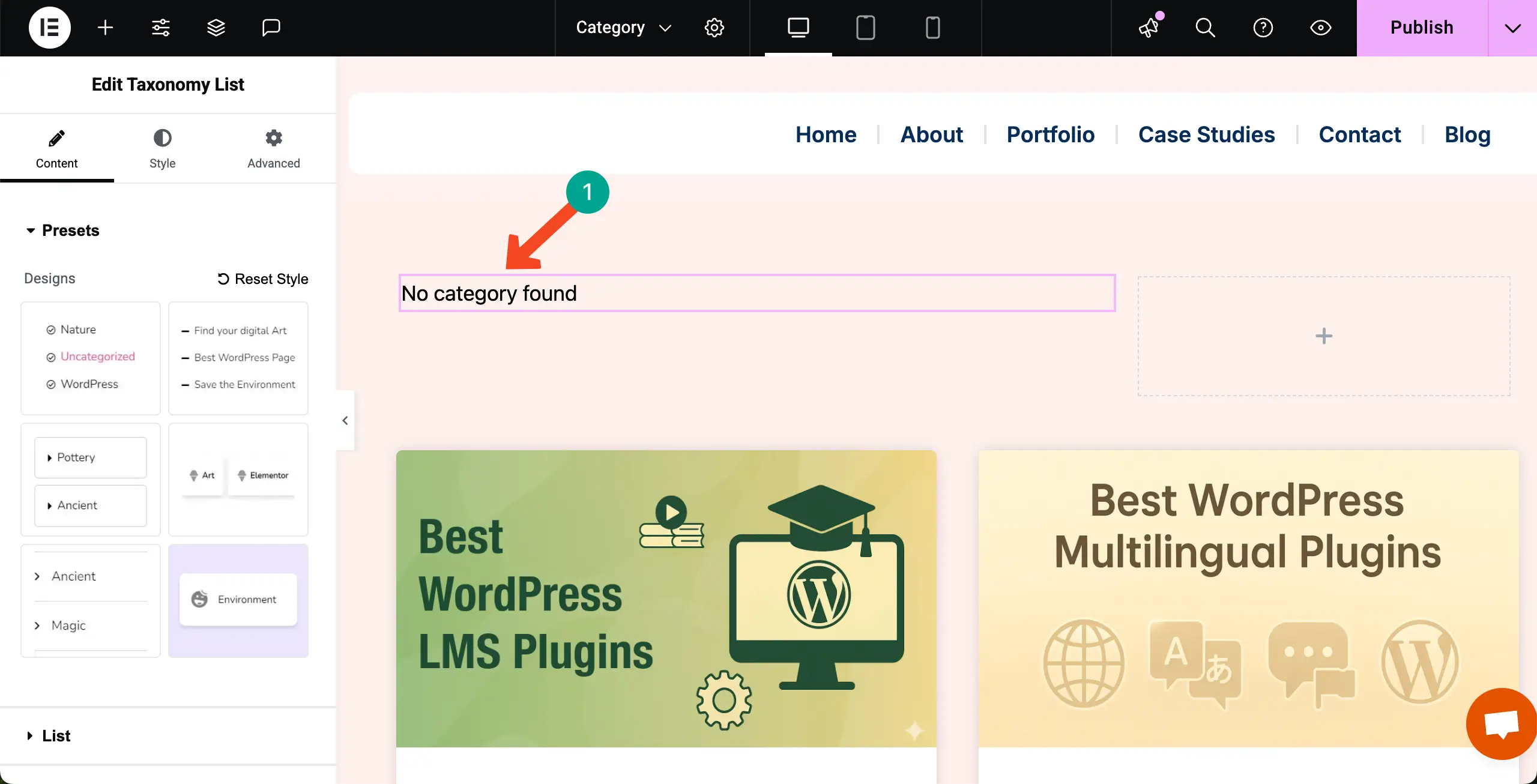
Step 04: Add Categories
Adding Categories is very simple. Navigate to Content Tab > List. Next to the Source option, you’ll get a dropdown list. From there, select Categories.
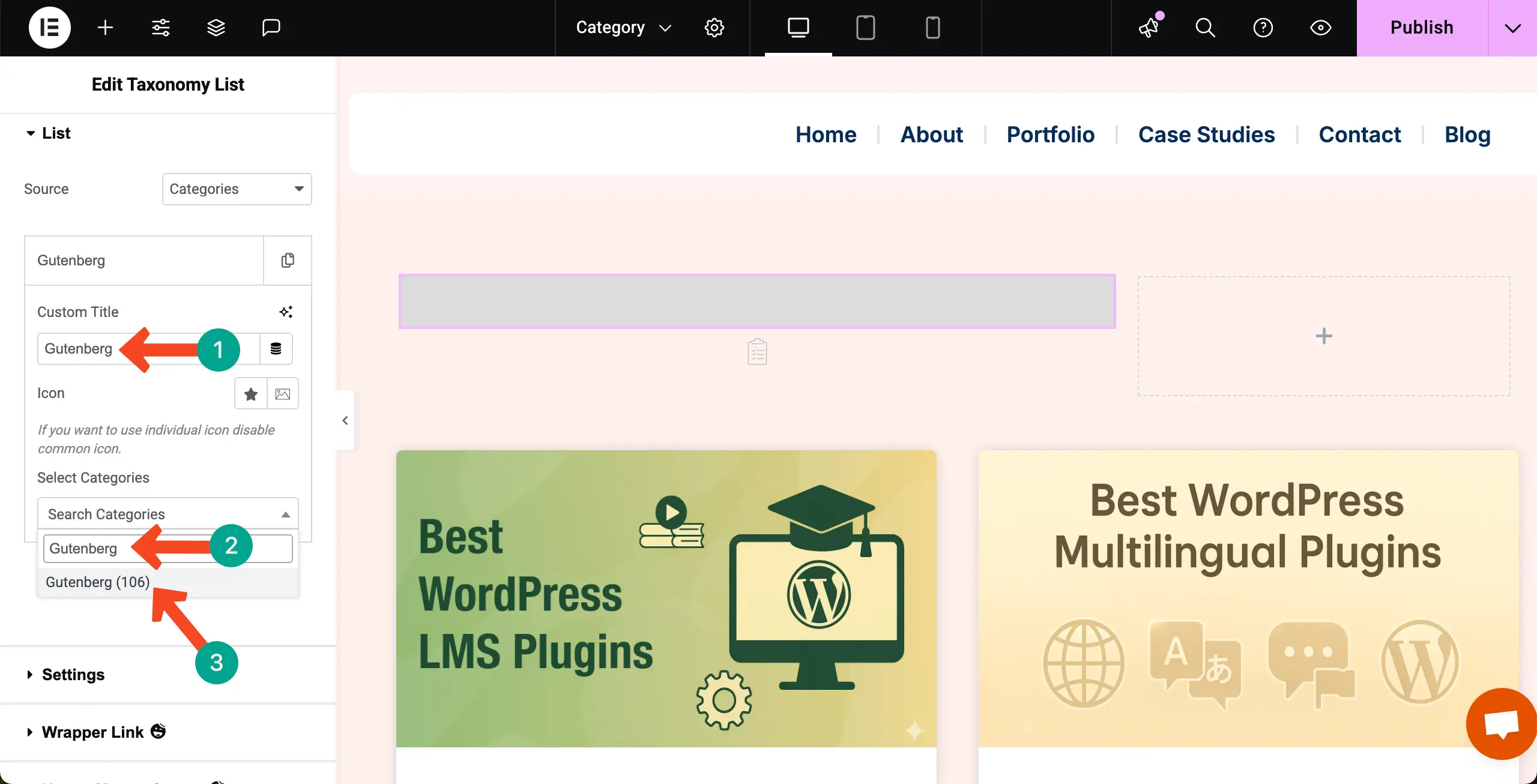
After that, click the + Add Item. This will open up the space for you to add as many categories as you want.
Write a name for the category. Then, from the Select Categories search box, type the category you want. For example, we have typed Gutenberg to get and select the category.
Note: Make sure that you have already saved the category in the backend while creating blog posts. Otherwise, you won’t get them in the select categories search box.
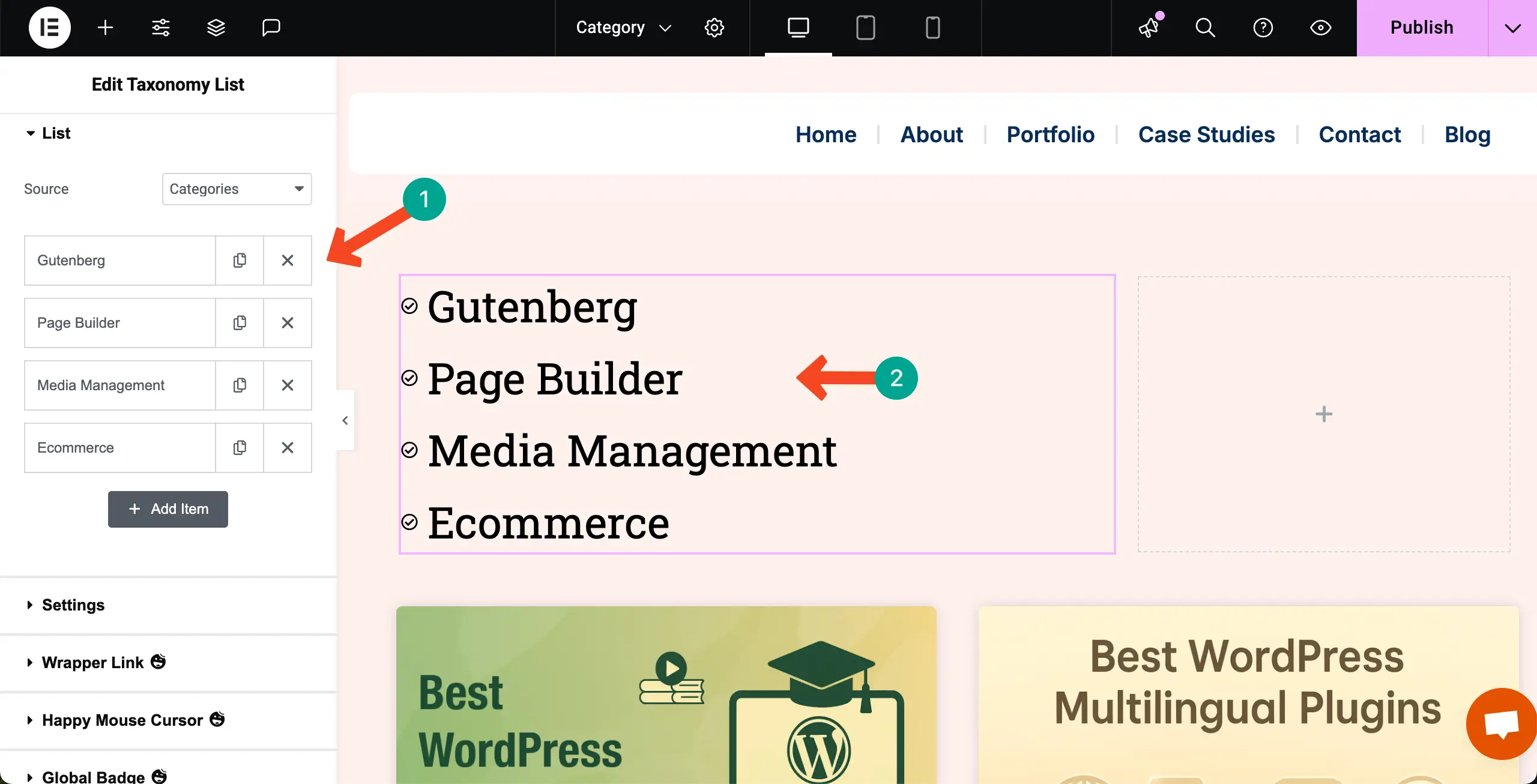
You can add as many categories as you want. See that we have added four categories but they don’t look good. You have to stylize them according to your page’s appeal.
Step 05: Stylize the Categories
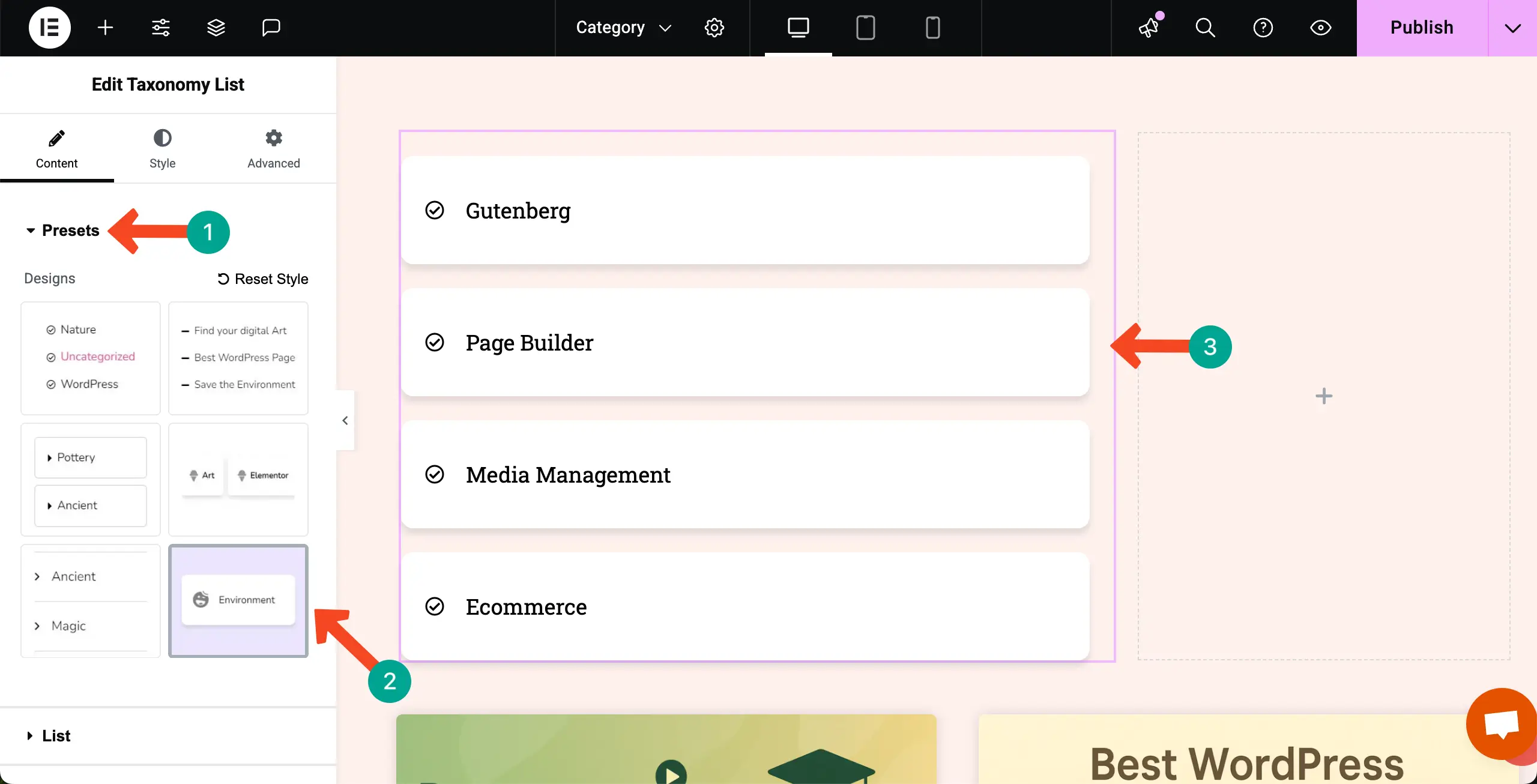
To save time, you may select a preset for the stylization.
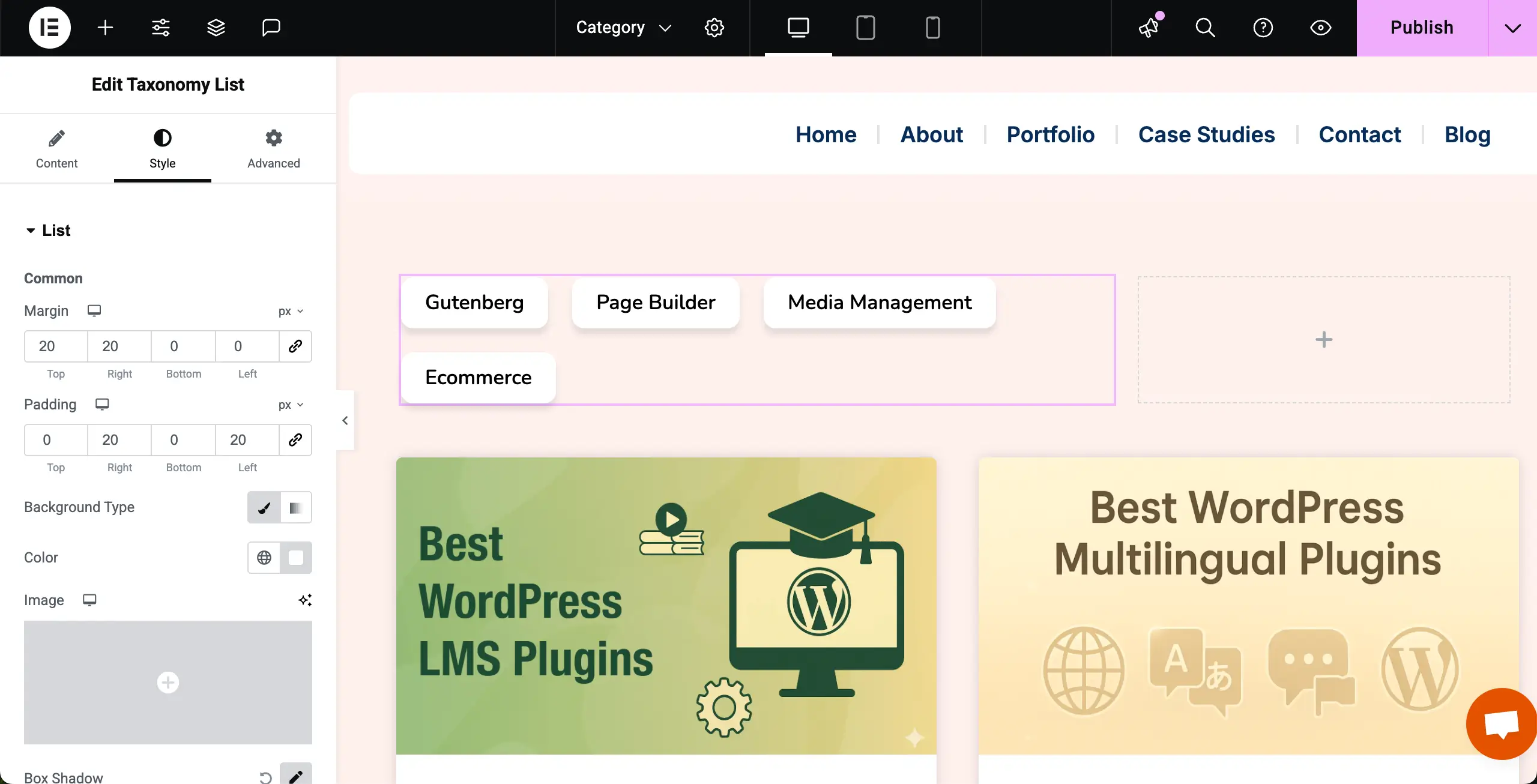
You can further stylize them from the Style tab and make them look similar to the one as you can see in the image below.
Step 06: Set Conditions and Publish the Page
When necessary stylizations are done, go to the Display Conditions option.
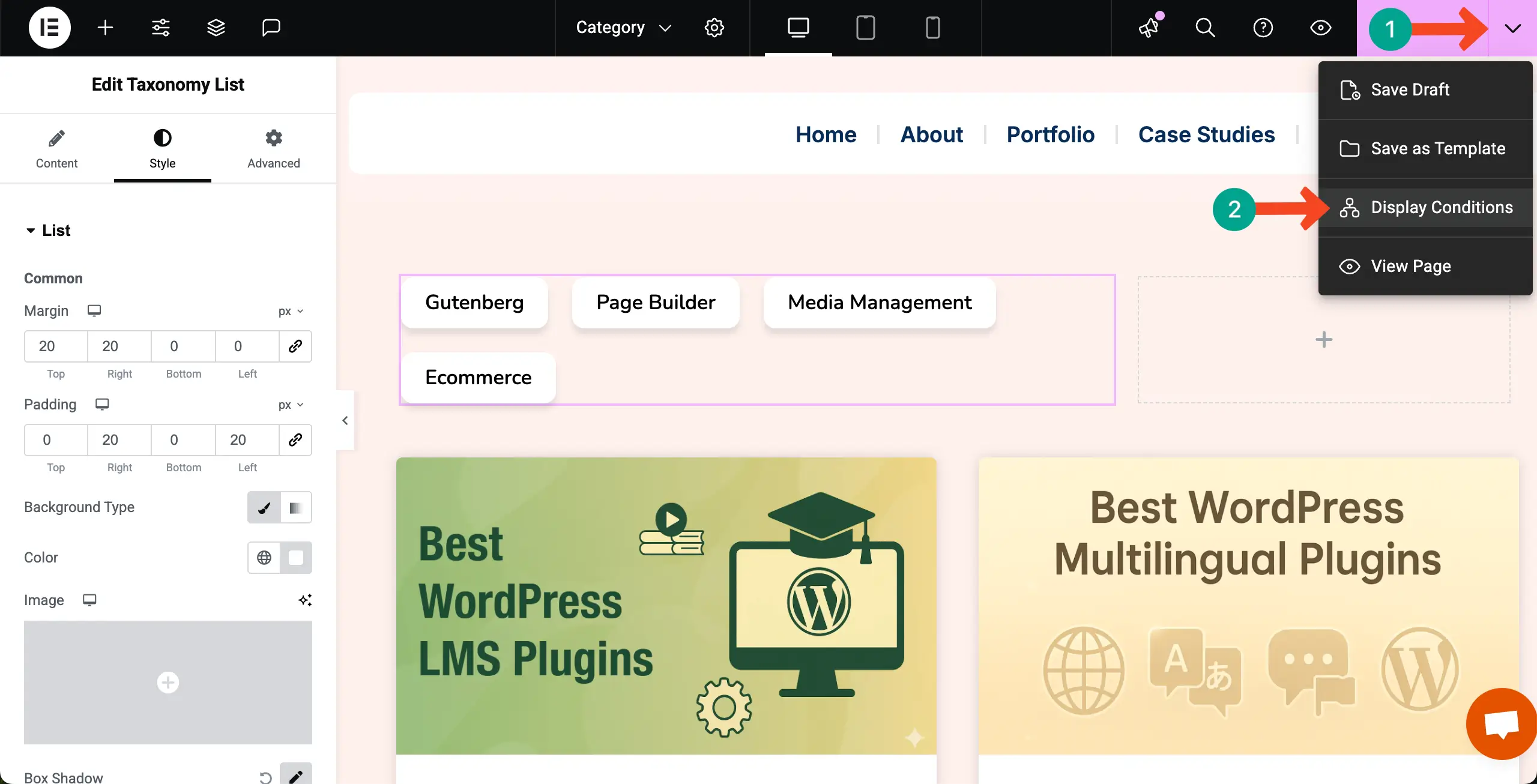
Select Categories for the condition.
Save the condition.
Step 07: Preview the Category Functionality
Come to the preview page. Click on the categories one by one. You’ll see the posts are changing according to the categories.
Thus, you can display your posts on the archive page by categories using the Taxonomy List widget.
Bonus: Try HappyAddons to Use the Theme Builder for Free
HappyAddons is a powerful plugin for Elementor that comes with 130+ widgets and 24+ features to take your website design to the next level. It offers creative design tools, advanced functionality, and many customization options that go beyond what you get with Elementor alone.
Both free and premium versions are available. Even the free version is loaded with useful tools that make web design faster and easier.
# HappyAddons Theme Builder (Free)
One of the standout features in HappyAddons is the Theme Builder, which is completely free to use. With this, you can design custom templates for your WordPress site, including headers, footers, single posts, and archive pages. This means you are not restricted to your theme’s default designs.
When it comes to blog archives, you can add a blog grid, post list, or archive post widget, and even place a taxonomy or category menu on top. This helps you display blog posts by categories in a stylish and user-friendly way. So, displaying blog posts by categories on the archive page becomes free with the HappyAddons plugin.
Check how to create a blog post template with HappyAddons.
# Cost Saving Solution
Using HappyAddons Theme Builder is also a cost-saving solution. Normally, Elementor only allows Theme Builder features for Pro users, which requires a premium license. But with HappyAddons, you get a free alternative.
This makes it possible for beginners, bloggers, or small business owners to create category-based archive pages without spending extra money. You get the same level of customization at zero cost, which makes HappyAddons a smart choice for budget-conscious users.
Beyond category-based blog layouts, HappyAddons can do a lot more. It includes advanced widgets like Advanced Slider, Pricing Table, Testimonial Carousel, Logo Carousel, and many creative effects. These allow you to design professional websites that look modern and engaging.
Features like display conditions, cross-domain copy-paste, and preset designs also save time and effort in the design process.
Ending Notes!
Displaying blog posts by categories in WordPress is one of the best ways to organize your content and guide readers to what they want. Whether you use Elementor or HappyAddons, creating a clear archive page with category-based layouts makes your site easier to navigate. It also improves user experience and keeps visitors engaged for longer.
When setting up your category pages, try to follow some best practices. Use clear and simple category names so readers understand them at a glance. Avoid creating too many categories. Keep them focused and meaningful. Add a category menu or filter option at the top of your blog layout to help users explore posts quickly.
Finally, make sure your design is responsive, so visitors can browse categories smoothly on both desktop and mobile devices. By following these tips, you can make your blog more user-friendly, well-structured, and visually appealing.
![Black Friday and Cyber Monday are around the corner, and people are waiting for these festivals to grab the best product deals. That is why giving an attractive look to your website during this festive season is very necessary. But, creating a whole new landing page might be difficult in a short period of time. Don't worry. By using Happy Elementor Addons Black Friday and Cyber Monday Landing Page templates, you can easily develop a whole new landing page in a few minutes. In this today's blog, we are going to show how to boost your website design using HappyAddons templates during this festival season. Before that, we'll talk a bit about these two festivals and why they are important to online business communities. What are Black Friday and Cyber Monday? Black Friday is the immediate following of the famous Thanksgiving day. This is when people start shopping to celebrate the Christmas festival. Since the late 1980s, retail sales on this day have constantly been suppressing the past volumes. See the graph below. Source: Salecycle.com The first Monday following Thanksgiving day each year is called Cyber Monday. It was first introduced in 2005 by the USA National Retail Federation to encourage people to buy online. Though this festival originated in the USA, it is celebrated globally today. See the stats below. Source: Salecycle.com It indicates customers' buying behavior around this day is growing up over time. Many customers today keep a budget to buy products on these two days. So, why won’t you prepare a Cyber Monday landing page if you have an online store? Importance of Designing Landing Pages for Black Friday and Cyber Monday Festival Having a well-design website is one of the major checklists if you are running an online business. Most importantly, you have to make sure that your website remains up-to-date to boost your sales. That is why you need to redesign your website or make a new landing page during the Black Friday and Cyber Monday festivals. Because most online product & service-based businesses promote special deals during these two festivals. Here are some remarkable ways dedicated landing pages during these festivals can positively impact the performance of your online business. Boosts your product salesIncreases conversion rateOpportunity to collect potential email leadsGrabs users' attention toward your siteReduces bounce rateIncreases website visitors. Elementor Black Friday New Seasonal Kit is Already Here! Source: Elementor To make this Black Friday more enjoyable, Elementor has launched a New Seasonal Kit that includes landing pages, sections, pop-ups, and vector assets. All these design elements are made by the Elementor team so that one can easily use them on their website to ensure more sales and conversions. New Elementor Black Friday Seasonal Kit offers: 3 Landing pages6 Sections 6 Popups A collection of stickers & animations You can only get these ready-made Black Friday landing pages and sections if you have Installed Elementor Pro on your site. However, if you are looking for templates that are outside of the box, you can go with Happy Addons, the fastest Elementor Addons on the market. It's very easy to use, flexible and has tons of advanced features and widgets that can ease your website design journey. Also, you'll get several festival landing page templates & blocks. Moreover, you can use free Black Friday and Cyber Monday design blocks and templates to decorate your site. Most importantly, these templates and blocks are easy to customize and can be used for multiple purposes. Now let's see how you can use the Happy Addons templates to design your website according to the Black Friday theme. Pre-Requisites to Use HappyAddons Templates to Design Black Friday and Cyber Monday Landing Pages You must have the following plugins installed on your site to get access to the HappyAddons Template library. Make sure you’ve installed and activated the Happy Addons Free & Premium version of your website. Elementor (Free)Happy Addons (Free)Happy Addons Pro If you are new to Elementor, check this Step By Step Guide For Beginners. If you want to explore the readymade templates of HappyAddons before installing these plugins, you may visit by clicking on the button below. Check out Happy Addons Templates How to Design Black Friday Landing Page on Your Website Once you have the plugins (mentioned above) installed, your website is ready to follow the tutorial guide explained in this section. Get ready now! Step 1: Open a New Page with Elementor Create a new page or open the existing page with Elementor. Next, you have to select the Elementor Canvas option.Unless you select Elementor Canvas, you may watch the header, footer, and unnecessary other texts on the page. These might be irritating to you.Once you open the page with Elementor Canvas, your page will be completely clean. Watch the video below on how to do it. Step 02: Go to HappyAddons Library Click on the HappyAddons Library Icon. It will open up a modal popup. Here you'll find numerous stunning premade Blocks and Pages created by the Happy Addons team. Kindly explore them to create a list of your favorite items. Step 03: Import a HappyAddons Black Friday Template Go to the Page tab on the modal popup.Select Black Friday from the left-side filter option.You will several good-looking templates on your screen.Take your cursor on the one you like and hit on the INSERT button. Wait for a while to finish the installation process. You will get the template on your screen with editable sections and options. Step 04: Set the Black Friday Campaign Deadline A deadline creates a sense of urgency in customers' minds. So, better if you add a deadline section on the page to show your Black Friday deals. The good thing is that if you select the template as we did, you will automatically get a deadline or countdown option. You have to customize it as you want. Step 05: Show Image Carousel Slider on Your Black Friday Landing Page Using the Image Carousel, you can slide show demonstrating discounts on your product categories. Drag and drop the Image Carousel widget on any landing page section. Next, from the Elementor panel, you can add photos and text to the widget. Do it accordingly. Thus, you can add more sections and options on the landing page. Hope you can do it yourself. Step 06: Make the Black Friday Landing Page Mobile Responsive Making a web page mobile responsive with Elementor is super easy. You'll get the mobile responsive option on the Elementor footer section. Clicking on it will open up the option to view your landing page on different device screens. We have explained the process in the video below. Note: Don't delete any widget or section while customizing your landing page for any particular device. Because if you delete a widget or section on any device screen, it will also be applied on other devices. However, you may change their position or alignment or hide them. It won't make any impact on other devices. Step 07: Final Preview of Our Landing Page Here is the final interface of our Elementor Black Friday landing page that we've designed using the Happy Addons' ready-made Template. Get Happy Addons to Add a Black Friday Theme Landing Page on Your Website How to Design Cyber Monday Landing Page on Your Website You will require the same prerequisites (Elementor and HappyAddons Plugins) to design the Cyber Monday landing page on your website. Hope you have them ready on your website. Now, let's get into the tutorial part. Step 01: Import a Cyber Monday Readymade Landing Page Template Go to the HappyAddons Template library.Choose the Cyber Monday template you like.Click on the INSERT button. Wait for a while to finish the installation process. You'll get a page design like the following image below. Step 02: Edit Different Sections of the Page In the first tutorial, you saw the deadline/countdown option was already embedded in the template. But this template doesn't have it. So, you can bring it to your page? Very simple. Create a new section by clicking on the plus icon.Type Countdown on the Elementor search bar.Drag and drop the widget on the section. Customize the Countdown section from the Content and Style tabs of the Elementor panel. Using the Heading widget, we have added the FLASH DEALS text next to the countdown to make it more meaningful. Thus, you can use other exciting widgets on the template to make your landing page super gorgeous. Step 03: Promote Products on the Landing Page Promotional landing pages usually include a section to showcase some hot-selling products to generate instant sales. Using the Image and Button widgets, we have created this section under the FLASH DEALS.You may customize it more as you wish. Step 04: Make it Mobile Responsive We already showed you the process in the first tutorial on making a mobile web landing page responsive. Hope you can do it here as well, following the same guideline. Click on the Responsive Mode icon and do the rest yourself. Bonus: Black Friday and Cyber Monday Landing Page Design Key Considerations Whenever you design a landing page, you need to consider why you need to design this page and what elements they should keep on the page. Because if you are not adding all the necessary features to your page, it will not serve its purpose. This is why you need to focus on a few things before designing your Black Friday landing page. Here are some points you must consider in designing Black Friday and Cyber Monday landing pages. Add Black Friday textSet deals deadlineShow your best-discounted productsAdd coupon code Focus on responsive page designMake your page visually appealingImprove your page user experience or page structureSet a proper website navigation FAQ on Black Friday and Cyber Monday Landing Page Design Now, we'll answer some common questions on Black Friday and Cyber Monday Landing page designs commonly found online. How much does it cost to design a landing page?The cost of designing a landing page varies depending on the complexity of the design, the level of customization required, and whom to hire for the page. A simple landing page can be designed for as little as $25, while a more complex design with multiple customizations can cost upwards of $2,00.However, if you have Elementor and HappyAddons installed, you can design unlimited landing pages at a minimal cost. But like any other tool, you must have a kind of enterprise on them. As they are drag-and-drop builders and their numerous tutorials and documentation are available, they won't take you more than a month to be used to. Check out some wonderful YouTube tutorials on these two plugins. Hope you will enjoy them.How many hours does it take to design a landing page?It mainly depends on the level of design complexity and your web design skill. However, both in Elementor and HappyAddons, you will get countless readymade templates and block sections. You can design a beautiful landing page in 3-5 hours by making a proper combination of them.Can I design Black Friday and Cyber Monday Landing pages with Elementor and HappyAddons free versions?Surely, you can design Black Friday and Cyber Monday Landing pages with Elementor and HappyAddons free versions. But only with the pro versions, you can't add too many exciting features to your pages. For example, free versions will give you access to only a limited number of readymade templates.If you are just a beginner-level designer, free versions are enough. But if you are a professional designer or have a web designing agency, pro versions are a must. Are You Ready To Design Your Black Friday and Cyber Monday Landing Page? Customers look forward to this kind of occasion to buy their favorite products at a minimum price. Naturally, they are drawn to websites that look good and give a festive vibe. That is why adding a Black Friday and Cyber Monday landing page during the festival season will give you an extra edge over the competitors. The above guide shows how to design your Elementor Black Friday Landing page using the Happy Addons' Black Friday Templates and how it can help boost your holiday sales. So if you have any queries regarding this blog, you can comment on us in the below box. If you like this post, then share it on your social channel. Don't forget to subscribe to our newsletter. Also, follow our Facebook and Twitter channels for regular updates. Subscribe to our newsletter Get latest news & updates on Elementor [yikes-mailchimp form="1"] ":36560} /--](https://happyaddons.com/wp-content/uploads/2021/11/How-to-Design-Black-Friday-and-Cyber-Monday-Landing-Page-300x188.png)
2 Responses
Thank you, thank you, thank you! I spent hours searching for how to filter by categories and this was so much easier than everything else I was finding
You’re most welcome! We’re so glad the guide saved you time and made the process easier. Thanks for sharing your feedback. It really means a lot!