




A web page can have beautiful images and useful content yet still feel flat unless it moves. Scroll animations add those movements to a web page as visitors scroll it. It can help users draw attention to the sections that matter the most.
With the HappyAddons GSAP pack, you can add different types of scroll animations to Elementor websites, such as revealing headings, moving backgrounds, pinning images, and horizontal sections without any code.
In this tutorial, we’ll explain six methods of creating scroll animations in Elementor with HappyAddons GSAP. You’ll learn the settings behind them and how to keep your animations smooth and accessible. Get started!
What Are Scroll Animations?
Scroll animations change how an element looks or behaves as a visitor scrolls. A heading may fade into view, a background may move more slowly, or an image may stay pinned beside scrolling text.
Some animations play after entering the screen. Others progress with the scroll position. Knowing this difference helps you choose the right effect.
Pre-Requisites to Get Started
To get started, you definitely need the following plugins installed and activated on your site:
Special note: HappyAddons GSAP Pack isn’t yet compatible with Elementor version 4. Because Elementor hasn’t yet provided access to third-party addon developers. We’ll make HappyAddons compatible with Elementor version 4 when they share access. Until then, use HappyAddons GSAP with the pre-version 4 Elementor widgets.
How to Add Scroll Animations in Elementor Step by Step (6 Methods)
Go to Pages > Add New Page. Now, prepare the page with necessary demo content so you can explore the scroll animation effects.
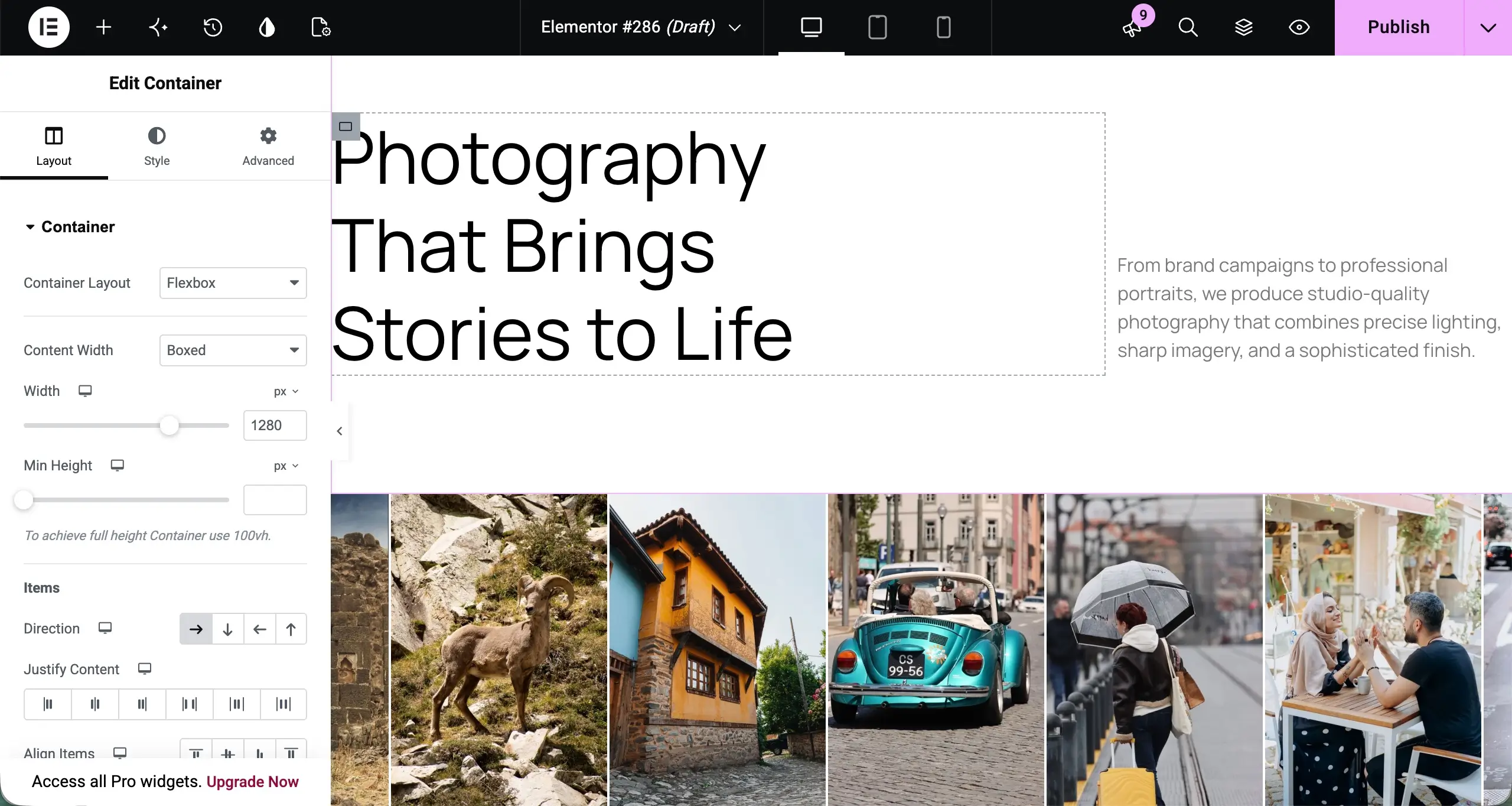
One friendly warning before we dive in: the six methods below are alternatives, not a stack. Try each one on a separate element first. Piling several animation systems onto the same element makes the result much harder to control — and far less fun to tune.
Method 1: Scroll Reveal / Entrance Animations
Think of an entrance animation as a polite little wave hello. The element reveals itself when it enters view — a card fades gently upward, for example — and then settles down without chasing the scroll any further. It’s the friendliest place to begin, because it uses Elementor’s own built-in Entrance Animation control. No addon required.
Reach for this on service cards, supporting headings, or a short introduction below the fold. Just keep your main message visible quickly — nobody should have to wait through a long reveal to understand what your page is about.
Step 01: Select the element you want to reveal
Click a heading or a card container on the canvas, then open Advanced > Motion Effects in its settings panel. Double-check that you’ve selected the element itself, not an unrelated parent container wrapped around it.
Step 02: Choose an entrance animation
Open Entrance Animation and select Fade In Up for a soft, upward reveal. In our demo, we applied it to the heading “Small details. Lasting impressions.”
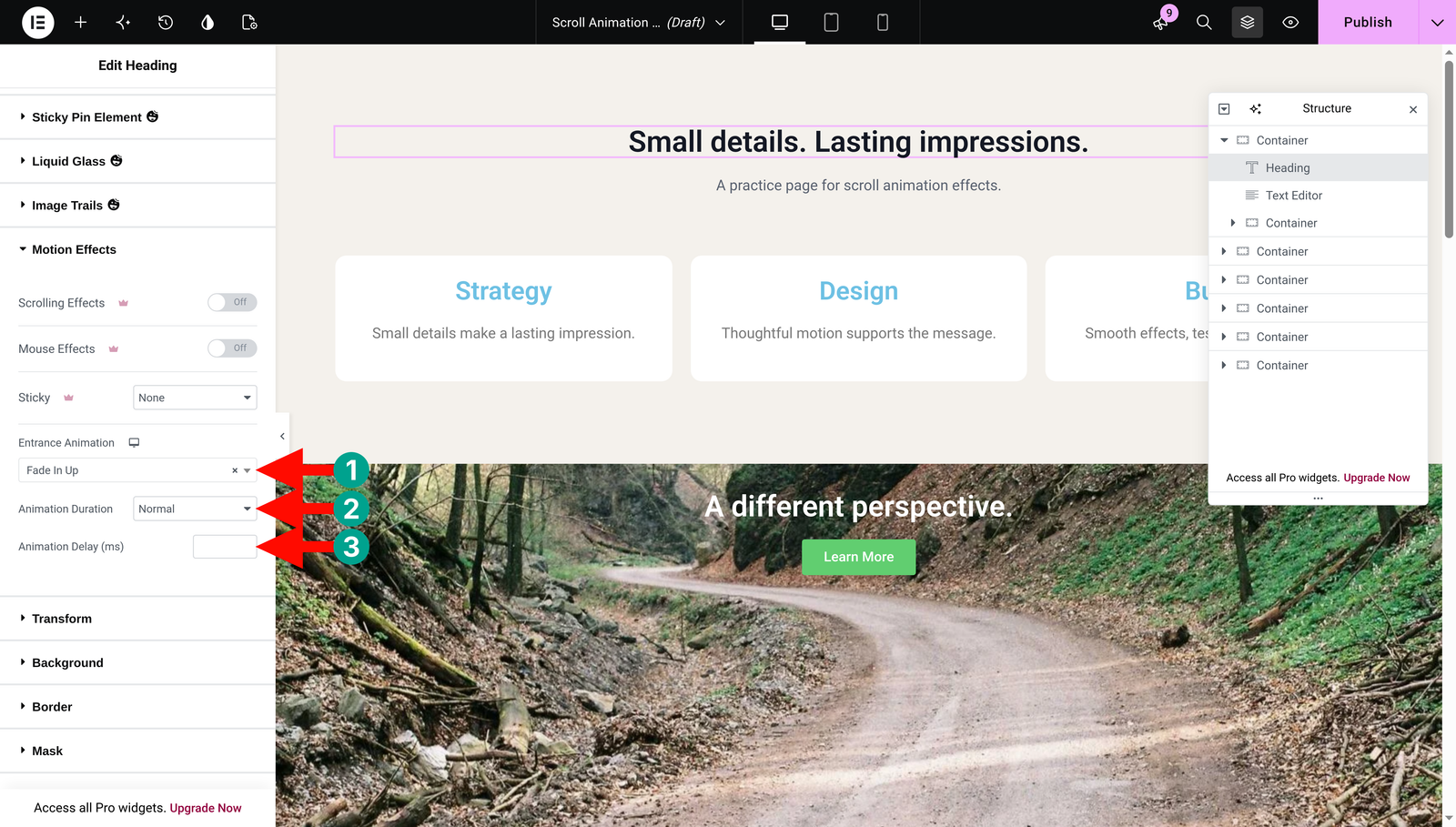
Step 03: Adjust the timing
Set Animation Duration to Normal and Animation Delay to 0. For a row of three cards, try delays of 0, 100, and 200 milliseconds, so they reveal one after another in a graceful sequence — just apply those values to each card individually.
Step 04: Save and check the frontend
Click Publish or Update, then open the page preview in a new tab. Reload near the top and scroll toward the element. The content should become readable promptly. If the motion feels distracting on phones, use the device control beside Entrance Animation to choose None on mobile.
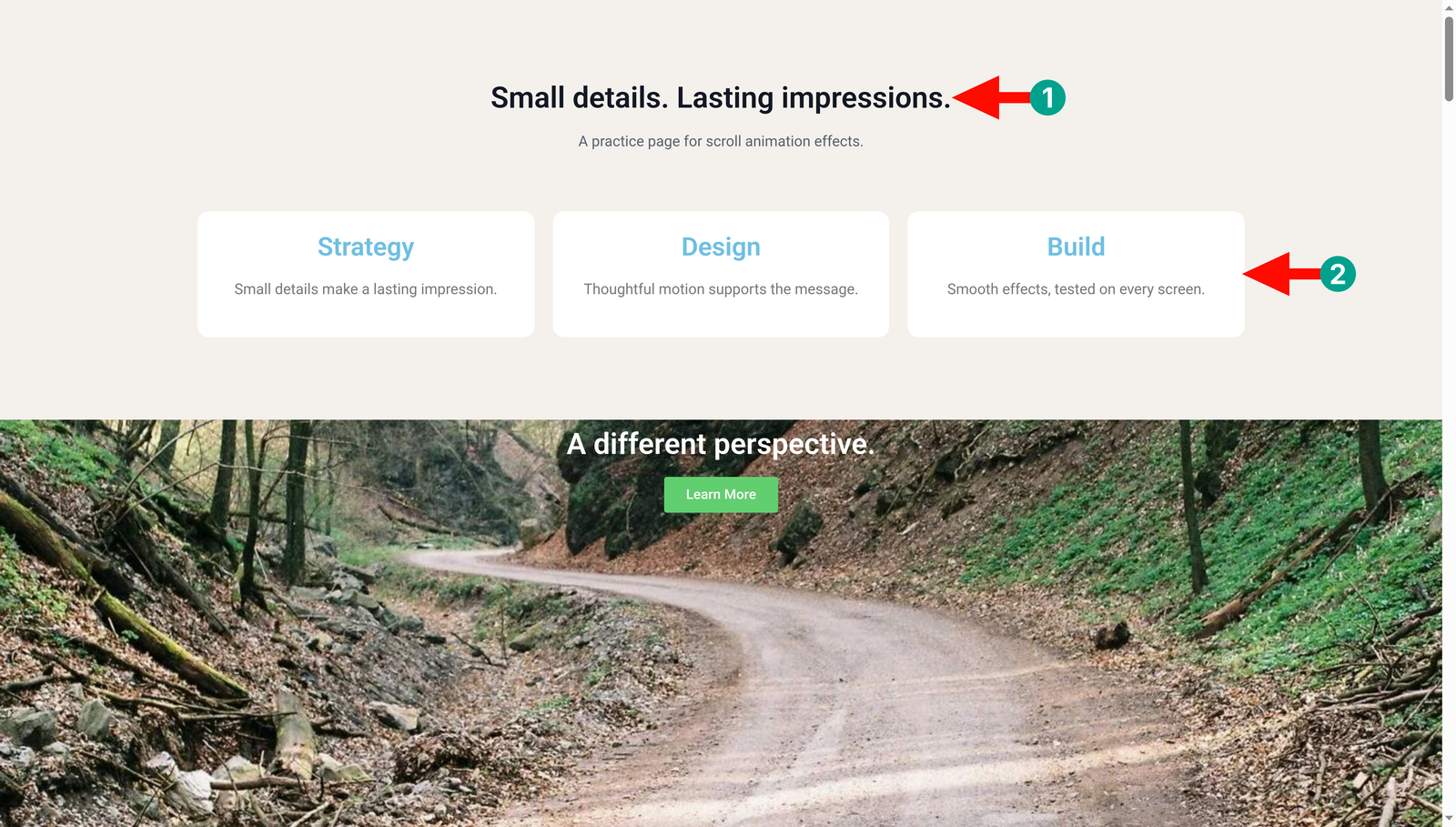
Settings cheat sheet
| Setting | What it does | Recommended value |
|---|---|---|
| Entrance Animation | Chooses the reveal style. | Fade In Up |
| Animation Duration | Chooses the playback speed preset. | Normal |
| Animation Delay | Waits before the effect starts; measured in milliseconds. | 0; 100/200 for later cards |
| Mobile animation | Allows a simpler phone experience. | None when motion adds little value |
One quick reassurance: a delay is just a waiting period, not the length of the animation itself. This method has no scrub slider or custom scroll start/end range — scrolling triggers the reveal, but it doesn’t directly control its progress. That’s perfectly normal.
Pro Tip: Animate the card container when its heading, icon, and description should all appear together. Animating every single item on its own can create a busy, slow sequence that takes far too long to finish.
Method 2: Parallax Scrolling Effects
Parallax is your sense of depth on a flat screen. The background moves at a different rate from the content in front of it, so the section feels layered while your heading and button stay perfectly easy to read. Here we’ll use HappyAddons Free’s Background Parallax feature.
It shines on a wide promotional banner, a photography section, or a product introduction. Choose an image with a little breathing room around the subject, so the gentle movement never crops out an important detail.
Step 01: Prepare the background container
Add a container and give it enough height to show the image off – 550px is a comfortable starting point for desktop. Open Style > Background, choose Classic, and select an image. Set its position to Centre Centre and its display size to Cover, then drop a heading inside the container.
Step 02: Enable Background Parallax
Select the container and expand Layout > Background Parallax in this version. (Older interfaces may tuck this panel under Content.) Switch on Enable BG Parallax and choose Scroll from the Type dropdown.
Step 03: Set a gentle speed
Start with Speed: 0.3 — gentle is almost always better here. Don’t forget to click the panel’s Apply button after changing its settings. Our example floats the heading “A different perspective.” over a flower photograph with a soft dark green overlay.
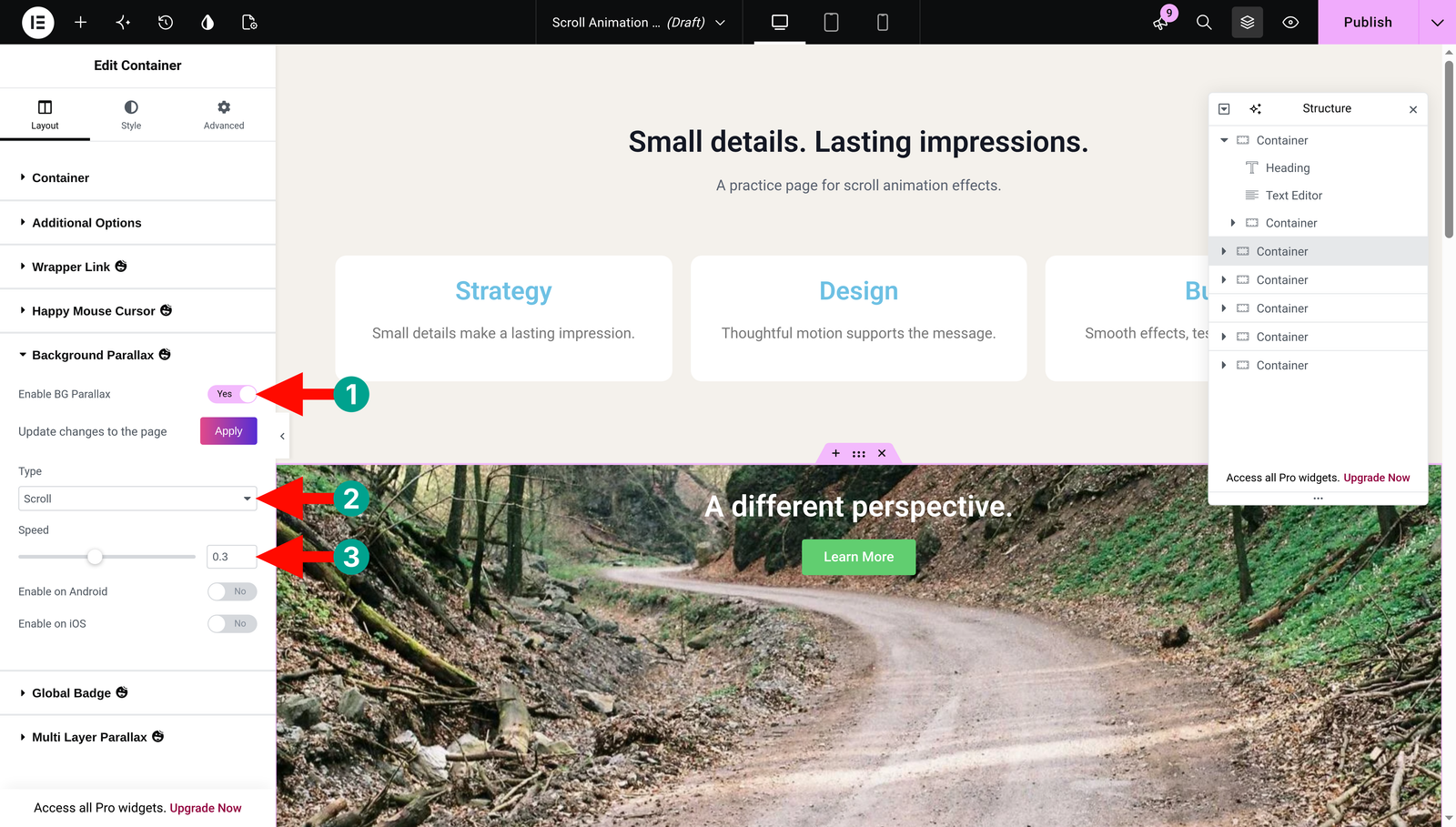
Step 04: Preview the background movement
Click Update or Publish and scroll through the frontend preview. Keep Enable on Android and Enable on iOS off for now. Check the static mobile crop separately, and adjust the container’s responsive height if the subject gets cut off.
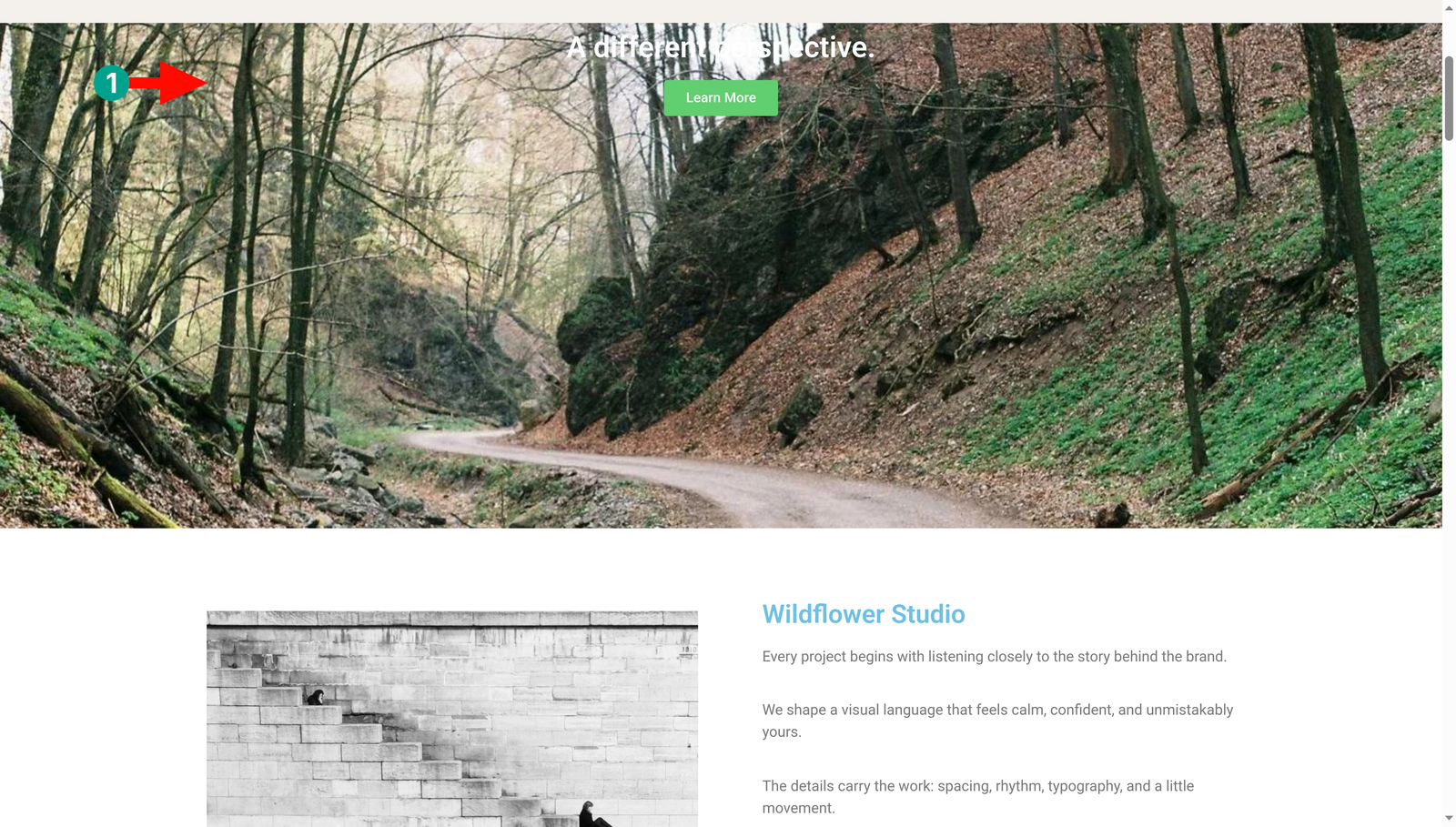
Settings cheat sheet
| Setting | What it does | Recommended value |
|---|---|---|
| Type | Chooses how the background moves. | Scroll |
| Speed | Changes the relative background movement. | 0.3 as a gentle starting point |
| Android / iOS | Allows the effect on these mobile platforms. | Off initially |
| Background display size | Fills the background area while cropping as needed. | Cover |
Very Important: Background Parallax doesn’t share the same controls as the text and image animation features, so there’s no reason to go looking for a GSAP scrub setting in this panel. Adjust Speed, apply the change, and judge the movement on the frontend — that’s the whole workflow.
Pro Tip: Add a background overlay if your heading becomes hard to read over bright or busy areas. Let the parallax support the section’s message, and keep the text itself perfectly steady.
Method 3: Sticky / Pinned Sections on Scroll
A pinned element is like a patient tour guide — it stays right beside you for part of the journey, then steps back into the flow when its job is done. HappyAddons Pro’s Sticky Pin Element feature can hold a product image in view beside a longer description, so the two read together.
Use pinning for product features, a project explanation, or a multi-step process. The scrolling content should be noticeably taller than the pinned item; otherwise the pin has barely any room to do its work.
Step 01: Build a two-column section
Create a parent container with an image on the left and several feature descriptions on the right. Keep the image shorter than the full text column, and on mobile, arrange the content vertically in a clear reading order.
Step 02: Enable Sticky Pin Element
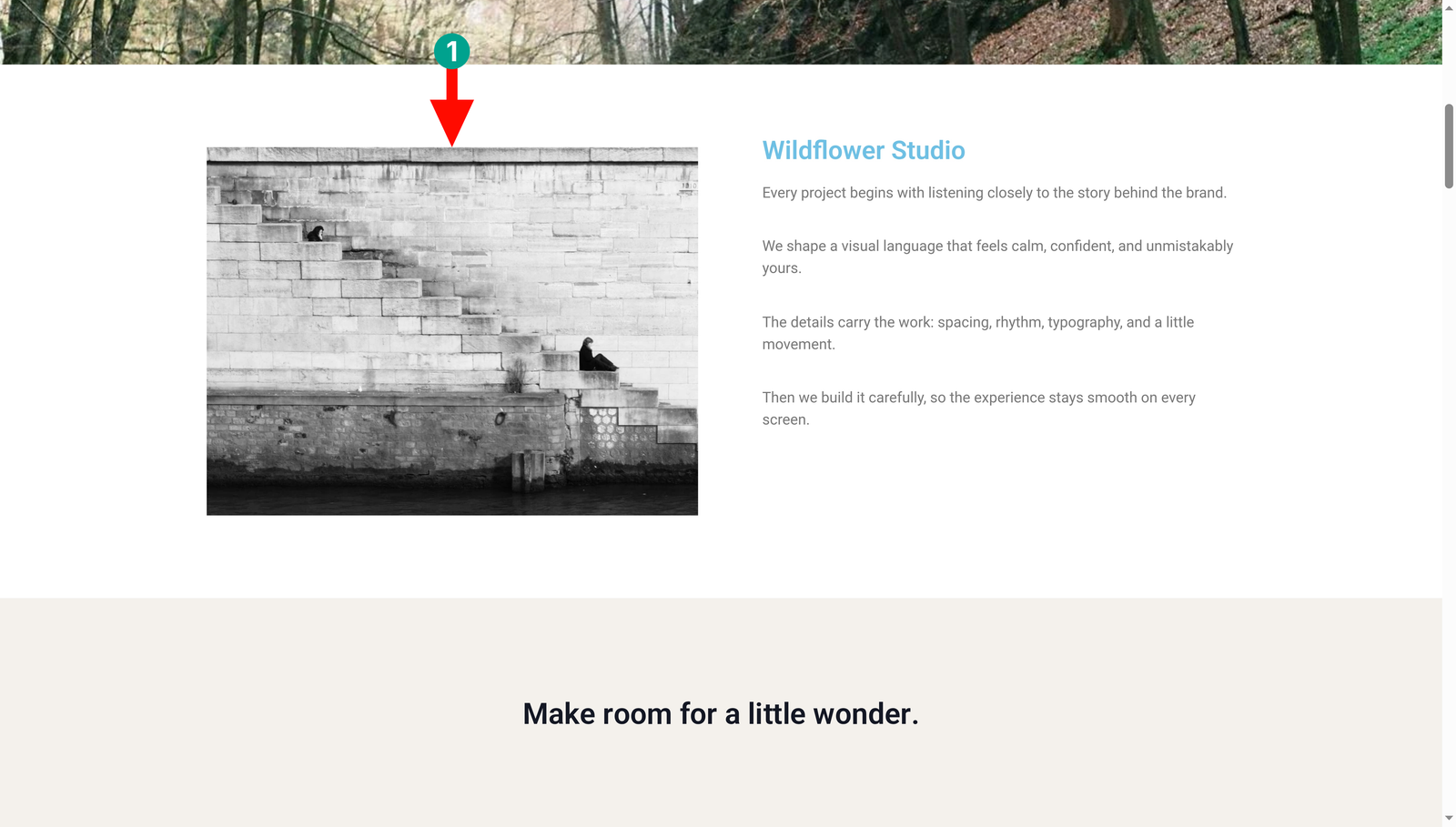
Select the image widget, open Advanced → Sticky Pin Element, and switch Enable on. Pin the image first — resist the urge to enable pinning on both the image and its parent at the same time.
Step 03: Set the pin positions
Start with Pin Start Position: Top – Top and Pin End Position: Bottom – Bottom. Leave Start Trigger and End Trigger at Default. Set Start Offset to 60 and End Offset to 0 to match our example.
That start offset simply leaves a little space above the pinned image — adjust it to the height of your own sticky header, or use 0 if no clearance is needed.
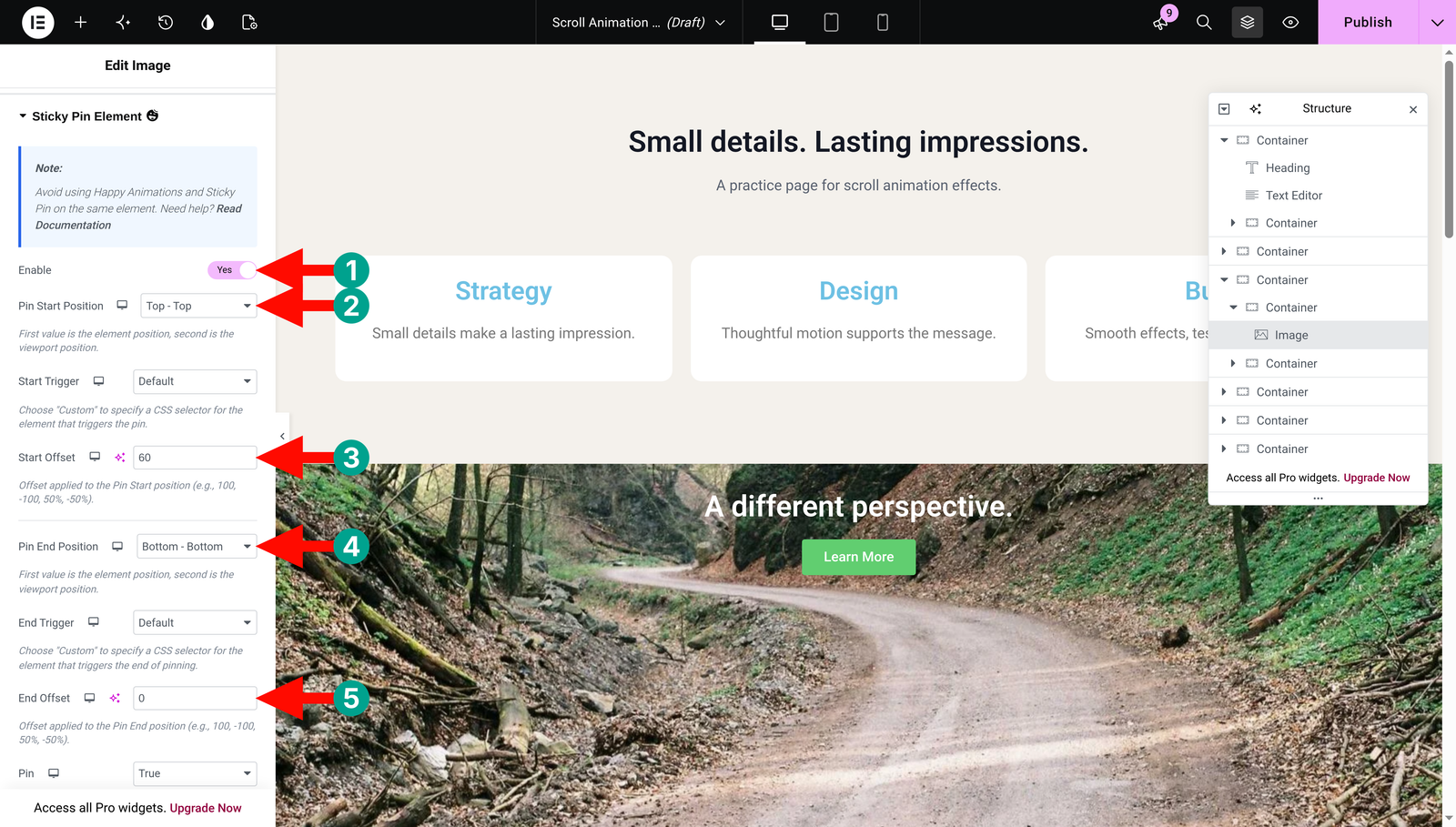
Step 04: Inspect the pin range
Keep Pin enabled, then turn Pin Markers on temporarily to see exactly where the start and end positions sit in the frontend preview. Scroll through the whole parent section and nudge the offsets until the image releases cleanly before the next section begins.
Turn the markers off before publishing, and leave Enable On Mobile off for now. Save the page and test it through Preview, not just inside the editor — the pin implementation deliberately skips editor mode.
If the image overlaps later content, give its parent more useful content space or shorten the pin range.
Settings cheat sheet
| Setting | What it does | Recommended value |
|---|---|---|
| Pin Start Position | Defines the alignment that begins pinning. | Top – Top |
| Pin End Position | Defines the alignment that ends pinning. | Bottom – Bottom; inspect the result |
| Start / End Trigger | Chooses the reference used for each boundary. | Default |
| Start / End Offset | Moves the boundaries away from those alignments. | Start: 60; end: 0 in this demo |
| Pin Markers / Mobile | Shows debugging guides / enables phone pinning. | Markers off for publication; mobile off |
Note: Pinning is not the same as building a sitewide sticky header. This feature keeps an element in place for one defined range only. The implementation here doesn’t expose an automatic pin-spacing control, so a sensible parent layout really is essential.
Pro Tip: Check the page while logged out as well as logged in. The WordPress admin toolbar and your site header both change how much space is available at the top of the screen — and that can quietly shift where your pin starts.
Method 4: Scroll-Linked Text Animations
This is where text gets to dance with the scrollbar. A scroll-linked text animation progresses as your visitor scrolls, rather than playing all at once. HappyAddons Text Animation also offers an appearance-triggered mode, so choosing the correct trigger is really the heart of this method.
Use it for a short statement between sections or a punchy product-benefit heading. Keep long paragraphs static, though — readers should be able to scan them without feeling like they’re operating an animation.
Step 01: Add a short heading
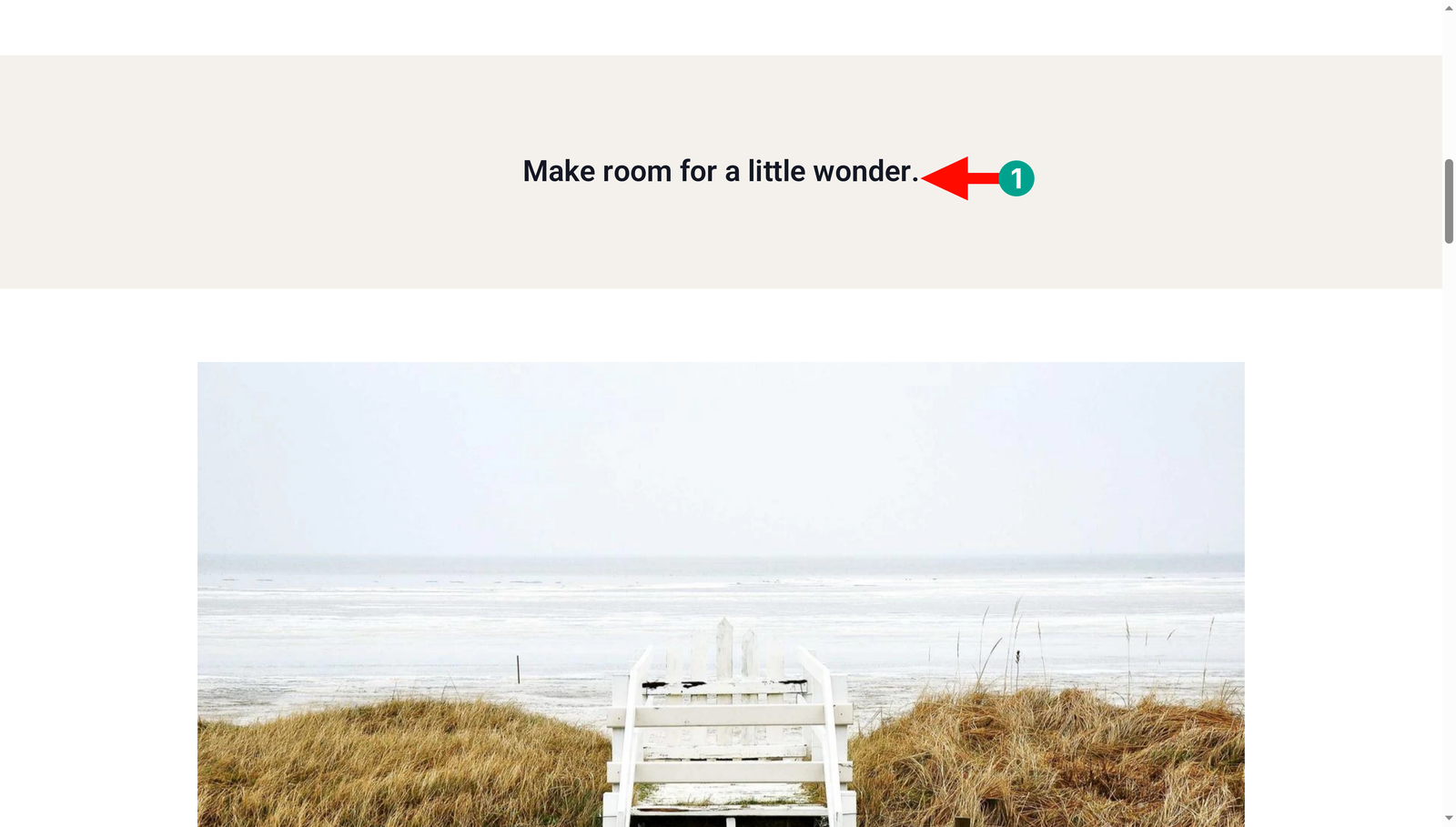
Drag a supported Heading widget into a container and enter a short line such as “Make room for a little wonder.” Set its HTML heading tag to match your page hierarchy, and finish its typography before you add the effect.
Step 02: Open Text Animation
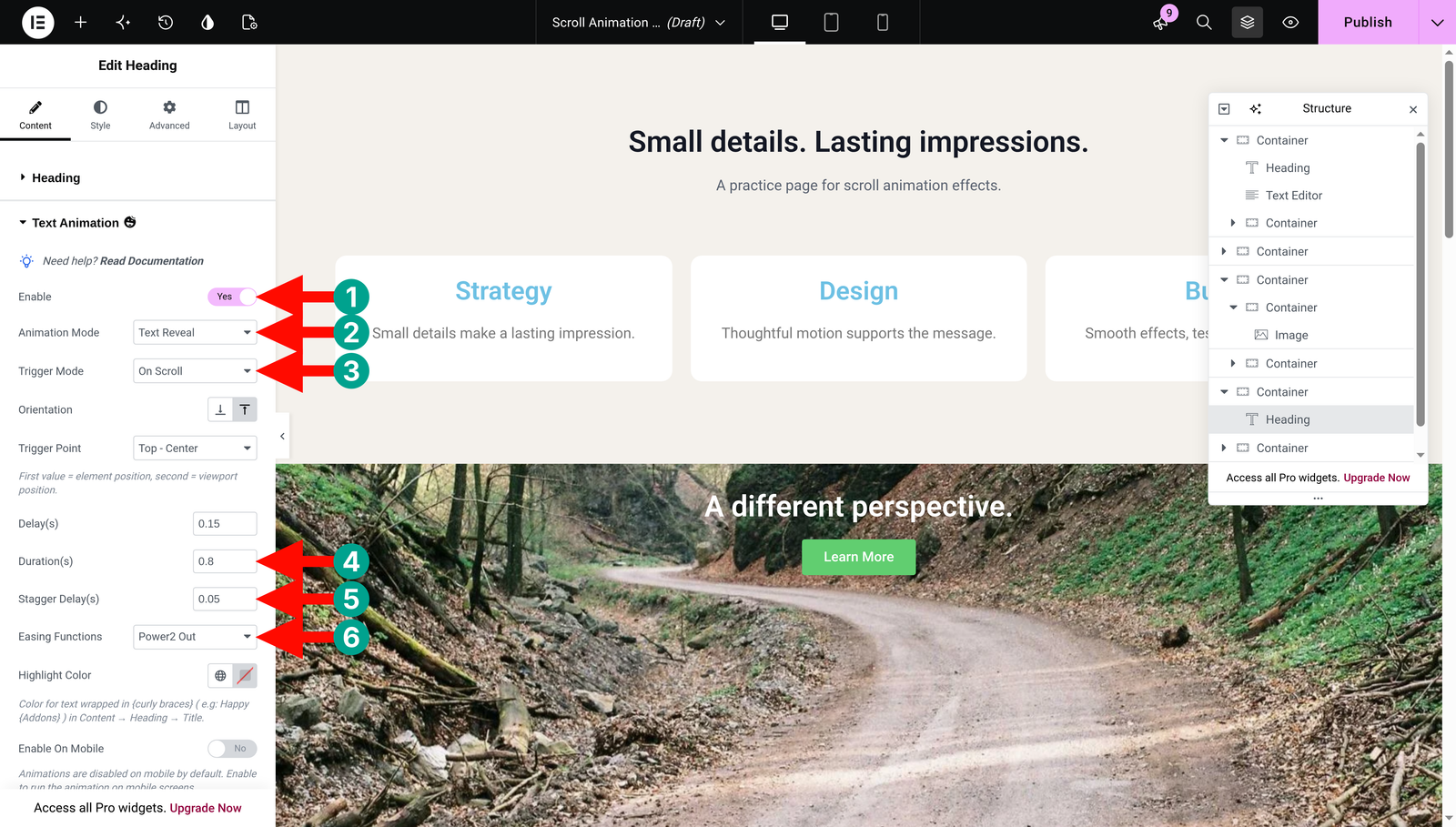
With the heading selected, open Content → Text Animation and enable the feature. Choose Text Reveal from Animation Mode.
Step 03: Choose the scroll trigger mode
Change Trigger Mode to On Scroll. Don’t leave it at On Appearance — shown as “On Appearing” in some documentation — if you want the scroll position itself to drive the effect.
Select the From Bottom orientation, and leave Duration(s) at 0.8, Stagger Delay(s) at 0.05, and Easing Functions at Power2 Out to match this example. (Text Reveal has no Vertical Offset field, so don’t go searching for one.)
Step 04: Preview the heading in both directions
Save and open the frontend preview. Scroll slowly past the heading, stop midway, and then scroll back up. The movement should follow your scroll while the heading stays readable throughout. Keep the mobile option off until you’ve checked the effect on a real phone.
Settings cheat sheet
| Setting | What it does | Recommended value |
|---|---|---|
| Animation Mode | Chooses the text effect. | Text Reveal |
| Trigger Mode | Chooses entry-triggered or scroll-linked playback. | On Scroll |
| Orientation | Sets the direction of the reveal. | From Bottom |
| Duration / Stagger Delay | Shapes timing within the animation sequence. | 0.8 seconds / 0.05 seconds |
| Enable On Mobile | Allows the effect on phones. | Off until tested |
In Free 3.50.0, On Scroll uses a built-in range — from the element entering at the bottom of the viewport to leaving at the top — with a built-in scrub value of 1. The panel doesn’t give you independent start, end, and scrub sliders for this mode, so there’s nothing missing if you can’t find them. Its Trigger Point setting belongs to appearance-triggered playback; don’t lean on it to promise a different On Scroll range.
Pro Tip: If the heading ever feels slow or hard to read, switch to On Appearance with a brief reveal instead. Scroll-linked animation is a nice-to-have; clear, readable text is the priority every single time.
Method 5: Image Reveal or Scroll-Controlled Media
HappyAddons Appearing Image Animation lets a picture step out from behind a curtain as it enters the trigger area. We’ll use Reveal, an entry-triggered effect — and it’s worth saying up front that this is different from scrubbing through a video frame by frame.
Reach for a reveal on a portfolio photograph, a product detail, or an image introducing a case study. Just avoid hiding an essential first-screen image behind a long delay, where visitors might miss it entirely.
Step 01: Add and prepare an image
Drag an Image widget onto the page and select a compressed image at a sensible resolution. Add descriptive alt text in the WordPress media settings, and set a consistent image size or aspect ratio so the layout reserves room for the image before it loads.
Step 02: Enable Appearing Animation
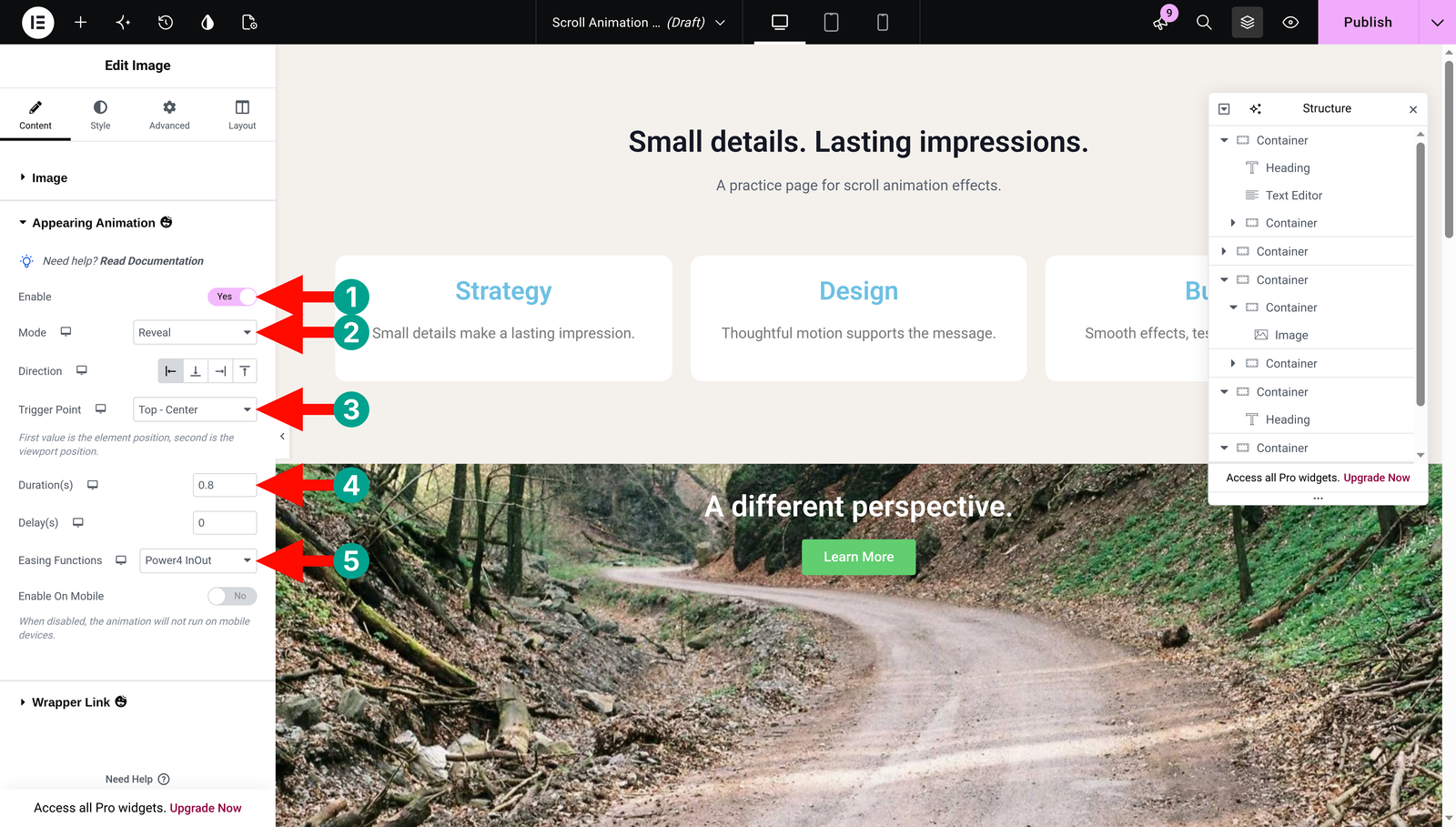
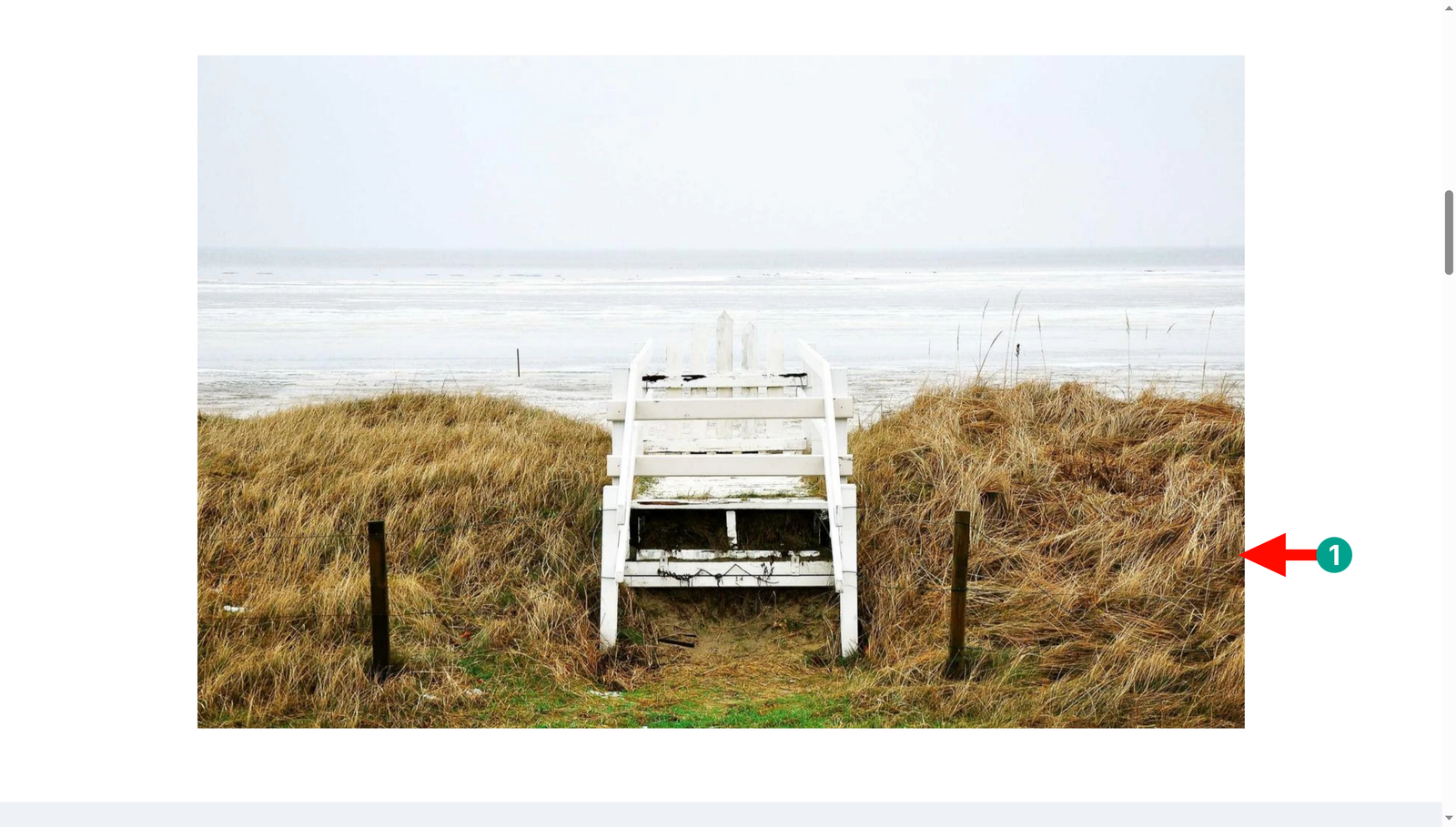
Open Content > Appearing Animation on the image widget and enable it. Choose Reveal under Mode, then select the left direction icon to start with a simple horizontal reveal.
Step 03: Choose the trigger and timing
Set Trigger Point to Top – Center, Duration to 0.8 seconds, and Delay to 0. Try Power4 InOut under Easing Functions for a smooth, gradual start and finish.
Step 04: Preview and compare the result
Save, reload the frontend page above the image, and scroll down. The reveal should begin when the image’s top reaches the viewport center. If that feels too late, use a custom trigger such as top 80% where available — and remember, when scrolling down, 80% starts earlier than 20%, because the trigger sits closer to the bottom of the viewport.
Settings cheat sheet
| Setting | What it does | Recommended value |
|---|---|---|
| Mode | Chooses the image animation. | Reveal |
| Direction | Chooses the edge used by the reveal. | Left for the first example |
| Trigger Point | Sets when the entrance effect begins. | Top – Center |
| Duration / Delay | Controls playback length and initial waiting time. | 0.8 seconds / 0 |
| Easing Functions | Changes acceleration during playback. | Power4 InOut |
This feature also includes Tiles Reveal, Corner Reveal, Scale, and Stretch, so feel free to explore once you’re comfortable. Reveal is a one-shot entrance effect — it won’t reverse simply because you scroll backward. Stretch uses a more involved pinned, scroll-driven behavior, so test it on its own with generous surrounding space. None of these, to be clear, turn the widget into an arbitrary video scrubber.
Pro Tip: Use one reveal direction throughout a project gallery. A consistent pattern helps visitors follow your work calmly, instead of feeling like every image introduces a brand-new interaction.
Method 6: Horizontal Scroll Sections
Horizontal Scroll is the plot twist of the scrolling story – HappyAddons Pro turns part of the vertical journey into sideways movement through a row of panels. The feature is fully supported in this package, with one honest caveat: its animated behavior is desktop-only.
It’s lovely for three portfolio projects or a short process story. Keep ordinary navigation, long articles, and essential forms in the normal vertical flow, though – those are not places for surprises.
Step 01: Create a row of panels
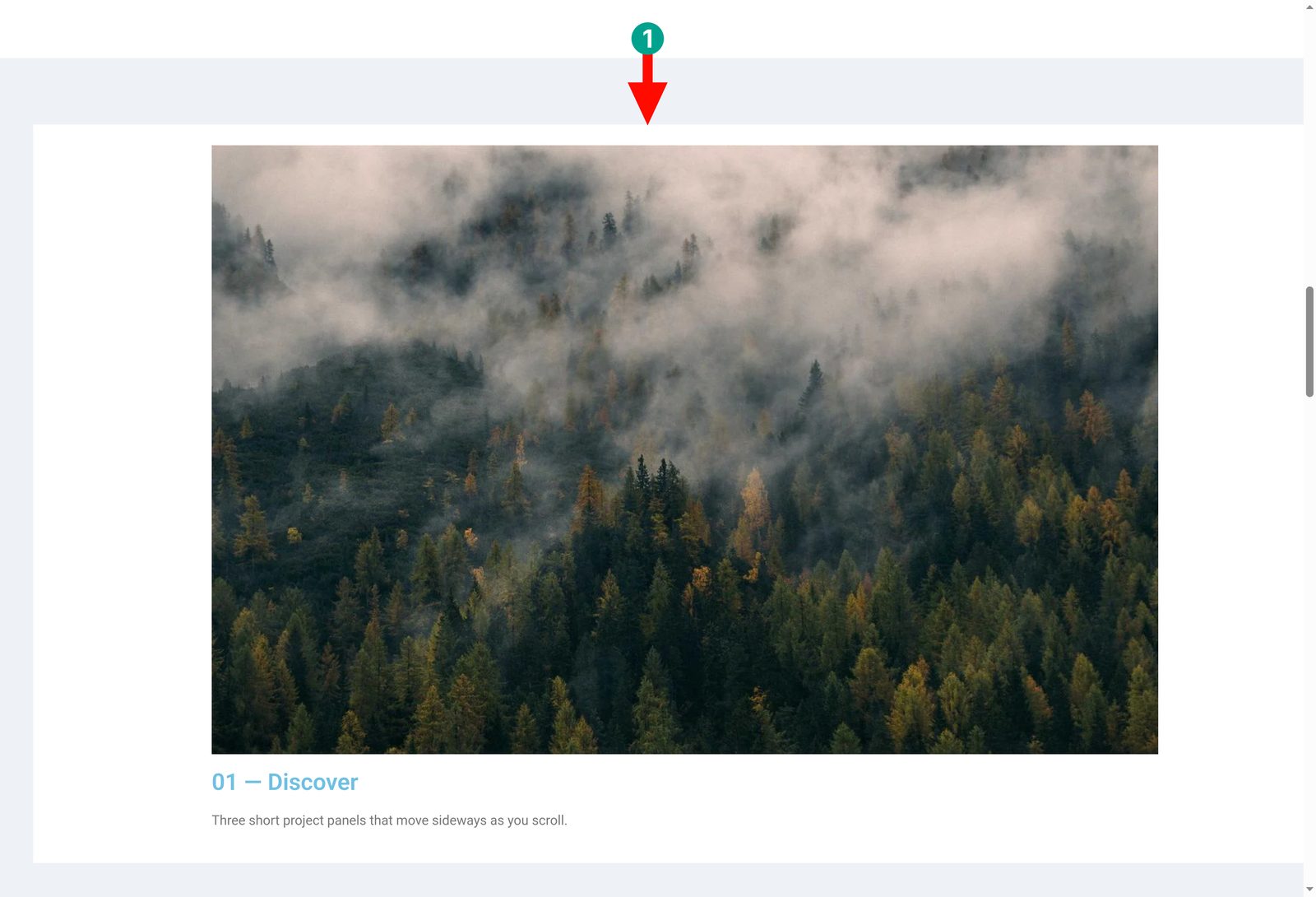
Add a parent container, then place three child containers inside it. Give each child one image, a heading, and a short description. Set the parent’s desktop direction to Row, use a full-width layout, and avoid letting the panels wrap into multiple rows.
Step 02: Enable Horizontal Scroll on the parent
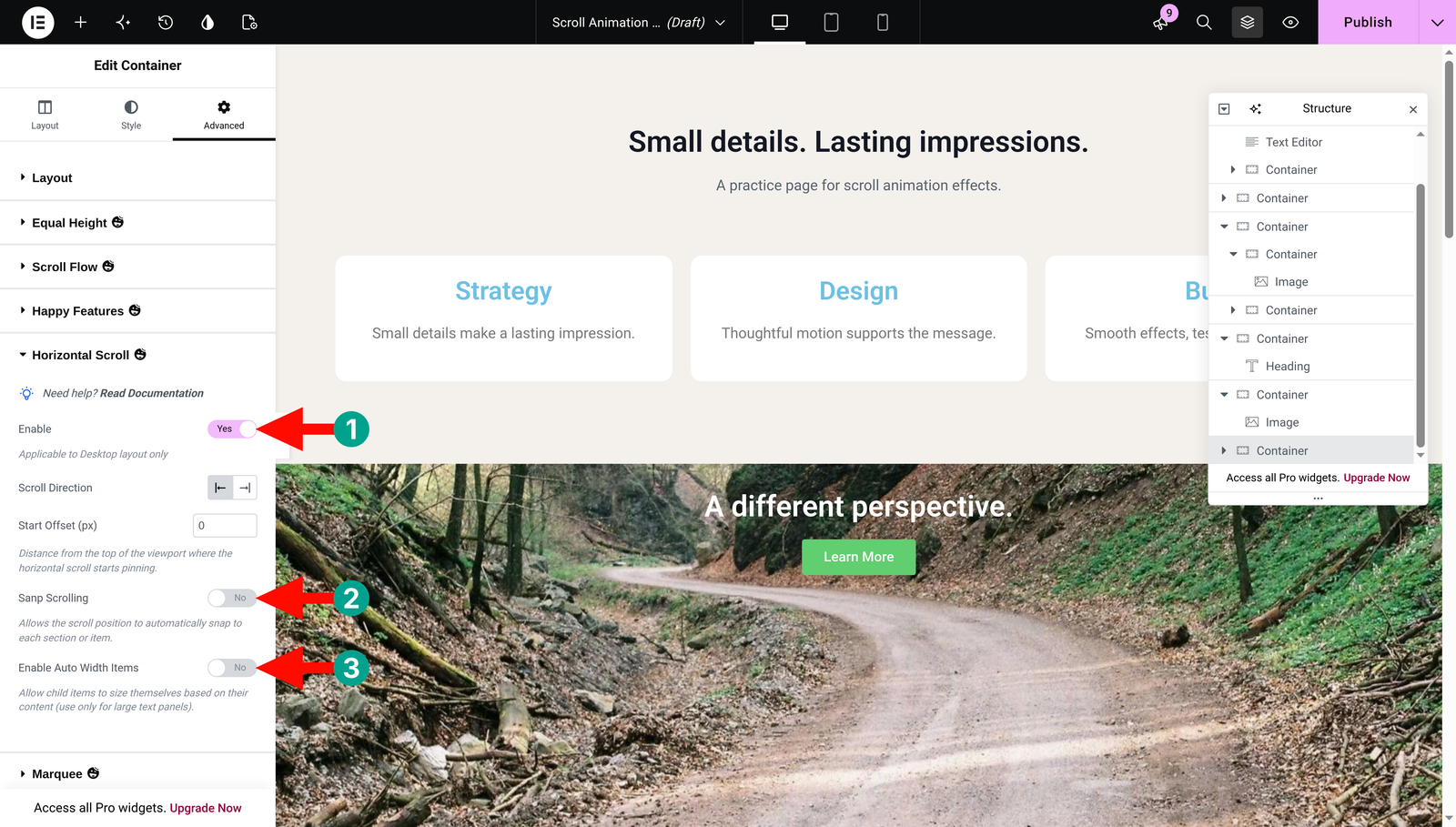
Select the outer container, open Advanced → Horizontal Scroll, enable the feature, and choose the left direction. Apply it to the container holding all the panels — never to an individual image.
Step 03: Check panel widths and snapping
For these image cards, leave Enable Auto Width Items off (that option is meant for large text panels). Set each child container’s desktop width to 650px, as in our example.
Leave snap scrolling off for your first preview – note the interface spells its label “Sanp Scrolling,” so don’t let the typo throw you. Make sure the total panel track is wider than the visible area, so there’s a meaningful distance to travel.
Step 04: Build the mobile layout
Switch to tablet and mobile views, set the parent direction to Column, and give each child a width of 100%. Trim oversized headings and padding so the cards fit a narrow screen comfortably. In this implementation, the horizontal animation runs at viewport widths of 1025px and above, so check the layout right around that boundary — even if you use custom Elementor breakpoints.
Step 05: Save and test the whole section
Publish or update the page, then inspect the frontend. Scroll through all the panels and on into the next section. Check every link with the keyboard and confirm that no panel is unreachable on a phone. And please don’t add a separate Sticky Pin Element effect to the same parent container — one animation system per element.
Settings cheat sheet
| Setting | What it does | Recommended value |
|---|---|---|
| Enable | Activates horizontal scrolling on the parent. | On for the desktop section |
| Scroll Direction | Sets the direction the panels travel. | Left |
| Enable Auto Width Items | Lets large text panels size to their content. | Off for these image cards |
| Snap scrolling | Settles the movement at panel positions. | Off initially |
| Tablet / mobile layout | Keeps all content accessible without the effect. | Vertical column; verify below 1025px |
Pro Tip: Give the next panel a visible edge, or use clear numbered headings like “01, 02, 03.” Readers should sense that there’s more content waiting — without having to guess how the section behaves.
Key Scroll Animation Settings Explained
These terms describe scroll animation in general. Not every feature exposes every control, and that’s completely fine — use the settings available in your chosen panel, and don’t waste time searching for controls that belong to a different animation system.
| Setting | Plain-English meaning | Practical starting point |
|---|---|---|
| Trigger start | The position at which an animation or pin begins. | Top – Center means the element’s top meets the viewport center. |
| Trigger end | The position at which a scroll-linked sequence or pin finishes. | End before the next unrelated section; inspect pin markers. |
| Scrub | Connects progress to scrolling; smoothing can make it catch up gradually. | Text On Scroll uses a built-in value of 1 in this version. |
| Duration | Playback length for a timed animation; in a scrubbed sequence it also helps distribute the parts. | Try 0.6–0.8 seconds for a brief timed reveal where numeric controls exist. |
| Easing | Changes the rate of movement during an animation. | Use one restrained easing style for similar elements. |
| Delay | A pause before a timed effect starts. | 0 first; remember Elementor’s entrance delay is in milliseconds. |
| Stagger | Spaces out the start of individual words, letters, or items. | Keep it short; use manual 100ms increments for native card entrances. |
| Once vs. repeat | Determines whether an effect replays or stays completed. | Don’t assume a Repeat switch exists; test the chosen mode. |
| Offset | Moves a trigger boundary or changes an element’s travel, depending on the panel. | Read the field context: pin offset and text vertical offset do different jobs. |
Real-World Use Cases and Examples
Here’s the mindset that keeps animations tasteful: decide what you want visitors to notice first, then choose the effect that serves it. Below are five practical recipes to get you started. The linked demos are official HappyAddons examples, not pages we built just for this tutorial.
a. Landing Page Hero Reveal
Recipe: Elementor Entrance Animation + Fade In Up + Normal duration + 0 delay on one supporting heading. Keep your main offer and button available immediately — the reveal is the garnish, not the meal.
b. Portfolio Showcase
Recipe: Appearing Image Animation + Reveal + Top – Center + 0.8-second duration on your project images.
View the official image reveal demo.
c. Product Feature Storytelling
Recipe: Sticky Pin Element + Top – Top start + a header-clearance offset on a product image beside longer feature text.
View the official sticky pin demo.
Timeline or Process Section
Recipe: Horizontal Scroll + left direction + three short panels + a vertical mobile layout.
View the official horizontal scroll demo.
Stats / Counter Section
Recipe: a static statistic or Counter widget inside a container + one Fade In entrance + 0 delay. Keep the label visible, and resist the temptation to combine count-up, rotation, and parallax all at once.
For a text-led example, compare the appearance and scroll-linked approaches side by side in the official text reveal demo.
Frequently Asked Questions
In this section, we’ll answer some questions frequently found online related to today’s topic. Hope you’ll find them extremely useful. Keep reading!
How do I add scroll animations in Elementor without coding?
Select an element, open Advanced → Motion Effects, and choose an Entrance Animation. For more effects, enable the relevant HappyAddons feature and configure its panel. Save the page and check the frontend at both desktop and mobile sizes.
Does Elementor have built-in scroll animations?
Yes. Elementor includes entrance animations, while additional scrolling and motion controls depend on your Elementor plan and version. Entrance animations play when elements enter view; they’re different from effects whose progress follows your scroll.
What is GSAP, and why does it matter for WordPress animations?
GSAP is a JavaScript animation library, and its ScrollTrigger plugin can connect animation progress and pinning to scrolling. Plugins such as HappyAddons expose selected GSAP capabilities through visual controls, so you can configure those effects without writing the animation code yourself.
Do scroll animations slow down my website?
They can add loading and processing work, and the real impact depends on the effects, images, scripts, device, and page layout. Use fewer effects, optimize your media, and compare performance before and after enabling animations rather than assuming they come free.
Can I add scroll animations to Elementor for free?
Yes. Start with Elementor’s native entrance animations. The HappyAddons Free 3.50.0 package also includes Background Parallax, Text Animation, and Appearing Image Animation. Only Sticky Pin Element and Horizontal Scroll in this guide require HappyAddons Pro.
How do I create a parallax effect in Elementor?
With HappyAddons Background Parallax enabled, add a background image to a container. Open its Background Parallax panel, enable the effect, choose Scroll, and start with Speed 0.3. Apply the change, save, and inspect both the frontend and the mobile layout.
Are scroll animations mobile-friendly?
Some are, but support and performance vary by effect and device. Keep your phone layouts readable without motion and always test on a real device. The HappyAddons Horizontal Scroll animation runs at widths of 1025px and above, so smaller screens need a vertical layout.
Can I animate text on scroll in Elementor?
Yes. Enable HappyAddons Text Animation on a supported heading, choose a mode such as Text Reveal, and set Trigger Mode to On Scroll. Keep the heading short and check readability while scrolling in both directions.
How do I disable scroll animations on mobile?
For native entrance animations, use Elementor’s device-specific control and choose None on mobile. For HappyAddons, use the feature’s mobile or Android/iOS switches where they’re provided. Options differ by feature, so always check the resulting mobile page.
What’s the best Elementor plugin for scroll animations?
Honestly, the best choice depends on the effect you need. Elementor alone is enough for basic entrances. HappyAddons is a strong option for the text, image, parallax, pinning, and horizontal effects in this guide. Choose by the controls you need, compatibility, accessibility, and measured performance — not by the sheer number of animations on offer.
Conclusion
Congratulations — you now know exactly how to add scroll animations to an Elementor website without writing a single line of animation code. Begin with a simple entrance effect, then layer in parallax, text reveals, image reveals, pinning, or horizontal scrolling wherever they genuinely help explain your content.
Before you publish, check the full page on desktop and mobile, test reduced motion, and remove any effect that makes reading or navigating harder. We hope you’ve learnt the process well and can now do it yourself with confidence.
Now it is your turn to take action. Choose one section on your site, apply the most suitable method, and build from there — one tasteful effect at a time.

![Black Friday and Cyber Monday are around the corner, and people are waiting for these festivals to grab the best product deals. That is why giving an attractive look to your website during this festive season is very necessary. But, creating a whole new landing page might be difficult in a short period of time. Don't worry. By using Happy Elementor Addons Black Friday and Cyber Monday Landing Page templates, you can easily develop a whole new landing page in a few minutes. In this today's blog, we are going to show how to boost your website design using HappyAddons templates during this festival season. Before that, we'll talk a bit about these two festivals and why they are important to online business communities. What are Black Friday and Cyber Monday? Black Friday is the immediate following of the famous Thanksgiving day. This is when people start shopping to celebrate the Christmas festival. Since the late 1980s, retail sales on this day have constantly been suppressing the past volumes. See the graph below. Source: Salecycle.com The first Monday following Thanksgiving day each year is called Cyber Monday. It was first introduced in 2005 by the USA National Retail Federation to encourage people to buy online. Though this festival originated in the USA, it is celebrated globally today. See the stats below. Source: Salecycle.com It indicates customers' buying behavior around this day is growing up over time. Many customers today keep a budget to buy products on these two days. So, why won’t you prepare a Cyber Monday landing page if you have an online store? Importance of Designing Landing Pages for Black Friday and Cyber Monday Festival Having a well-design website is one of the major checklists if you are running an online business. Most importantly, you have to make sure that your website remains up-to-date to boost your sales. That is why you need to redesign your website or make a new landing page during the Black Friday and Cyber Monday festivals. Because most online product & service-based businesses promote special deals during these two festivals. Here are some remarkable ways dedicated landing pages during these festivals can positively impact the performance of your online business. Boosts your product salesIncreases conversion rateOpportunity to collect potential email leadsGrabs users' attention toward your siteReduces bounce rateIncreases website visitors. Elementor Black Friday New Seasonal Kit is Already Here! Source: Elementor To make this Black Friday more enjoyable, Elementor has launched a New Seasonal Kit that includes landing pages, sections, pop-ups, and vector assets. All these design elements are made by the Elementor team so that one can easily use them on their website to ensure more sales and conversions. New Elementor Black Friday Seasonal Kit offers: 3 Landing pages6 Sections 6 Popups A collection of stickers & animations You can only get these ready-made Black Friday landing pages and sections if you have Installed Elementor Pro on your site. However, if you are looking for templates that are outside of the box, you can go with Happy Addons, the fastest Elementor Addons on the market. It's very easy to use, flexible and has tons of advanced features and widgets that can ease your website design journey. Also, you'll get several festival landing page templates & blocks. Moreover, you can use free Black Friday and Cyber Monday design blocks and templates to decorate your site. Most importantly, these templates and blocks are easy to customize and can be used for multiple purposes. Now let's see how you can use the Happy Addons templates to design your website according to the Black Friday theme. Pre-Requisites to Use HappyAddons Templates to Design Black Friday and Cyber Monday Landing Pages You must have the following plugins installed on your site to get access to the HappyAddons Template library. Make sure you’ve installed and activated the Happy Addons Free & Premium version of your website. Elementor (Free)Happy Addons (Free)Happy Addons Pro If you are new to Elementor, check this Step By Step Guide For Beginners. If you want to explore the readymade templates of HappyAddons before installing these plugins, you may visit by clicking on the button below. Check out Happy Addons Templates How to Design Black Friday Landing Page on Your Website Once you have the plugins (mentioned above) installed, your website is ready to follow the tutorial guide explained in this section. Get ready now! Step 1: Open a New Page with Elementor Create a new page or open the existing page with Elementor. Next, you have to select the Elementor Canvas option.Unless you select Elementor Canvas, you may watch the header, footer, and unnecessary other texts on the page. These might be irritating to you.Once you open the page with Elementor Canvas, your page will be completely clean. Watch the video below on how to do it. Step 02: Go to HappyAddons Library Click on the HappyAddons Library Icon. It will open up a modal popup. Here you'll find numerous stunning premade Blocks and Pages created by the Happy Addons team. Kindly explore them to create a list of your favorite items. Step 03: Import a HappyAddons Black Friday Template Go to the Page tab on the modal popup.Select Black Friday from the left-side filter option.You will several good-looking templates on your screen.Take your cursor on the one you like and hit on the INSERT button. Wait for a while to finish the installation process. You will get the template on your screen with editable sections and options. Step 04: Set the Black Friday Campaign Deadline A deadline creates a sense of urgency in customers' minds. So, better if you add a deadline section on the page to show your Black Friday deals. The good thing is that if you select the template as we did, you will automatically get a deadline or countdown option. You have to customize it as you want. Step 05: Show Image Carousel Slider on Your Black Friday Landing Page Using the Image Carousel, you can slide show demonstrating discounts on your product categories. Drag and drop the Image Carousel widget on any landing page section. Next, from the Elementor panel, you can add photos and text to the widget. Do it accordingly. Thus, you can add more sections and options on the landing page. Hope you can do it yourself. Step 06: Make the Black Friday Landing Page Mobile Responsive Making a web page mobile responsive with Elementor is super easy. You'll get the mobile responsive option on the Elementor footer section. Clicking on it will open up the option to view your landing page on different device screens. We have explained the process in the video below. Note: Don't delete any widget or section while customizing your landing page for any particular device. Because if you delete a widget or section on any device screen, it will also be applied on other devices. However, you may change their position or alignment or hide them. It won't make any impact on other devices. Step 07: Final Preview of Our Landing Page Here is the final interface of our Elementor Black Friday landing page that we've designed using the Happy Addons' ready-made Template. Get Happy Addons to Add a Black Friday Theme Landing Page on Your Website How to Design Cyber Monday Landing Page on Your Website You will require the same prerequisites (Elementor and HappyAddons Plugins) to design the Cyber Monday landing page on your website. Hope you have them ready on your website. Now, let's get into the tutorial part. Step 01: Import a Cyber Monday Readymade Landing Page Template Go to the HappyAddons Template library.Choose the Cyber Monday template you like.Click on the INSERT button. Wait for a while to finish the installation process. You'll get a page design like the following image below. Step 02: Edit Different Sections of the Page In the first tutorial, you saw the deadline/countdown option was already embedded in the template. But this template doesn't have it. So, you can bring it to your page? Very simple. Create a new section by clicking on the plus icon.Type Countdown on the Elementor search bar.Drag and drop the widget on the section. Customize the Countdown section from the Content and Style tabs of the Elementor panel. Using the Heading widget, we have added the FLASH DEALS text next to the countdown to make it more meaningful. Thus, you can use other exciting widgets on the template to make your landing page super gorgeous. Step 03: Promote Products on the Landing Page Promotional landing pages usually include a section to showcase some hot-selling products to generate instant sales. Using the Image and Button widgets, we have created this section under the FLASH DEALS.You may customize it more as you wish. Step 04: Make it Mobile Responsive We already showed you the process in the first tutorial on making a mobile web landing page responsive. Hope you can do it here as well, following the same guideline. Click on the Responsive Mode icon and do the rest yourself. Bonus: Black Friday and Cyber Monday Landing Page Design Key Considerations Whenever you design a landing page, you need to consider why you need to design this page and what elements they should keep on the page. Because if you are not adding all the necessary features to your page, it will not serve its purpose. This is why you need to focus on a few things before designing your Black Friday landing page. Here are some points you must consider in designing Black Friday and Cyber Monday landing pages. Add Black Friday textSet deals deadlineShow your best-discounted productsAdd coupon code Focus on responsive page designMake your page visually appealingImprove your page user experience or page structureSet a proper website navigation FAQ on Black Friday and Cyber Monday Landing Page Design Now, we'll answer some common questions on Black Friday and Cyber Monday Landing page designs commonly found online. How much does it cost to design a landing page?The cost of designing a landing page varies depending on the complexity of the design, the level of customization required, and whom to hire for the page. A simple landing page can be designed for as little as $25, while a more complex design with multiple customizations can cost upwards of $2,00.However, if you have Elementor and HappyAddons installed, you can design unlimited landing pages at a minimal cost. But like any other tool, you must have a kind of enterprise on them. As they are drag-and-drop builders and their numerous tutorials and documentation are available, they won't take you more than a month to be used to. Check out some wonderful YouTube tutorials on these two plugins. Hope you will enjoy them.How many hours does it take to design a landing page?It mainly depends on the level of design complexity and your web design skill. However, both in Elementor and HappyAddons, you will get countless readymade templates and block sections. You can design a beautiful landing page in 3-5 hours by making a proper combination of them.Can I design Black Friday and Cyber Monday Landing pages with Elementor and HappyAddons free versions?Surely, you can design Black Friday and Cyber Monday Landing pages with Elementor and HappyAddons free versions. But only with the pro versions, you can't add too many exciting features to your pages. For example, free versions will give you access to only a limited number of readymade templates.If you are just a beginner-level designer, free versions are enough. But if you are a professional designer or have a web designing agency, pro versions are a must. Are You Ready To Design Your Black Friday and Cyber Monday Landing Page? Customers look forward to this kind of occasion to buy their favorite products at a minimum price. Naturally, they are drawn to websites that look good and give a festive vibe. That is why adding a Black Friday and Cyber Monday landing page during the festival season will give you an extra edge over the competitors. The above guide shows how to design your Elementor Black Friday Landing page using the Happy Addons' Black Friday Templates and how it can help boost your holiday sales. So if you have any queries regarding this blog, you can comment on us in the below box. If you like this post, then share it on your social channel. Don't forget to subscribe to our newsletter. Also, follow our Facebook and Twitter channels for regular updates. Subscribe to our newsletter Get latest news & updates on Elementor [yikes-mailchimp form="1"] ":36560} /--](https://happyaddons.com/wp-content/uploads/2021/11/How-to-Design-Black-Friday-and-Cyber-Monday-Landing-Page-300x188.png)