






CSS Code Snippets are small pieces of code that help you customize how your website looks. They control styles like colors, fonts, spacing, borders, and more. With CSS, you can easily change the design of your site without touching its main structure or content.
When you use Elementor CSS code, you can go beyond the default design settings. It allows you to make unique adjustments that aren’t available through Elementor’s regular options. You can style specific sections, widgets, or even entire pages exactly how you want.
In this post, we’ll show you how to add CSS code in WordPress and use it inside Elementor. No matter if you want to fix a small design issue or give your website a custom touch, you can easily do this by adding CSS code snippets and improving your design with full creative control. Keep reading!
Why Should You Add CSS Code Snippets?
While Elementor offers powerful visual tools, sometimes you need extra styling that isn’t available in the panel. By adding CSS code snippets, you can overcome this limitation and fine-tune your layout. You can also fix style issues and make your site stand out with a unique design touch.
Let’s take a look at why you should consider adding CSS code snippets to your Elementor website.
a. Greater Design Flexibility
CSS code snippets let you design beyond Elementor’s built-in options. You can adjust margins, padding, colors, or animations exactly as you want. This flexibility helps you achieve a truly custom look that fits your brand style.
b. Improve Website Consistency
Using CSS allows you to apply the same style to multiple elements across your site. Instead of manually changing each widget, one snippet can control them all. This keeps your design clean, balanced, and consistent.
c. Fix Design Limitations
Sometimes Elementor widgets have limited styling controls. CSS snippets help you fix those limitations by giving you full access to every element’s style. You can easily override default designs and add your preferred visual details.
d. Enhance Website Performance

Instead of using multiple heavy plugins for simple style changes, CSS snippets let you make direct changes through lightweight code. This reduces plugin load and helps your site run faster. A cleaner site structure also improves user experience.
e. Create Unique Visual Effects
With custom CSS, you can add hover effects, transitions, animations, and creative layouts. These effects make your website more engaging and modern. It’s an easy way to give your design a professional and interactive look.
f. Easy Maintenance and Control
Once you organize your CSS snippets properly, managing your design becomes easier. You can quickly edit or update any section without disturbing the whole layout. This gives you full control over your site’s style from one place.
Prerequisite to Add Custom CSS Code in Elementor
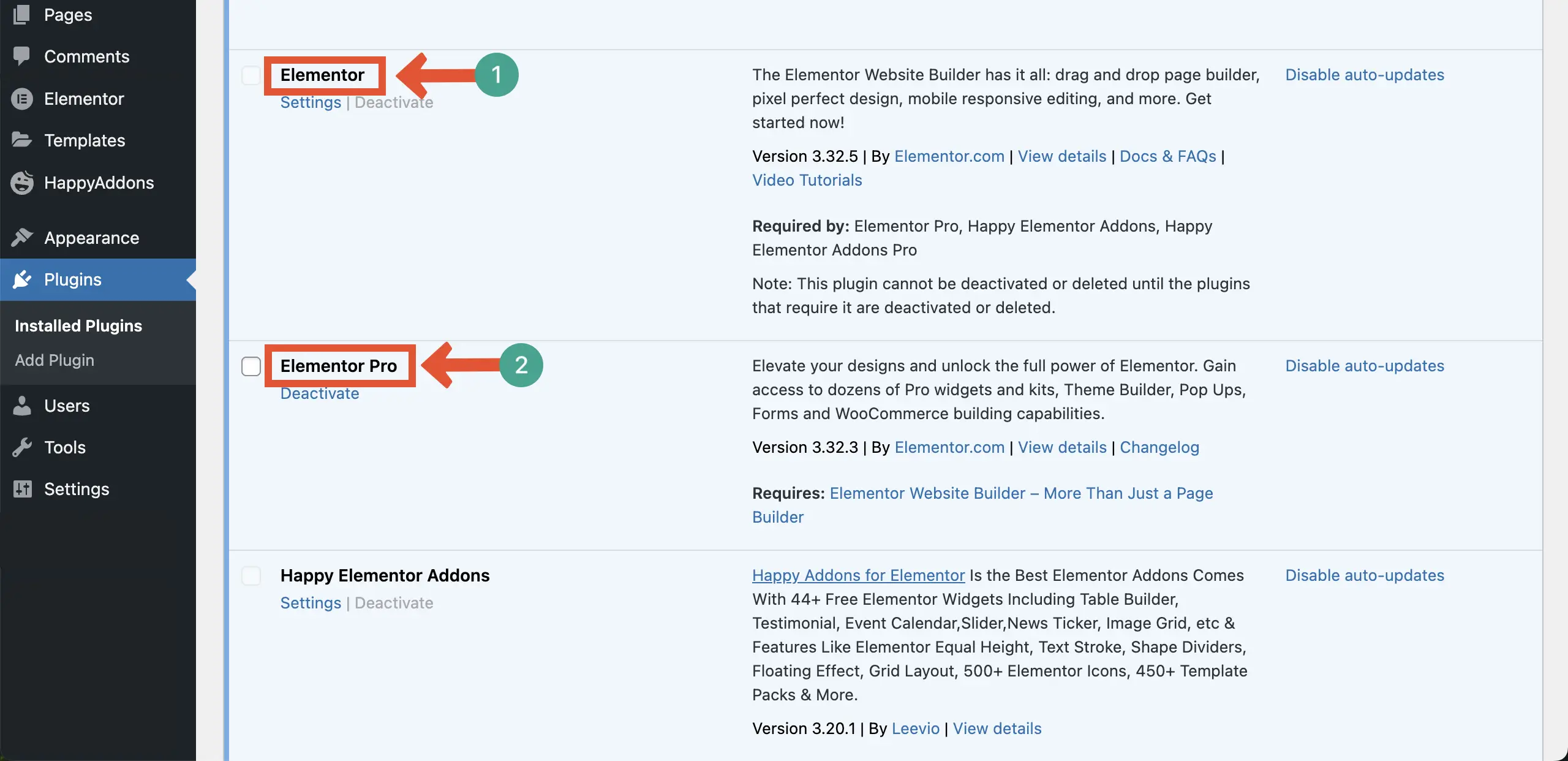
Like most plugins, Elementor also has free and premium versions. But to be able to add Custom CSS code, you definitely need the premium version along with the free one. You will find the destination links of the plugins from the list below.
Make sure you have the above-mentioned plugins installed and activated on your site. You can see that we have already installed both Elementor plugins on our site.
How to Add CSS Code in WordPress Using Elementor
Since the necessary plugins are ready, it’s time to add custom CSS code snippets to WordPress. You’ll find the process very easy. Let’s follow the steps as explained below.
Step 01: Open a Page
Open a post or page that you have already designed with Elementor. Then, come to the widget or element to which you want to add a CSS code snippet.
Step 02: Select a Widget or Item
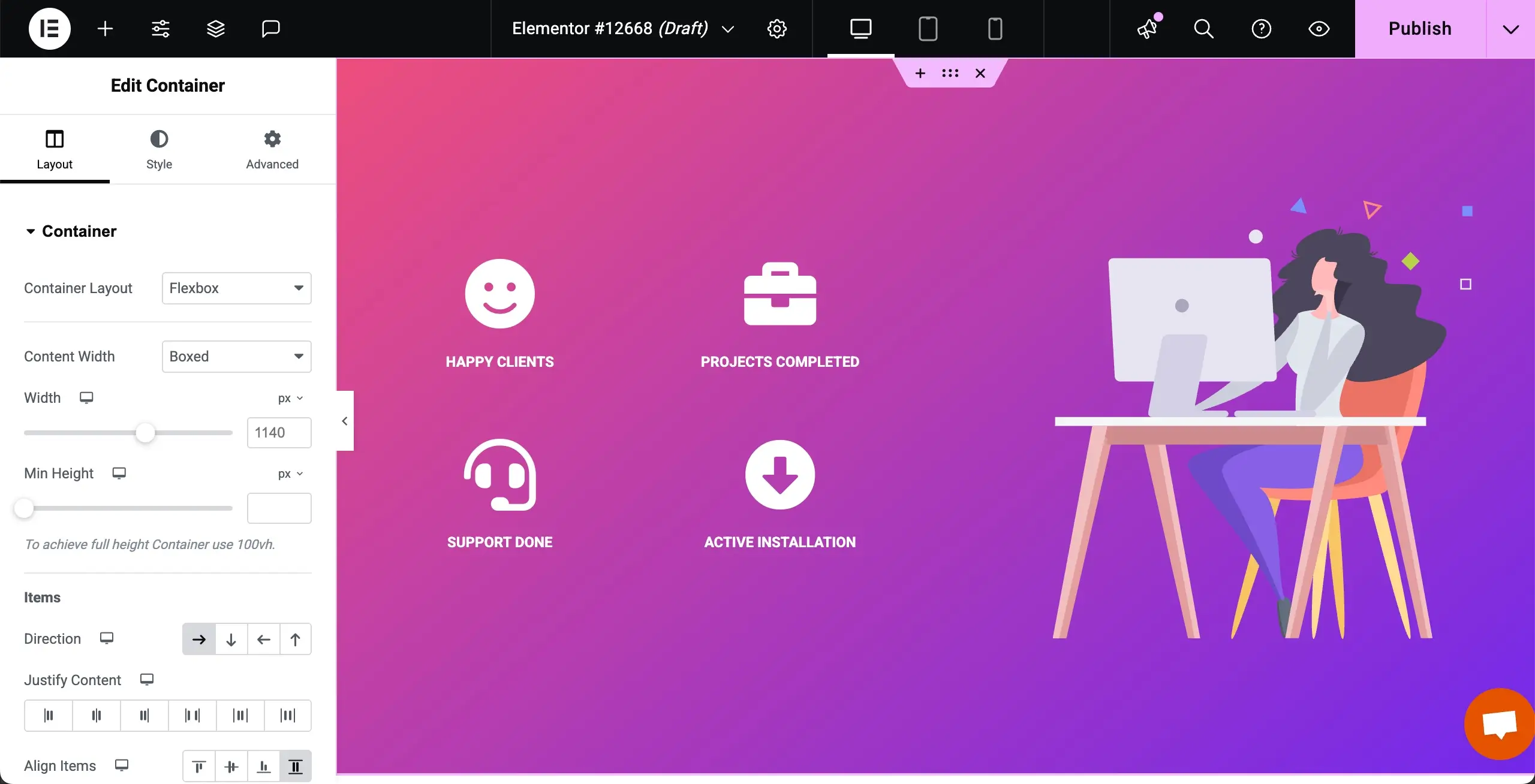
Click the element or widget to which you want to add the custom CSS code snippet, as said above. For this tutorial, we will add this code to the icons one by one, as you can see in the image below.
Let’s first select the happy emoji icon by clicking it. Then, come to the Advanced tab on the Elementor panel on the left sidebar.
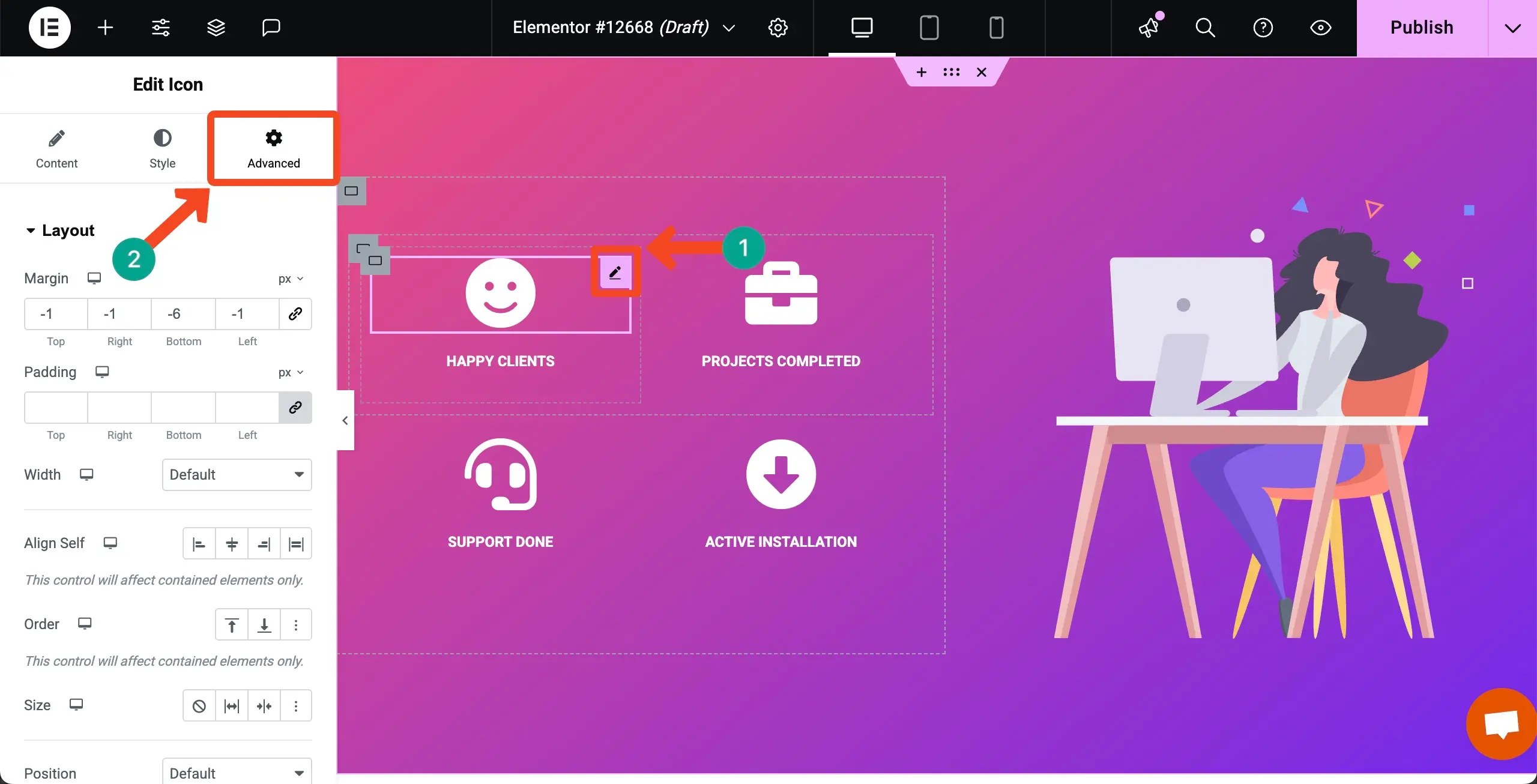
Scrolling down the Elementor panel, come to the Custom CSS option. Expand it by hitting this option. This will open up an editor where you can write any custom CSS code snippet.
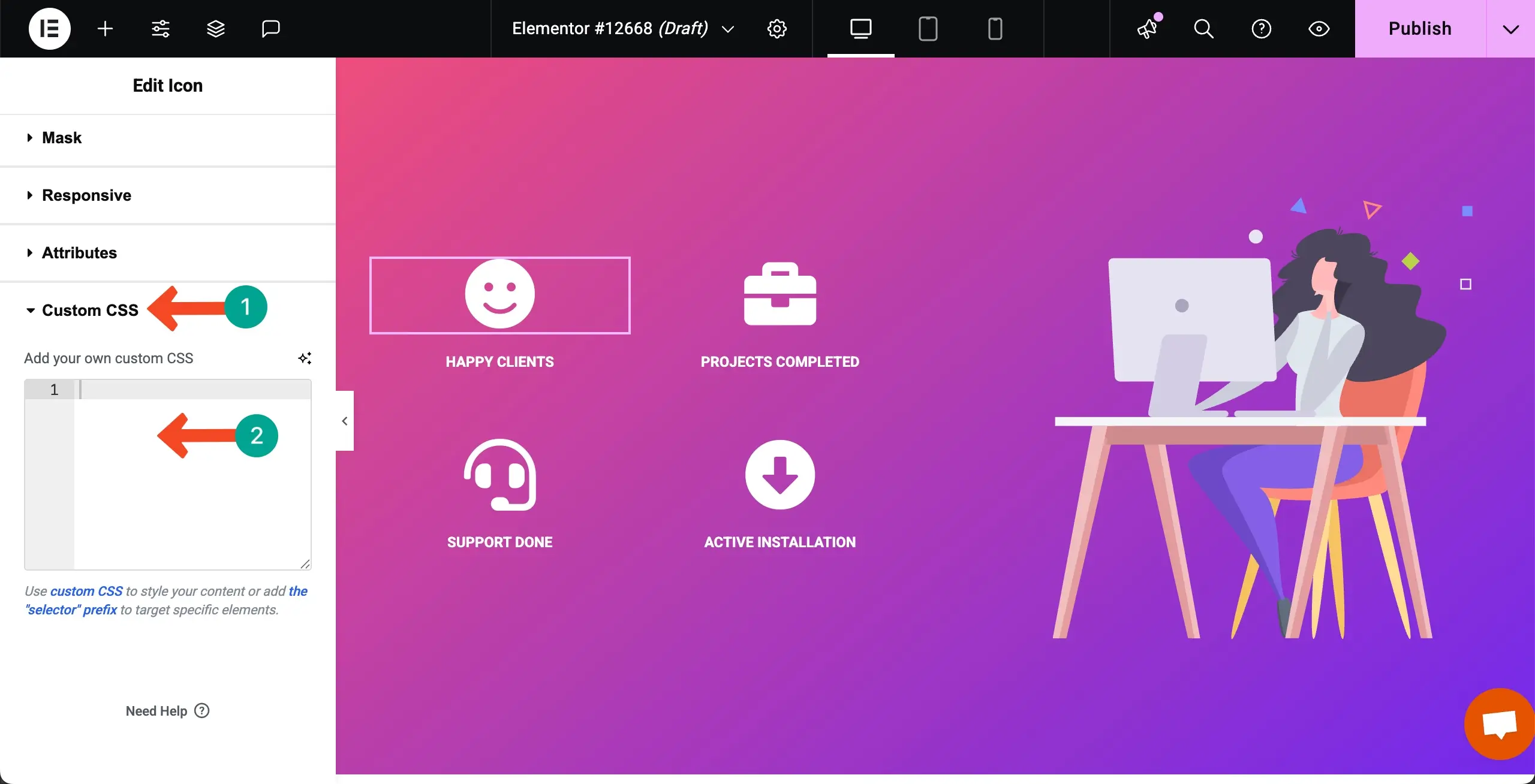
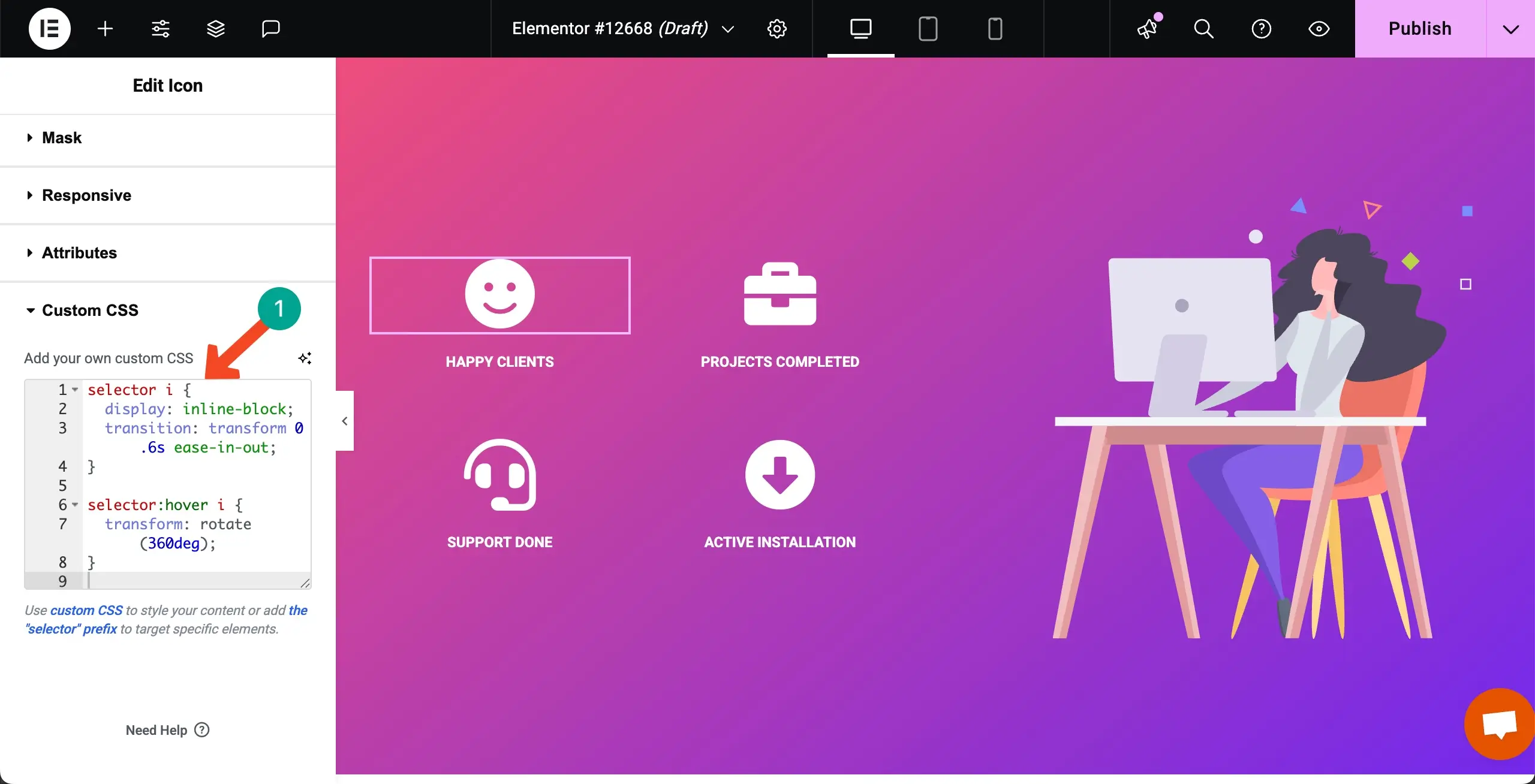
Write your desired custom CSS code snippet in the editor. You can see that we have written some code. This CSS code smoothly rotates the icons by 360 degrees when hovered over the icon.
Step 03: Preview the Effect Created from Custom CSS Codes
According to our code, the icon rotates 360 degrees when hovered. You can see this in the video clip attached below.
Step 04: Write CSS Code Snippets Using Elementor AI
Elementor is no doubt a great solution for no-code users. Not only drag-and-drop, but you can also create custom CSS codes to generate your desired effects for any items just by prompts.
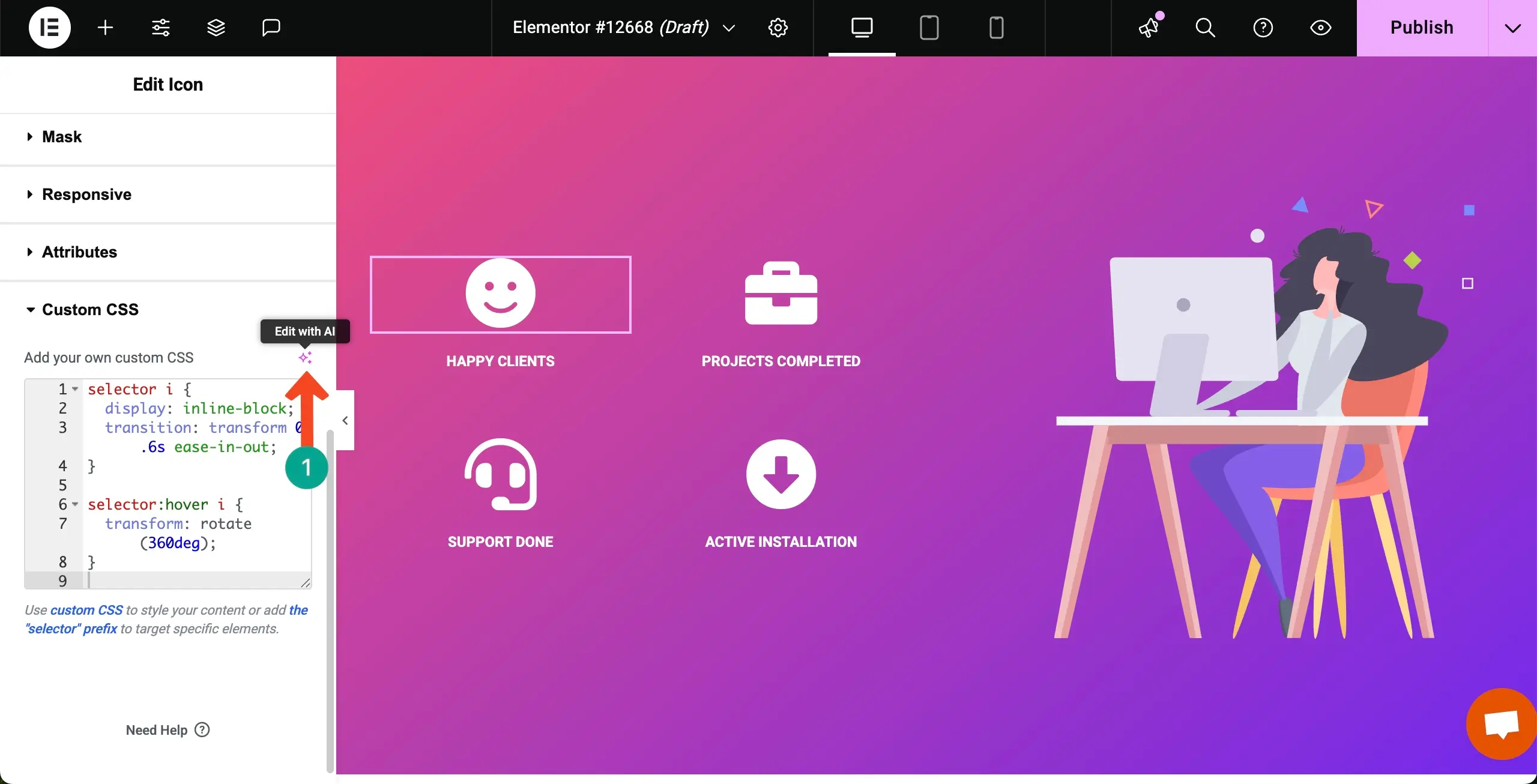
Click the three-star icon (Edit with AI) next to the section.
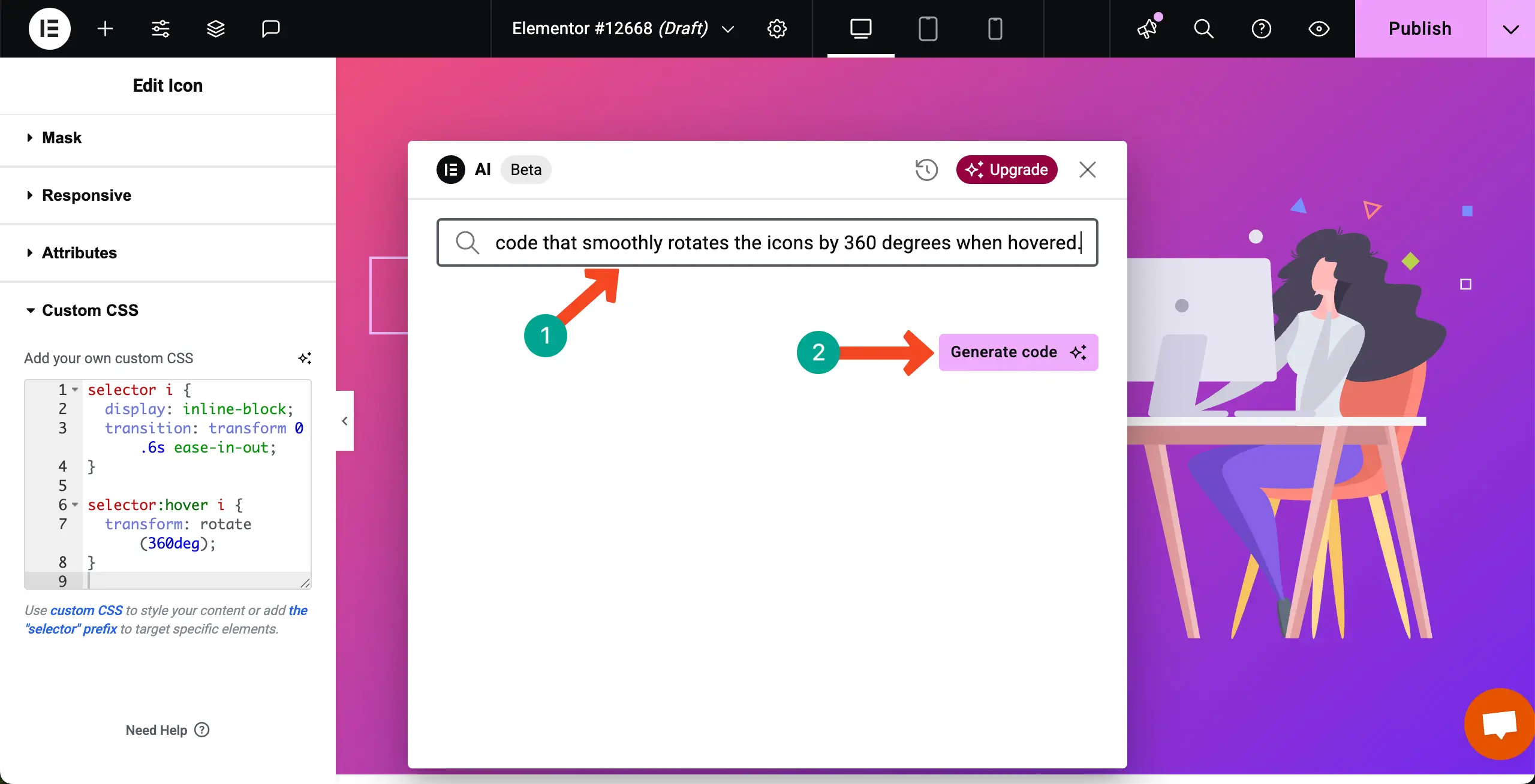
A popup will open up. Describe the type of code you need in the box on the popup. Next, click the Generate code button.
A new CSS code will instantly be generated. After that, you can directly place it in the Custom CSS editor. Thus, you can create codes and update your web design.
Step 05: Final Preview
Now, in the same way, we hope you can add the custom CSS Code snippet to all the other icons. Once done, preview them to check if they are working properly or not.
Add Custom CSS Code Using the Theme Customizer
If you have Elementor, you can add the CSS code snippet using the default theme customizer option of your theme. To do this, follow the steps as explained below.
Step 01: Go to the Theme Customizer Option
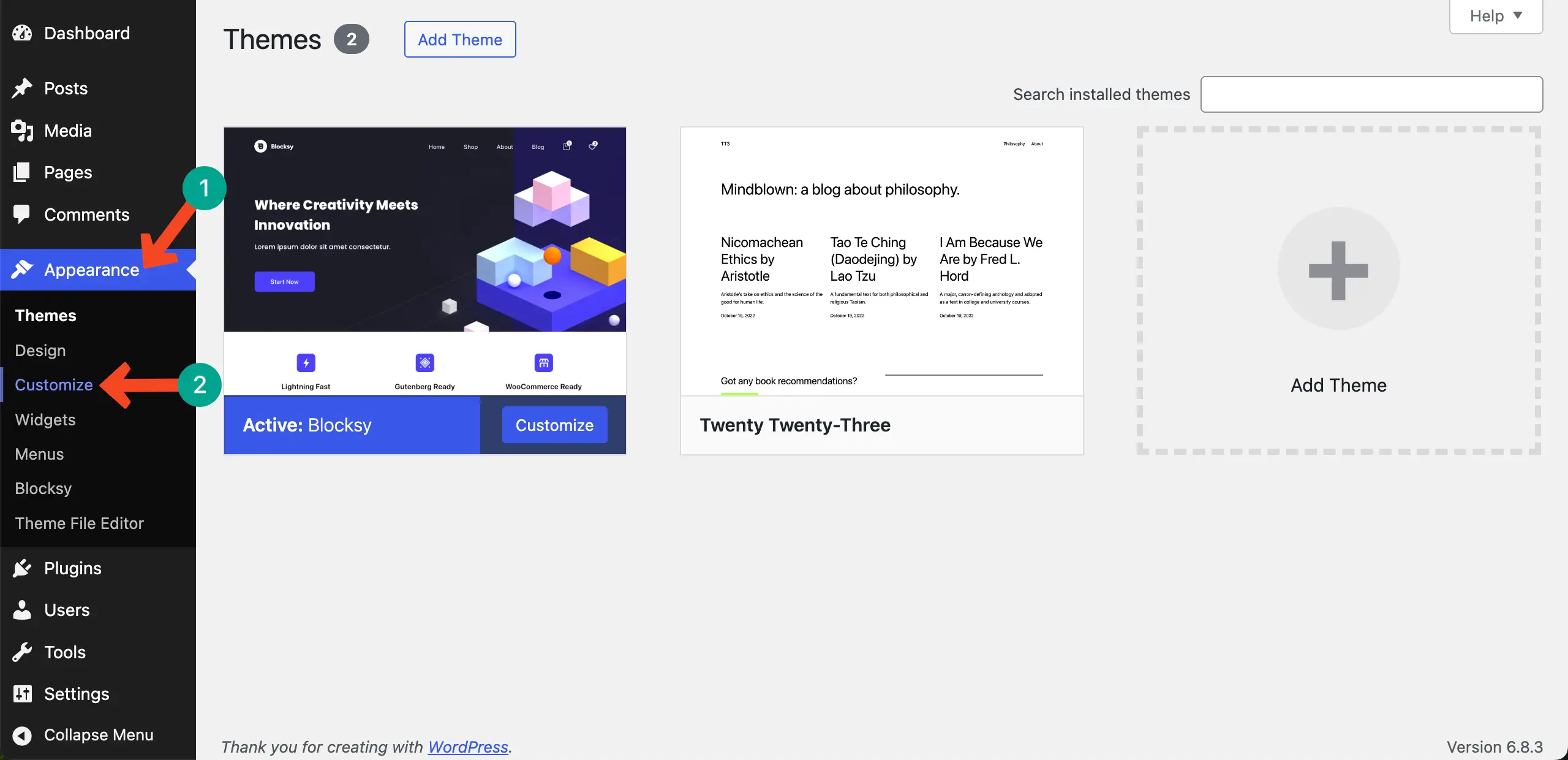
Let’s first log in to your WordPress dashboard. Then, navigate to Appearance > Customize. Based on the theme you are using on your site, this navigation and options may vary slightly.
Step 02: Come to Additional CSS
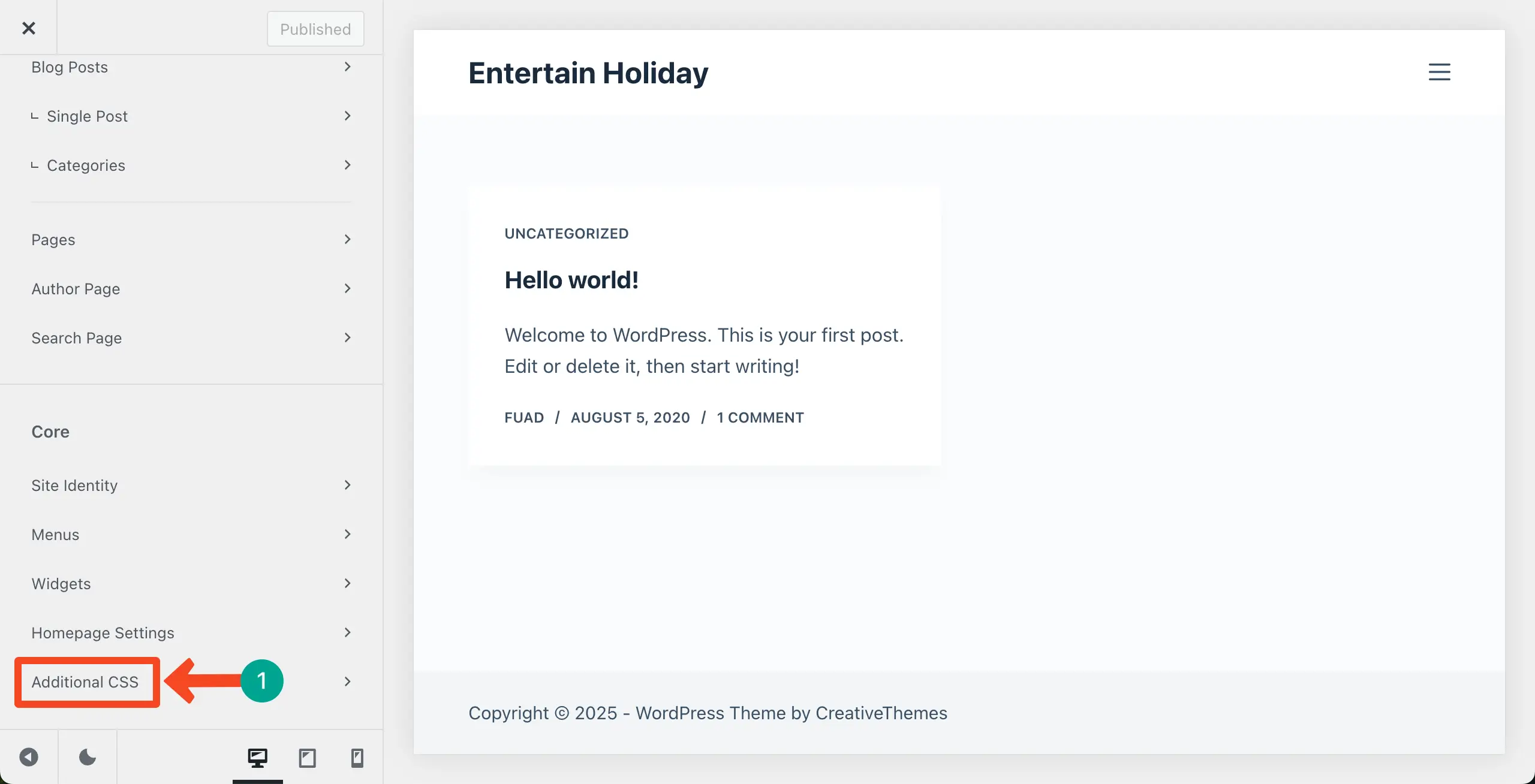
You’ll instantly come to a new page. By scrolling the left sidebar, locate the Additional CSS option. Expand this option by hitting it.
Step 03: Get the Code Editor
Once this option is expanded, you’ll get a code editor where you can write your desired custom CSS code as you did in Elementor. The process is the same.
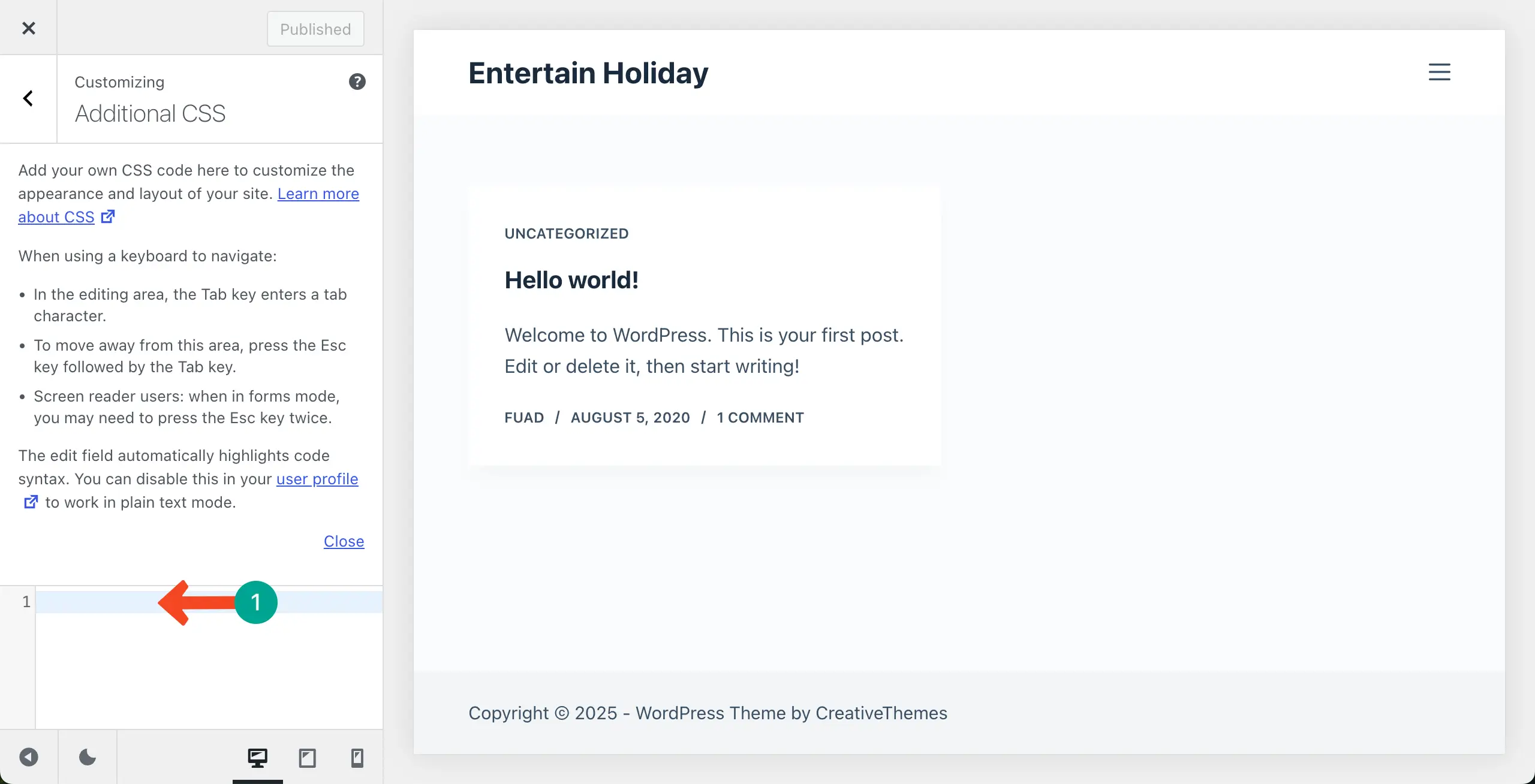
Thus, you can add CSS code snippets in WordPress using the default theme customizer.
Things to Care About When Adding CSS Code
There are several points you must consider carefully to get the best from the custom CSS codes. Take a look at the below.
1. Avoid Conflicts with Existing Styles
When you add CSS code, make sure it doesn’t conflict with your theme or other plugins. Conflicting styles can break your design or make it look different on various pages. Always test the changes on a staging site or preview mode before publishing.
2. Use Specific Selectors
Always write CSS with specific selectors to target the exact element you want to style. Broad selectors can accidentally change styles for multiple elements. This helps maintain a clean and controlled design.
3. Keep CSS Organized and Simple
Avoid writing very long or messy CSS code directly in Elementor. Organize your code and add comments to remember what each part does. Simple and structured CSS is easier to manage and fix later.
4. Check Responsiveness
Make sure your CSS changes look good on all devices—desktop, tablet, and mobile. Elementor has responsive preview tools you can use to check this. Responsive design ensures your website looks professional everywhere.
Use HappyAddons to Enhance the Power of Elementor
If you ever feel like the features and widgets of the Elementor plugin aren’t enough to meet your custom design needs, you might look for additional options. HappyAddons could be a great solution in this case. It’s a powerful addon of the Elementor plugin, with 145+ multipurpose widgets and 32+ features.
It comes with many creative widgets like advanced sliders, interactive galleries, countdowns, and animated content with ease. These widgets make it possible to build professional-looking pages without touching complex code, giving Elementor users more tools to create unique designs.
In addition to widgets, some of its exciting features are cross-domain copy-paste, display conditions, floating effects, live copy, and role manager. These features help you save time, improve workflow, and make your website more dynamic and user-friendly.
By combining Elementor with HappyAddons, you get a complete design toolkit that enhances both creativity and efficiency. Like most other plugins, HappyAddons also has a free and premium version. Get them by clicking the buttons attached below.
Bonus Point: How to Add Custom JS in Elementor
While Elementor allows you to add custom CSS to style your website, it doesn’t provide a built-in option to add JavaScript. This is where the HappyAddons plugin comes in. With HappyAddons, you can easily add Custom JS to your Elementor site and make it more interactive and dynamic.
Custom JS, or JavaScript, is a scripting language that controls how elements behave on your site. This feature gives you the power to add special effects, animations, pop-ups, or any custom functionality that CSS alone cannot achieve.
Unlike CSS, which only changes the look and style, JS can make buttons clickable, forms interactive, sliders functional, and much more. To use Custom JS on your Elementor pages safely and efficiently, you should try the HappyAddons plugin.
Below is a quick video tutorial on how to add Custom JS to Elementor using the HappyAddons plugin.
Final Thought
Well, it’s really easy to add and maintain CSS Code Snippets in your Elementor design. You can design your own site by inserting CSS code and modifying the style of your site as per your requirements.
If you are a non-coder, don’t worry. Elementor itself gives you a lot of custom drag-and-drop controls to customize your site.
Subscribe to our newsletter
Get latest news & updates on Elementor
[yikes-mailchimp form=”1″]

![Black Friday and Cyber Monday are around the corner, and people are waiting for these festivals to grab the best product deals. That is why giving an attractive look to your website during this festive season is very necessary. But, creating a whole new landing page might be difficult in a short period of time. Don't worry. By using Happy Elementor Addons Black Friday and Cyber Monday Landing Page templates, you can easily develop a whole new landing page in a few minutes. In this today's blog, we are going to show how to boost your website design using HappyAddons templates during this festival season. Before that, we'll talk a bit about these two festivals and why they are important to online business communities. What are Black Friday and Cyber Monday? Black Friday is the immediate following of the famous Thanksgiving day. This is when people start shopping to celebrate the Christmas festival. Since the late 1980s, retail sales on this day have constantly been suppressing the past volumes. See the graph below. Source: Salecycle.com The first Monday following Thanksgiving day each year is called Cyber Monday. It was first introduced in 2005 by the USA National Retail Federation to encourage people to buy online. Though this festival originated in the USA, it is celebrated globally today. See the stats below. Source: Salecycle.com It indicates customers' buying behavior around this day is growing up over time. Many customers today keep a budget to buy products on these two days. So, why won’t you prepare a Cyber Monday landing page if you have an online store? Importance of Designing Landing Pages for Black Friday and Cyber Monday Festival Having a well-design website is one of the major checklists if you are running an online business. Most importantly, you have to make sure that your website remains up-to-date to boost your sales. That is why you need to redesign your website or make a new landing page during the Black Friday and Cyber Monday festivals. Because most online product & service-based businesses promote special deals during these two festivals. Here are some remarkable ways dedicated landing pages during these festivals can positively impact the performance of your online business. Boosts your product salesIncreases conversion rateOpportunity to collect potential email leadsGrabs users' attention toward your siteReduces bounce rateIncreases website visitors. Elementor Black Friday New Seasonal Kit is Already Here! Source: Elementor To make this Black Friday more enjoyable, Elementor has launched a New Seasonal Kit that includes landing pages, sections, pop-ups, and vector assets. All these design elements are made by the Elementor team so that one can easily use them on their website to ensure more sales and conversions. New Elementor Black Friday Seasonal Kit offers: 3 Landing pages6 Sections 6 Popups A collection of stickers & animations You can only get these ready-made Black Friday landing pages and sections if you have Installed Elementor Pro on your site. However, if you are looking for templates that are outside of the box, you can go with Happy Addons, the fastest Elementor Addons on the market. It's very easy to use, flexible and has tons of advanced features and widgets that can ease your website design journey. Also, you'll get several festival landing page templates & blocks. Moreover, you can use free Black Friday and Cyber Monday design blocks and templates to decorate your site. Most importantly, these templates and blocks are easy to customize and can be used for multiple purposes. Now let's see how you can use the Happy Addons templates to design your website according to the Black Friday theme. Pre-Requisites to Use HappyAddons Templates to Design Black Friday and Cyber Monday Landing Pages You must have the following plugins installed on your site to get access to the HappyAddons Template library. Make sure you’ve installed and activated the Happy Addons Free & Premium version of your website. Elementor (Free)Happy Addons (Free)Happy Addons Pro If you are new to Elementor, check this Step By Step Guide For Beginners. If you want to explore the readymade templates of HappyAddons before installing these plugins, you may visit by clicking on the button below. Check out Happy Addons Templates How to Design Black Friday Landing Page on Your Website Once you have the plugins (mentioned above) installed, your website is ready to follow the tutorial guide explained in this section. Get ready now! Step 1: Open a New Page with Elementor Create a new page or open the existing page with Elementor. Next, you have to select the Elementor Canvas option.Unless you select Elementor Canvas, you may watch the header, footer, and unnecessary other texts on the page. These might be irritating to you.Once you open the page with Elementor Canvas, your page will be completely clean. Watch the video below on how to do it. Step 02: Go to HappyAddons Library Click on the HappyAddons Library Icon. It will open up a modal popup. Here you'll find numerous stunning premade Blocks and Pages created by the Happy Addons team. Kindly explore them to create a list of your favorite items. Step 03: Import a HappyAddons Black Friday Template Go to the Page tab on the modal popup.Select Black Friday from the left-side filter option.You will several good-looking templates on your screen.Take your cursor on the one you like and hit on the INSERT button. Wait for a while to finish the installation process. You will get the template on your screen with editable sections and options. Step 04: Set the Black Friday Campaign Deadline A deadline creates a sense of urgency in customers' minds. So, better if you add a deadline section on the page to show your Black Friday deals. The good thing is that if you select the template as we did, you will automatically get a deadline or countdown option. You have to customize it as you want. Step 05: Show Image Carousel Slider on Your Black Friday Landing Page Using the Image Carousel, you can slide show demonstrating discounts on your product categories. Drag and drop the Image Carousel widget on any landing page section. Next, from the Elementor panel, you can add photos and text to the widget. Do it accordingly. Thus, you can add more sections and options on the landing page. Hope you can do it yourself. Step 06: Make the Black Friday Landing Page Mobile Responsive Making a web page mobile responsive with Elementor is super easy. You'll get the mobile responsive option on the Elementor footer section. Clicking on it will open up the option to view your landing page on different device screens. We have explained the process in the video below. Note: Don't delete any widget or section while customizing your landing page for any particular device. Because if you delete a widget or section on any device screen, it will also be applied on other devices. However, you may change their position or alignment or hide them. It won't make any impact on other devices. Step 07: Final Preview of Our Landing Page Here is the final interface of our Elementor Black Friday landing page that we've designed using the Happy Addons' ready-made Template. Get Happy Addons to Add a Black Friday Theme Landing Page on Your Website How to Design Cyber Monday Landing Page on Your Website You will require the same prerequisites (Elementor and HappyAddons Plugins) to design the Cyber Monday landing page on your website. Hope you have them ready on your website. Now, let's get into the tutorial part. Step 01: Import a Cyber Monday Readymade Landing Page Template Go to the HappyAddons Template library.Choose the Cyber Monday template you like.Click on the INSERT button. Wait for a while to finish the installation process. You'll get a page design like the following image below. Step 02: Edit Different Sections of the Page In the first tutorial, you saw the deadline/countdown option was already embedded in the template. But this template doesn't have it. So, you can bring it to your page? Very simple. Create a new section by clicking on the plus icon.Type Countdown on the Elementor search bar.Drag and drop the widget on the section. Customize the Countdown section from the Content and Style tabs of the Elementor panel. Using the Heading widget, we have added the FLASH DEALS text next to the countdown to make it more meaningful. Thus, you can use other exciting widgets on the template to make your landing page super gorgeous. Step 03: Promote Products on the Landing Page Promotional landing pages usually include a section to showcase some hot-selling products to generate instant sales. Using the Image and Button widgets, we have created this section under the FLASH DEALS.You may customize it more as you wish. Step 04: Make it Mobile Responsive We already showed you the process in the first tutorial on making a mobile web landing page responsive. Hope you can do it here as well, following the same guideline. Click on the Responsive Mode icon and do the rest yourself. Bonus: Black Friday and Cyber Monday Landing Page Design Key Considerations Whenever you design a landing page, you need to consider why you need to design this page and what elements they should keep on the page. Because if you are not adding all the necessary features to your page, it will not serve its purpose. This is why you need to focus on a few things before designing your Black Friday landing page. Here are some points you must consider in designing Black Friday and Cyber Monday landing pages. Add Black Friday textSet deals deadlineShow your best-discounted productsAdd coupon code Focus on responsive page designMake your page visually appealingImprove your page user experience or page structureSet a proper website navigation FAQ on Black Friday and Cyber Monday Landing Page Design Now, we'll answer some common questions on Black Friday and Cyber Monday Landing page designs commonly found online. How much does it cost to design a landing page?The cost of designing a landing page varies depending on the complexity of the design, the level of customization required, and whom to hire for the page. A simple landing page can be designed for as little as $25, while a more complex design with multiple customizations can cost upwards of $2,00.However, if you have Elementor and HappyAddons installed, you can design unlimited landing pages at a minimal cost. But like any other tool, you must have a kind of enterprise on them. As they are drag-and-drop builders and their numerous tutorials and documentation are available, they won't take you more than a month to be used to. Check out some wonderful YouTube tutorials on these two plugins. Hope you will enjoy them.How many hours does it take to design a landing page?It mainly depends on the level of design complexity and your web design skill. However, both in Elementor and HappyAddons, you will get countless readymade templates and block sections. You can design a beautiful landing page in 3-5 hours by making a proper combination of them.Can I design Black Friday and Cyber Monday Landing pages with Elementor and HappyAddons free versions?Surely, you can design Black Friday and Cyber Monday Landing pages with Elementor and HappyAddons free versions. But only with the pro versions, you can't add too many exciting features to your pages. For example, free versions will give you access to only a limited number of readymade templates.If you are just a beginner-level designer, free versions are enough. But if you are a professional designer or have a web designing agency, pro versions are a must. Are You Ready To Design Your Black Friday and Cyber Monday Landing Page? Customers look forward to this kind of occasion to buy their favorite products at a minimum price. Naturally, they are drawn to websites that look good and give a festive vibe. That is why adding a Black Friday and Cyber Monday landing page during the festival season will give you an extra edge over the competitors. The above guide shows how to design your Elementor Black Friday Landing page using the Happy Addons' Black Friday Templates and how it can help boost your holiday sales. So if you have any queries regarding this blog, you can comment on us in the below box. If you like this post, then share it on your social channel. Don't forget to subscribe to our newsletter. Also, follow our Facebook and Twitter channels for regular updates. Subscribe to our newsletter Get latest news & updates on Elementor [yikes-mailchimp form="1"] ":36560} /--](https://happyaddons.com/wp-content/uploads/2021/11/How-to-Design-Black-Friday-and-Cyber-Monday-Landing-Page-300x188.png)
14 Responses
I like what you guys are up also. Such smart work and reporting! Keep up the superb works guys I have incorporated you guys to my blogroll. I think it will improve the value of my site 🙂
Hello Derek,
Thanks for the appreciation. Stay with us. Thanks.
you have a great blog here! would you like to make some invite posts on my blog?
Hello Christian,
Thanks for your appreciation. I will inform you shortly. Keep in touch. Thanks.
so much great info on here, : D.
Hello Creole,
Thanks for your appreciation. have a good day!
I have been absent for some time, but now I remember why I used to love this website. Thanks , I will try and check back more frequently. How frequently you update your website?
Hello Chrisian
this is really nice to hear about. Hopefully, you’ll like it more in the near future. Yes, we do update our website according to our needs.
Elementor causes problems with setting links for svg images. How could I do this with the manual css option? is it possible to set up a link in css for my svg image? I tried this code below, but it’s not working 🙁
selector { a[href*=”http://…”}
Do you have any recommandations?
Thank you so much
Hi Joana,
Sorry to hear that,
can you please share the detailed code snippet. you can use these tools to share the code with us, “Pastebin / gist”.
Thanks.
Hi, thanks for the article. I’m having a little trouble getting my nav menu widget to look how I’d like and I was wondering if you (or anyone) could help me out with the CSS.
I want the Nav menu widget on my footer to have a border around each page, so I’ve added this snippet:
selector .elementor-nav-menu li { border: 2px solid; }
This has partially worked as there is now a border around each individual item on the menu. However, the border itself doesn’t fit the text well – it is far to narrow on the side margins and too tall vertically.
When adding the snippet ‘margin: -3px’ or similar, it only adjusts the margin in between the menu buttons, and not between the border and menu buttons themselves.
What CSS snippet can I add to edit the margins/dimensions of the borders that now wrap each of my nav menu page names?
Thank you.
Hi Hadi,
Gobinda Here,
Sorry to hear that you are going through a terrible condition. It’s really tough for us to investigate the issue of your problem right now. We are extremely sorry. But can you please share any inspiration of your desired design here: [email protected]? so that our team can have a loot into it. If possible we can add the snippet with here or publish a different content. And we like to suggest you try Elementor Pro. It comes with a vast amount of customization flexibility. There are plenty of templates also available in the market.
Thanks.
I am having problems with css in the widgets. Where you put a name and a title only the title shows up, the name does not when you hover over it. Is there something that I can do? This is the code I used. I welcome and advice that you can give.
.kevin-testimonial h3,p {
color: #FFDE01 !important;
}
.kevin-testimonial h3,p:hover {
color: #5804FA !important;
}
Hi Carol,
We are sorry for your trouble. Can you please share the website link with us? It’s quite impossible to find the problem only through the statement.
Your syntax seems ok.
:hover {css declarations;
}
Reference: https://www.w3schools.com/cssref/sel_hover.php
But we need to check the code on the live site. Here I’ve tried to replicate your issue, the element will hide on hover,
https://codepen.io/Gtarafdar/pen/RwaNbaE
& vice versa: the element will appear on hover effect,
https://codepen.io/Gtarafdar/pen/XWdJrMa
BTW you can create a stunning set of testimonials with Elementor and HappyAddons.
Demo: https://demo.happyaddons.com/elementor-testimonial-widget-demo/
Let us know if you find it helpful or not. We will try our best to help you in solving your problem.
Thanks.
Regards,
Gobinda Tarafdar,
Product Co-ordinator of HappyAddons | weDevs.