



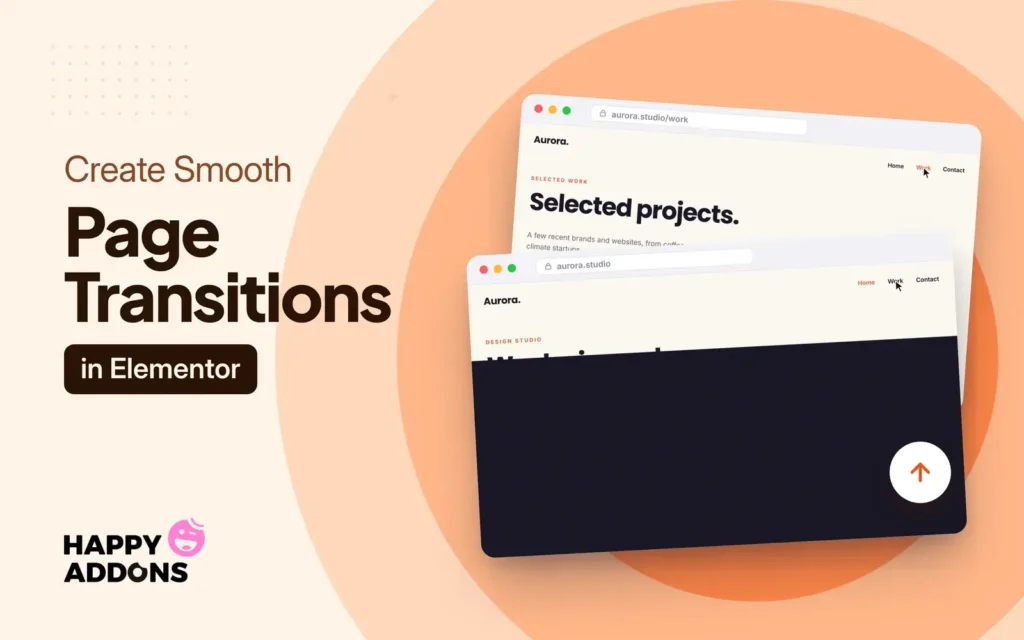

Click a link on most websites, and the screen blinks white before the next page appears. A page transition replaces that blink with a short animation, such as a color curtain that slides away, so moving between pages feels like one smooth experience.
Done right, transitions make a site feel polished and app-like. Done wrong, they feel slow and get in the way. We have seen both, and “how do I add page transitions in Elementor?” is a question our users ask us again and again.
Elementor is one of the most user-friendly drag-and-drop page builders, and with HappyAddons’ GSAP features, you can build a smooth transition with very little code. In this blog post, we’ll show you how to create smooth page transitions in Elementor with GSAP, step by step. Let’s get started!
What Are Page Transitions?
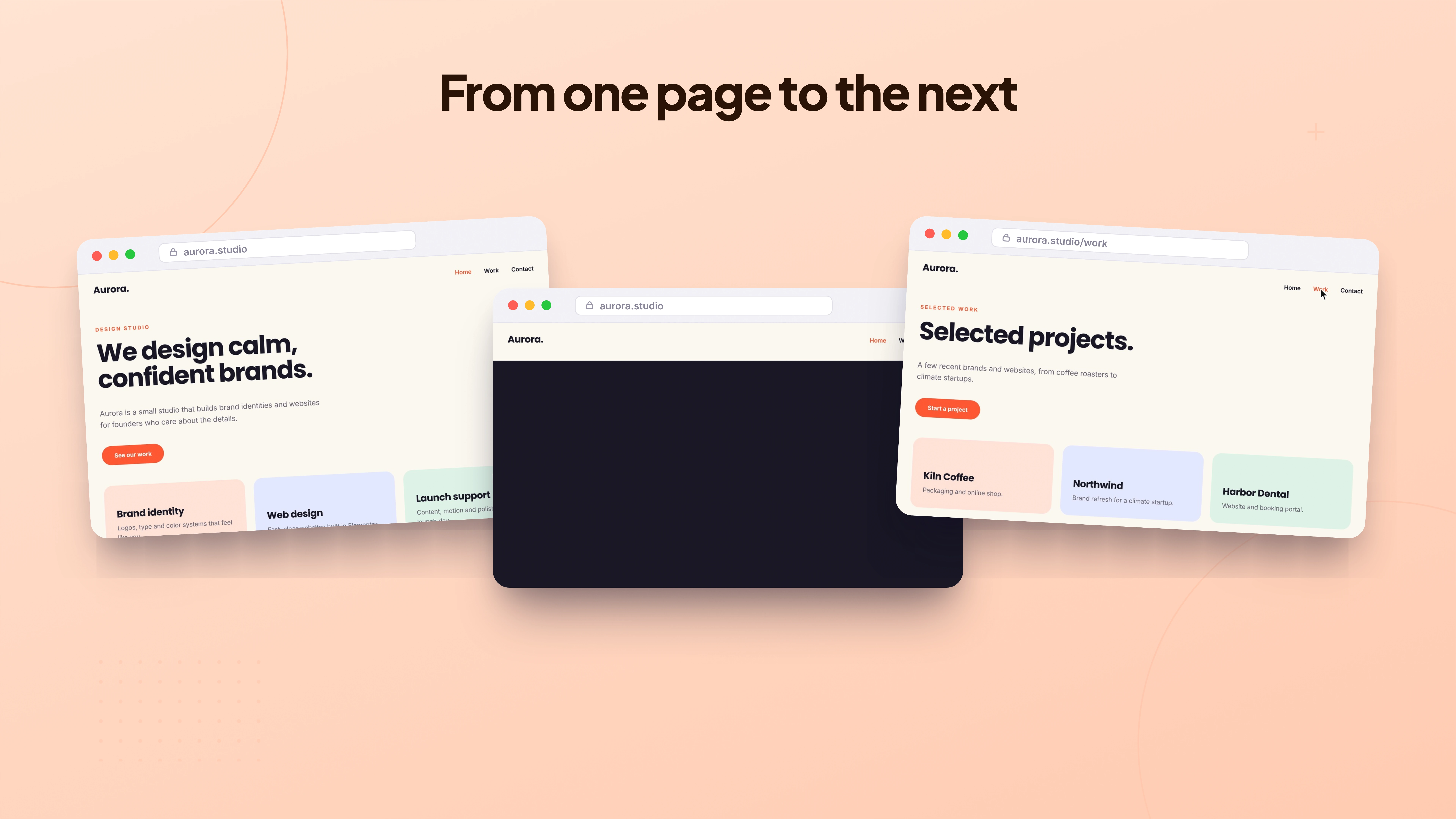
A page transition is an animation that plays while a visitor moves from one page to another. It usually has two parts: an exit animation on the page you leave and an entrance animation on the page that opens.
In this tutorial, we’ll use a curtain, a full-screen color layer. When you click a link, the curtain rises to cover the page. When the next page loads, the curtain lifts away and the content slides in.
Types of Page Transitions You Can Create in Elementor
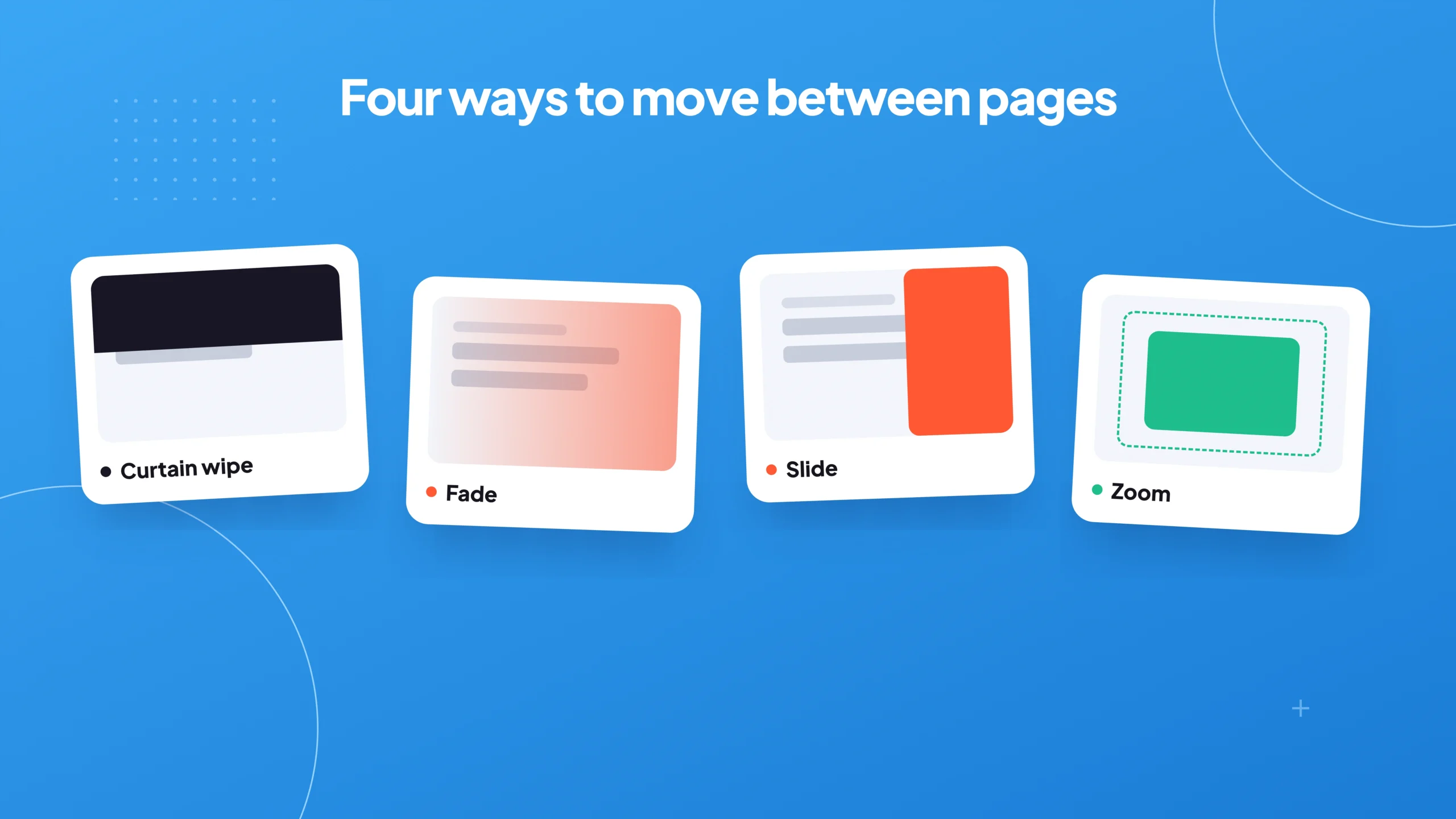
Page transitions come in many styles. These four are the most common, and you can build all of them with the same method you’ll learn below.
a. Curtain Wipe
A solid color layer slides over the page and then away again. It hides the page load completely, so it works well for portfolios, agencies, and brands that want a bold, confident feel.
b. Fade
The old page fades out, and the new one fades in. It’s the calmest option and fits almost any website, from blogs to online stores, because it never pulls attention away from the content.
c. Slide
A panel slides in from the side, like turning a page in an app. It gives a clear sense of direction, which is helpful for step-by-step flows, case studies, and multi-page product tours.
d. Zoom
The new page scales up from slightly smaller or larger. It adds depth and energy, so it suits creative studios and launch pages, as long as you keep the movement small and quick.
Why Use GSAP for Page Transitions in Elementor?
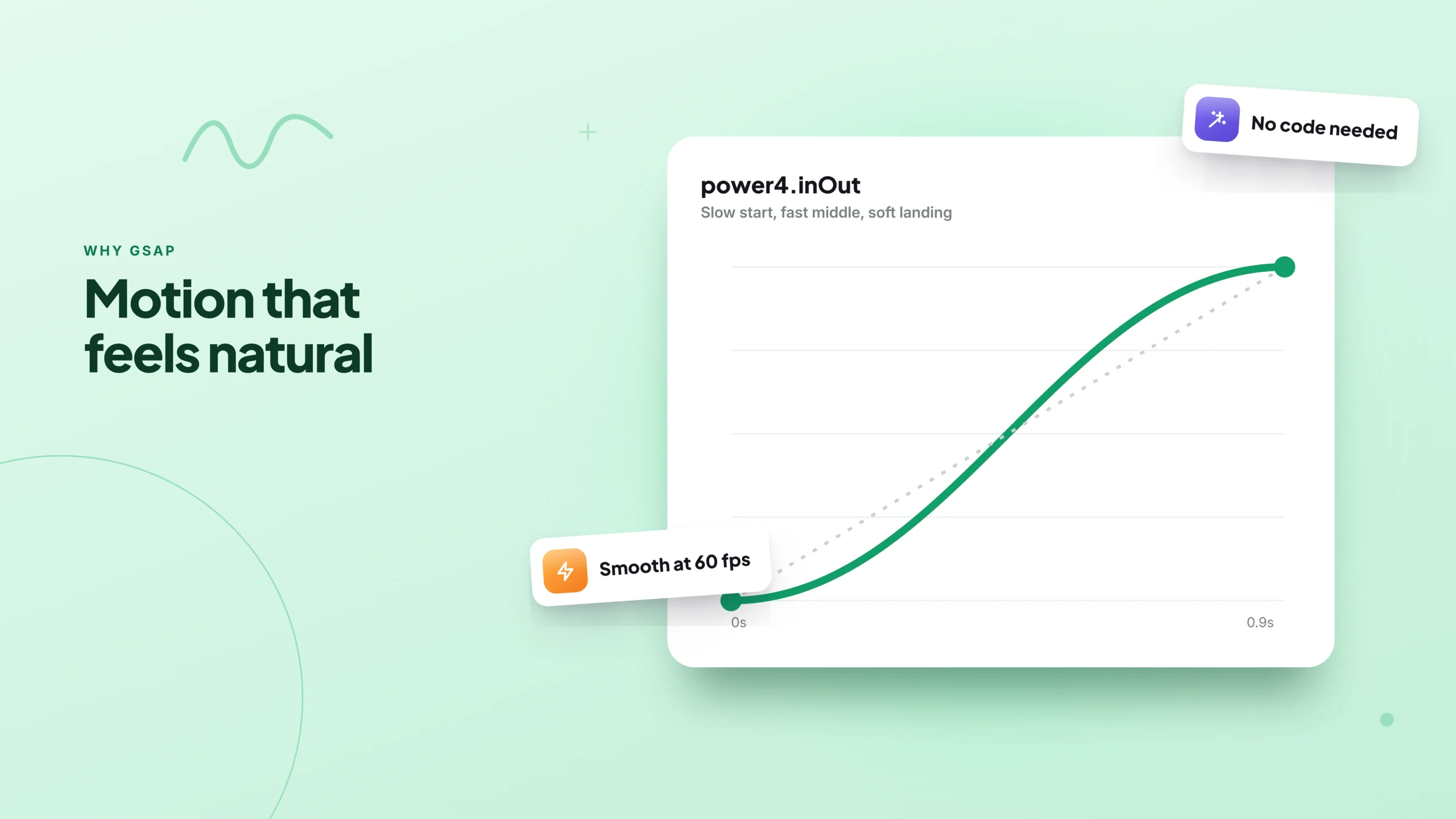
Elementor doesn’t include page transitions in its free version. You could write CSS transitions by hand, but GSAP gives you smoother motion and far more control. Here’s why it’s the better choice.
a. Smooth Motion on Every Device
GSAP is built for performance and runs animations smoothly at high frame rates, even on mid-range phones. That smoothness is exactly what separates a polished transition from the janky ones that make visitors wait.
b. Natural Easing
Easing controls how motion speeds up and slows down. GSAP easings like Power4 InOut start gently, move fast in the middle, and land softly, which makes a curtain feel natural instead of mechanical.
c. No-Code Settings with HappyAddons
HappyAddons brings GSAP into the Elementor panel. The Global Animation feature lets you animate any element on page load with simple settings, so the entrance part needs no code at all.
d. Only Loads Where You Need It
HappyAddons loads the GSAP library only on pages that use a GSAP feature. Pages without animations stay as light as before, so adding transitions doesn’t slow down the rest of your site.
Learn how to add GSAP animations in Elementor without coding.
How to Create Smooth Page Transitions in Elementor with GSAP (Step by Step)
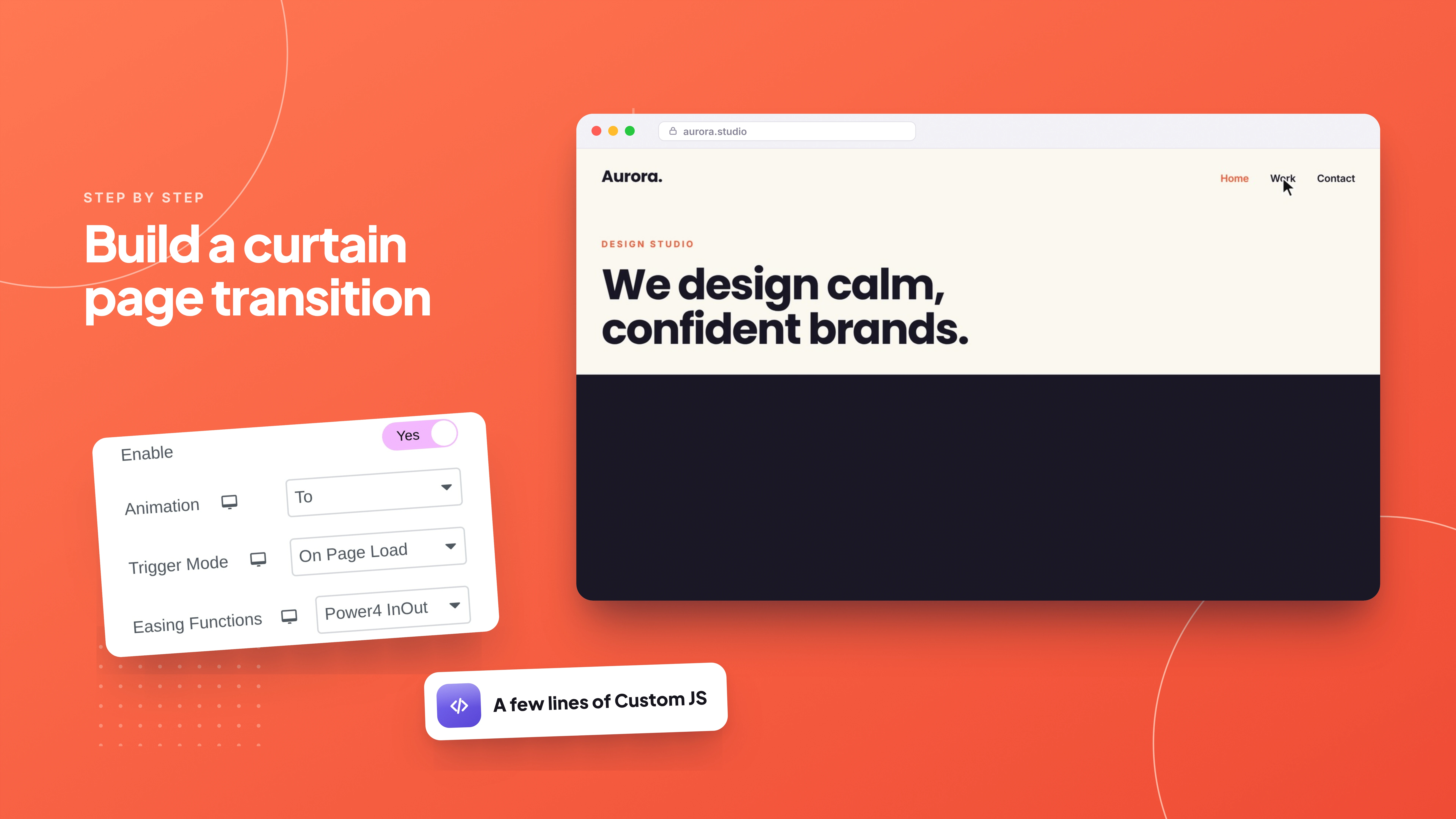
HappyAddons is a GSAP-powered Elementor addon with 160+ widgets and 40+ features. We’ll use its Global Animation feature for the entrance and its free Custom JS option for the exit.
For the tutorial, we have built a three-page demo site called Aurora Studio with Home, Work, and Contact pages. We’ll set up the transition on the Home page first and then copy it to the other pages.
Prerequisites
- Elementor (Free)
- HappyAddons (Free)
- HappyAddons Pro
Note: You need HappyAddons Pro because Global Animation is a Pro feature. Custom JS is free, but only administrators can add code there.
Once these plugins are ready on your site, start following the tutorial explained below.
Step 01: Enable Global Animation in HappyAddons
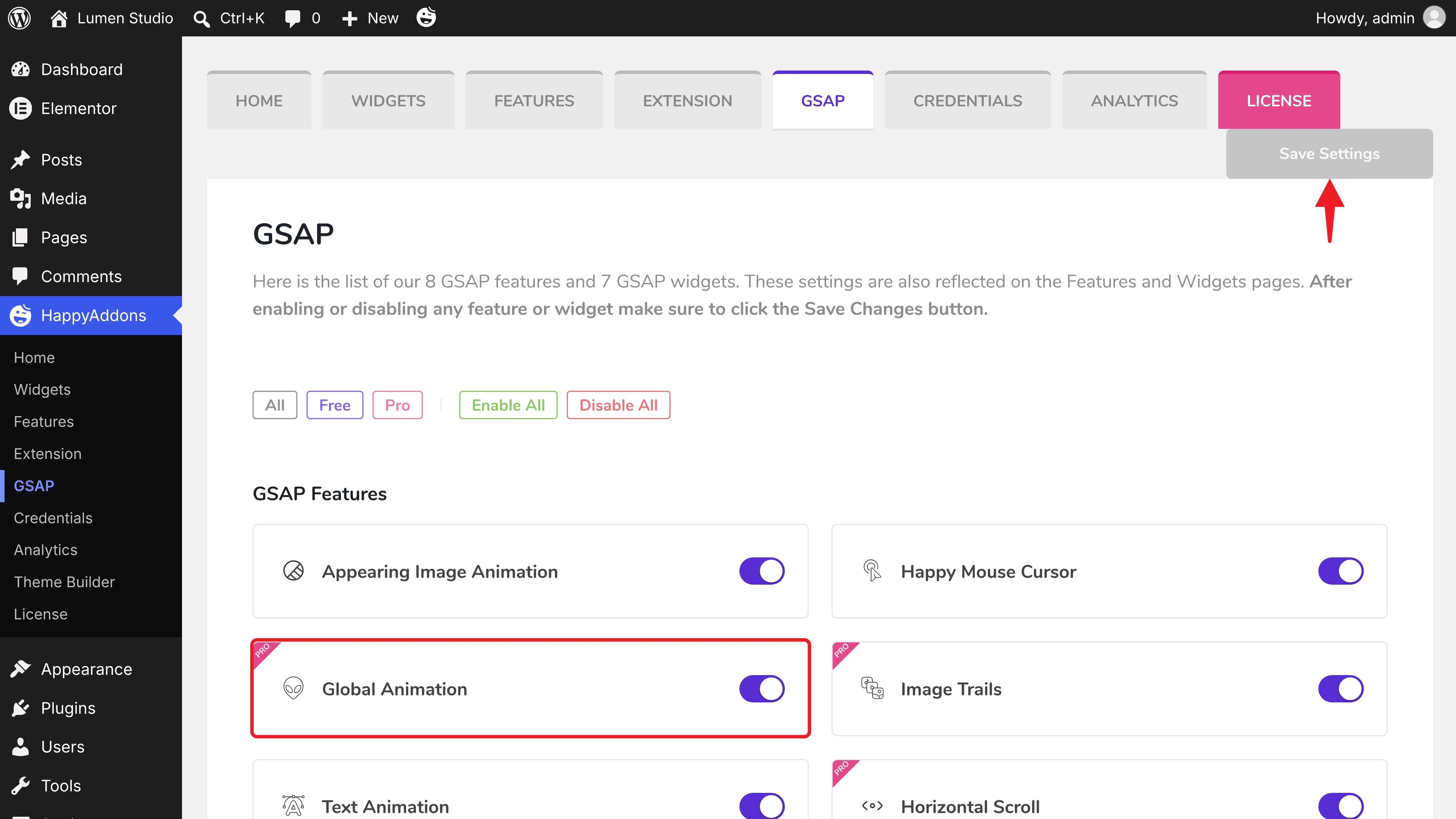
Navigate to HappyAddons > GSAP from your WordPress dashboard. Under GSAP Features, toggle on Global Animation and click Save Settings.
Step 02: Add a Full-Screen Container for the Page Curtain
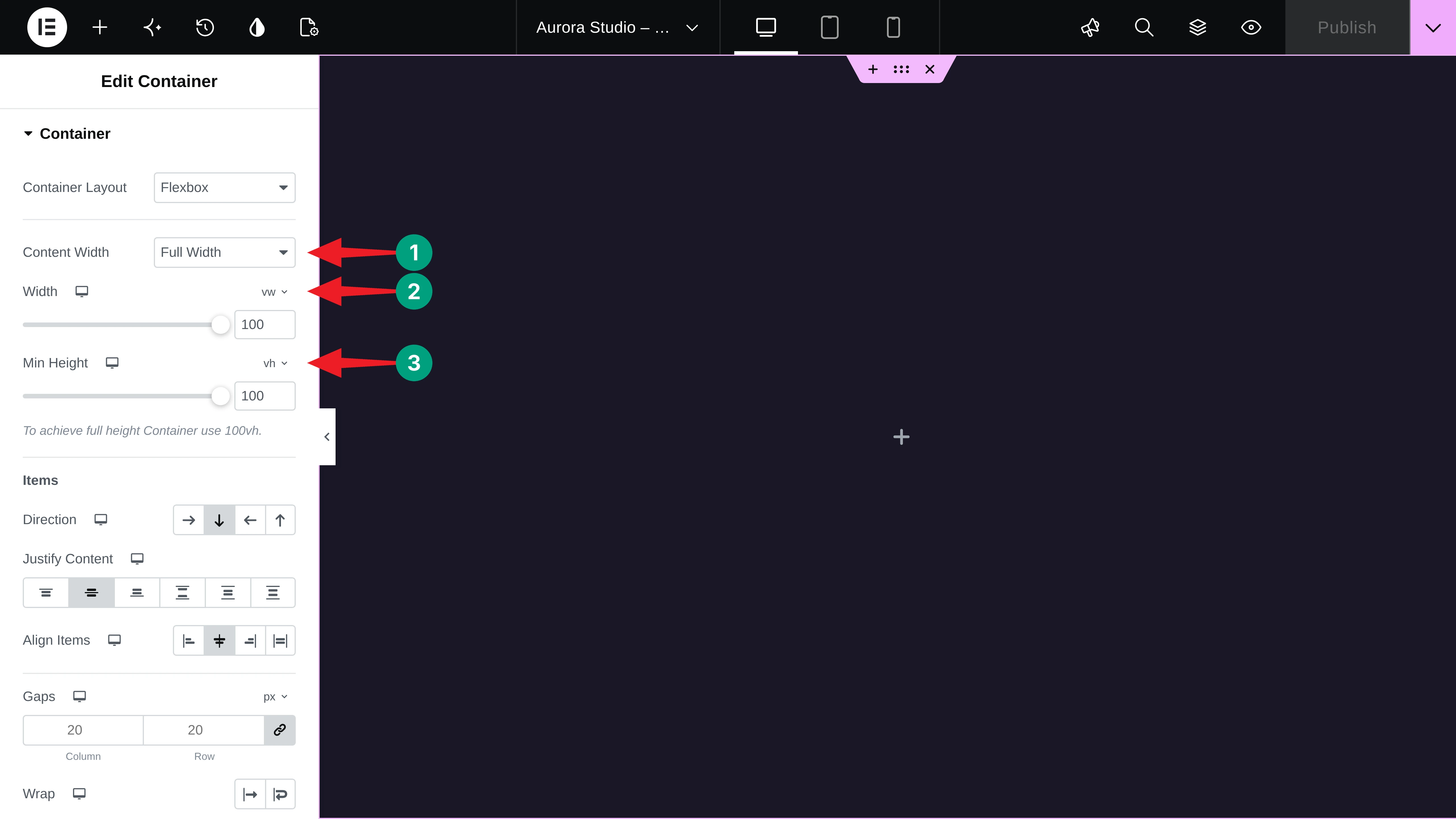
Open your page with Elementor and add a new container at the very top of the page. This container will be your curtain. In the Layout tab, set Content Width to Full Width, Width to 100 vw, and Min Height to 100 vh.
Step 03: Give the Curtain a Background Color
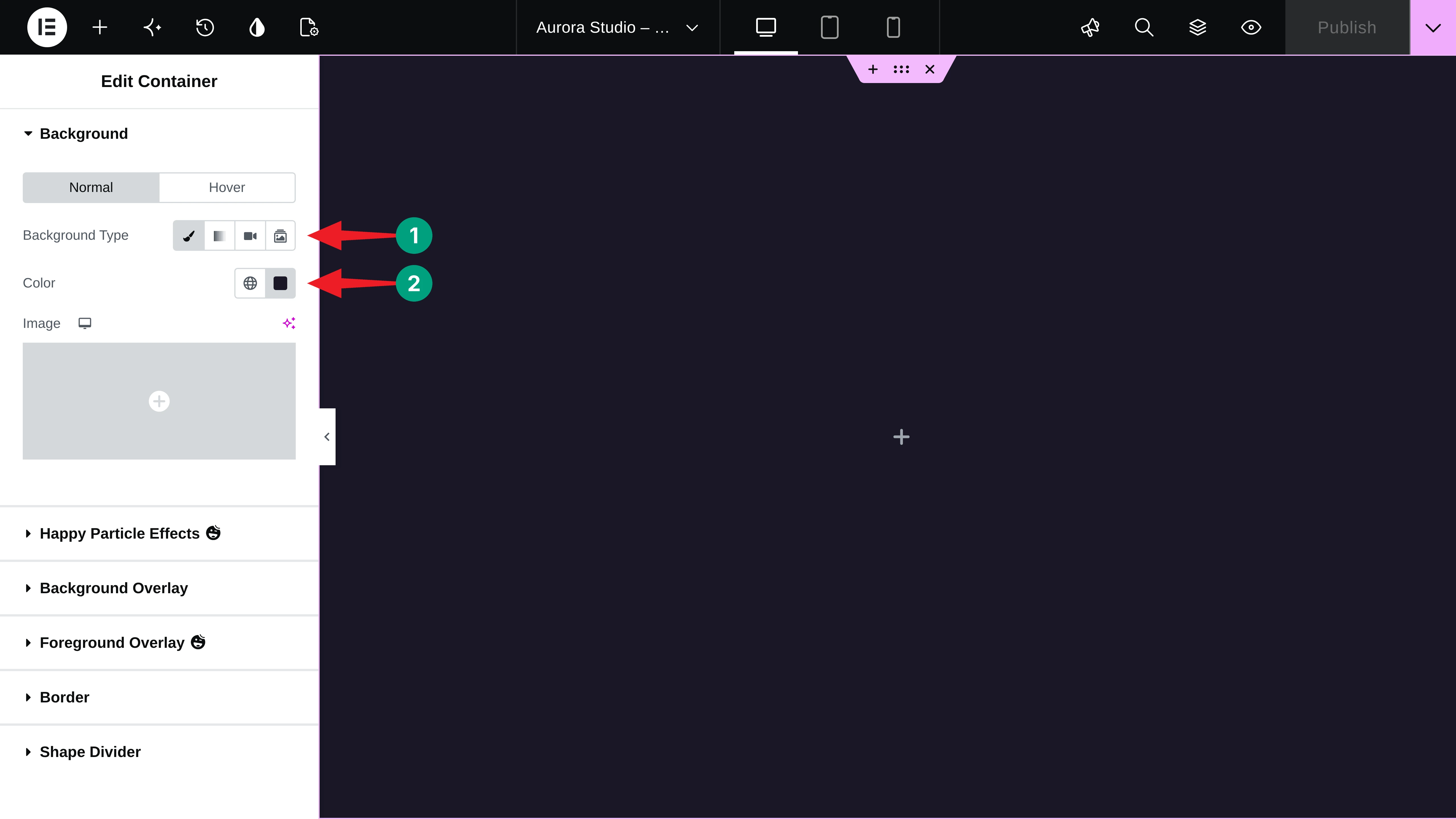
Go to the Style tab and expand Background. Choose Classic as the Background Type and pick a Color. We used a near-black color that matches our brand, but any solid color works.
Step 04: Fix the Curtain on Top of the Page
Go to the Advanced tab and expand Layout. Set Position to Fixed, both Offset values to 0, and Z-Index to 9999 so the curtain sits above everything. Then type page-curtain in the CSS Classes field. The exit code in Step 08 uses this class to find the curtain.
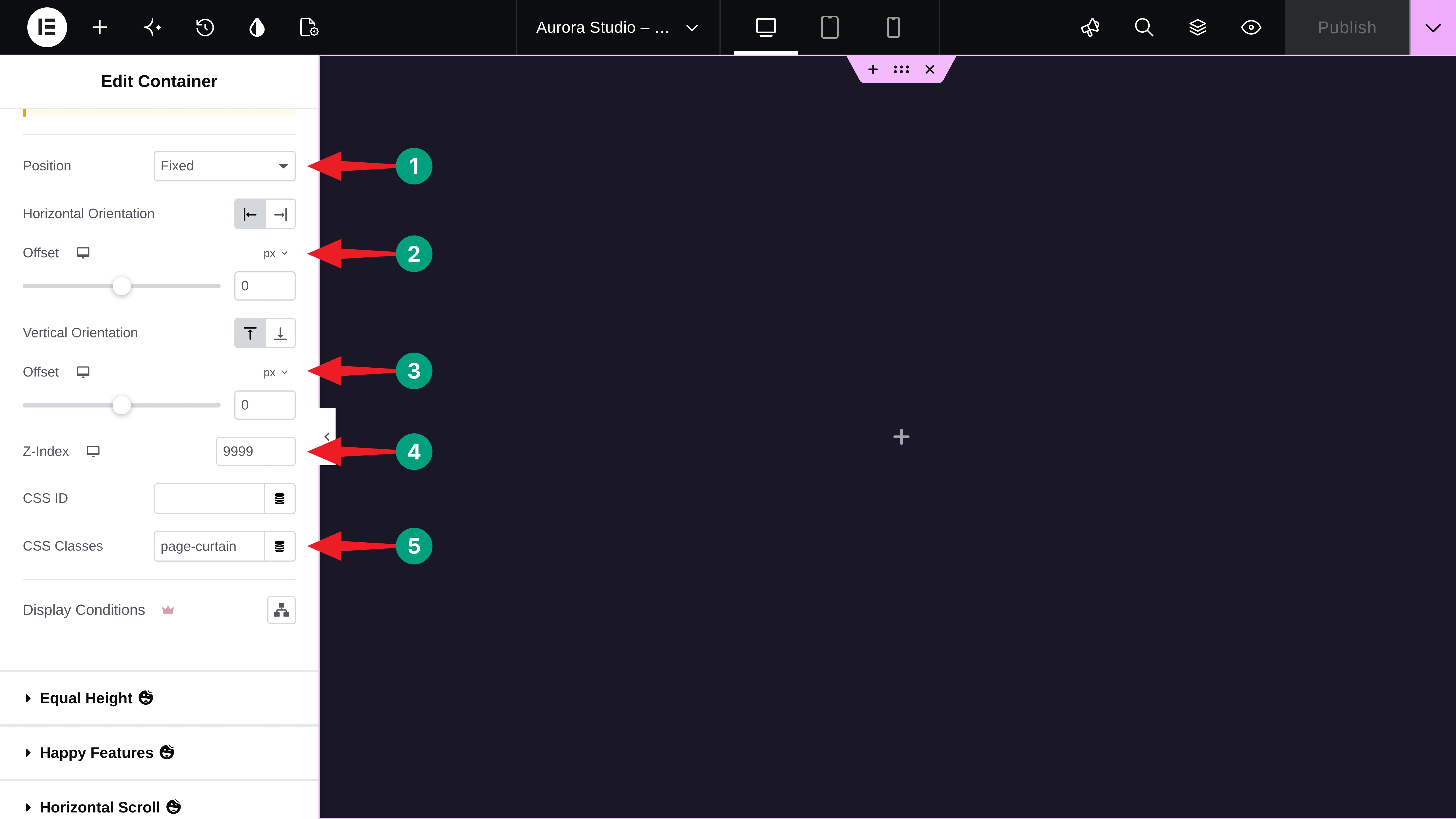
The curtain now covers the whole page. Don’t worry, it will slide away as soon as we animate it.
Step 05: Add the Reveal Animation with Global Animation
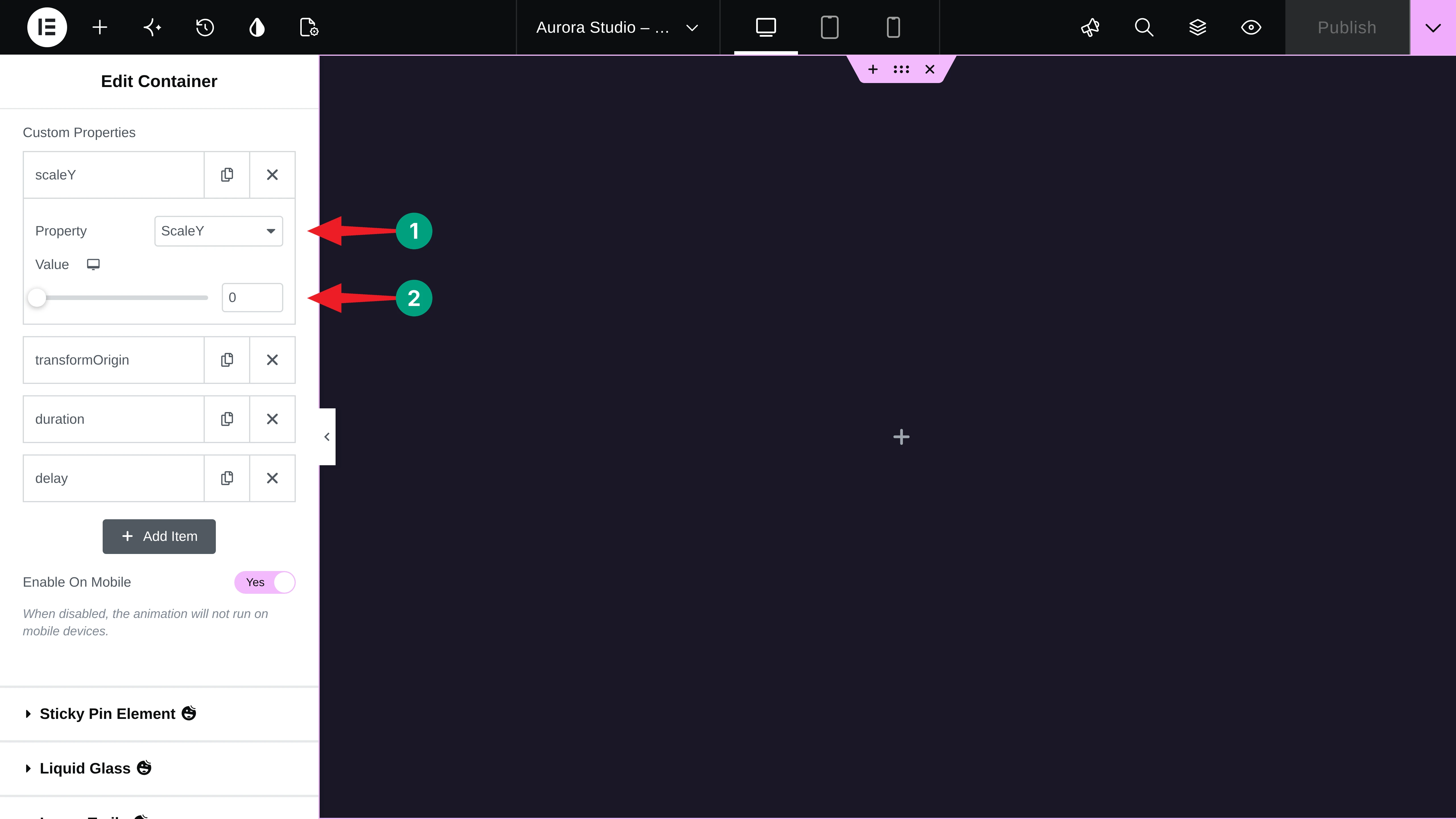
Still in the Advanced tab, expand Animation. Toggle on Enable, set Animation to To, Trigger Mode to On Page Load, and Easing Functions to Power4 InOut. Then add four items under Custom Properties.
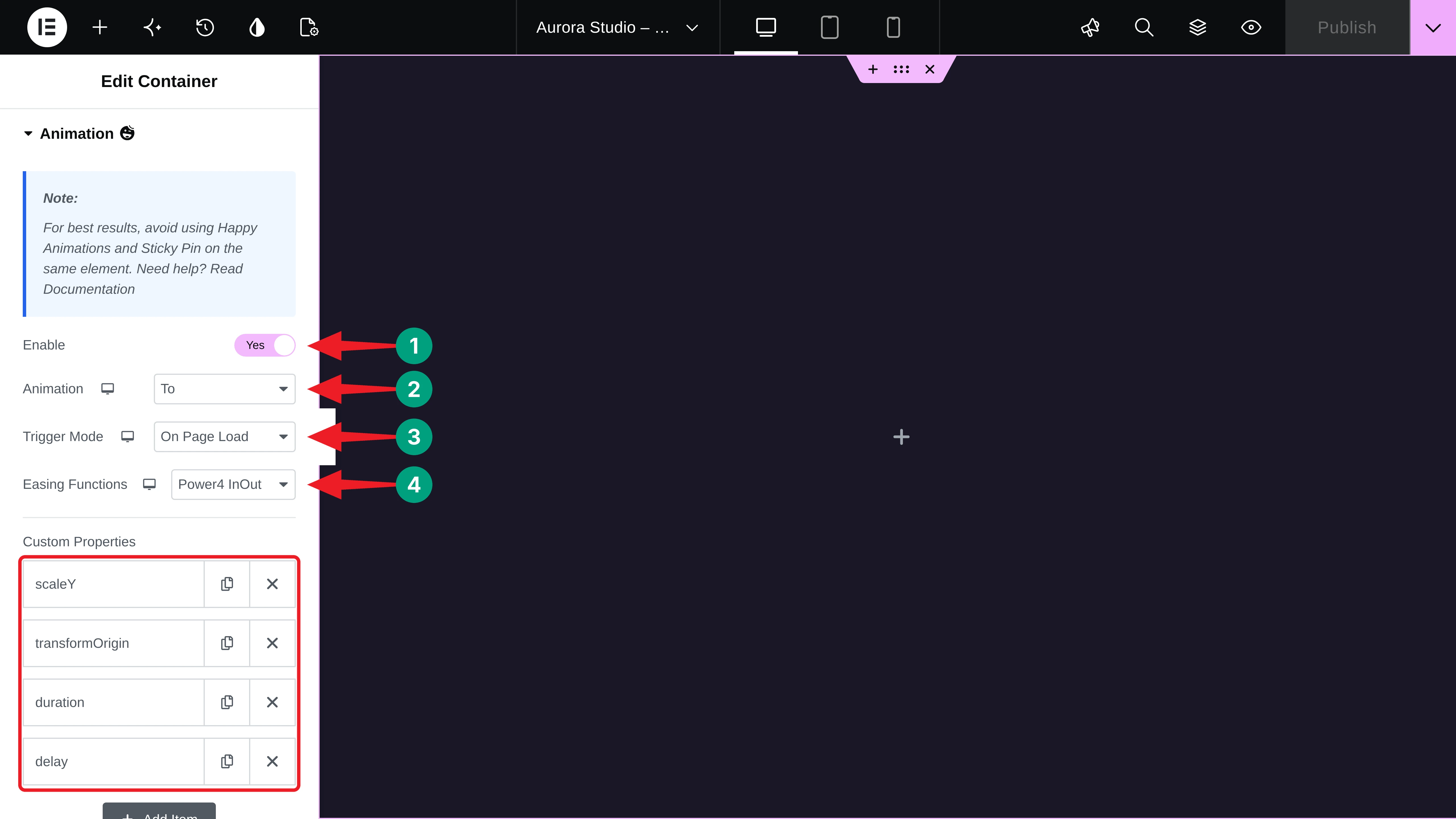
Click the first item, select ScaleY as the Property, and set the Value to 0. This shrinks the curtain to zero height.
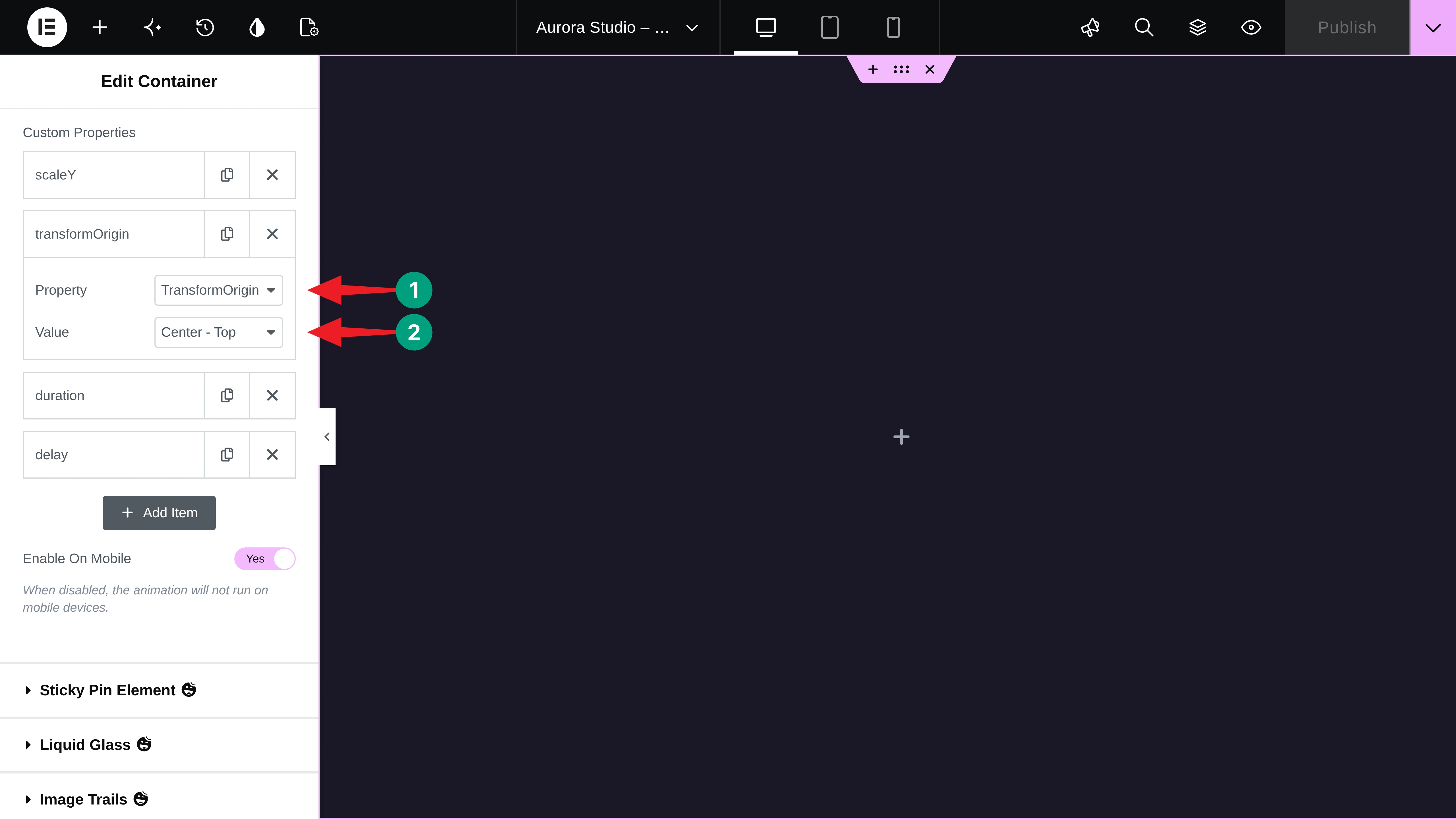
Add a TransformOrigin item and choose Center – Top, so the curtain lifts upward. Then add Duration (0.9) and Delay (0.15) items to control the speed.
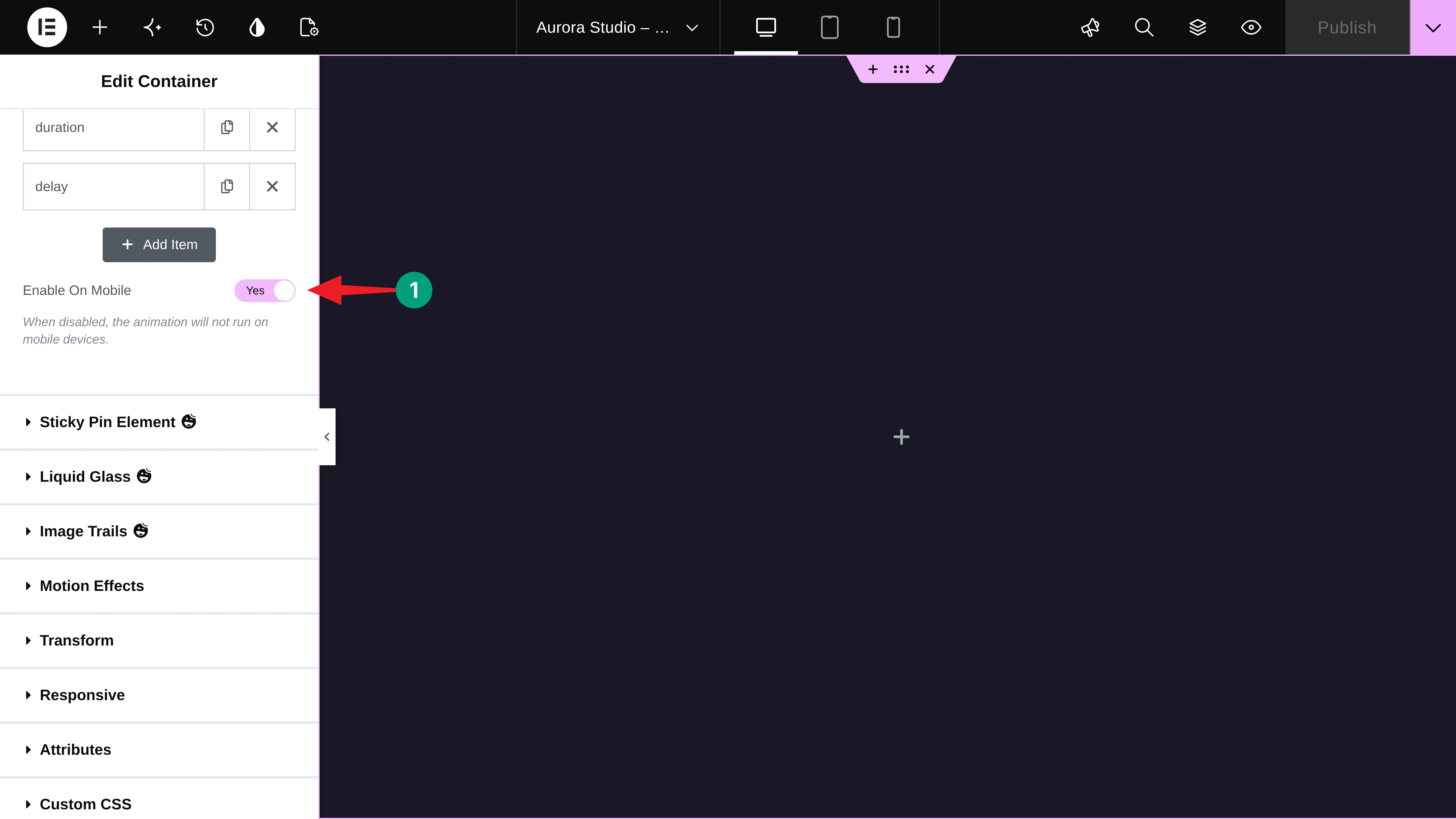
Finally, toggle on Enable On Mobile so the transition also plays on phones.
Step 06: Hide the Curtain in the Editor
The curtain covers the canvas while you edit. To work on the rest of the page, click the Structure icon in the top bar, hover over the curtain container, and click the eye icon. This hides it in the editor only; it still works on the live page.
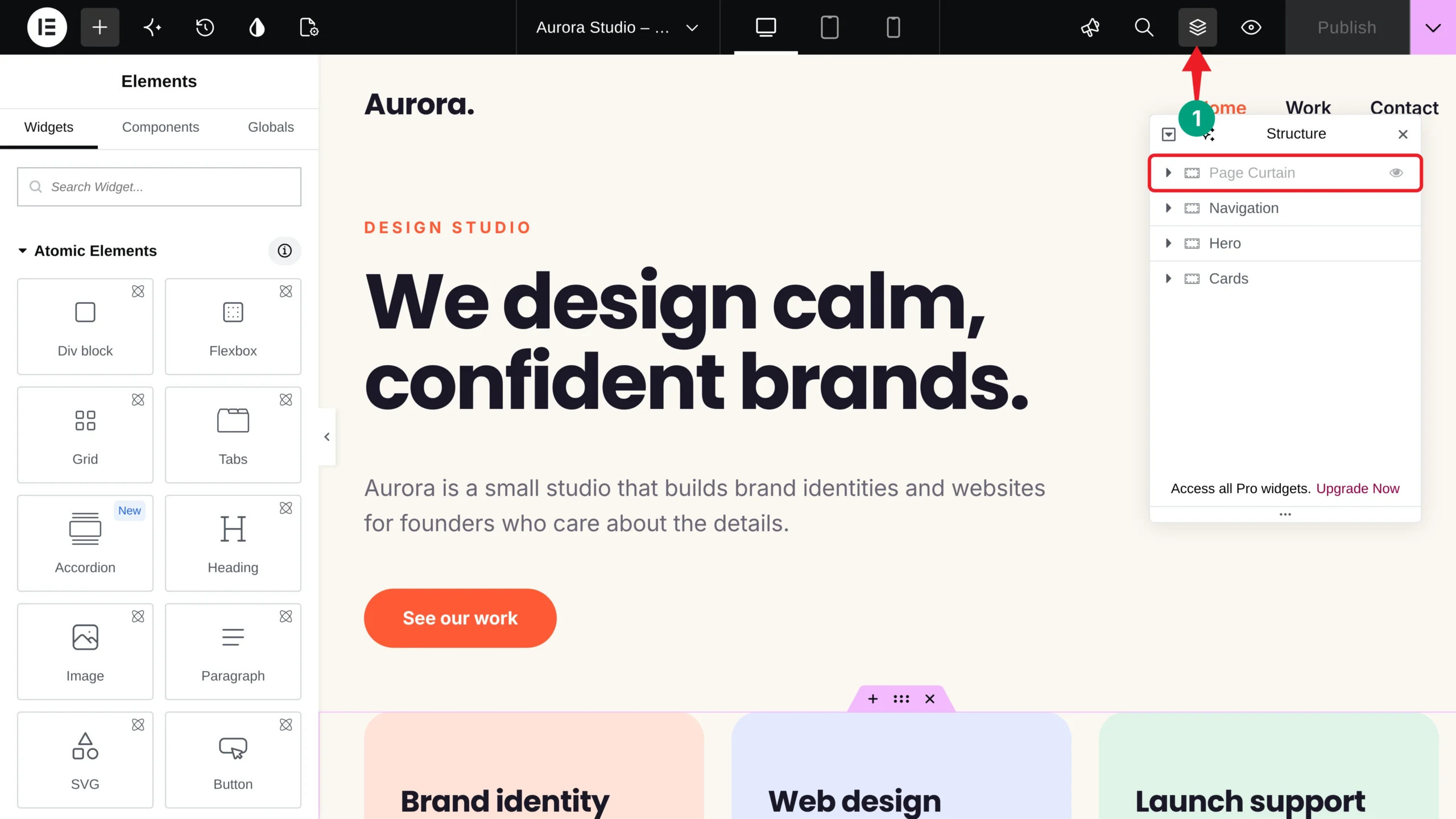
Tip: Rename the container to “Page Curtain” in the Structure panel so you can find it quickly later.
Step 07: Animate the Page Content on Load
A curtain alone feels flat. Let the content glide in right after it. Select your hero heading, go to Advanced > Animation, toggle on Enable, and set Animation to From with Trigger Mode set to On Page Load.
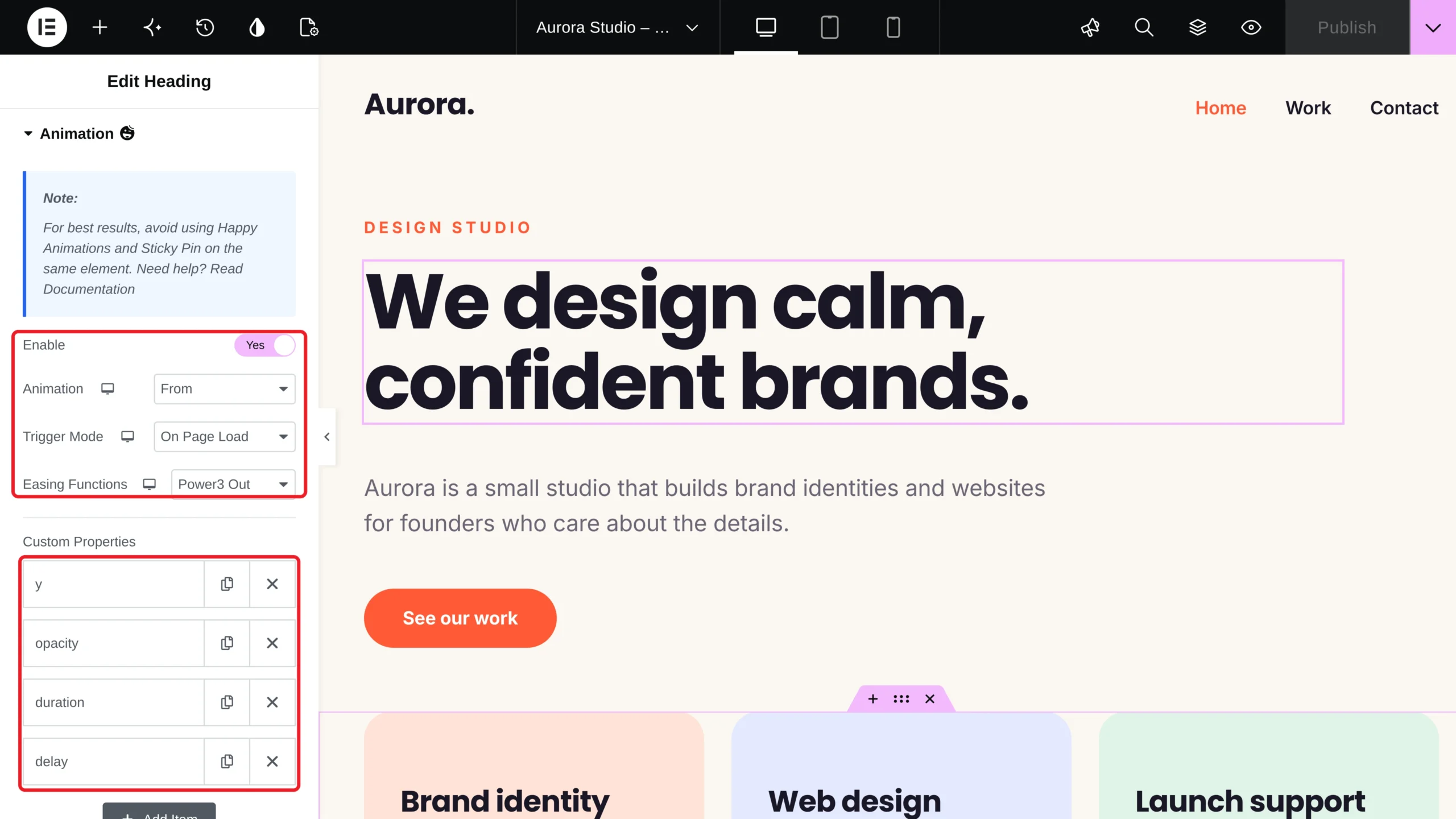
Add Y (60), Opacity (0), Duration (0.9), and Delay (0.8) as custom properties. In the same way, animate the text, button, and cards, adding about 0.1 seconds of delay to each, so they appear one after another.
Here’s a guide on how to create stagger animations in Elementor using GSAP.
Step 08: Add the Exit Transition with Custom JS
The entrance is done. Now we need the curtain to rise when someone clicks a link. Click the Page Settings (gear) icon in the top bar, expand Custom JS, and paste the code below.
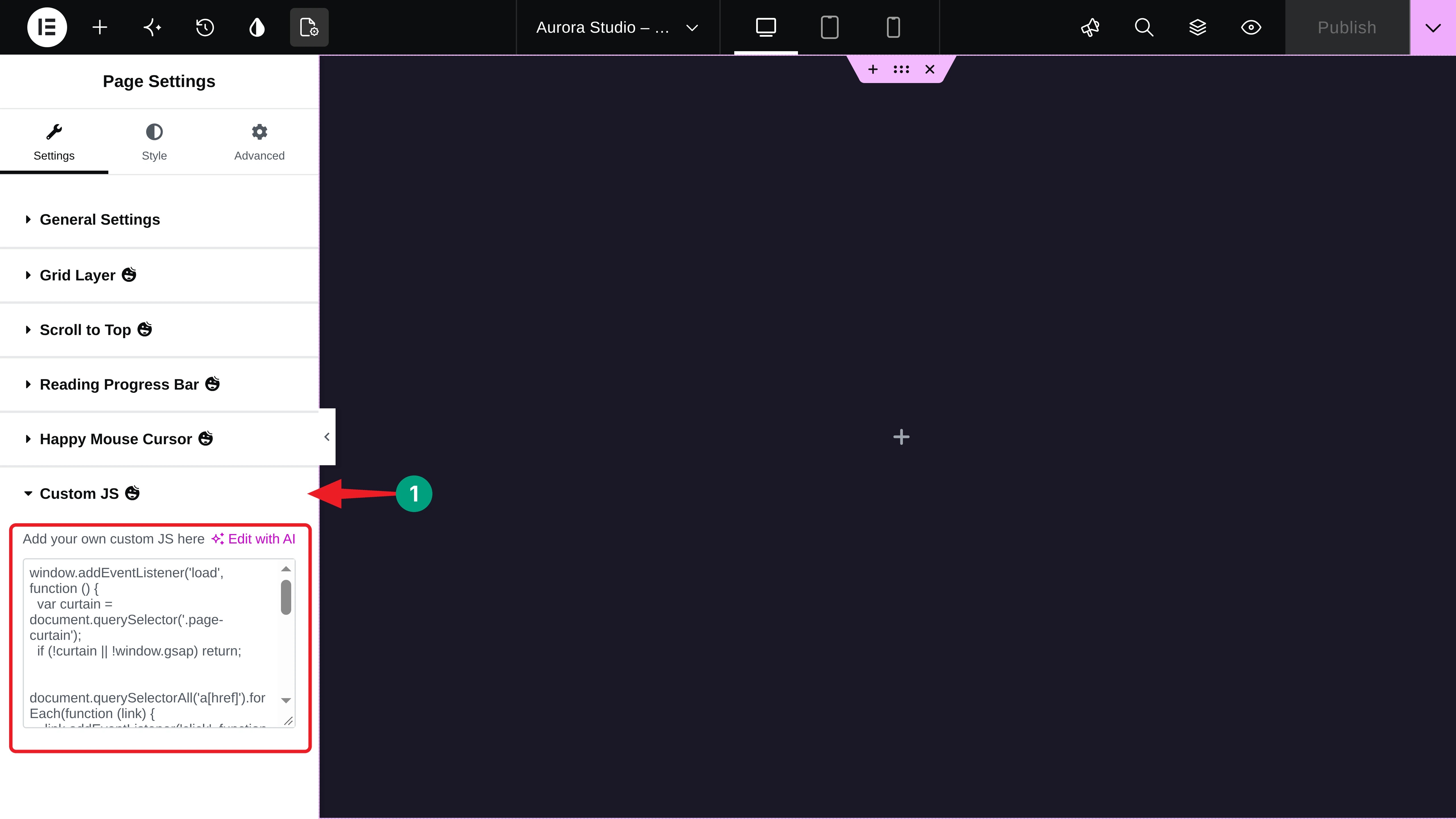
window.addEventListener('load', function () {
  var curtain = document.querySelector('.page-curtain');
  if (!curtain || !window.gsap) return;

  document.querySelectorAll('a[href]').forEach(function (link) {
    link.addEventListener('click', function (e) {
      var url = link.href;
      if (link.target === '_blank' || link.origin !== location.origin || link.hash || e.ctrlKey || e.metaKey) return;
      e.preventDefault();
      curtain.style.transition = 'none';
      gsap.fromTo(curtain,
        { scaleY: 0, transformOrigin: '50% 100%' },
        { scaleY: 1, duration: 0.6, ease: 'power4.inOut', onComplete: function () { window.location.href = url; } }
      );
    });
  });

  window.addEventListener('pageshow', function (e) {
    if (e.persisted) gsap.set(curtain, { scaleY: 0 });
  });
});
Here’s what the code does. When a visitor clicks a link to another page on your site, it stops the page from changing right away, raises the curtain from the bottom in 0.6 seconds, and then opens the new page. Links that open in a new tab, go to other websites, or jump to a section on the same page work as usual.
Very Important: The code finds the curtain by its page-curtain class, so keep the class name exactly the same as in Step 04.
Step 09: Add the Transition to Your Other Pages
Every page that should play the transition needs the curtain and the code. Right-click the curtain container, choose Copy, open your next page, and paste it at the top. Then paste the same code into that page’s Custom JS and click Publish.
Tip: Save the curtain as a template once, so you can insert it on any new page in one click.
Step 10: Preview the Page Transition
Publish your pages and open the site in a new tab. Click through your menu and watch the curtain rise, lift away, and reveal each page.
You can see that it’s working fine on our end. Hope it will work well on your end as well. Thus, you can create smooth page transitions in Elementor with GSAP and HappyAddons.
Tips to Keep Page Transitions Smooth, Not Slow
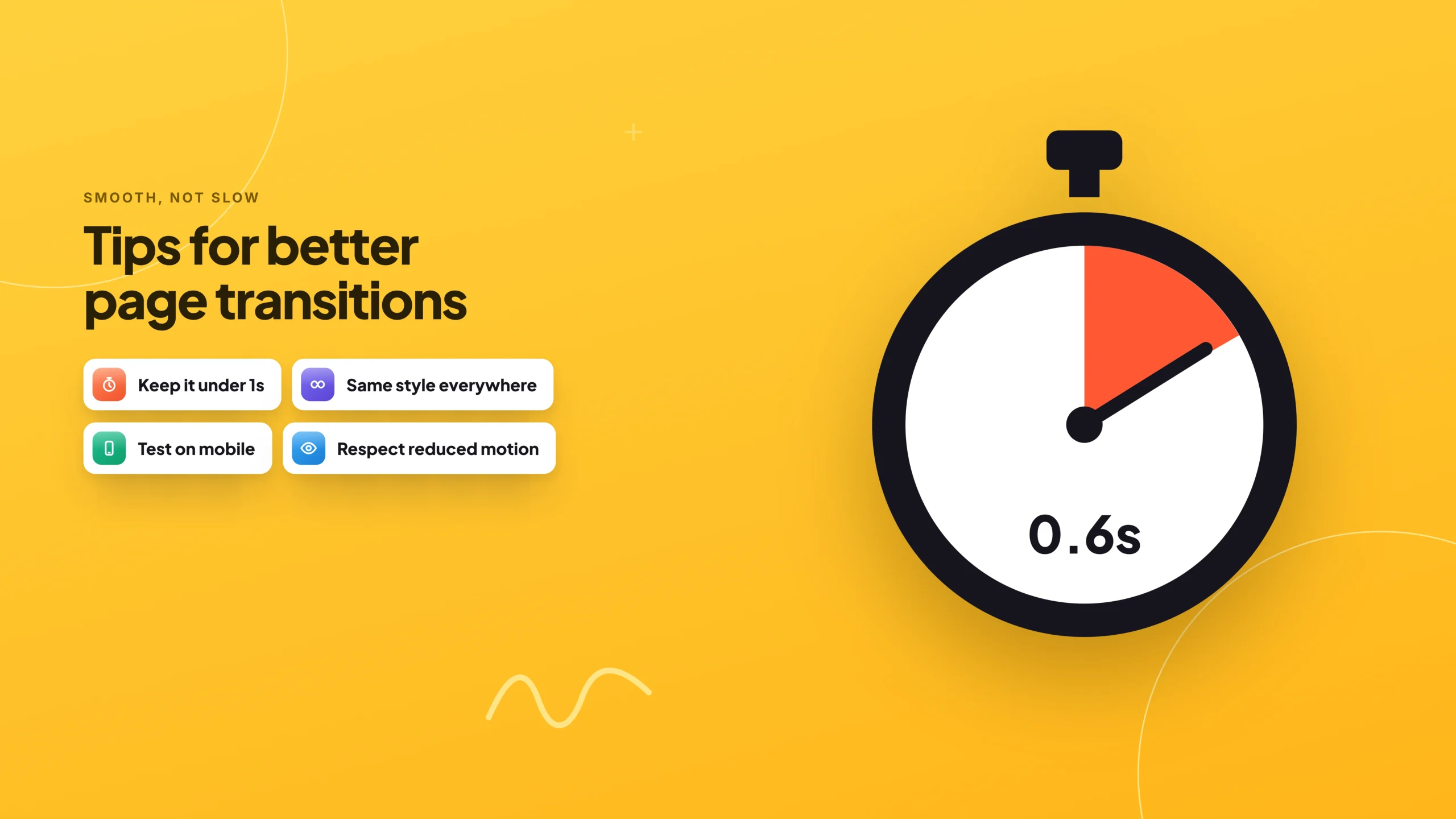
We have seen many transitions that look great once and then annoy visitors on every click. Keep these tips in mind so yours always feel quick and helpful.
a. Keep It Under One Second
A transition should never feel like waiting. Keep the exit around 0.5 to 0.7 seconds and the reveal under one second. If visitors notice the animation more than the content, it’s too slow.
b. Use the Same Transition Everywhere
Pick one style and one color for the whole site. A consistent transition feels like part of your brand, while a different effect on every page feels random and makes the site harder to read.
c. Test on Real Phones
Open your site on a real phone, not just the Elementor preview. Check that the curtain covers the full screen, the content appears quickly, and tapping links feels instant on slower mobile connections.
d. Respect Reduced Motion
Some visitors turn on “reduce motion” in their device settings. Consider turning the effect off for them, or using a simple fade, so your site stays comfortable for everyone who visits it.
e. Animate Only a Few Elements
Animate the curtain and your hero content, not every element on the page. Fewer moving parts keep the page light, help it load faster, and make the important content stand out right away.
Explore how to build a modern animated hero section with Elementor GSAP.
FAQ on Page Transitions in Elementor
In this section, we have answered some frequently asked questions commonly found on Google, online forums, and social media.
Can I add page transitions in Elementor without code?
Partly. The entrance animation is fully no-code with HappyAddons Global Animation. The exit animation needs the short Custom JS snippet from this guide, which you only copy and paste.
Do page transitions slow down my website?
No, not when they are short. The curtain is a simple container, and HappyAddons loads GSAP only on pages that use it. Keep the transition under one second for the best experience.
Do page transitions work on mobile?
Yes. Turn on Enable On Mobile in the Animation settings, and the curtain and content animations will play on phones and tablets too.
Is Global Animation free in HappyAddons?
No. Global Animation is part of HappyAddons Pro. The Custom JS option used for the exit transition is available in the free version.
Why can’t I see the curtain animation in the Elementor editor?
The animation plays on the live page. In the editor, the curtain simply covers the canvas, so hide it from the Structure panel while you work and check the result in a new tab.
Final Thoughts!
A good page transition turns every click into a smooth scene change instead of a white flash. With a curtain container, HappyAddons Global Animation, and a few lines of Custom JS, you can add one to your Elementor site in minutes.
Keep it fast, use the same style on every page, and test it on a real phone before you go live. If you have any questions, mention them in the comment box below or give a knock on our live chat box.
Before moving away, have a few more minutes to explore the post on how to use GSAP ScrollTrigger in Elementor for advanced animations. Thanks for being with us till the end.