



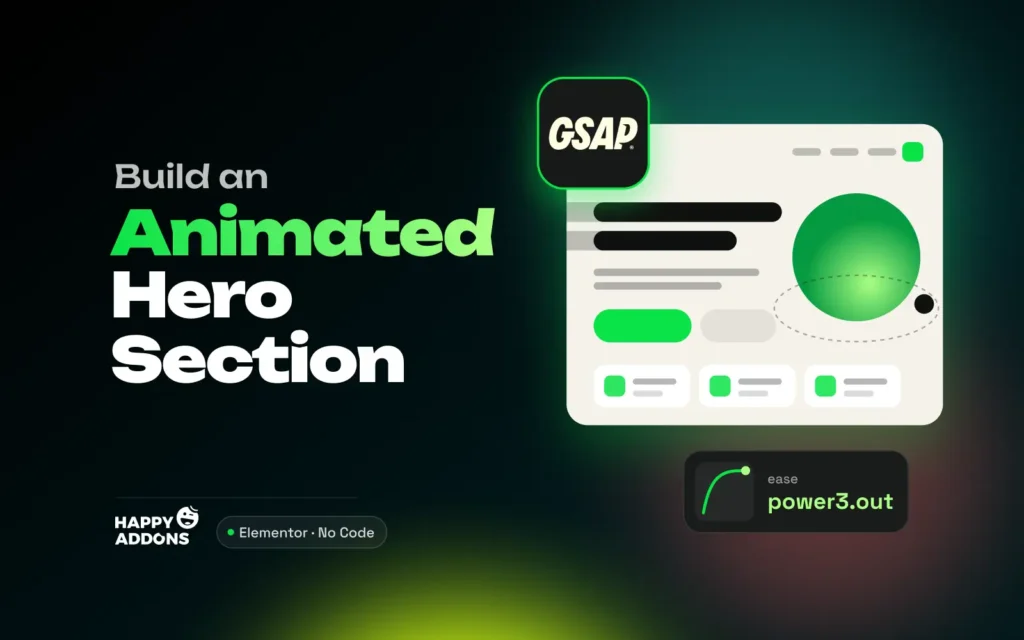

A hero section is the first thing visitors see when they land on your website. It usually holds your main headline, a short value message, a call-to-action button, and a strong visual. Within a few seconds, it decides whether people keep scrolling or leave.
A static hero can do the job. But when the headline reveals itself letter by letter, the image glides into view, and the buttons appear one after another, your page instantly feels alive. This is exactly what GSAP animations can do for your hero section. They make your brand look modern, premium, and trustworthy right from the first screen.
Elementor is one of the most user-friendly drag-and-drop page builders. With the HappyAddons GSAP Pack, you can now add GSAP animations to Elementor without writing a single line of code. In this tutorial post, we’ll cover a step-by-step guide on how to build a modern animated hero section in WordPress with Elementor GSAP. Get started!
What Is an Animated Hero Section?
An animated hero section is the top banner area of a web page where the elements move into place instead of simply appearing. The headline may reveal itself character by character, the main image may slide or zoom into view, and the buttons may fade in one after another. The goal is to catch attention and guide visitors to your main message.
Modern websites usually build these effects with GSAP (GreenSock Animation Platform). It’s a popular JavaScript animation library known for smooth, precise motion. Normally, you need to write code to use it. But with HappyAddons, you get GSAP controls right inside the Elementor editor, so you can build the same effects just by toggling options and setting values.
Learn how to add GSAP animations in Elementor without coding.
Why Should You Animate Your Hero Section with GSAP?
An animated hero isn’t just about looking fancy. When done right, it helps visitors understand your offer faster and pushes them toward your call to action. Take a look at some key reasons below.
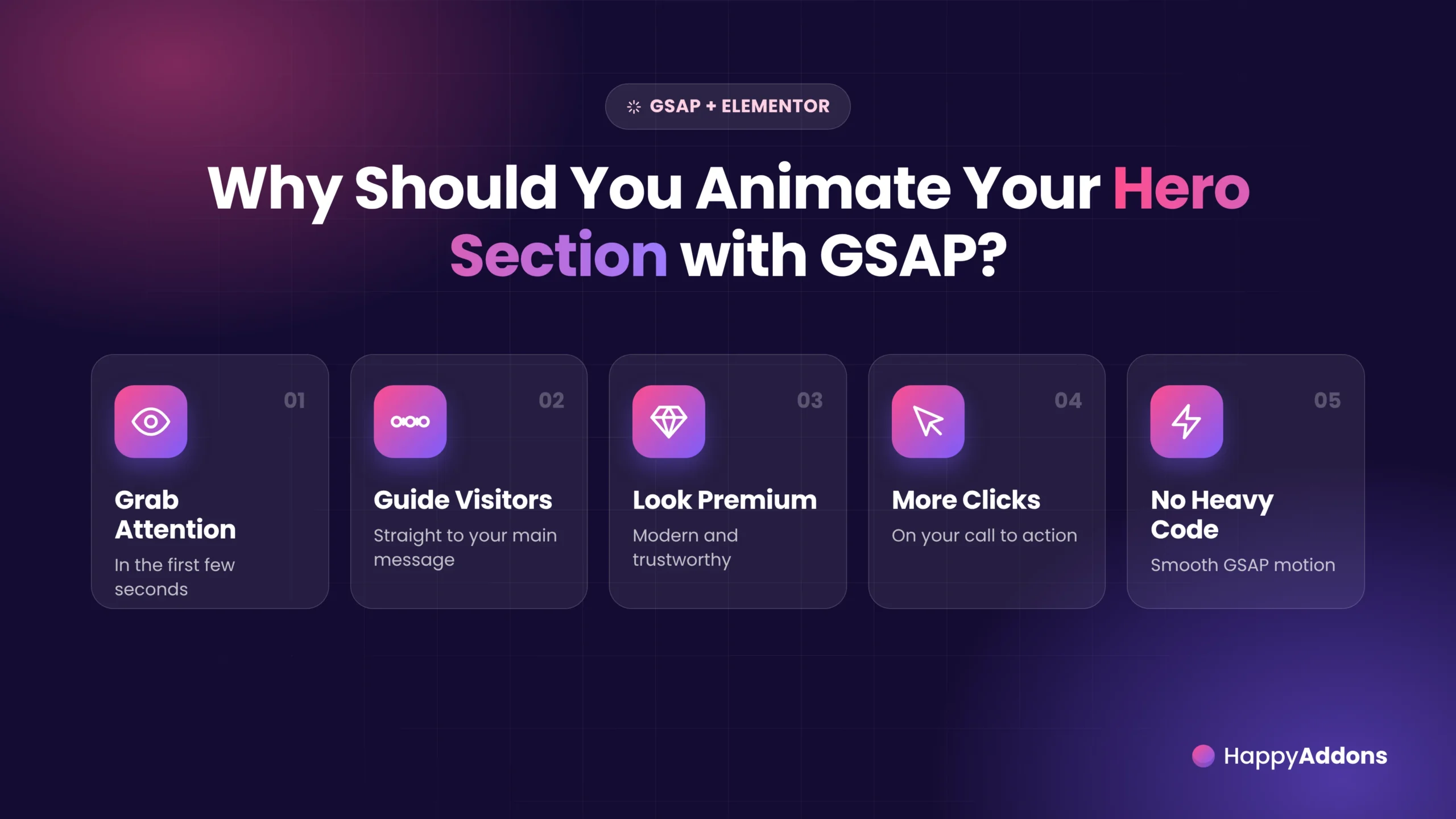
a. Grab Attention in the First Few Seconds
Movement naturally draws the human eye. A headline that reveals itself or an image that glides into view makes visitors stop and look. This gives your main message a better chance to be noticed before people decide to scroll away.
b. Guide Visitors to Your Main Message
With GSAP, you can control the exact order in which elements appear. For example, the headline comes first, then the description, and finally the button. This sequence leads visitors through your message step by step, just like a short story.
c. Make Your Product Look Modern and Premium
SaaS brands, startups, and agencies use smooth motion to look polished and up to date. A well-animated hero section tells visitors that your product is built with care. It can make even a brand-new product feel trustworthy.
d. Bring More Clicks to Your Call to Action
When your button fades in last, it becomes the natural final stop for the visitor’s eye. Combined with a clear message, this can help you increase your conversion rates from the very first screen.
e. Smooth Motion Without Heavy Code
GSAP is known for smooth, high-performance animations that work well across modern browsers. Since HappyAddons handles the GSAP code for you, you get professional motion without adding custom scripts to your site.
Take a look at the best WordPress animation plugins.
How to Build a Modern Animated Hero Section in WordPress with Elementor GSAP: Step-by-Step Guide
The theoretical part is over. Elementor itself offers only basic entrance animations, like fade and slide, under Motion Effects. They can’t split a headline into letters, reveal an image in tiles, or play a timed sequence. This is where HappyAddons comes in.
HappyAddons is a powerful addon for Elementor with 160+ widgets and 40+ features. Its GSAP Pack adds 8 GSAP features and 7 GSAP widgets to the Elementor editor. In this tutorial, we’ll use four of them: Text Animation, Appearing Image Animation, Global Animation, and Happy Mouse Cursor.
To save time, we won’t design the layout from scratch. We’ll import a ready-made GSAP-powered hero block from the HappyAddons template library. Then, we’ll turn it into a hero section for a demo SaaS product named Nexora.
Prerequisites
Note: You need HappyAddons Pro because Global Animation and the hero block we’re using (Banner31) are premium. Text Animation, Appearing Image Animation, and Happy Mouse Cursor are free to use.
Note: HappyAddons GSAP works with Elementor’s classic widgets and containers. Elementor V4 atomic elements aren’t supported yet. The block we import uses classic widgets, so you’re good to go.
Once these plugins are ready on your site, start following the tutorial explained below.
Step 01: Enable the GSAP Features in HappyAddons
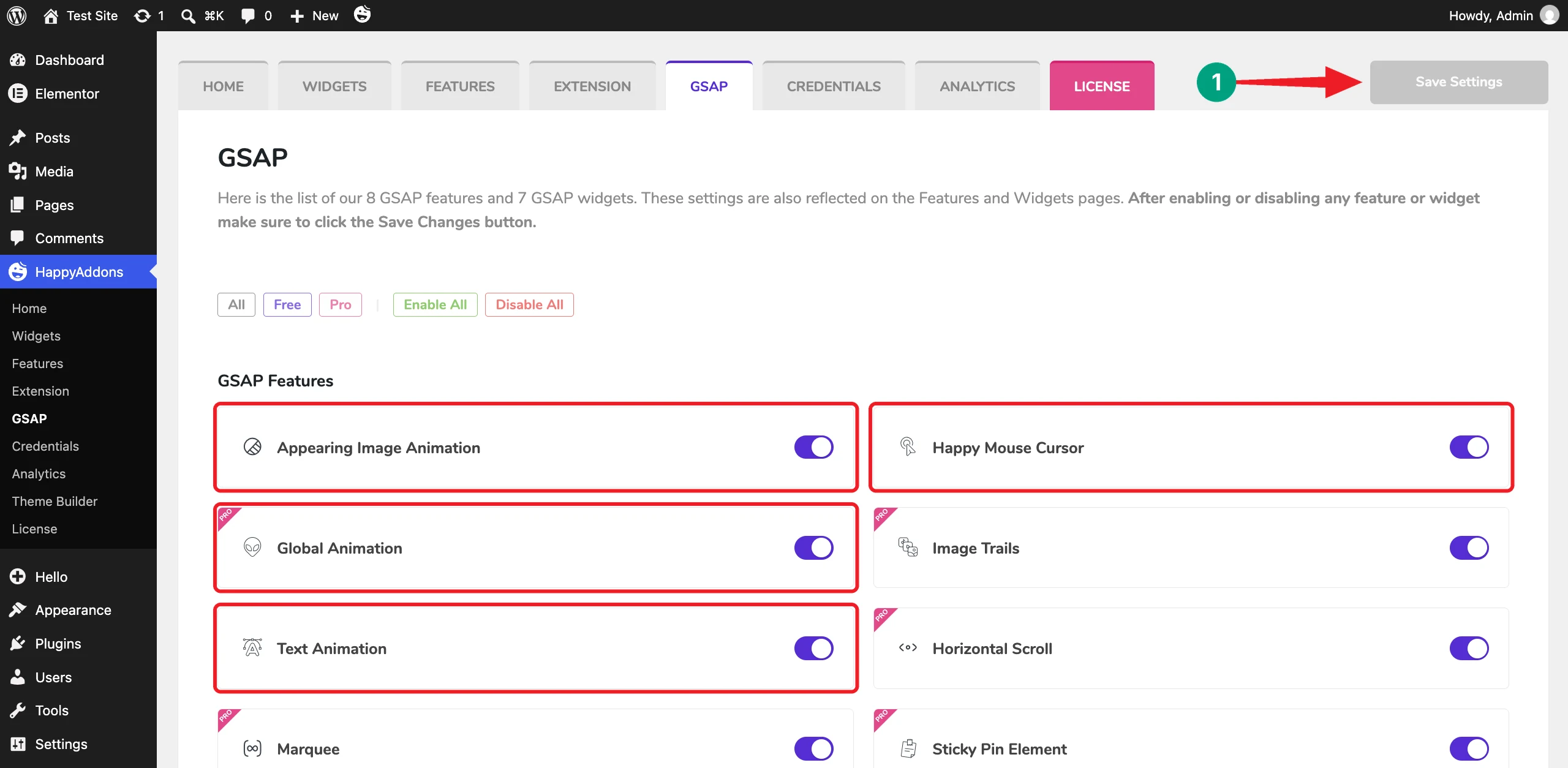
Go to your WordPress dashboard and navigate to HappyAddons > GSAP. This page lists all the GSAP features and widgets of the plugin in one place.
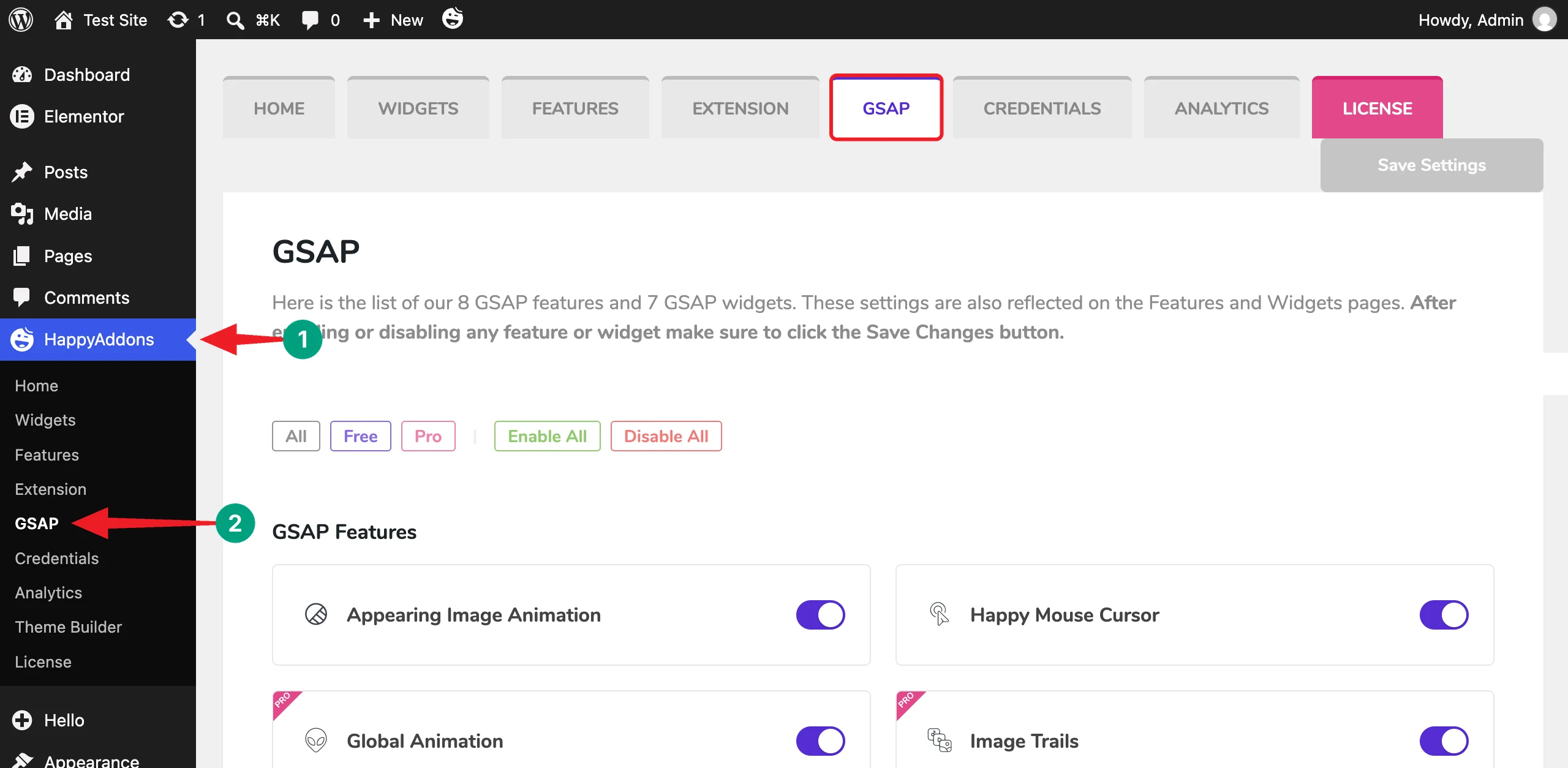
Make sure Appearing Image Animation, Happy Mouse Cursor, Global Animation, and Text Animation are toggled on. Then, click the Save Settings button.
Step 02: Create a New Page and Open It with Elementor
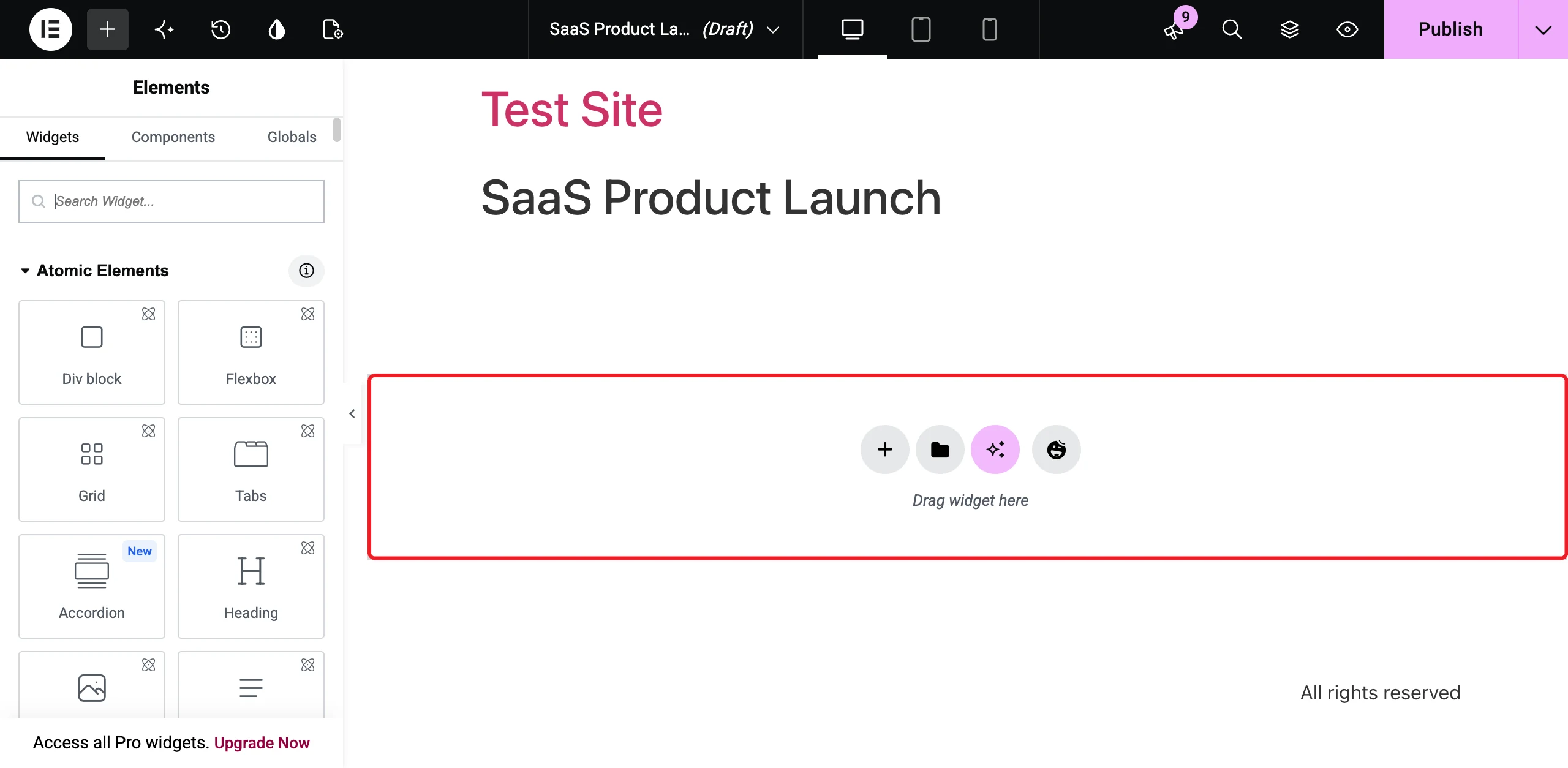
Navigate to Pages > Add Page. Write a title for the page. We have named it SaaS Product Launch. Then, click the Edit with Elementor button.
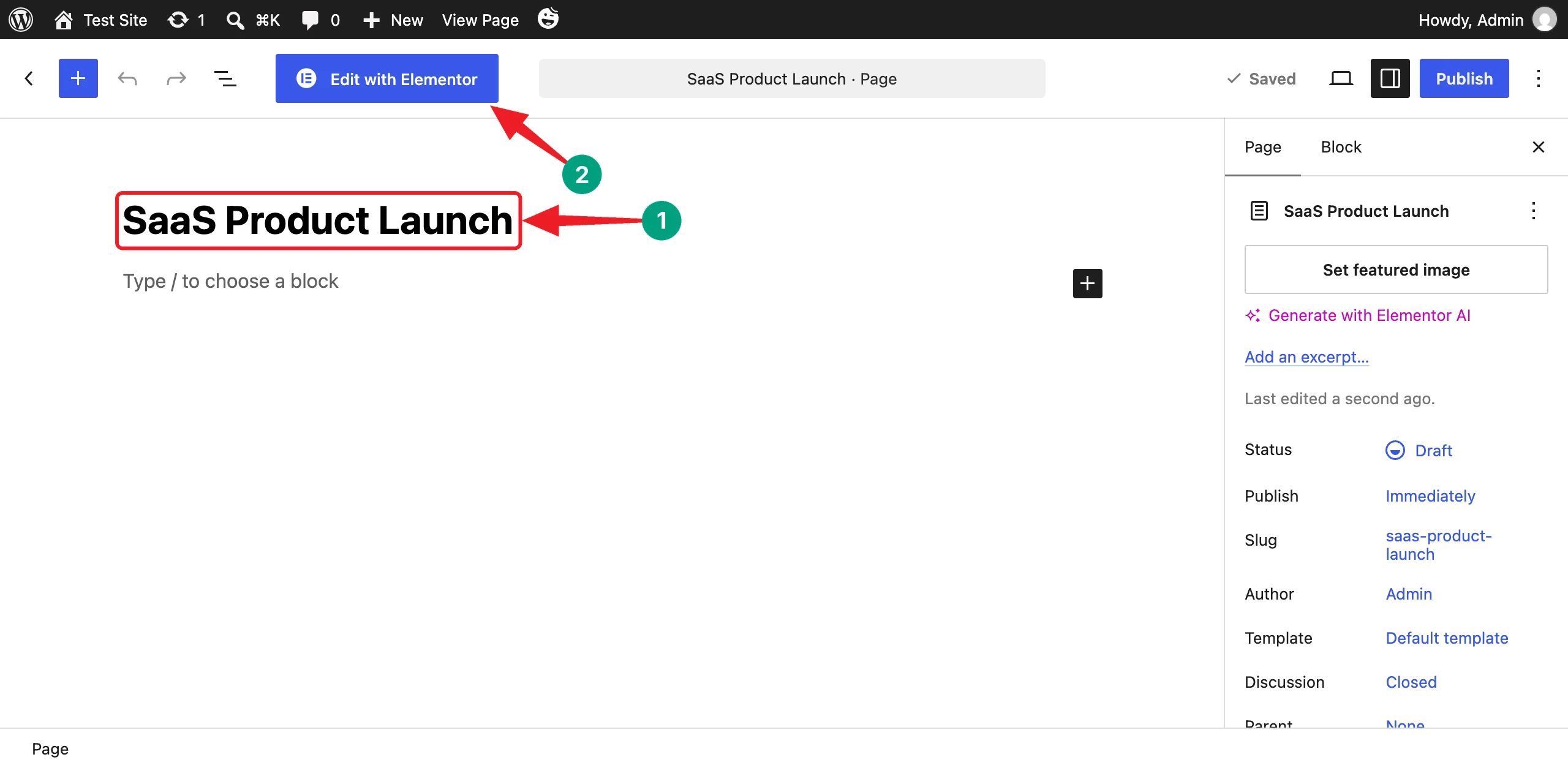
The Elementor editor will open with an empty canvas.
Step 03: Set the Page Layout to Elementor Canvas
A hero section looks best when it fills the whole screen. So, let’s remove the theme’s default header and footer.
Click the Page Settings icon on the top bar. Scroll down the panel a bit and select Elementor Canvas from the Page Layout dropdown.
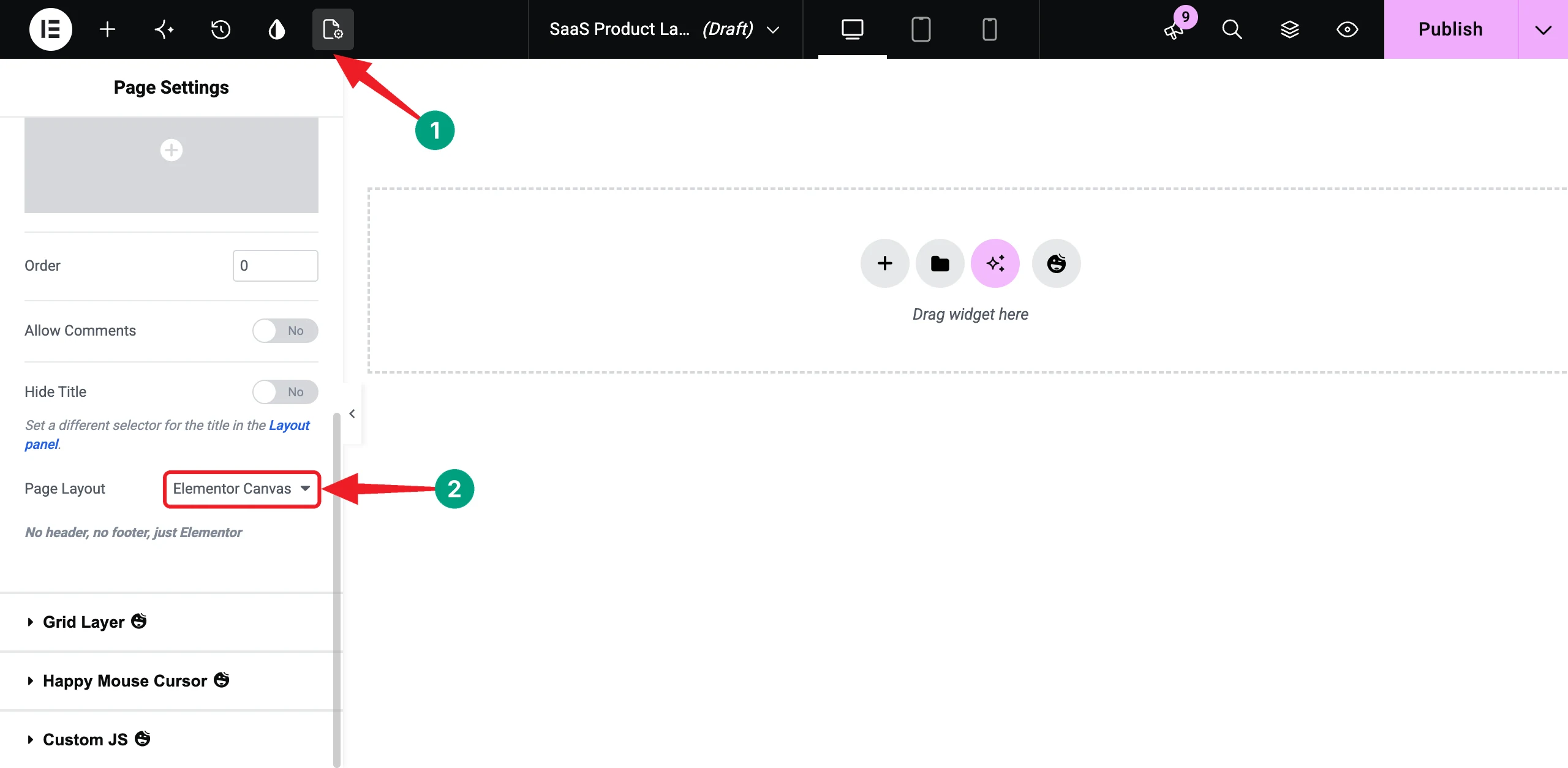
Note: If your site already has a header built with a theme builder, you may choose Elementor Full Width instead.
Step 04: Insert a GSAP-Powered Hero Block from the HappyAddons Library
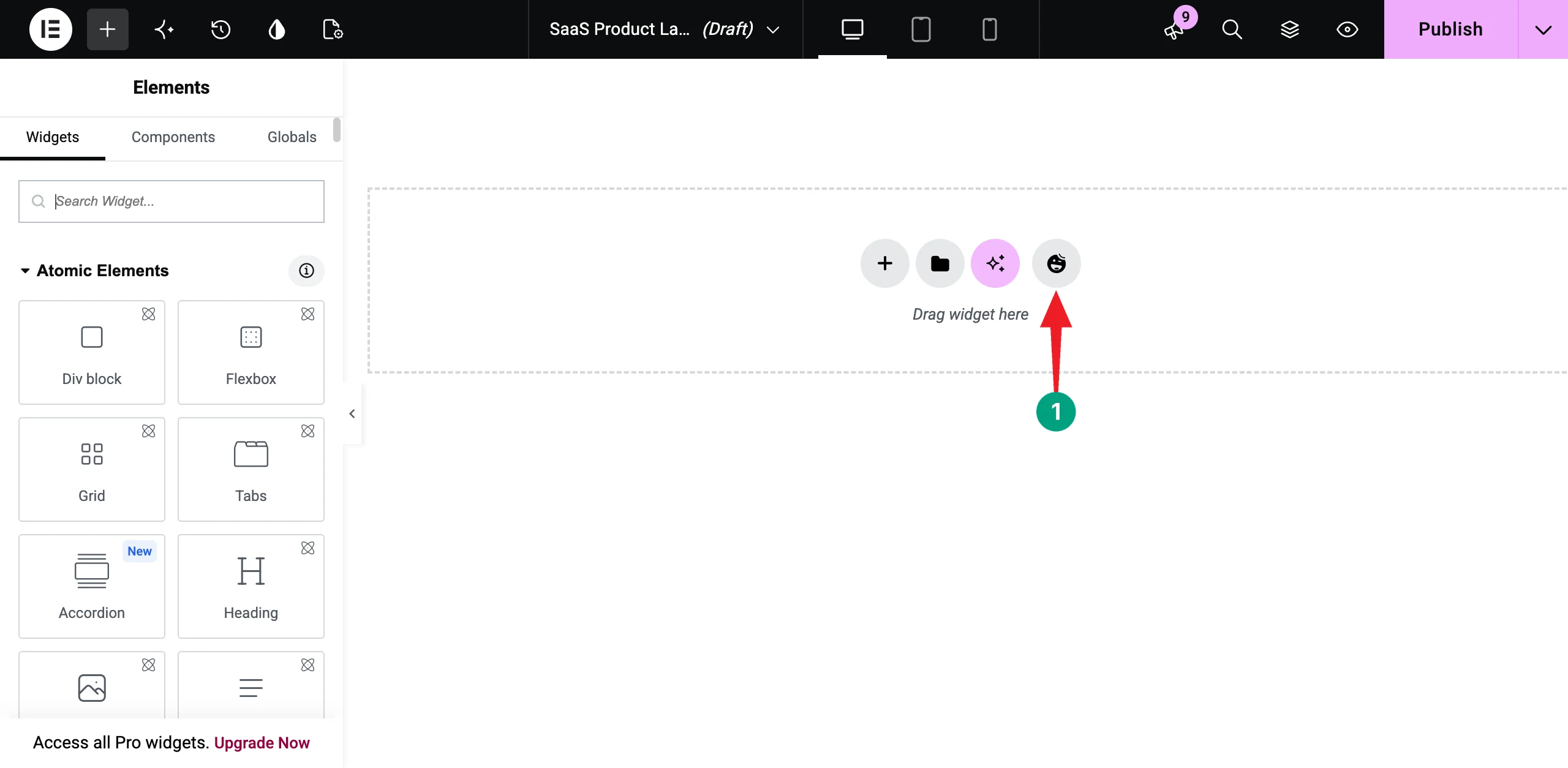
Click the HappyAddons icon on the canvas. This will open the HappyAddons template library.
Stay on the Blocks tab. Type Banner31 in the search box. If you want to explore more GSAP-ready blocks, click the FILTER option and select Animation.
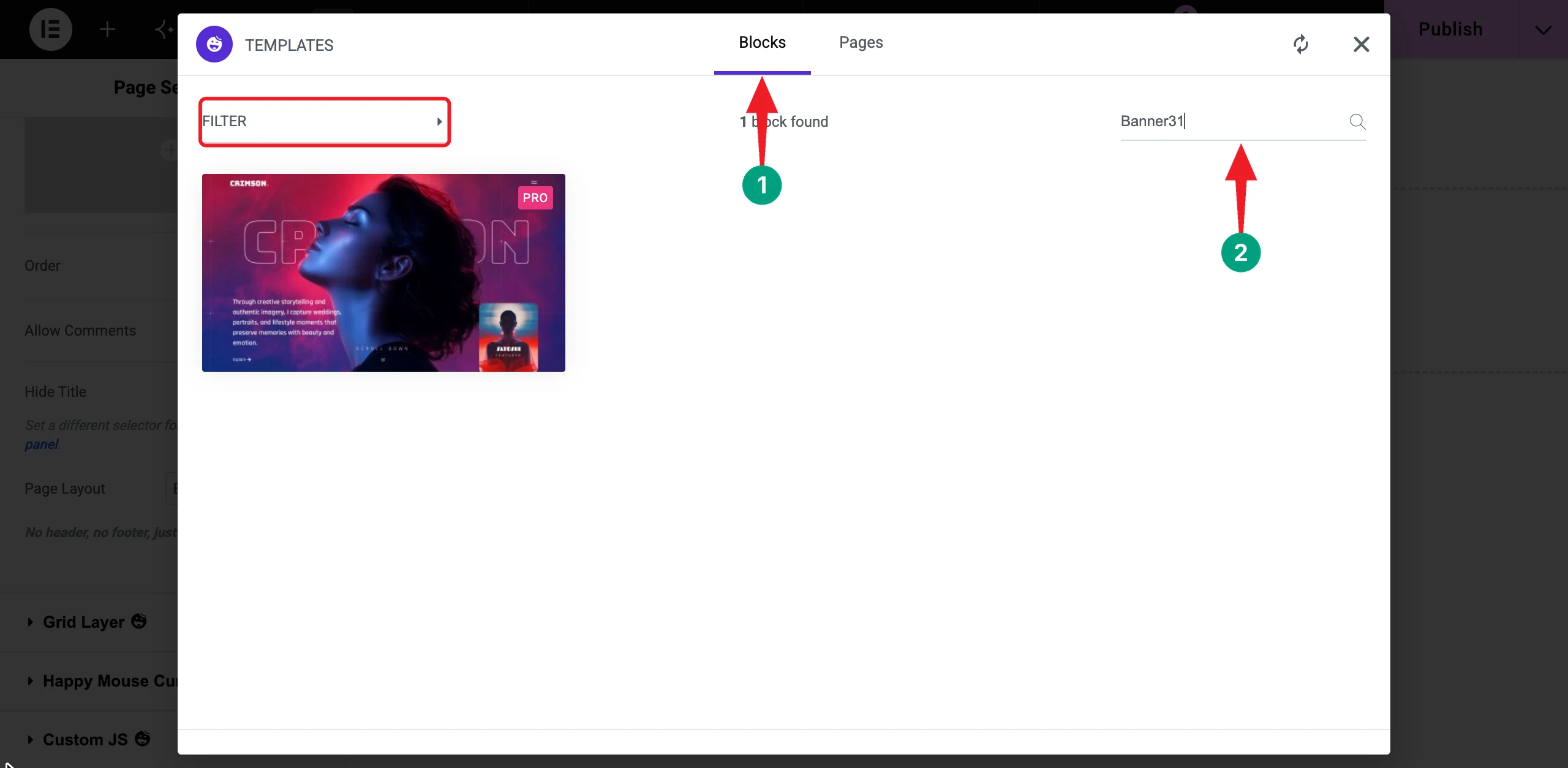
Take your cursor over the block and click the Insert button.
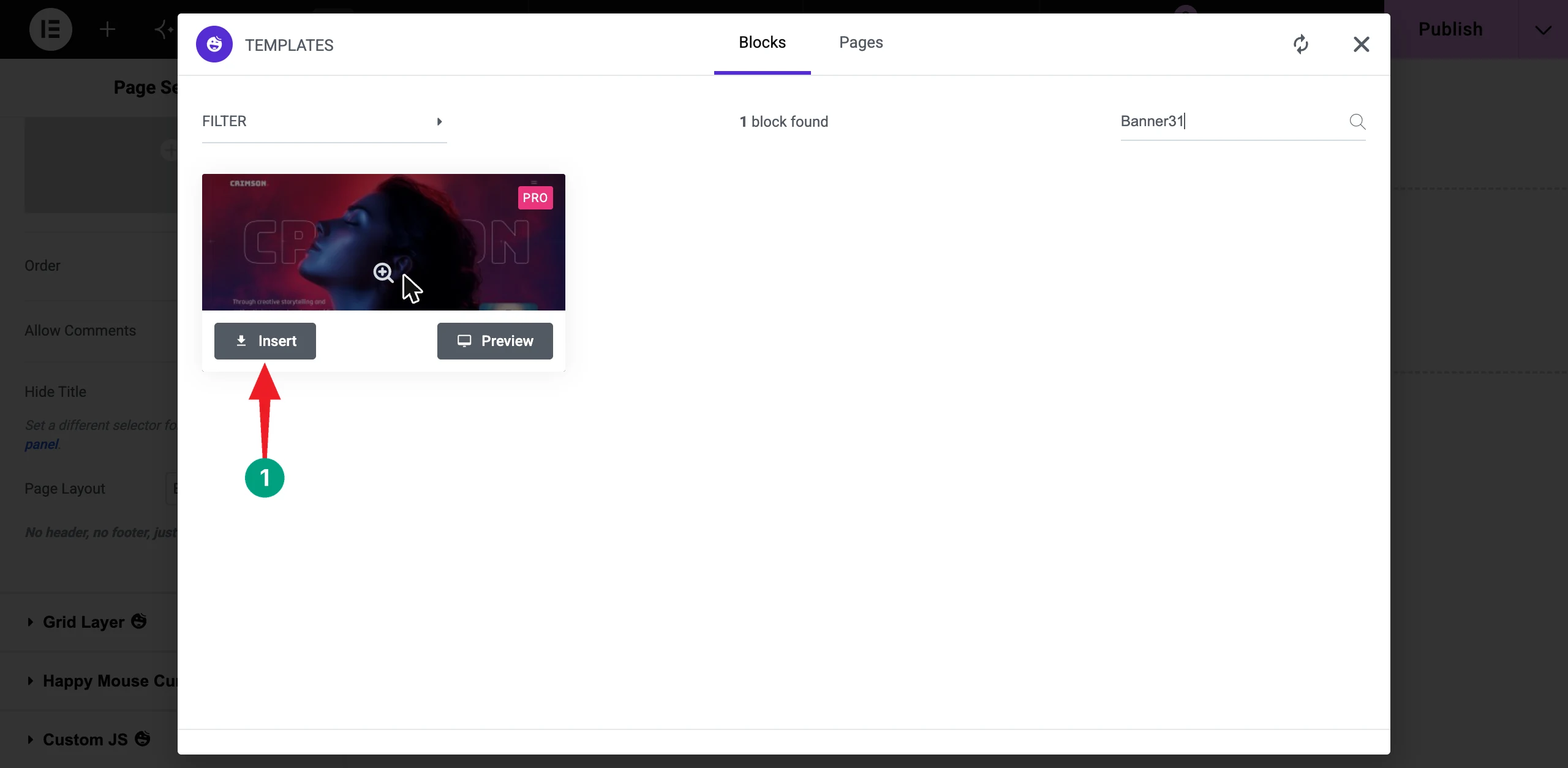
The hero block will instantly be added to the canvas with all its content, images, and animations.
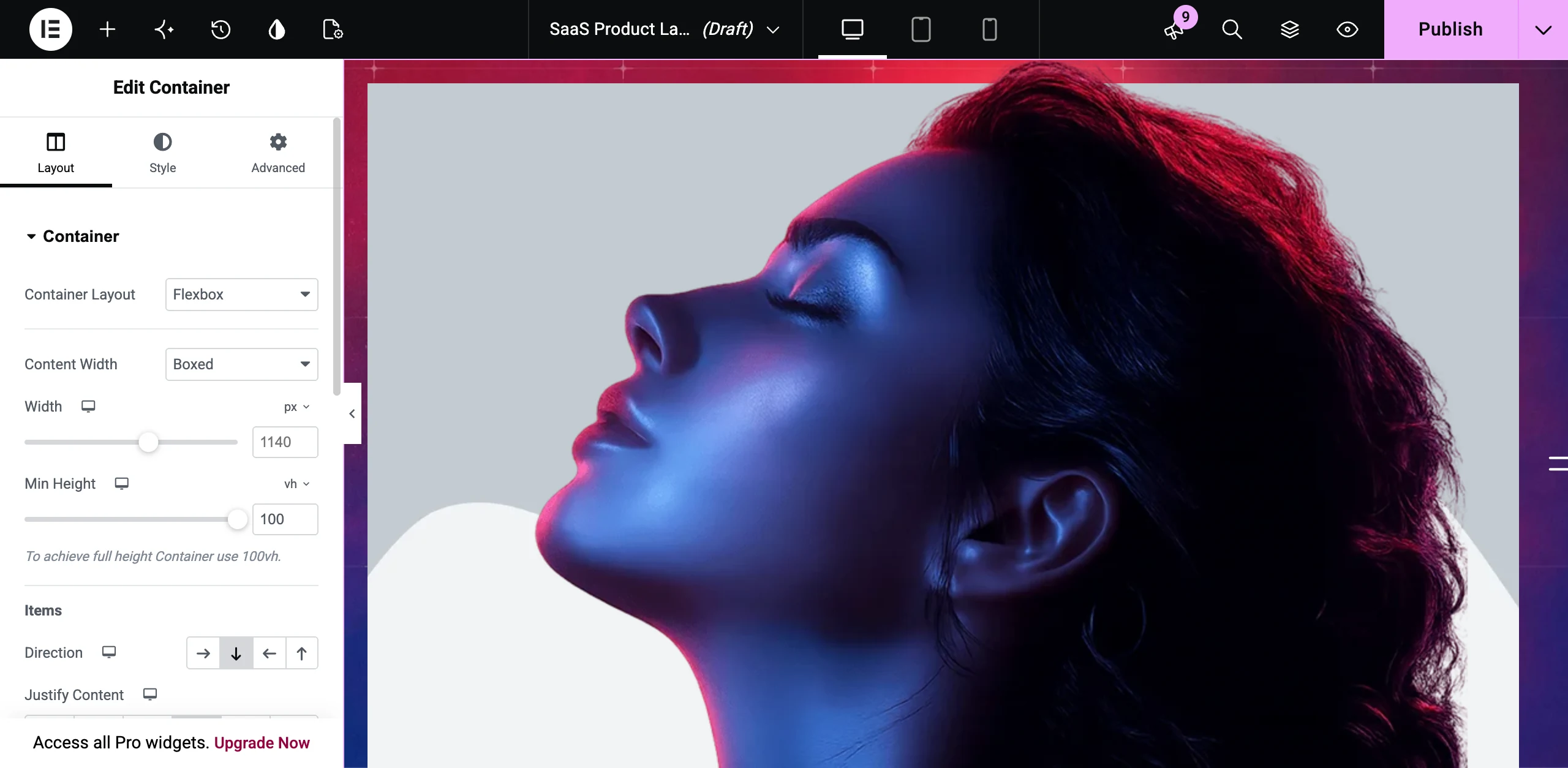
Note: Some animated elements may look hidden on the canvas because their animations haven’t been triggered yet. No worries! Just scroll the canvas a little, and they’ll appear.
Step 05: Customize the Hero Content for Your SaaS Product
Now, make the hero yours. Below is what we have changed for our demo product.
- Replaced the logo image, which imports as a placeholder, with a Heading widget that says nexora.
- Changed the big outline heading from CRIMSON to NEXORA
- Rewrote the description to explain what the product does
- Changed the button texts to Start Free Trial and See What’s New
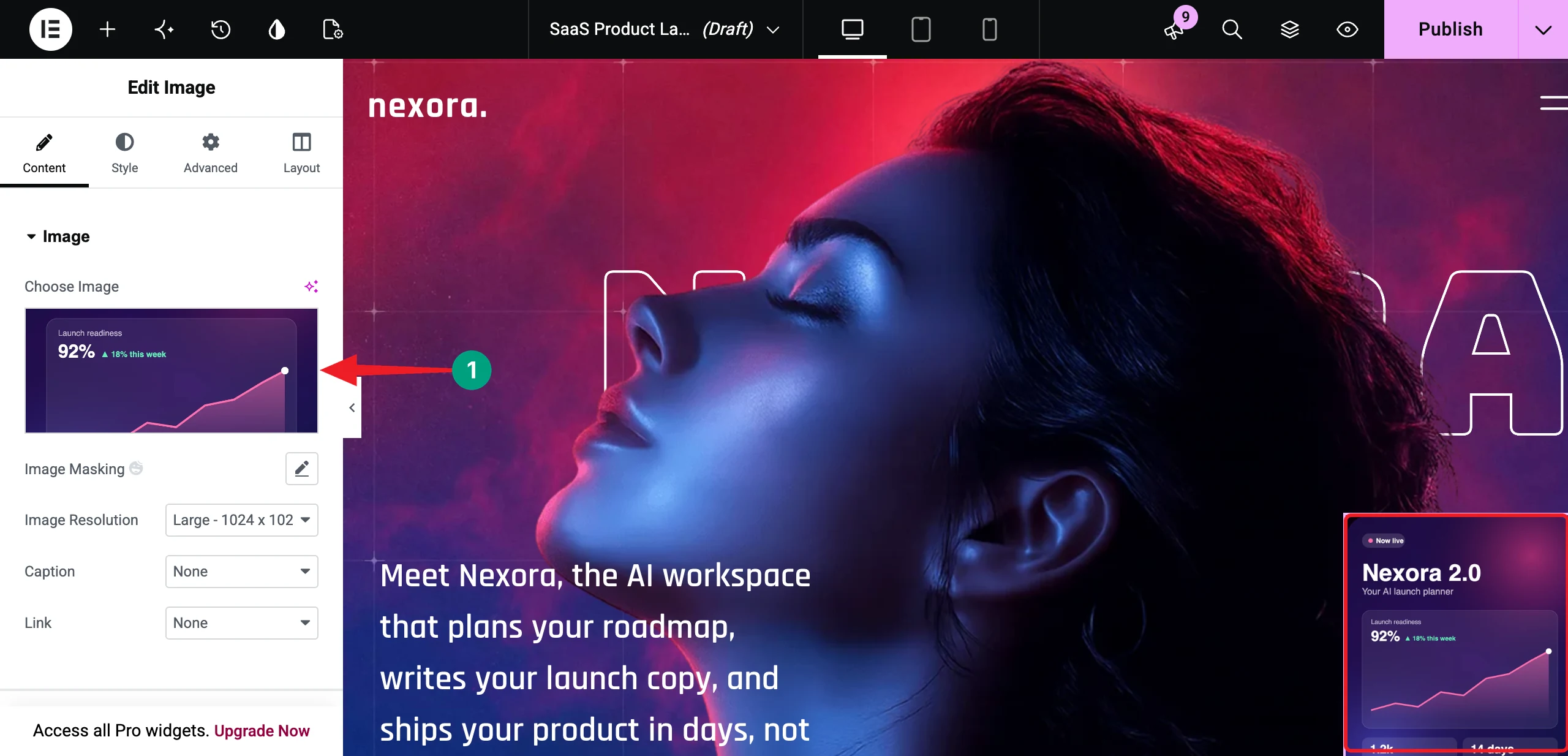
- Replaced the small card image with a launch card for Nexora 2.0
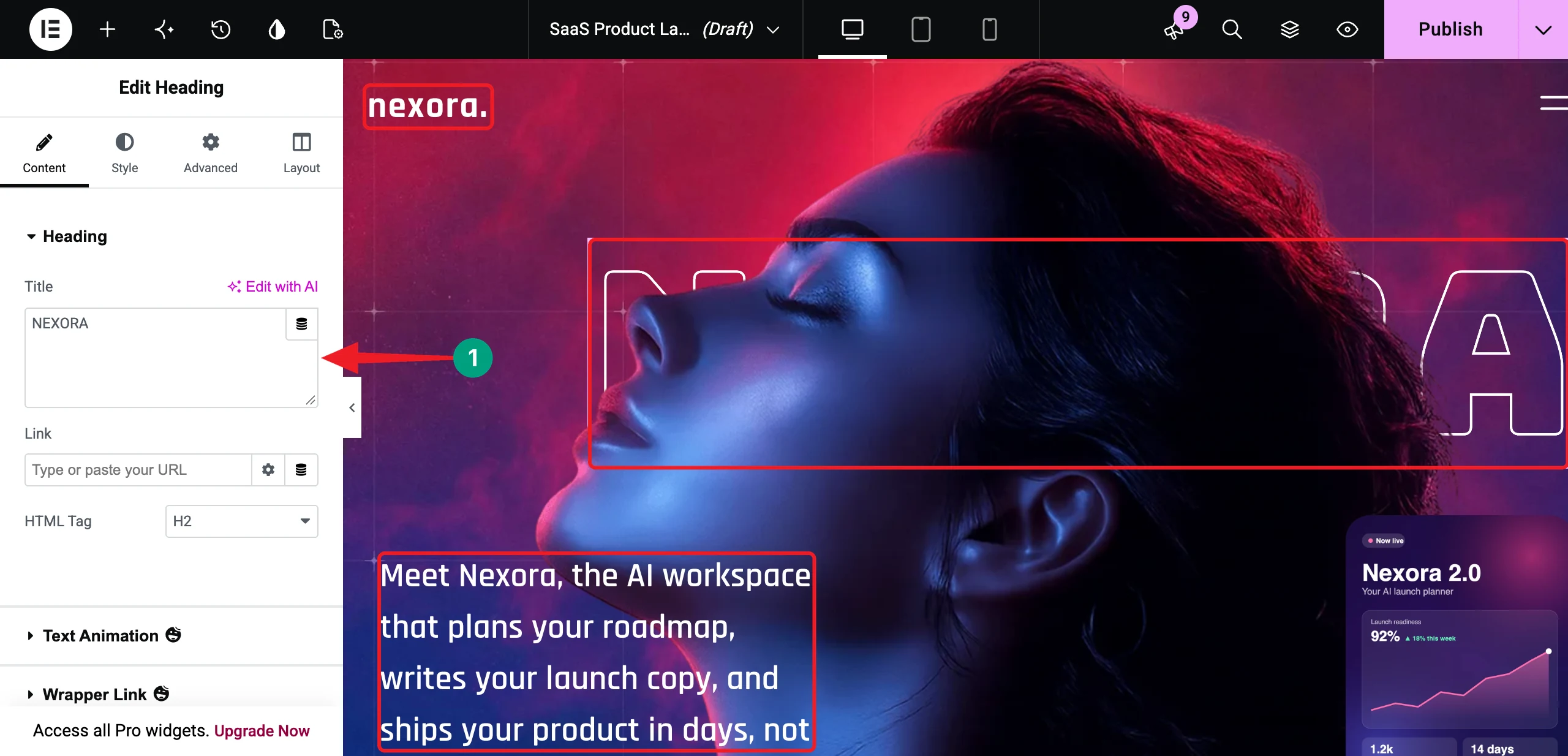
To change an image, select the Image widget. Then, click the image under Choose Image in the Content tab and upload your new one.
Tip: Keep the big headline short. Six to eight characters look best in this large outline style.
Step 06: Animate the Headline with Text Animation
Select the big NEXORA heading. In the Content tab, expand the Text Animation section. Then, toggle on the Enable option.
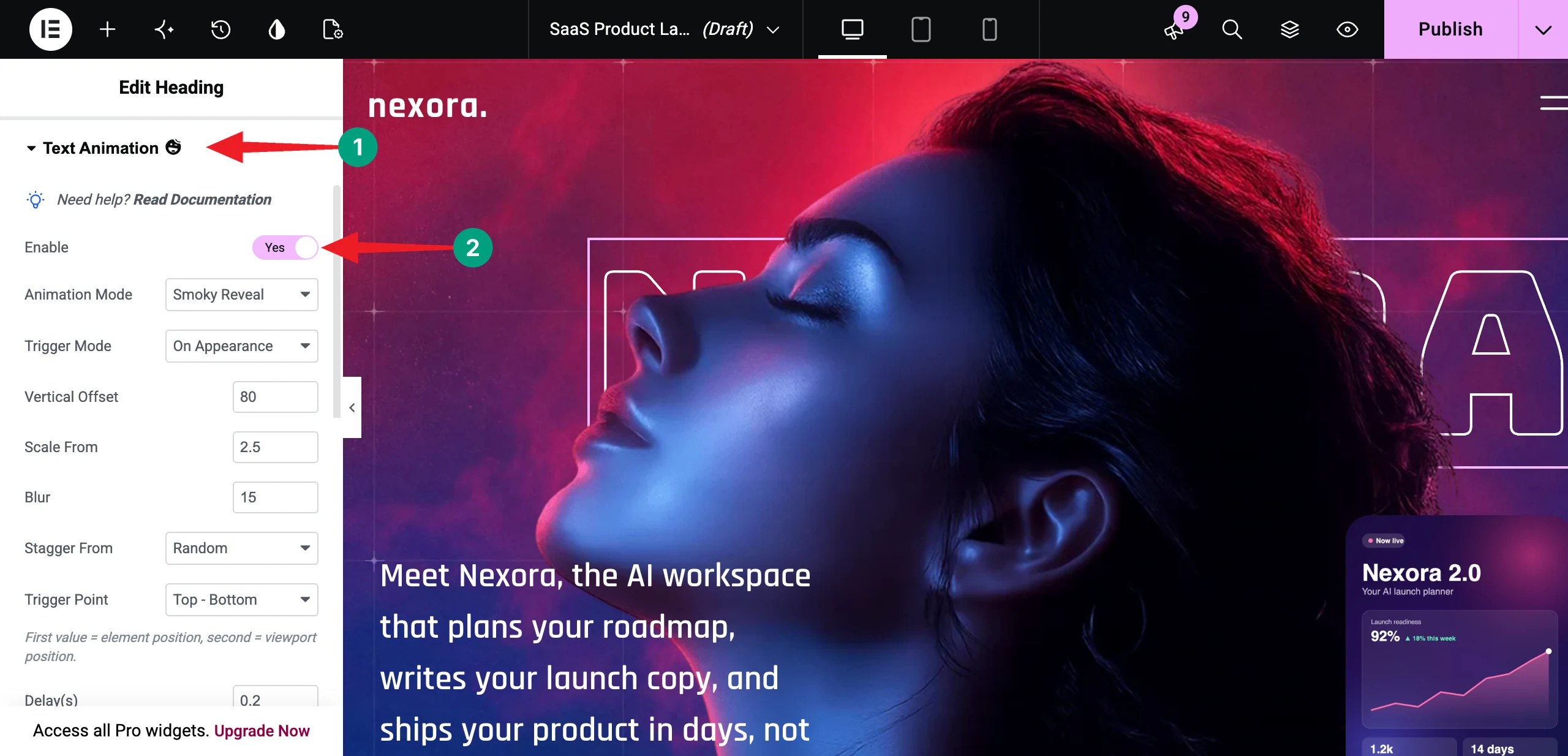
# Choose an Animation Mode
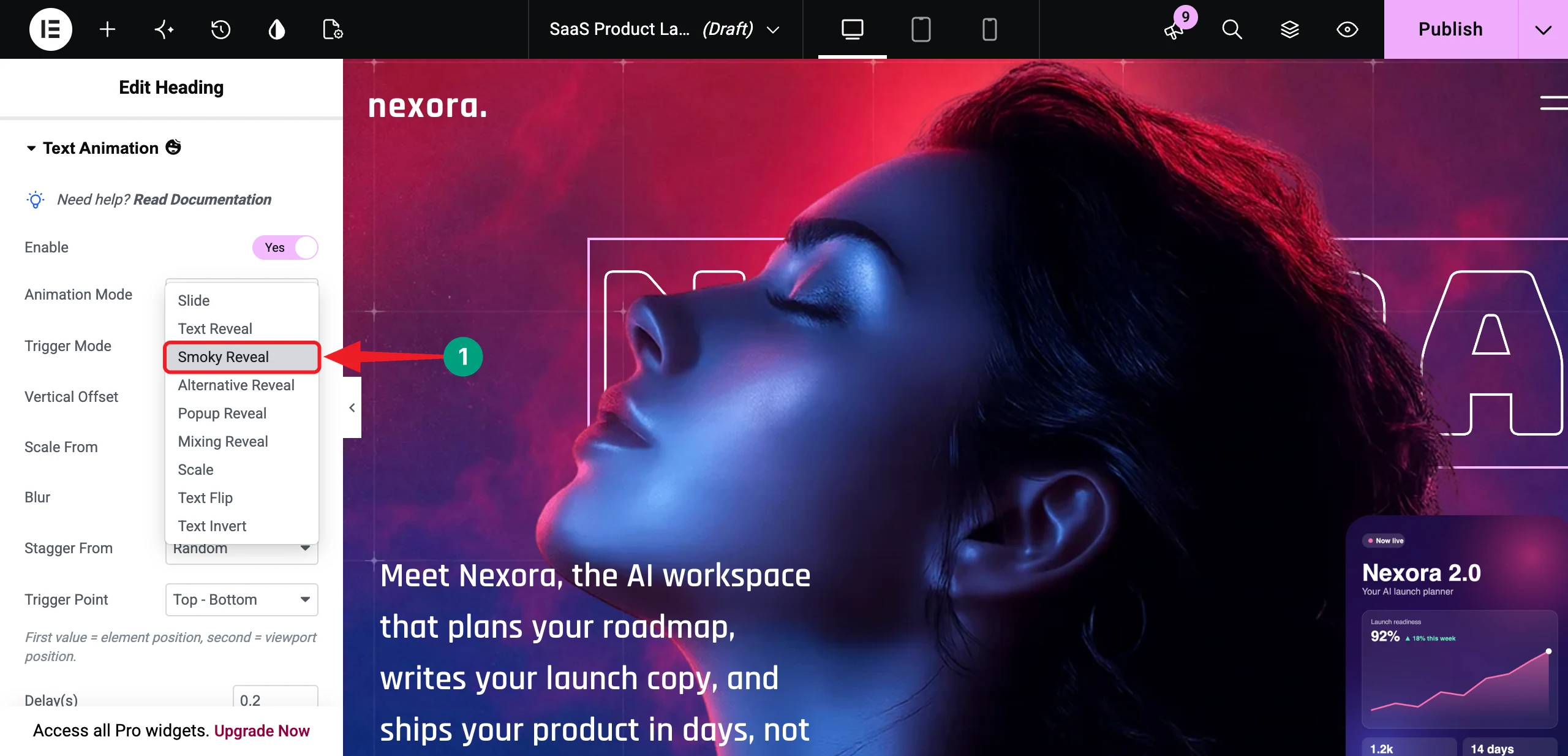
The Animation Mode decides how your text appears on the screen. HappyAddons offers nine modes – Slide, Text Reveal, Smoky Reveal, Alternative Reveal, Popup Reveal, Mixing Reveal, Scale, Text Flip, and Text Invert.
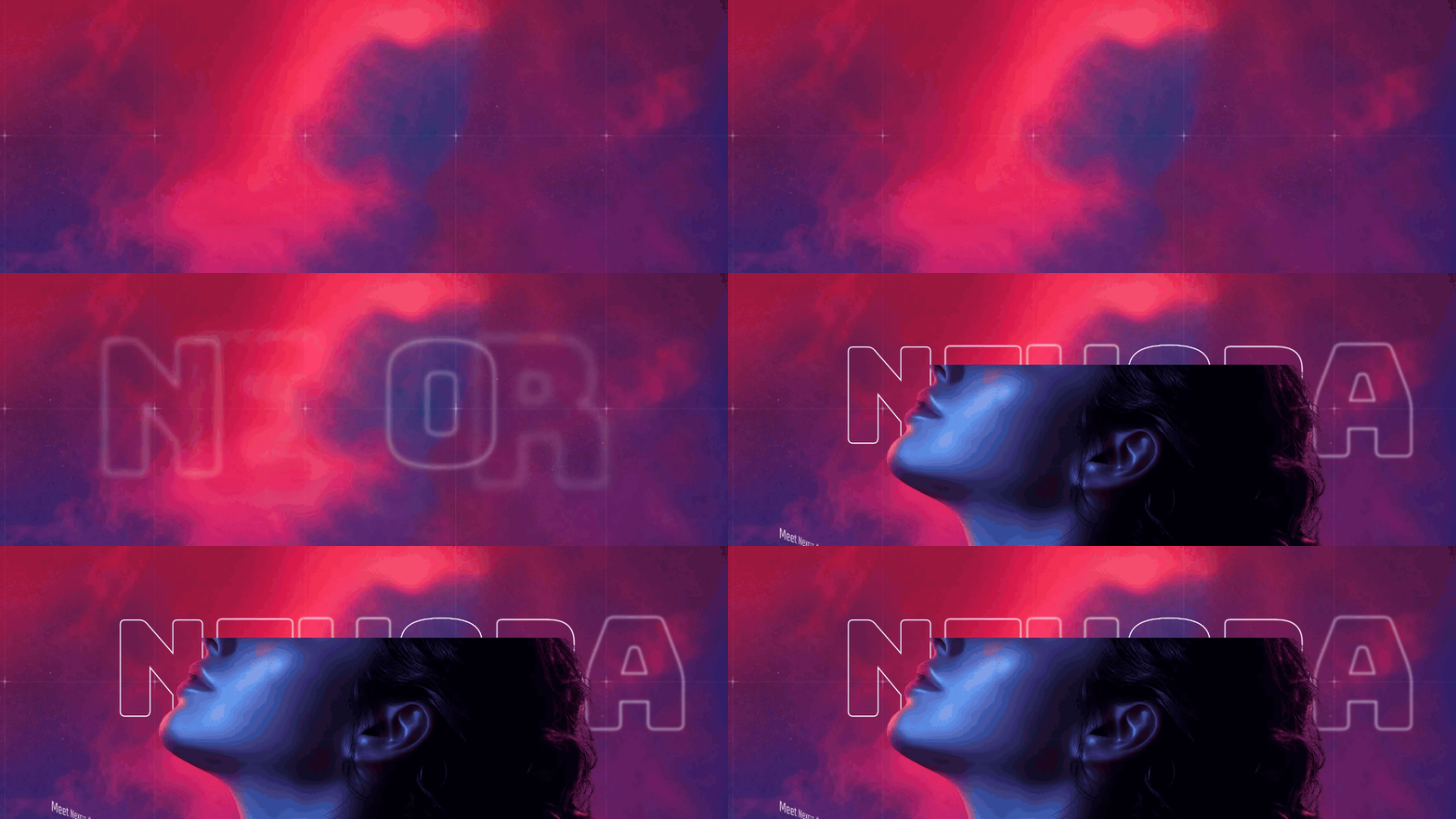
We’re selecting Smoky Reveal. Each letter rises from a soft blur and settles into place, just like smoke clearing away.
Let’s see how the Smoky Reveal effect looks on our NEXORA headline in the GIF below.
# Set When the Animation Starts
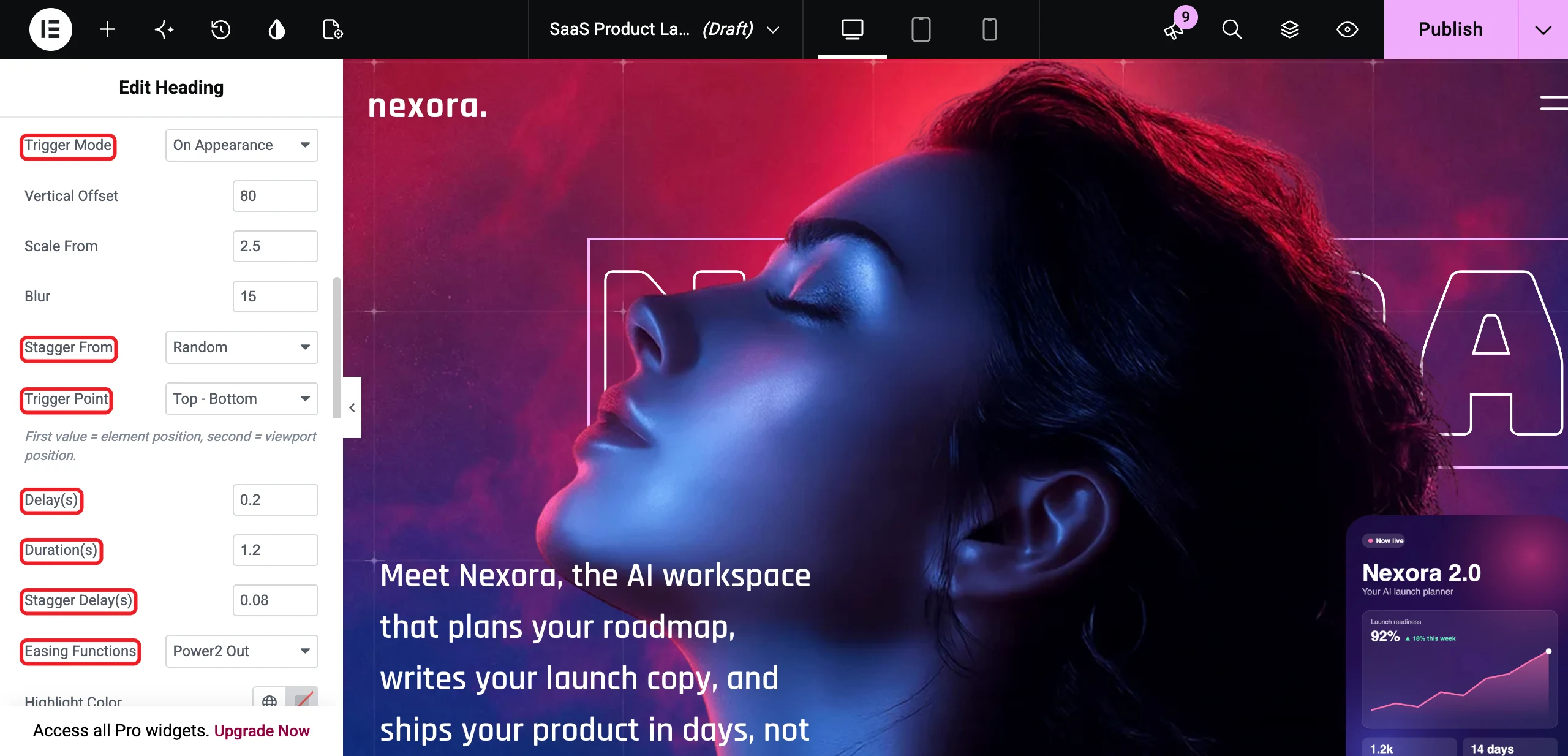
Set the Trigger Mode to On Appearance. Then, select Top – Bottom as the Trigger Point. This starts the animation as soon as the top of the heading enters the screen. For a hero section, that’s the moment the page loads.
Note: The On Scroll trigger ties the animation to scrolling. It works great for sections lower on the page, but not for a hero.
# Fine-Tune the Smoky Effect
Smoky Reveal comes with three extra options – Vertical Offset, Scale From, and Blur. We kept their default values (80, 2.5, and 15). Set Stagger From to Random so the letters appear in a random order.
Now, set the timing. We used Delay(s): 0.2, Duration(s): 1.2, and Stagger Delay(s): 0.08. Keep the Easing Functions as Power2 Out.
Tip: Want to show one word in a different color? Wrap it in curly braces, like {launch}, and pick a color from the Highlight Color option.
Step 07: Reveal the Hero Image with Appearing Image Animation
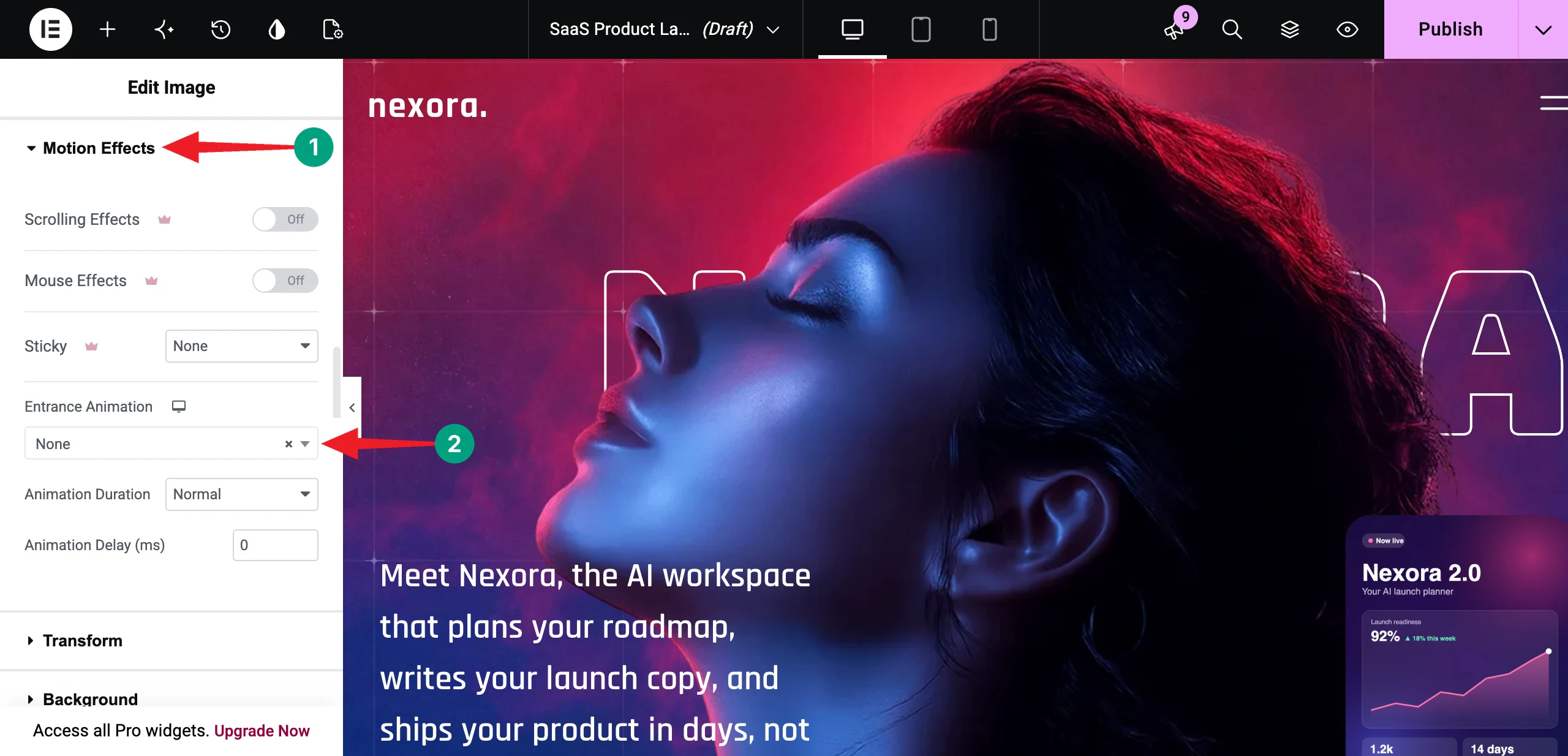
Select the hero image in the middle of the section. This block came with Elementor’s own entrance animation on this image. Two animation systems on the same element can fight each other. So, go to the Advanced tab, expand Motion Effects, and set Entrance Animation to None.
Now, come back to the Content tab and expand the Appearing Animation section. Toggle on the Enable option.
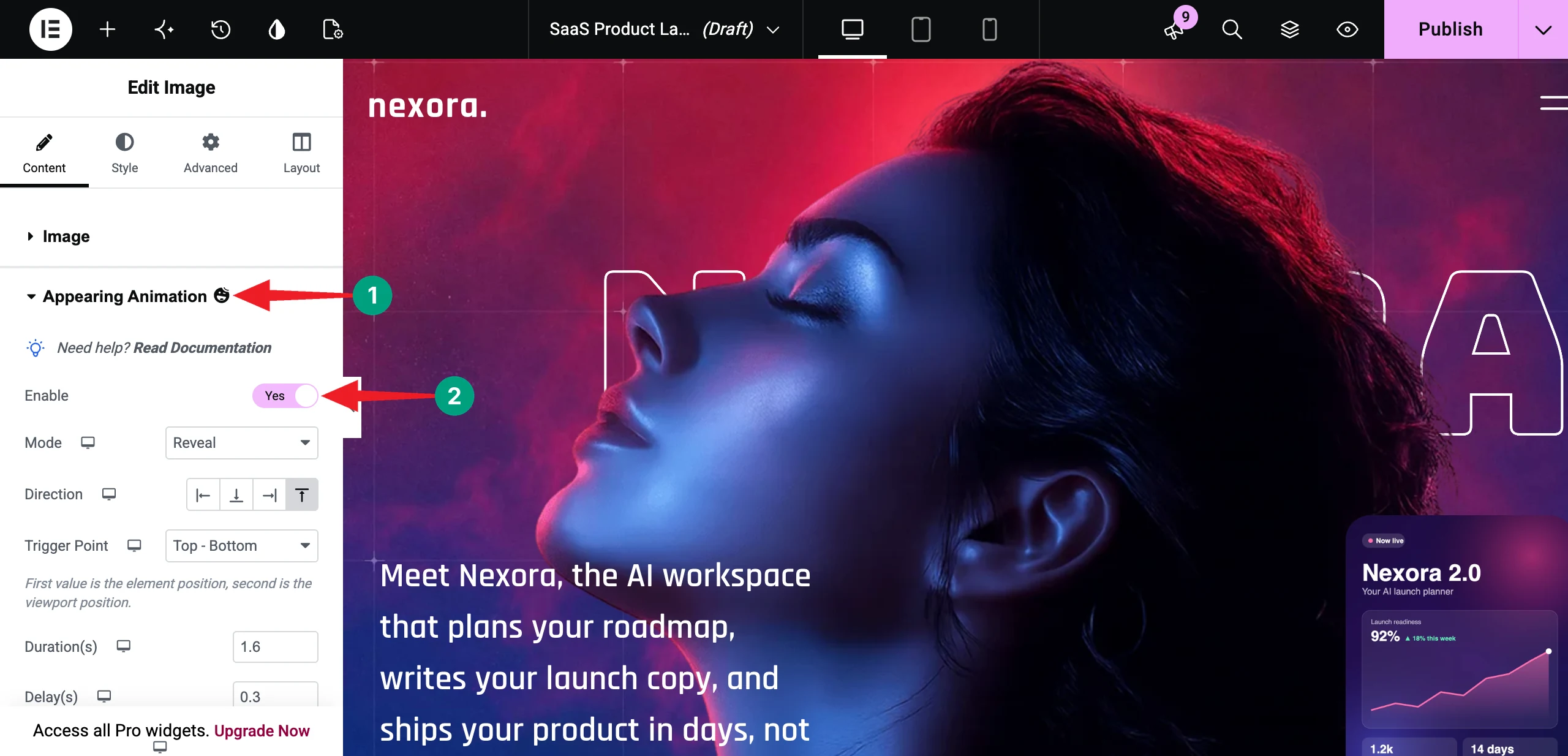
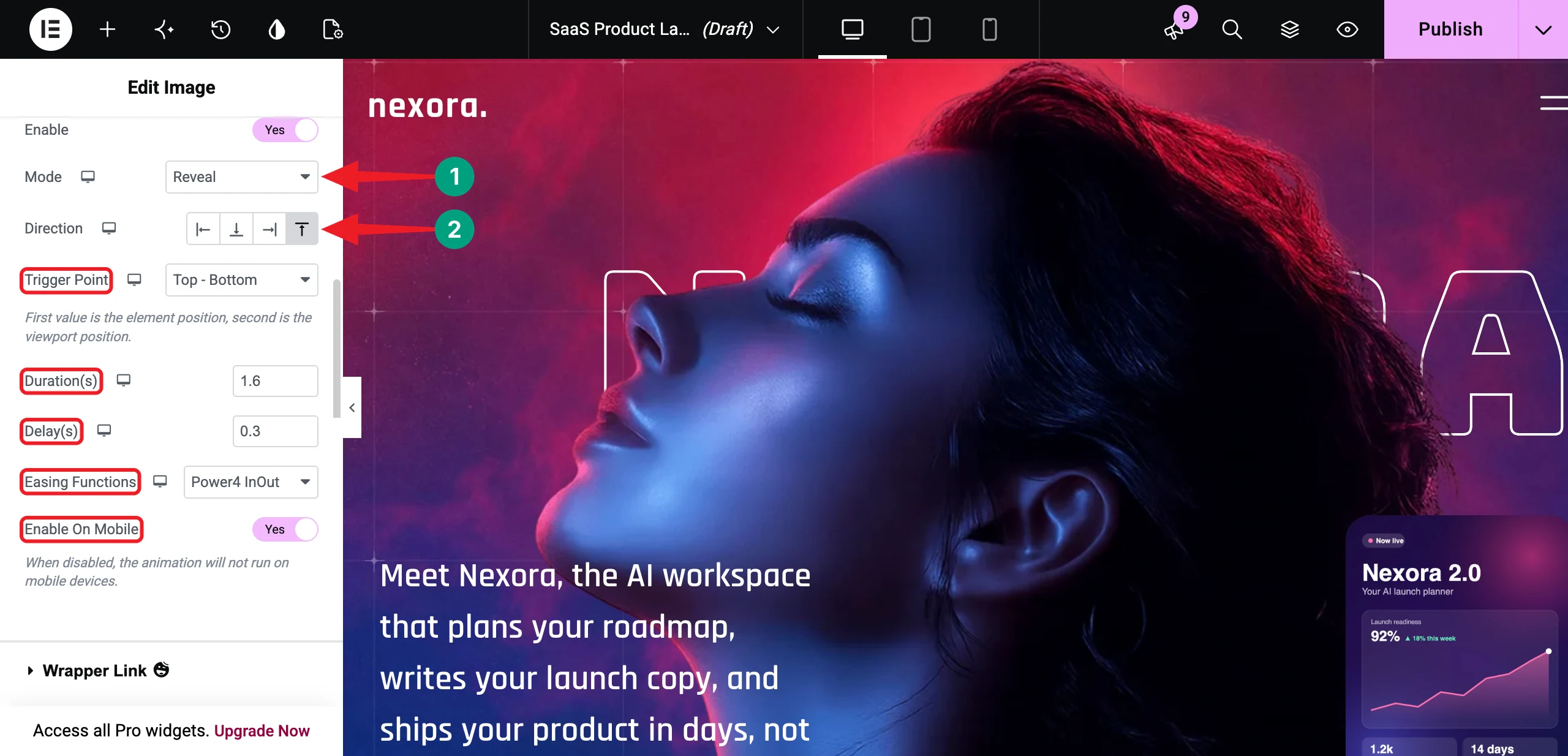
There are five modes – Reveal, Tiles Reveal, Corner Reveal, Scale, and Stretch. Choose Reveal and set the Direction to Bottom, so the image rises from below.
Then, configure the rest of the options. We set Trigger Point: Top – Bottom, Duration(s): 1.6, Delay(s): 0.3, and Easing Functions: Power4 InOut. Also, toggle on Enable On Mobile.
You can see how the image reveals itself in the video clip attached below.
Step 08: Add a 3D Flip Entrance to the Description with Global Animation
Global Animation lets you animate almost any property of any widget. Select the Text Editor widget that holds the description. Go to the Advanced tab and expand the Animation section. Then, toggle on the Enable option.
Note: The description also has an Elementor entrance animation. Set Motion Effects > Entrance Animation to None here as well.
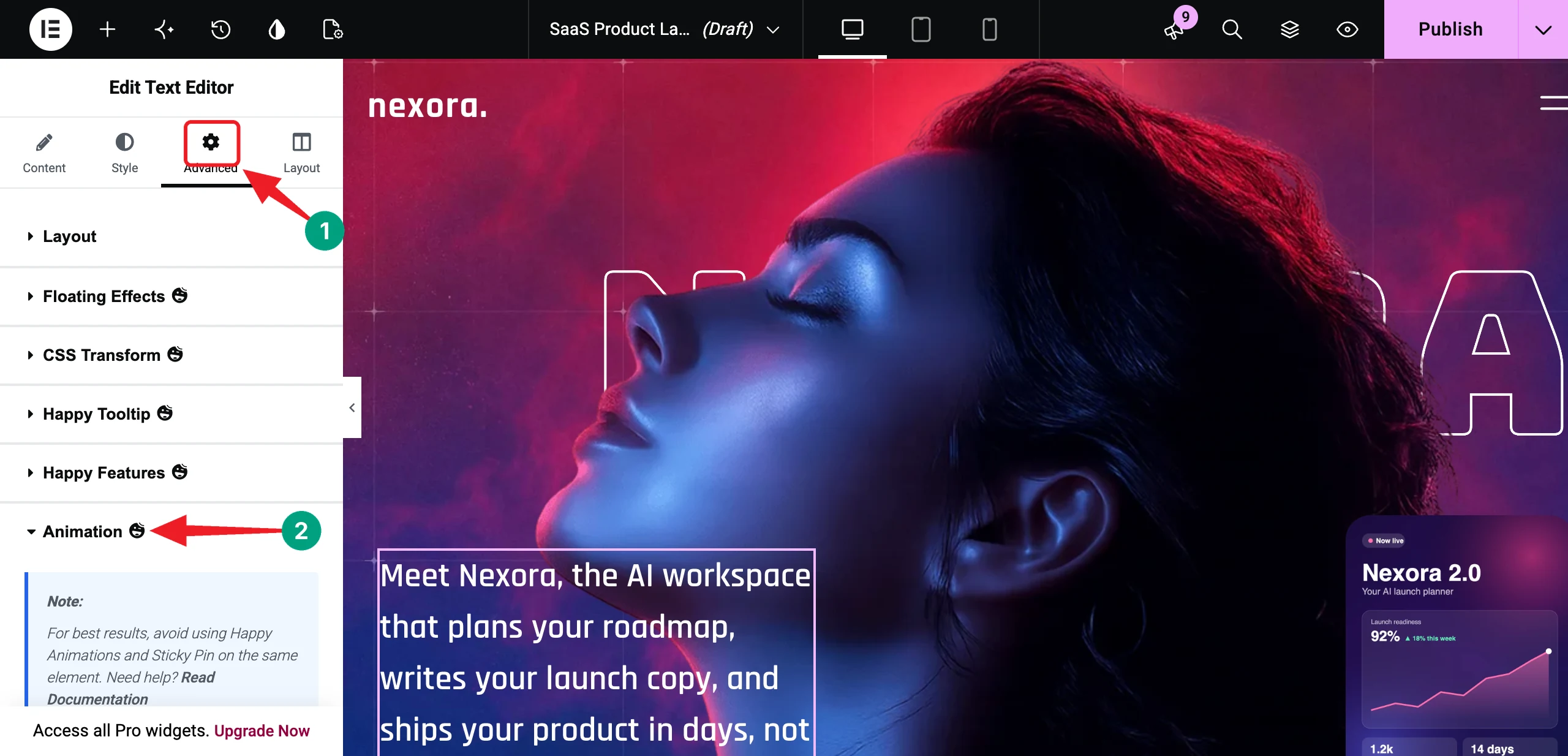
Set the Animation to From, the Trigger Mode to On Page Load, and the Easing Functions to Power3 Out.
Note: With From, the values you add below are the starting state. The widget then moves back to the way you designed it.
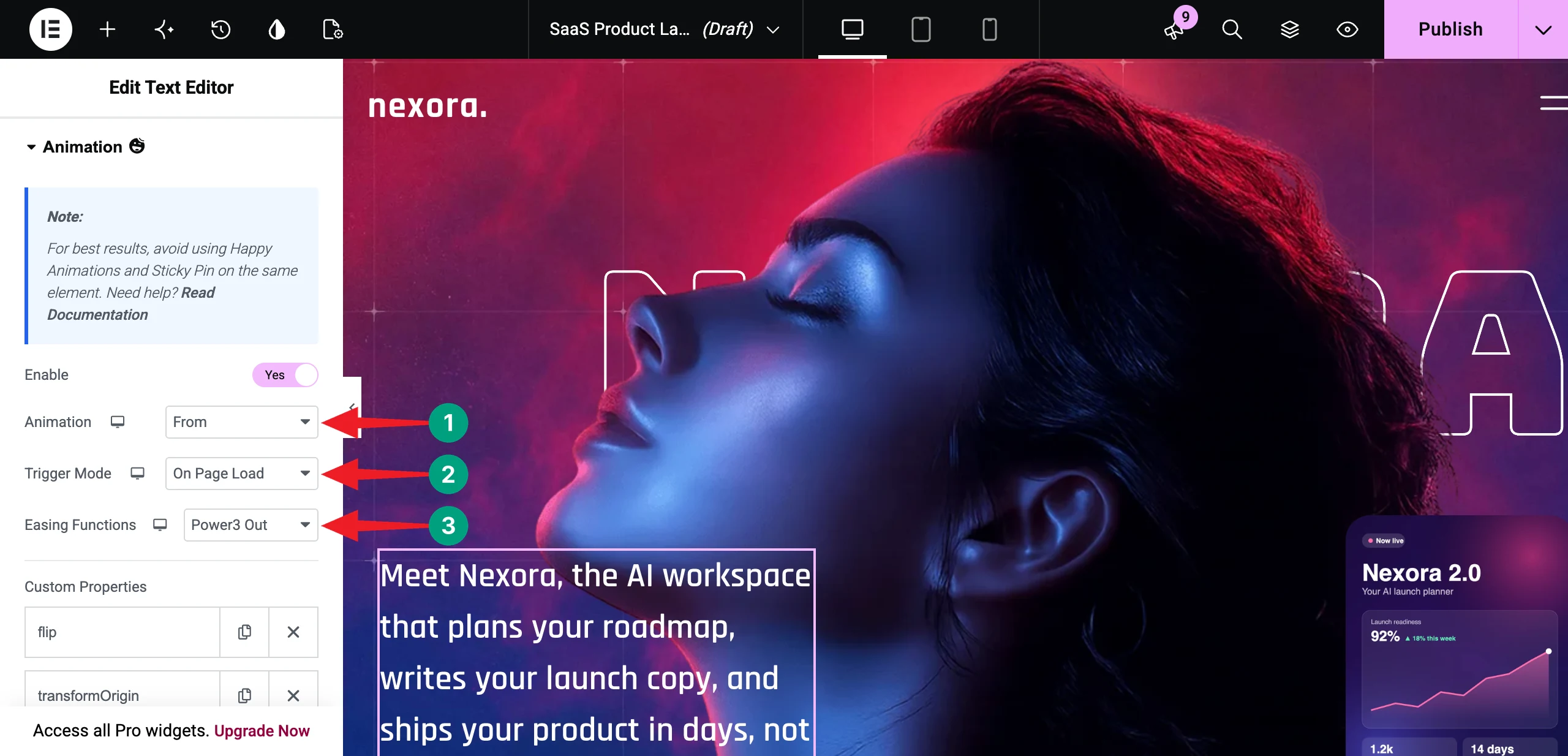
# Add Custom Properties
Scroll down to the Custom Properties option. Click the + Add Item button, choose a Property, and set its value. We added these five items:
- Flip – Flip Type: 3D, Direction: Horizontal, Rotation (deg): 180
- TransformOrigin – Left – Center
- Opacity – 0
- Delay – 0.9
- Duration – 1.1
Finally, toggle on Enable On Mobile.
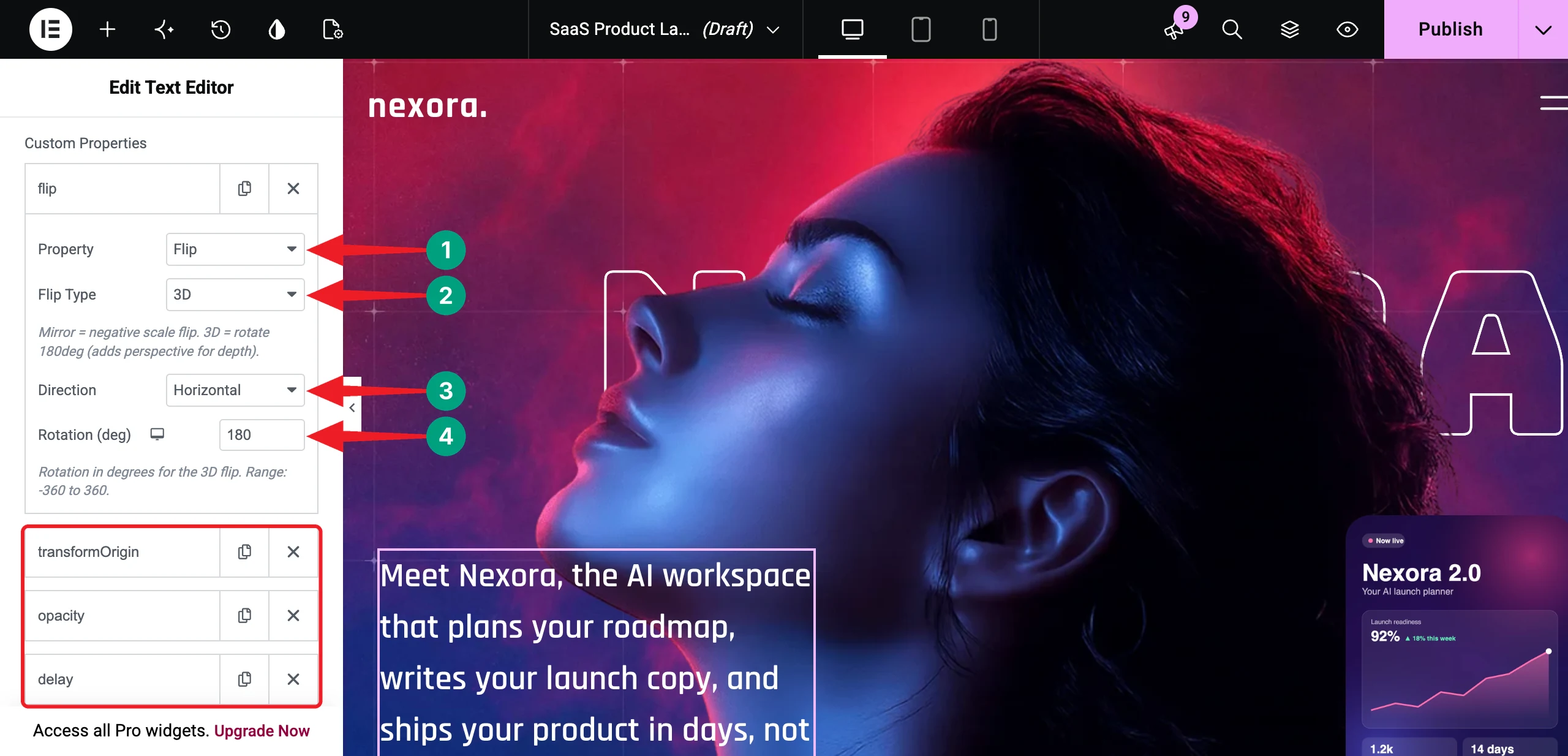
Now, the description swings in from the left side like a door opening.
Step 09: Fade Up the Call-to-Action Buttons
Select the Start Free Trial button. Go to Advanced > Animation and toggle on Enable. Set Animation: From, Trigger Mode: On Page Load, and Easing Functions: Power3 Out.
Under Custom Properties, add Opacity: 0, Y: 40px, Delay: 1.4, and Duration: 0.9. Also, toggle on Enable On Mobile.
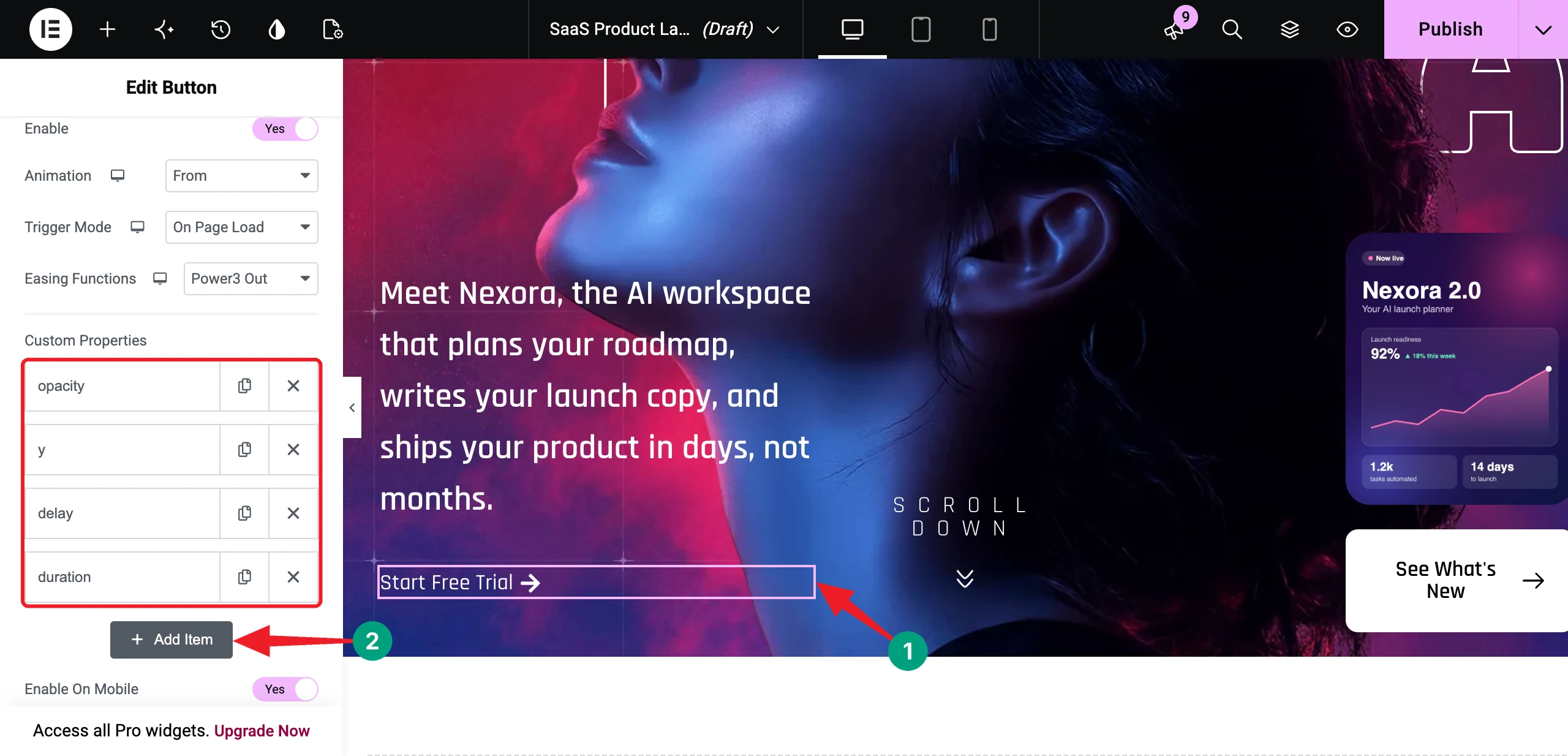
In the same way, add the same animation to the See What’s New button. Just set its Delay to 2.6, so it appears after the launch card.
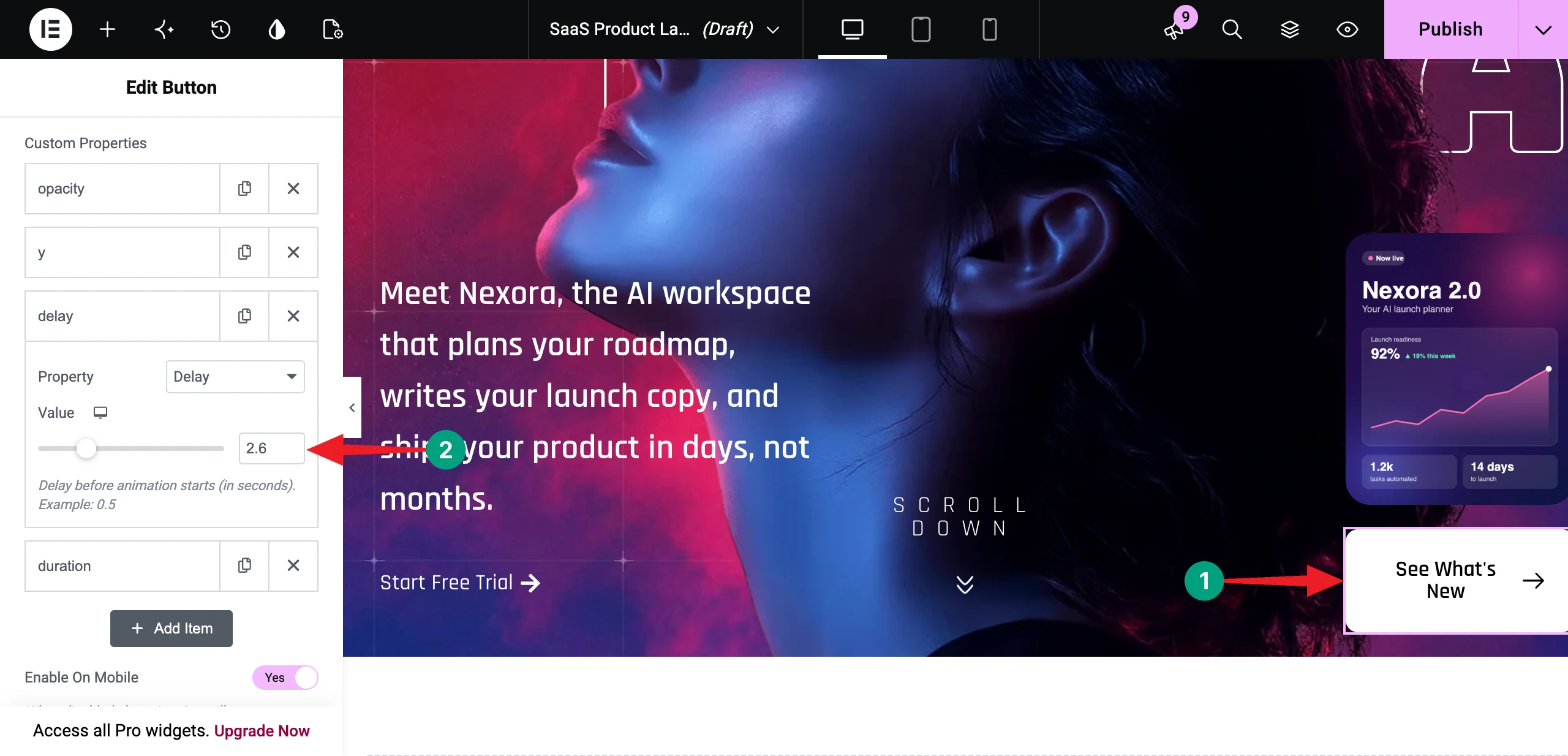
Tip: Increase the delay a little for each element. This creates a clean sequence – headline, image, description, and then button.
Step 10: Set Up the Tiles Reveal on the Launch Card
The small card on the right already uses the Appearing Animation in Tiles Reveal mode. Select the card image and expand Appearing Animation to check its settings.
We have used Number of Tiles: 25, Stagger Delay(s): 0.03, Trigger Point: Top – Bottom, Duration(s): 1, and Delay(s): 2. Enable On Mobile is also toggled on.
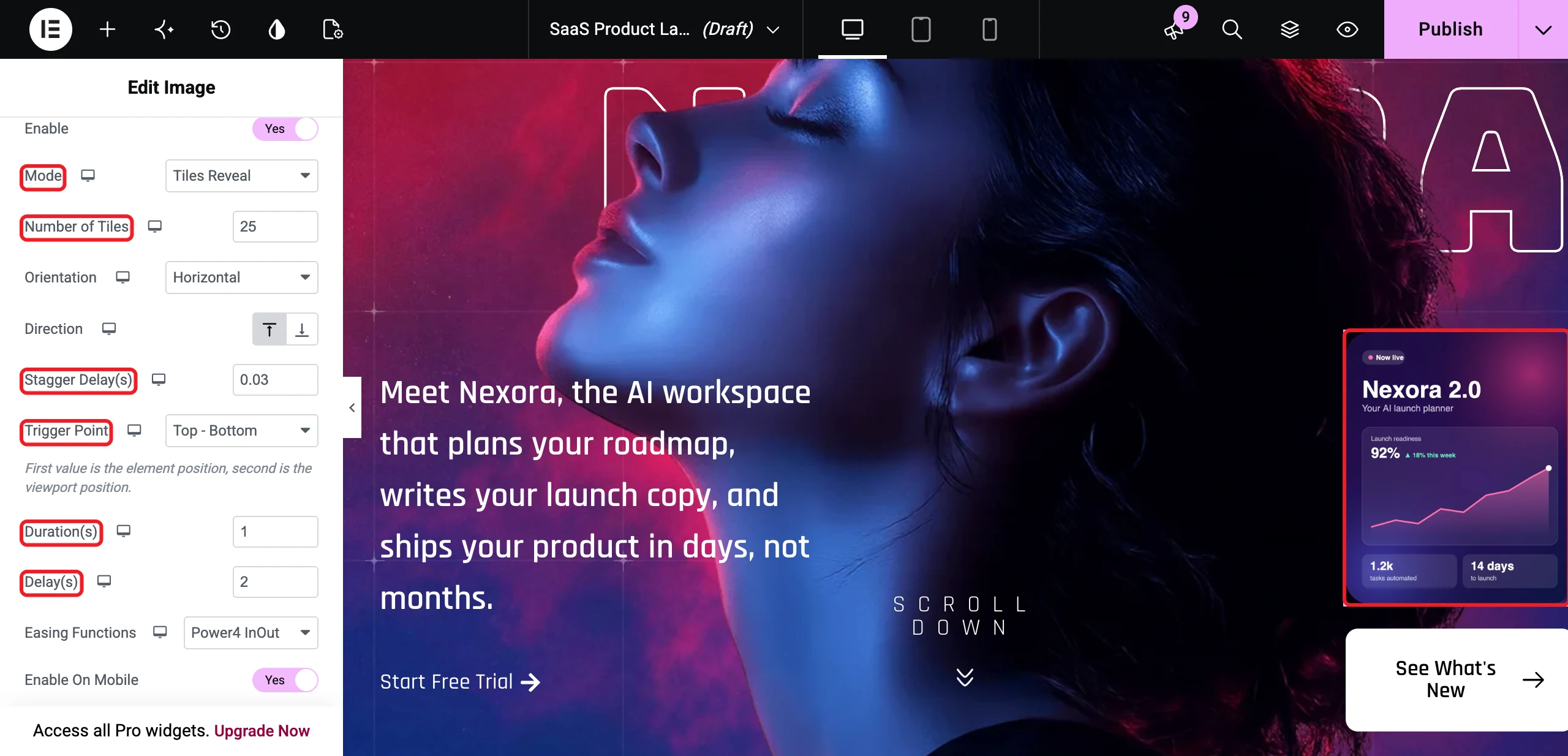
The 2-second delay makes the card appear last, as the final highlight of the hero.
Step 11: Add a Custom Mouse Cursor with Happy Mouse Cursor
A custom cursor adds a playful and interactive touch to your hero. Select the main (outer) container of the hero. The easiest way is to pick it from the Structure panel.
Go to the Layout tab and expand the Happy Mouse Cursor section. Toggle on Enable Happy Mouse Cursor.
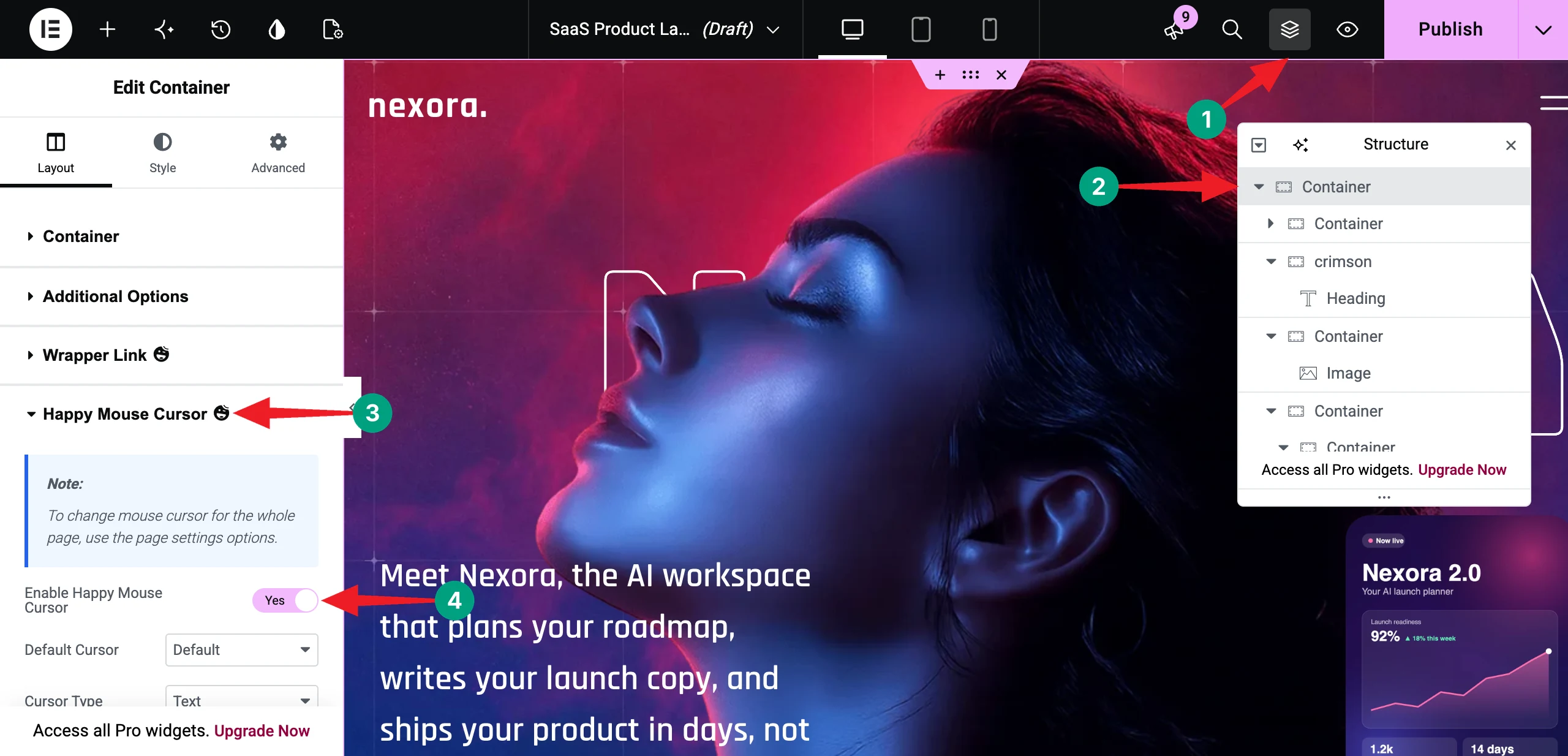
There are five cursor types – Text, Color, Icon, Image, and Video. We chose Text and wrote Try Nexora in the Cursor Text field. Then, we set the Text Color to white and changed the Typography.
Under Background Style, toggle on Enable Blur. We set Blur: 8px, a transparent pink Background Color, Width and Height: 110px, and Border Radius: 50% to make a perfect circle.
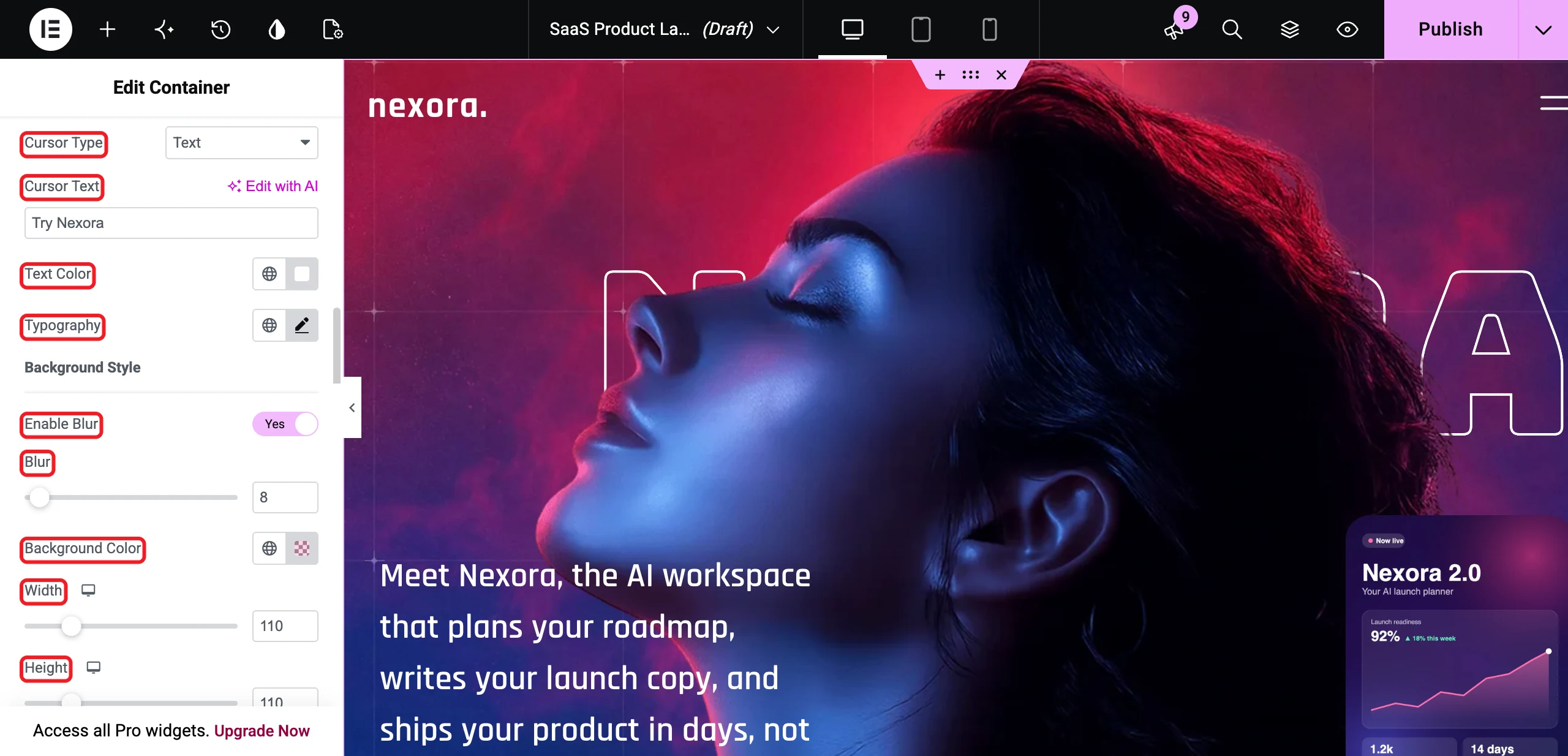
Now, a frosted bubble saying “Try Nexora” follows the mouse whenever visitors move it over the hero section.
Note: If you want the cursor on the entire page, you can enable it from Page Settings > Happy Mouse Cursor instead.
Step 12: Make the Hero Section Mobile-Friendly
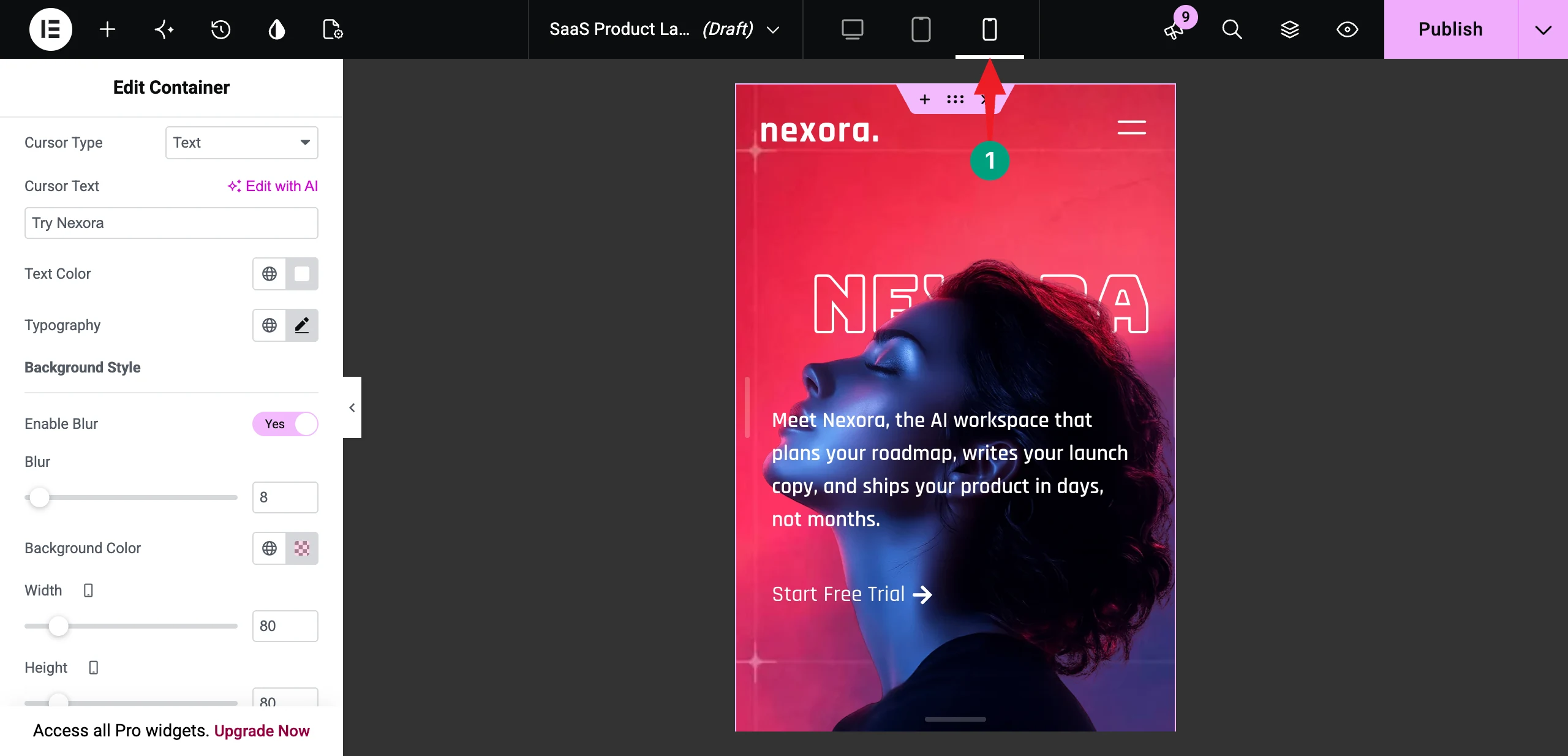
Click the Mobile icon on the top bar to switch to the mobile view. Check that the headline fits the screen, the text is easy to read, and the buttons are easy to tap.
We kept Enable On Mobile toggled on for Global Animation and Appearing Animation, so the effects play on phones too. If an animation feels heavy on small screens, simply turn it off for mobile.
Here’s a guide on how to make a website mobile-friendly.
Step 13: Preview the Animated Hero Section
Save your changes and open the page in preview mode. Reload it a few times and watch the whole sequence play. You can see that the hero section is working fine on our end.
Step 14: Publish the Hero Section
When you’re happy with the result, click the Publish button on the top bar.
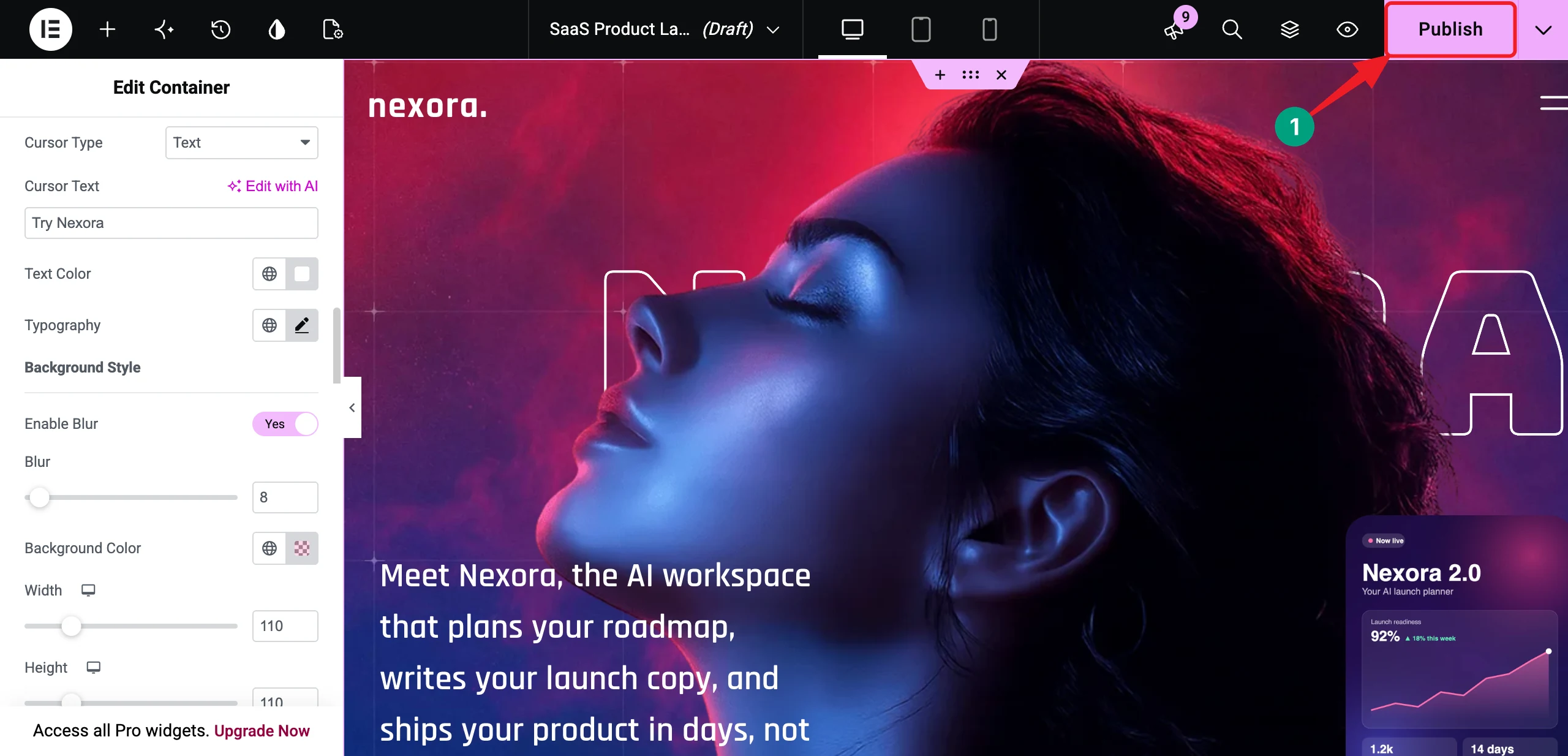
Thus, you can build a modern animated hero section in WordPress with Elementor and HappyAddons.
If you’d like to see everything the GSAP Pack can do, watch the overview video attached below.
Bonus: Tips for Smooth and Fast GSAP Hero Animations
A great hero animation feels effortless. Too much motion, on the other hand, can distract visitors or slow down your page. Keep the following tips in mind while you design.
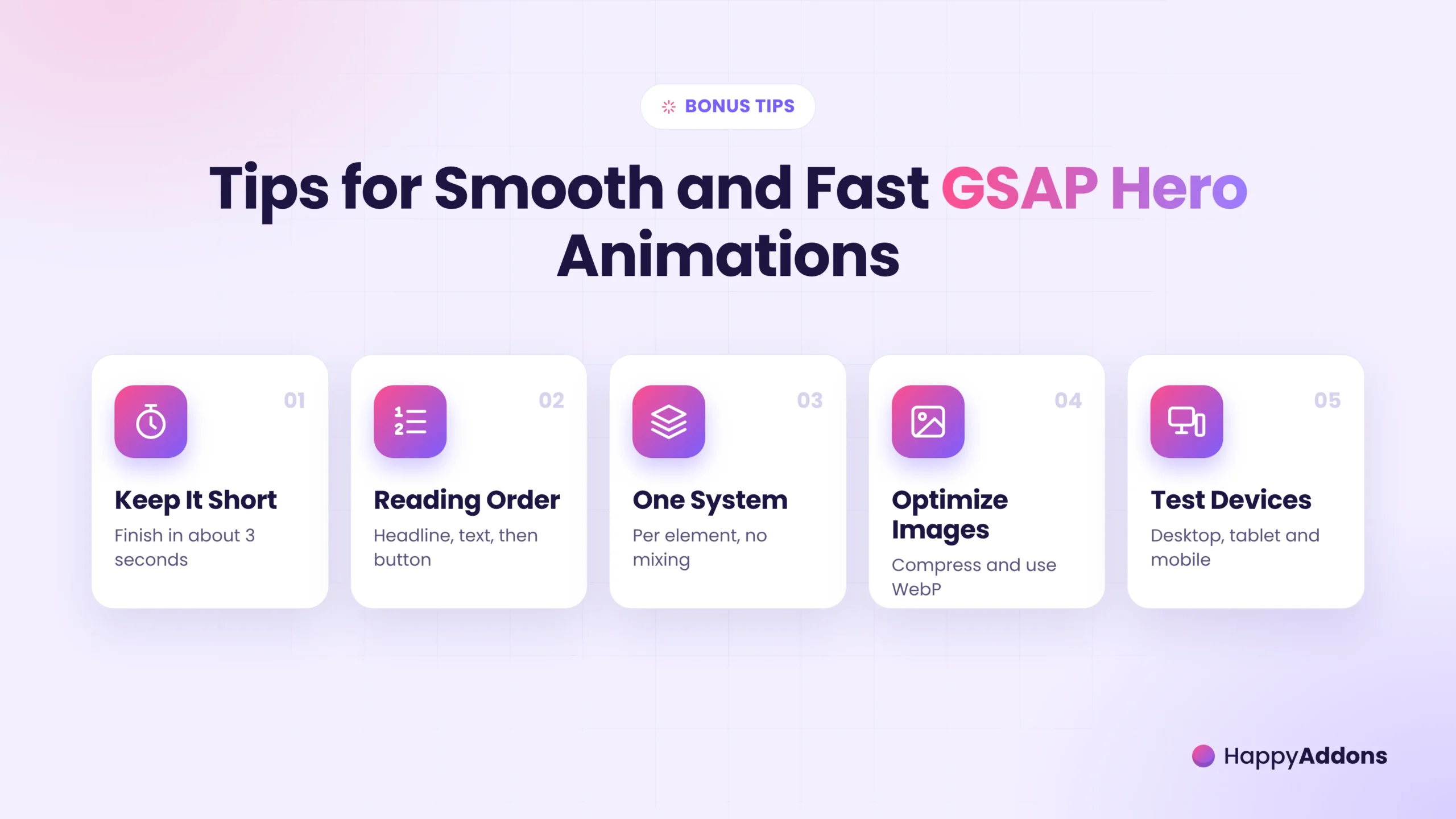
a. Keep the Whole Sequence Short
Visitors shouldn’t wait to read your headline. Try to finish the main hero sequence within about three seconds. Use small delays between elements instead of long ones.
b. Animate in Reading Order
Let elements appear in the order people read them – headline, description, and then button. This keeps the story clear and makes your call to action the final focus.
c. Use One Animation System per Element
Don’t mix Elementor’s entrance animations with HappyAddons GSAP animations on the same widget. HappyAddons also recommends not using Happy Animations and Sticky Pin on the same element.
d. Optimize Your Images
Large images can delay the reveal effect and slow down your page. Compress your hero images and use the WebP format wherever possible. Check how to optimize images for web.
e. Test on Real Devices
Always preview your hero on desktop, tablet, and mobile. If an effect feels too heavy on a phone, turn off Enable On Mobile for that widget.
Explore whether Elementor can build interactive websites like Webflow.
FAQ on How to Build an Animated Hero Section in WordPress
In this section, we have answered some frequently asked questions commonly found on Google, online forums, and social media.

Do I need coding skills to build a GSAP-animated hero section?
No. HappyAddons handles all the GSAP code in the background. You just enable the features and set values from the Elementor panel.
Do I need Elementor Pro for this tutorial?
No, you don’t need Elementor Pro. The free version of Elementor is enough. But you need HappyAddons Pro for Global Animation and the Banner31 block. Text Animation, Appearing Image Animation, and Happy Mouse Cursor are free.
Can I build an animated hero section without using a template?
Yes, absolutely. Create a container, add your heading, text, image, and buttons, and then apply the same GSAP settings explained above. The template just saves you design time.
Will GSAP animations work on mobile devices?
Yes. Global Animation and Appearing Image Animation have an Enable On Mobile option. Turn it on to play the effects on phones, or turn it off for a lighter mobile experience.
Does HappyAddons GSAP work with Elementor V4 atomic elements?
Not yet. For now, use Elementor’s classic widgets and containers with HappyAddons GSAP features, as we did in this tutorial.
Final Thoughts!
Your hero section is the first impression of your website. With a few smart GSAP animations, it can grab attention, tell your story in the right order, and lead visitors to your call to action. And as you’ve seen, you don’t need a single line of code to do it.
In this tutorial, we started with a ready-made GSAP block and brought it to life using Text Animation, Appearing Image Animation, Global Animation, and Happy Mouse Cursor. Hope you can now apply the same steps to create a hero section for your own product, agency, or portfolio.
Just remember to keep the motion short, test it on every device, and let your message stay the hero. If you have any questions, mention them in the comment box below or give a knock on our live chat box. Thanks for being with us till the end.