



Elementor made it possible for anyone to design a website without touching code. You drag a widget, change a few settings, and the page looks the way you want. But the moment you try something more advanced, like a section that scrolls sideways or cards that stack while you scroll, the drag-and-drop panel runs out of options.
That’s when most people open the Custom CSS box. They copy snippets from forums, paste keyframes, and hope nothing breaks after the next update. It works, but the code is hard to maintain, easy to break on mobile, and the Custom CSS option itself is locked behind Elementor Pro.
The good news is that you don’t need it anymore. With the HappyAddons GSAP Pack, you can build these layouts with toggles and sliders right inside the Elementor editor. In this tutorial post, we’ll cover a step-by-step guide on how to build advanced Elementor layouts without custom CSS. Get started!
What Is an Advanced Elementor Layout?
An advanced Elementor layout is a section that goes beyond the usual stack of rows and columns. It moves, pins, scrolls, or reacts while visitors browse the page. Think of a product tour that slides sideways, a logo strip that never stops moving, or a feature list where each card stacks on top of the previous one.
These layouts make a page feel like a modern app instead of a static brochure. They’re common on SaaS, agency, and portfolio websites, where you need to show a lot of content in a small space. When done right, they keep visitors engaged and can help you increase your conversion rates.
Why Do Elementor Users Still Write Custom CSS?
Elementor gives you containers, Flexbox, Grid, and basic Motion Effects. They cover most everyday layouts. But a few popular patterns still need extra code. Take a look at the most common ones below.
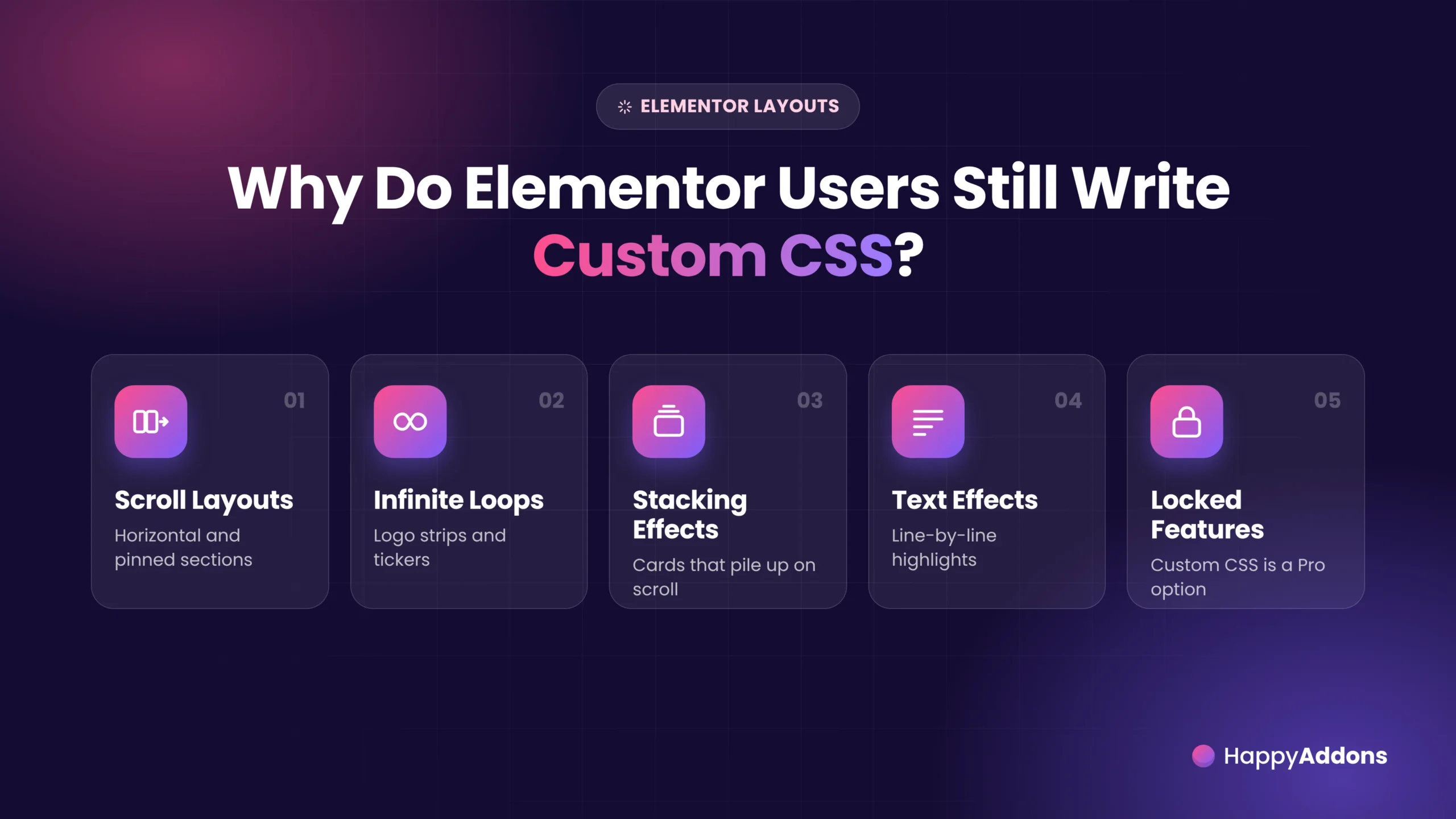
a. Horizontal and Pinned Scroll Sections
Moving content sideways while visitors scroll down needs JavaScript to track the scroll position. Pinning a column needs position: sticky, which often stops working inside Elementor containers because of their overflow settings.
b. Infinite Logo Strips and Tickers
A marquee needs CSS keyframes, a duplicated row of items, and careful width calculations. Otherwise, the loop jumps or leaves an empty gap at the end.
c. Cards That Stack on Scroll
A stacked card effect combines sticky positioning, scaling, and offsets for every single card. That’s a lot of code to manage for one section.
d. Line-by-Line Text Highlights
Highlighting a paragraph line by line as visitors scroll requires splitting the text into lines and animating each one separately.
e. Custom CSS Is a Pro Feature in Elementor
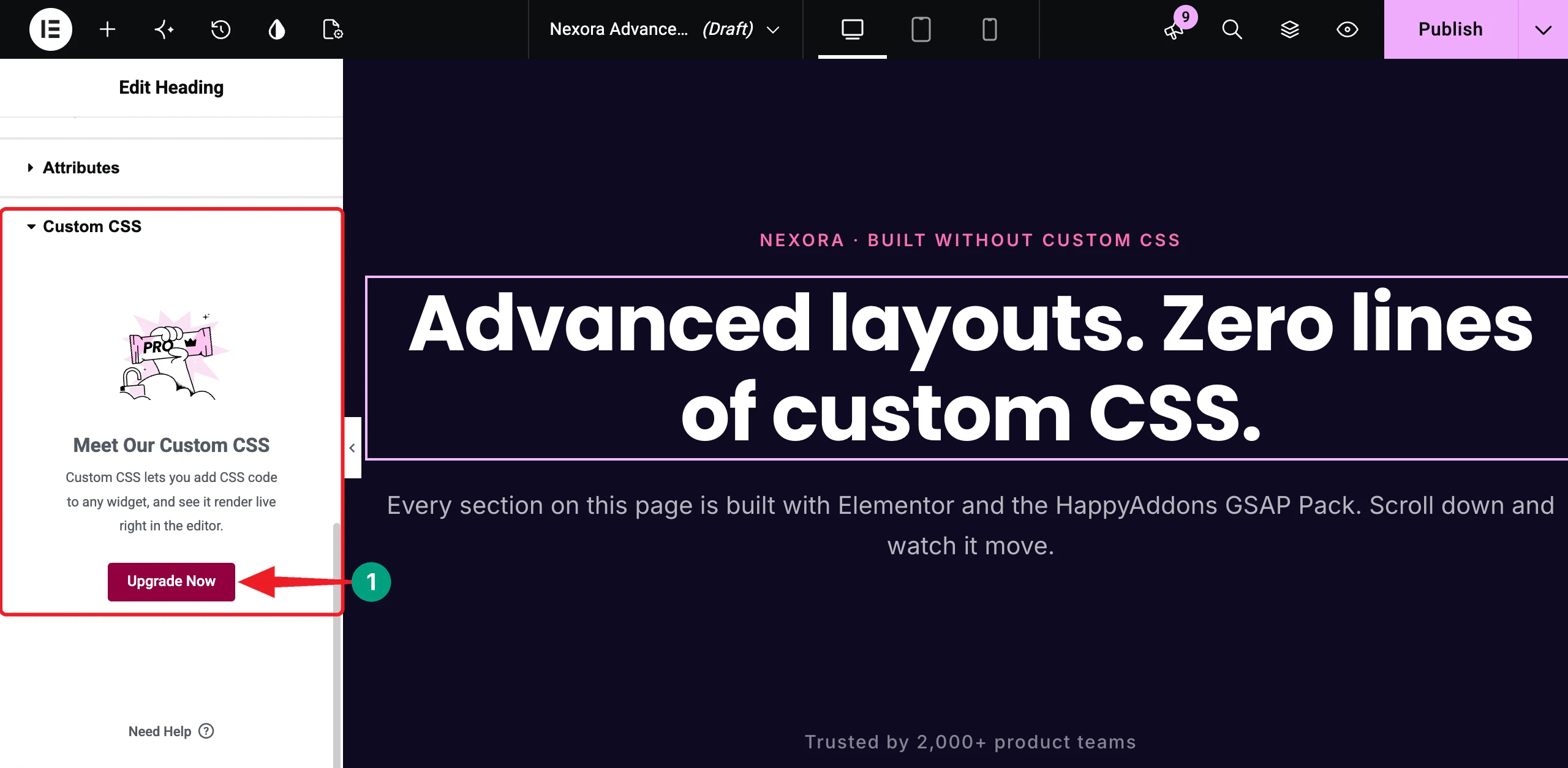
On top of that, the Custom CSS option in Elementor’s Advanced tab is locked in the free version. You’ll see an upgrade notice instead of a code box.
Take a look at the best WordPress animation plugins.
Custom CSS vs HappyAddons GSAP: Quick Comparison
Before jumping into the steps, here’s how the two approaches compare for the layouts we’ll build in this tutorial.
| Layout | With Custom CSS | With HappyAddons GSAP |
|---|---|---|
| Infinite logo marquee | Write keyframes, duplicate the items, and fix the loop gap | Enable Marquee on the container |
| Line-by-line text highlight | Split the text into lines with JavaScript and animate each line | Add the Text Scroll widget |
| Horizontal scroll section | Pin the section and move it sideways with scroll events | Enable Horizontal Scroll on the parent container |
| Pinned split-screen column | Use position: sticky and fix parent overflow issues | Enable Sticky Pin Element on the column |
| Stacked cards on scroll | Make every card sticky and add offsets and scaling | Add the Stacked Card widget |
| Editing later | Find and edit the code, and hope nothing breaks | Change the settings in the Elementor panel |
| Mobile control | Write media queries | Use responsive controls and mobile toggles |
How to Build Advanced Elementor Layouts Without Custom CSS: Step-by-Step Guide
The theoretical part is over. HappyAddons is a powerful addon for Elementor with 160+ widgets and 40+ features. Its GSAP Pack adds 8 GSAP features and 7 GSAP widgets that handle the animation code for you. In this tutorial, we’ll use five of them: Marquee, Text Scroll, Horizontal Scroll, Sticky Pin Element, and Stacked Card.
We’ll build a demo landing page for a SaaS product named Nexora. Each section of the page shows one layout that people usually code by hand.
Prerequisites
Note: You need HappyAddons Pro because Marquee, Horizontal Scroll, Sticky Pin Element, and Stacked Card are premium. The Text Scroll widget is free to use.
Note: HappyAddons GSAP works with Elementor’s classic widgets and containers. Elementor V4 atomic elements aren’t supported yet.
Once these plugins are ready on your site, start following the tutorial explained below.
Step 01: Enable the GSAP Features and Widgets in HappyAddons
Go to your WordPress dashboard and navigate to HappyAddons > GSAP. Here, you’ll find all the GSAP features and widgets of the plugin in one place.
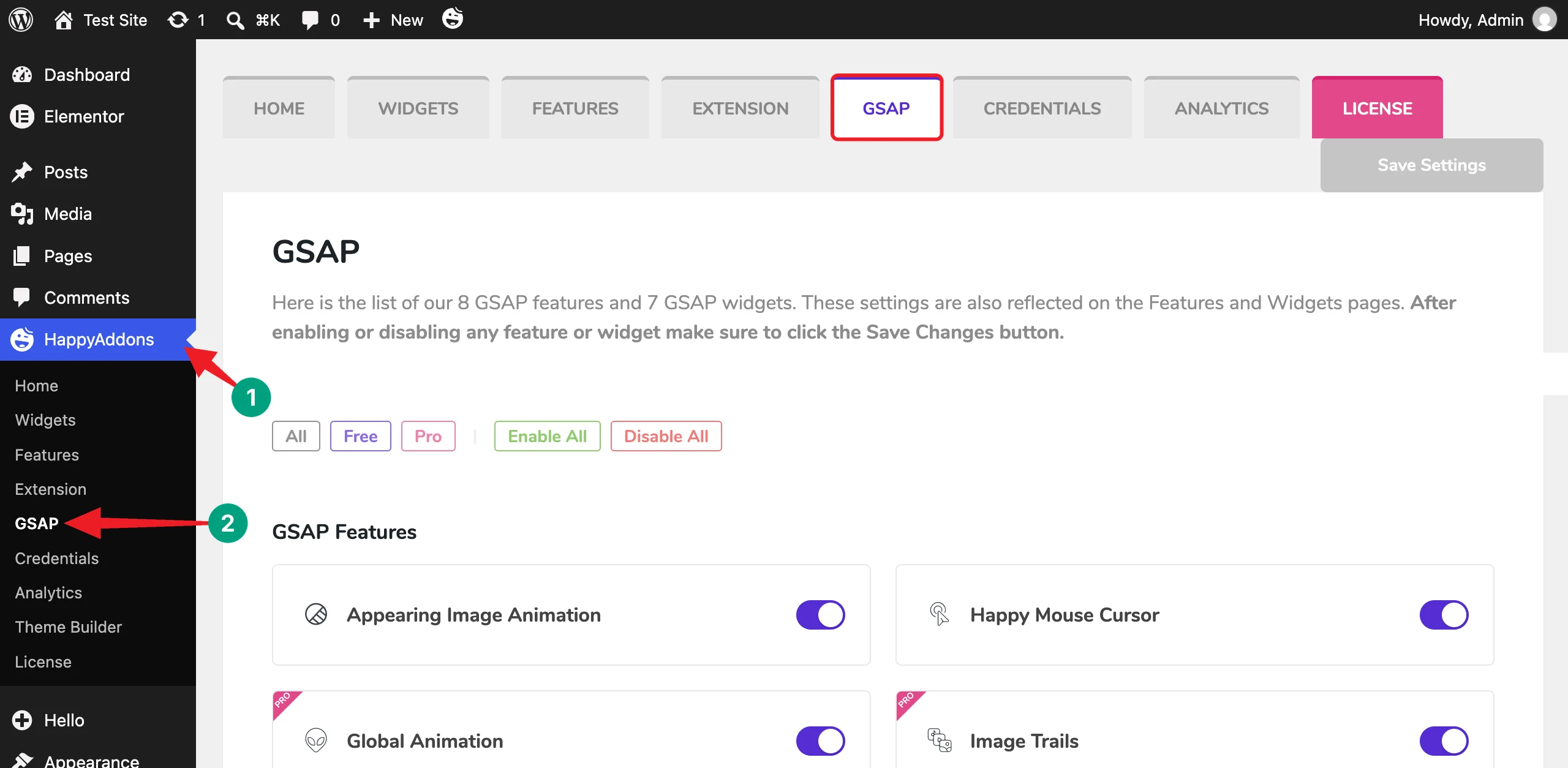
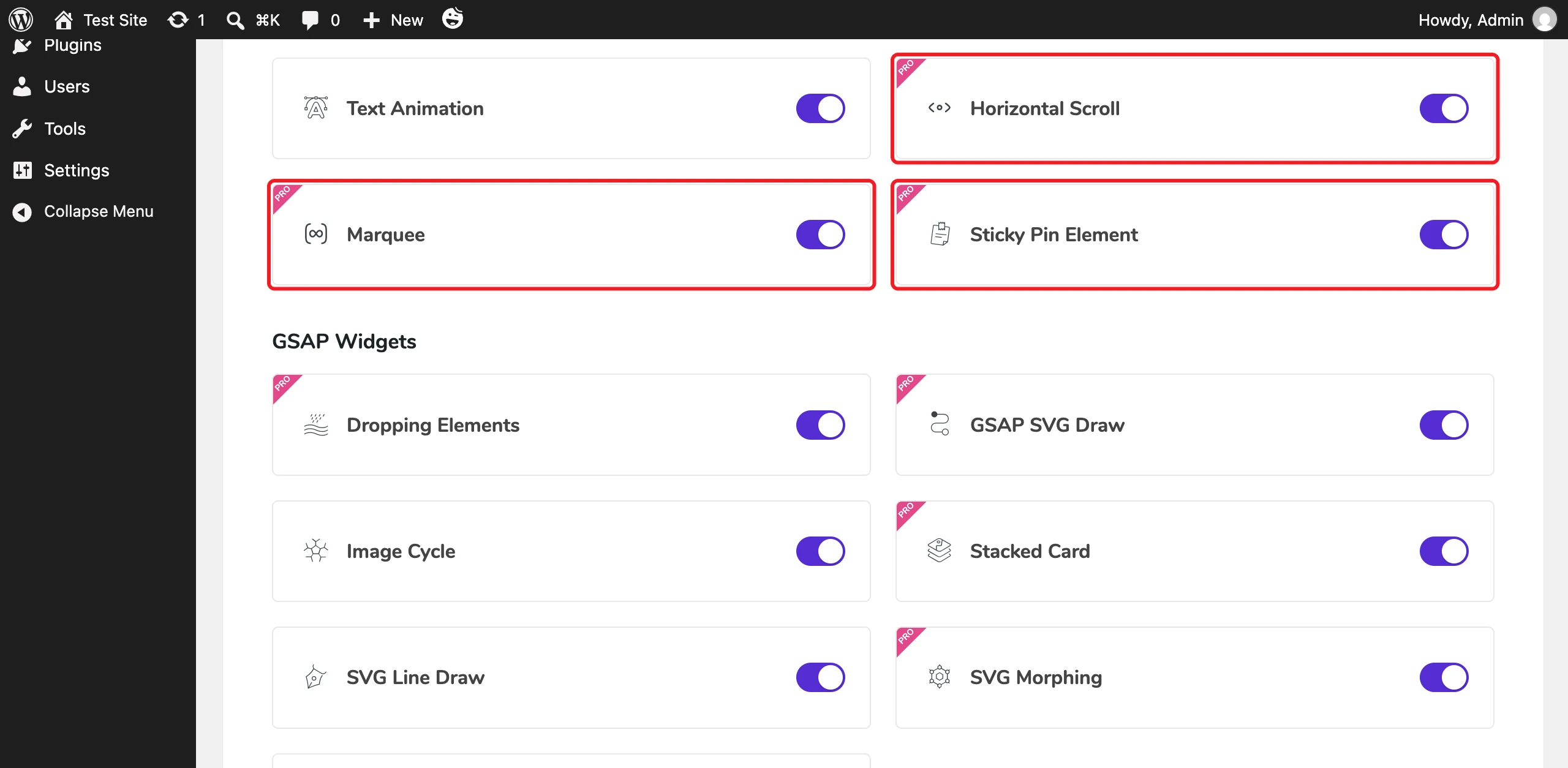
Under GSAP Features, make sure Horizontal Scroll, Marquee, and Sticky Pin Element are toggled on.
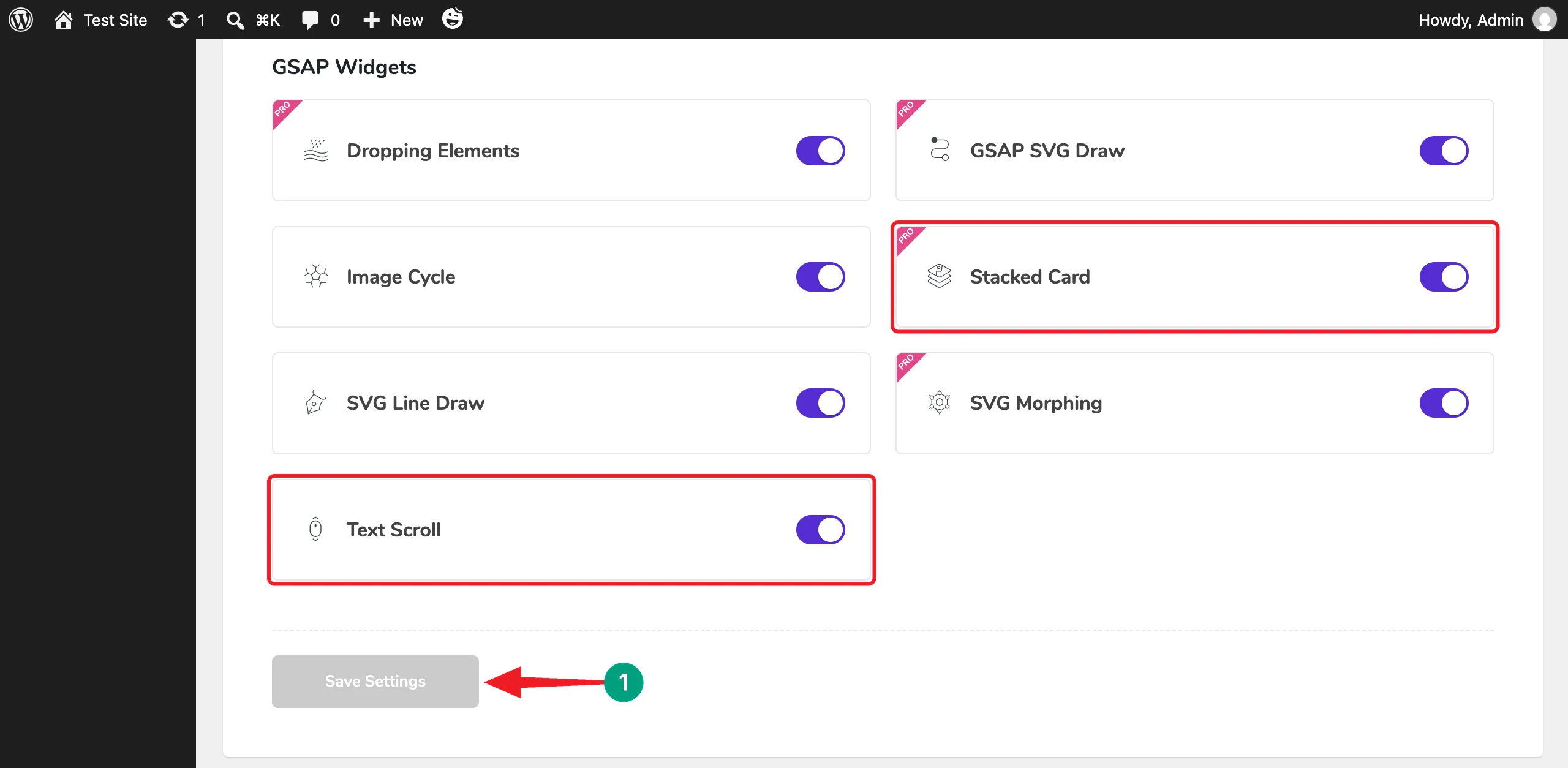
Scroll down to GSAP Widgets and toggle on Stacked Card and Text Scroll. Then, click the Save Settings button.
Step 02: Create a Page and Set It to Elementor Canvas
Navigate to Pages > Add Page, write a title, and click the Edit with Elementor button. We have named our page Nexora Advanced Layouts.
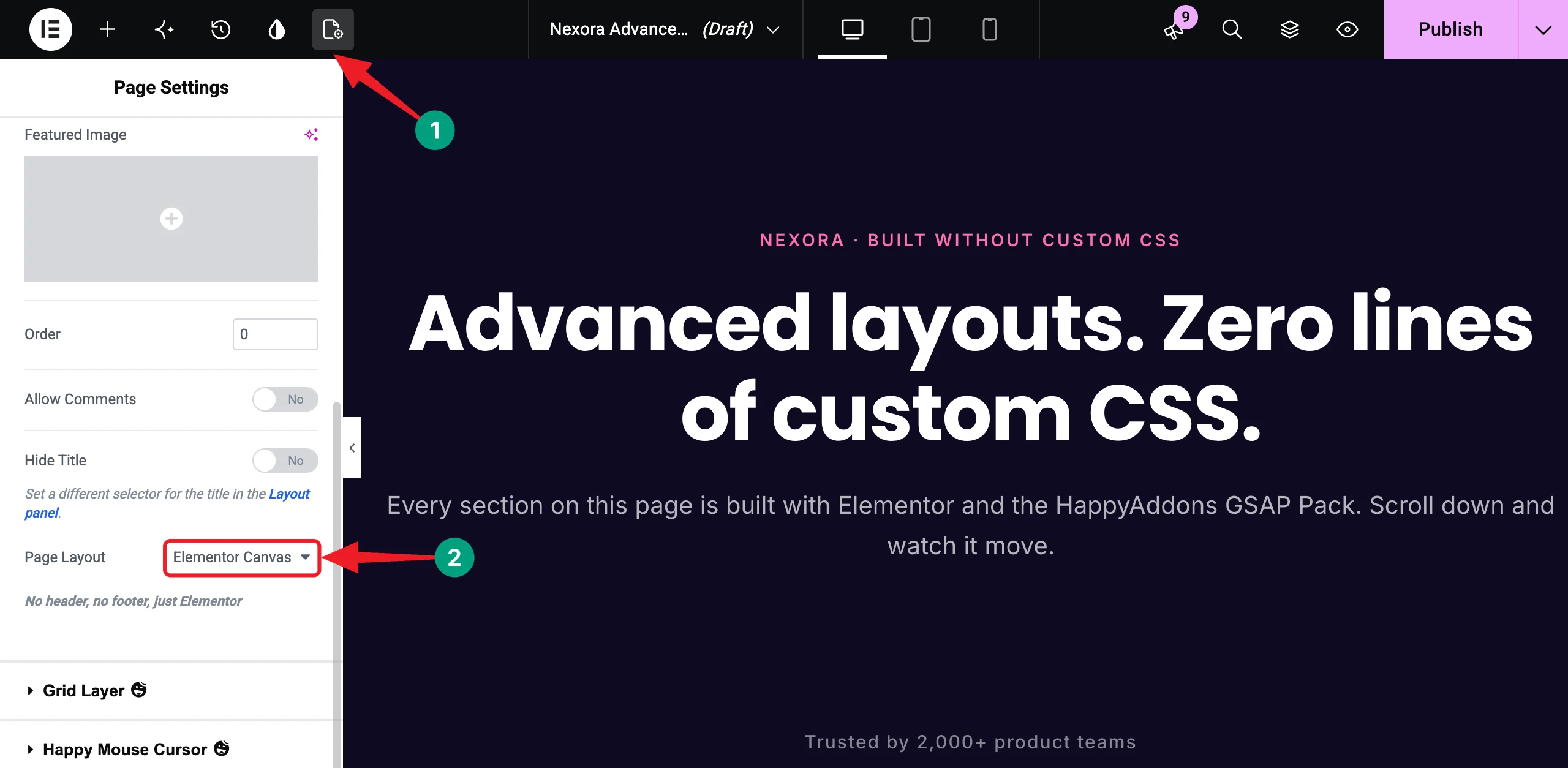
Once the editor opens, click the Page Settings icon on the top bar. Then, select Elementor Canvas from the Page Layout dropdown. This removes the theme’s header and footer, so the layouts can use the full screen.
Note: If your site already has a header built with a theme builder, you may choose Elementor Full Width instead.
Step 03: Build an Infinite Logo Marquee with Marquee
Without HappyAddons: You’d write CSS keyframes, duplicate every logo, and calculate the widths so the loop doesn’t jump.
# Set Up the Logo Container
Add a container and set its Content Width to Full Width, as Marquee only works on full-width containers. Then, set the Direction to Row, the Gaps to 70, and the Wrap to No Wrap.
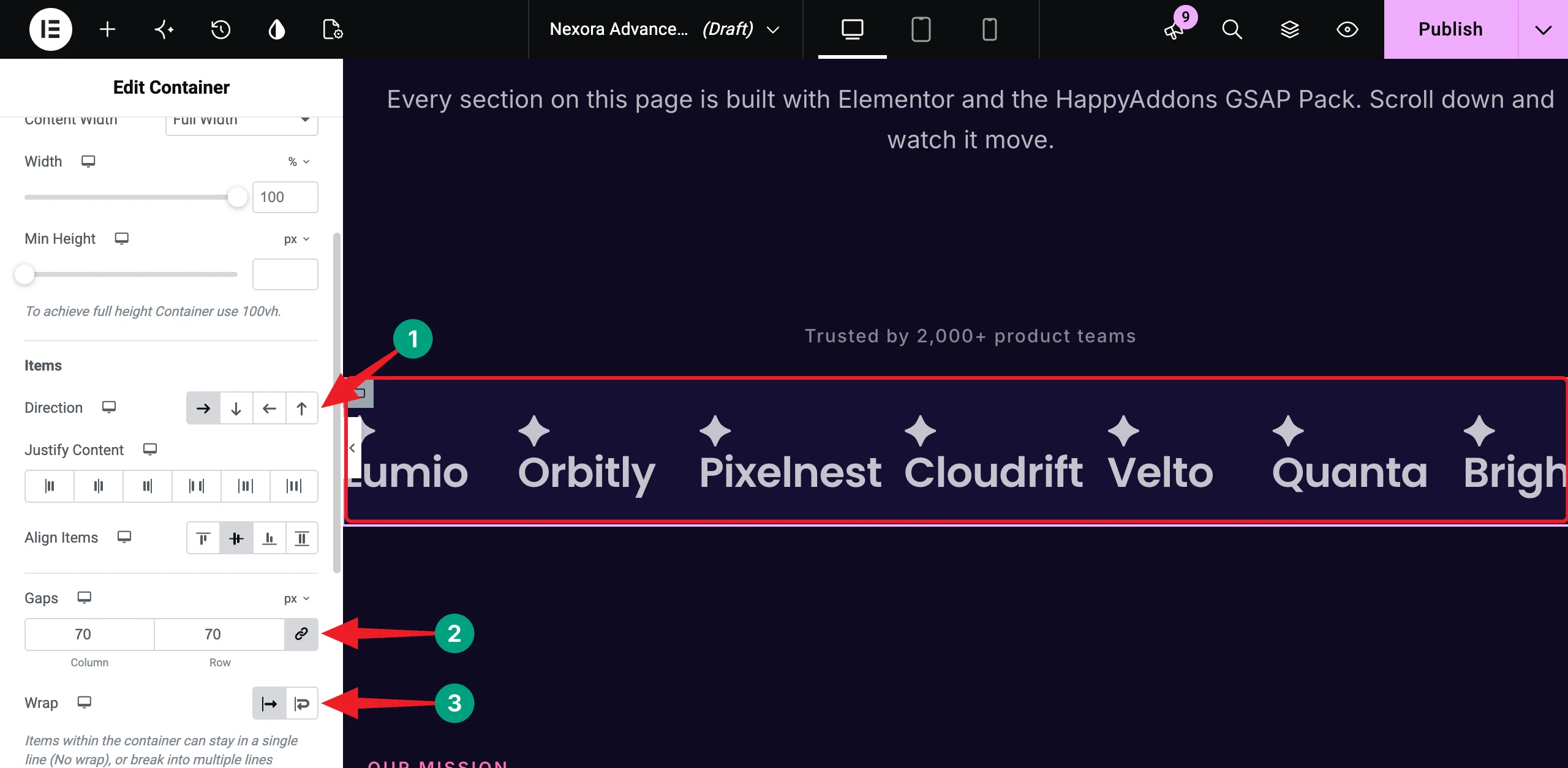
Now, add your logos inside the container. We used seven Heading widgets with demo brand names. For each one, go to Advanced > Layout and set the Width to Inline (auto), so the items sit side by side.
# Enable Marquee
Select the container and go to the Advanced tab. Expand the Marquee section and toggle on the Enable option.
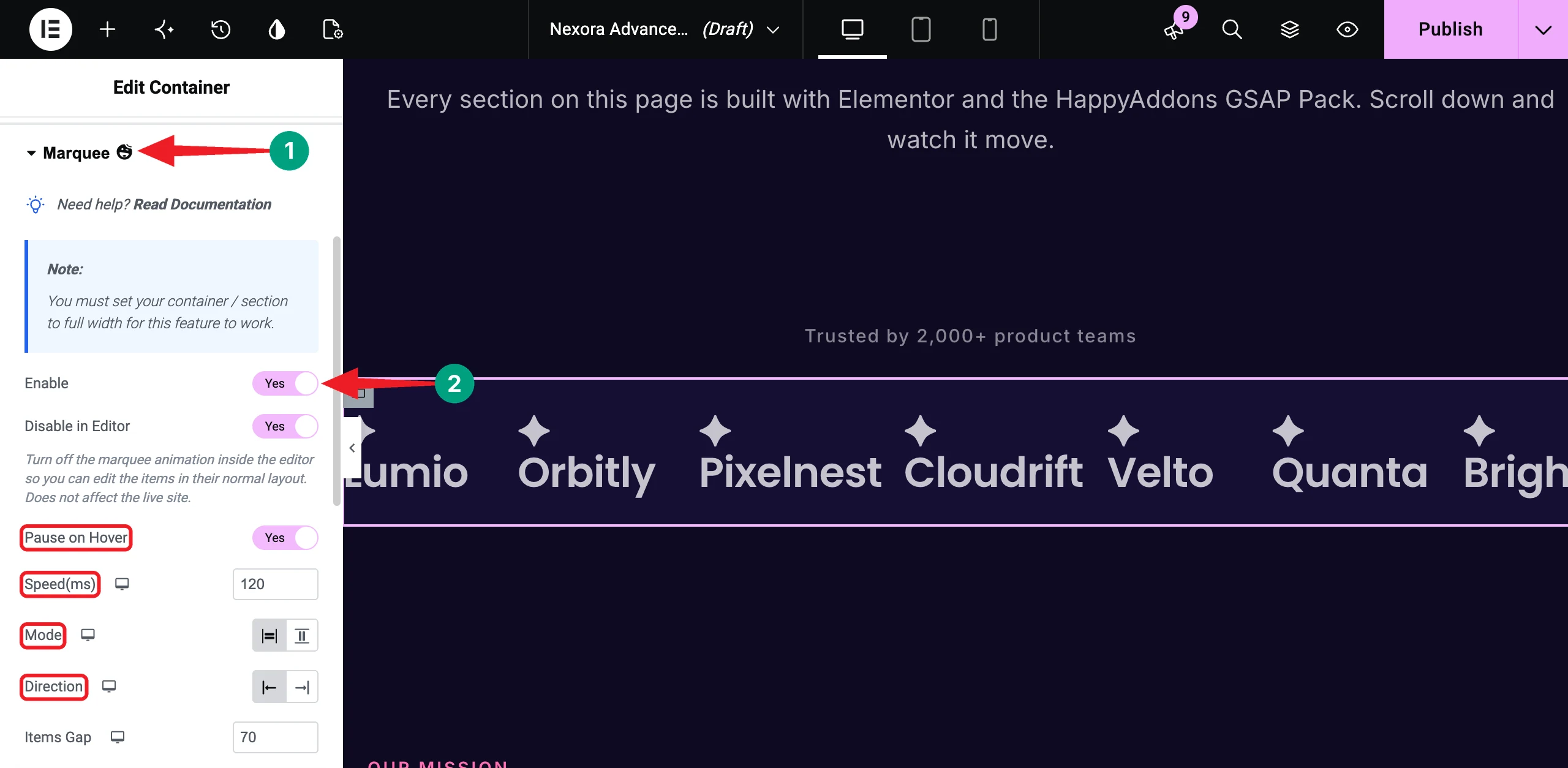
We turned on Pause on Hover and kept the Speed(ms) at 120, the Mode at Horizontal, and the Direction at Left. Lower speed values make the strip move faster.
Note: The Disable in Editor option is on by default, so the logos stay still while you edit. Open the page preview to see the marquee in action.
Then, set the Items Gap to 70 and toggle on Enable On Mobile.
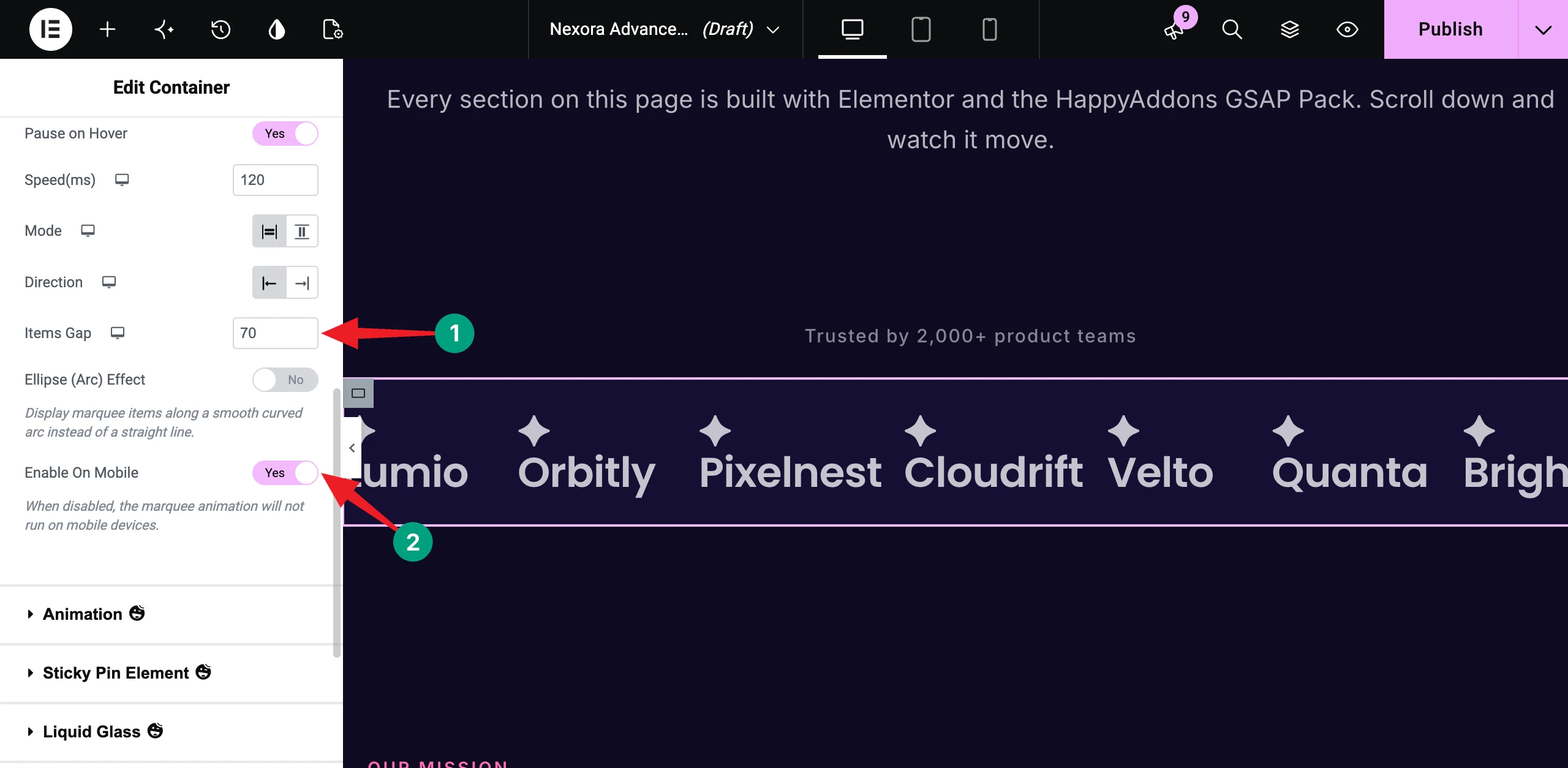
Tip: Want a curved logo strip? Toggle on the Ellipse (Arc) Effect and adjust the Curve Depth.
You can see the logo strip in action in the video clip attached below.
Step 04: Highlight Text Line by Line with the Text Scroll Widget
Without HappyAddons: You’d need JavaScript to split the paragraph into lines and animate each line as the page scrolls.
Add a new container for your text. In the Elements panel, search for Text Scroll. Then, drag and drop the widget into the container.
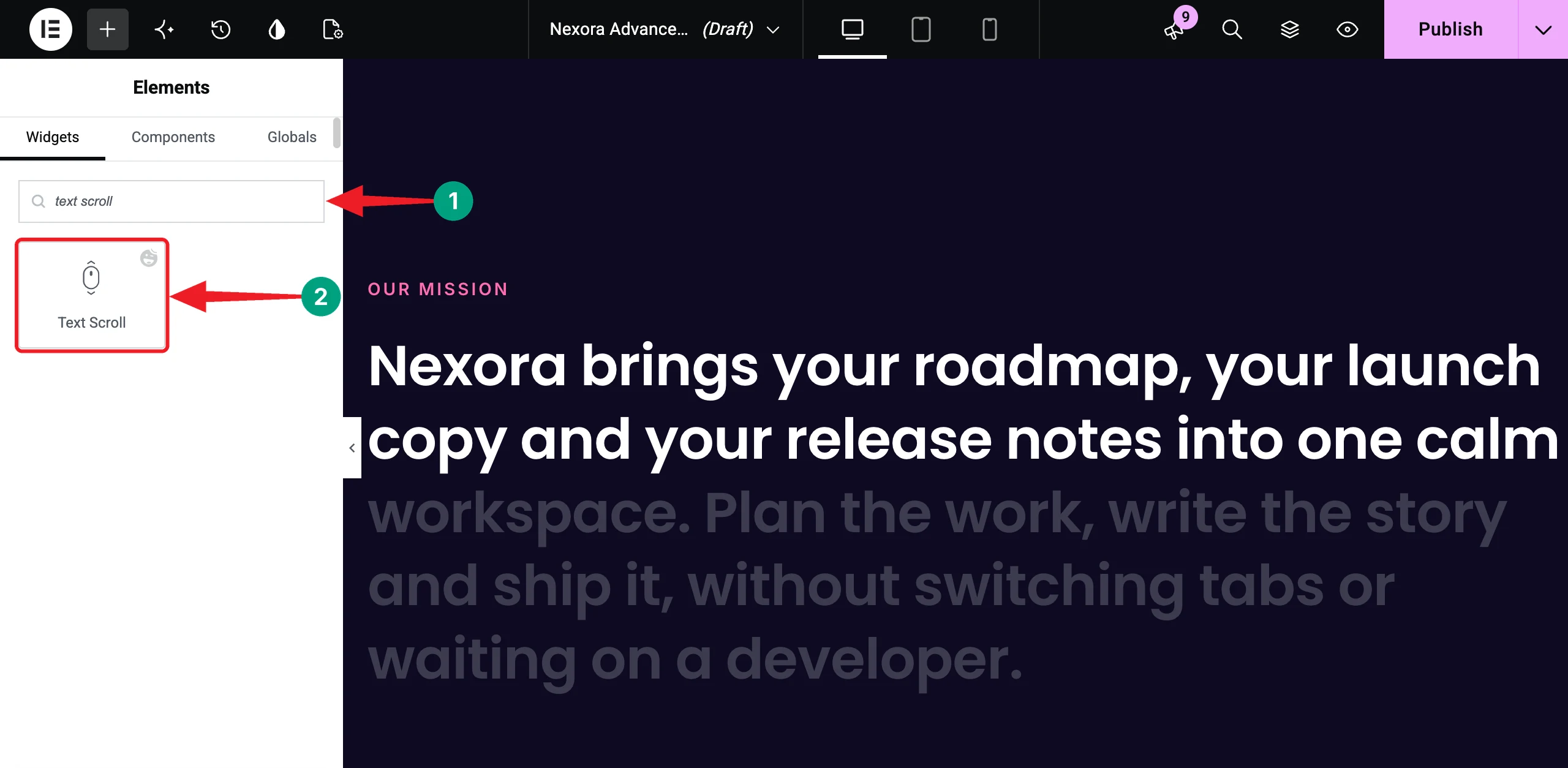
In the Content tab, write your paragraph in the Scroll Text field. Then, choose a Scroll Type.
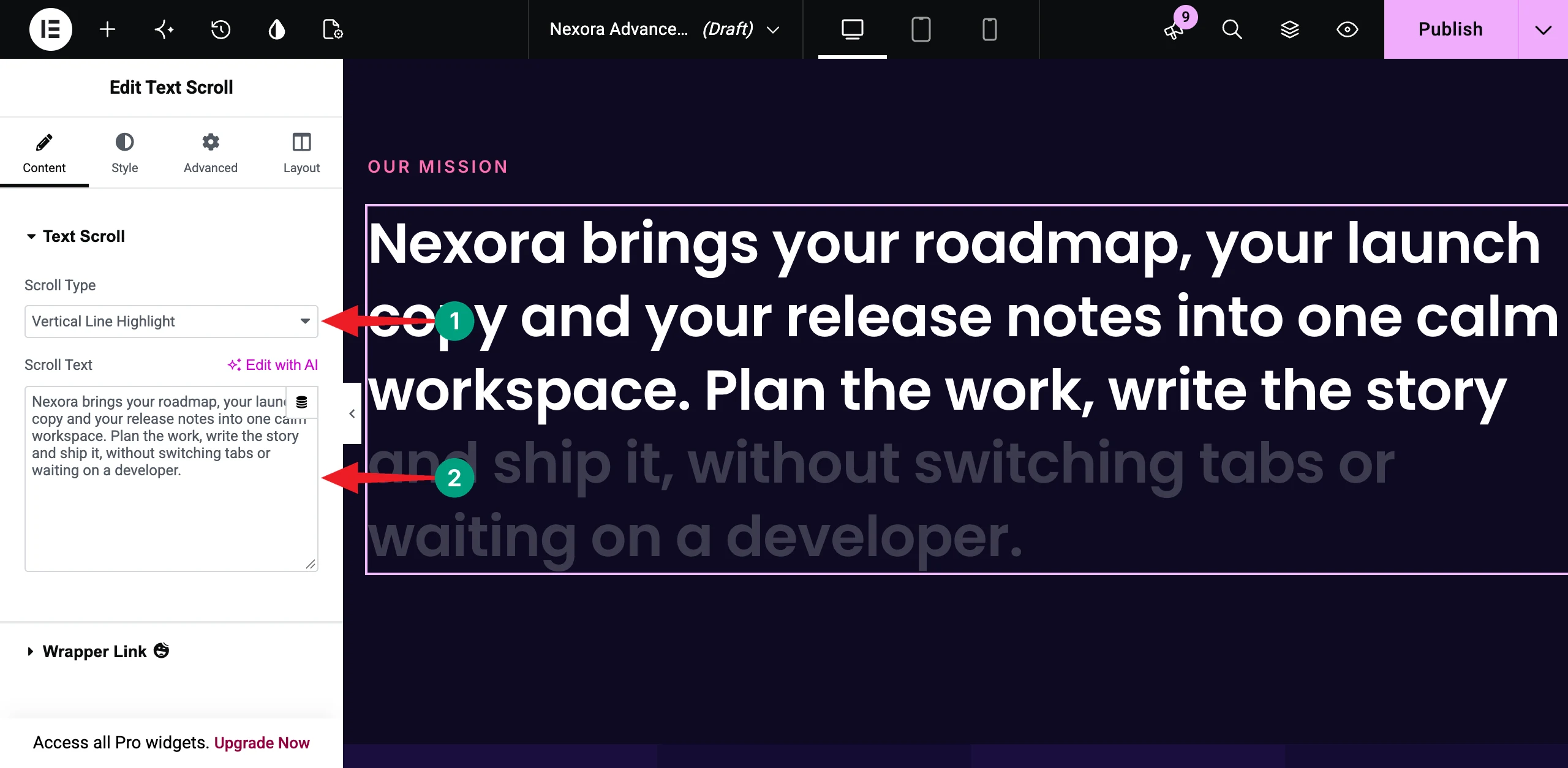
There are four scroll types – Vertical Line Highlight, Horizontal Line Highlight, Vertical Line Mask, and Horizontal Line Mask. We’re selecting Vertical Line Highlight, so each line lights up as it scrolls into view.
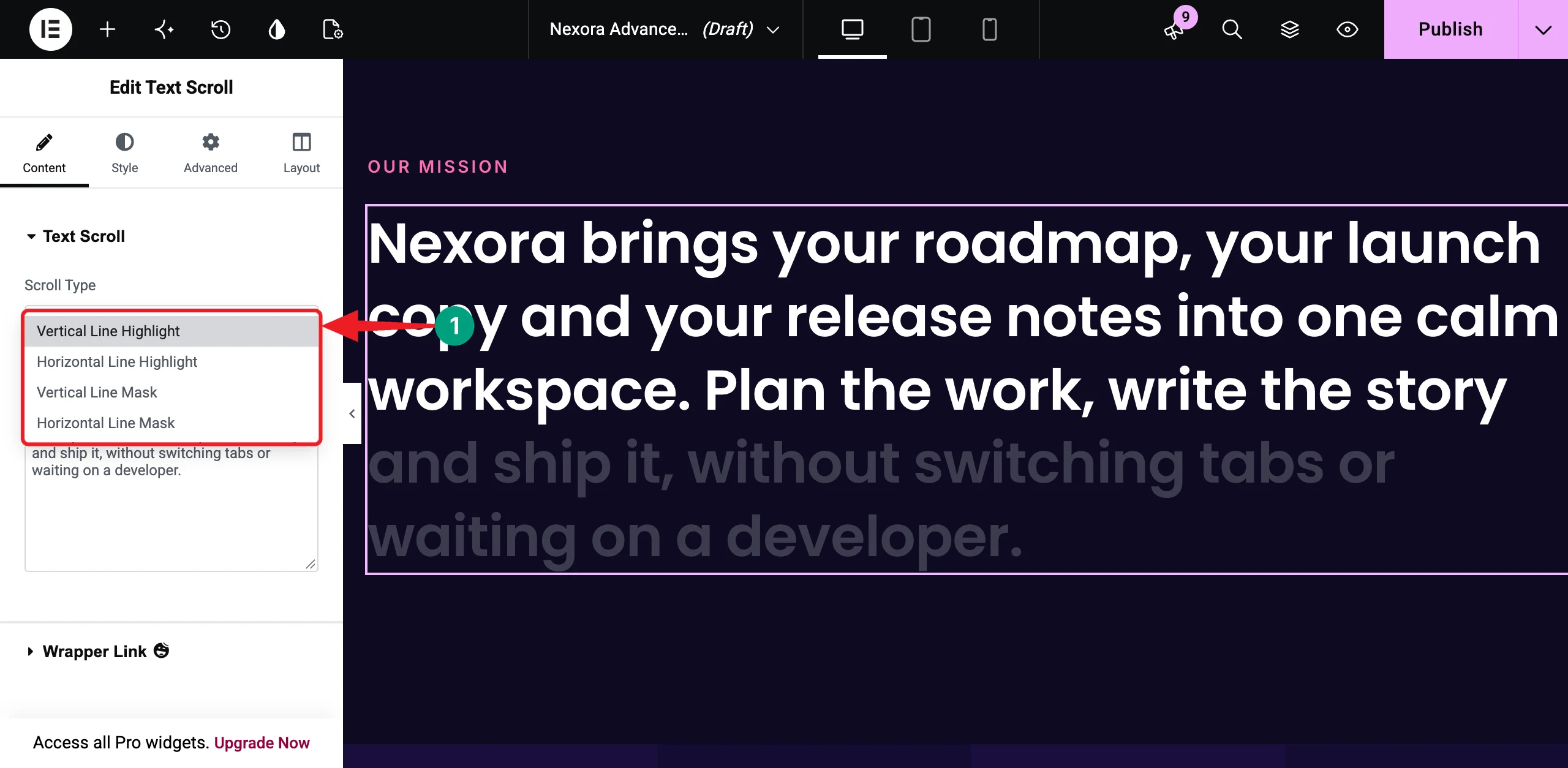
Note: The Text Scroll widget works best with a single paragraph. It doesn’t support paragraph breaks or custom HTML.
Now, go to the Style tab. You’ll get options to customize the Alignment, Text Color, Typography, Text Stroke, Background, Highlight Opacity, and Line Padding. We used white text in Poppins (46px, 600 weight) and matched the Background color with the section.
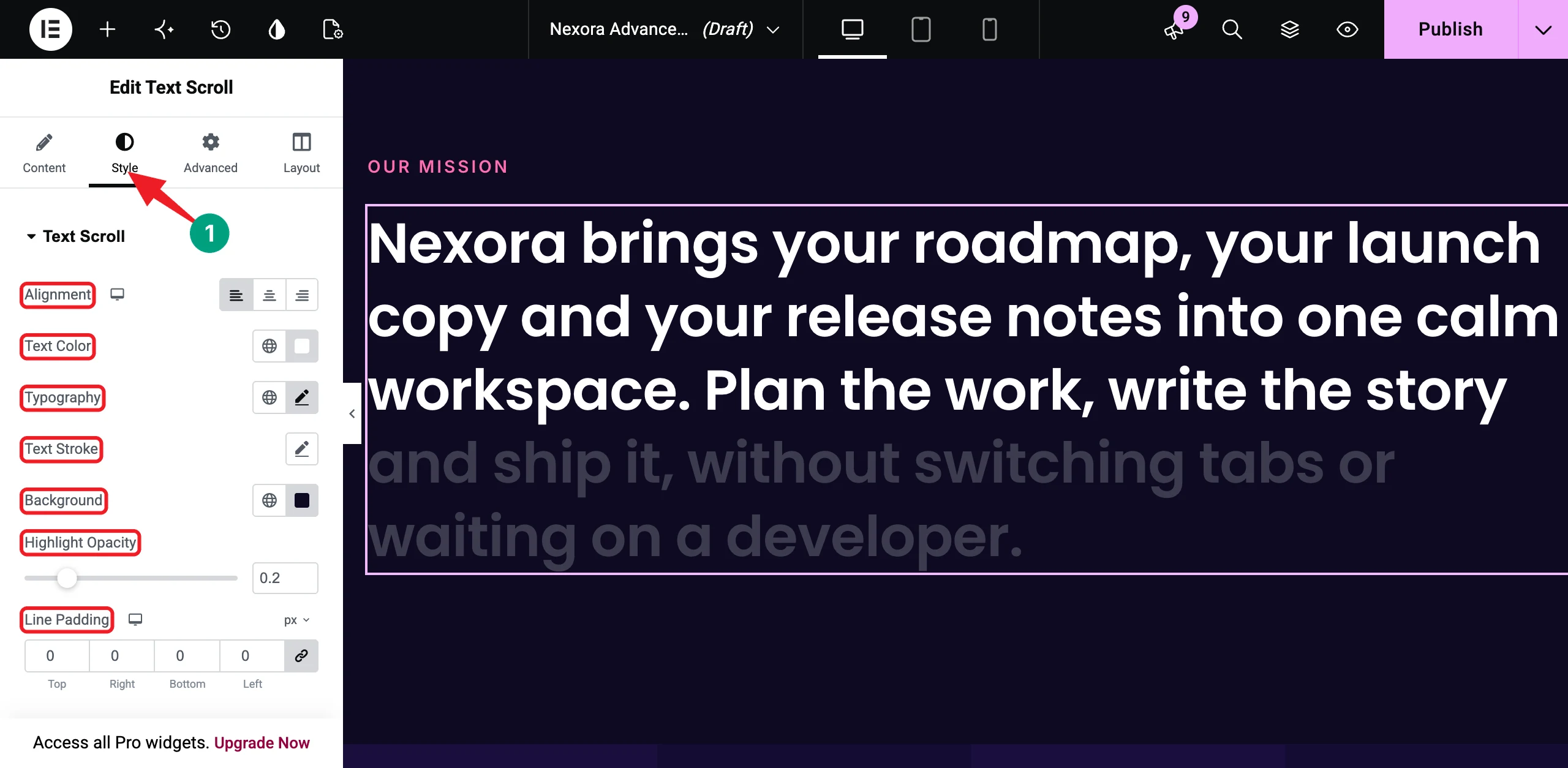
Here’s how the text reveals itself line by line while scrolling.
Step 05: Create a Horizontal Scroll Section with Horizontal Scroll
Without HappyAddons: You’d pin the section with JavaScript, calculate its total width, and move the content sideways on every scroll event.
# Build the Panels
Add a parent container and set its Content Width to Full Width, the Direction to Row, and the Gaps to 0. Inside it, add one child container for each slide. We added four panels – Plan, Write, Launch, and Grow.
Select each child container. Set its Content Width to Full Width, its Width to 100 VW, and its Min Height to 100 VH. This makes every panel fill the whole screen.
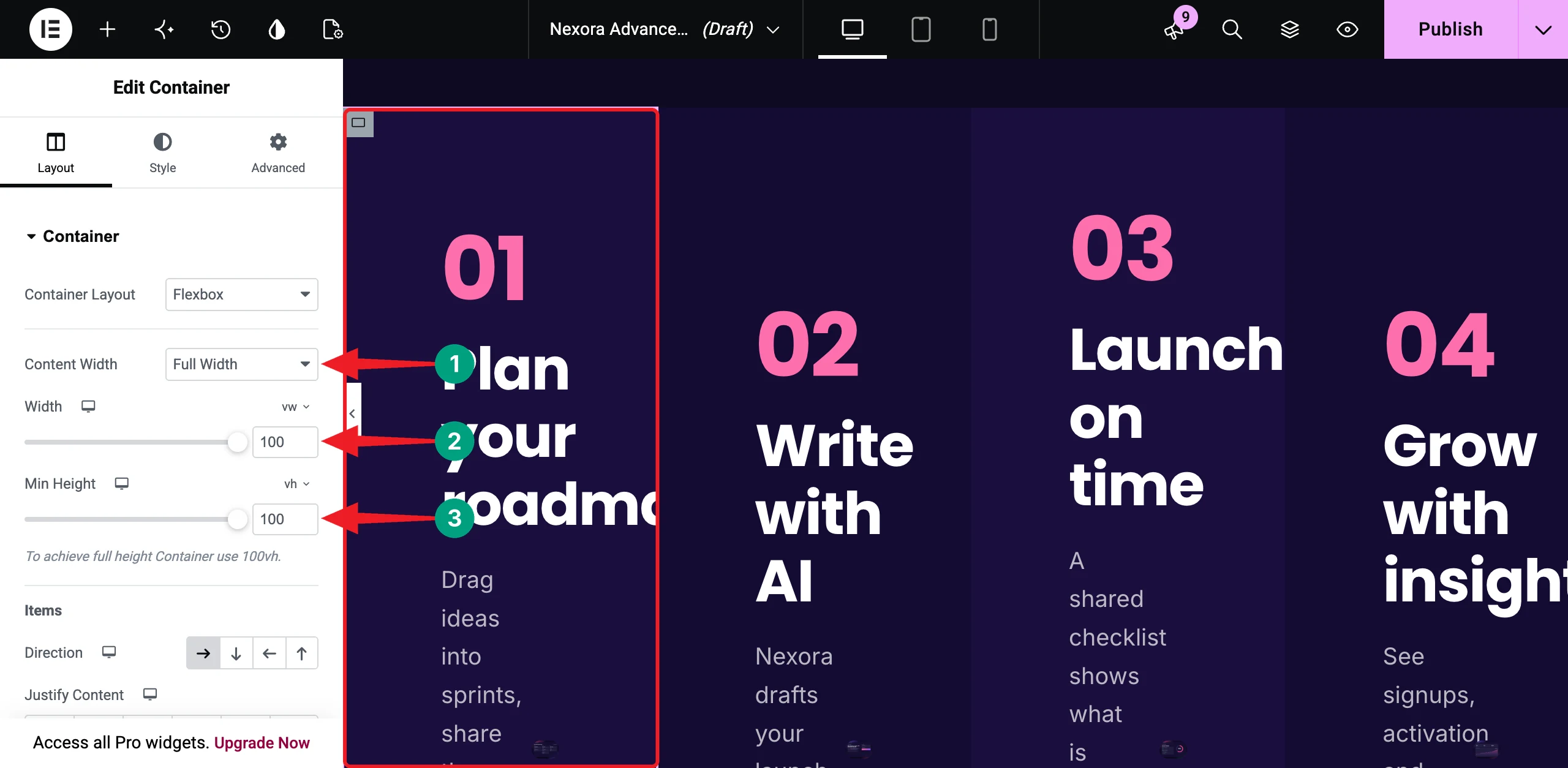
Then, add your content inside each panel. We used a number, a heading, a short description, and a product screenshot.
# Enable Horizontal Scroll
Now, select the parent container and go to the Advanced tab. Expand the Horizontal Scroll section and toggle on the Enable option. Then, choose a Scroll Direction. We kept it at Left.
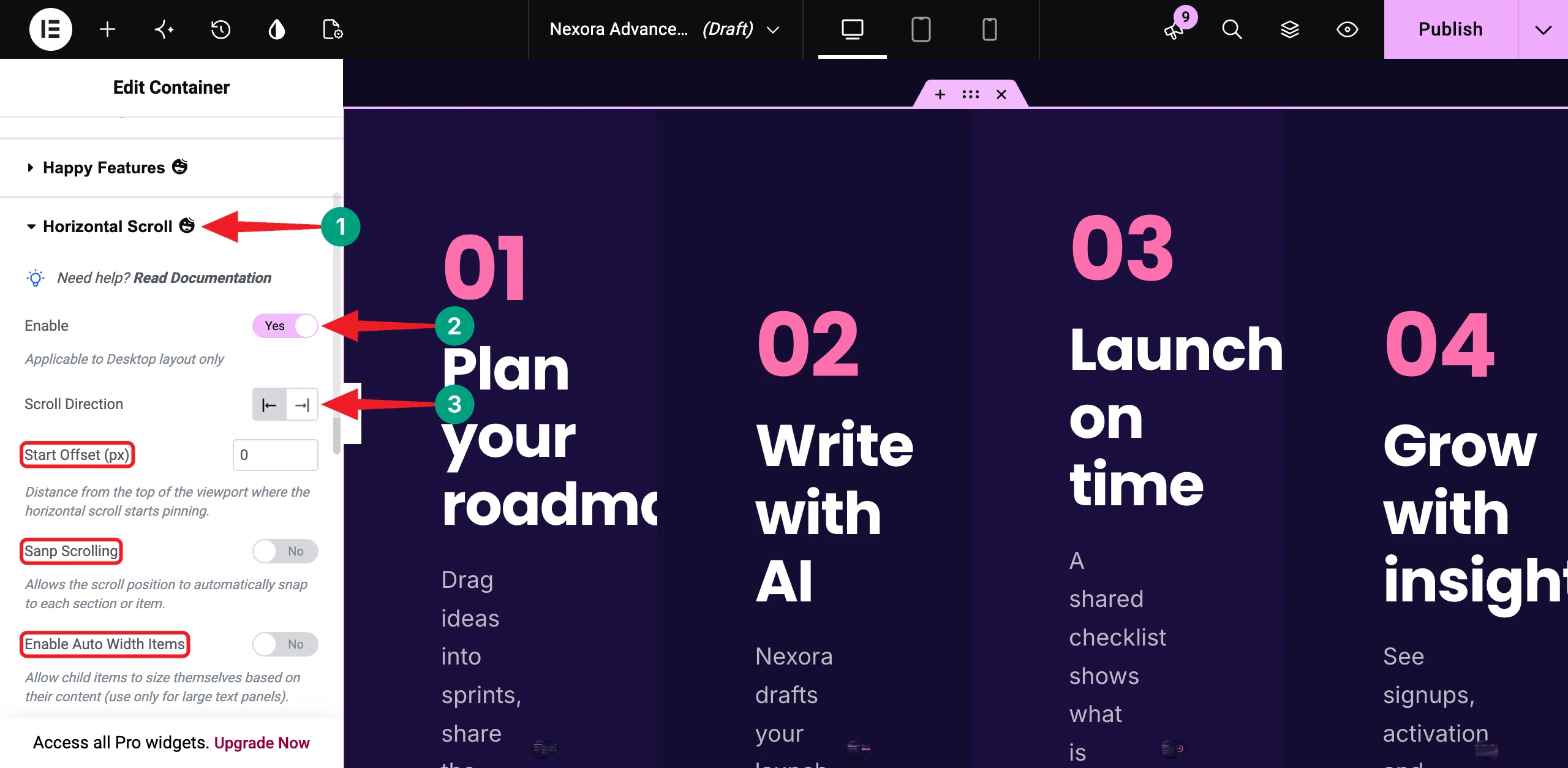
You can also set a Start Offset (px), turn on Snap Scrolling to stop at each panel, or turn on Enable Auto Width Items if your panels have different widths. We kept these options at their default values.
Note: Horizontal Scroll applies to the desktop layout only. On mobile, the panels stack one after another.
Let’s see in the video below how the section moves sideways as you scroll down.
Step 06: Pin a Column in a Split-Screen Layout with Sticky Pin Element
Without HappyAddons: You’d use position: sticky, which often fails inside Elementor because a parent container hides the overflow.
# Create the Split Layout
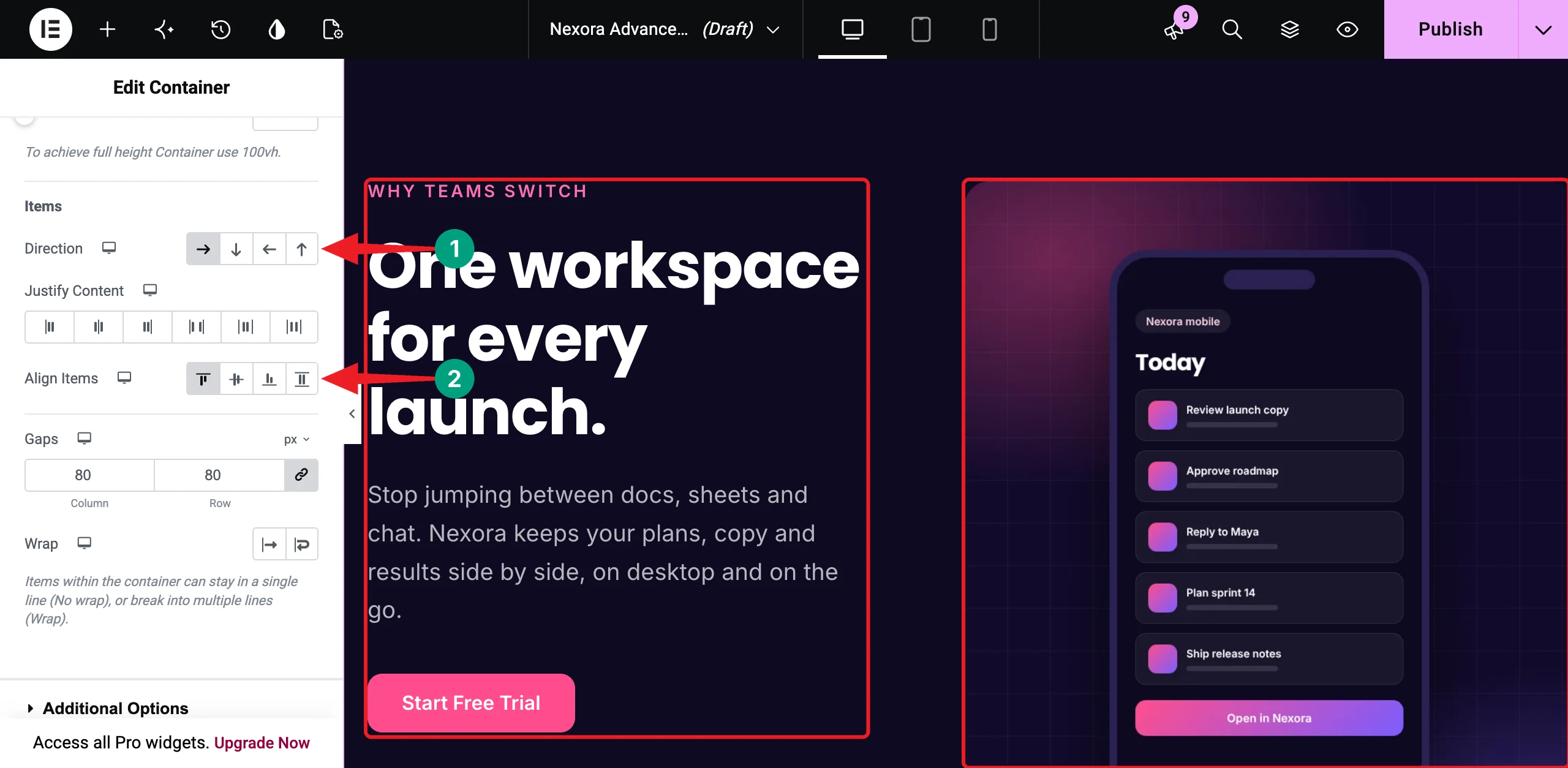
Add a container with two child containers. Select the parent and set its Direction to Row and the Align Items to Start. This keeps the left column at its natural height, so it has room to stay pinned.
We set the left column’s width to 45% and the right column’s width to 55%. The left column holds a heading, a short text, and a button. The right column holds three tall phone mockups.
# Enable Sticky Pin Element
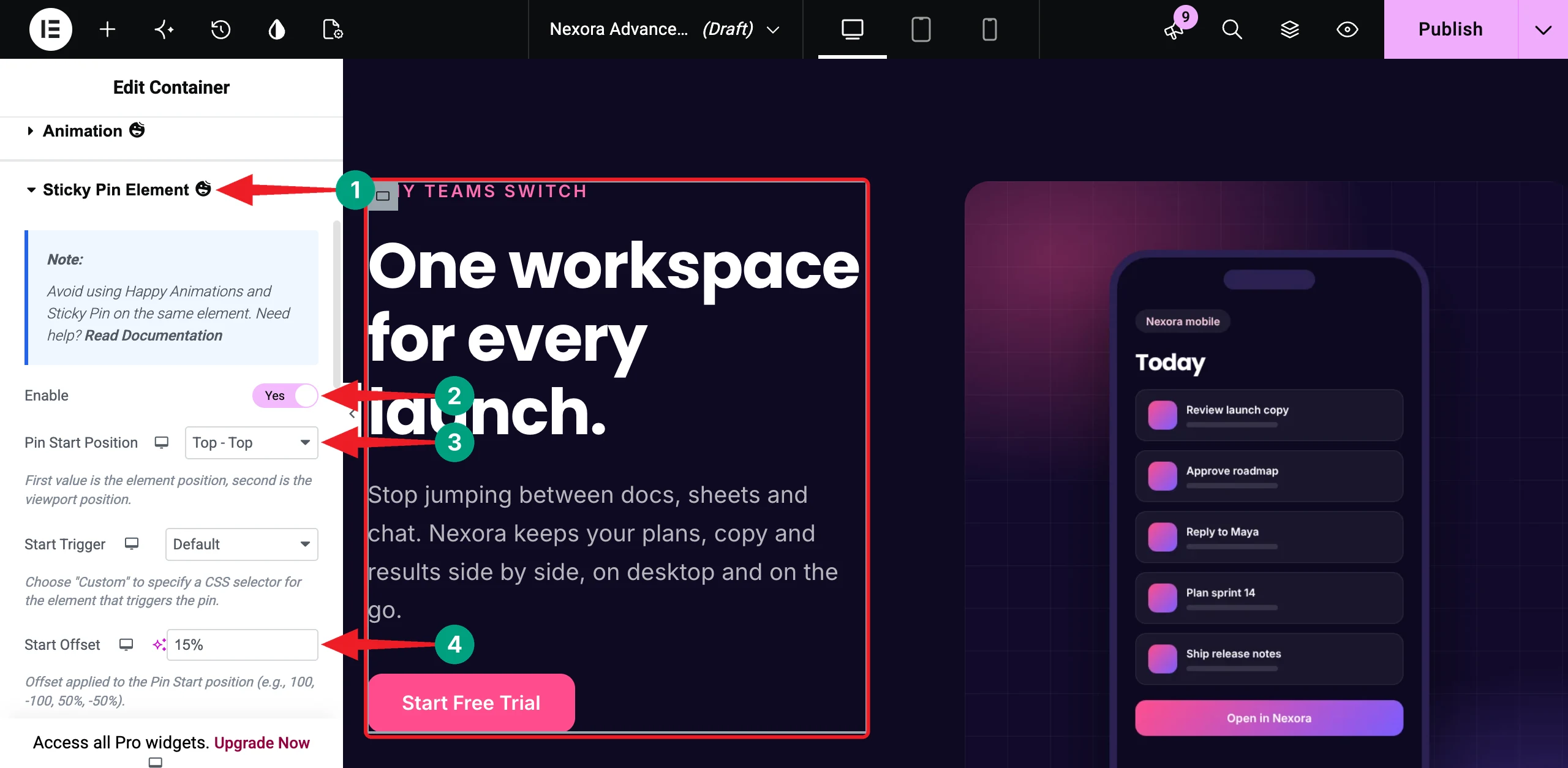
Select the left column and go to the Advanced tab. Expand the Sticky Pin Element section and toggle on the Enable option. Keep the Pin Start Position at Top – Top and set the Start Offset to 15%. The column will pin as soon as its top edge reaches 15% from the top of the screen.
Keep the Pin End Position at Bottom – Bottom and the End Offset at 0. Now, the column stays pinned until the bottom of the section reaches the bottom of the screen.
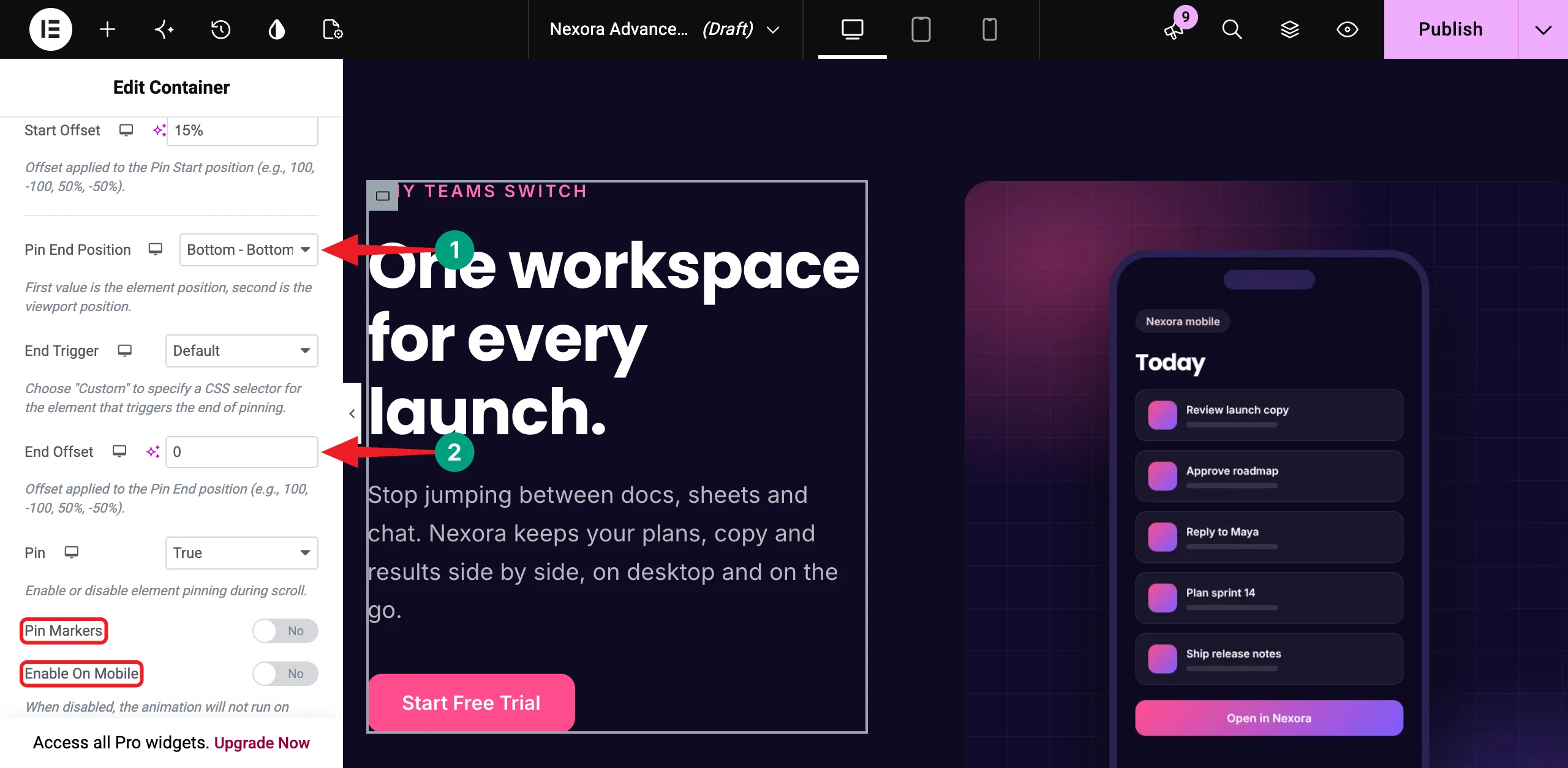
Tip: Turn on Pin Markers to see the start and end points while you test. Don’t forget to turn them off before publishing.
Note: Enable On Mobile is off by default. Keep it off so the columns stack normally on phones. Also, avoid using Happy Animations and Sticky Pin on the same element.
You can see that the left column stays in place while the phones scroll by.
Step 07: Stack Feature Cards on Scroll with the Stacked Card Widget
Without HappyAddons: You’d make every card sticky, then add different offsets, scales, and z-index values to each one.
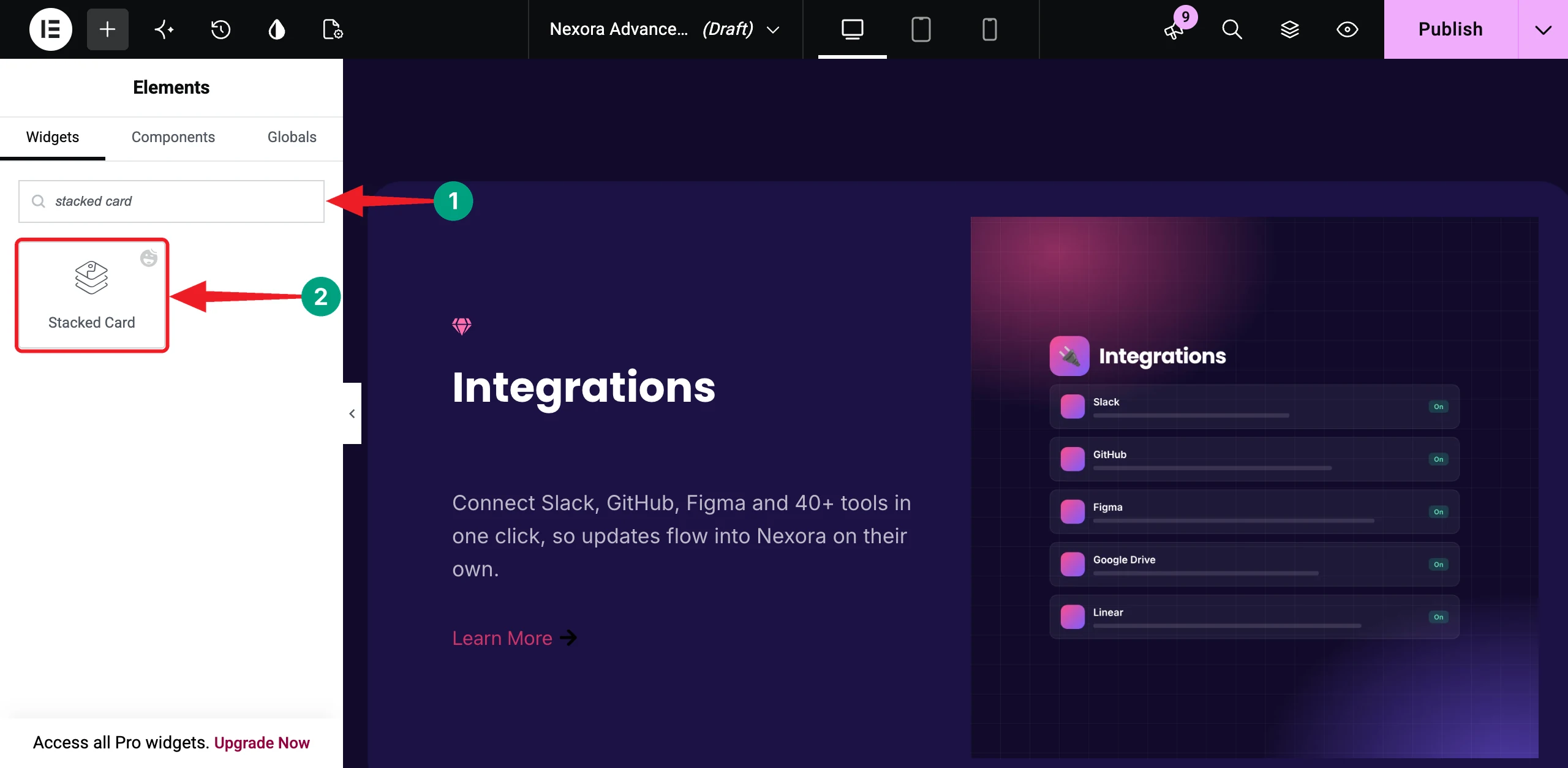
Add a new container. Search for Stacked Card in the Elements panel and drag and drop it into the container.
# Add Your Cards
Expand the Cards Content section. The widget comes with three sample cards. Open each item and change the Title, the description in the Content Editor, and the Button Text.
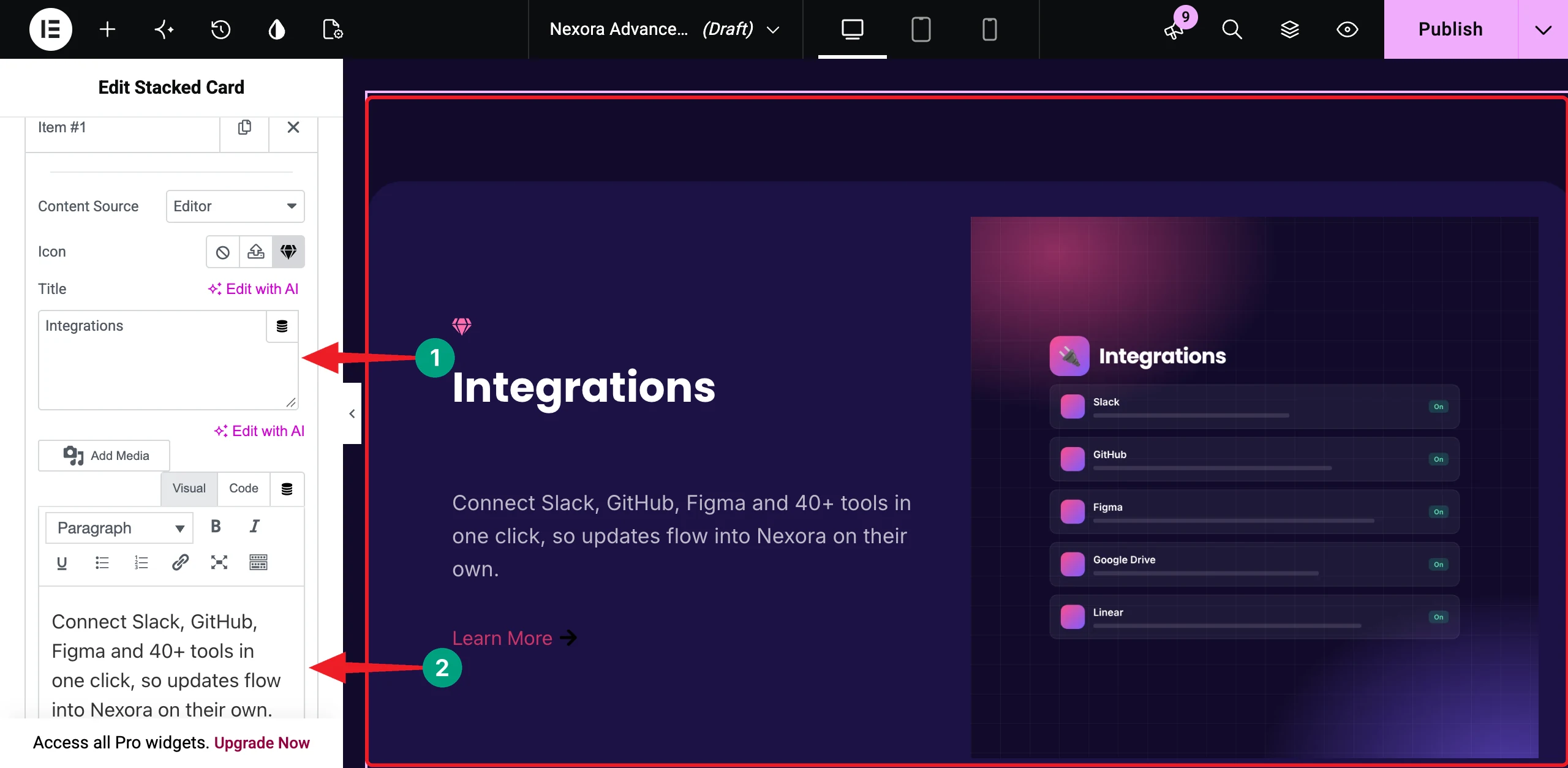
Scroll down a little and click the Image field to upload your card image. To create more cards, click the + Add Item button.
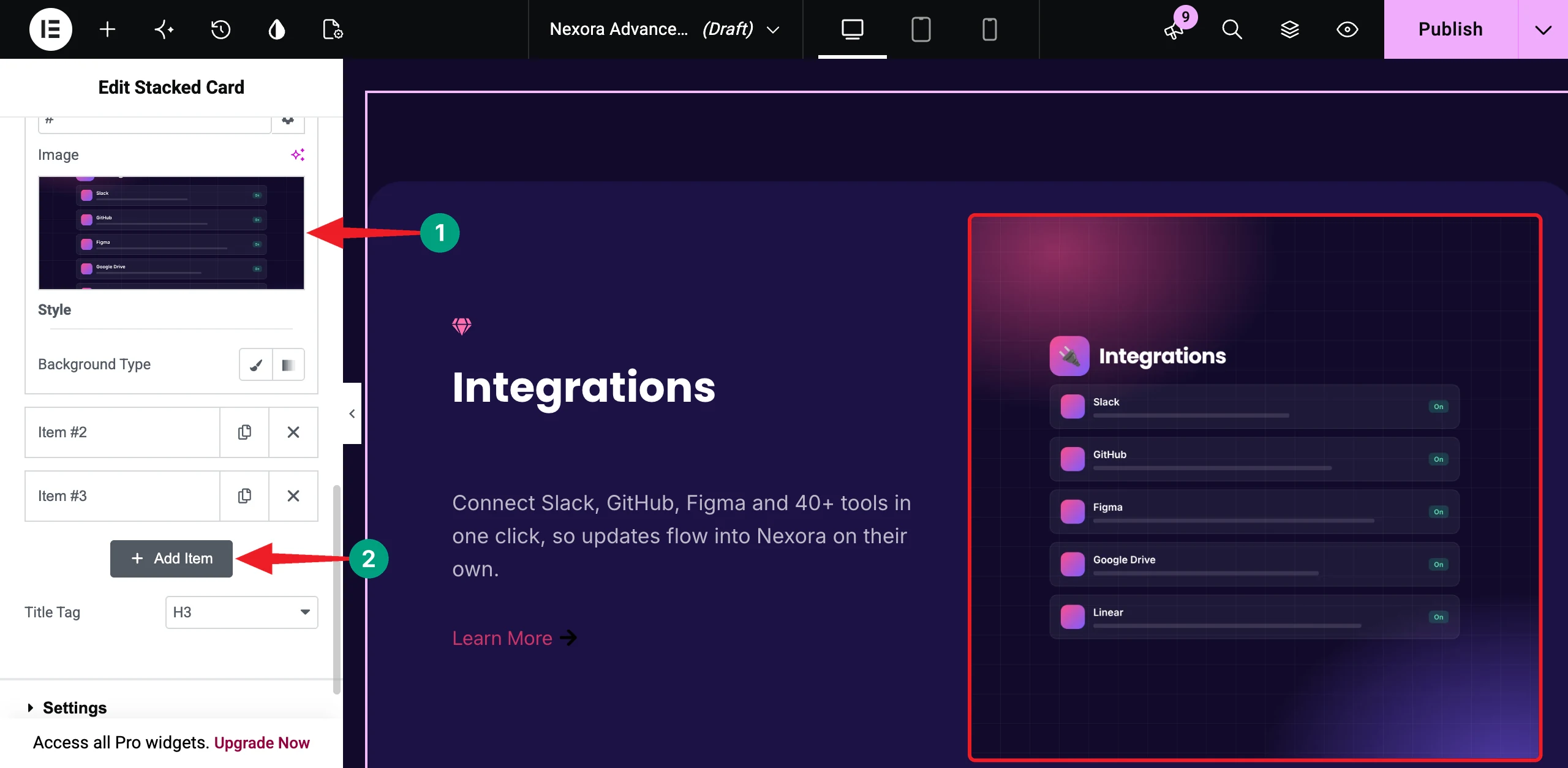
Tip: Set the Content Source to Template if you want to design a card with any Elementor widgets.
# Configure the Stacking Effect
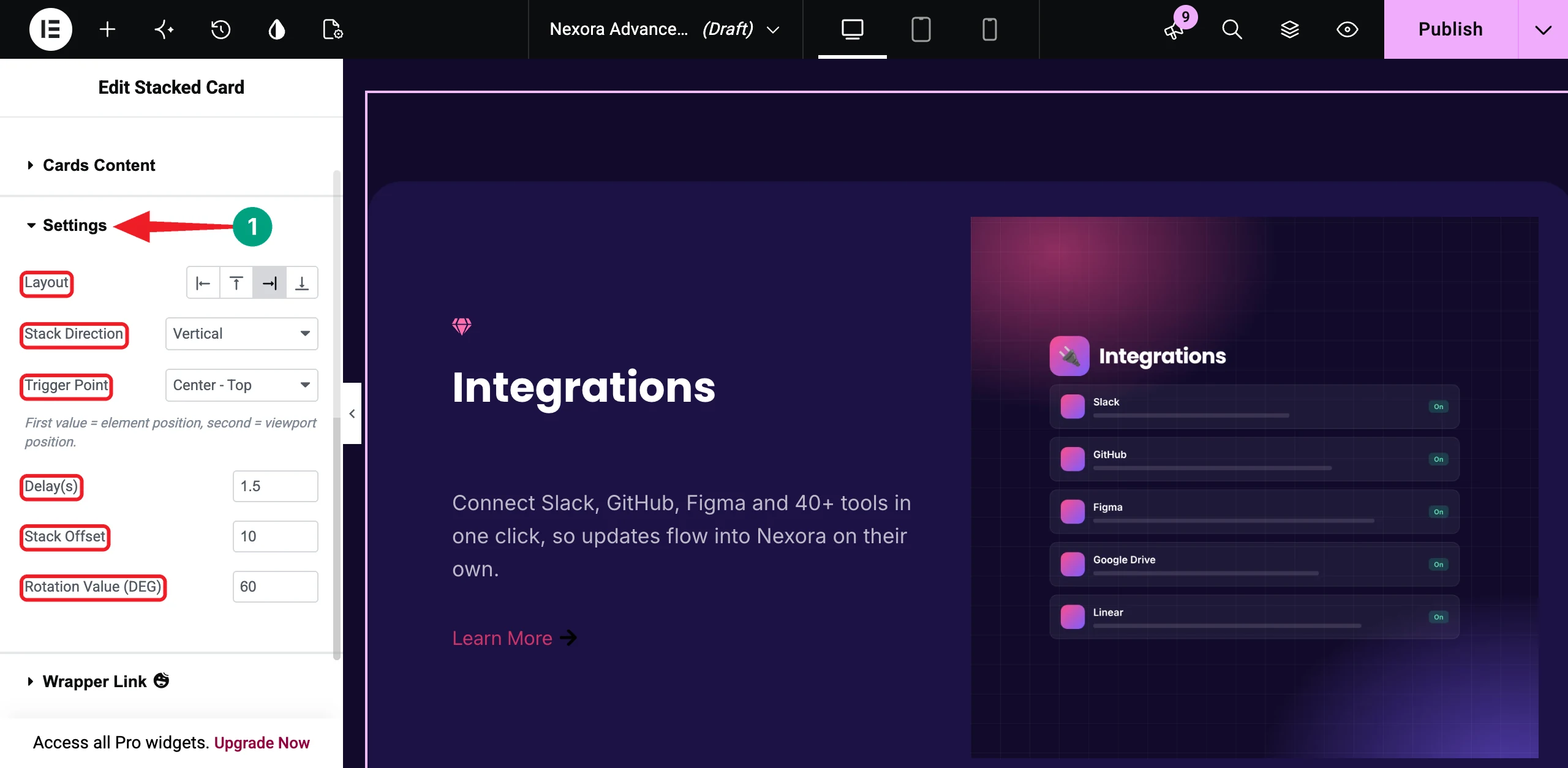
Expand the Settings section. Here, you’ll find the Layout, Stack Direction, Trigger Point, Delay(s), Stack Offset, and Rotation Value (DEG) options. We selected the Right (Content Left, Image Right) layout and kept the rest at their default values – Vertical direction, Center – Top trigger point, 1.5 delay, 10 stack offset, and 60 rotation.
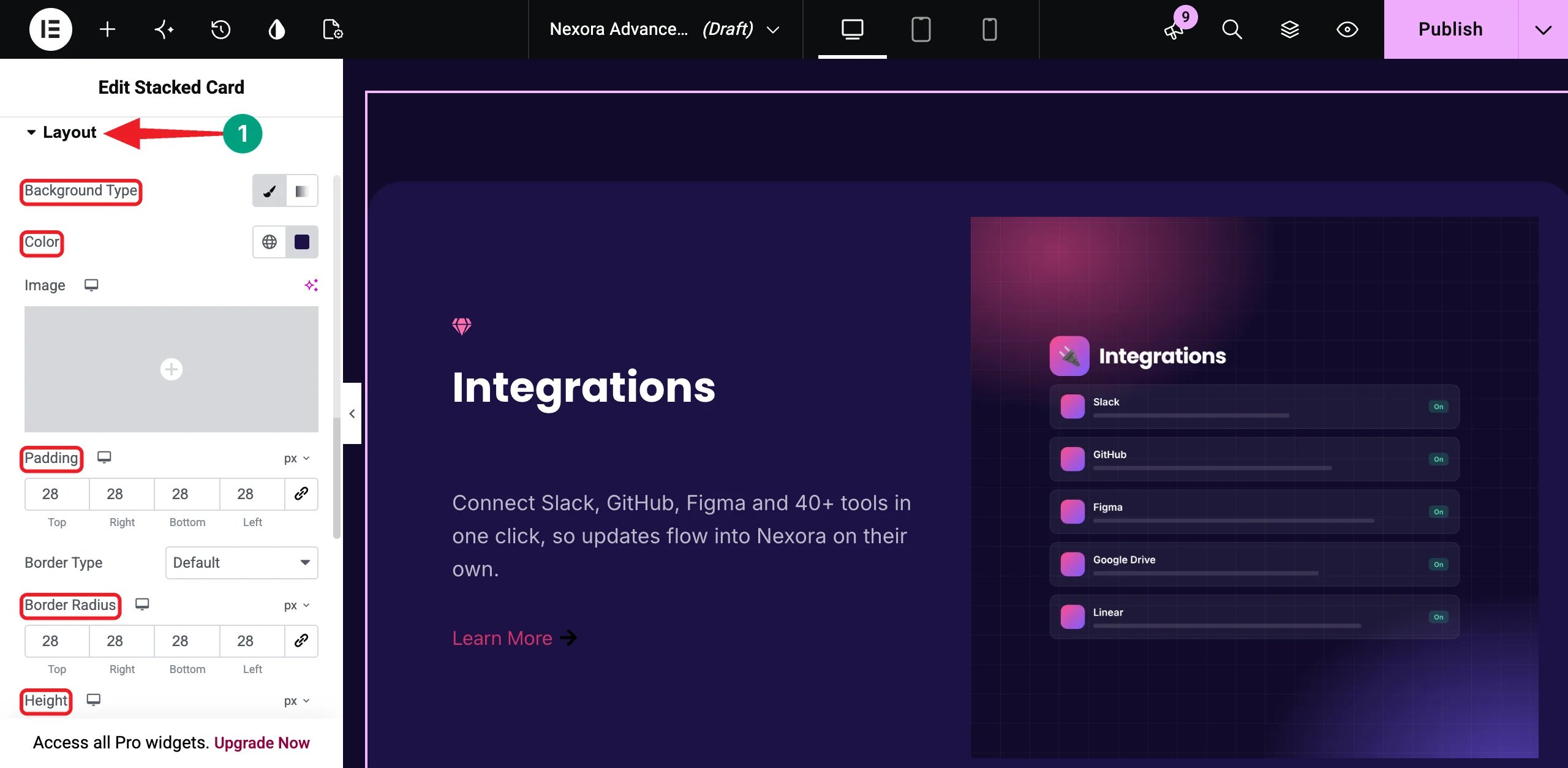
Finally, go to the Style tab and customize the Layout, Content, Button, and Image sections. We added a dark purple Background Color, 28px Padding, and 28px Border Radius to each card.
Each card now slides up and stacks over the previous one as you scroll.
Step 08: Make the Layouts Mobile-Friendly
Click the Mobile icon on the top bar to switch to the mobile view. Then, check each section one by one.
For the horizontal scroll section, we changed the Direction of the parent and panel containers to Column in the mobile view, so the panels stack nicely on phones. We also reduced the heading sizes and paddings for smaller screens.
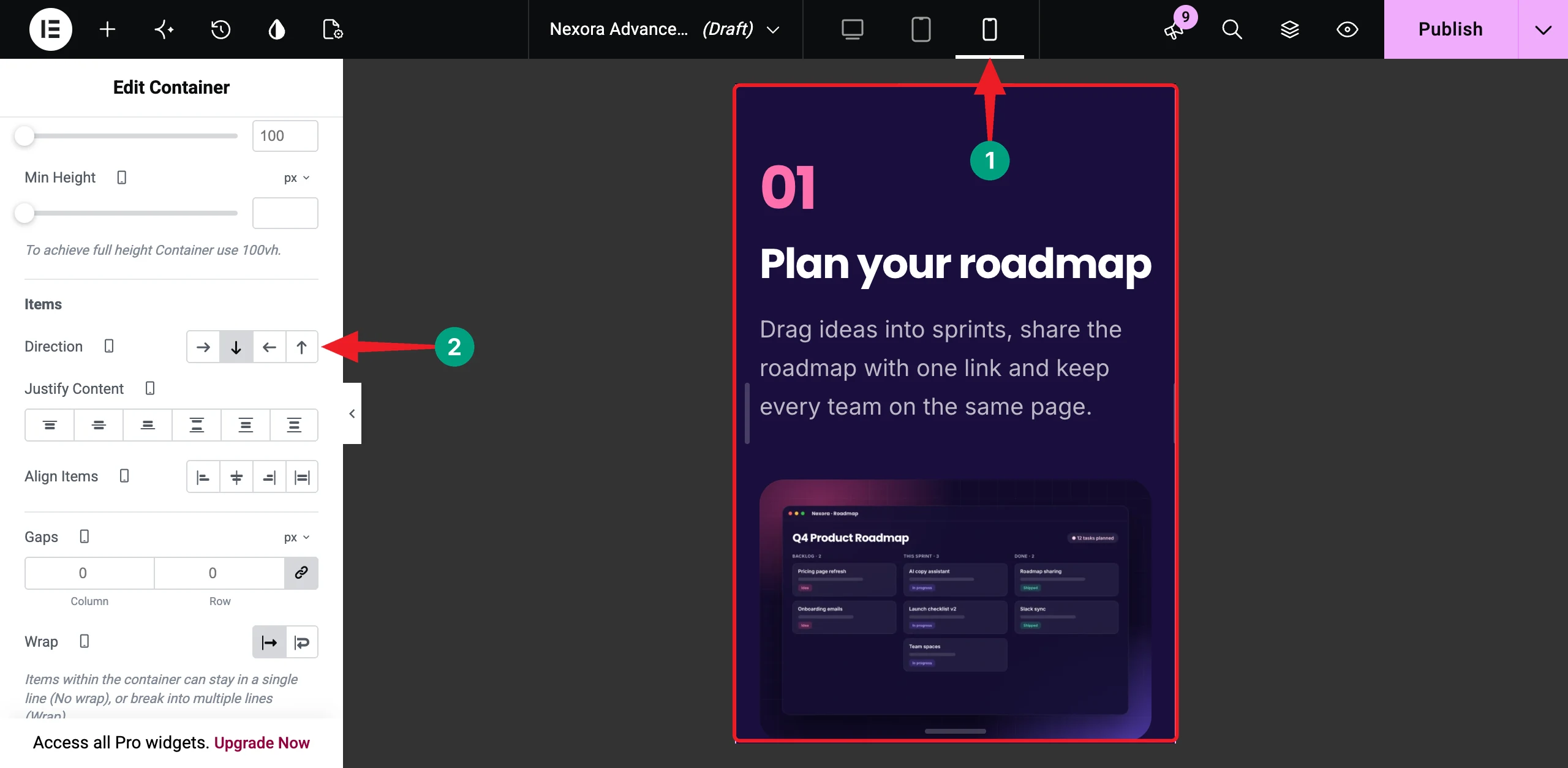
Tip: Since every setting lives in the Elementor panel, you can use its responsive controls to fine-tune each layout for tablet and mobile without writing a single media query.
Here’s a guide on how to make a website mobile friendly.
Step 09: Preview and Publish the Page
Save your changes and open the page in preview mode. Scroll from top to bottom and check every layout. When you’re happy with the result, click the Publish button.
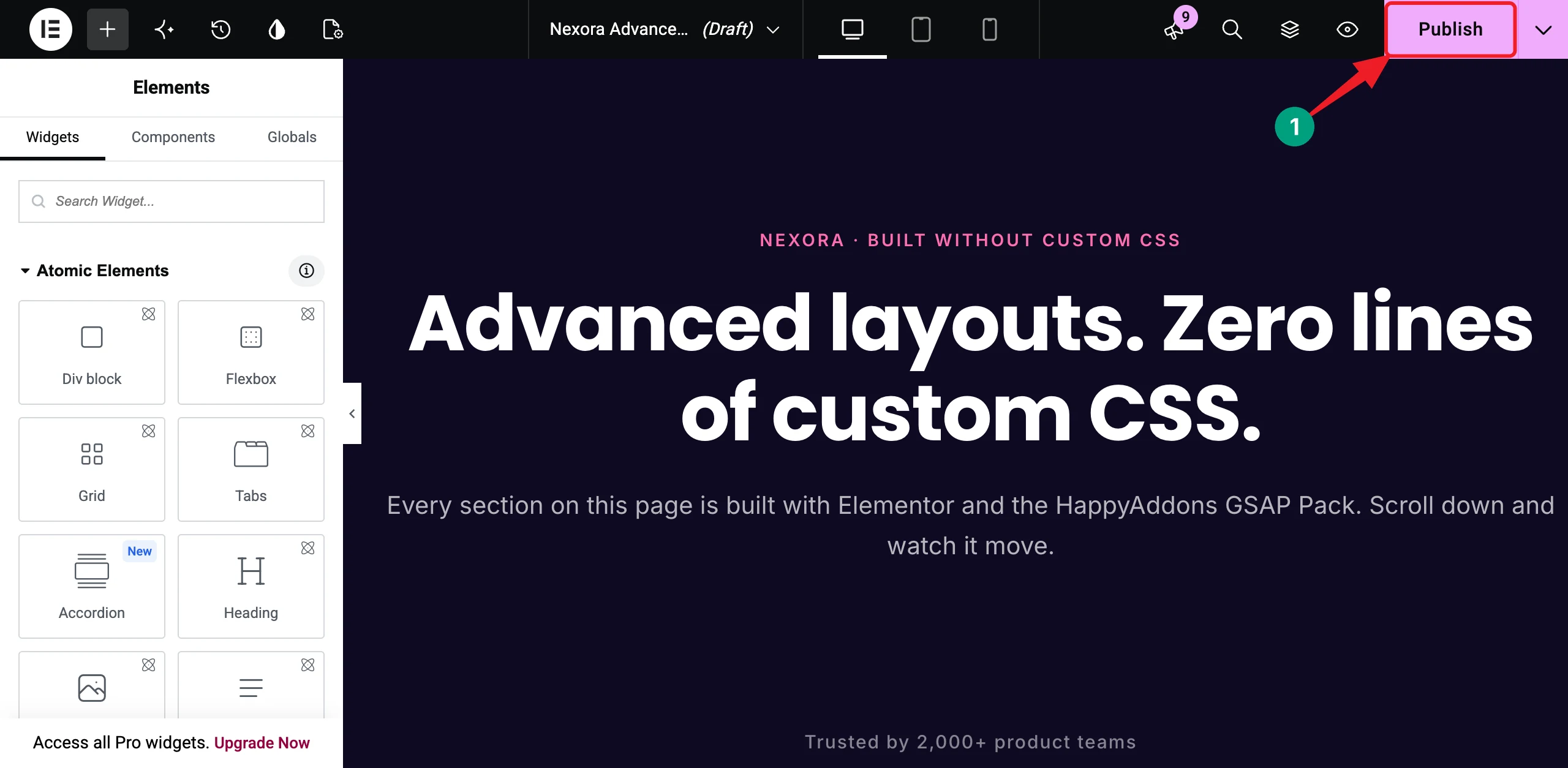
Thus, you can build advanced Elementor layouts without custom CSS using HappyAddons.
If you’d like to see everything the GSAP Pack can do, watch the overview video attached below.
Bonus: More HappyAddons GSAP Features That Replace Custom CSS
The five layouts above are just the start. The GSAP Pack comes with more features that save you from writing code. Here are a few you can try next.
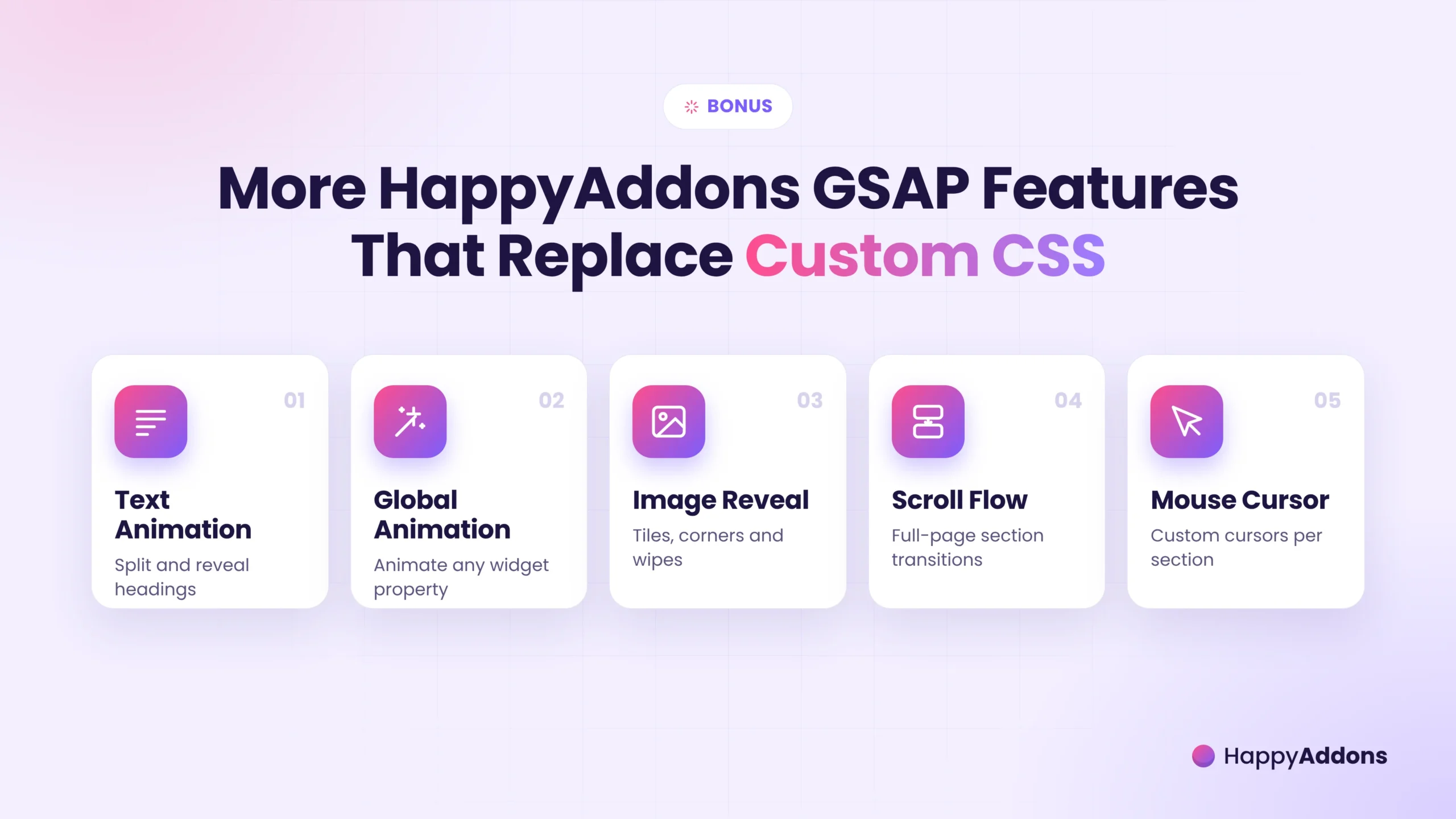
a. Text Animation
Split your headings into letters, words, or lines and reveal them with effects like Smoky Reveal, Text Flip, and Popup Reveal. No keyframes needed.
b. Global Animation
Animate almost any property of any widget, such as opacity, position, rotation, and 3D flips. You simply pick the properties and set their values.
c. Appearing Image Animation
Reveal your images with wipes, tiles, corner reveals, and scale effects as they enter the screen.
d. Scroll Flow
Turn a page into a full-screen, section-by-section experience with Slide, Fade, or Zoom transitions between containers.
e. Happy Mouse Cursor
Replace the default cursor with a text, color, icon, image, or video cursor for a single section or the whole page. Learn how to add GSAP animations in Elementor without coding.
FAQ on Building Advanced Elementor Layouts Without Custom CSS
In this section, we have answered some frequently asked questions commonly found on Google, online forums, and social media.
Do I need to know CSS or JavaScript to build these layouts?
No. HappyAddons handles all the GSAP code in the background. You just enable the features and set the values from the Elementor panel.
Do I need Elementor Pro for this tutorial?
No, you don’t need Elementor Pro. The free version of Elementor is enough. But you need HappyAddons Pro for Marquee, Horizontal Scroll, Sticky Pin Element, and Stacked Card. The Text Scroll widget is free.
Will these layouts slow down my website?
GSAP is known for smooth, high-performance animations. To keep your page fast, enable only the features you use from HappyAddons > GSAP, compress your images, and avoid stacking too many effects in one section.
Do these layouts work on mobile devices?
Yes. Marquee and Sticky Pin Element come with an Enable On Mobile option. Horizontal Scroll runs on desktop only, so its panels stack on phones. You can also use Elementor’s responsive controls to adjust each layout.
Can I still use custom CSS if I need it?
Yes, absolutely. HappyAddons doesn’t block custom code. But for scroll and motion effects, the GSAP features are much easier to build, edit, and hand over to clients.
Does HappyAddons GSAP work with Elementor V4 atomic elements?
Not yet. For now, use Elementor’s classic widgets and containers with the HappyAddons GSAP features, as we did in this tutorial.
Final Thoughts!
Advanced layouts make your website feel modern and help visitors explore more of your content. But building them shouldn’t force you to become a developer. Custom CSS is hard to maintain, easy to break, and even locked behind Elementor Pro.
With the HappyAddons GSAP Pack, you can build infinite marquees, line-by-line text highlights, horizontal scroll sections, pinned split screens, and stacked cards right from the Elementor panel. Every setting stays visual, editable, and responsive.
Just remember to keep the motion purposeful, test every layout on mobile, and let your content stay in focus. If you have any questions, mention them in the comment box below or give a knock on our live chat box. Before moving away, explore whether Elementor can build interactive websites like Webflow. Thanks for being with us till the end.