




Overview
HappyAddons Scroll Flow lets you create smooth, full-page scrolling experiences with transition effects between containers in Elementor.
You can choose different transition styles, control when transitions begin, adjust animation speed, and customize scrolling behavior to create engaging page layouts.
Availability: Scroll Flow is available in the free version of HappyAddons.
Requirements
Before getting started, make sure you have:
- HappyAddons Free installed and activated.
- Elementor installed and activated.
- A page that you can edit using Elementor.
Important compatibility note: HappyAddons GSAP features are not yet compatible with Elementor version 4 in the workflow described here because the necessary access for third-party add-on developers is not available. Until compatibility is supported, use the standard Elementor Container widget and pre-version 4 Elementor widgets.
1. Enable Scroll Flow
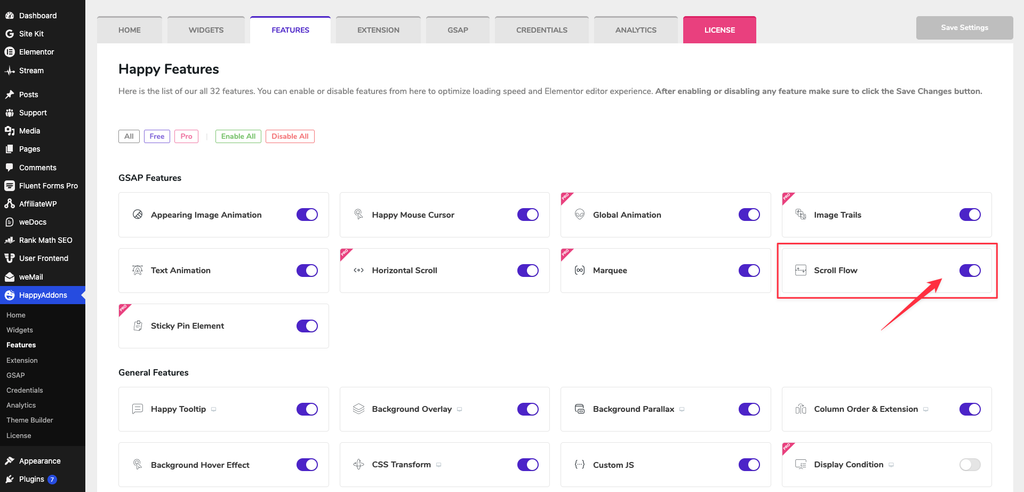
- Log in to your WordPress dashboard.
- Navigate to HappyAddons → Features.
- Find the Scroll Flow feature and enable it.
- Open the page where you want to use Scroll Flow in Elementor.
2. Add the Parent Container
Scroll Flow works on a parent container that holds multiple child containers. The transition effect is applied to the parent container and controls how visitors move between its sections.
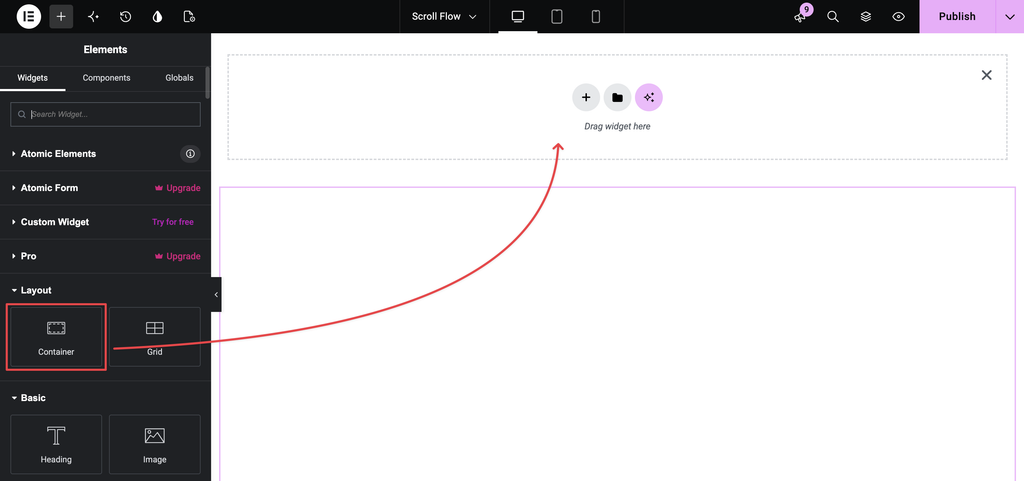
- Open the Elementor editor.
- Find the standard Container widget under the Layout section.
- Drag and drop the Container widget onto the canvas.
- Select the container and open the Advanced tab.
- Locate the Scroll Flow settings.
Leave Scroll Flow disabled for now while you build the layout.
Note: Use the standard Container widget rather than the newer Elementor version 4 container for this workflow.
3. Add Child Containers and Content
After creating the parent container, add child containers to represent the sections visitors will scroll through.
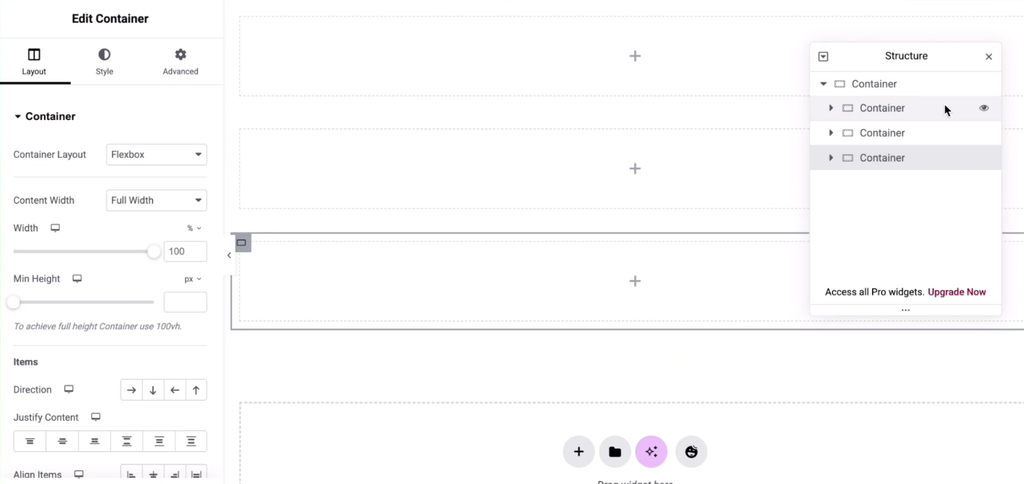
- Add a child container inside the parent container.
- Open the Structure panel to confirm that the child container is nested under the parent.
- Add content to the child container. You can use Elementor widgets or compatible HappyAddons widgets, such as the Card widget.
- To display multiple cards side by side, select the relevant child container and set its Direction to Horizontal.
- Duplicate widgets as needed and customize the content in each one.
- Repeat the process for the remaining sections.
You can add as many child containers as your layout requires. Make sure all the sections that should participate in the Scroll Flow effect are nested under the same parent container.
4. Use Pre-Built Templates (Optional)
If you already have section templates, you can import them instead of creating every section manually.
- Remove any placeholder content and unnecessary child containers from the parent container.
- Import your first template.
- Open the Structure panel.
- Drag the imported template container under the Scroll Flow parent container.
- Import the next template and place it under the same parent.
- Repeat until all templates have been added.
- Reorder the child containers in the Structure panel if necessary.
Make sure every section is nested under the same parent container so the Scroll Flow effect can control the transitions between them.
5. Enable Scroll Flow and Set the Container Height
Once your sections are ready, enable Scroll Flow on the parent container.
- Select the parent container.
- Open the Advanced tab.
- Enable Scroll Flow.
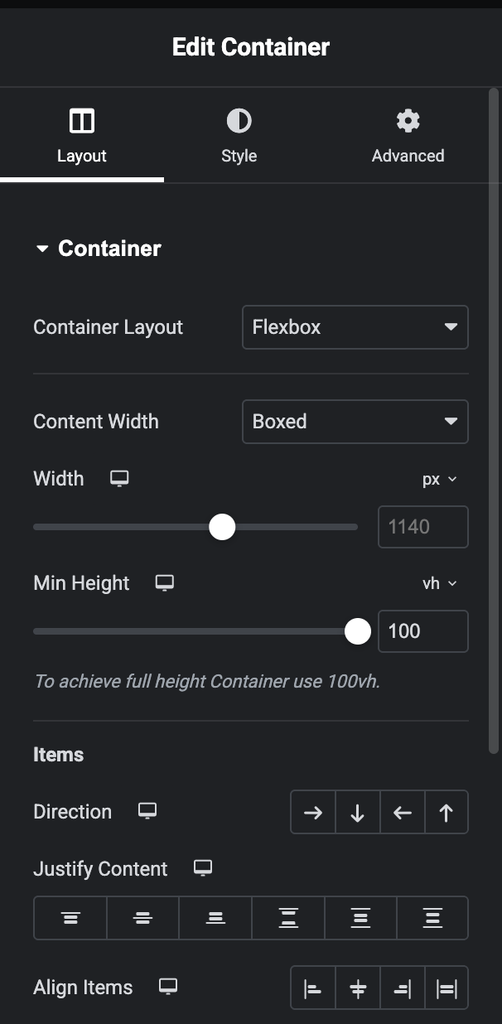
- Open the Layout tab.
- Set Min Height to
100 VH. - Preview the page and scroll through the sections.
Setting the minimum height to 100 VH helps the container fill the viewport, allowing visitors to experience the full-section transitions more effectively.
If the entire section is not visible, check the minimum height and the layout of the content inside the container.
6. Configure Scroll Flow Settings
Scroll Flow provides several options for customizing the transition experience.
6.1. Mode
The Mode setting determines how sections transition as visitors scroll.
Available modes:
- Slide: The default transition mode.
- Fade: Sections fade during the transition.
- Zoom: Sections zoom out during the transition.
Choose a mode that complements your page design and content.
6.2. Trigger Point
The Trigger Point setting controls the position at which the Scroll Flow effect begins.
For example:
- 0 px: The effect is triggered when the top edge of the container reaches the top of the viewport.
- 150 px: The effect is triggered when the top edge reaches a position 150 pixels below the top of the viewport.
Adjust this value to control where the transition begins.
6.3. Duration
Duration controls how long the transition animation takes to complete.
- Lower values create faster transitions.
- Higher values create slower transitions.
Adjust the duration to achieve the desired animation speed.
6.4. Background Move
Background Move adds a parallax-like movement to the background during section transitions.
- Higher percentage values create more noticeable background movement.
- Setting the value to
0disables the effect.
Use this setting to add depth to the transition without distracting visitors from the content.
6.5. Wheel Speed
Wheel Speed controls how mouse-wheel movement affects the scrolling experience.
The supported range described in the tutorial is -3 to 3.
- Positive values: Maintain the normal scrolling direction.
- Negative values: Reverse the wheel direction.
Adjust this setting carefully to maintain a natural scrolling experience.
6.6. Tolerance
Tolerance controls how sensitive Scroll Flow is to mouse-wheel and touch movement.
- Lower values: The effect responds to smaller movements.
- Higher values: More movement is required before a section transition is triggered.
Choose a value that makes scrolling comfortable and predictable.
6.7. Loop
The Loop option allows visitors to cycle continuously through the sections.
When enabled, scrolling down from the last section returns visitors to the first section, creating a continuous scrolling experience.
Enable or disable this option depending on your page structure and intended navigation.
6.8. Enable on Mobile
This option determines whether Scroll Flow works on mobile devices.
- Enabled: Mobile visitors can experience the section transitions.
- Disabled: Scroll Flow does not run on mobile devices.
Test the page on mobile devices before publishing to ensure that the experience remains usable.
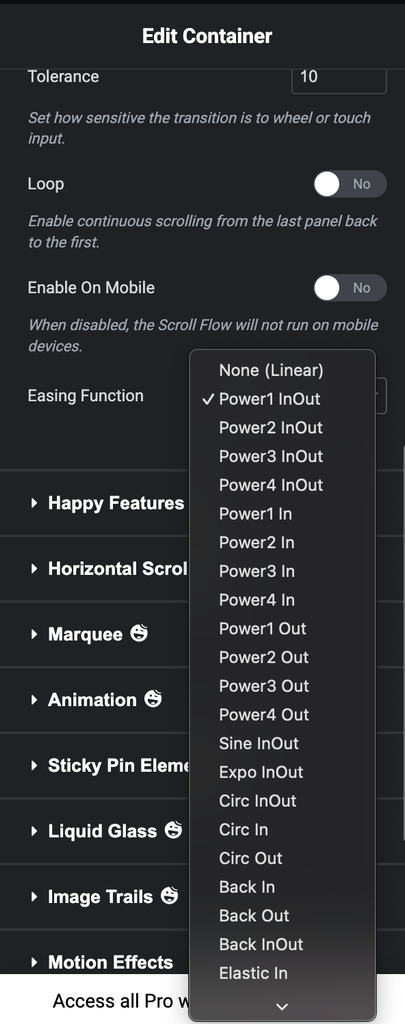
6.9. Easing Function
The Easing Function controls how the animation accelerates and decelerates during a transition.
The feature described in the tutorial offers 26 easing styles, including styles that create smooth, quick, slow, or bouncy movement.
Experiment with different easing functions and preview the result to find one that suits your design.
7. Preview and Test Scroll Flow
After configuring the settings, preview the page to verify that the effect works as expected.
- Test the Slide, Fade, and Zoom modes individually.
- Adjust the Trigger Point to control when the transition starts.
- Modify Duration to find a suitable transition speed.
- Test Background Move to evaluate the background animation.
- Adjust Wheel Speed and Tolerance to make scrolling feel natural.
- Test Loop to confirm the behavior at the last section.
- Check the Enable on Mobile setting.
- Try different Easing Functions and preview the results.
- Review the complete page from top to bottom before publishing.
Troubleshooting
| Problem | Solution |
|---|---|
| The entire section is not visible. | Select the parent container, open Layout, and set Min Height to 100 VH. |
| Scroll Flow does not work. | Confirm that Scroll Flow is enabled under HappyAddons → Features and on the parent container. |
| The effect is applied to the wrong sections. | Check the Structure panel and ensure all intended sections are nested under the same parent container. |
| The effect does not work with Elementor version 4 widgets. | Use the standard Container widget and pre-version 4 Elementor widgets until the compatibility limitation is resolved. |
| Transitions feel too fast or too slow. | Adjust Duration and Easing Function, then preview the page again. |
| Scrolling feels too sensitive or unresponsive. | Adjust Wheel Speed and Tolerance gradually. |
| Scroll Flow does not run on mobile. | Check the Enable on Mobile setting and test the page on a mobile device. |
Best Practices
- Keep each child container focused on one section of content.
- Use consistent spacing and section heights for a cohesive experience.
- Choose transition effects that support the content rather than distract from it.
- Avoid excessive background movement or overly bouncy animations.
- Test mouse-wheel and touch interactions before publishing.
- Check the layout on desktop and mobile devices.
- Preview the complete page after making changes to Scroll Flow settings.
Quick Checklist
Before publishing, make sure:
- Scroll Flow is enabled in HappyAddons → Features.
- The standard parent Container widget is used.
- All intended sections are nested under the same parent container.
- Scroll Flow is enabled on the parent container.
- The minimum height is set to
100 VHwhere needed. - The transition mode and other settings have been configured.
- The page has been previewed from top to bottom.
- Desktop and mobile behavior have been tested.
Summary
HappyAddons Scroll Flow makes it possible to create full-page scrolling experiences with transitions between Elementor container sections.
To use it, enable the feature, create a parent container, add child containers for each section, enable Scroll Flow on the parent, and customize the transition settings. Preview and test the complete page before publishing to ensure a smooth and consistent visitor experience.