






The Appearing Image Animation feature lets you reveal images with smooth, eye-catching animation effects as they enter the viewport. It helps create more engaging page designs by animating images only when visitors scroll to them.
Prerequisites
Appearing Image Animation is a HappyAddons Pro feature. Before using it, make sure you have:
- Elementor Free
- HappyAddons Free
- HappyAddons Pro
Enable the Feature
To enable Appearing Image Animation:
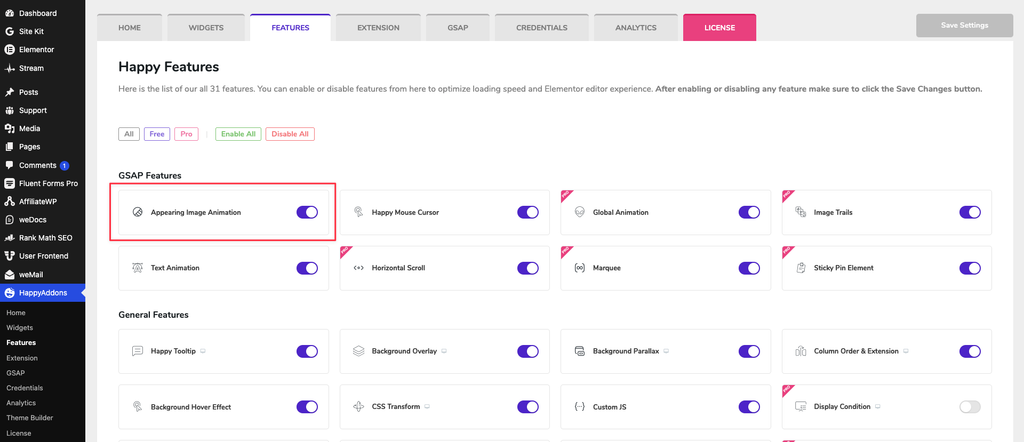
- Go to HappyAddons → Features.
- Enable Appearing Image Animation.
Apply the Animation
To apply the animation to an image:
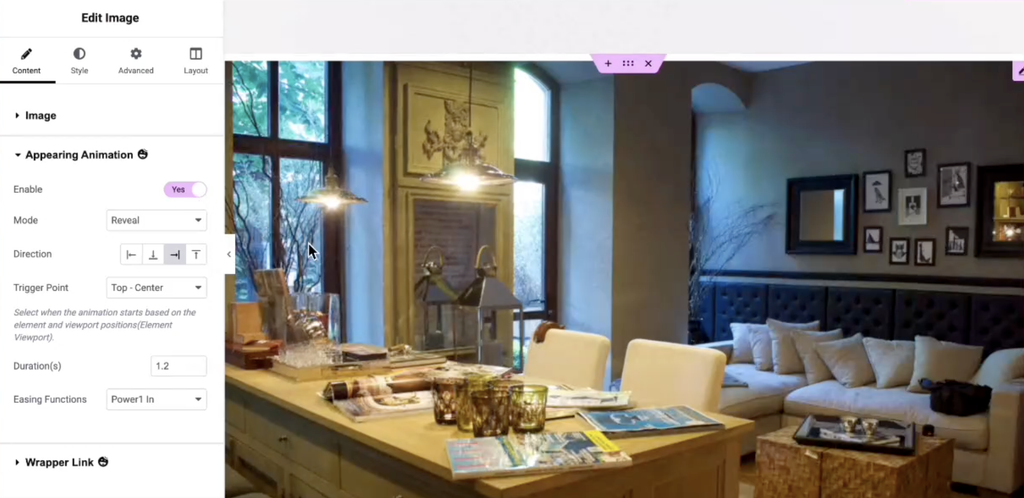
- Edit your page with Elementor.
- Select an Image widget.
- Open the Content tab.
- Expand the Appearing Animation section.
- Enable the feature.
The default animation is applied immediately.
Animation Modes
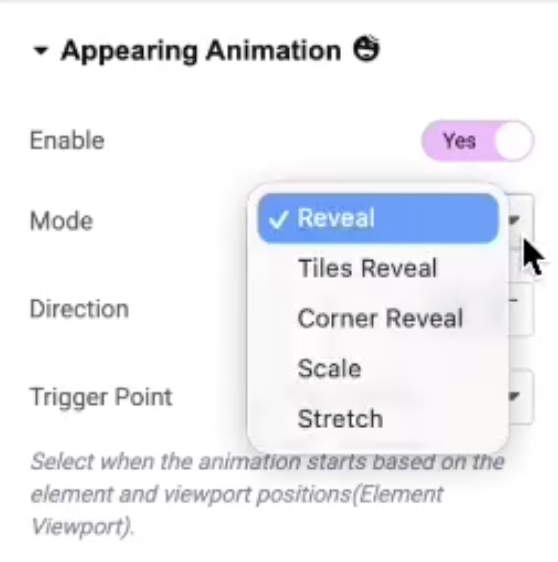
The Mode option determines how the image appears on the page.
Five animation modes are available:
- Reveal
- Tiles Reveal
- Corner Reveal
- Scale
- Stretch
Each mode provides its own configuration options.
Reveal Mode
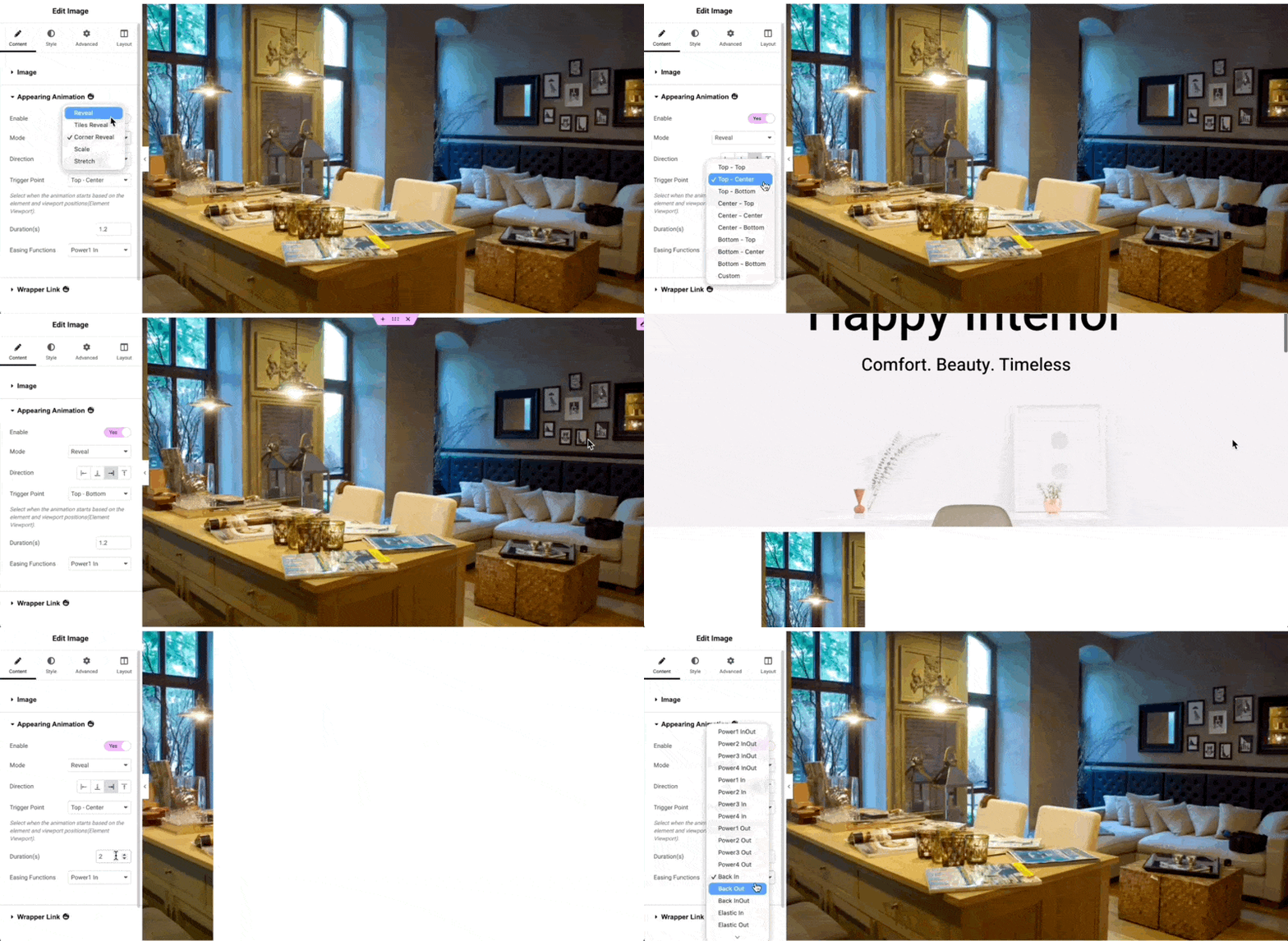
Reveal Mode animates the image from one of four directions:
- Left
- Top
- Bottom
- Right
Trigger Point
The Trigger Point setting determines when the animation starts as the image enters the viewport.
Nine preset trigger positions are available, along with a Custom option.
Each preset combines:
- An element reference point (Top, Center, or Bottom)
- A viewport reference point (Top, Center, or Bottom)
For example, Top Center starts the animation when the top of the image reaches the center of the viewport.
Custom Trigger
Selecting Custom displays the Custom Trigger field.
The default value is:
top 20%
For example:
- top 80% starts the animation when the image reaches 80% down the viewport.
- top 20% starts the animation much earlier.
Duration
Controls how long the animation takes to complete.
- Lower values create faster animations.
- Higher values create slower animations.
Easing Function
Controls the animation’s speed curve and movement style.
Different easing options create different visual effects.
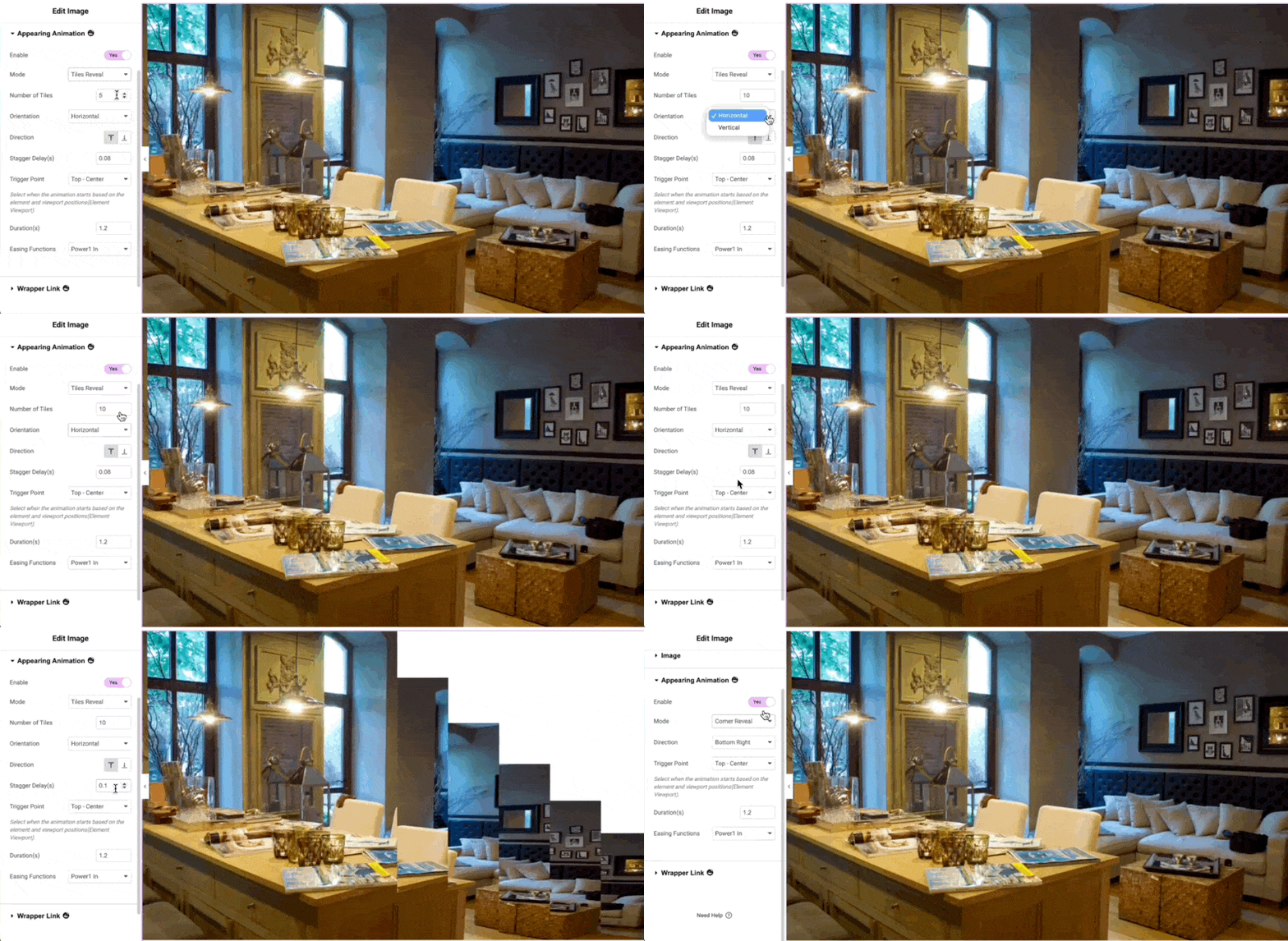
Tiles Reveal Mode
Tiles Reveal divides the image into multiple animated tiles.
Available settings include:
- Number of Tiles – Controls how many sections the image is divided into.
- Orientation – Vertical or Horizontal.
- Direction – Top or Bottom.
- Stagger Delay – Adds a delay between individual tile animations.
Trigger Point, Duration, and Easing Function work the same way as in Reveal Mode.
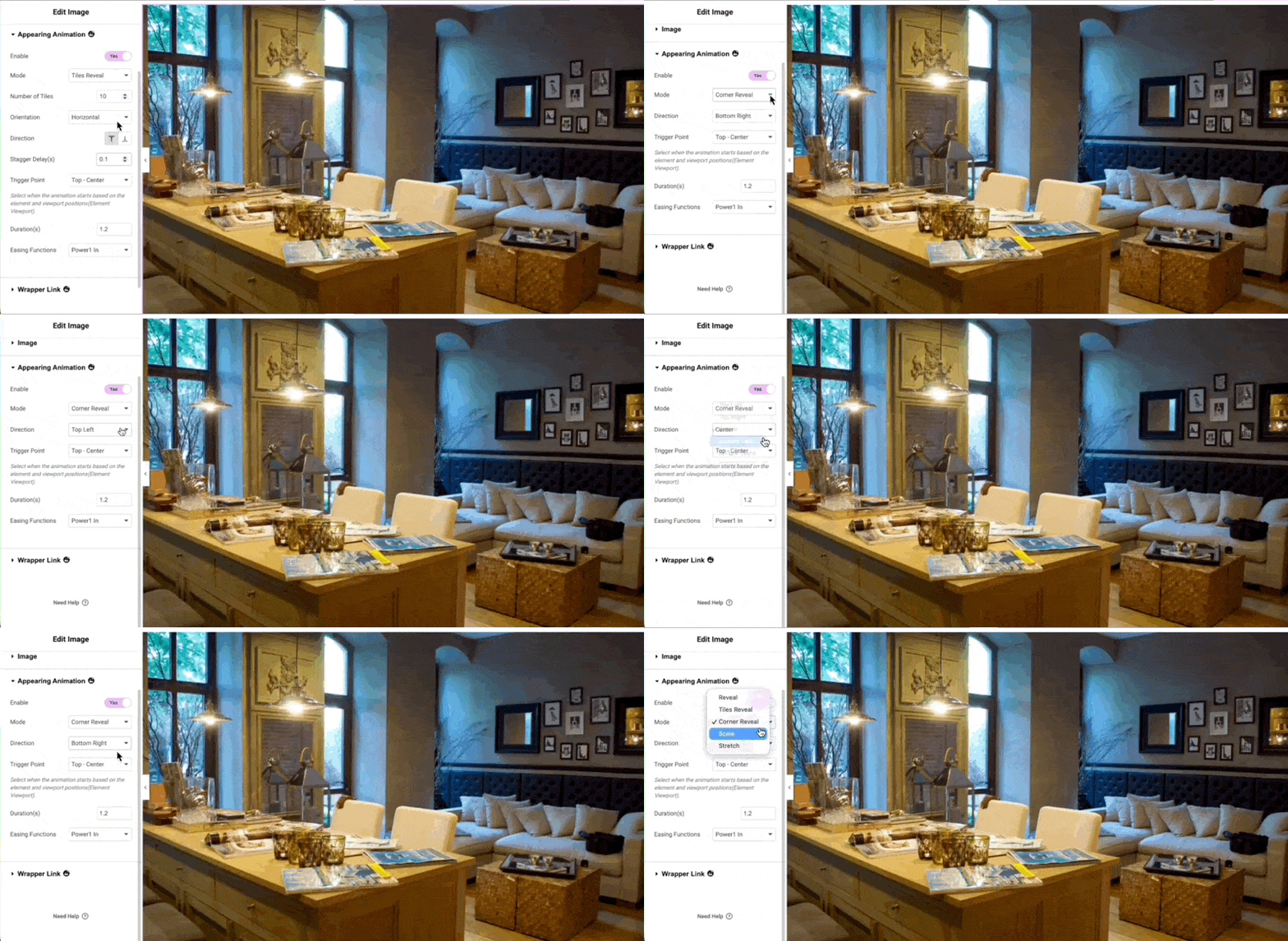
Corner Reveal Mode
Corner Reveal animates the image from one of five directions:
- Top Left
- Top Right
- Center
- Bottom Left
- Bottom Right
Trigger Point, Duration, and Easing Function are also available in this mode.
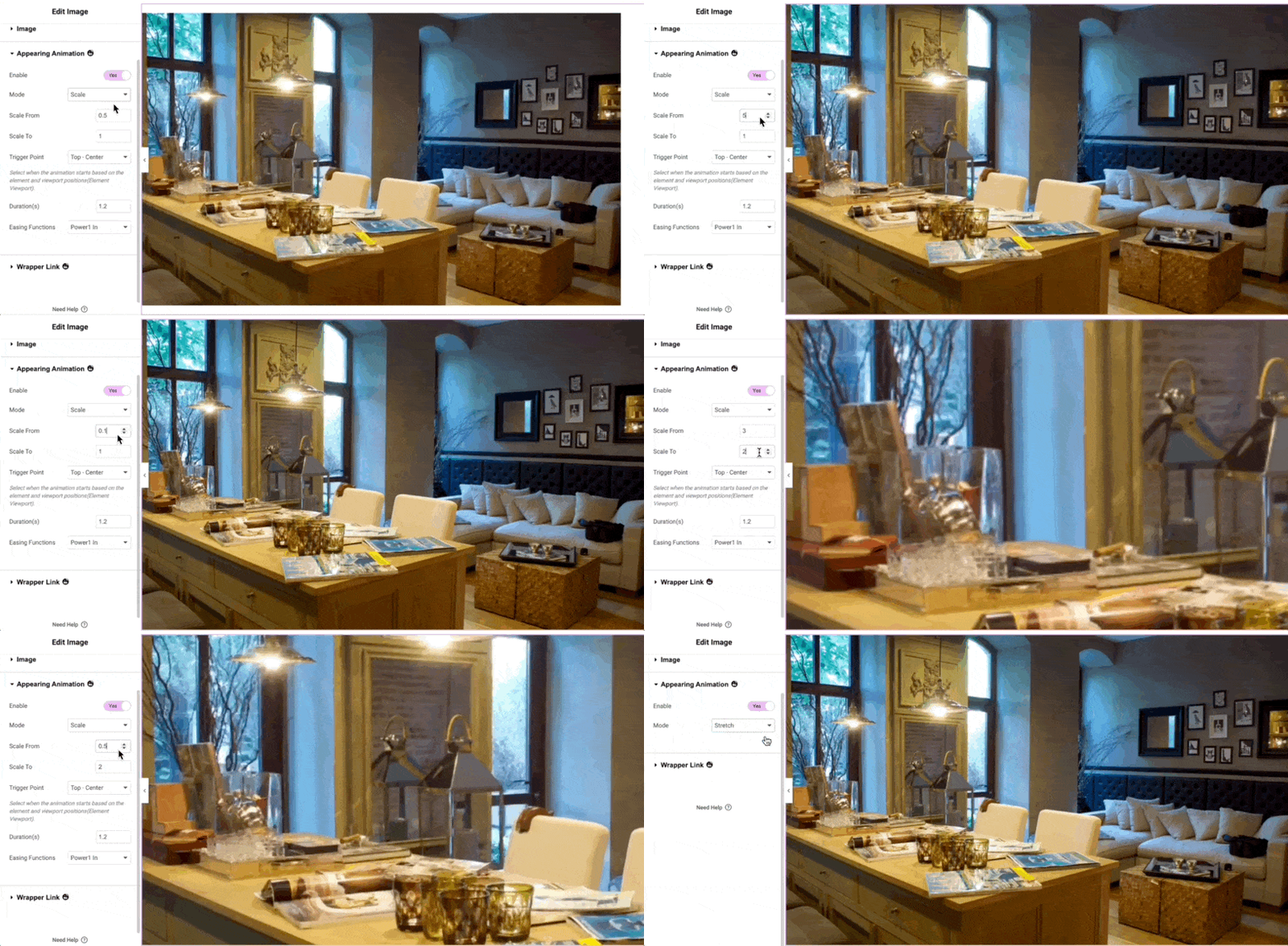
Scale Mode
Scale Mode animates the image by changing its size.
Scale From
Defines the starting size of the image.
- Values below 1 make the image grow into place.
- Values above 1 create a smooth zoom-out effect.
Scale To
Defines the final size after the animation.
The default value is 1, representing the image’s original size.
Stretch Mode
Stretch Mode applies a stretch animation automatically.
This mode has no additional configuration options.
Example
You can apply different animation modes to multiple Image widgets within the same section to create a more engaging layout.
Preview the page to compare the effects and choose the animation style that best matches your design.
Notes
- Appearing Image Animation works with the Elementor Image widget.
- Each animation mode provides different visual effects and configuration options.
- Trigger Point determines when the animation starts based on the image’s position within the viewport.
- Use Custom Trigger for more precise control over when the animation begins.
- Combine different animation modes on the same page to create more dynamic layouts.