




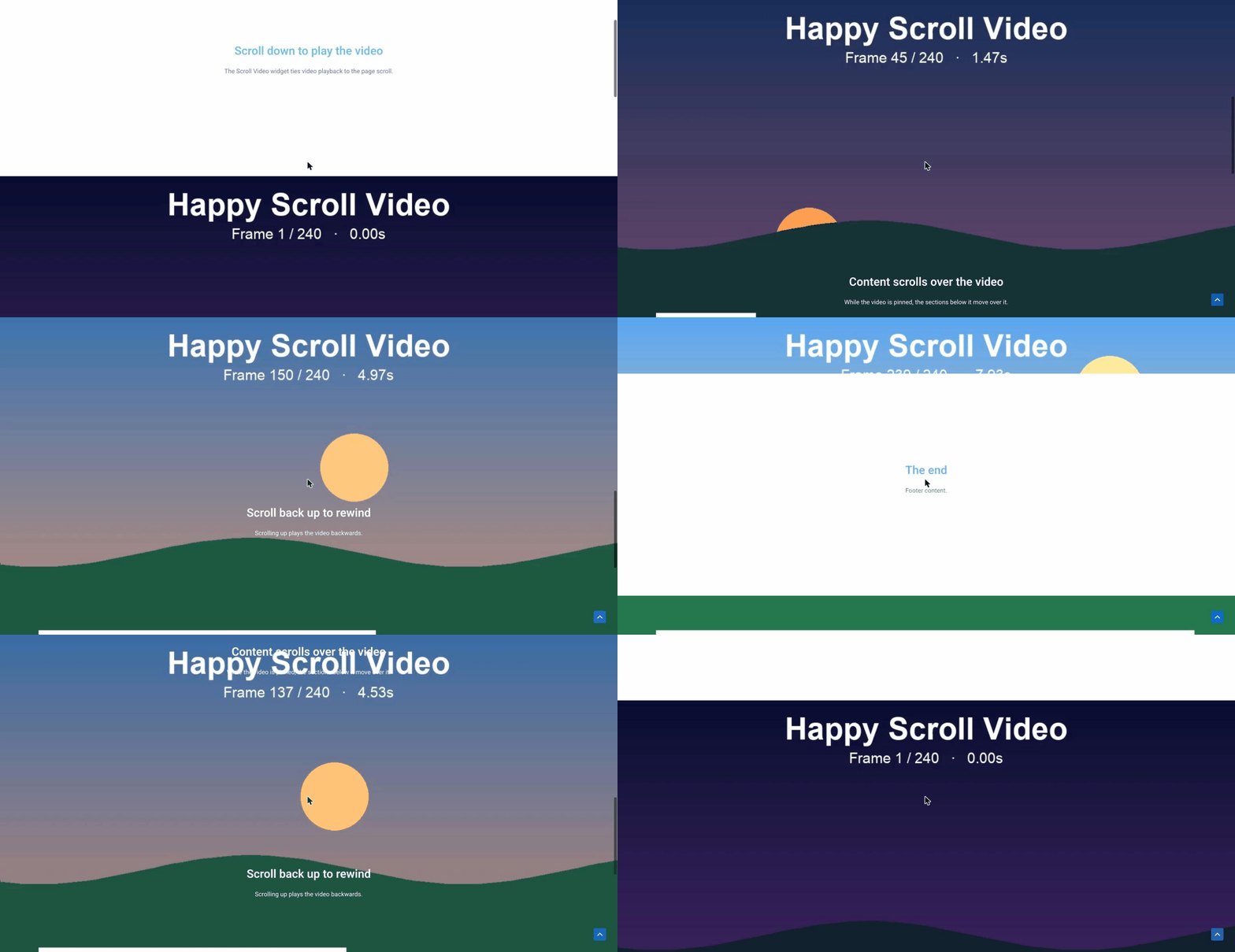
The Scroll Video widget links a video to the page scroll. When a visitor scrolls down, the video plays forward. When they scroll up, it plays backwards. Use it for product reveals, step-by-step stories, hero sections and other scroll-driven animations without writing any code.
By default, the video sticks to the screen while the content below it scrolls over it, and you can choose exactly where it lets go.
Prerequisites
Required plugins:
- Elementor (free)
- Happy Addons for Elementor (free)
- Happy Addons for Elementor Pro (Scroll Video is a Pro widget)
Make sure the Scroll Video widget is turned on under HappyAddons → Widgets.
Add the Scroll Video Widget
- Open the page with Edit with Elementor.
- In the Elements panel, search for Scroll Video.
- Drag the Scroll Video widget onto the page.
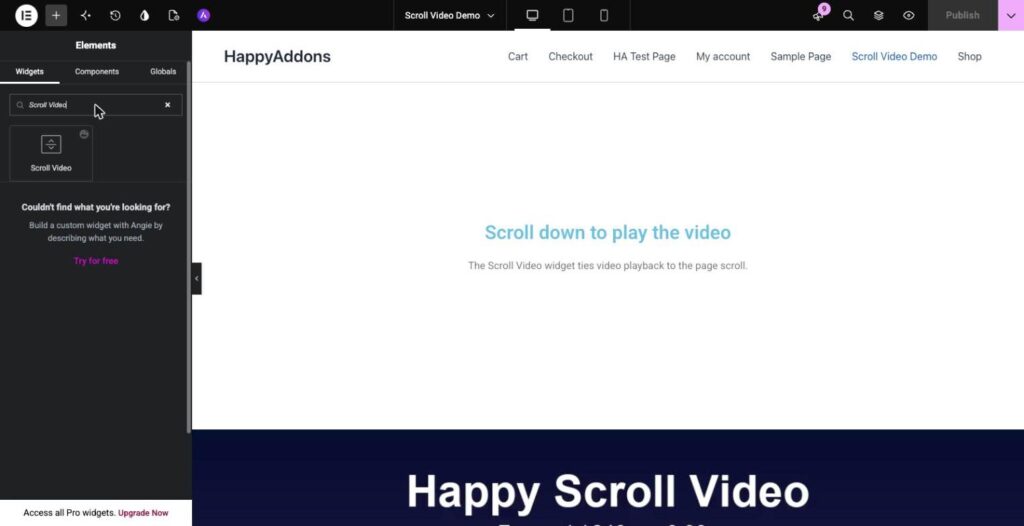
Tip: Put the widget in a full-width container with 0 padding so the video can fill the screen.
Choose Your Video
Go to Content → Scroll Video Contents and pick a Video Type.
Self Hosted
- Set Video Type to Self Hosted.
- Paste the video address into Video Link. The link must end with a video file extension such as .mp4, .webm or .ogg.
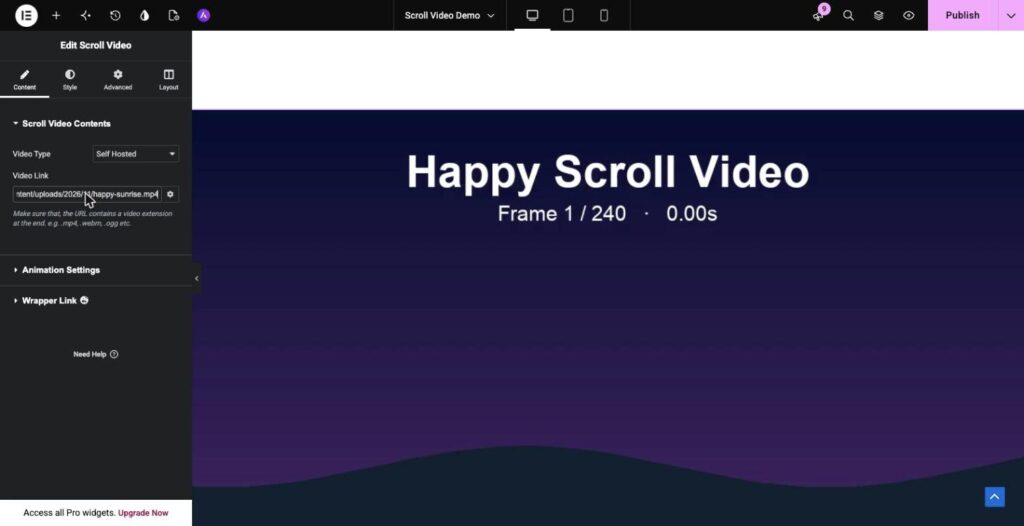
Note: YouTube, Vimeo and other video-page links do not work here. The widget needs a direct link to a video file.
Upload
- Set Video Type to Upload.
- Click Choose Video and select or upload a video from the Media Library. Dynamic tags are also supported.
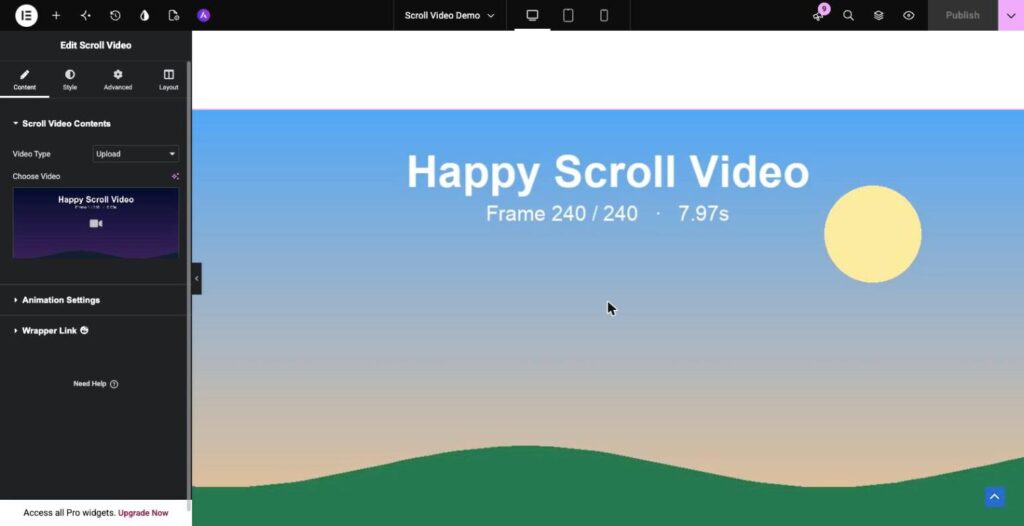
If no video is selected, the widget shows a No Video Selected! notice.
Animation Settings
Open Content → Animation Settings to control how the video behaves while scrolling.
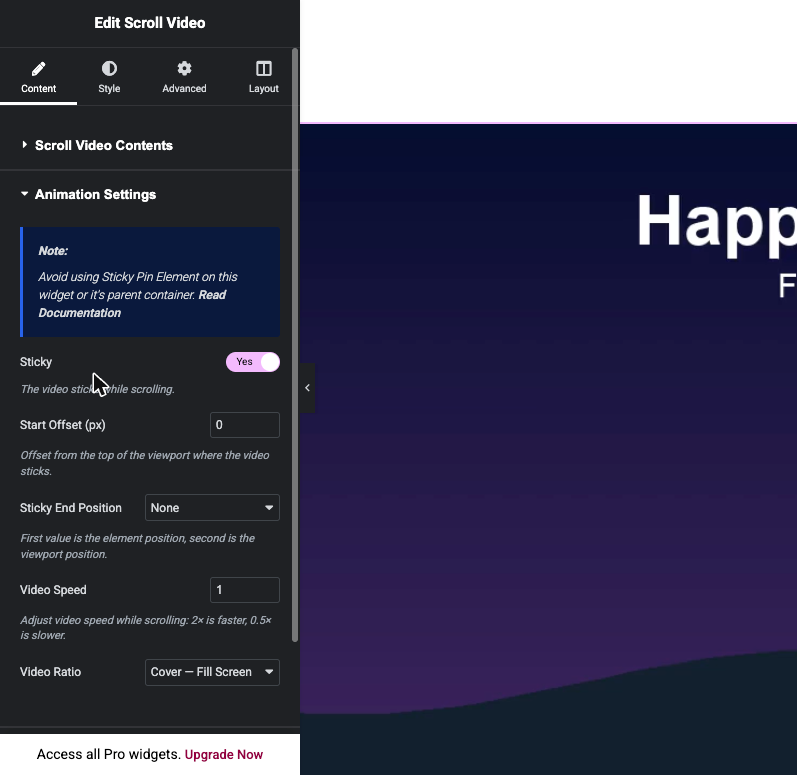
Sticky
Default: Yes.
- Yes: the video pins to the screen once it reaches the top. While it is pinned, the next sections scroll over it and the video plays with the scroll.
- No: the video stays in the normal page flow. It plays while it moves through the screen, starting when it appears at the bottom and finishing when it leaves at the top.
Start Offset (px)
Shown when Sticky is on. Default: 0.
The distance from the top of the screen where the video sticks. For example, use your header height (such as 80) so the video pins just below a sticky header. Playback starts from this point too.
Sticky End Position
Shown when Sticky is on. Default: None.
Decides when the pinned video lets go. With None, the video stays pinned until it finishes playing.
Pick a position to release the video when another element on the page reaches a point on the screen. The first word is the point on that element. The second word is the point on the screen.
| Option | Releases when… |
|---|---|
| Top – Top | the element’s top reaches the top of the screen |
| Top – Center | the element’s top reaches the middle of the screen |
| Top – Bottom | the element’s top reaches the bottom of the screen |
| Center – Top / Center / Bottom | the element’s middle reaches the top / middle / bottom of the screen |
| Bottom – Top / Center / Bottom | the element’s bottom reaches the top / middle / bottom of the screen |
| Custom | the element’s top reaches the Custom Offset (px) distance from the top of the screen |
When the End Trigger element is found, the video reaches its last frame exactly at the release point. Choose a release point the visitor can actually scroll to. A point at the very bottom of the page (for example Bottom – Top on the last section) may never be reached, so the video won’t finish.
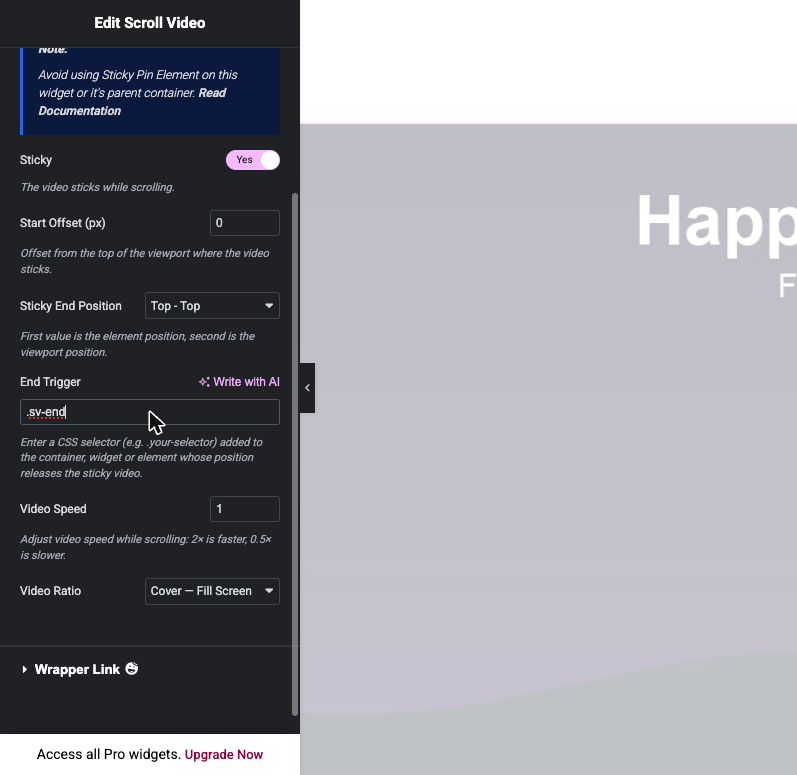
Set up a Sticky End Position
- Select the container, widget or section that should release the video. Go to Advanced → CSS Classes and add a class, for example sv-end.
[Screenshot: 07-trigger-css-class.jpg — Add a CSS class to the trigger element] - Select the Scroll Video widget again. Under Animation Settings, choose a Sticky End Position, for example Top – Top.
- The End Trigger field appears once a position is selected. Enter the same class with a dot in front: .sv-end. Any CSS selector works, for example an ID such as #story-end.
- If you chose Custom, enter the Custom Offset (px).
- Click Publish and check the page on the front end.
Here the video finishes and lets go when the Scroll back up to rewind section reaches the top of the screen:
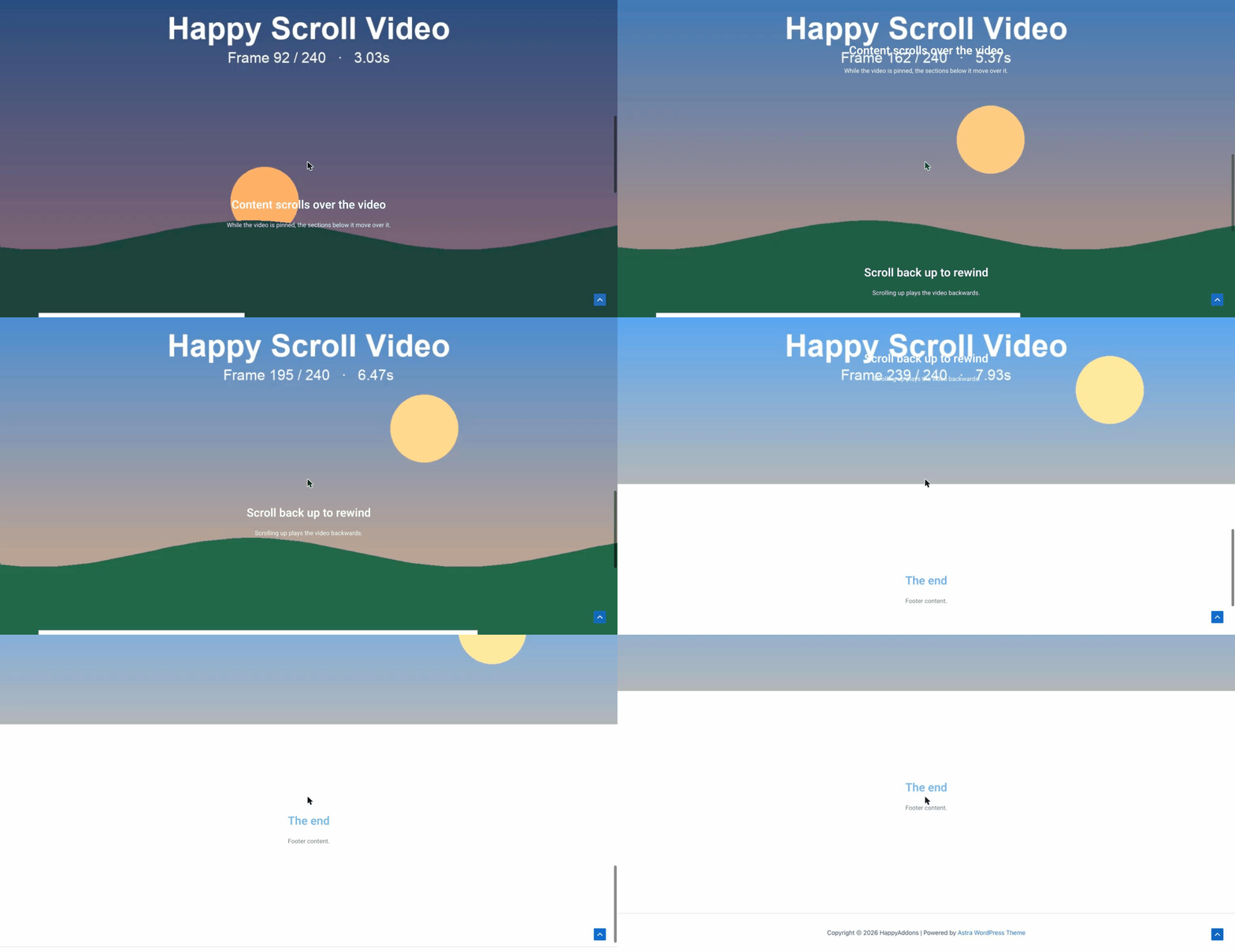
Note: Use a class that only one element on the page has. If several elements share it, the first one on the page is used. If no element matches, the video works as if Sticky End Position were set to None.
Video Speed
Default: 1.5. Range: 0.25 to 4, in steps of 0.25.
Controls how much scrolling it takes to play the whole video. A higher value plays the video over a shorter scroll. A lower value needs more scrolling. At 1, each second of video takes about 60% of a screen height of scrolling.
- 2 plays twice as fast as 1 (half the scroll).
- 0.5 plays half as fast as 1 (twice the scroll).
Note: If the page is not long enough for the full scroll, the video speeds up so it still finishes at the bottom of the page. Video Speed has no effect when Sticky is off, or when a Sticky End Position is set and its End Trigger element is found, because those settings decide where the video ends.
Video Ratio
Default: Cover — Fill Screen.
| Option | Result |
|---|---|
| Cover — Fill Screen | fills the whole video area; edges may be cropped |
| 16:9 — Widescreen | standard widescreen video |
| 21:9 — Cinematic | wide, movie-style frame |
| 4:3 — Classic | older TV-style frame |
| 1:1 — Square | square frame |
| 9:16 — Vertical | portrait / phone-style frame |
With a fixed ratio, the video box is sized to fit the screen (browser window) and centred on a black background. The video still fills its box, so choose the ratio that matches your video to avoid cropping. Fixed ratios work best with Height at 100vh.
Video Style
Go to the Style tab → Video Style.
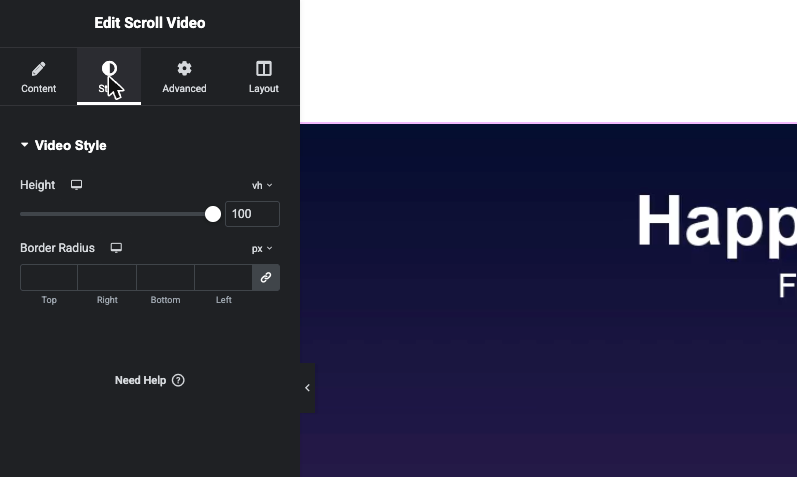
Height
Default: 100vh (full screen height). Units: px (100 to 1500) or vh (10 to 100). You can set a different height for desktop, tablet and mobile.
Border Radius
Rounds the corners of the video. Units: px or %. You can set different values for desktop, tablet and mobile. The area behind the video is black, so rounded corners are most visible when you use a fixed Video Ratio.
Examples
- Full-screen product reveal: Sticky Yes, Sticky End Position None, Video Ratio Cover, Height 100vh.
- Below a sticky header: Sticky Yes, Start Offset set to your header height (for example 80).
- Story with a clear ending: Sticky Yes, Sticky End Position Top – Top, End Trigger set to the class of the section that comes after the story.
- In-page scroll scene: Sticky No, Video Ratio Cover, Height 60vh. The video plays as it moves through the screen.
Notes
- Scroll playback works on the live page and in Preview only. In the Elementor editor, the video shows normal player controls so you can check it; Sticky, Speed and Ratio apply only on the front end.
- The video always plays muted. Audio is not used.
- Don’t use Sticky / Pin effects (such as Elementor Motion Effects → Sticky) on this widget or its parent container. The widget handles pinning by itself, and two sticky effects conflict.
- Keep the content that scrolls over the video transparent or partly transparent if you want the video to stay visible behind it.
- Short clips (about 5 to 15 seconds) work best. Long videos need a lot of scrolling.
- Use MP4 (H.264) for the widest browser support, and keep the file small (compress it and use web resolution, such as 1920×1080 or less).
- For the smoothest scrubbing, export the video with frequent keyframes (ideally a keyframe on every frame). Videos with few keyframes can look jumpy when scrolling fast or backwards. For example, with FFmpeg: ffmpeg -i input.mp4 -c:v libx264 -g 1 -crf 23 -pix_fmt yuv420p -movflags +faststart -an output.mp4
- The video file must be served directly and support seeking (HTTP range requests). Most hosts and the WordPress Media Library do this by default; some file-sharing links don’t.
- While pinned, the video covers the full width of the browser window, not just its container. Avoid CSS transform or filter effects (such as Motion Effects or CSS Transform) on parent containers, as they can stop the pinning from working.
- A loading spinner shows while the video loads. If it can’t load within about 25 seconds, an error bar appears at the bottom of the video.
- Visitors can’t play or pause the video by clicking. Only scrolling moves it.
Troubleshooting
| Message / problem | What to check |
|---|---|
| No Video Selected! | Add a Video Link (Self Hosted) or choose a video (Upload). |
| Video failed to load (network, CORS or unsupported codec). | Open the video link in a new browser tab to check it plays. Use an MP4 (H.264) file and a direct file link (not a YouTube/Vimeo or file-sharing page). Upload it to the Media Library if the external host doesn’t work. |
| The video doesn’t play when scrolling in the editor | Expected. The editor shows a small preview with player controls; Sticky, Speed and Ratio aren’t applied there. Check it with Preview or on the live page. |
| The video plays jumpy or skips frames | Re-export the video with more keyframes (see Notes) and reduce its file size. |
| The video lets go too late or never | With None, the video unpins when it finishes. With a Sticky End Position, check the End Trigger matches an element (include the dot, e.g. .sv-end) and that the release point isn’t at the very bottom of the page. Pick an earlier element or position. |
| The video finishes too fast or too slow | Change Video Speed, or add or remove content after the widget. |