






Nowadays, owners from every sector small to large, are focusing to display their products or services virtually. As online presence creates more impacts, so the online fields have become more competitive.
56% of business owners believe that, using a professional website has always been a handy for them
And the reason is, virtual platforms are easier and hassle-free to provide different online services. Therefore, it’s easy to reach more customers globally. For instance, a website with a professional look can be beneficial, and a matter of relief for you.
However, throughout this article, we’ll know another interesting thing today. Yes, we’ll learn how to create a website with Elementor.
Whether or not you have any idea about Elementor or how it works collaboratively with WordPress, don’t worry you’ll know each and everything here in this post. Or if you’ve already used Elementor before, then just follow the steps till the end.
Okay, enough talking! let’s dive into the tutorial!?
Build Your Personal Website with Elementor & Happy Addons

The benefits of a well-decorated website are undeniable. Such as blogging sites, educational sites, portfolio sites, project type websites, sci-fiction websites, and car rental websites, etc. From these professional website examples, you can choose the suitable one for your business.
Well, there are a ton of benefits to having a professional website. Also, it will help you to reach loyal customers smartly. Now before going in the tutorial, we want to talk a little bit about Elementor and why it’s a well-recognized page builder for all time.
Let’s know how it will facilitate you in terms of designing a professional website.
- Drag & drop editor
- 90+ widgets to implement
- Pre-built 300+ templates
- Responsive editing
- Pop-up builder
- Theme builder
- And WooCommerce builder
So these are the basic features of Elementor that are 100% capable enough to design, redesign, and customize any type of WordPress site with ease. But sometime Elementor alone can’t bring you the best result.
In that case, you need to quicken the power of Elementor. So that you can experiment more with your existing Elementor. Yes, talking about Happy Addons, a compact ‘Elementor addons’ that has a collection of free widgets & features to take your website design up to the next level.
HappyAddons is an unique Elementor Addon. It might be the significant Elementor addon so far – Adam Preiser Founder of WP Crafter
How To Create a Professional Website with Elementor & HappyAddons

Generally, whenever we think about designing any WordPress site, Elementor pop-up in our mind first. And the reason is pretty much clear as we discussed in the previous section. So we’ll not prolong our words saying anything about Elementor or Happy Addons, rather we’ll show the tutorial now.
But before starting, let’s shortly know what you’ll be needing for website designing drill:
- A WordPress site
- Elementor
- Happy Addons
- Envato Elements (Optional)
Do make sure that you’ve successfully installed WordPress, Elementor & Happy Addons. If you’ve already done it, then only follow the below instructions step by step.
Note: This is a tutorial for a portfolio site. So whatever you are, blogger, digital marketer, or any agency, just learn the process and apply them on your existing WordPress site.
Add a Website Header with Elementor
The header is the most important part of any website as the most conversion happens here. In the header, we can notice some general things, for example, website navigation pages, social icons, search button, logo, company tagline, or sometimes a little bit about the company, etc.
So to create this header using Elementor is super easy. You can easily create a stunning header for your website following the tutorial below.
Using First Website Template
Next, a website template is the most important thing after the header. A template will decide how your website looks like be. Fortunately, in the Elementor template gallery, you can find different types of templates. And you can choose the suitable one for your website.
However, to add a template to design a website, click on the ‘Folder’ like button.
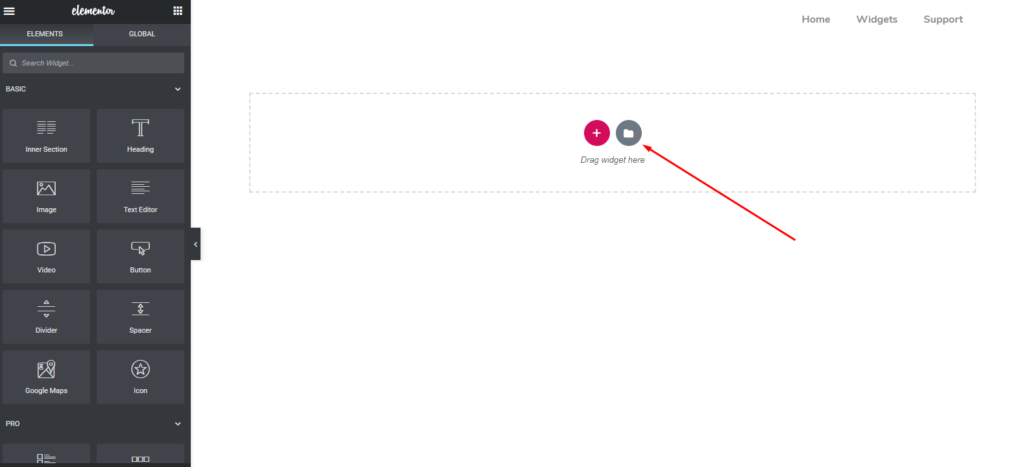
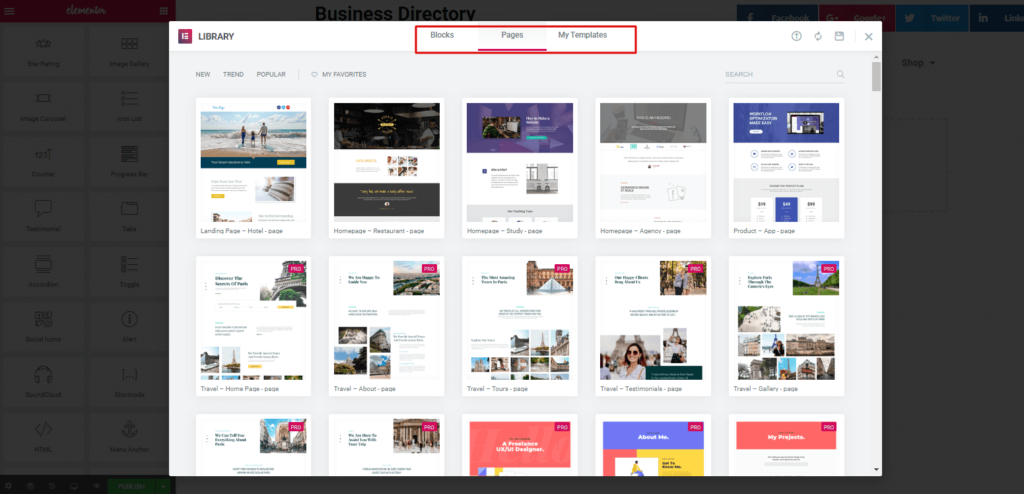
From here, you can see there are so many in-built templates are available here. And you can easily choose the best one for you. Again, if you don’t want the full template, you can choose a single part for your website.
To do that, you can click on the ‘blocks’ option. And there you’ll find different things such as header, footer, hero banner, contact form, map, etc.
Related Article: Choose the right template for Elementor
So after choosing the suitable template, your entire template will be looking like the following one.
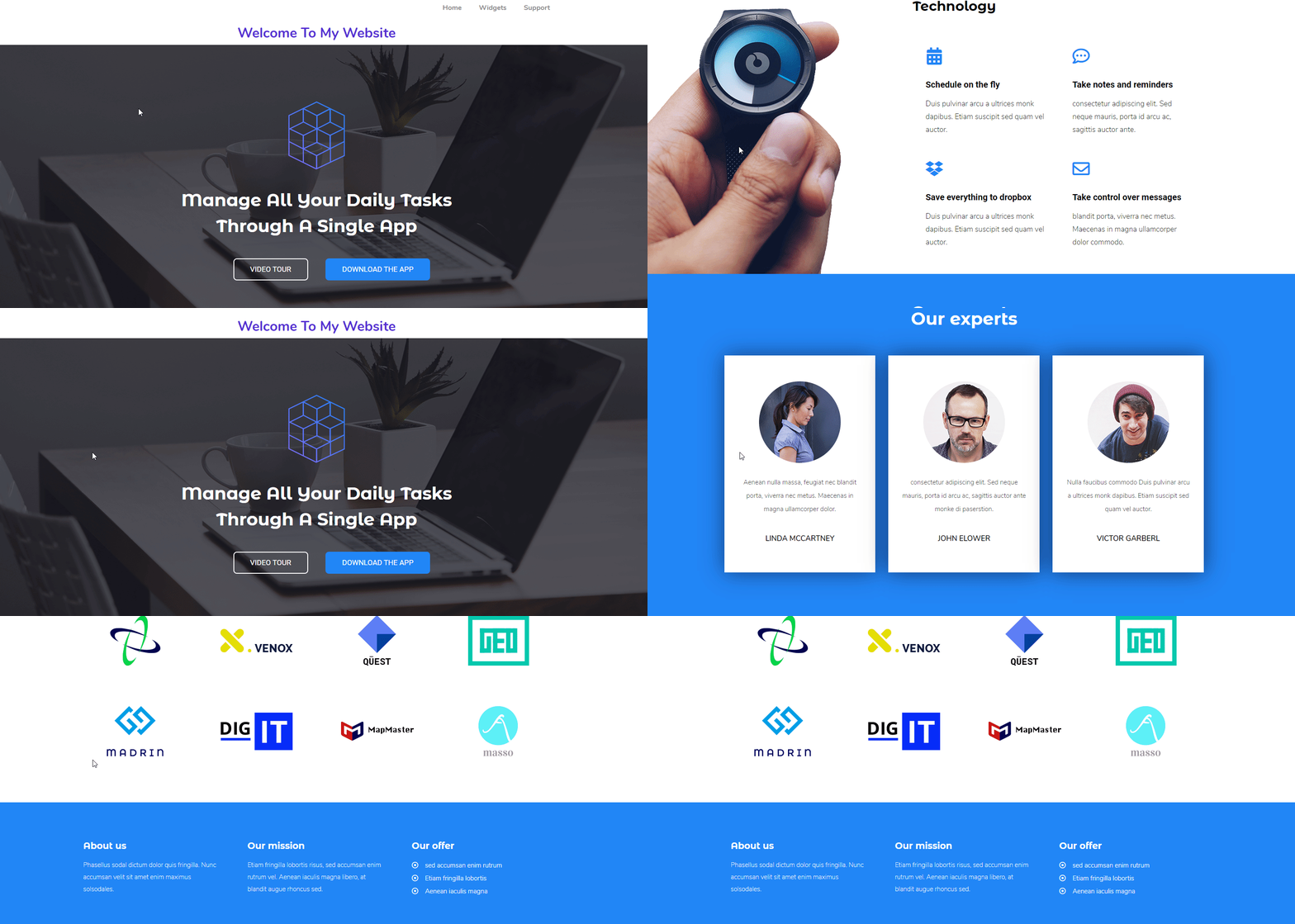
Note: Suppose you’re a project manager. And you want to design a personal website with Elementor that looks like a professional one. Keeping in mind it, we’ll try to design according to that concept.
Customizing the Header Part of Elementor Site
In the header part of this template, you can see a header text. So you can edit it and give a fresh tagline of yourself. From the left sidebar, you can see the options are available to customize more.
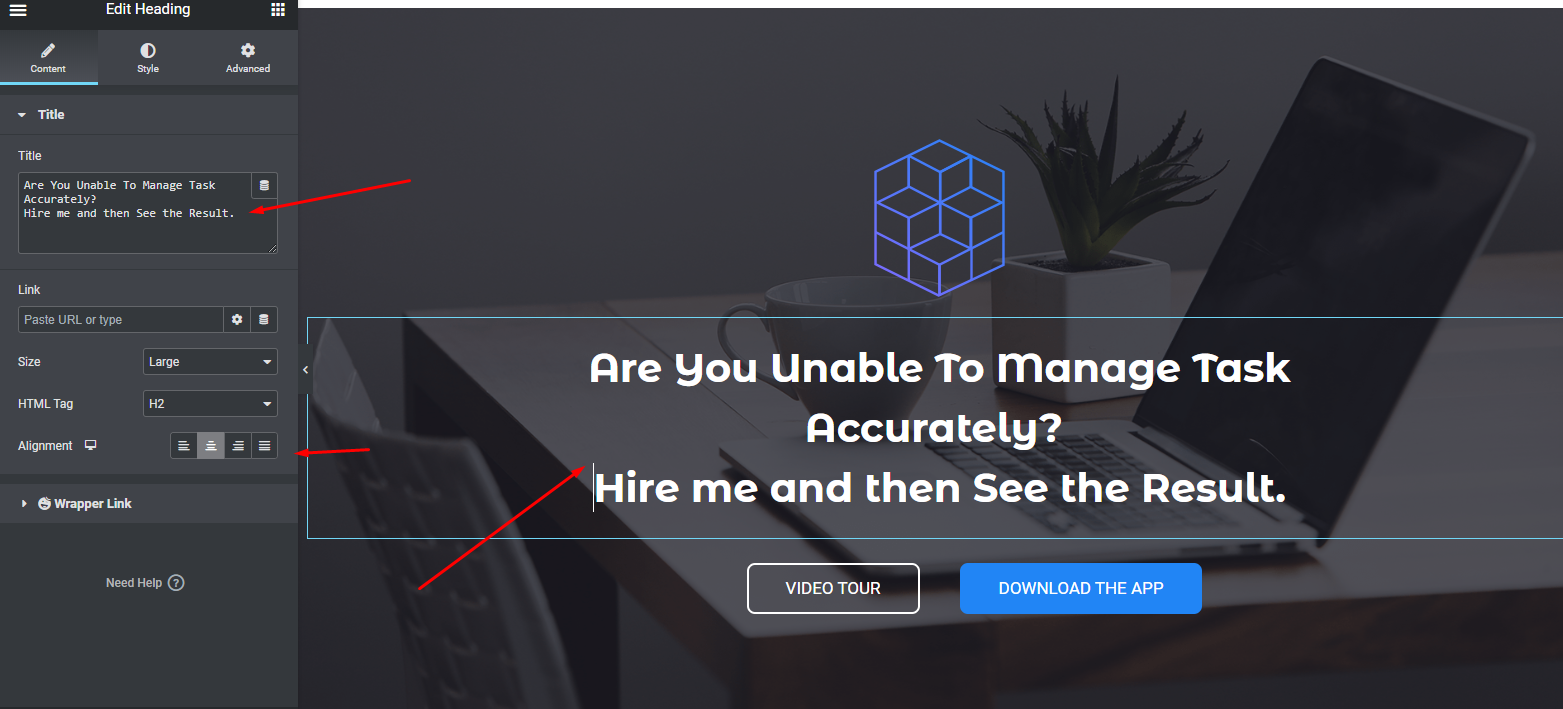
Editing ‘About Me’ or ‘What I Do’
In the same way, you can customize this part. Actually different templates have different ways to organize the content. So you have to think about what you need.
However, in the next section, just put the title ‘About Me‘ or ‘What I do‘. And now you can customize the entire portion by giving your actual data.
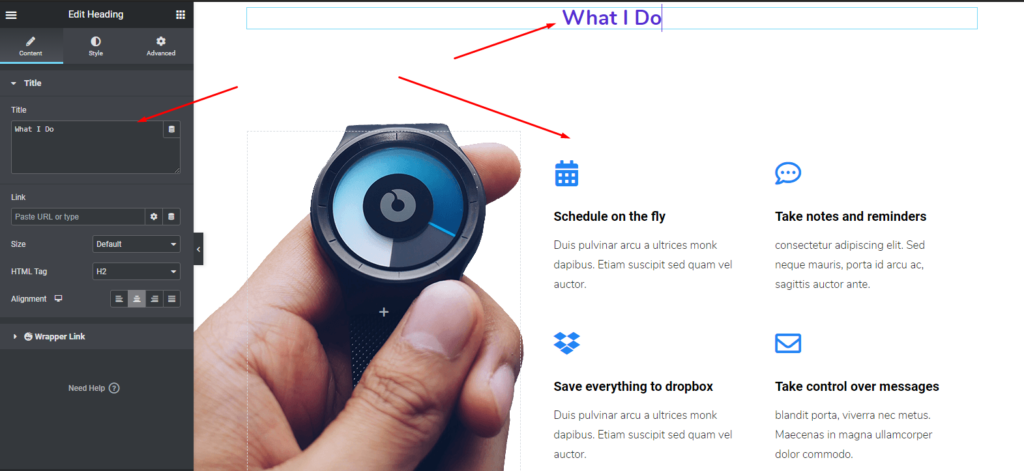
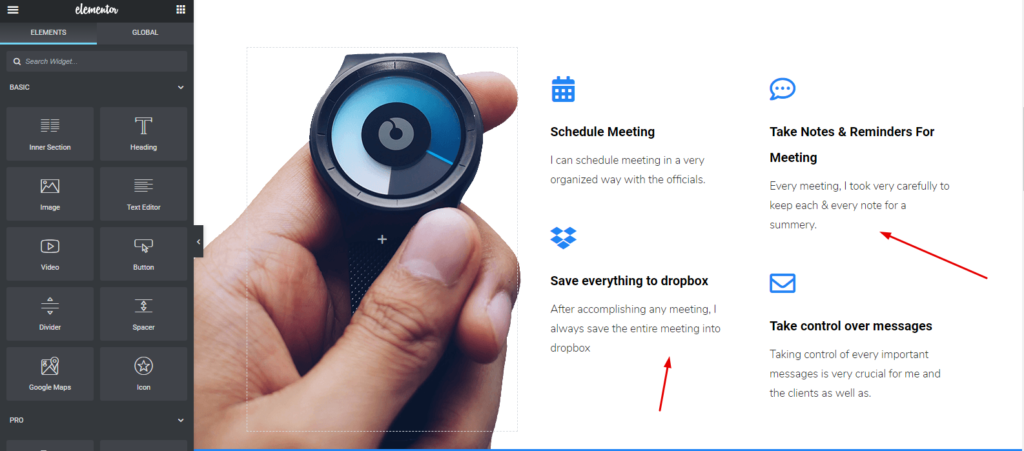
Now its time to customize inside the section. All you need to do is, just click each part and them customize it.
Customizing Testimonial Section of Your Elementor Site
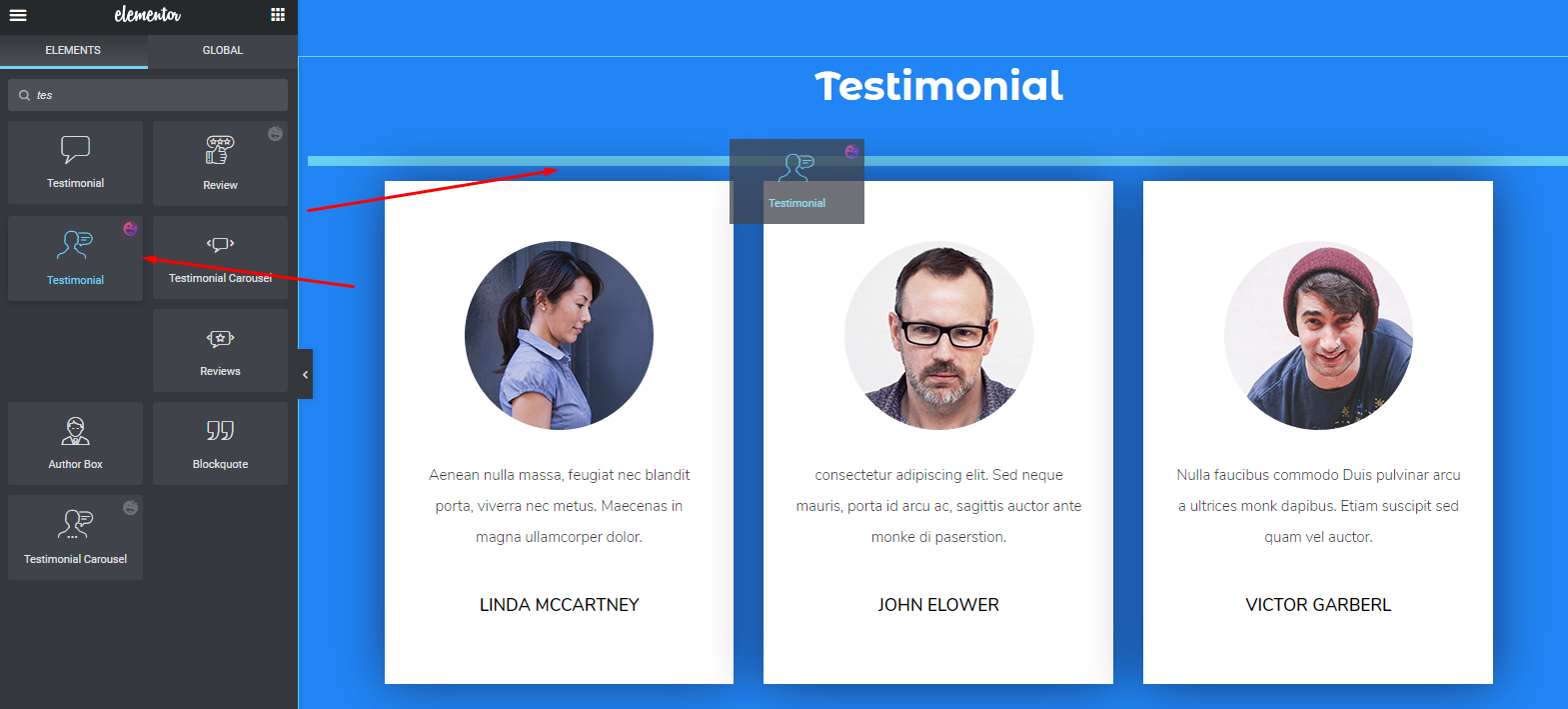
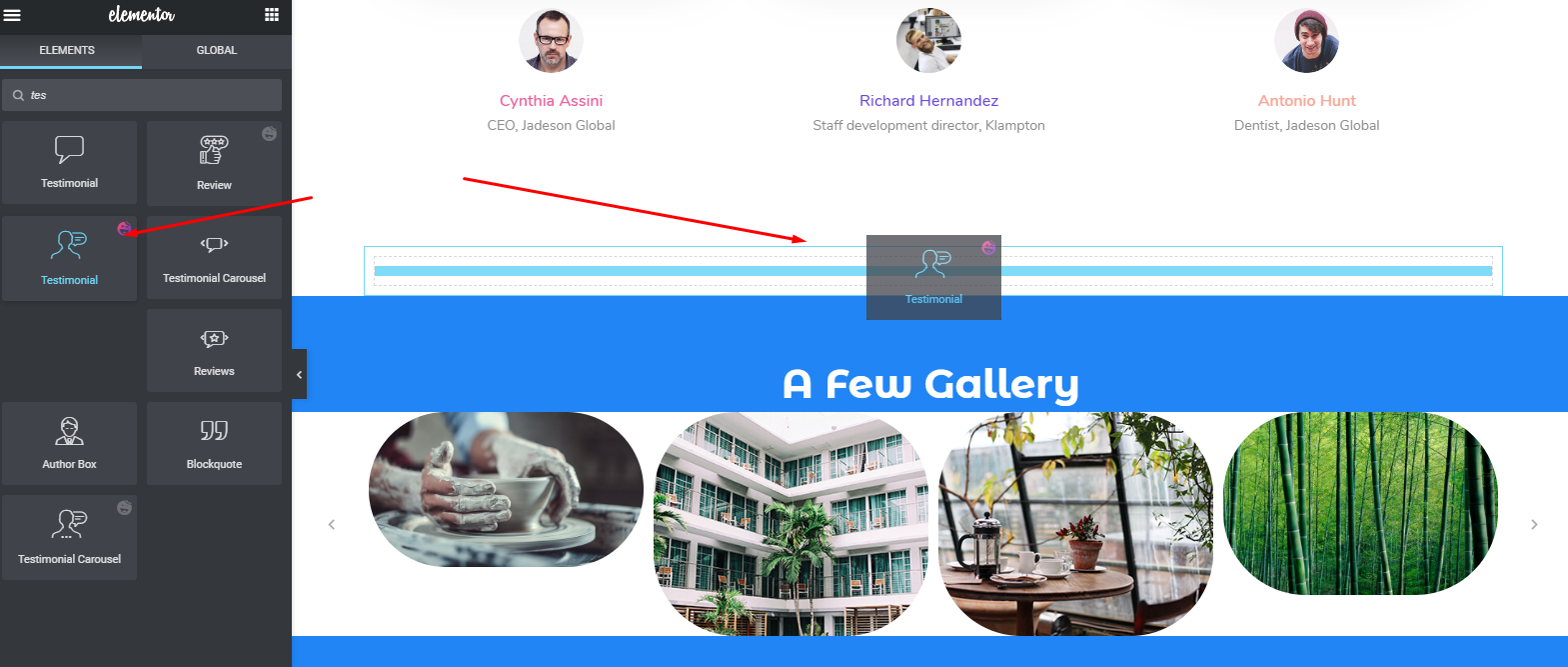
To edit this section, either you can customize the existing section or you can use Happy Addons Testimonial widget. So let’s see how to use it.
First, drag the widget from the left sidebar. And put in on the marked area.
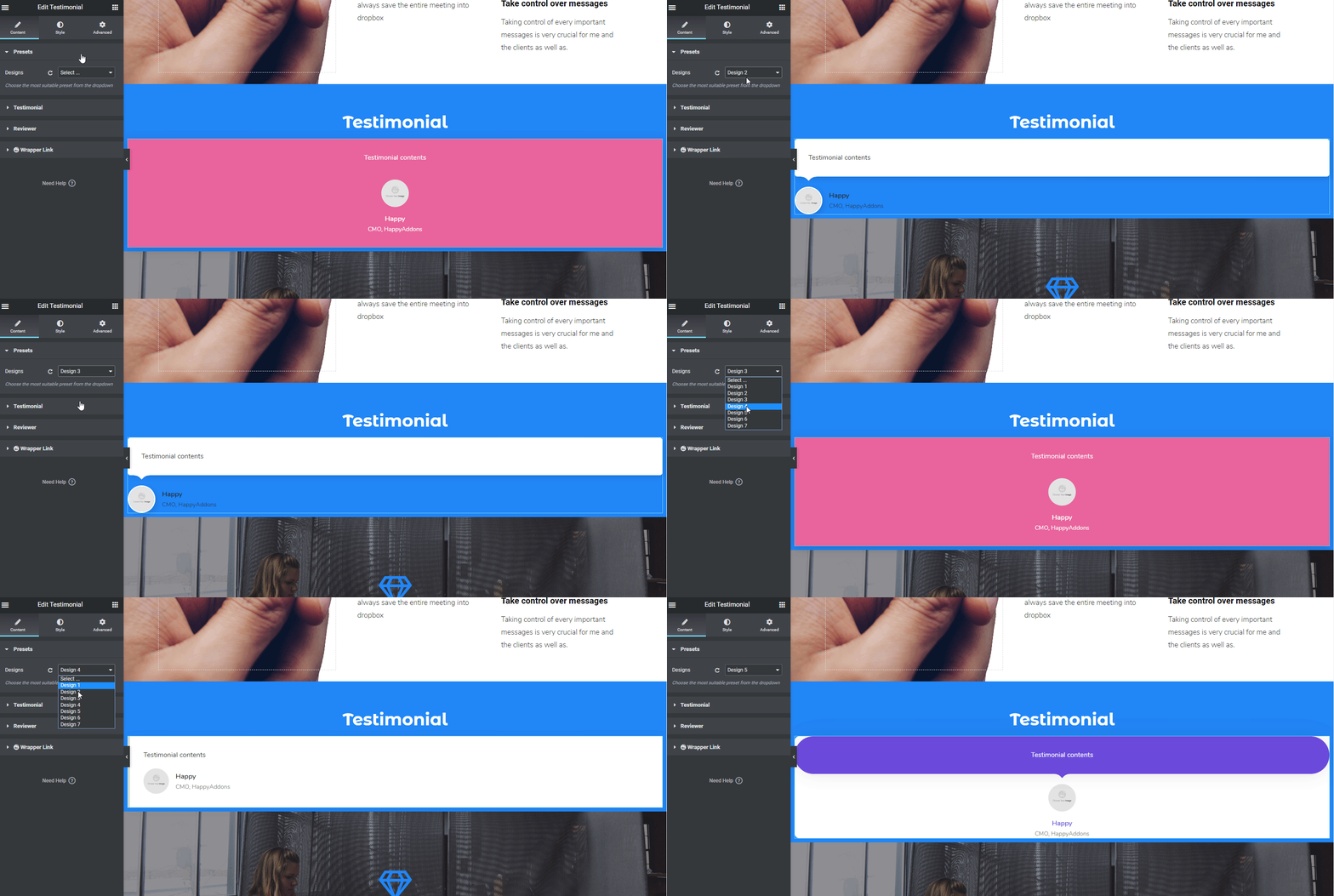
Then select the preset or pre-created design for the section. Now you can see there are different in-built designs are available to use. Just select anyone you like. It will automatically appear on the screen.
After using preset and inserting data into the widget, your design will look like the following. And you’ll able to edit, testimonial from your client, reviewer photo, his/her designation, etc.
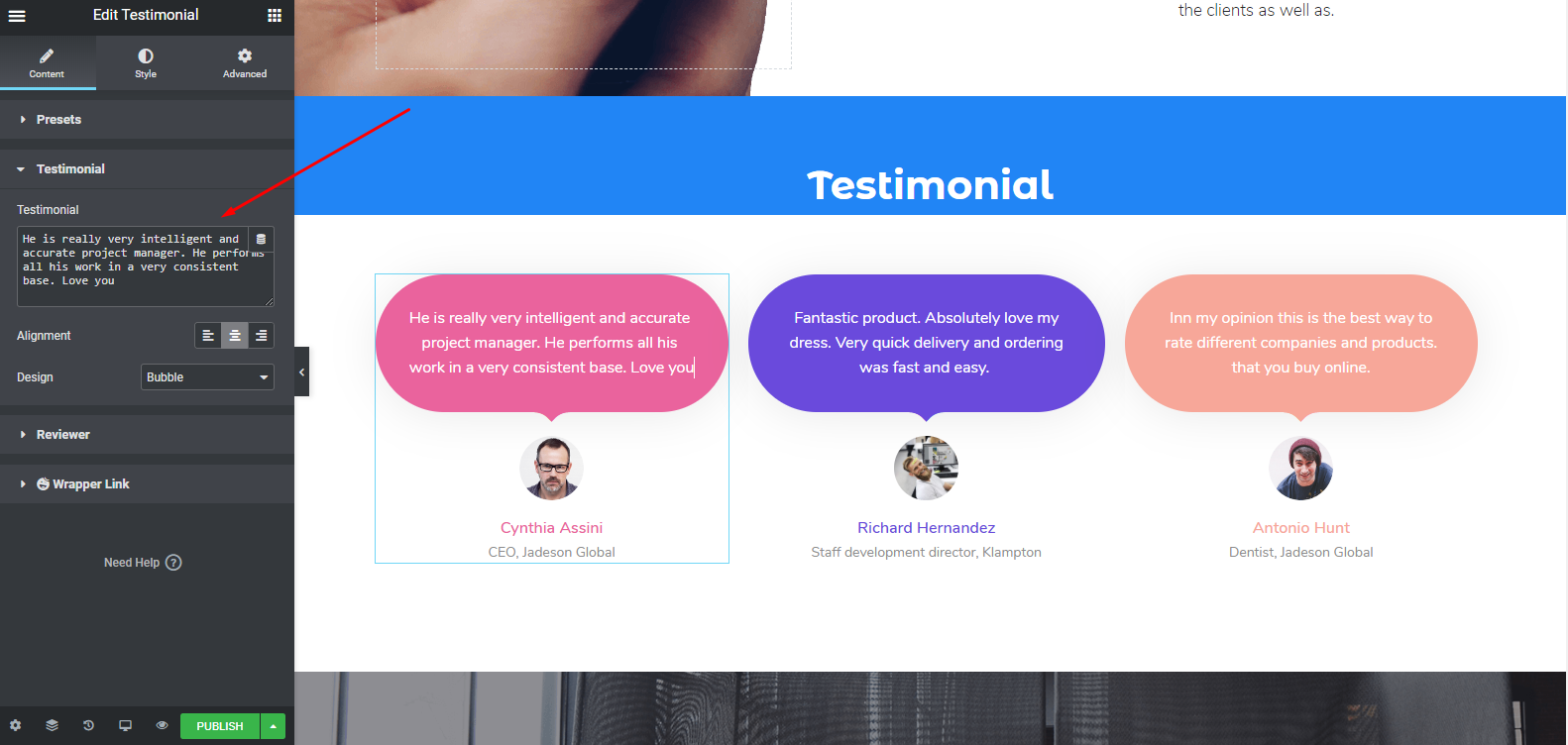
However, you can look at the documentation of ‘Testimonial Widget’ to know more precisely. Or you can look at the following video to know how to use this widget.
Adding Projects or Gallery
In this case, we’ve selected the ‘Image Carousel‘ widget of Happy Addons. This widget will let you add your preferred images in a very lucrative way.
Like other widgets of Happy Addons or Elementor, just drag the widget and paste it to the marked area. And then customize it according to your website or design sense. Using this widget will not only beautify your website but also improve the website design as well.
To learn more about ‘Image Carousel’ widget read our documentation or watch the following video tutorial.
Customizing ‘My Clients’ Part
We haven’t change the existing template design. We are just customizing each part and utilizing Elementor and Happy Addons. So this part also remains the same.
To edit this section, we’ll add the ‘Logo Grid‘ widget like the same way. This widget will help you to showcase your personal client’s logos as completed projects. Thus it will increase more beauty of your website.
To add this widget, simply select the widget and drag it to the marked area. That’s it.
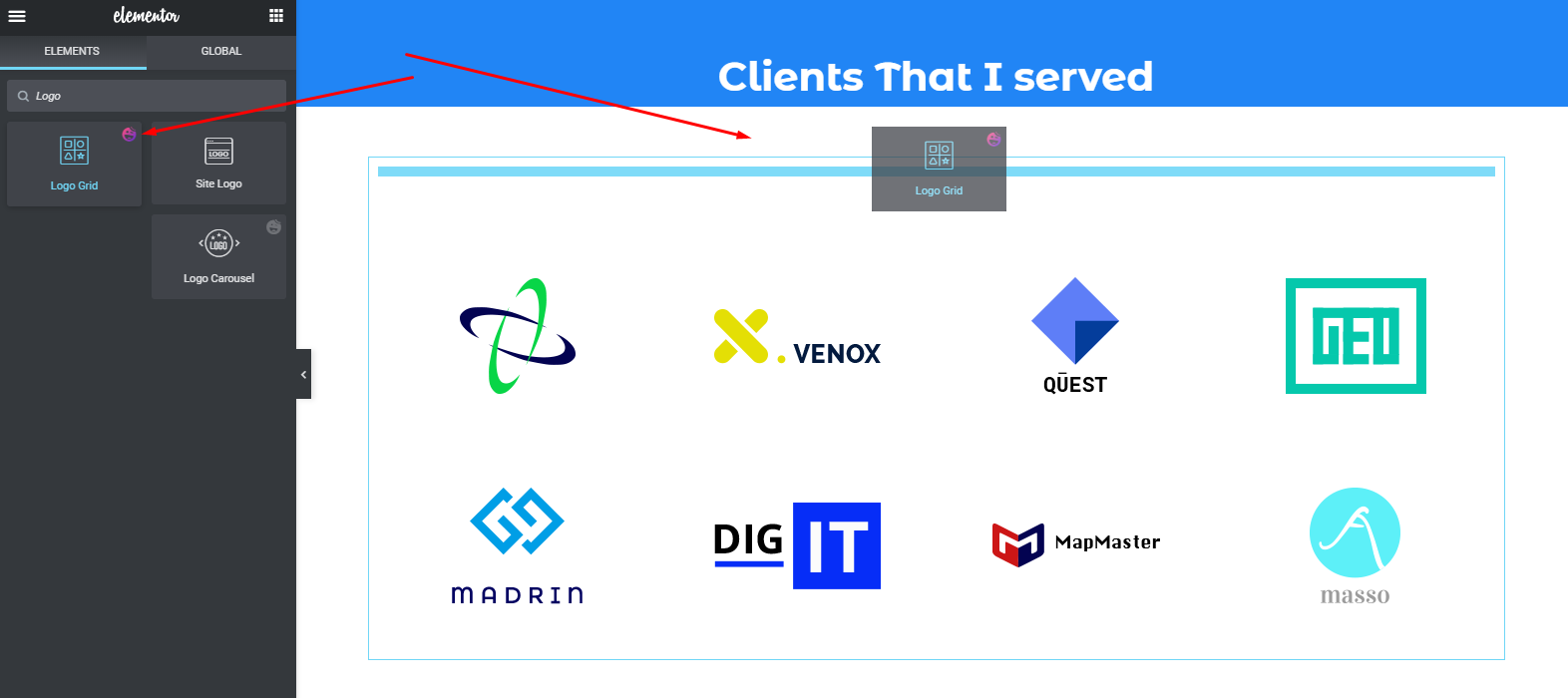
After that, you’ll able to see the widget is ready. Now just edit the widget according to your website theme. Here is the sample, and you can also apply the preset on this widget to get the best-suited design for your website.
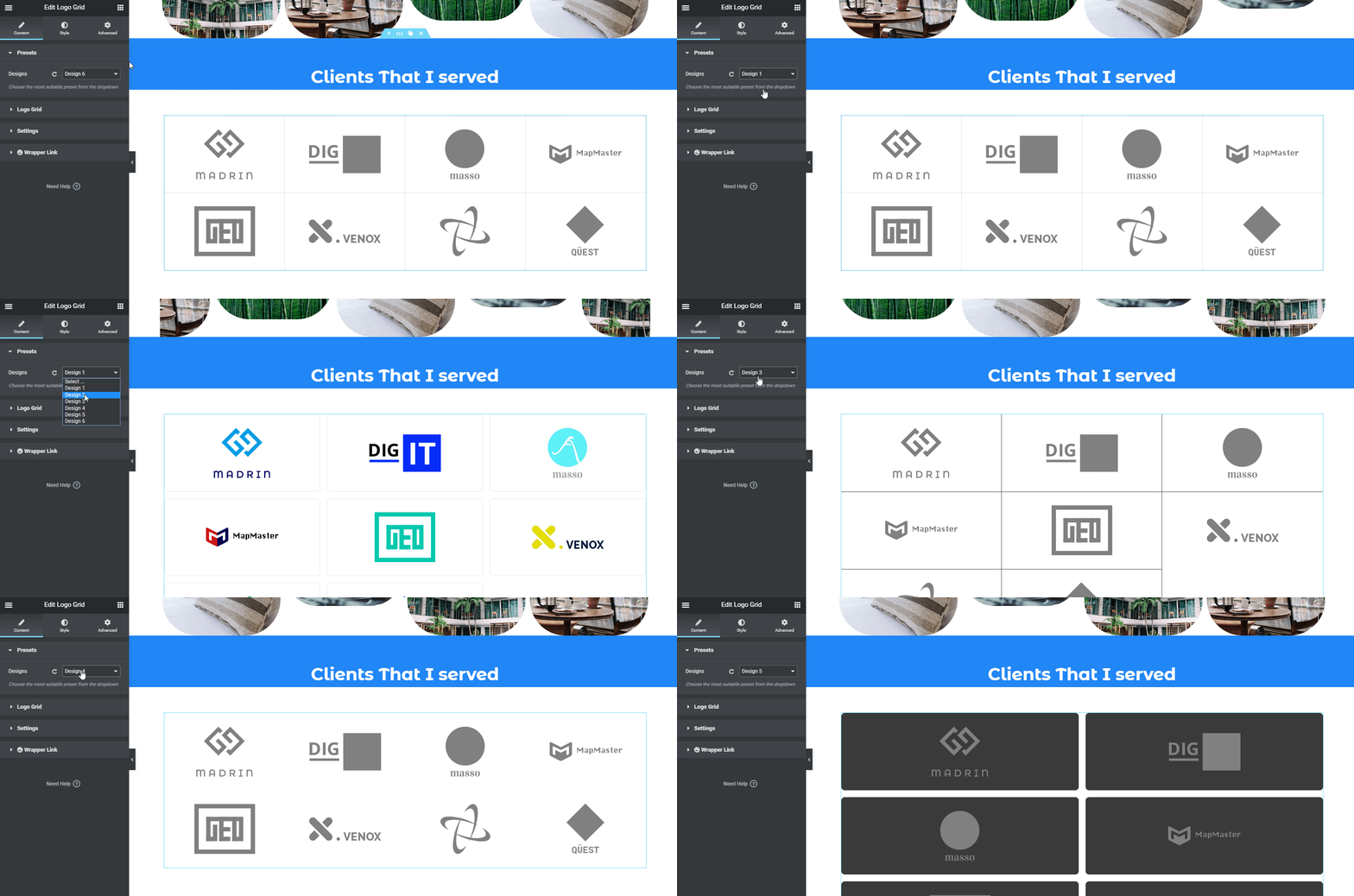
If you still find it difficult, you can check out our documentation of the ‘Logo Grid‘ widget of Happy Addons. Or watch the following video tutorial.
Customizing Footer Section
Finally, you’re almost done with your website design. This section is very easy to customize. Just click on each & every section, and then give the information. That’s it!
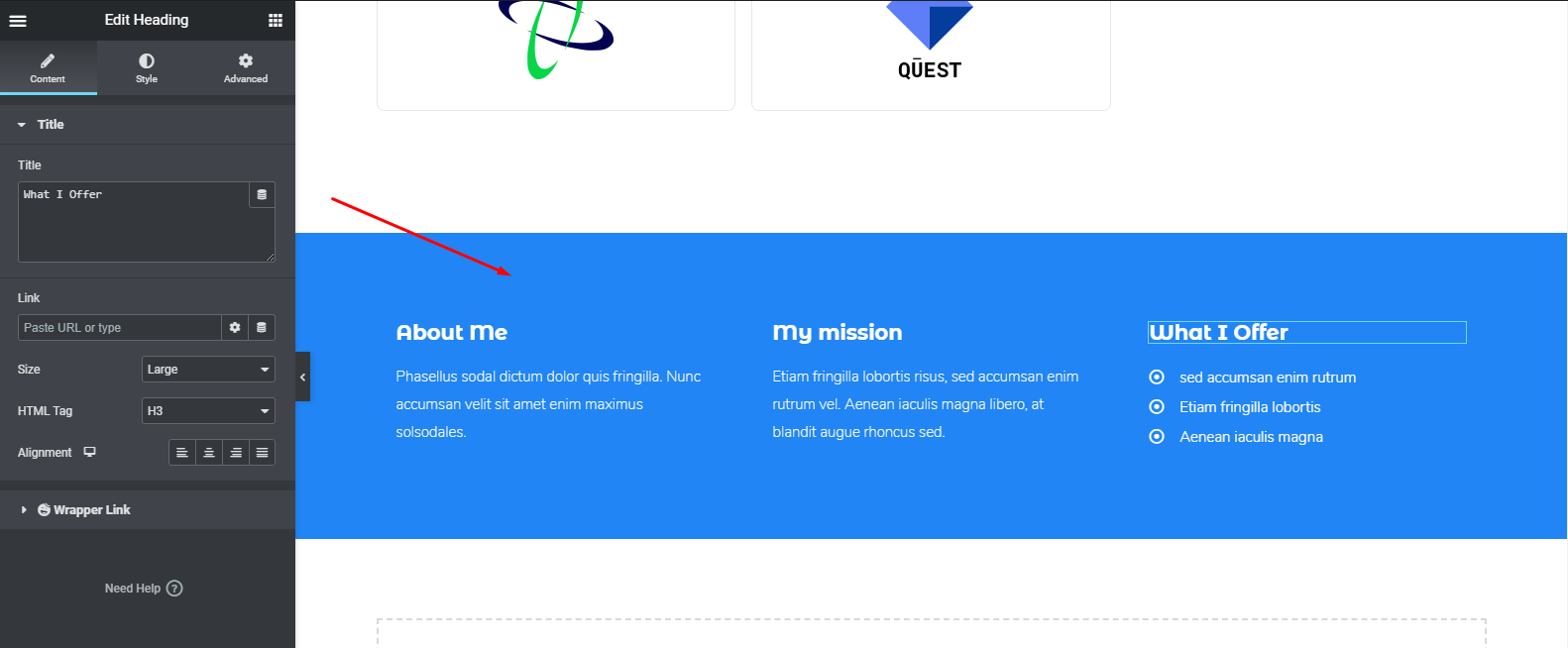
However, if you want you can use another widget of Happy Addons in the footer section to make it more attractive. And it’s ‘Feature List‘ widget. But it’s a pro widget of Happy Addons.
So after utilizing it, it will look like the following one.
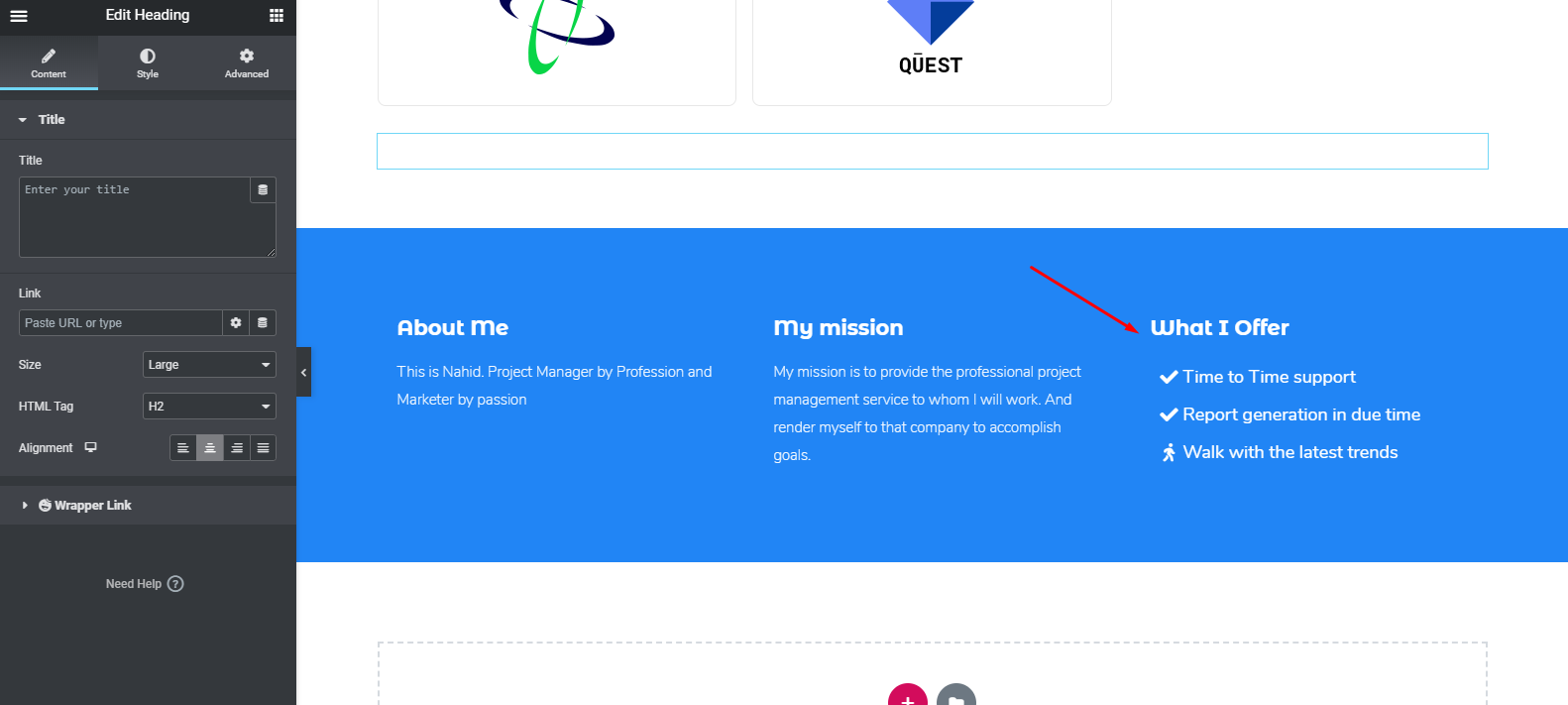
Check out the ‘Feature List’ widget documentation or watch the following video tutorial to know more about this widget.
Final Preview of the Entire Website
So after employing all the methods perfectly, you may preview your final output like it can be seen below. And this is how to create a website with Elementor and Happy Addons collaboratively.

Related Article: Is It wise to Use Happy Addons along with Elementor.
More HappyAddons Widgets & Features You Should Give a Check
Well, throughout this article you may get something useful and interesting things so far. And also we’ve shown some widgets of Happy Addons in the tutorial part.
But now, we’re going to share more interesting widgets & features of Happy Addons shortly. And we hope that you’ll enjoy watching it.
So let’s get started:
Widgets You Can Use for Website Design
- Fun Factor Widget: It’s like the Elementor Counter Widget. But you can display all your number related designs with this widget.
- Post List: If you want to showcase your most important or informative posts to any web page, you can do that using this widget.
- Post Tab: This widget will allow you to display posts in multiple tabs. Extremely useful to display grouped contents or related content.
- News Ticker: Display your breaking news headlines or important post title in a nice scrolling way with lots of stunning styles.
- Flip Box (Pro): If you like comparison, then this widget will help you. Yes, it can deliver messages in a beautiful way with before and after-effects.
- Polar Area Chart (Pro): Display your data in different ways. Even in a more organized & animated way.
- Radar Chart (Pro): Visualize your data in different ways; each of them animated and customizable.
- Animated Text (Pro): Using this widget, you can showcase your website taglines or any words. And this will help you display them in an animated way.
Besides, you will get a number of useful and unique widgets with Happy Elementor Addons.
Features You Can Utilize For Website Design
- Floating Effect: Using this feature, you can create stunning animations for any Elementor widget using this feature. Translate, Rotate, or Scale whatever you want.
- Preset: Display any widget in a separate style from a collection of pre-defined collection of designs in a minute using our preset engine
- Live Copy: Tired of designing? Then this widget can make you relief. Yes, you can directly copy the core design and paste it on your site without any hassle.
- Unlimited Nesting: Sometimes it’s very difficult to create or do more things with the stock Elementor section. In that case, this feature will help you to create an unlimited section inside the mother section.
- Display Condition: This feature will help you to display your content depending on different kinds of a condition like Browser, Operating System, Date Range, Time and many more
- Grid Layout: Make your design more Pixel Perfect with this Happy Grid Layout Feature.
So these outstanding features you’ll get with Happy Addons. And using these you can effortlessly empower Elementor with ease.
Related Article: Learn More About Happy Addons Features (Free & Pro)
Are You Ready to Build a Professional Website
So, after a long & elaborate discussion, now you may know how to create a website with Elementor. Right? If your answer is yes, then without spending a single moment please get yourself ready to create a website.
Anyways, we will not prolong our words saying the same thing again and again. Rather we’ll tell you to take the proper initiative at the right time utilizing Elementor & Happy Addons collaboratively.
Still, have some confusion or queries? Drop a line in the comment section below. We will attend you shortly.

![Black Friday and Cyber Monday are around the corner, and people are waiting for these festivals to grab the best product deals. That is why giving an attractive look to your website during this festive season is very necessary. But, creating a whole new landing page might be difficult in a short period of time. Don't worry. By using Happy Elementor Addons Black Friday and Cyber Monday Landing Page templates, you can easily develop a whole new landing page in a few minutes. In this today's blog, we are going to show how to boost your website design using HappyAddons templates during this festival season. Before that, we'll talk a bit about these two festivals and why they are important to online business communities. What are Black Friday and Cyber Monday? Black Friday is the immediate following of the famous Thanksgiving day. This is when people start shopping to celebrate the Christmas festival. Since the late 1980s, retail sales on this day have constantly been suppressing the past volumes. See the graph below. Source: Salecycle.com The first Monday following Thanksgiving day each year is called Cyber Monday. It was first introduced in 2005 by the USA National Retail Federation to encourage people to buy online. Though this festival originated in the USA, it is celebrated globally today. See the stats below. Source: Salecycle.com It indicates customers' buying behavior around this day is growing up over time. Many customers today keep a budget to buy products on these two days. So, why won’t you prepare a Cyber Monday landing page if you have an online store? Importance of Designing Landing Pages for Black Friday and Cyber Monday Festival Having a well-design website is one of the major checklists if you are running an online business. Most importantly, you have to make sure that your website remains up-to-date to boost your sales. That is why you need to redesign your website or make a new landing page during the Black Friday and Cyber Monday festivals. Because most online product & service-based businesses promote special deals during these two festivals. Here are some remarkable ways dedicated landing pages during these festivals can positively impact the performance of your online business. Boosts your product salesIncreases conversion rateOpportunity to collect potential email leadsGrabs users' attention toward your siteReduces bounce rateIncreases website visitors. Elementor Black Friday New Seasonal Kit is Already Here! Source: Elementor To make this Black Friday more enjoyable, Elementor has launched a New Seasonal Kit that includes landing pages, sections, pop-ups, and vector assets. All these design elements are made by the Elementor team so that one can easily use them on their website to ensure more sales and conversions. New Elementor Black Friday Seasonal Kit offers: 3 Landing pages6 Sections 6 Popups A collection of stickers & animations You can only get these ready-made Black Friday landing pages and sections if you have Installed Elementor Pro on your site. However, if you are looking for templates that are outside of the box, you can go with Happy Addons, the fastest Elementor Addons on the market. It's very easy to use, flexible and has tons of advanced features and widgets that can ease your website design journey. Also, you'll get several festival landing page templates & blocks. Moreover, you can use free Black Friday and Cyber Monday design blocks and templates to decorate your site. Most importantly, these templates and blocks are easy to customize and can be used for multiple purposes. Now let's see how you can use the Happy Addons templates to design your website according to the Black Friday theme. Pre-Requisites to Use HappyAddons Templates to Design Black Friday and Cyber Monday Landing Pages You must have the following plugins installed on your site to get access to the HappyAddons Template library. Make sure you’ve installed and activated the Happy Addons Free & Premium version of your website. Elementor (Free)Happy Addons (Free)Happy Addons Pro If you are new to Elementor, check this Step By Step Guide For Beginners. If you want to explore the readymade templates of HappyAddons before installing these plugins, you may visit by clicking on the button below. Check out Happy Addons Templates How to Design Black Friday Landing Page on Your Website Once you have the plugins (mentioned above) installed, your website is ready to follow the tutorial guide explained in this section. Get ready now! Step 1: Open a New Page with Elementor Create a new page or open the existing page with Elementor. Next, you have to select the Elementor Canvas option.Unless you select Elementor Canvas, you may watch the header, footer, and unnecessary other texts on the page. These might be irritating to you.Once you open the page with Elementor Canvas, your page will be completely clean. Watch the video below on how to do it. Step 02: Go to HappyAddons Library Click on the HappyAddons Library Icon. It will open up a modal popup. Here you'll find numerous stunning premade Blocks and Pages created by the Happy Addons team. Kindly explore them to create a list of your favorite items. Step 03: Import a HappyAddons Black Friday Template Go to the Page tab on the modal popup.Select Black Friday from the left-side filter option.You will several good-looking templates on your screen.Take your cursor on the one you like and hit on the INSERT button. Wait for a while to finish the installation process. You will get the template on your screen with editable sections and options. Step 04: Set the Black Friday Campaign Deadline A deadline creates a sense of urgency in customers' minds. So, better if you add a deadline section on the page to show your Black Friday deals. The good thing is that if you select the template as we did, you will automatically get a deadline or countdown option. You have to customize it as you want. Step 05: Show Image Carousel Slider on Your Black Friday Landing Page Using the Image Carousel, you can slide show demonstrating discounts on your product categories. Drag and drop the Image Carousel widget on any landing page section. Next, from the Elementor panel, you can add photos and text to the widget. Do it accordingly. Thus, you can add more sections and options on the landing page. Hope you can do it yourself. Step 06: Make the Black Friday Landing Page Mobile Responsive Making a web page mobile responsive with Elementor is super easy. You'll get the mobile responsive option on the Elementor footer section. Clicking on it will open up the option to view your landing page on different device screens. We have explained the process in the video below. Note: Don't delete any widget or section while customizing your landing page for any particular device. Because if you delete a widget or section on any device screen, it will also be applied on other devices. However, you may change their position or alignment or hide them. It won't make any impact on other devices. Step 07: Final Preview of Our Landing Page Here is the final interface of our Elementor Black Friday landing page that we've designed using the Happy Addons' ready-made Template. Get Happy Addons to Add a Black Friday Theme Landing Page on Your Website How to Design Cyber Monday Landing Page on Your Website You will require the same prerequisites (Elementor and HappyAddons Plugins) to design the Cyber Monday landing page on your website. Hope you have them ready on your website. Now, let's get into the tutorial part. Step 01: Import a Cyber Monday Readymade Landing Page Template Go to the HappyAddons Template library.Choose the Cyber Monday template you like.Click on the INSERT button. Wait for a while to finish the installation process. You'll get a page design like the following image below. Step 02: Edit Different Sections of the Page In the first tutorial, you saw the deadline/countdown option was already embedded in the template. But this template doesn't have it. So, you can bring it to your page? Very simple. Create a new section by clicking on the plus icon.Type Countdown on the Elementor search bar.Drag and drop the widget on the section. Customize the Countdown section from the Content and Style tabs of the Elementor panel. Using the Heading widget, we have added the FLASH DEALS text next to the countdown to make it more meaningful. Thus, you can use other exciting widgets on the template to make your landing page super gorgeous. Step 03: Promote Products on the Landing Page Promotional landing pages usually include a section to showcase some hot-selling products to generate instant sales. Using the Image and Button widgets, we have created this section under the FLASH DEALS.You may customize it more as you wish. Step 04: Make it Mobile Responsive We already showed you the process in the first tutorial on making a mobile web landing page responsive. Hope you can do it here as well, following the same guideline. Click on the Responsive Mode icon and do the rest yourself. Bonus: Black Friday and Cyber Monday Landing Page Design Key Considerations Whenever you design a landing page, you need to consider why you need to design this page and what elements they should keep on the page. Because if you are not adding all the necessary features to your page, it will not serve its purpose. This is why you need to focus on a few things before designing your Black Friday landing page. Here are some points you must consider in designing Black Friday and Cyber Monday landing pages. Add Black Friday textSet deals deadlineShow your best-discounted productsAdd coupon code Focus on responsive page designMake your page visually appealingImprove your page user experience or page structureSet a proper website navigation FAQ on Black Friday and Cyber Monday Landing Page Design Now, we'll answer some common questions on Black Friday and Cyber Monday Landing page designs commonly found online. How much does it cost to design a landing page?The cost of designing a landing page varies depending on the complexity of the design, the level of customization required, and whom to hire for the page. A simple landing page can be designed for as little as $25, while a more complex design with multiple customizations can cost upwards of $2,00.However, if you have Elementor and HappyAddons installed, you can design unlimited landing pages at a minimal cost. But like any other tool, you must have a kind of enterprise on them. As they are drag-and-drop builders and their numerous tutorials and documentation are available, they won't take you more than a month to be used to. Check out some wonderful YouTube tutorials on these two plugins. Hope you will enjoy them.How many hours does it take to design a landing page?It mainly depends on the level of design complexity and your web design skill. However, both in Elementor and HappyAddons, you will get countless readymade templates and block sections. You can design a beautiful landing page in 3-5 hours by making a proper combination of them.Can I design Black Friday and Cyber Monday Landing pages with Elementor and HappyAddons free versions?Surely, you can design Black Friday and Cyber Monday Landing pages with Elementor and HappyAddons free versions. But only with the pro versions, you can't add too many exciting features to your pages. For example, free versions will give you access to only a limited number of readymade templates.If you are just a beginner-level designer, free versions are enough. But if you are a professional designer or have a web designing agency, pro versions are a must. Are You Ready To Design Your Black Friday and Cyber Monday Landing Page? Customers look forward to this kind of occasion to buy their favorite products at a minimum price. Naturally, they are drawn to websites that look good and give a festive vibe. That is why adding a Black Friday and Cyber Monday landing page during the festival season will give you an extra edge over the competitors. The above guide shows how to design your Elementor Black Friday Landing page using the Happy Addons' Black Friday Templates and how it can help boost your holiday sales. So if you have any queries regarding this blog, you can comment on us in the below box. If you like this post, then share it on your social channel. Don't forget to subscribe to our newsletter. Also, follow our Facebook and Twitter channels for regular updates. Subscribe to our newsletter Get latest news & updates on Elementor [yikes-mailchimp form="1"] ":36560} /--](https://happyaddons.com/wp-content/uploads/2021/11/How-to-Design-Black-Friday-and-Cyber-Monday-Landing-Page-300x188.png)
One Response