




How to Use HappyAddons Liquid Glass Feature
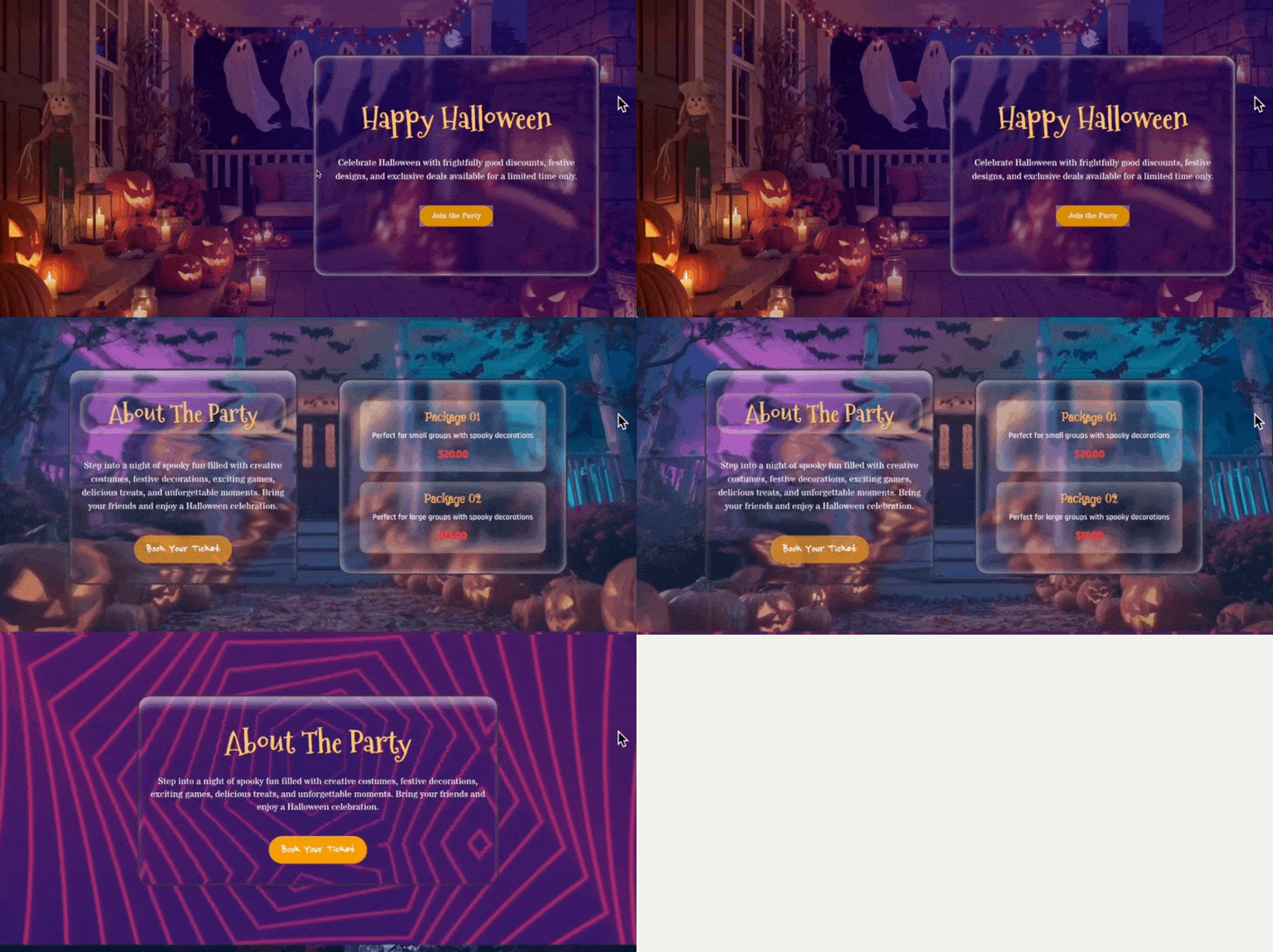
The Liquid Glass feature lets you create beautiful glassmorphism effects for containers and widgets in Elementor. By applying blur, shadows, borders, and distortion effects, you can achieve modern translucent UI elements that blend naturally with colorful backgrounds.
Whether you want to use one of the built-in presets or create your own custom glass effect, Liquid Glass gives you complete control over the appearance.
Required Plugins
You will need the following plugins installed:
- Elementor Free
- HappyAddons Free
Note: The Liquid Glass feature works only on Google Chrome. It doesn’t work on iPhone or iPad.
How to Activate Liquid Glass
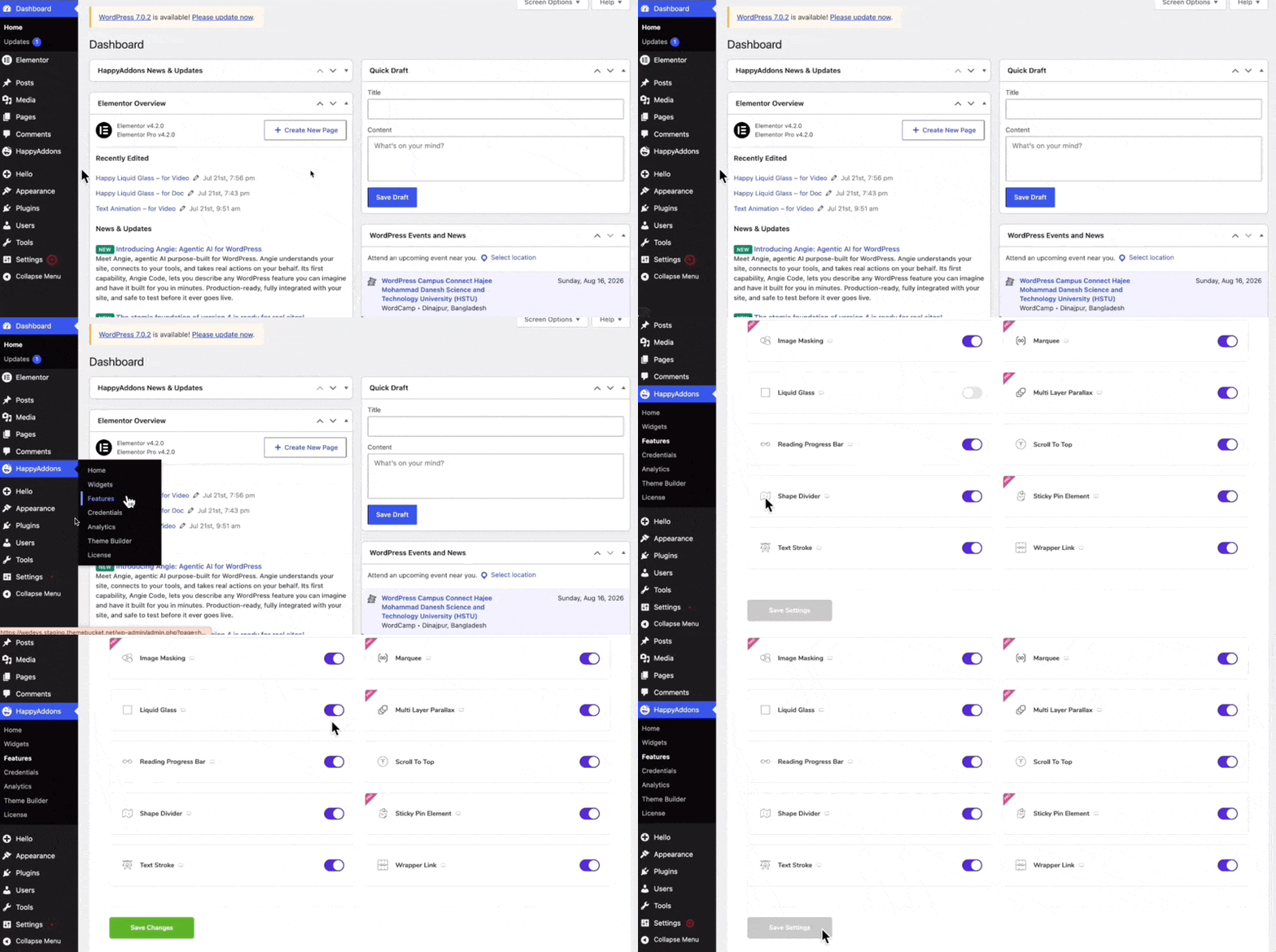
Navigate to: HappyAddons → Features → Liquid Glass. Enable the feature.
Then edit the page with Elementor.
How to Apply Liquid Glass
The Liquid Glass feature can be applied to both containers and widgets.
For Containers
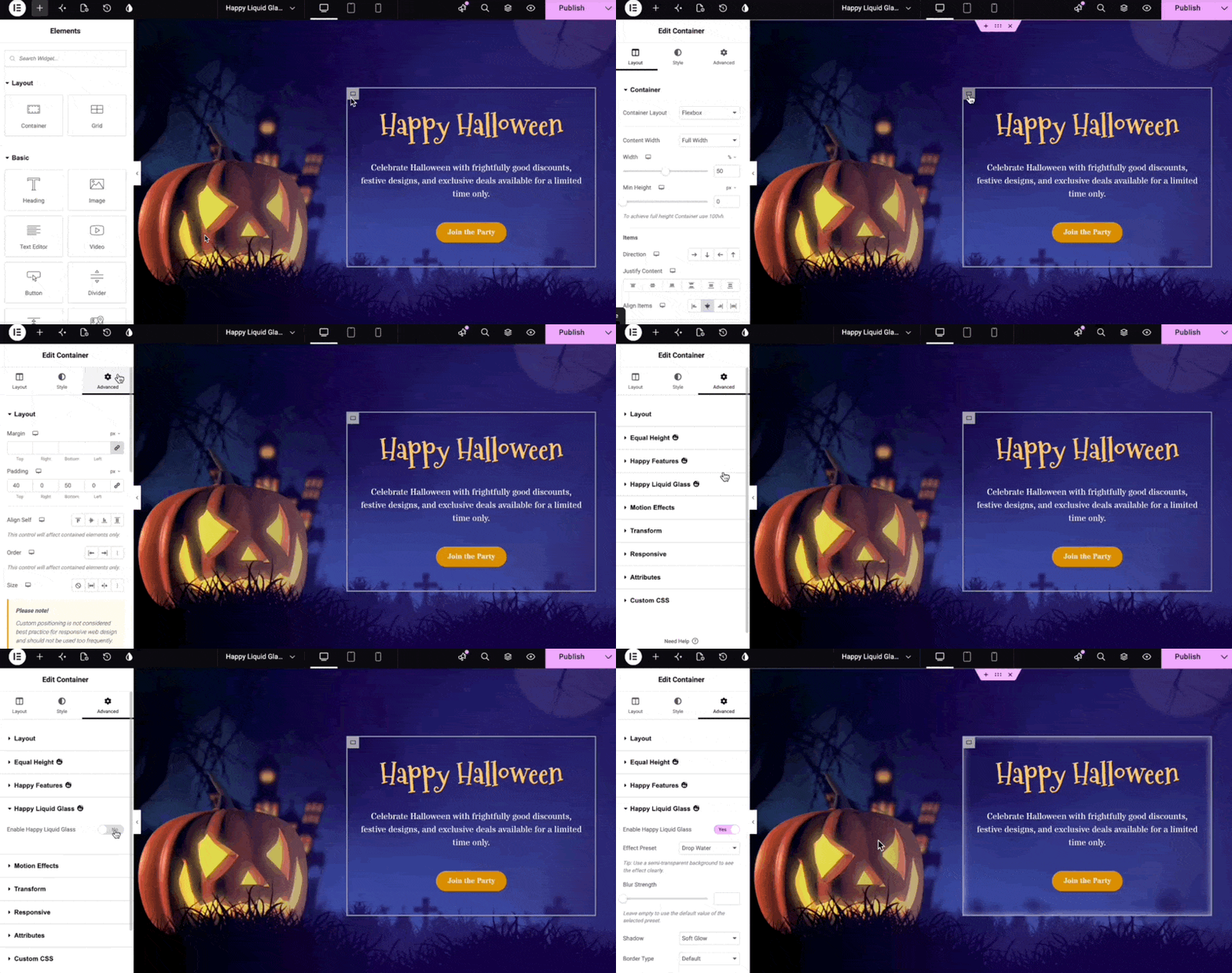
- Select the container.
- Go to the Advanced tab.
- Expand Happy Liquid Glass.
- Enable the feature.
For Widgets
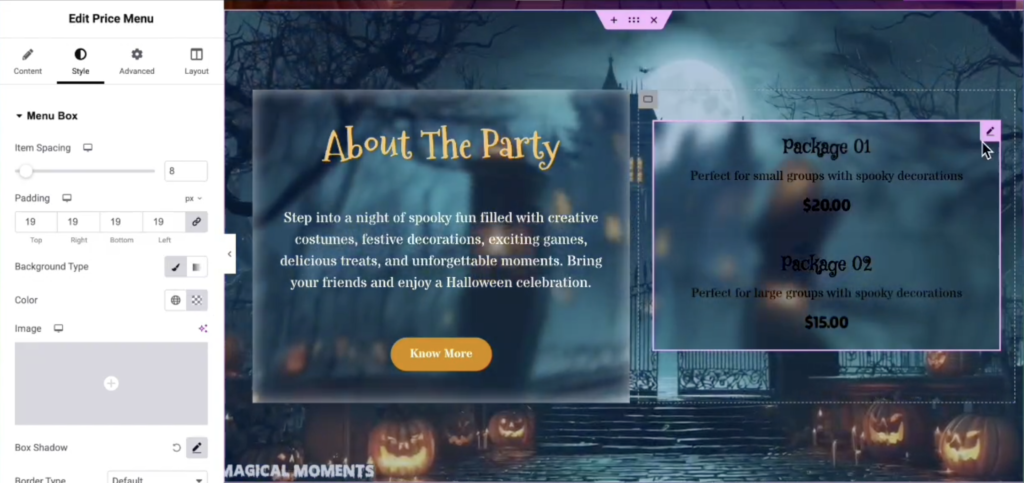
- Select the widget.
- Go to Advanced → Happy Liquid Glass.
- Enable the feature.
Important: If the widget already has a background color, set its background opacity to 0 from the Style tab to make the glass effect visible.
Liquid Glass Settings
After enabling the feature, you’ll find the following customization options.
Effect Preset
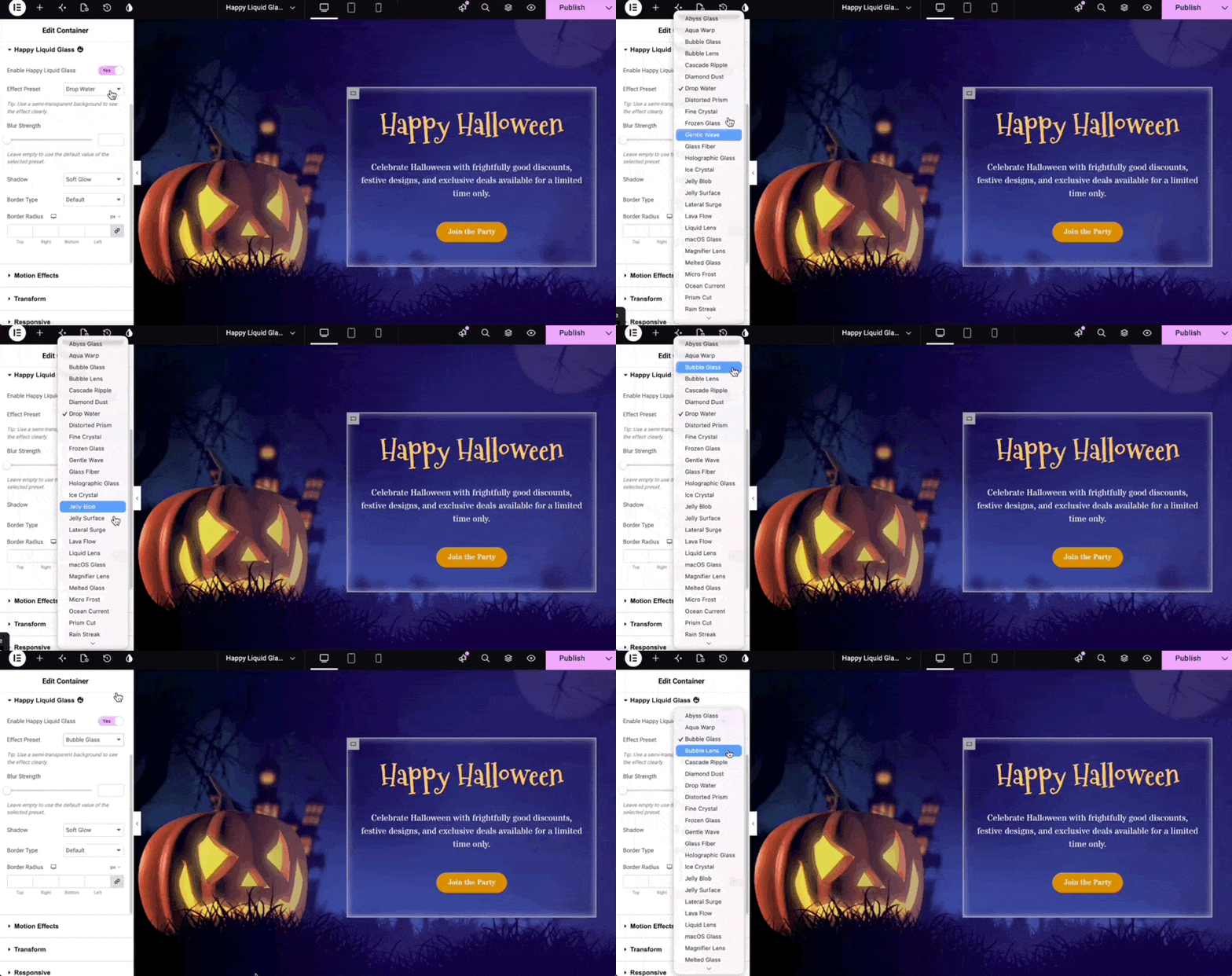
Effect Preset provides 33 pre-built glass styles that instantly change the overall appearance of the glass effect.
Simply select a preset from the dropdown menu to apply it.
Different presets create different types of distortion, reflections, and glass shapes. You can further enhance these presets using the additional customization options below.
Blur Strength
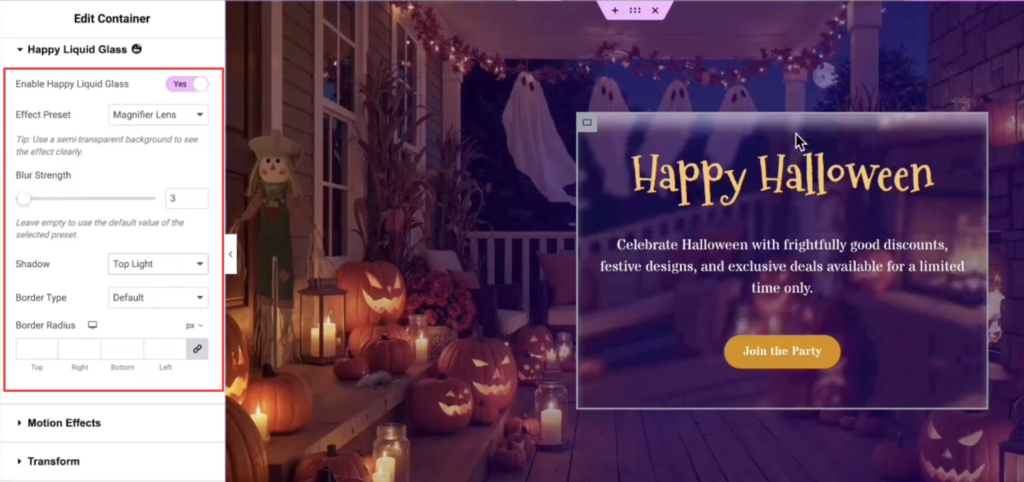
Blur Strength controls the intensity of the background blur visible through the glass.
- Lower values create a subtle blur.
- Higher values create a stronger frosted glass appearance.
Adjust the blur according to your design and background.Shaow
The Shadow option lets you apply different shadow styles to the glass element. Shadows help improve depth and make the glass stand out from the background. Choose the style that best matches your design.
Border Type lets you choose the border style around the glass element.
Changing the border can create sharper or softer glass edges depending on your design.
Border Radius controls the roundness of the container or widget corners. Increasing the radius creates softer, rounded glass elements, while lower values keep the corners sharp.
Custom Preset
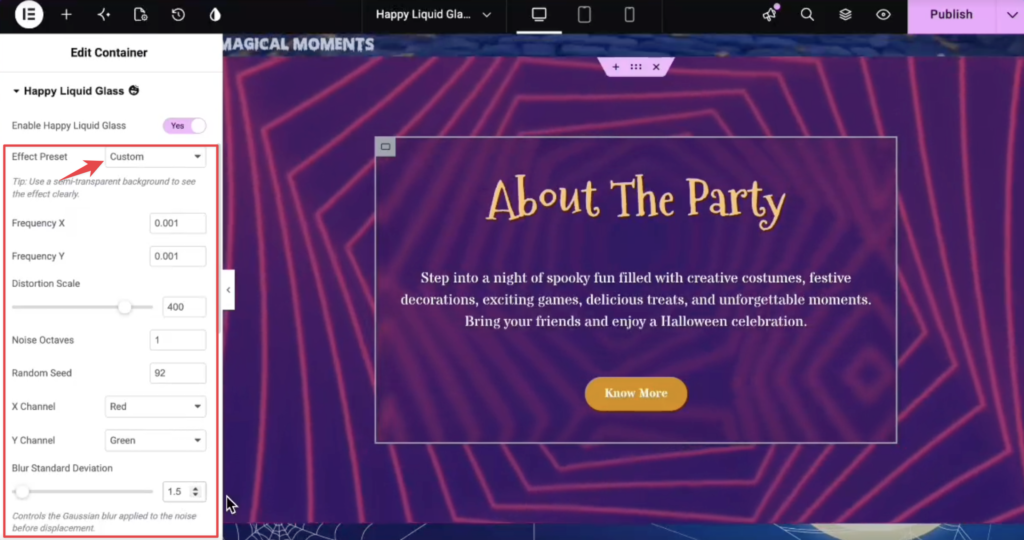
Besides the built-in presets, Liquid Glass includes a Custom option that allows you to create your own glass effect.
Selecting Custom reveals several advanced controls.
Frequency X
Controls the horizontal frequency of the distortion pattern.
Lower values create larger, smoother waves. Higher values create smaller and more detailed distortions.
Frequency Y
Controls the vertical frequency of the distortion pattern.
Using the same value as Frequency X creates a balanced appearance, while different values produce vertical or horizontal stretching effects.
Diortion Scale
Determines how strongly the background bends behind the glass. Higher values produce more noticeable distortion.
Noise Octaves
Controls the complexity of the distortion. Lower values create simpler patterns, while higher values generate richer and more detailed glass textures.
Random Seed
Random Seed changes the distortion pattern without affecting its overall intensity.
Use it to generate different variations of the same effect.
X Channel
Defines the horizontal distortion channel.
Different channels produce different distortion behaviors.
Y Channel
Defines the vertical distortion channel.
Using different X and Y channels generally produces a more natural-looking glass effect.
Blur Standard Deviation
Controls the smoothness of the distortion edges.
This setting only affects the distortion itself and is different from the main Blur Strength option.
Tips for Better Results
For the best Liquid Glass effect:
- Use colorful or high-contrast backgrounds.
- Background videos also work well.
- Combine presets with Blur Strength, Shadow, and Border settings.
- Remove widget background opacity when applying the effect to widgets.
- Experiment with Custom settings to create unique glass styles.
That’s It!
You have successfully learned how to use the HappyAddons Liquid Glass feature. Experiment with different presets and custom settings to create unique glassmorphism effects that perfectly match your website design.