




The Foreground Overlay feature in HappyAddons allows you to add a customizable overlay effect to a Container. You can use multiple colors, adjust their positions and opacity, control the blending width, and change the gradient angle to create different visual effects.
Note: Foreground Overlay works only on Containers. It is not available for other Elementor elements.
How to Enable Foreground Overlay
- Select the Container you want to customize.
- Go to Style from the Elementor panel.
- Expand Foreground Overlay.
- Choose your preferred Foreground Type.
- Customize the overlay using the available settings.
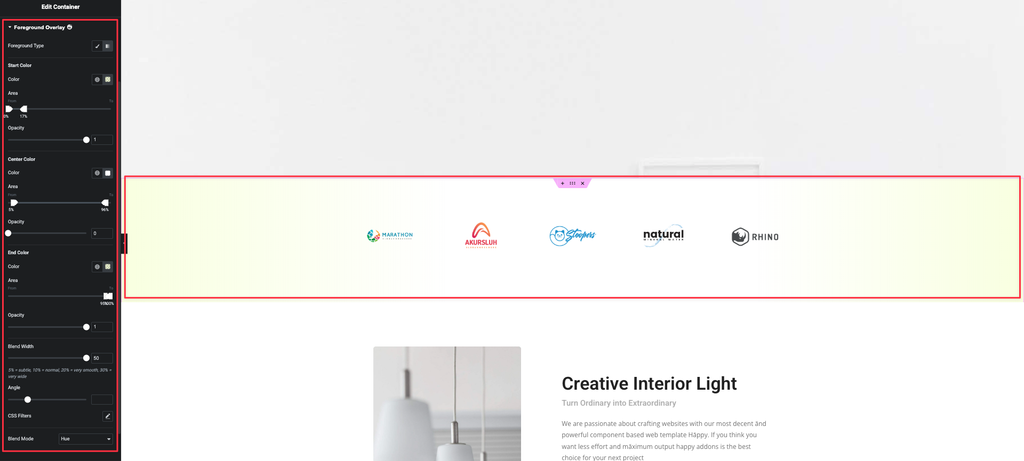
Foreground Overlay Options
Foreground Type
Choose the type of foreground overlay effect you want to apply to the container.
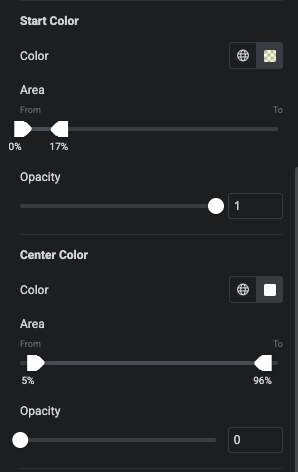
Start Color
Set the first color of the overlay.
You can customize:
- Color – Choose the starting color.
- Area – Set where the color starts and ends.
- Opacity – Control the transparency of the color.
Center Color
Add a middle color to create a multi-color gradient effect.
You can customize:
- Color – Choose the center color.
- Area – Define the position of the center color.
- Opacity – Control its transparency.
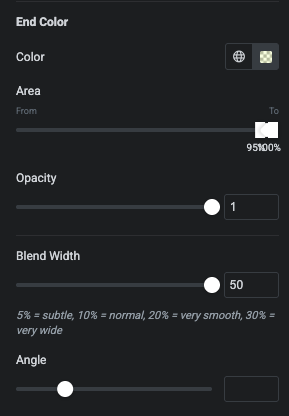
End Color
Set the final color of the overlay.
You can customize:
- Color – Choose the ending color.
- Area – Define where the color appears.
- Opacity – Control its transparency.
Blend Width
Adjust the width of the transition between the overlay colors.
- A lower value creates a sharper transition.
- A higher value creates a smoother transition.
Angle
Set the direction of the gradient by adjusting its angle.
CSS Filters
Use CSS Filters to apply additional visual adjustments to the foreground overlay.
Blend Mode
Choose a Blend Mode to control how the foreground overlay interacts with the content and background of the container.
For example, the Hue blend mode applies the overlay’s hue while allowing the underlying content to remain visible.
Example
You can combine multiple colors, adjust their opacity and position, and use Blend Width and Angle to create a soft gradient overlay on a container.