






You can easily create astonishing effects for all other Happy Addons widgets with the new Horizontal Scroll feature.
Required plugins:
- Happy Addons Free
- Happy Addons Pro
- Elementor Free
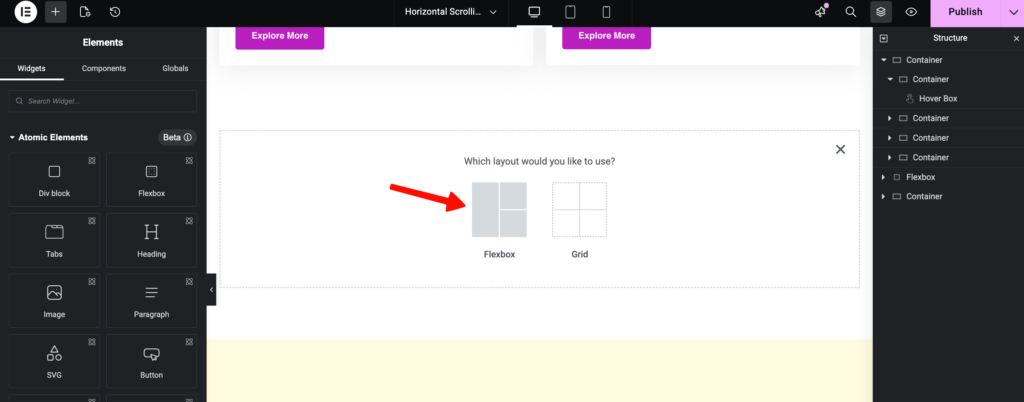
1. Now navigate to Elementor and create a new page.
Choose layout >> Flexbox
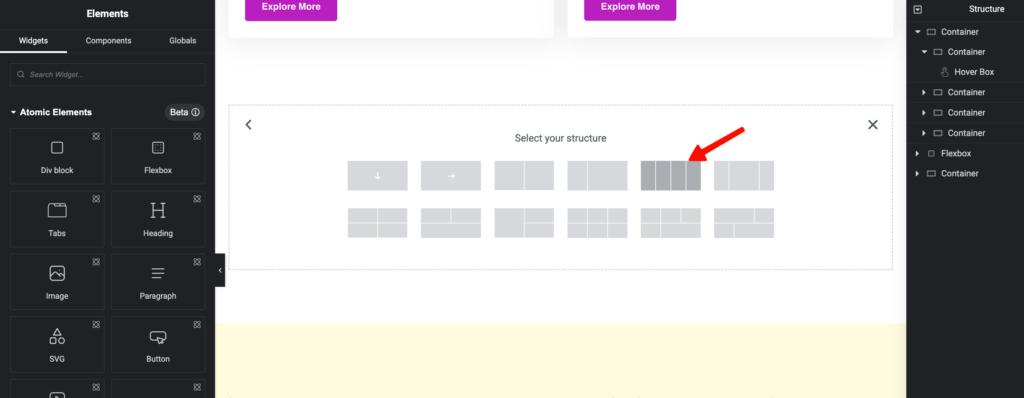
2. Then select your preferred layout for the container.
In here, we are using 4 column section with the Hoverbox widget. You can choose any widget you want.
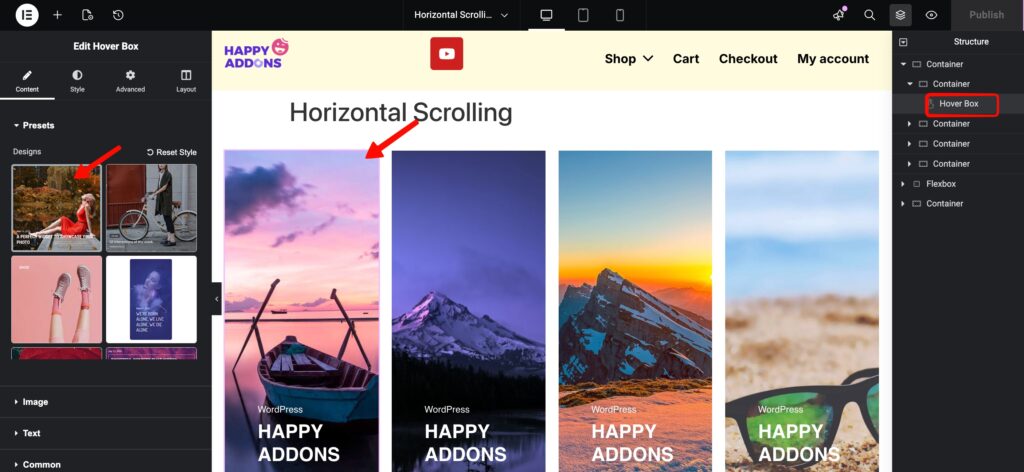
3. Choose a preset design.
4. Select an Image
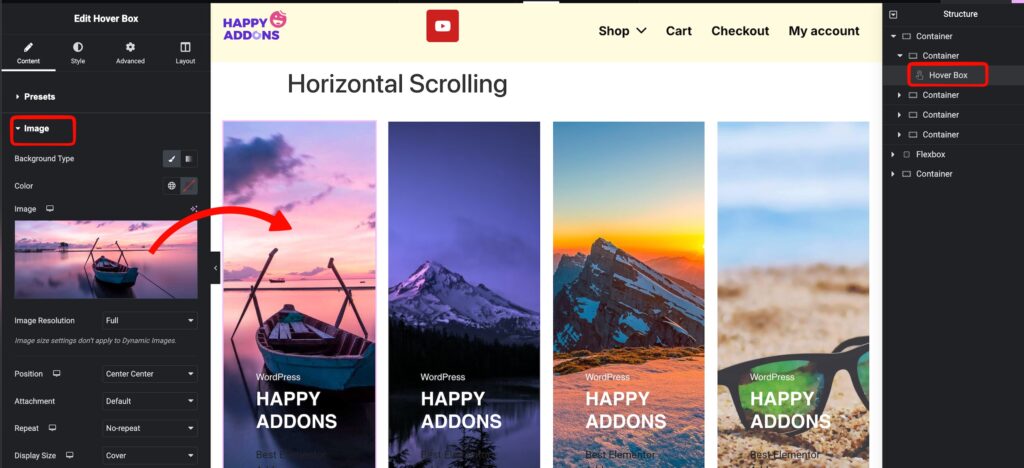
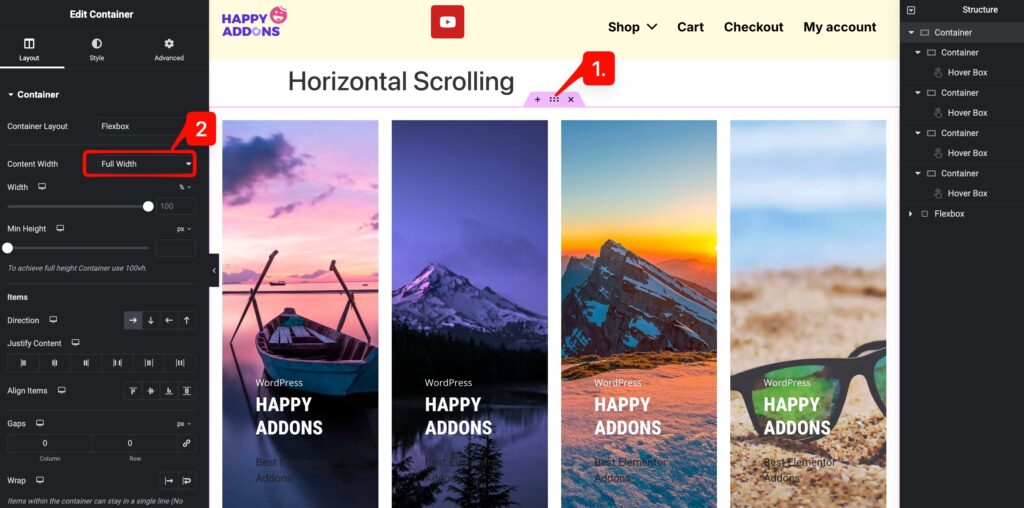
5. After choosing images for each of these columns, select the parent container >> Layout >> Content width >> Full width.
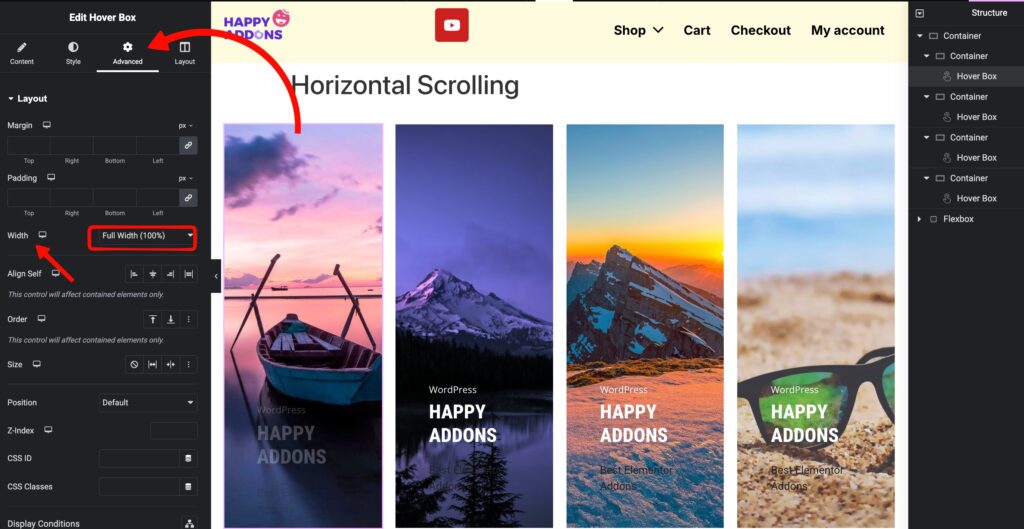
6. Change the width of all other Hoverbox columns >> Advanced >> Layout >> Width >> Full width.
If you prefer, you can choose the Width >> Custom option for how much of the screen you want the widget to cover.
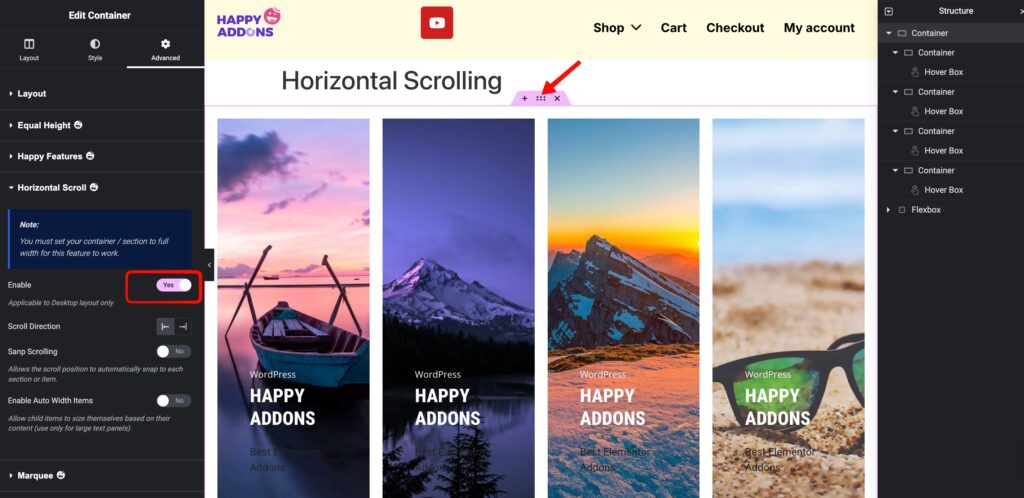
7. After configuring the Hoverbox, remember you have to enable the Horizontal Scroll effect for the parent container.
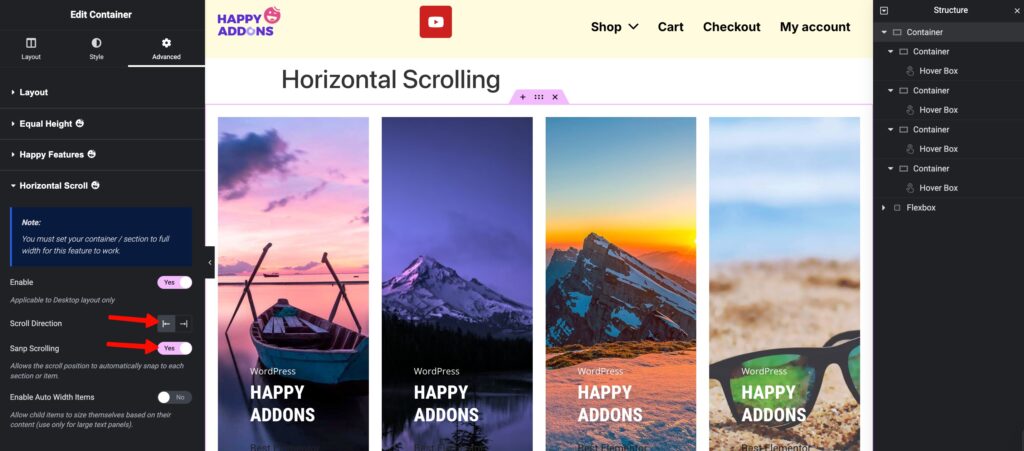
8. Select the Scroll direction(left to right/ right to left) and enable Snap scrolling, leaving the auto-width items disabled for now.
9. Now publish and view the page.
You can also choose any premade template and enable the Horizontal Scroll to take effect instantly.
That’s it. Cheers!