




The Visual Tabs widget lets you create a split layout with a sticky menu on one side and corresponding content on the other. As users scroll, hover, or click through the items, the content changes accordingly.
Requirement: This is a premium widget. You need both the HappyAddons Free and HappyAddons Pro versions installed.
Enable the Widget
- Go to HappyAddons → Widgets.
- Enable Visual Tabs.
- Open the page you want to edit with Elementor.
- Add a new section and drop the Visual Tabs widget into it.
A default two-column layout with five items will appear automatically.
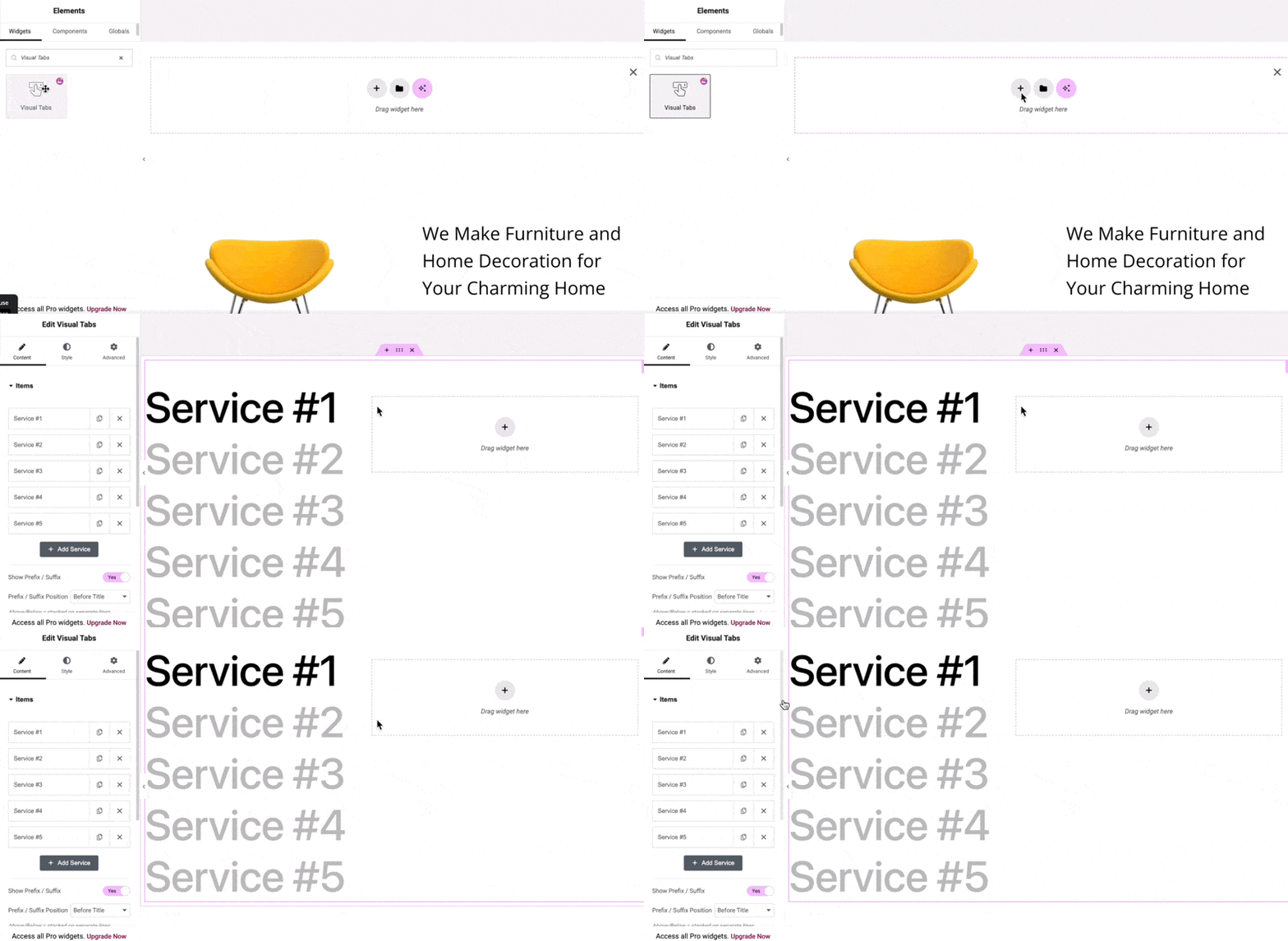
Add and Customize Items
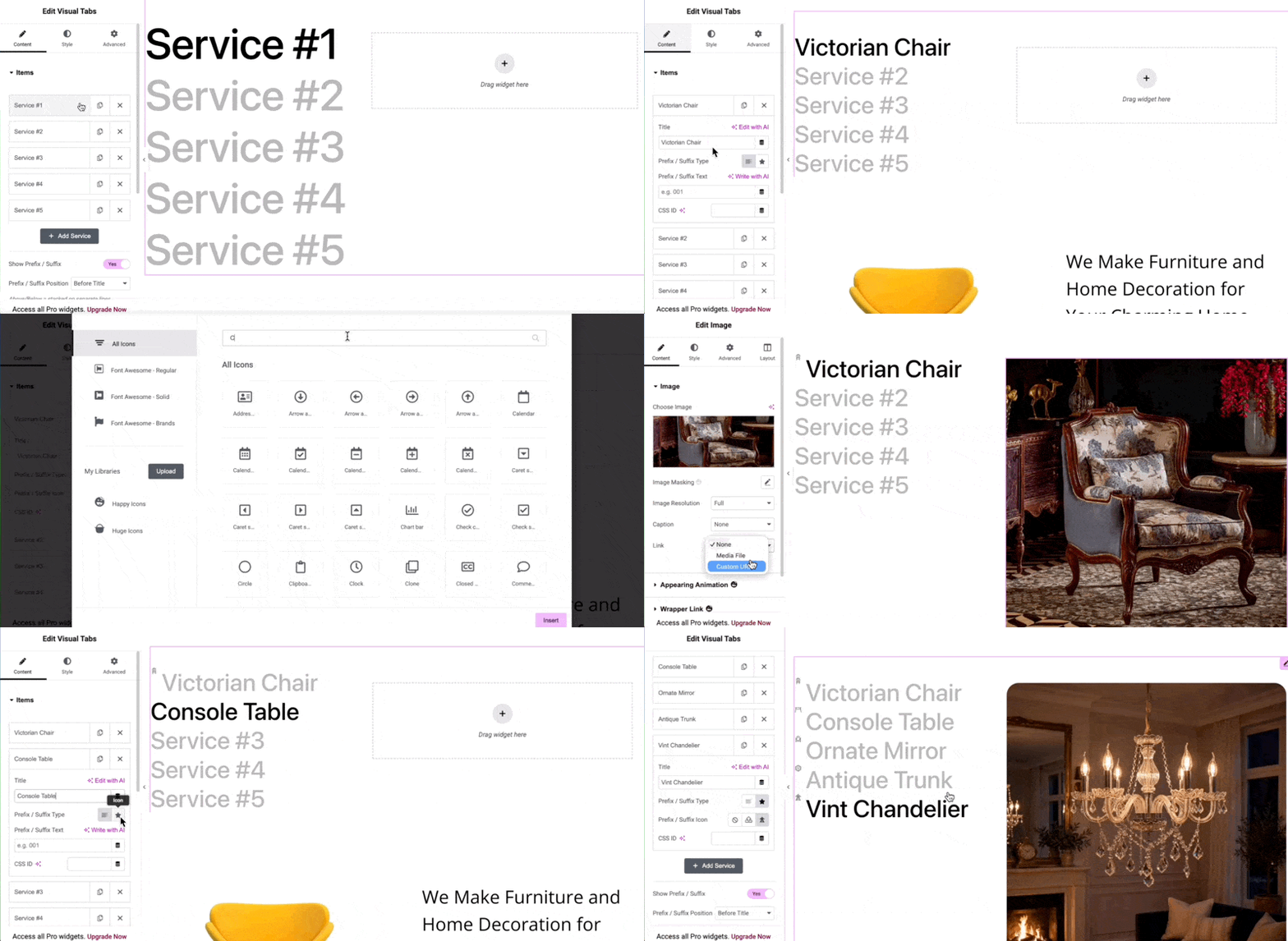
Go to the Content tab and expand the Items section.
By default, the widget includes five items. For each item, you can:
- Change the item name.
- Add a prefix or suffix using text or an icon.
- Add content to the corresponding right-side column.
To add a prefix:
- Choose Text or Icon.
- Enter your text or select an icon from the library.
- The prefix will appear before the item name.
You can also customize the item typography from Style → Typography.
Add Content
You can add any Elementor widget as the content for an item.
For example, add an Image widget to the content column. You can then configure the image, resolution, caption, link, and other available settings.
From the Style tab, you can customize properties such as:
- Width and height
- Border type and width
- Border radius
- Other available styling options
Compatibility note: HappyAddons GSAP is currently compatible with pre-Version 4 Elementor widgets. Elementor has not yet provided Version 4 access to third-party add-on developers. GSAP compatibility with Elementor 4 widgets will be added once the required access becomes available.
Repeat the same process for the remaining items.
To add more items, click Add Service and configure the new item in the same way.
Configure Item Settings
Scroll down in the Content panel to access additional item settings.
Prefix & Suffix
The prefix and suffix option is enabled by default. Disable it if you don’t want to display them.
You can also:
- Choose the prefix position.
- Set the alignment.
- Select an HTML tag for the item titles.
Layout
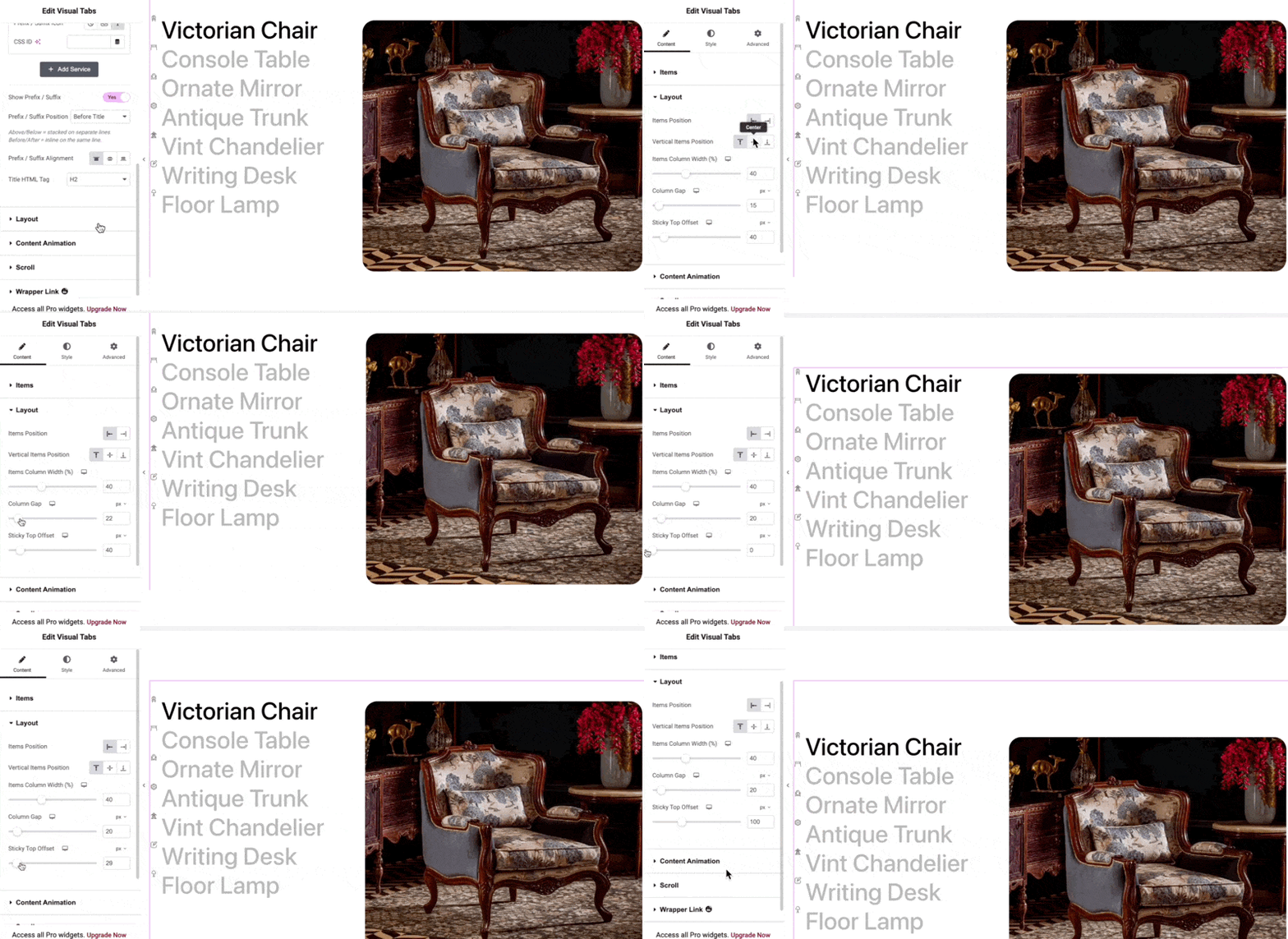
Expand the Layout section to control the overall item placement.
You can configure:
- Item Position: Display item names on the left or right.
- Vertical Position: Place items at the top, center, or bottom.
- Item Column Width: Adjust the width of the item column.
- Column Gap: Control the space between the item and content columns.
- Sticky Top Offset: Define the distance between the top of the section and the point where the items become sticky.
For example, a 0px offset keeps the items directly against the top of the section, while a 100px offset creates 100px of space.
Configure Content Animation
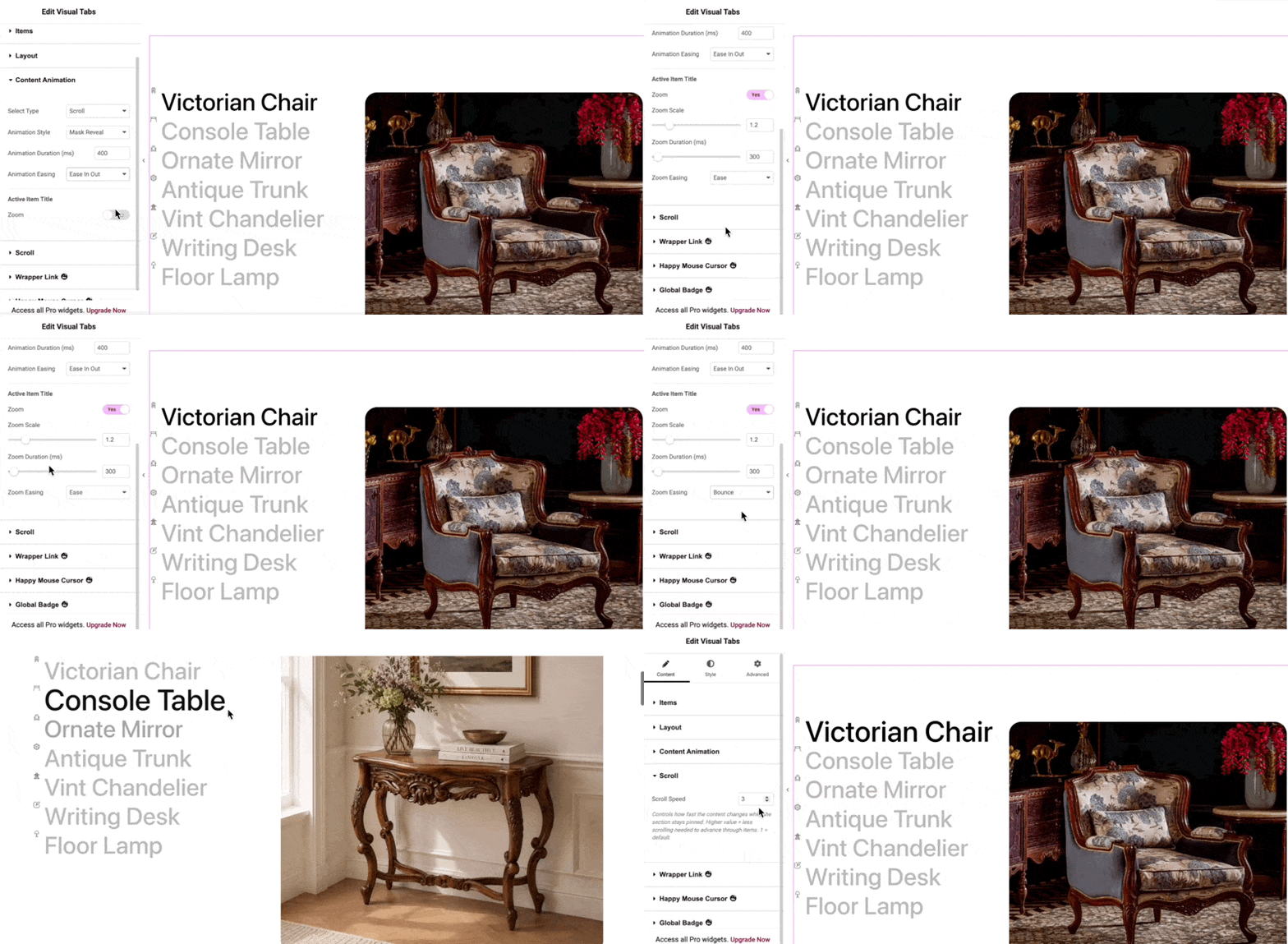
Expand Content Animation to control how content changes between items.
Select Type
There are three options:
- Scroll: Content changes as users scroll through the widget.
- Hover: Content changes when users hover over an item.
- Click: Users need to click an item to display its content.
Animation Style
Choose from 12 available animation styles.
For example, 3D Flip Swap creates a 3D flip transition, while Mark Reveal provides a different reveal effect.
Explore the available styles and select the one that best fits your design.
Animation Duration
Controls how long the transition takes when switching between items.
Animation Easing
Controls the movement of the animation during the transition, such as how quickly it starts, moves, and finishes.
Configure Zoom
Enable the Zoom option to add a zoom effect to the selected item.
After enabling it, additional zoom settings will appear. Adjust the values and select a Zoom Easing option to control how the zoom effect behaves.
Configure Scroll Speed
Expand the Scroll section to control how quickly the content changes while users scroll.
Adjust the Scroll Speed value according to your preferred interaction speed.
Style the Widget
Once the content and interactions are configured, go to the Style tab.
You can customize:
- Item typography
- Spacing between items
- Item borders
- Item background color
- Prefix styling
Under the Prefix section, you can also:
- Adjust the spacing between the prefix and item name.
- Change the prefix icon color.
- Increase the icon size through the typography settings.
Preview
Once all settings are configured, preview the page to see the final Visual Tabs experience.
That’s it! You can now use the Visual Tabs widget to create interactive, scroll-based content sections with HappyAddons.