




The Hover Accordion widget in HappyAddons lets you display multiple content sections in a compact, interactive accordion layout. When a visitor hovers over an item, its content expands while the other items collapse.
You can add different Elementor widgets to each accordion item, making it useful for displaying cards, timelines, image galleries, charts, and more.
Requirements
Before getting started, make sure you have both:
- HappyAddons Free
- HappyAddons Pro
Enable the Hover Accordion Widget
First, enable the Hover Accordion widget from your WordPress dashboard.
- Go to HappyAddons → Widgets.
- Find the Hover Accordion widget.
- Enable the widget.
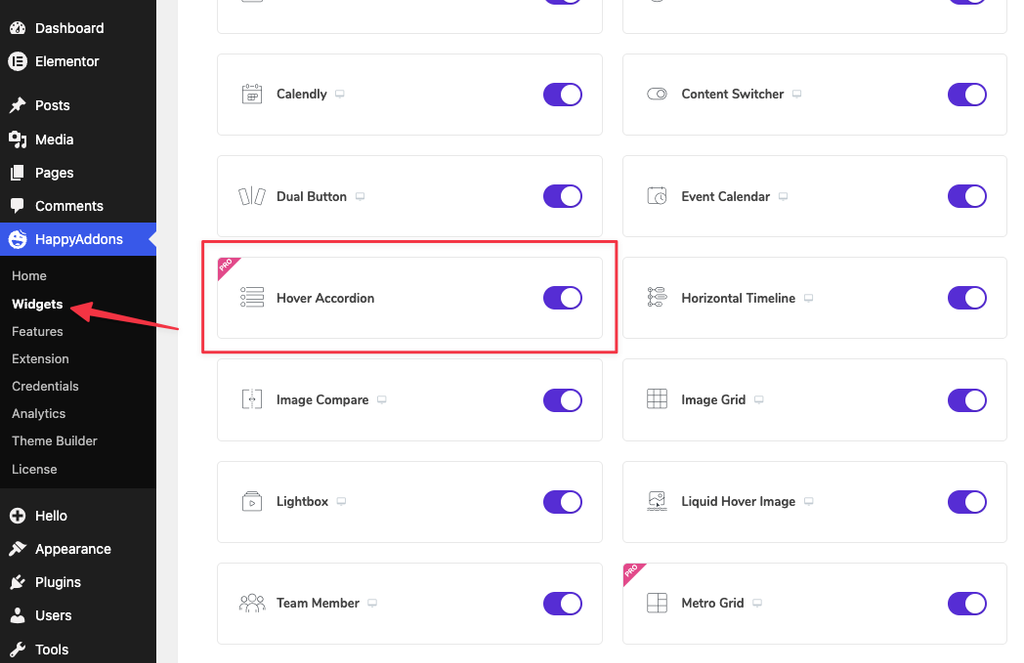
Once the widget is enabled, open the page you want to edit with Elementor.
Add the Hover Accordion Widget
- Open your desired page with Elementor.
- Create a new section or container.
- Search for the Hover Accordion widget.
- Drag and drop it into the page.
By default, the widget creates four accordion items.
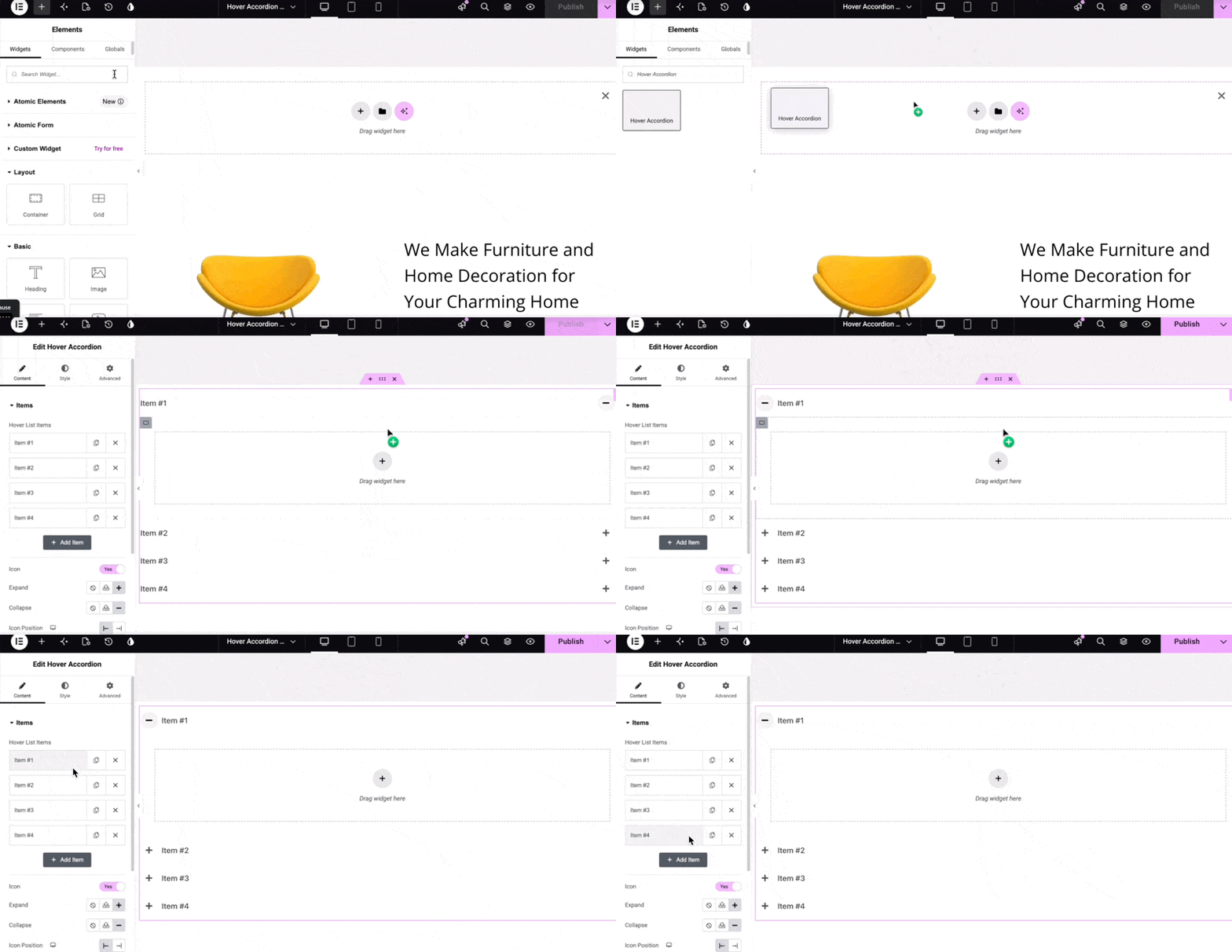
Add Content to the Accordion Items
One of the key features of the Hover Accordion widget is that you can place any Elementor widget inside an accordion item’s content area.
Add Content to the First Item
- Expand the first item.
- Rename the item.
- Add a widget to the content area.
For this example, we’ll add the Card widget.
Choose the preset you like and add the required content. You can add an image, update the heading, write a description, and customize the individual elements.
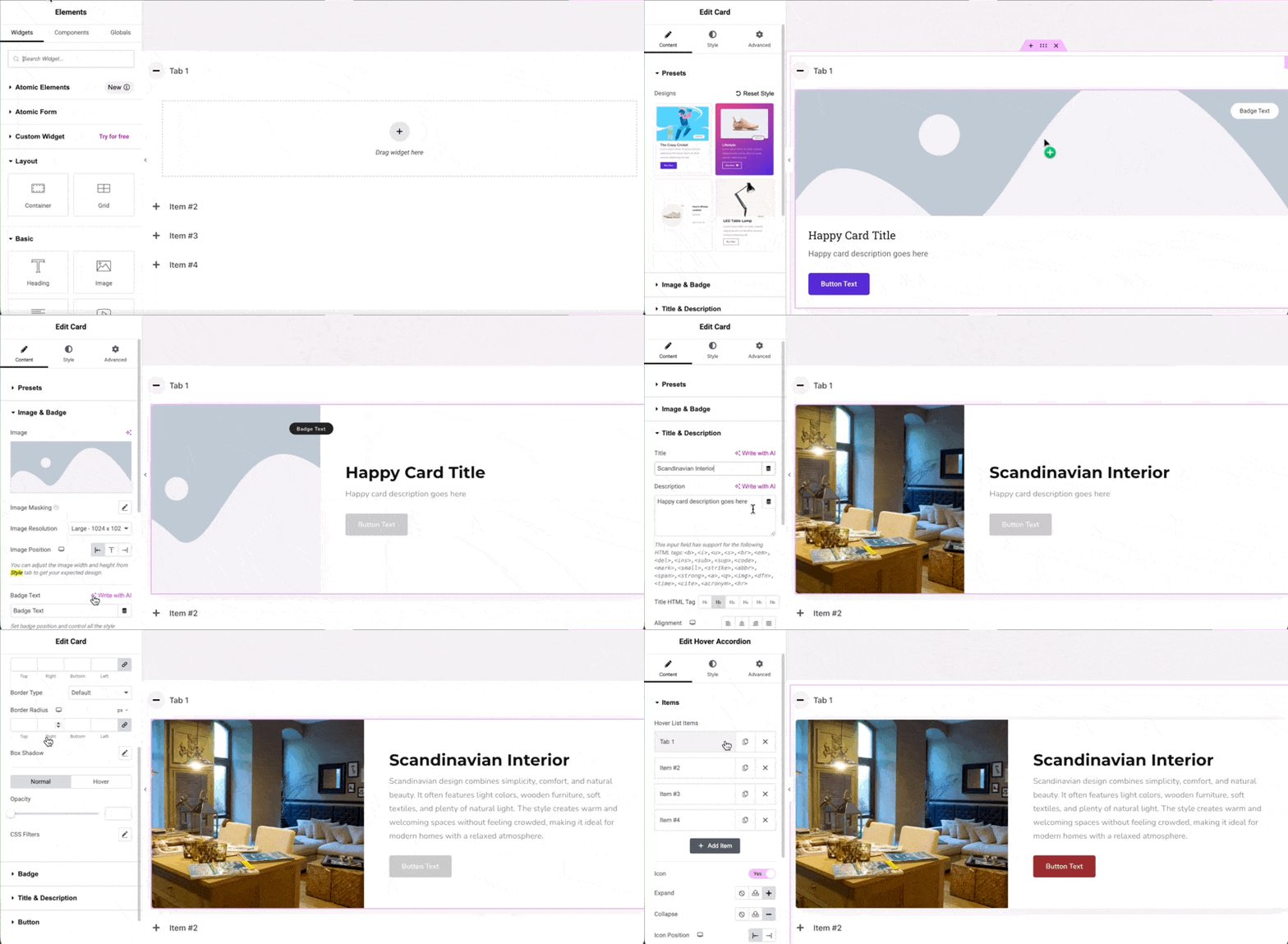
Compatibility Note: HappyAddons GSAP-based features and widgets aren’t currently compatible with Elementor version 4 because Elementor hasn’t yet provided version 4 access to third-party add-on developers. We’ll make GSAP compatible with Elementor 4 as soon as the required access becomes available. Until then, use GSAP with pre-version 4 Elementor widgets.
Add Content to the Second Item
Next, expand the second item and rename it.
Add a new widget to the content area. In this example, we’re adding the Horizontal Timeline widget.
Then, add and customize the required content for the timeline.
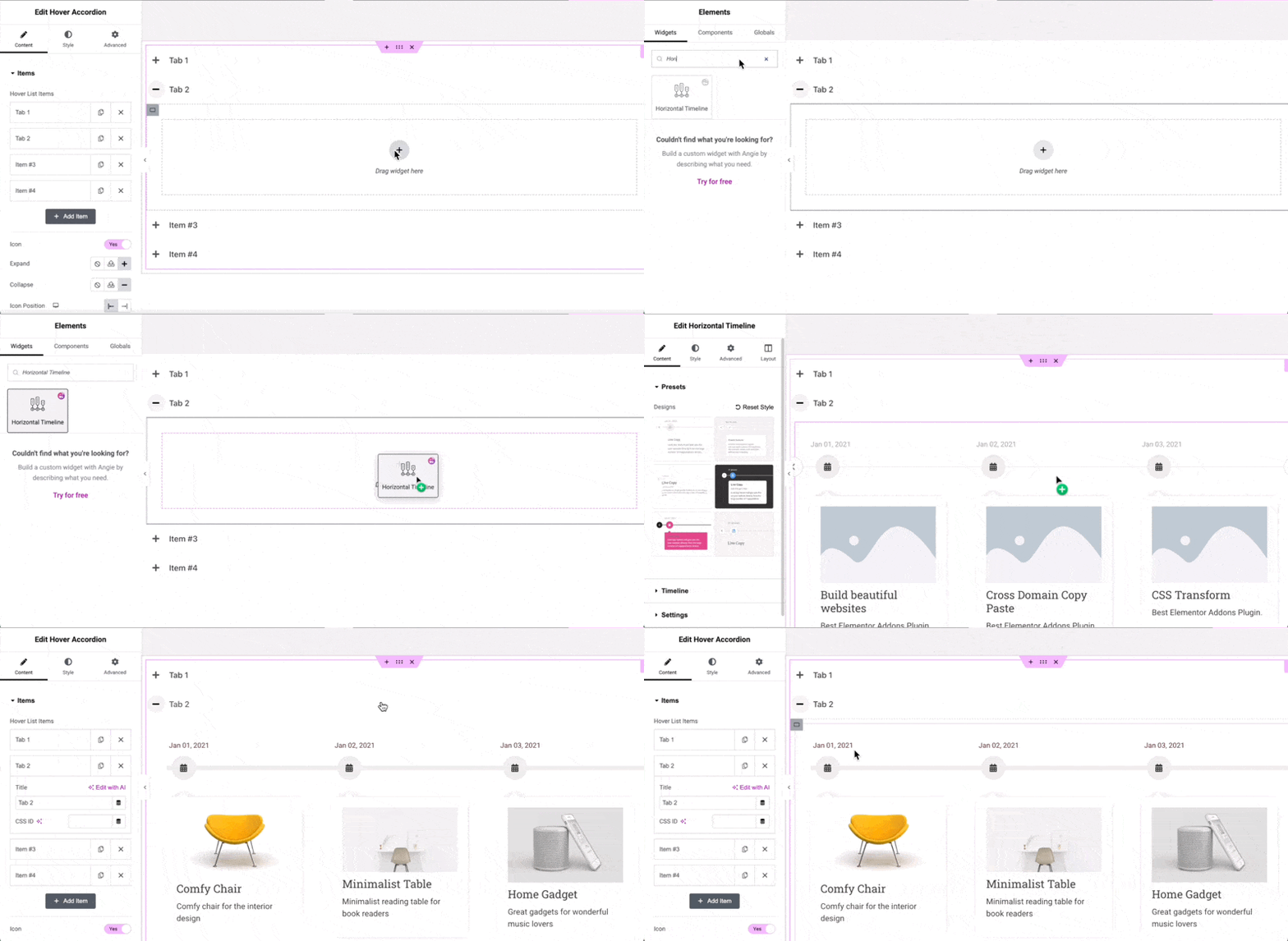
You can configure the widget according to your requirements.
Add Content to the Third Item
Now expand the third item and rename it.
In the same way, add a new widget to the content area. For this example, we’ll use the Justified Grid widget.
Add a collection of images to the grid to create an image gallery within the accordion item.
Add Content to the Fourth Item
Finally, expand the fourth item and add another widget.
For this example, we’ll use the Bar Chart widget.
You can add multiple charts in the same accordion item by duplicating the chart widget. If needed, change the bar layout to match your design.
Finally, rename the fourth item.
Add or Remove Accordion Items
The Hover Accordion widget isn’t limited to the default four items. You can add as many items as needed.
To add a new item:
- Click Add Item.
- Rename the item.
- Add your desired Elementor widget.
- Configure the widget’s content and settings.
You can also remove any items you don’t need.
Once you’ve added and configured your items, the content setup is complete.
Configure the Additional Options
Scroll down the Elementor settings panel to find more options for the Hover Accordion widget.
Icon Settings
You can choose whether to display icons for the accordion items.
You can:
- Enable or disable icons.
- Change the expand icon.
- Change the collapse icon.
- Change the icon position.
Configure Interaction Settings
Next, expand the Interaction section.
By default, the first item is open.
If you want all items to remain closed initially, select the None option.
You can also choose the Custom option to specify a particular item that should remain open by default.
For this tutorial, we’ll keep the first item open.
Customize the Style
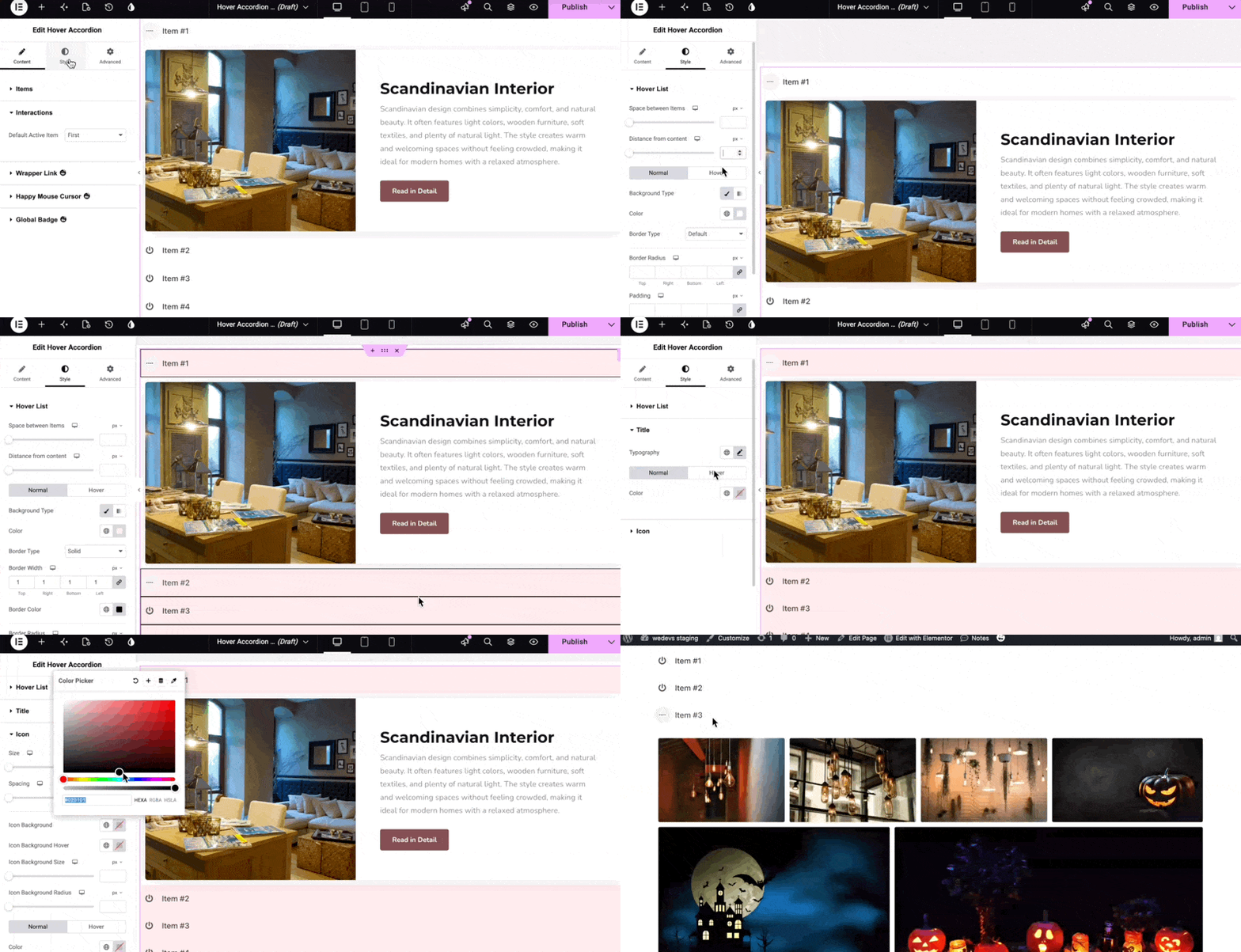
After configuring the content and interaction settings, go to the Style tab.
Here, you can customize the appearance of the Hover Accordion.
Item Spacing
Adjust the space between the accordion items to control the overall layout.
Content Spacing
Change the distance between the item and its content to achieve the desired spacing.
Background
Add a background color to the hover or expanded content panels.
Border
Add a border to the accordion items or remove it if you prefer a borderless design.
Typography
Customize the typography of the accordion item names to match your website’s design.
Icon Styling
Customize the appearance of the accordion icons to fit your overall design.
Preview the Design
Once you’ve finished configuring the content, interaction, and styling options, preview your design.
Hover over different accordion items to see how the selected item expands while the other items collapse.
And that’s it! You can now use the Hover Accordion widget in HappyAddons to create compact and interactive content sections.
Conclusion
The Hover Accordion widget provides a flexible way to organize multiple types of content in an interactive layout. Since you can add different Elementor widgets to each item, you can use it to showcase cards, timelines, image galleries, charts, and much more.
If you have any questions about the Hover Accordion widget, feel free to leave a comment below.
This version now matches the widget name, behavior, settings, and terminology from your original script.