




The Team Hover Grid widget in Happy Addons lets you showcase your team members in a clean and interactive grid layout. When visitors hover over a team member, the selected member becomes more prominent while the other members are blurred, and additional information such as the member’s name and job role appears with a hover effect.
This guide explains how to add, configure, customize, and optimize the Team Hover Grid widget for desktop and mobile devices.
Requirements
The Team Hover Grid is a premium widget, so you need both:
- Happy Addons Free
- Happy Addons Pro
- Elementor Free
Make sure both the free and Pro versions of Happy Addons are installed and activated before proceeding.
Enable the Team Hover Grid Widget
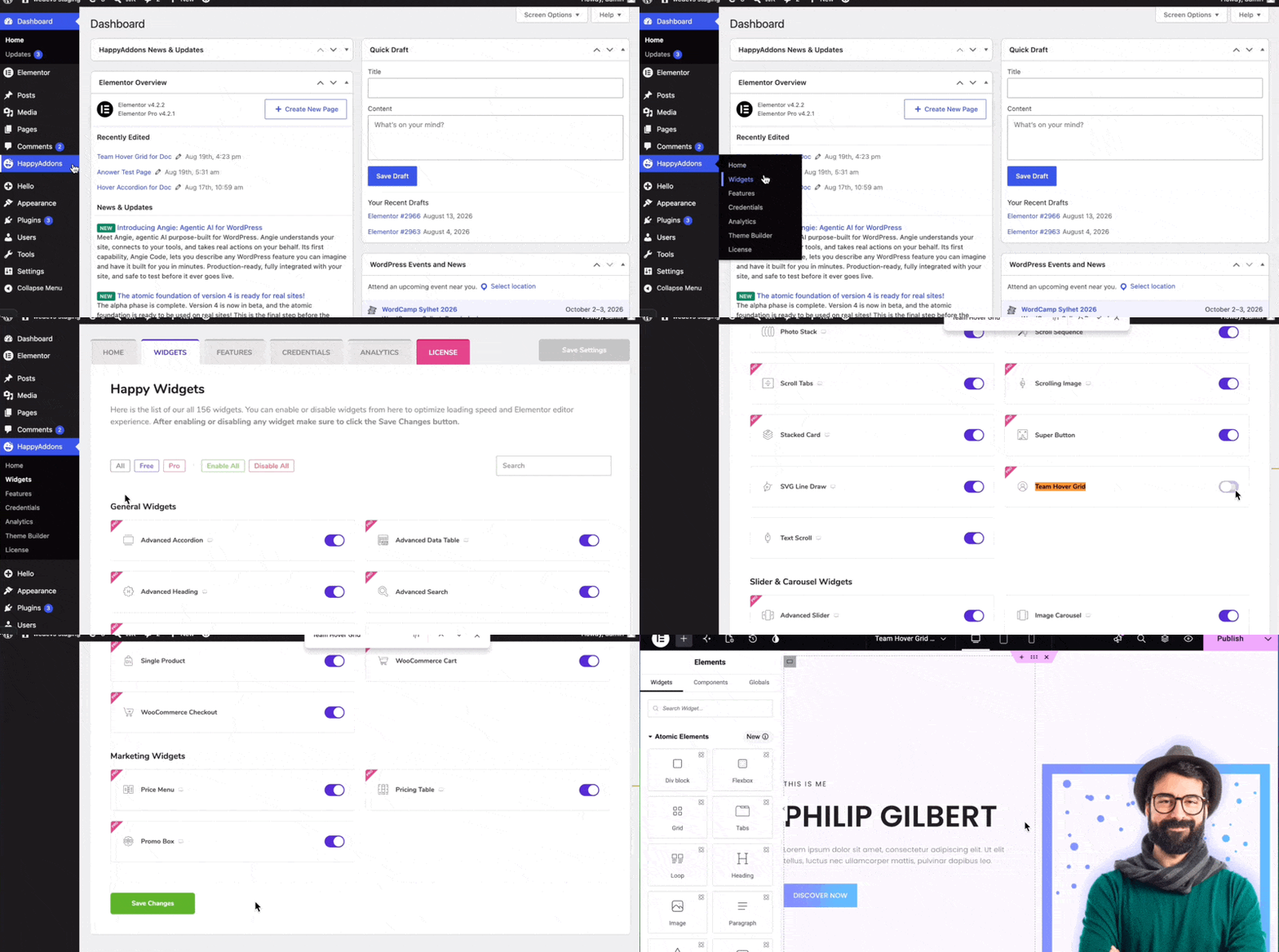
Before adding the widget to your page, enable it from the Happy Addons settings.
- From your WordPress dashboard, go to Happy Addons → Widgets.
- Find the Team Hover Grid widget.
- Enable the widget.
Add the Team Hover Grid Widget
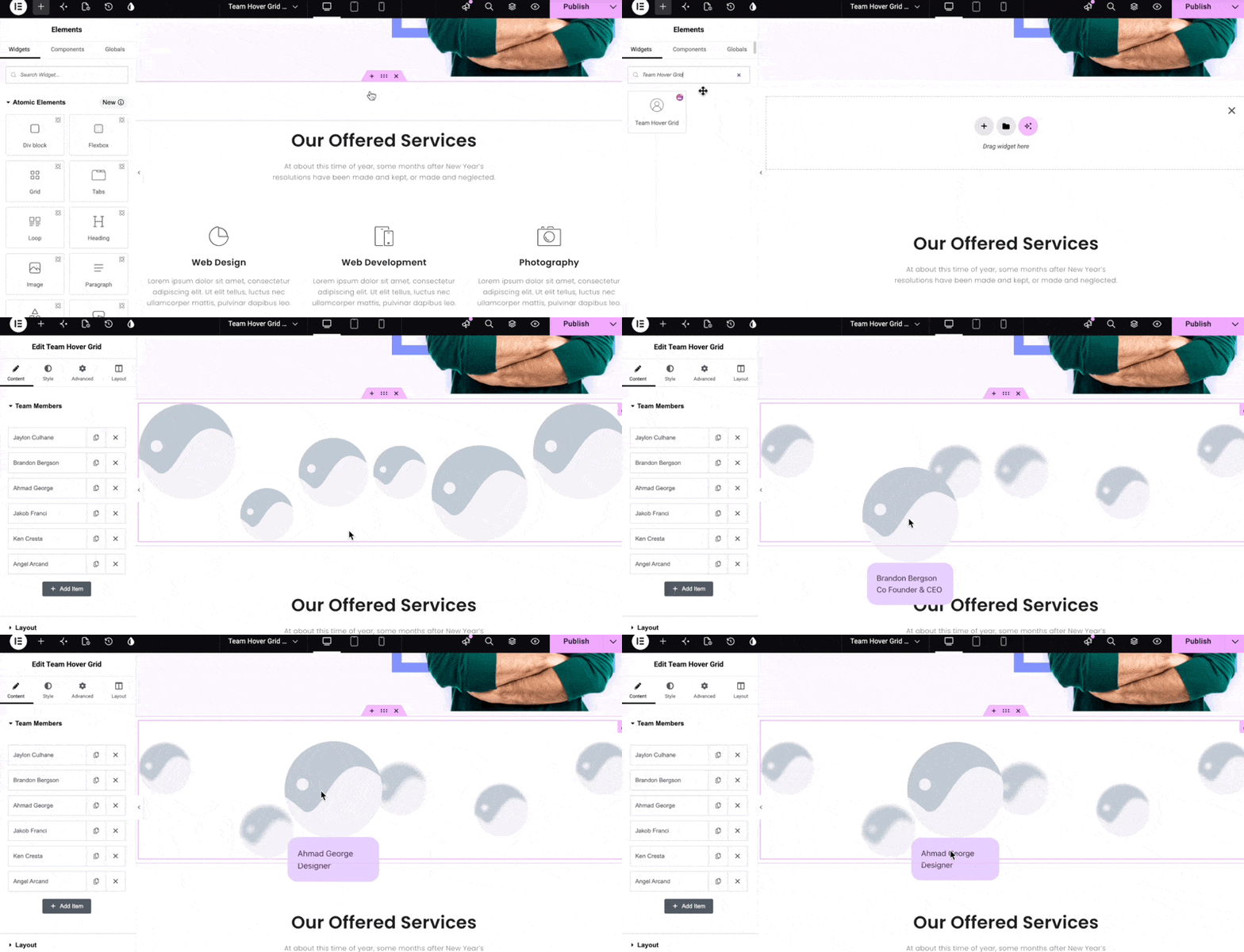
- Open the page where you want to add the team section with Elementor.
- Create a new section or container.
- Search for the Team Hover Grid widget.
- Drag and drop the widget into the section.
A default layout with six team member elements will appear automatically.
When you hover over a team member, the active member becomes larger while the other members become blurred.
Add Team Member Information
After adding the widget, you can configure each team member individually.
Configure a Team Member
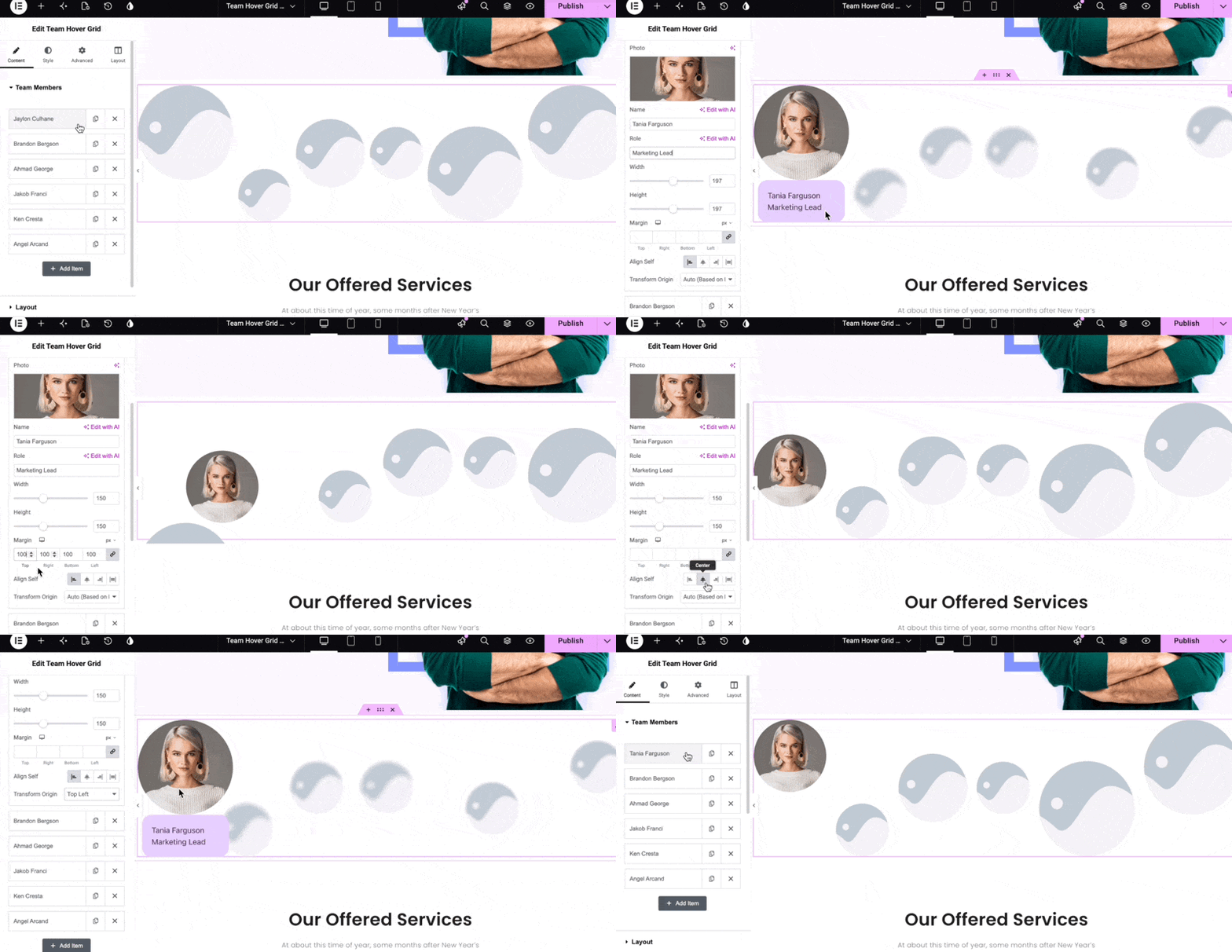
- Go to the Element panel in the Elementor sidebar.
- Expand the first team member element.
- Add an image of the team member.
- Enter the team member’s name.
- Enter their job role.
[Screenshot Placeholder: Team member element settings showing image, name, and job role fields]
Adjust the Element Size
You can customize the size of each team member element by changing its:
- Width
- Height
You can also set a custom Margin if needed.
Configure Vertical Position
The vertical position setting determines where the element is positioned within the widget.
You can choose from:
- Start — Positions the element closer to the top edge.
- Center — Positions the element in the middle.
- End — Positions the element closer to the bottom edge.
Configure Transform Origin
The Transform Origin setting determines the point from which the hover information panel expands when a visitor hovers over a team member.
Choose the option that best suits your design, or leave it set to Auto so the position is determined automatically.
Add the Remaining Team Members
Repeat the same process for the remaining team members. Add their images, names, job roles, and adjust the element settings as needed.
Configure the Layout
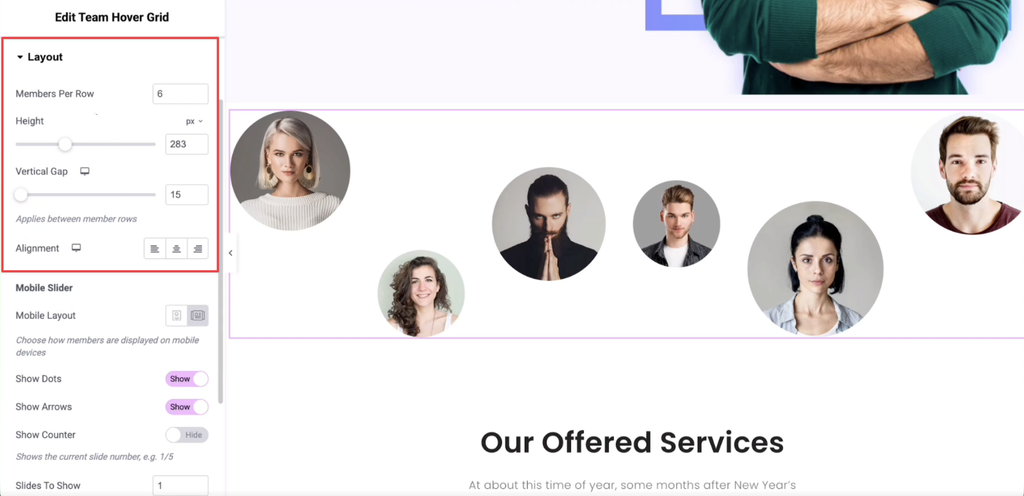
Once you’ve finished adding your team members, expand the Layout section.
Set Members Per Row
The Members Per Row setting controls how many team members appear in each row.
The default value is 6.
If you decrease the number, fewer members appear in each row and the remaining members are distributed across additional rows.
If you increase the number beyond the number of available team members, the layout will not change until you add more members.
When you add another member, they may appear in a new row if all members cannot fit within the available width. To fit more members into the same row, adjust the size of the individual elements.
For this example, we’ll keep six members in the grid.
Adjust Widget Height
Use the Height setting to control the overall height of the Team Hover Grid widget.
Set Vertical Gap
The Vertical Gap option controls the space between multiple rows.
This setting only has an effect when the widget contains multiple rows.
Set Alignment
Choose the alignment that best fits your page design.
Optimize the Widget for Mobile Devices
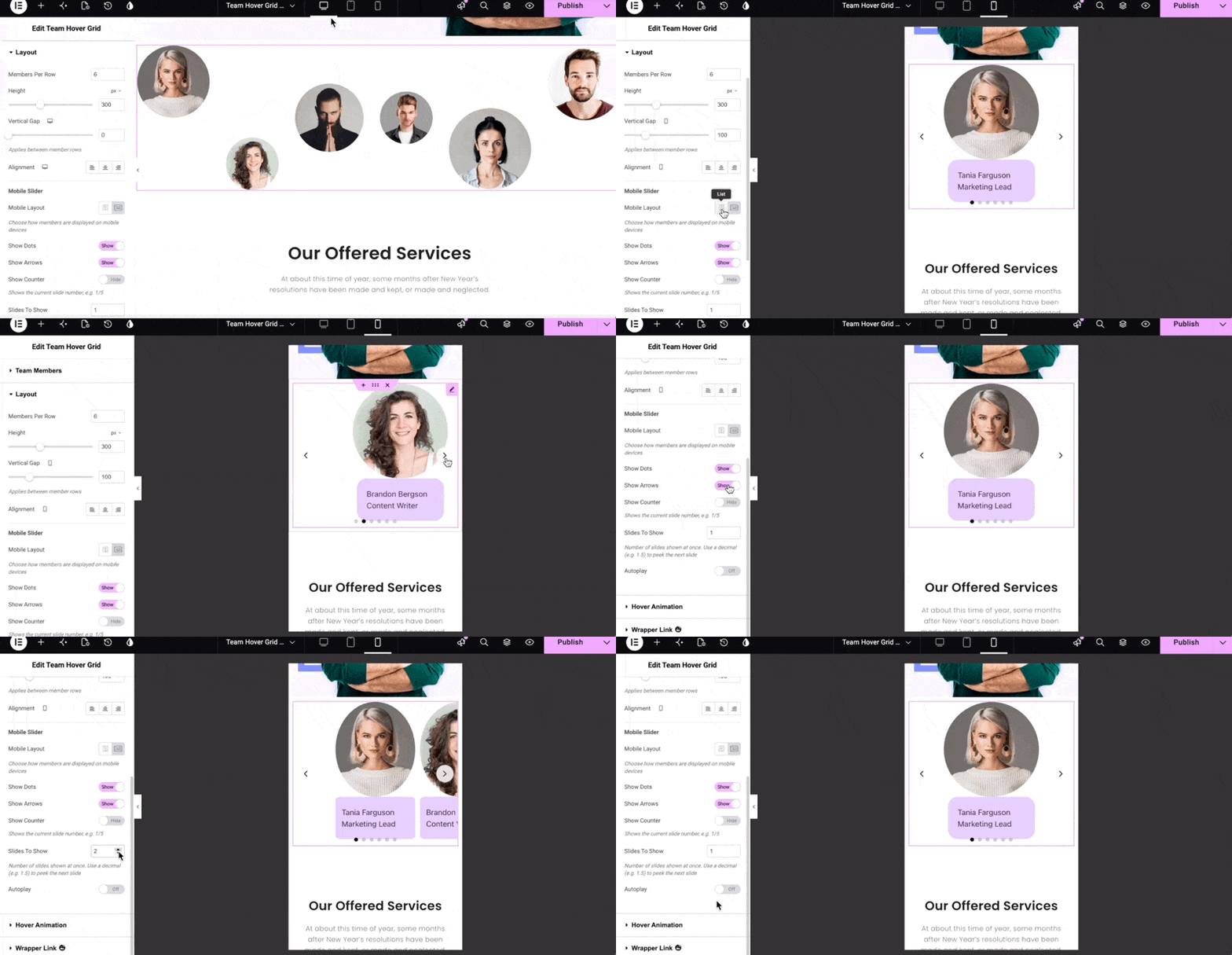
The desktop grid layout may not display well on smaller screens. The Mobile Slider settings allow you to optimize the widget for mobile devices.
Choose the Mobile View Mode
- Expand the Mobile Slider section.
- Switch to the Mobile view in Elementor.
- Choose a mobile view mode:
- List
- Slider
With List mode, all team members are displayed vertically.
With Slider mode, team members are displayed as a swipeable carousel, which can provide a more compact mobile experience.
Configure the Mobile Slider
When using Slider mode, you can configure:
- Dots — Show or hide navigation dots.
- Arrows — Show or hide navigation arrows.
- Counter — Show or hide the slide counter.
- Slides to Show — Define how many team members appear at once.
- Autoplay — Enable or disable automatic slide transitions.
Customize the Hover Animation
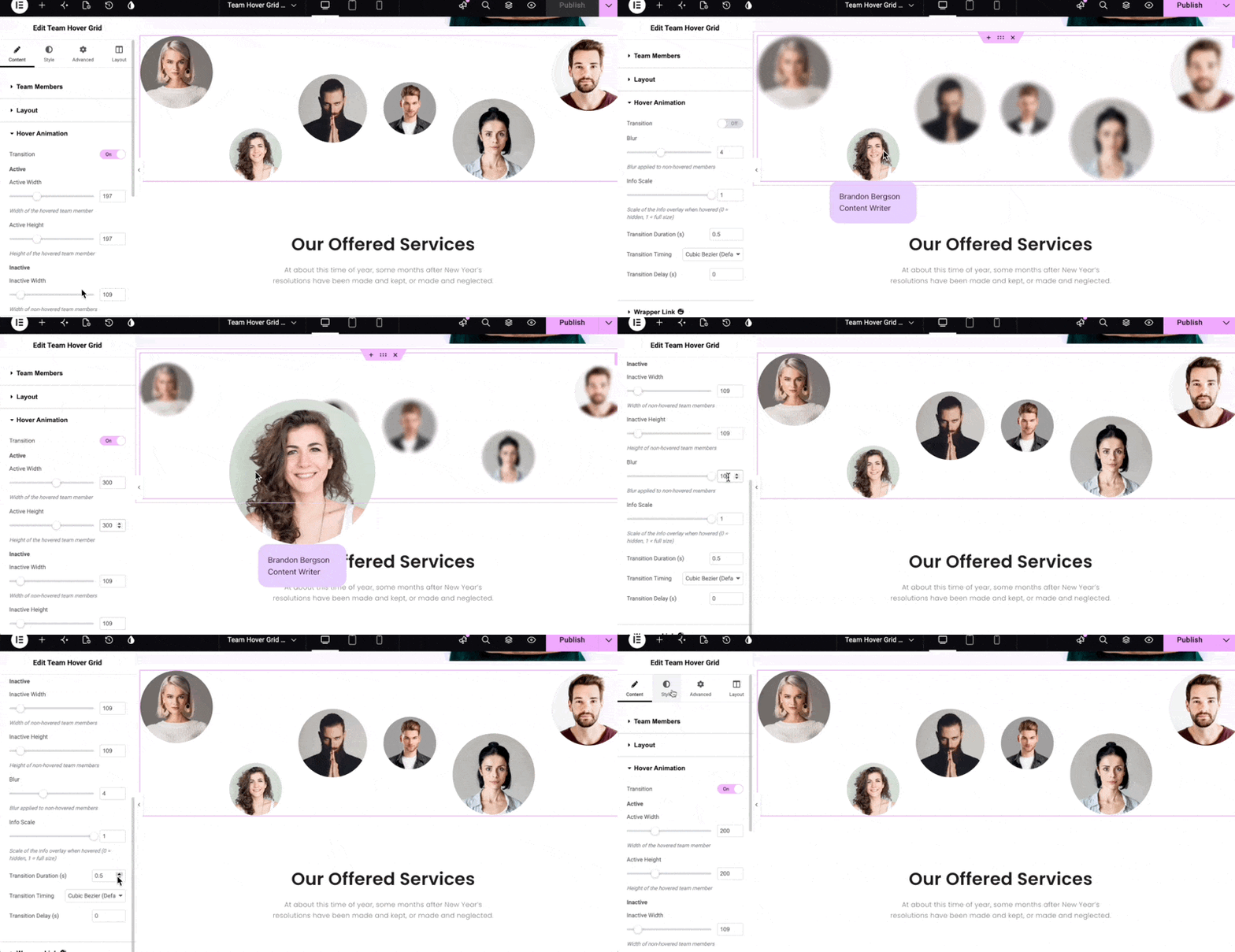
Return to the desktop view and expand the Hover Animation section.
The widget uses a hover animation by default. When a visitor hovers over a team member, the selected member becomes more prominent and its information panel appears.
The following settings control the hover behavior:
- Transition — Enables or disables the hover transition effect.
- Active — Controls how much the hovered team member grows.
- Inactive — Controls the size of non-hovered team members.
- Blur — Controls the blur applied to non-hovered members.
- Info Scale — Controls the size of the information panel during hover.
- Transition Duration — Controls how long the transition takes.
- Transition Timing — Controls the timing behavior of the transition.
- Transition Delay — Adds a delay before the transition begins.
Keep Transition enabled if you want the default hover animation to work.
Style the Team Hover Grid
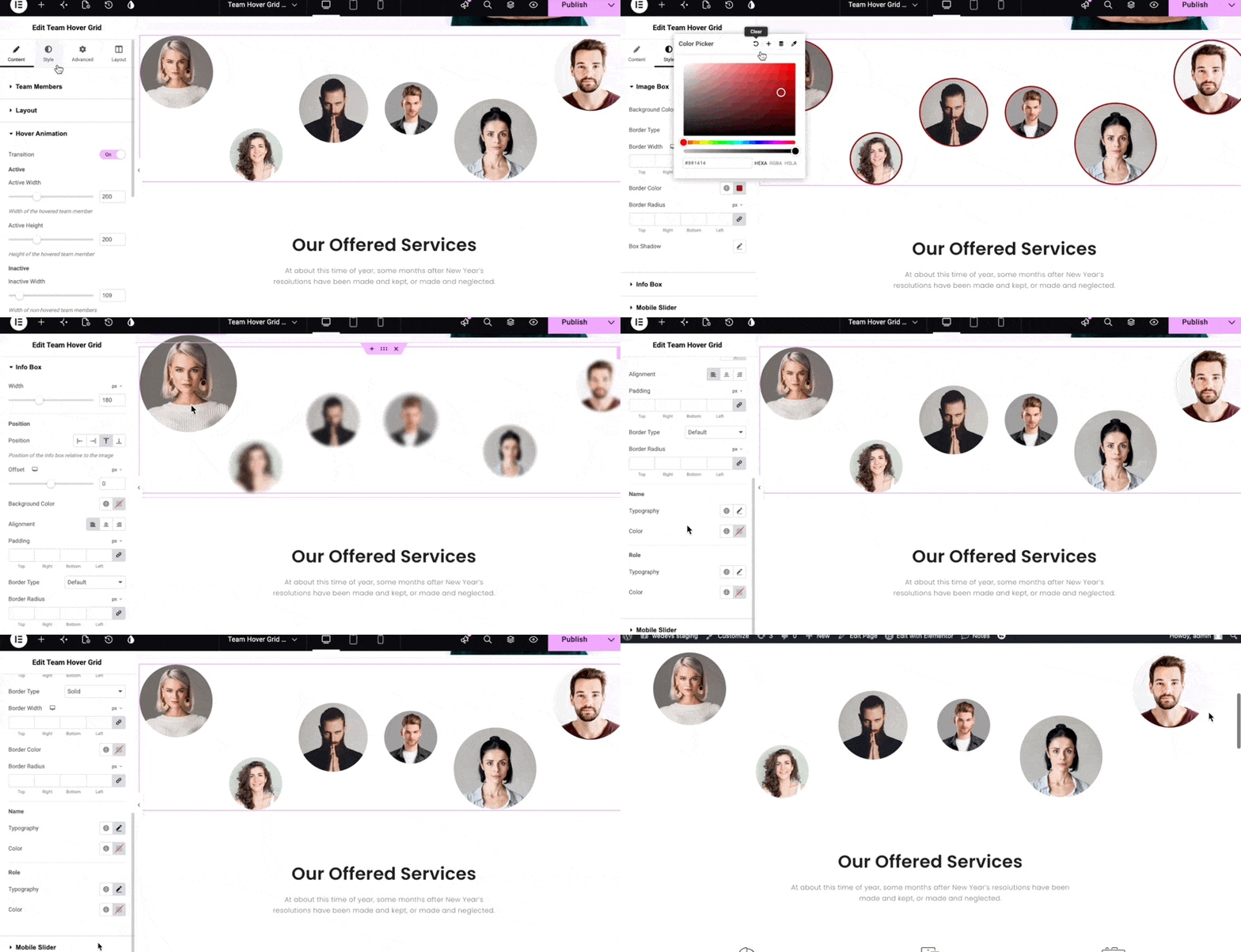
After configuring the content, layout, and animation, open the Style tab to customize the appearance.
Image Box
In the Image Box section, you can:
- Set a background color.
- Choose a border type.
- Add a box shadow.
Since each image box contains a team member image, the background color may not be visible when the image covers the box.
Info Box
Expand the Info Box section to customize the team member information panel.
You can configure:
- Width
- Position
- Offset
- Background Color
- Alignment
- Padding
- Border
You can also customize the typography separately for the team member’s name and job role.
These options allow you to control the appearance and positioning of the information displayed during the hover interaction.
Style the Mobile Slider
To customize the mobile version:
- Expand the Mobile Slider section.
- Switch to the Mobile view mode.
- Apply the necessary styling adjustments.
Make sure the spacing, typography, and overall layout remain easy to read and interact with on smaller screens.
Preview Your Team Grid
After completing all content, layout, animation, and styling settings:
- Save or update the page.
- Preview the page.
- Test the hover effect on desktop.
- Check the mobile slider or list layout on smaller screens.
- Make any final adjustments if necessary.
Your Team Hover Grid is now ready to showcase your team members in an interactive and visually engaging layout.
Conclusion
The Team Hover Grid widget of Happy Addons provides an easy way to create an interactive team showcase. You can add individual team member information, control the number of members per row, customize hover animations, and create a responsive mobile slider or list.
With its layout, animation, and styling controls, you can tailor the widget to match your website’s design while keeping your team section engaging and responsive.