

With the Marquee animation feature, you can create a slider effect on any Elementor widget horizontally and vertically.
Required plugins:
- Elementor Free
- Happy Addons Free
- Happy Addons Pro
Remember, the Marquee feature only works on containers, not widgets. So first, you have to add a container and structure it as you want.
For instance, we are going to guide you with the info box inside the container with steps to create a stunning visualization with the Marquee feature.
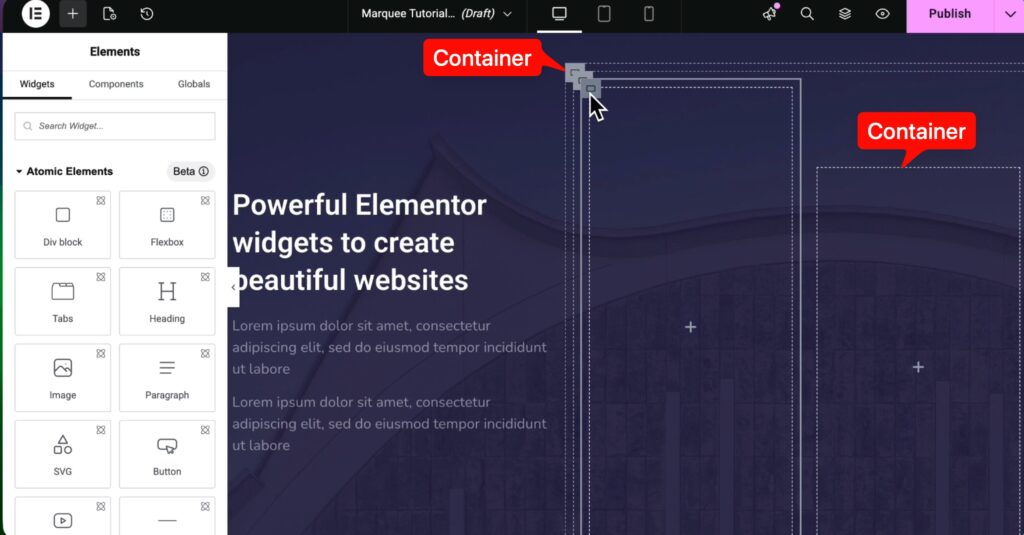
Then search for the info box in the search box and drag it into the container.
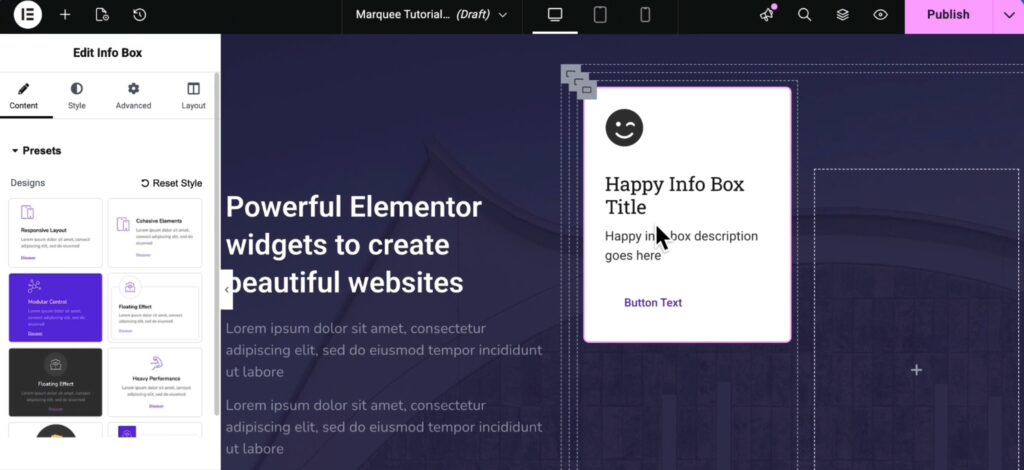
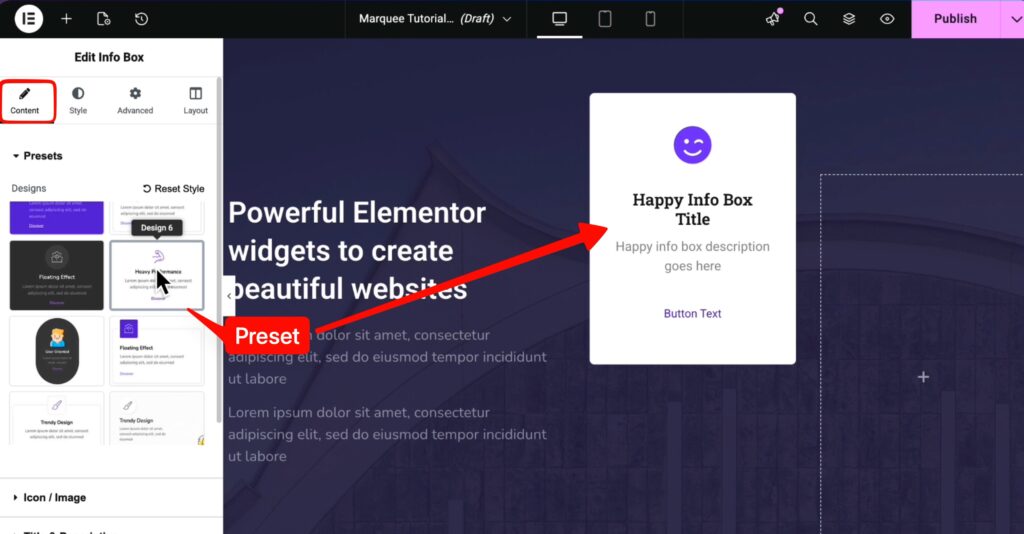
Now select a preset for it.
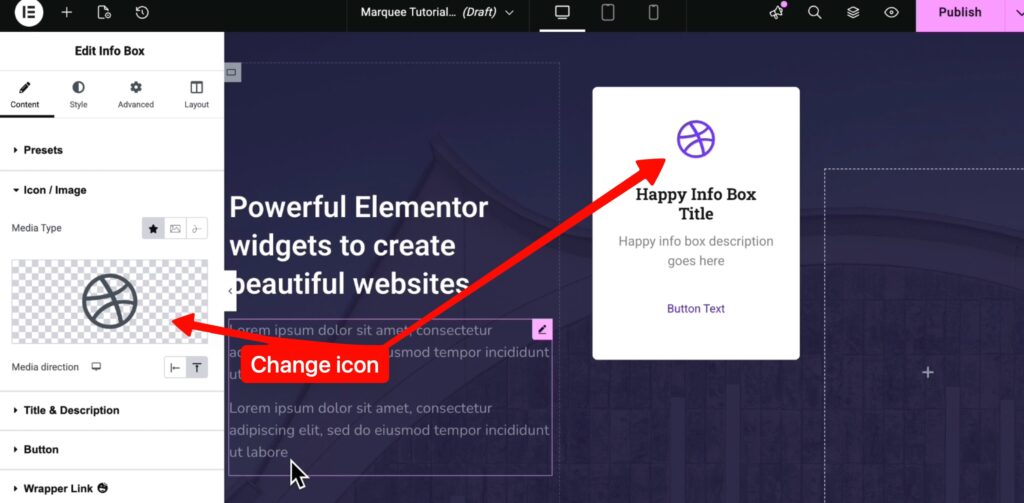
Now change the icon title and description as you need.
Now you just have to add multiple info boxes into the same container. Then copy and paste the style to each of them and customise them as you like.
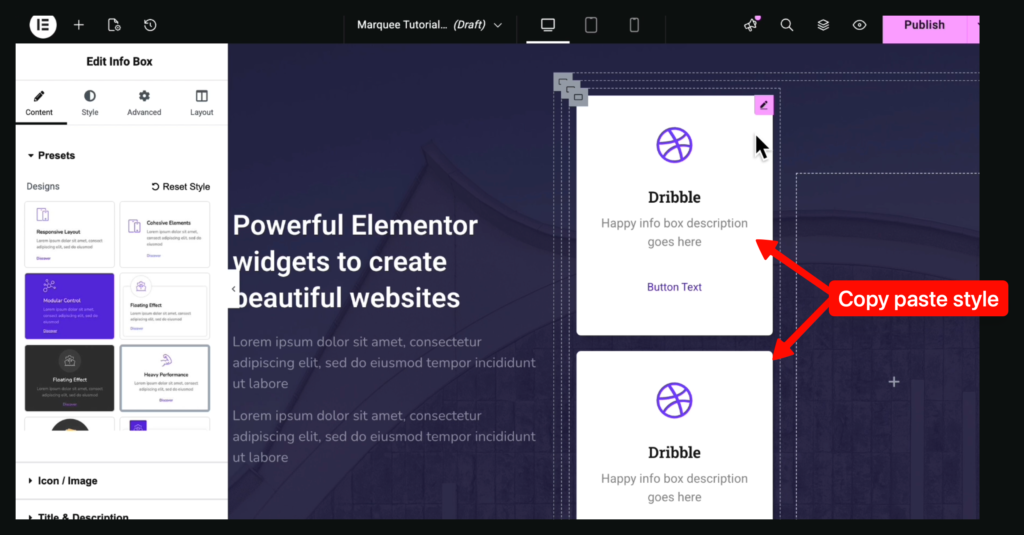
Customise each of these info boxes icons, button text, content and style them as you need. These customisations and stylisations are similar to all other Elementor widgets.
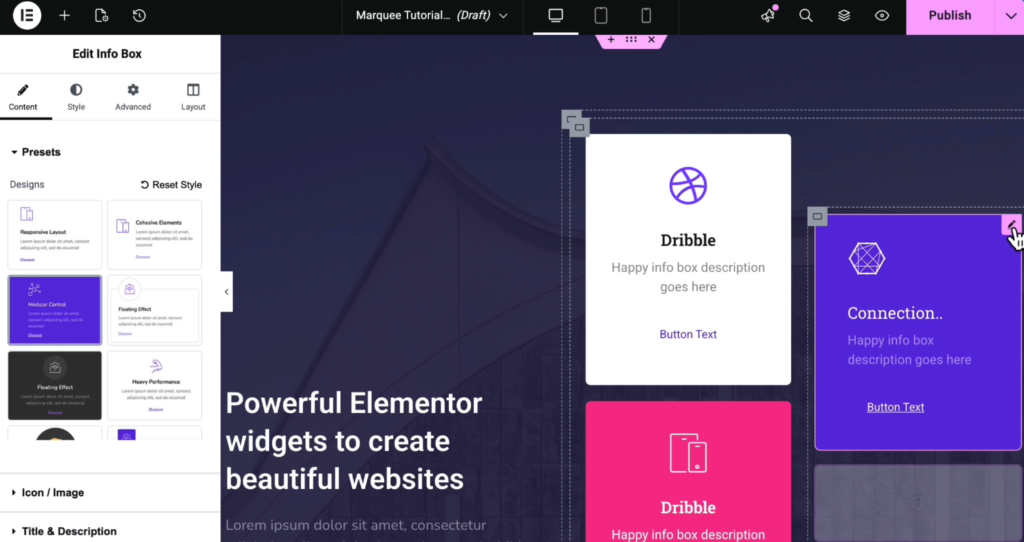
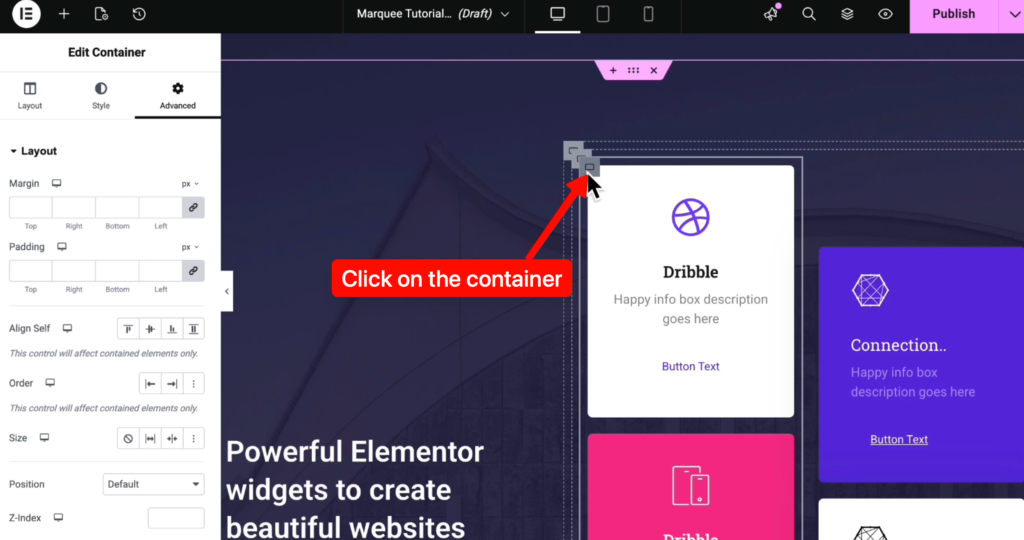
When these containers are ready, select the first container with the Info box
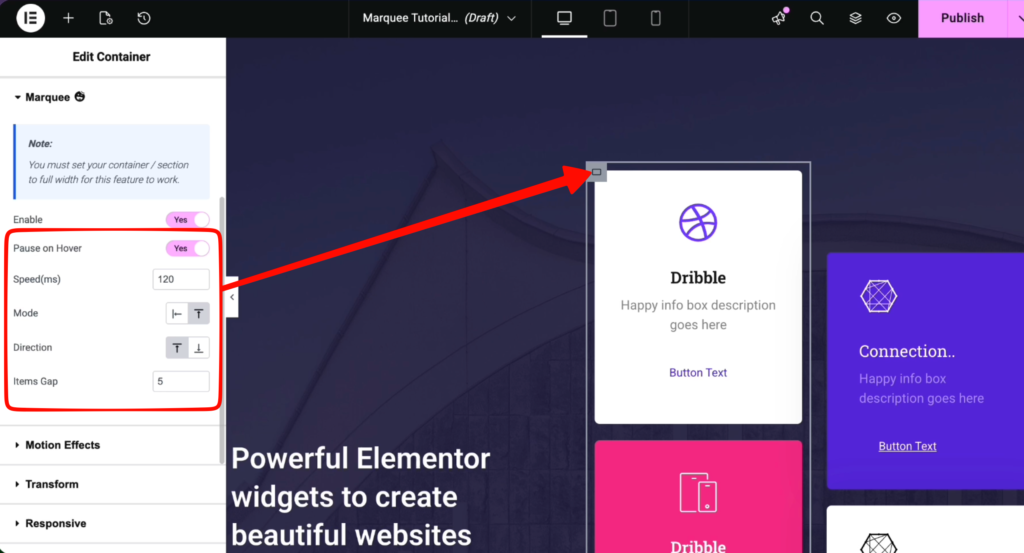
Now navigate to Advanced >> Enable Marquee.
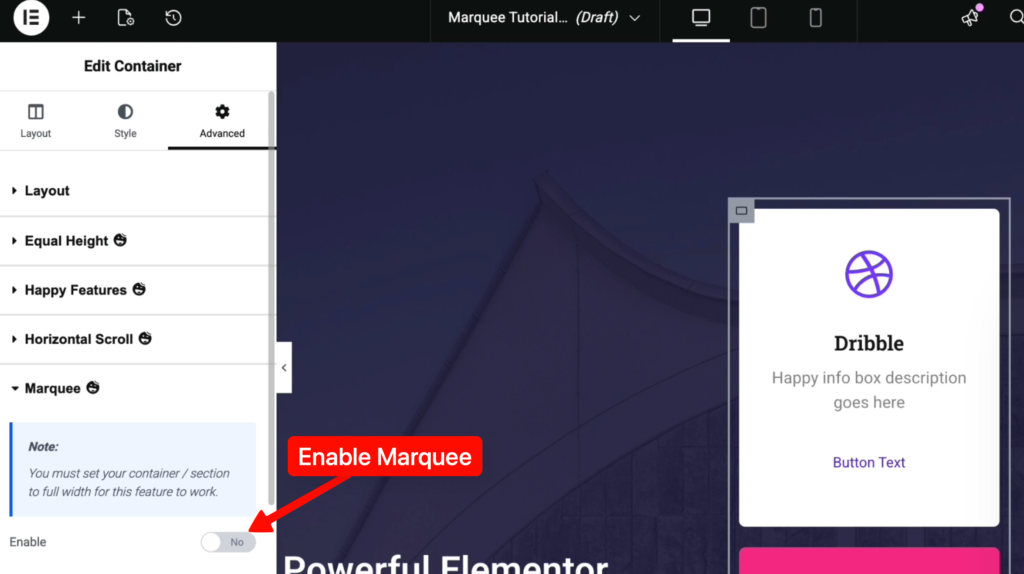
Remember, you have set your section/container to fullwidth for this feature to work.
Now, you can make the slider to pause on hover, set speed limit, set vertical/horizontal mode, set direction from top to bottom/ bottom to top, and items gap.
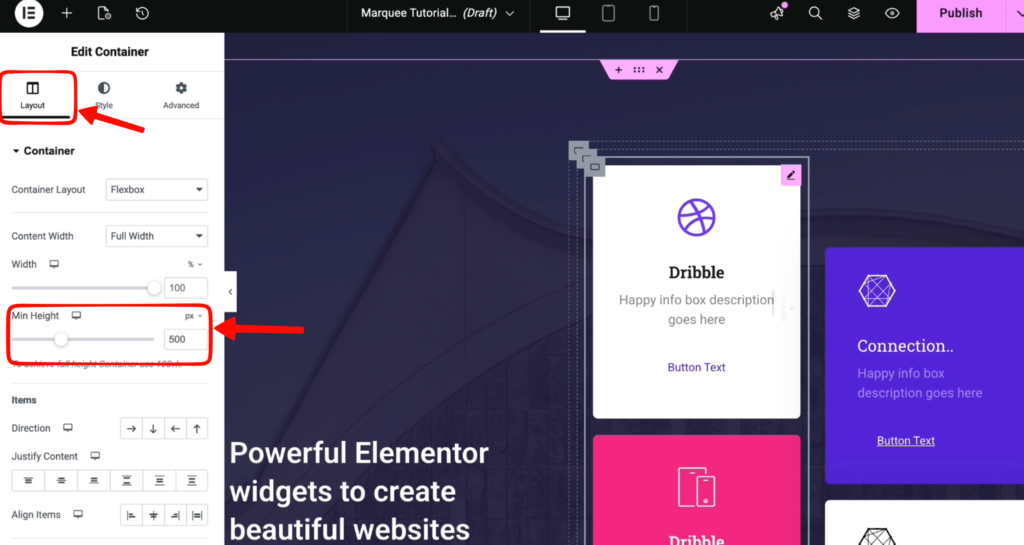
Now navigate to Layout >> set Min height. (in this case 500 px)
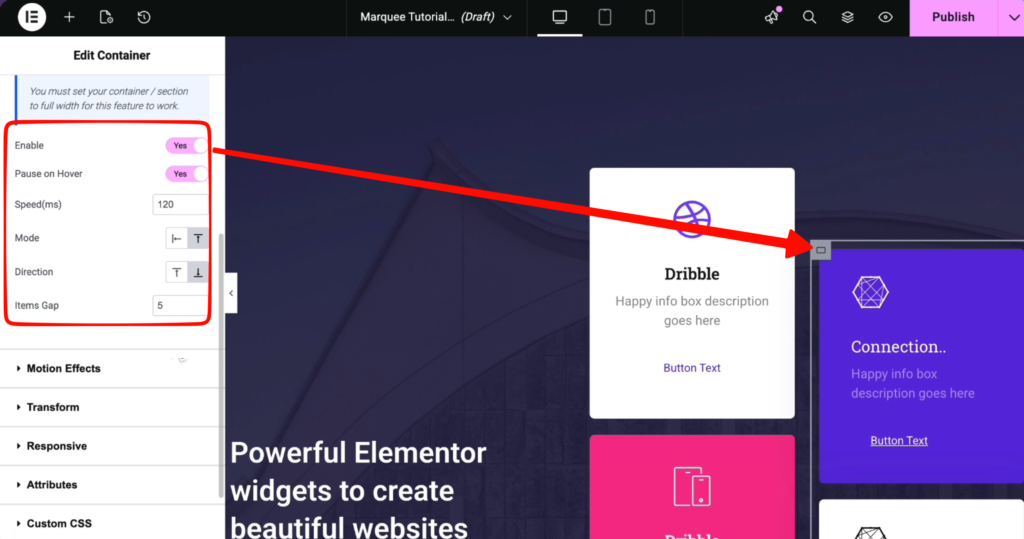
In the same way make changes for the other container and save it.
Now publish and preview the Marquee feature.
You can also make amazing visualisation with Info box, such as below, with Marquee with a little bit of tweaks.