

The Happy Addons Pro Advanced Search Widget enhances the search experience on your website by providing powerful and flexible filtering options. With this widget, users can easily refine their searches using multiple filters, date selection, and other advanced criteria. This makes finding relevant content faster, more accurate, and significantly more user-friendly.
Required plugins:
- Elementor Free
- Happy Addons Free
- Happy Addons Pro
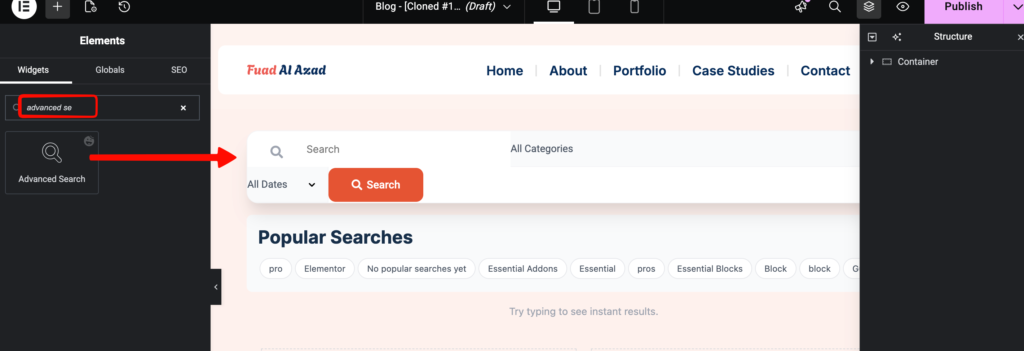
At first search for “Advanced Search” in the widget search box and drag it to your page.
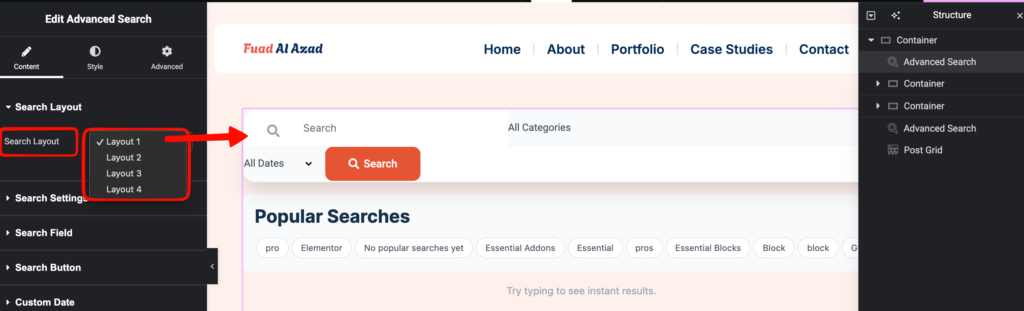
Then choose a Search layout navigating from Content >> Search Layout >> Choose from dropdown,
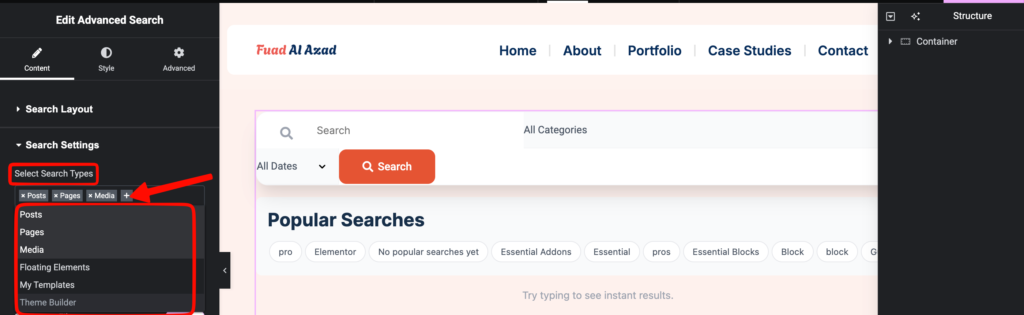
Click on Search Settings tab, here you will be able to,
1. Add search types to choose which search types to be searched through when you type.
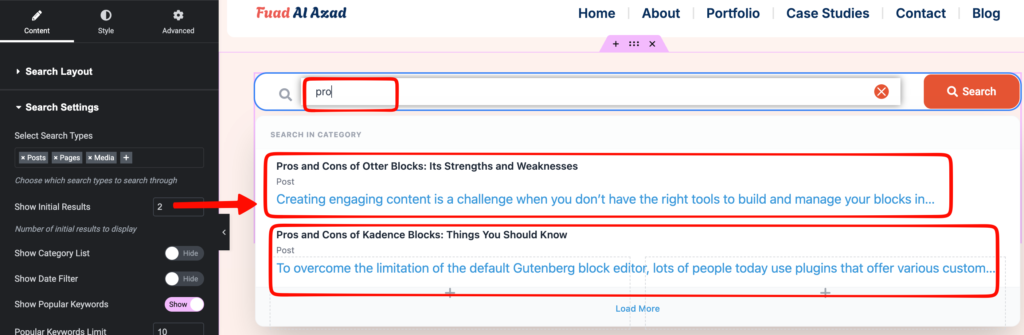
Also show the initial number of results to display when searching
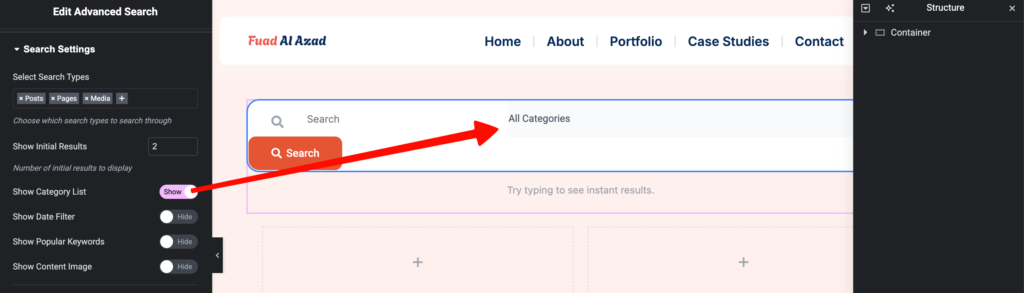
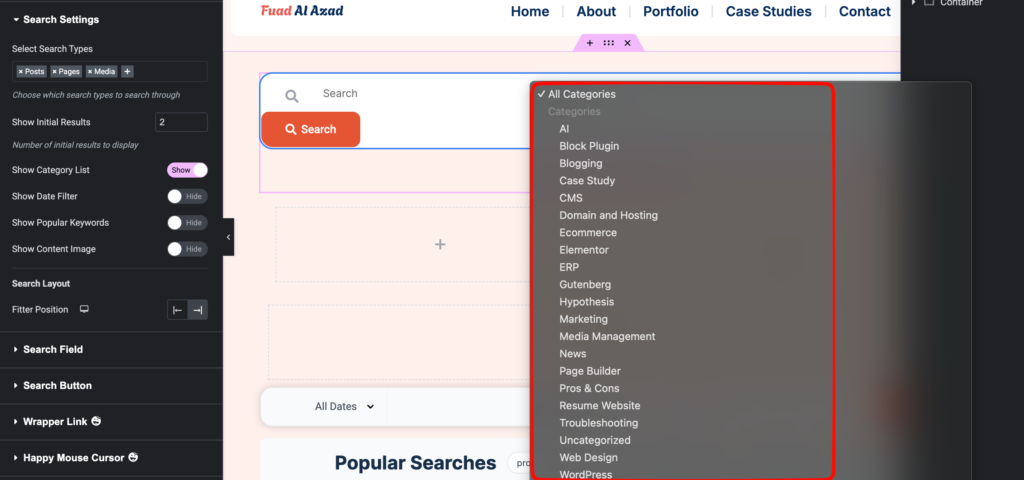
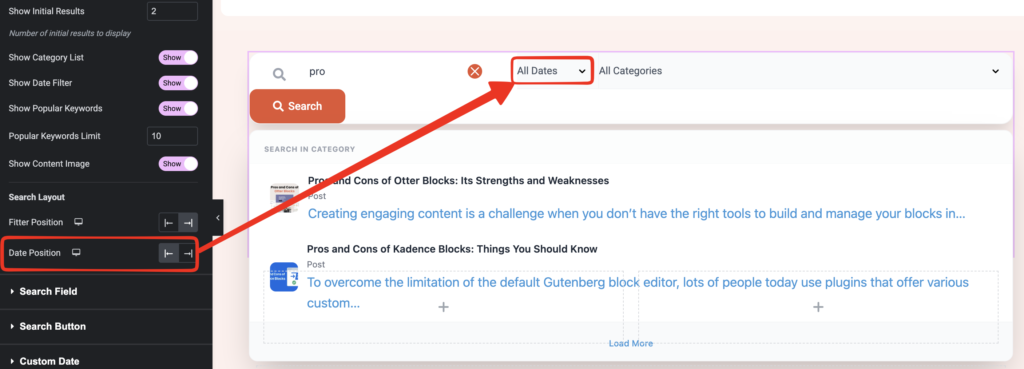
2. Enable the Category list to list all of the categories or selected categories to search from.
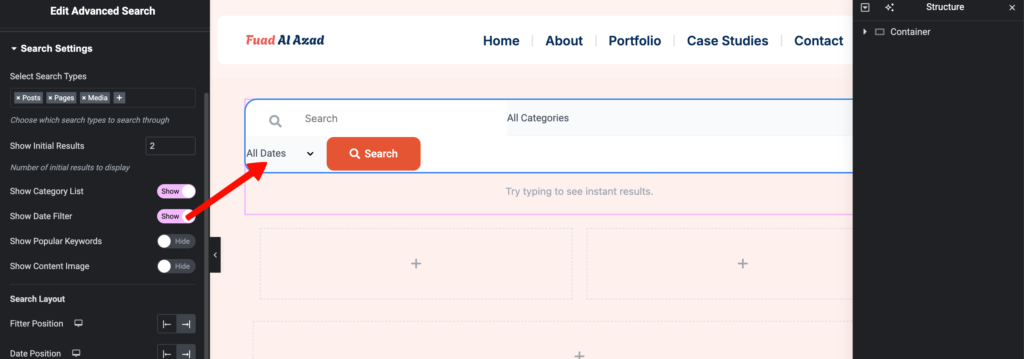
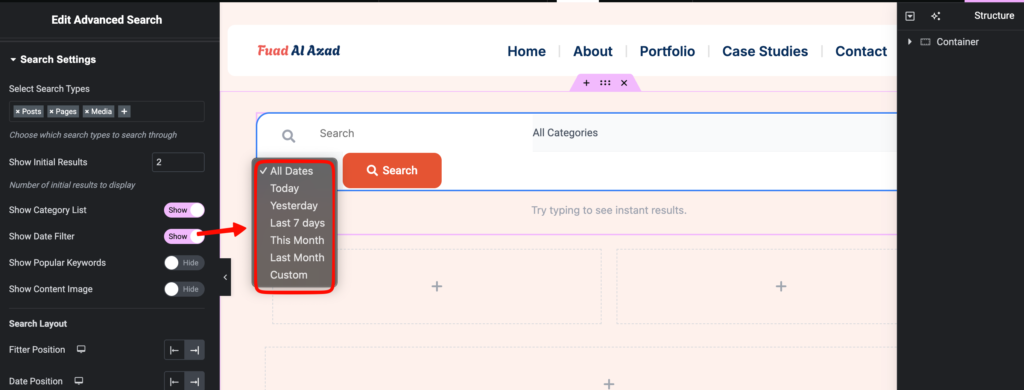
3. Show a date filter to specify the date for searching results.
4. Show popular keywords from while searching, it’s fetched from the search types you have selected before.
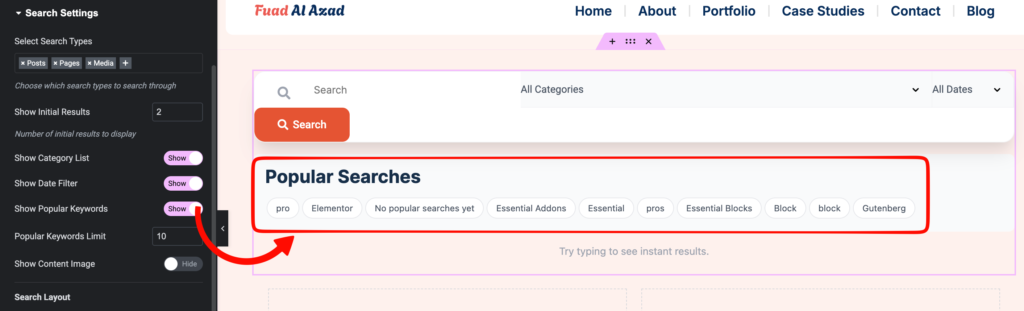
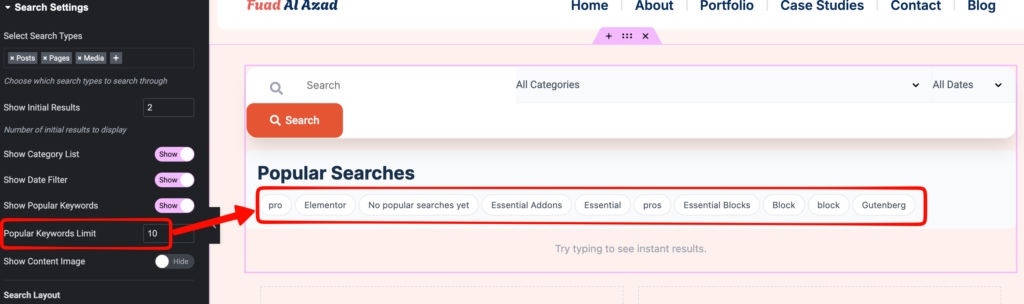
Add how many keywords should be visible as well.
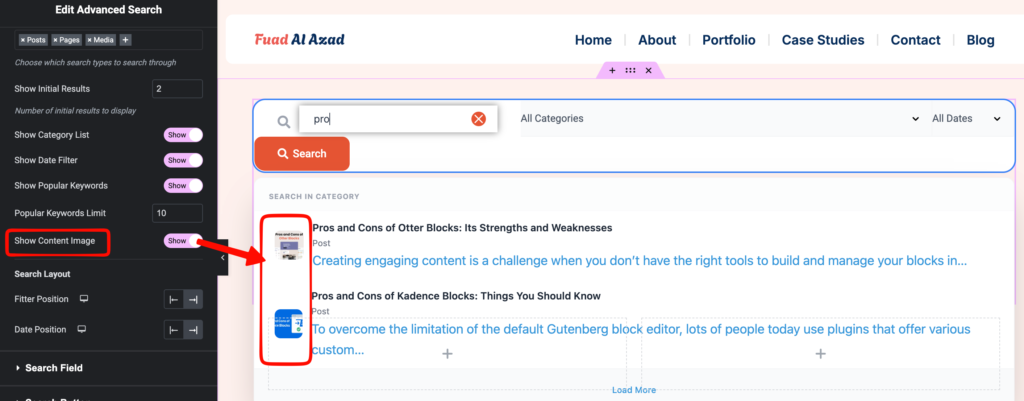
5. Show the content image in the search results
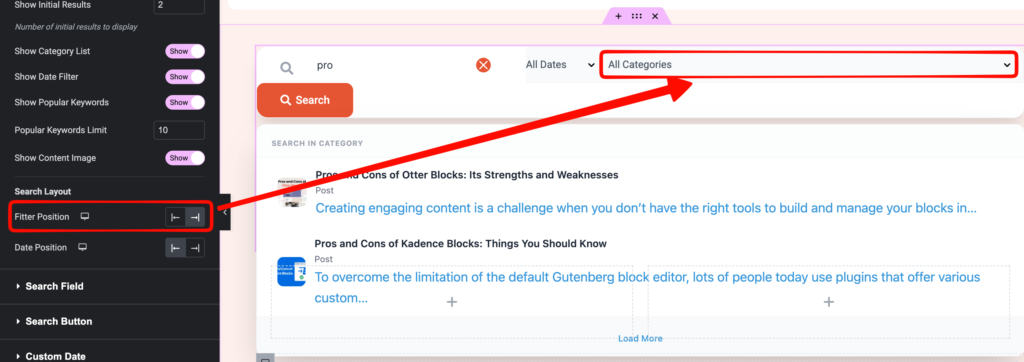
6. Choose filter position as left or right.
7. Select Date position in the search box as left or right
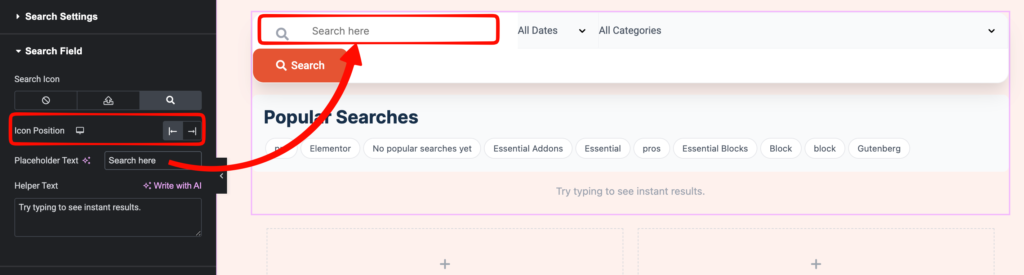
Now let’s move to the Search Field tab where you can select icons, or upload an SVG file. Choose icon position and placeholder text.
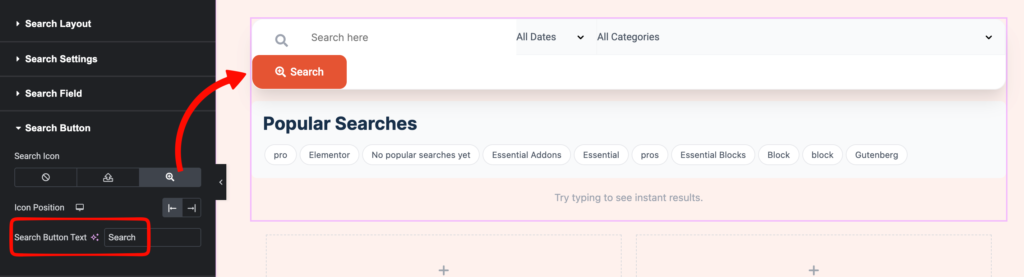
In the Search Button tab, choose icon for the search button, position icon on left/right, and give a search button text.
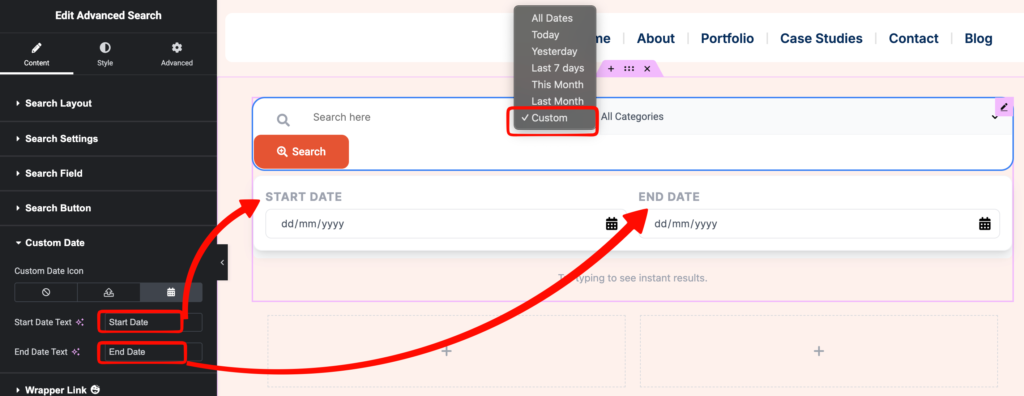
Under the Custom Date tab, select start date text and end date text for custom date settings.
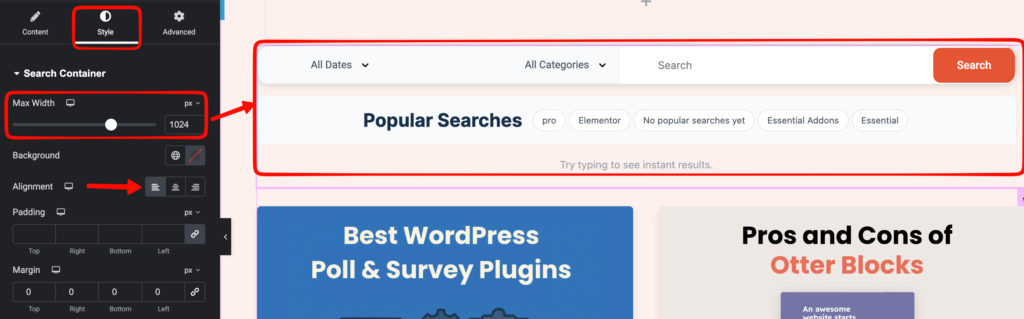
Navigate to Style tab >> Search Container >> select the Max Width and alignment. In here we choose to 1018px to fill up the full container space. You can customise them as you want.
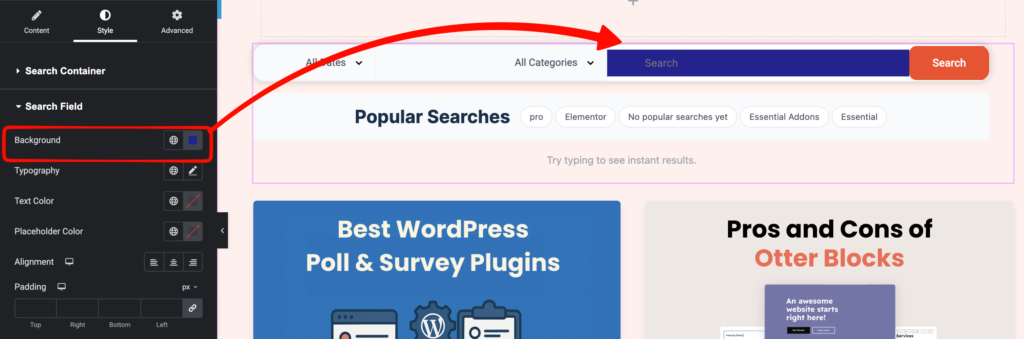
You can also style the search field background color, typography, and other styles from here.
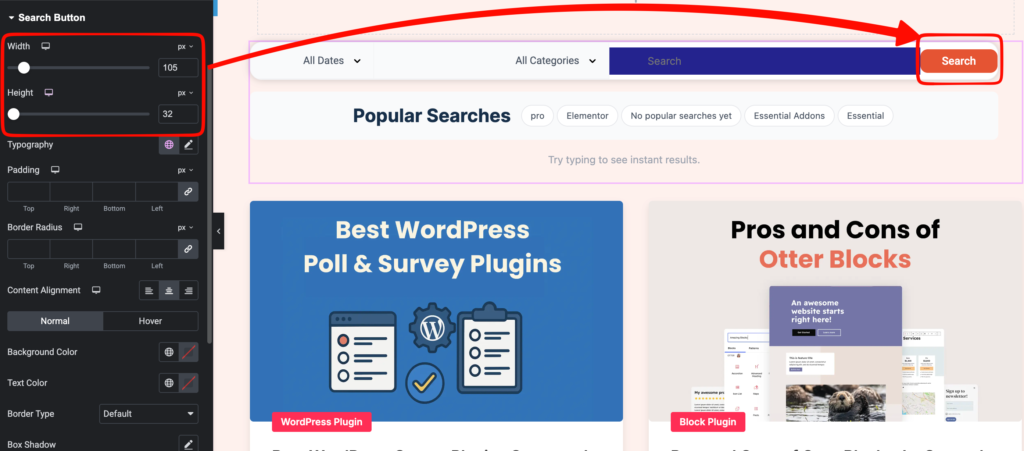
Under the Search Button tab, you can control the sizes of search button width and height. Change background color, text color, Icon size and Icon gaps as you require.
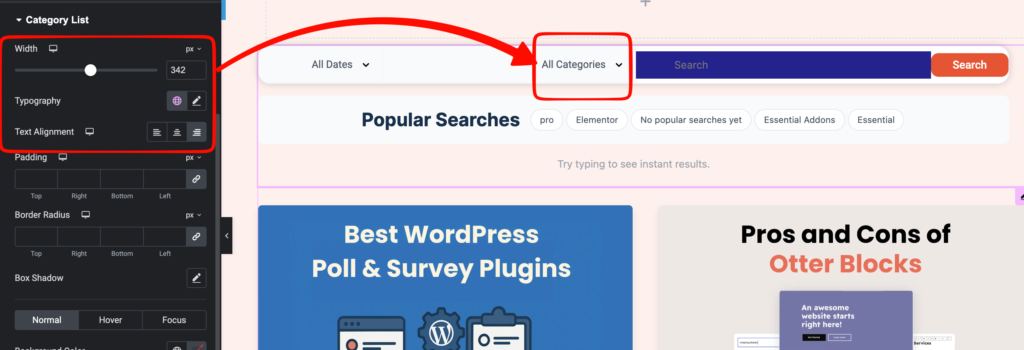
Configure the Category List tab similar to previous styles and change them as you need.
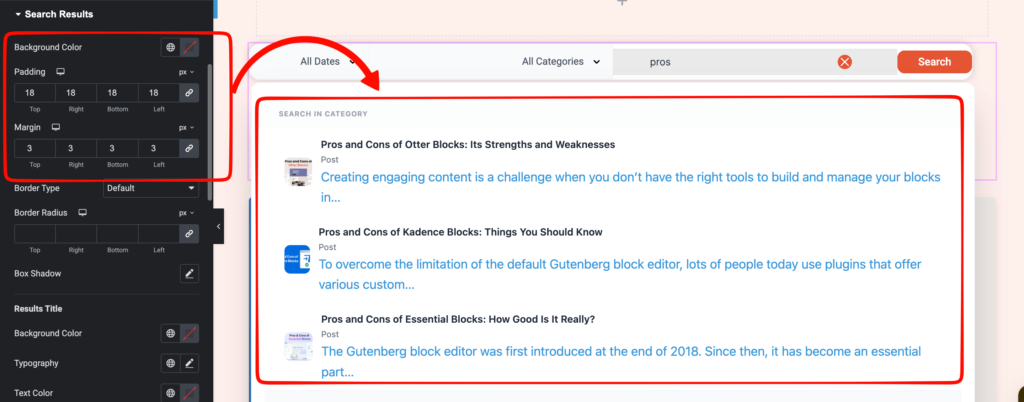
You can customise the Search results tab adjusting the padding/margin and other settings as you like
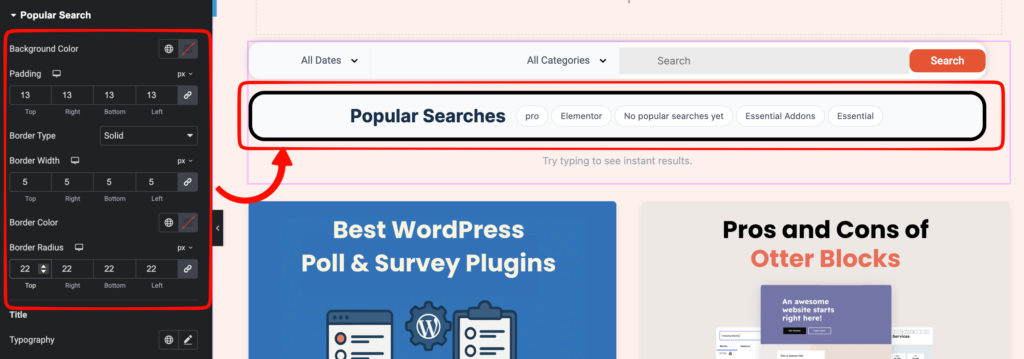
Make the necessary changes for the Popular Search to be emphasized as your liking in the frontend as well.
Now publish it and let’s see how it looks on the frontend after the changes we made.