

We’re excited to introduce the Super Button, a powerful new feature that makes customizing your CTA buttons easier than ever.
To get started, please ensure that the following plugins are installed:
- Elementor Free
- HappyAddons Free
- HappyAddons Pro
Once everything is set up, simply search for Super Button in Elementor and drag it into your layout to begin customizing.
Go to the Content tab, then pick any Button style you like from the dropdown.
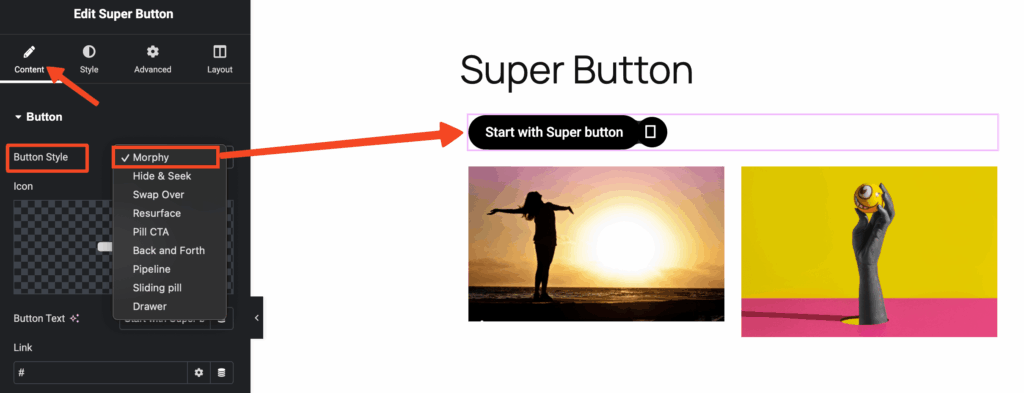
1. Button Style: Morphy
2. Button Style: Hide & Seek
3. Button Style: Back and Forth
4. Button Style: Pill CTA
5. Button Style: Pipeline
6. Button Style: Resurface
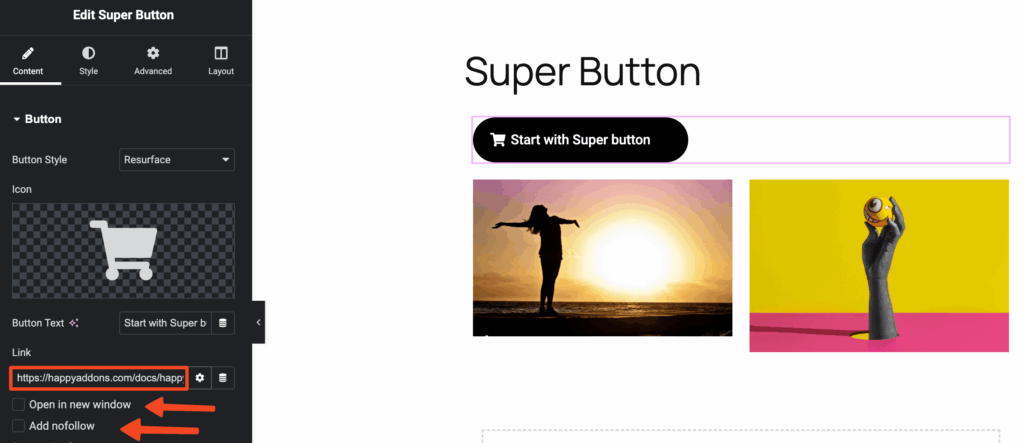
You can select an icon for the Super Button from the available icon library.
Enter the link where you want users to be redirected when they click the Super Button
Style:
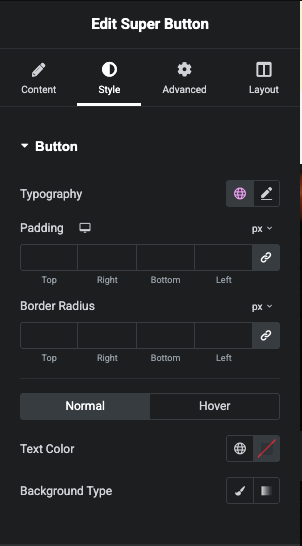
Button Style: The Style section lets you customize the Super Button’s appearance, including typography, padding (with individual or linked values), and border radius for each corner. You can set Normal and Hover states separately, adjusting the text color and background type (classic or gradient) for both states.
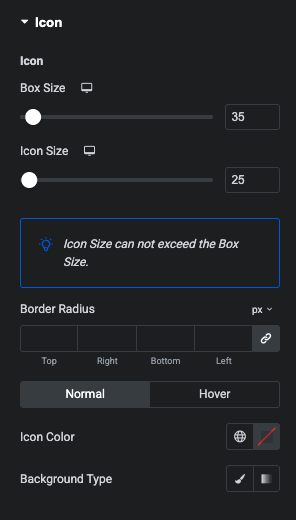
Icon Style: The Icon Style section lets you control the button’s icon appearance, including the icon box size, icon size (which cannot exceed the box size), and border radius with individual or linked values. You can also set separate Normal and Hover states, customizing the icon color and background type for each state.
That’s it. Chill.